The Platform handles several conversation scenarios automatically — without requiring custom code. These include responses to unrecognized intents, standard NLP replies, and event-driven behaviors. All defaults can be customized to match your business requirements.

Default Conversation Types

TypeDescriptionLearn More
Intent not IdentifiedTriggered when the AI Agent cannot find or understand the user’s intent.Event Handling
Standard ResponsesPre-defined NLP interpreter responses to common inputs, events, and system states (for example, greetings, task errors, cancellations).Standard Responses
Event HandlersConfigurable behaviors for common AI Agent events (task completion, failures, channel actions, etc.).Event Handling

Standard Responses

The Platform displays pre-defined text responses to users based on events, conditions, triggers, or user input. For example, when a user says Hi!, the AI Agent randomly selects from responses like Hi!, Hello, Hi there!, or Hey. You can modify these defaults and add channel-specific overrides. For example, in an SMS channel, you may want shorter responses to reduce data usage.

Access Standard Responses

Go to Conversation Intelligence > Conversation Management > Standard Responses. Standard responses are organized into the following categories:
CategoryDescription
StatementsResponses triggered by actions from the AI Agent or user — for example, task cancellation or an invalid user response.
QueriesQuestions the AI Agent asks for more information — for example, Which field do you want to change?
Errors & WarningsMessages displayed when errors occur — for example, End date cannot be before the start date.
QuestionsGeneral questions the AI Agent poses that don’t fit other categories.
ChoicesYes/No prompts — for example, Would you like to receive push notifications?
GreetingInitial responses when the app is installed or when a user returns after inactivity.

Add or Edit a Response

  1. Select a category tab (for example, Greeting) and hover over the target situation.
  2. Click Add Response.
  3. In the Add Channel Overrides dialog:
    • Select a channel from the dropdown (or Any Channel to apply to all).
    • For channel-specific responses, select a task and optionally a field.
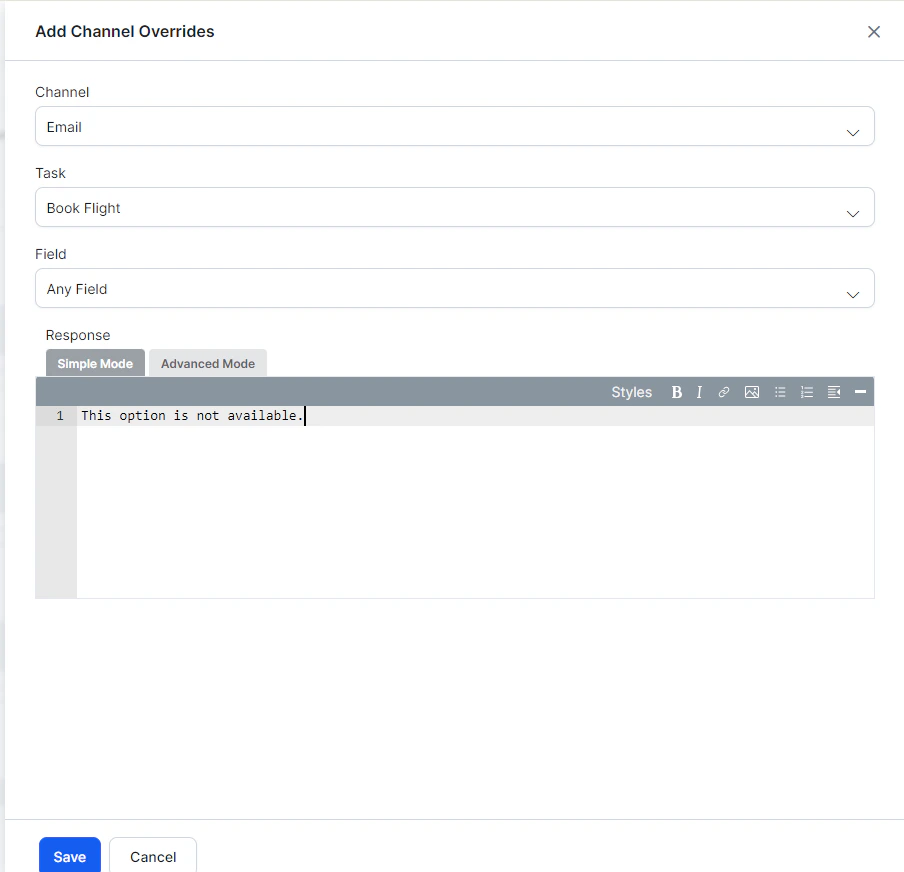
    add channel override
  4. In the Response editor:
    • Simple Mode — Enter plain text with optional formatting (bold, italics, links, lists).
    • Advanced Mode — Enter JavaScript for channel-specific message formats. Use response.message to return the default message string and response.choices to return the options array.
  5. Click Done to save.