

Account Credits and Limits
New accounts receive the following free credits by default:- 75 model credits — used for model inference and setting guardrails.
- 10,000 workflow runs — consumed when inferring workflows.
Accessing the Usage Page
- Log in to AI for Process and click Settings.
- On the left navigation pane, click Billing > Usage.
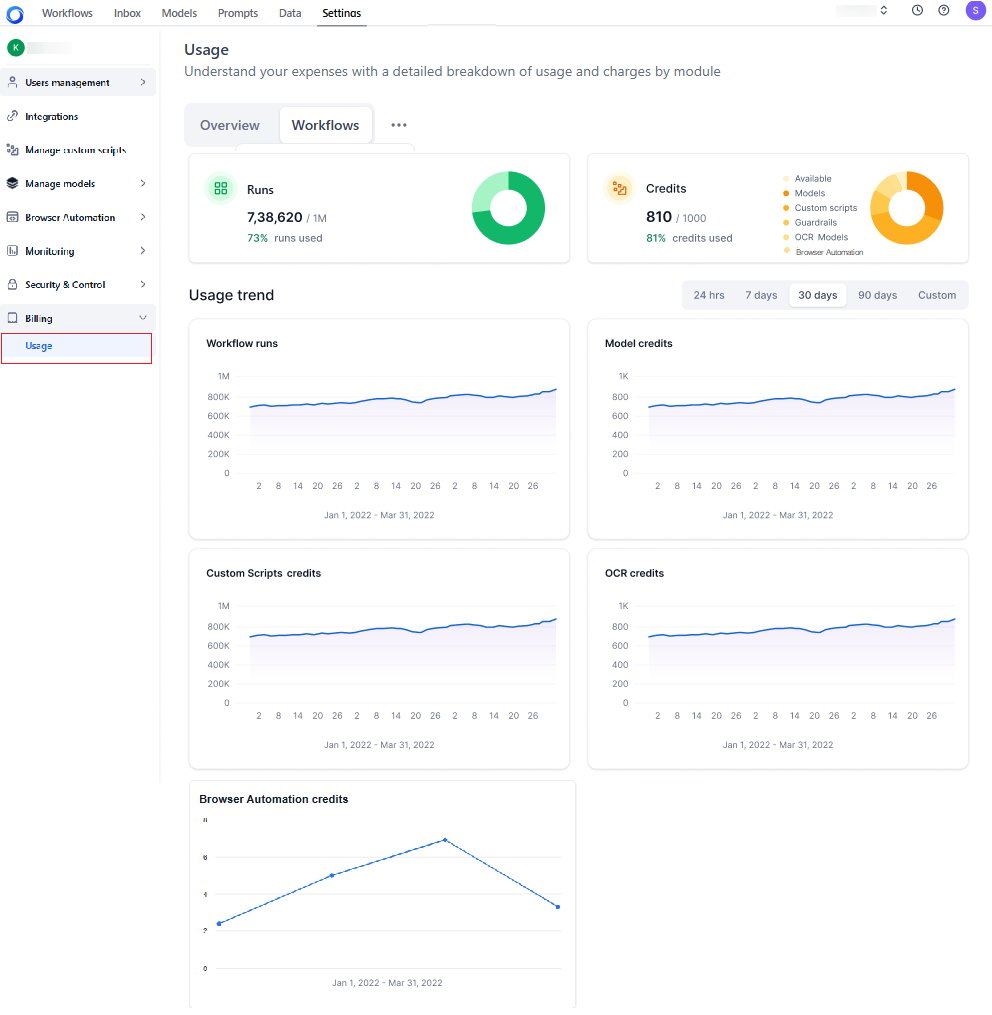
Use the Calendar bar on all tabs to filter usage by 24 hours, 7 days, 30 days, 90 days, or a custom date range.
Quick Usage Check
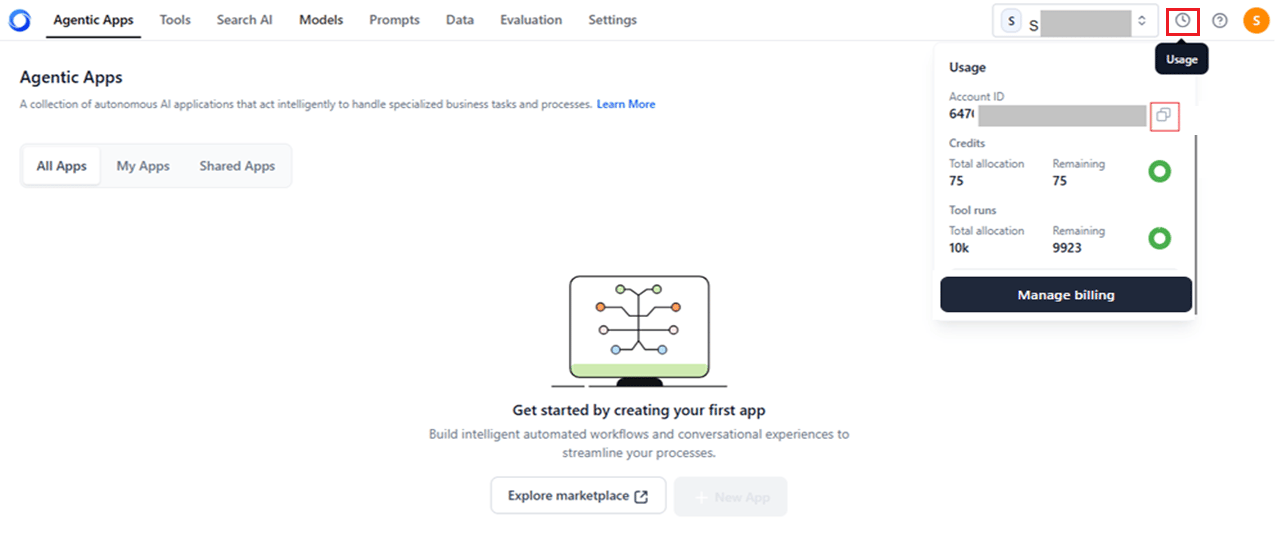
A Clock icon on the top right of the page shows a real-time usage summary. Click it to view:- Your unique Account ID. Click the Copy icon to share with support for account debugging.
- Credits — total allocation and remaining credits for models, guardrails, and custom scripts.
- Workflow Runs — total allocation and remaining runs for workflow automation.
Alerts and Notifications
AI for Process sends alerts when credits are running low so you can take action before service is disrupted.Banner Alerts
Banners appear at the top of the page in the following cases:- Low credits or runs — A removable banner appears at 20%, 50%, 70%, 80%, and 90% credit exhaustion, encouraging you to top up or upgrade.
- Credits or runs expired — A fixed banner appears prompting you to upgrade or top up your plan.
- Free credits expired — A fixed banner appears prompting you to upgrade your plan.
Email Notifications
The system sends automated email notifications at 50%, 70%, 80%, and 90% credit exhaustion. Each email includes instructions on next steps, such as contacting support to add credits. Example: “This is to inform you that your model credits are getting low. You cannot start a new model fine-tuning job unless you have more than 25 model credits. To ensure uninterrupted service, kindly top up your plan with more model credits or contact AI for Process Support.”Usage Overview
The Overview tab summarizes expenses and consumption patterns across all resources:- Runs — Workflow run usage against total allocation. For example, 45 out of 10,000 runs = 0.45% consumed.
- Credits — Credits used across models, guardrails, OCR, and custom scripts against total available credits. For example, 212 out of 300 credits = 70.72% consumed.
- Usage trend — Visual chart showing consumption over time. Use the calendar to view changes over a defined period.
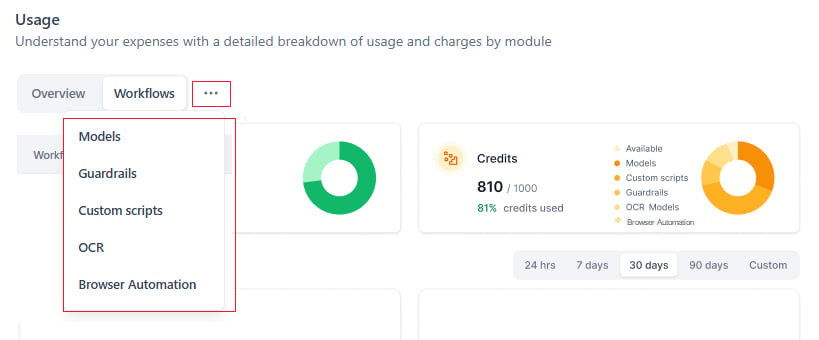
Workflows Usage
The Workflows tab lists all workflows deployed at least once. In-development workflows are excluded.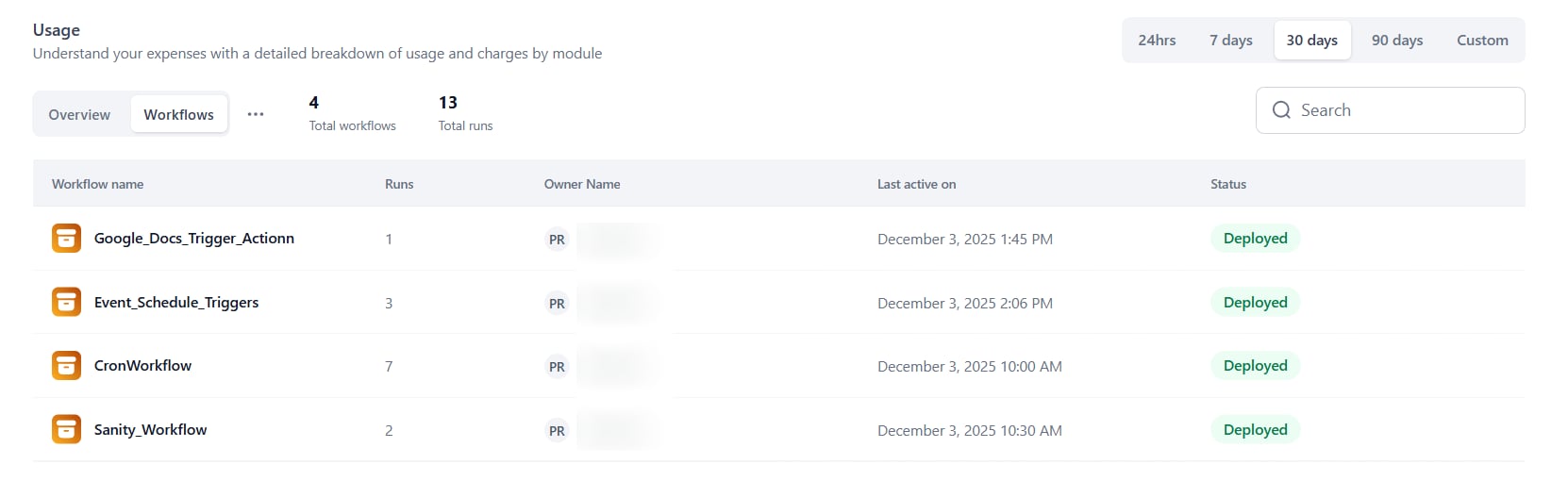
Models Usage
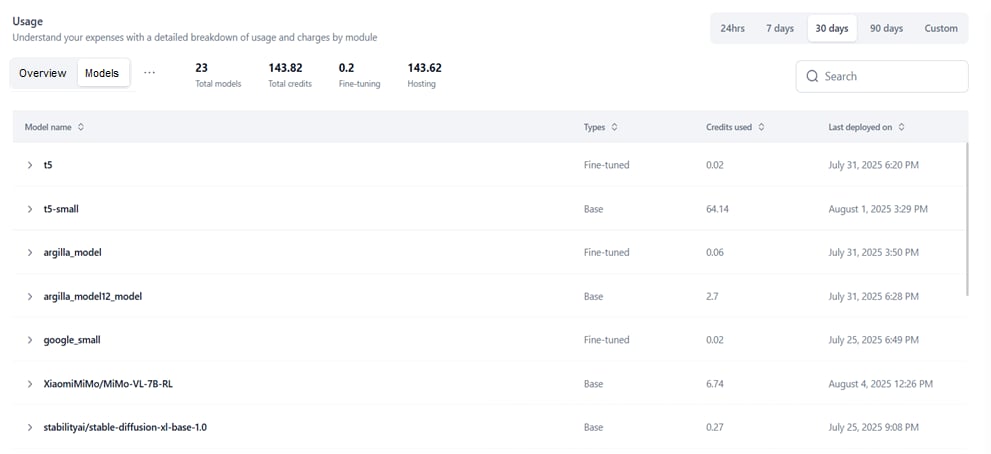
The Models tab lists open-source and fine-tuned models with their computational costs for storing, fine-tuning, and hosting.
Each model record shows: Model name, Type (Fine-tuned or Base), Credits used, and Last deployed on.
Deployment-level Information
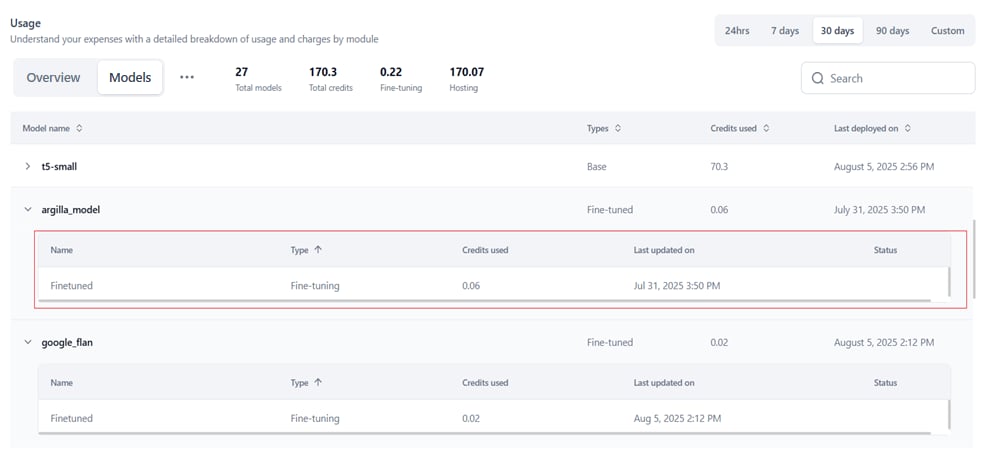
Click a model record to view all its deployments. The following information is displayed:- Name — Name given to the deployment.
- Type — Type of deployment.
- Credits used — Credits consumed by the deployment.
- Last updated on — Date of the last deployment.
- Status — Deployed, Undeployed, or Deleted.
Guardrails Usage
The Guardrails tab lists all guardrails and their hardware-based charges. Guardrail usage is deducted from Model credits shown in the Overview tab.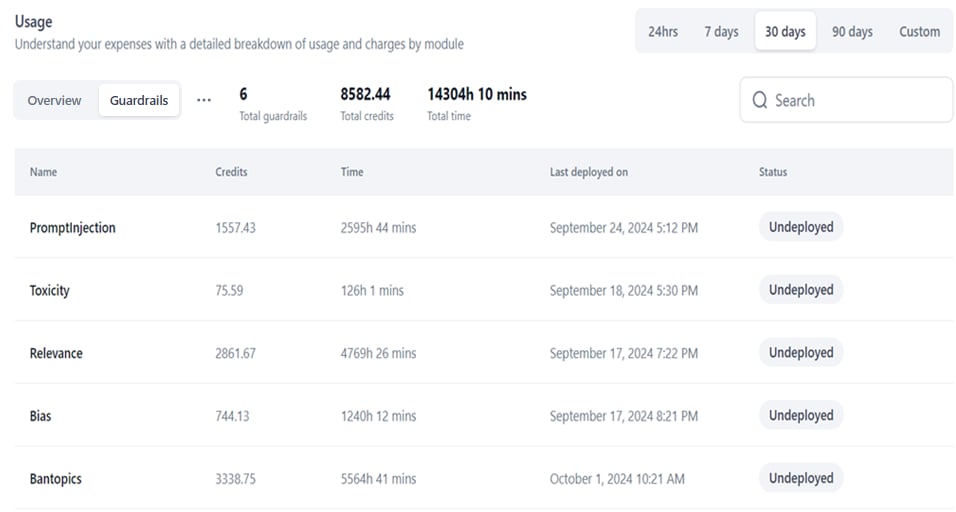
- New guardrail deployments are disabled when credits fall below the lowest threshold.
- An active deployment continues and proceeds into negative credits if the low credit limit is reached mid-deployment.
- Once the negative credit limit is crossed, the deployment stops with the message: “You’ve used all your available credits. Please add more credits to your account to continue.”
- Negative credits are adjusted in the next billing cycle.
- When no credits exist, further deployments are disabled and all active deployments stop when the negative credit limit is reached.
Detailed Guardrail View
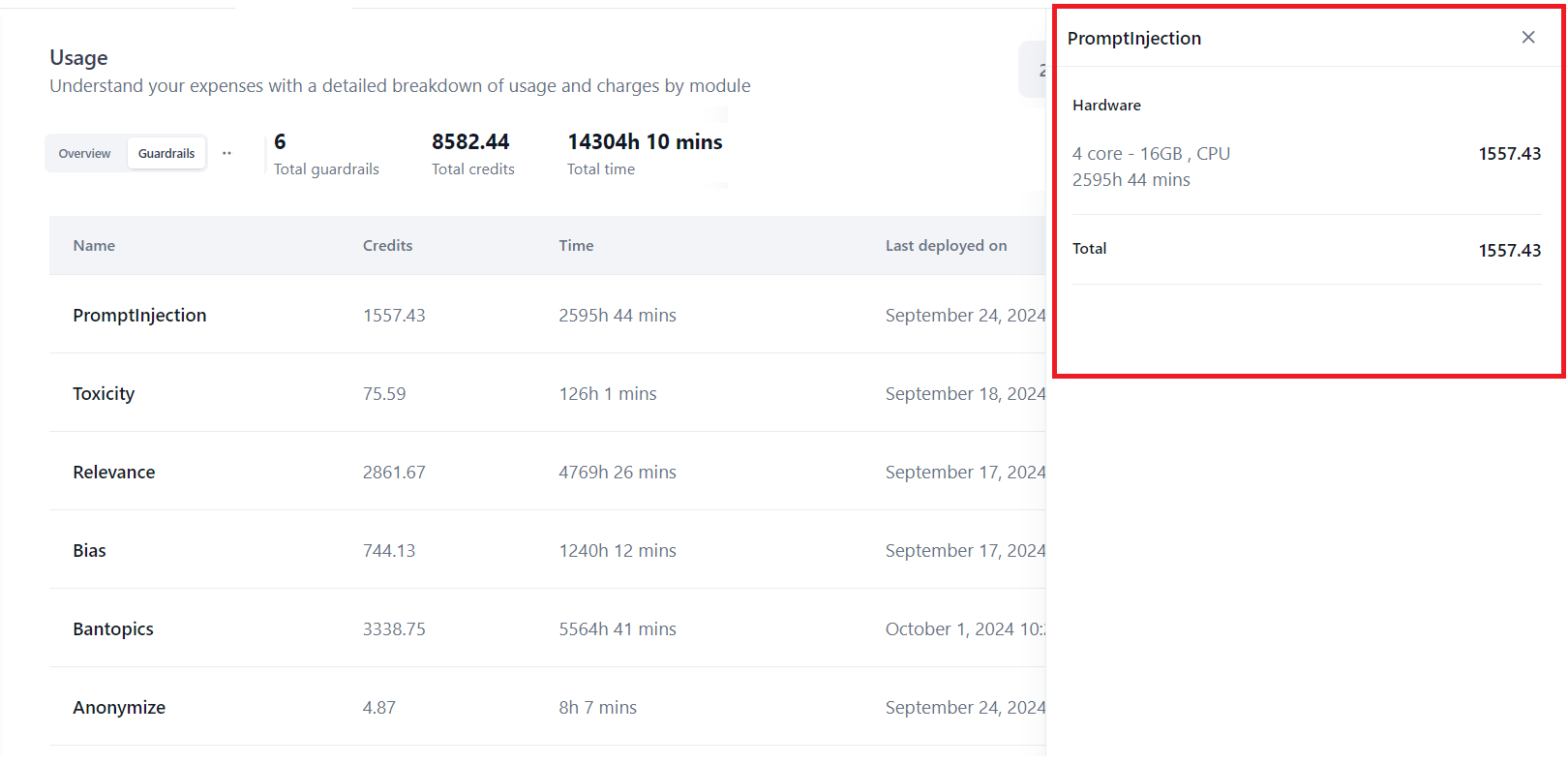
Click a row to open a right-side panel showing:- The guardrail name.
- Hardware — CPU type, number of CPUs, usage duration, and credits used.
- Total — Total credits used for the hardware.
Email Notifications
Billing emails for guardrails cover credit usage, negative threshold breaches, and potential deployment interruptions.Custom Scripts Usage
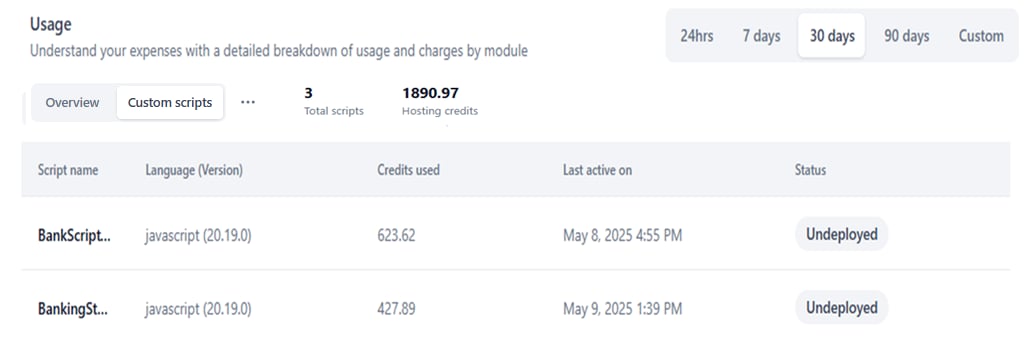
The Custom Scripts tab lists deployed custom scripts with their credit consumption. Total Scripts and Hosting Credits are shown as key metrics.
Credits are deducted based on the hardware profile and resource allocation table.
Credit behavior when credits are low:
- New deployments are disabled when credits are insufficient.
- An active deployment continues and proceeds into negative credits if the low credit limit is reached mid-deployment.
- Once the negative credit limit is crossed, the deployment stops with the message: “You’ve used all your available credits. Please add more credits to your account to continue.”
- Negative credits are adjusted in the next billing cycle.
- When no credits exist: projects can only be imported as drafts, deployments are disabled, and active deployments stop when the negative credit limit is crossed.
Detailed Script View
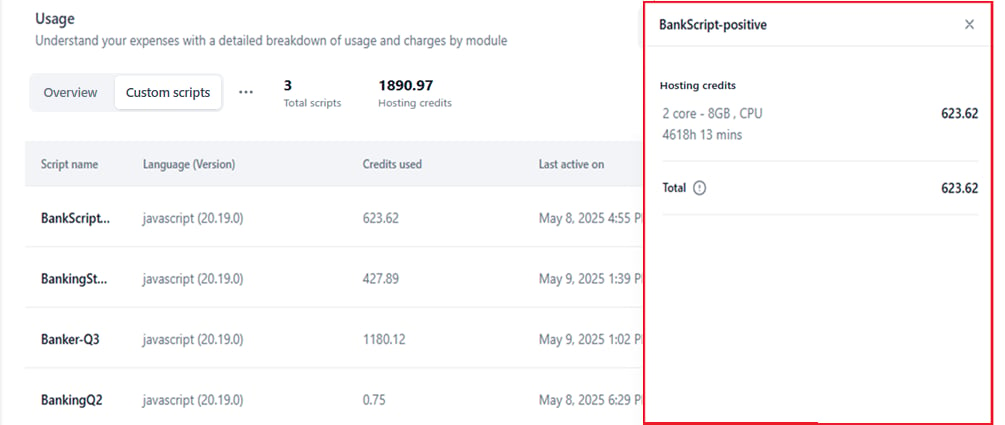
Click a row to open a right-side panel showing:- Hosting infrastructure — Hardware configurations (vCPUs and memory).
- Hosting time in hours and minutes.
- Credits consumed by components. See pricing.
- Total — Aggregate of all credit components.
Email Notifications
Billing emails for custom scripts cover credit usage, negative credit threshold breaches, and deployment or undeployment events. Deployment notifications also include API endpoint access details.OCR Usage
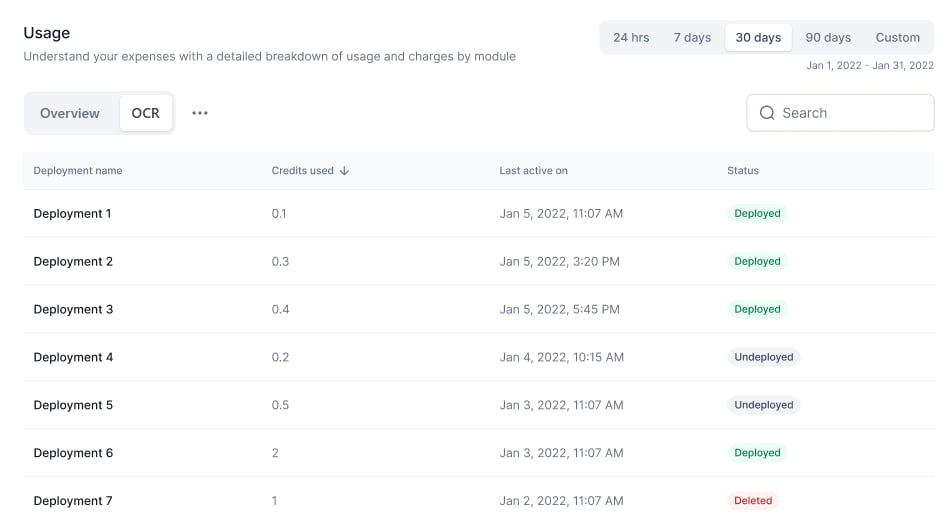
The OCR tab provides a unified view of all OCR-related credit usage. Use it to:- Review OCR model deployments.
- See credits consumed per deployment.
- Check deployment status and usage history.
Detailed OCR View
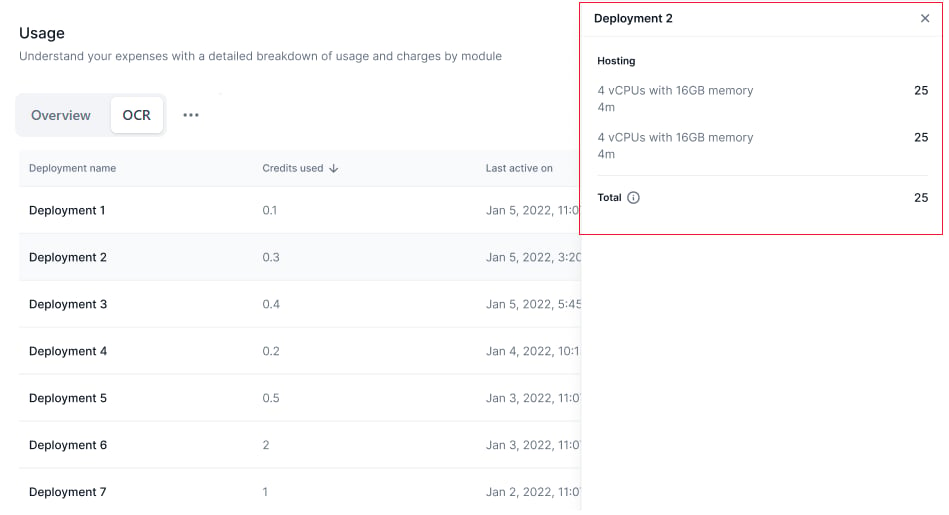
Click a row to open a right-side panel showing:- Hosting infrastructure — Compute resources allocated to the deployment.
- Hosting time — Total active time in hours and minutes.
- Credits consumed — OCR credits used by the deployment.
- Total — Aggregated credit usage across all contributing components.
Browser Automation Usage
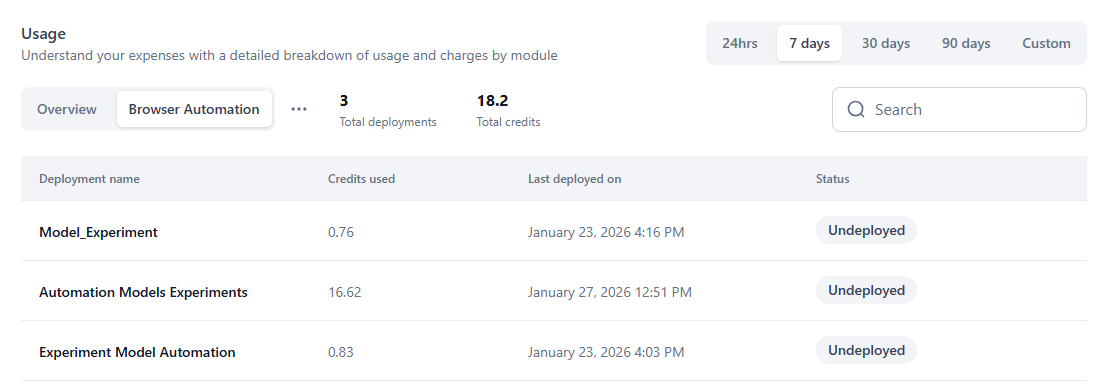
The Browser Automation tab provides a unified view of browser automation credit usage. Use it to:- Review pod deployments for browser automation scripts.
- See deployment-level credit consumption.
- Check deployment status and usage history.
Detailed Browser Automation View
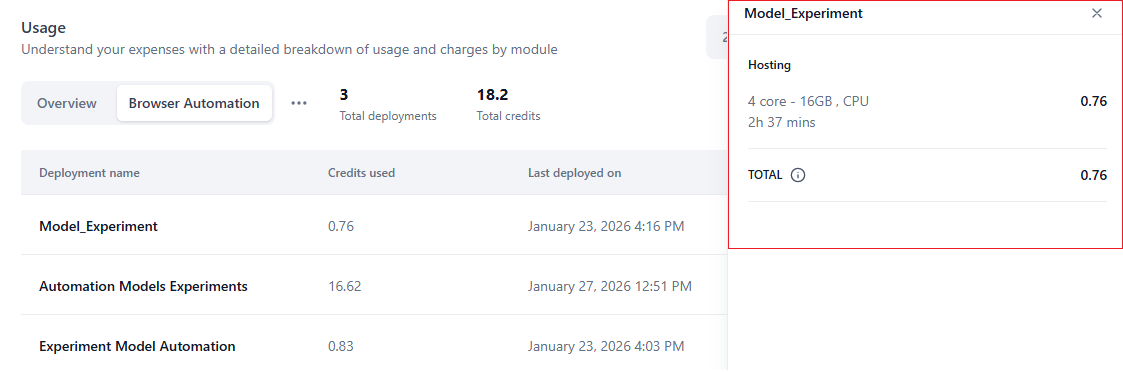
Click a row to open a right-side panel showing:- Hosting infrastructure — Compute resources or allocated hardware used by the deployment.
- Hosting time — Total active time in hours and minutes.
- Credits consumed — Browser automation credits used by the deployment.
- Total — Aggregated credit usage across all contributing components.
Best Practices
- Regularly monitor usage trends to optimize resource allocation.
- Review workflows, models, guardrails, OCR, and custom scripts to identify cost-saving opportunities.
- Check the hardware profile and credits consumption chart before deploying custom scripts.
- Track guardrail deployment duration to manage hardware costs effectively.