

Single Sign-On (SSO)
AI for Process provides users with a default sign-in flow as the standard authentication method. For enhanced security and convenience, administrators can enable Single Sign-On (SSO) from the Settings console. When SSO is enabled, users access their accounts using credentials managed by an external Identity Provider (IDP), providing a unified authentication framework. SSO provides the following key benefits:- Secure Access: Reduces password fatigue and the risk of phishing or weak passwords by focusing on one strong password.
- Simplified User Management: Administrators can manage access centrally, making it easier to grant or revoke access across accounts.
- Improved User Experience: Reduces the need for multiple logins.
- Centralized Access Control: Admins can monitor and enforce security policies across all applications more efficiently.
Only account owners and admins can enable or disable SSO from the Settings console.
How SSO Works
- User Initiates Login: A user attempts to access their AI for Process account.
- Redirect to IDP: The Service Provider (SP) redirects the user to an IDP login page for authentication.
- User Authenticates: The user provides their credentials to the IDP.
- Authentication Tokens: If successful, the IDP issues an authentication token.
- Token Exchange: The SP uses this token to grant the user access to the application.
- Access Granted: Once authenticated, the user can access the allowed AI for Process account(s) without logging in again during the same session.
Enable SSO
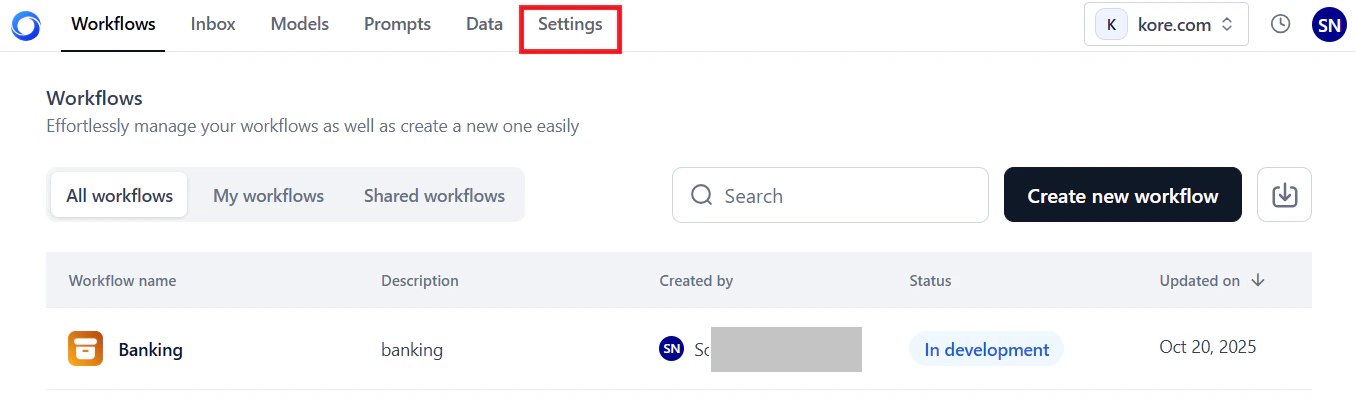
To access the Single Sign-On page:- Log in → In AI for Process Modules top menu → Click Settings.
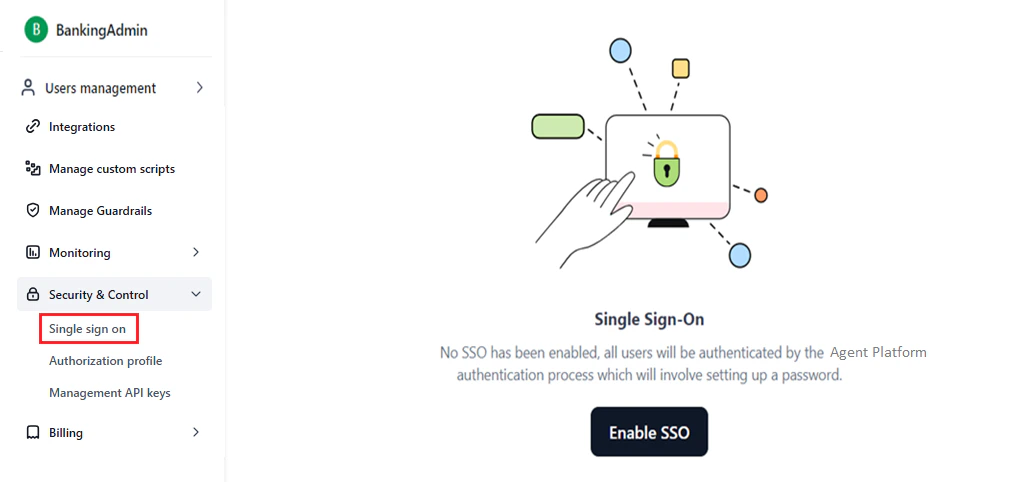
- Go to Security & Control > Single Sign On on the left menu.
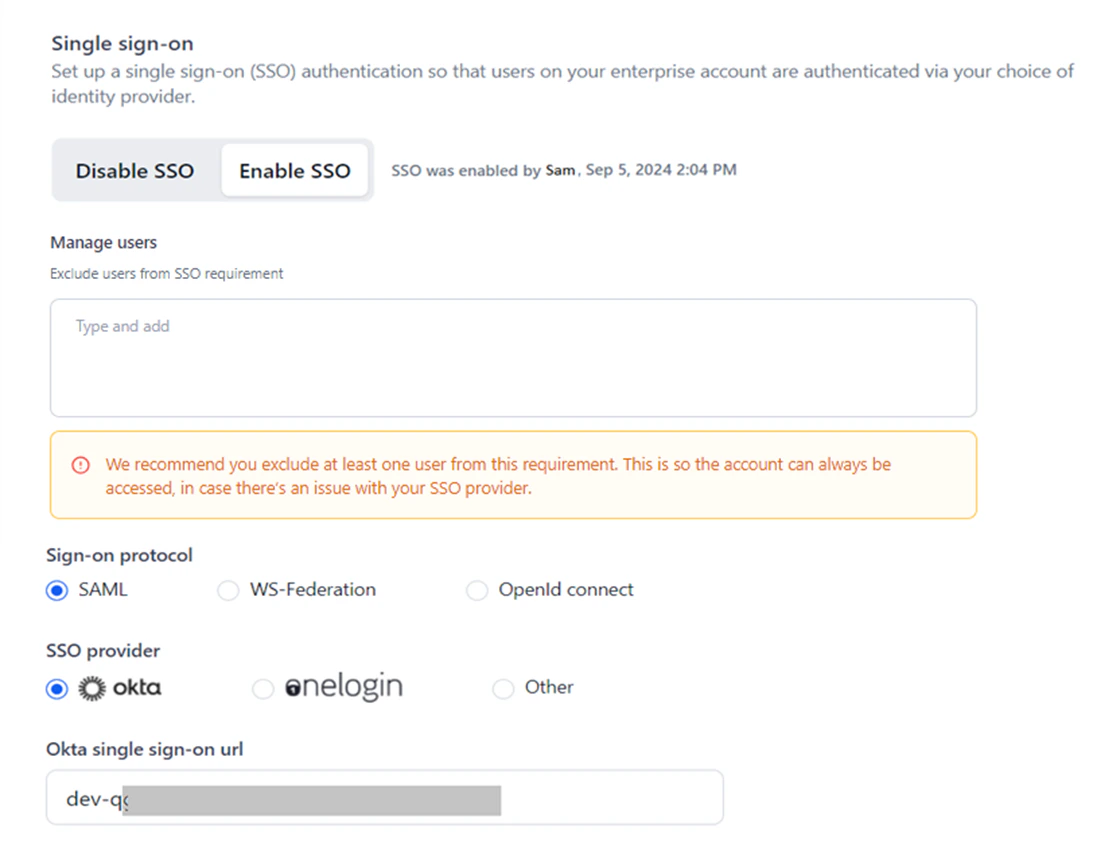
Configuration Parameters
Configure the following parameters based on your protocol and IDP:Steps to Enable SSO
To enable SSO on the Settings console:- Access the Single sign on page.
-
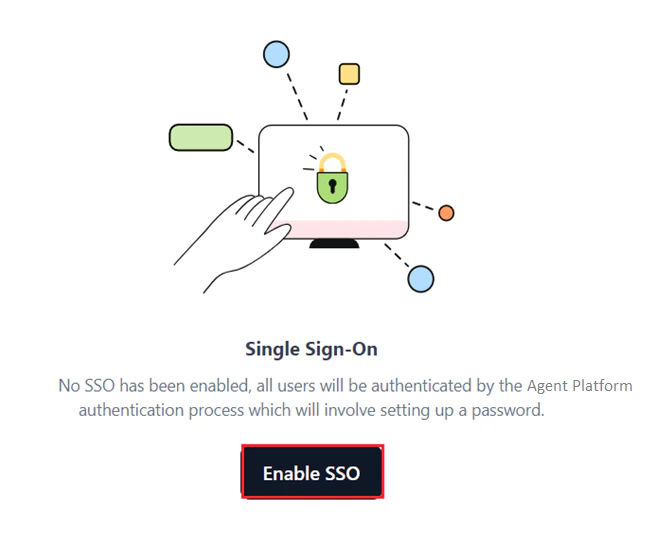
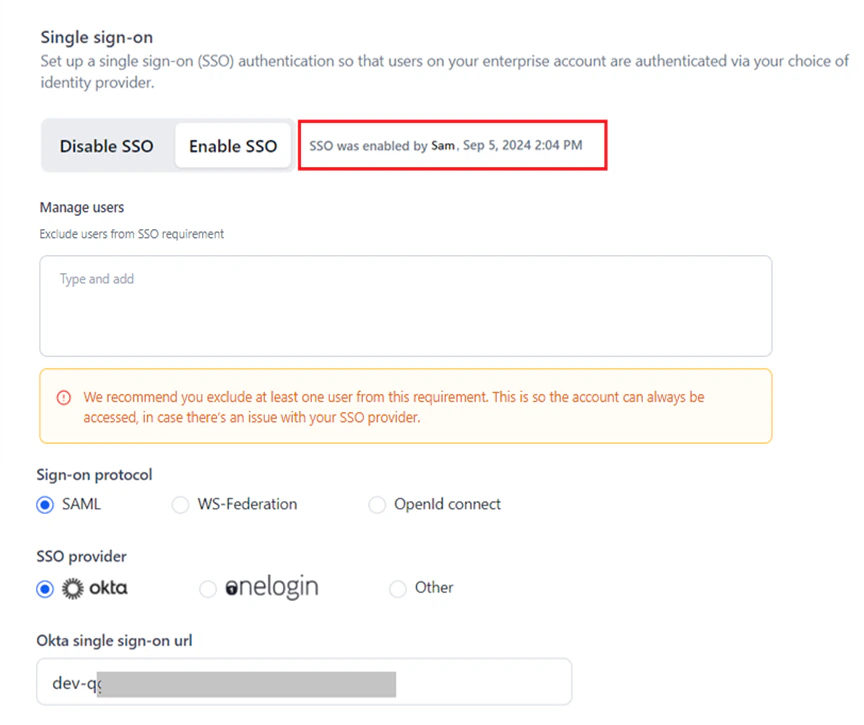
If no SSO is enabled, click Enable SSO.
-
If SSO is already enabled for a provider, click the Enable SSO tab and do one of the following:
- Change and save the existing parameters for the enabled SSO provider.
- Disable the enabled SSO and set up a new configuration.
- Select a different protocol/provider and complete the configuration.
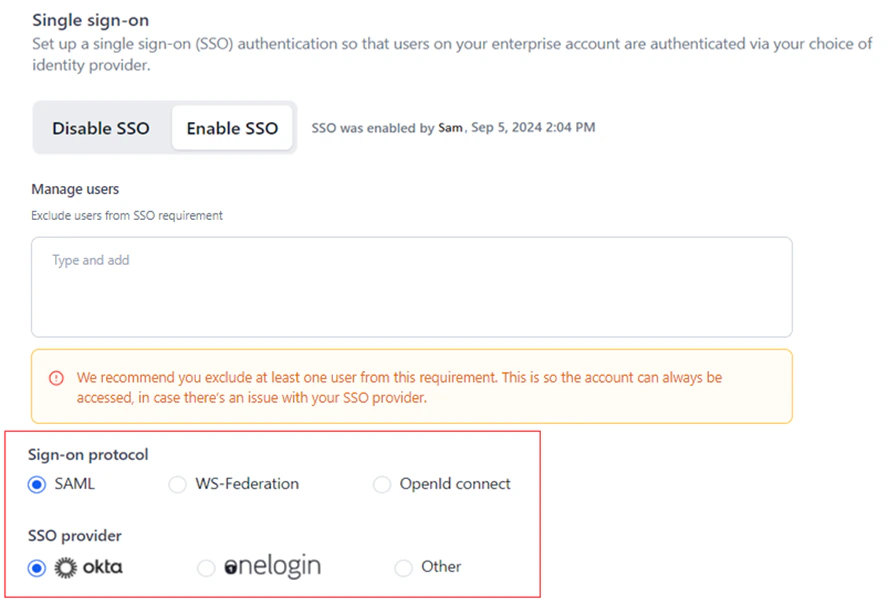
- Select the required protocol and SP. The default selections are SAML and Okta.
-
Configure the parameters for one of the following SSO protocols and providers:
- SAML: Okta, OneLogin, or Other. Learn more.
- WS-Federation: Windows Azure or Other. Learn more.
- OpenID Connect: Google. Learn more.
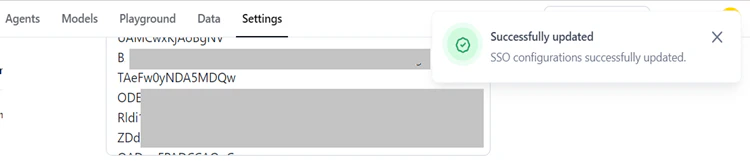
- Click Save.
SAML
Security Assertion Markup Language (SAML) is a protocol for web-based SSO that uses secure tokens instead of passwords. It allows IDPs and SPs to operate separately. When a user logs into a SAML-enabled app, the service provider requests authorization from the IDP, which authenticates the user and grants access to the application.How SAML Works
SAML SSO works by transferring the user’s identity from one place (the IDP) to another (the SP) through an exchange of digitally signed XML documents. When a user logs into a system that acts as an IDP and tries to access their AI for Process account, the following happens:- The user accesses the remote app on the IDP portal using the sign-on endpoint URL, and the application loads.
- The application identifies the user’s origin (by application subdomain, user IP address, or similar) and redirects the user back to the IDP, asking for authentication. This is the authentication request.
- The user either has an existing active browser session with the IDP or establishes one by logging into the IDP.
- The IDP builds the authentication response in an XML document containing the user’s username or email address, signs it using an X.509 certificate, and posts this information to the SP.
- The SP, which already knows the IDP and has a certificate fingerprint, retrieves the authentication response and validates it using the certificate fingerprint.
- The user’s identity is established, and the user is provided with the AI for Process account access.
Okta Configuration
To configure SSO using SAML and Okta:- Go to AI for Process’ Single sign-on page.
- Select the Enable SSO tab.
- Select SAML for Sign-on protocol and Okta for SSO provider.
If you already have the required parameters for Okta, move directly to Step 18.
- Log in to the Okta developer portal.
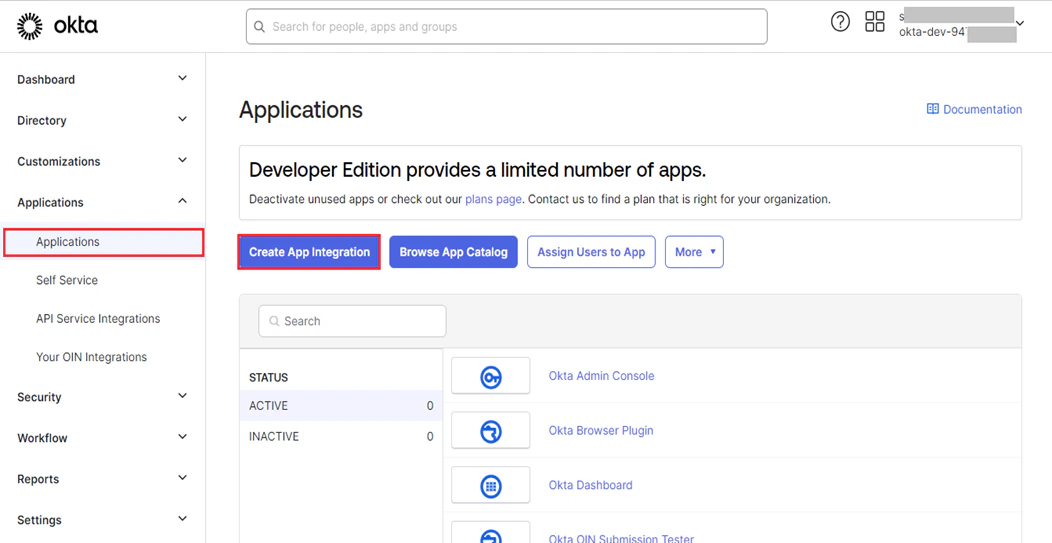
- On the dashboard, click Applications on the left menu.
-
Click Create App Integration.
-
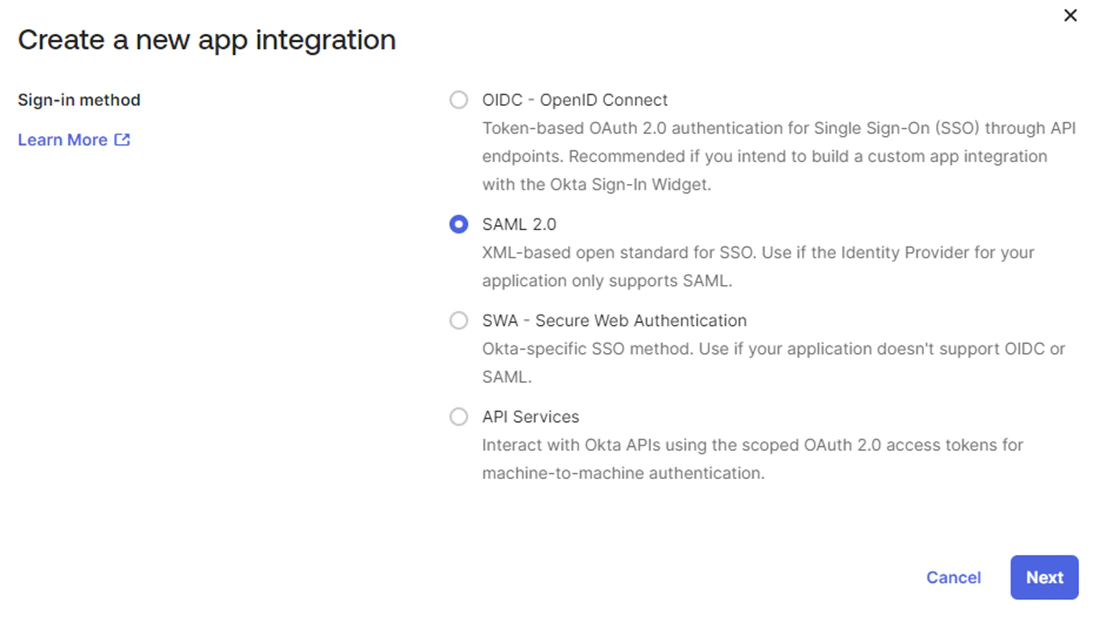
In the Create a new app integration window, select SAML 2.0 and click Next.
-
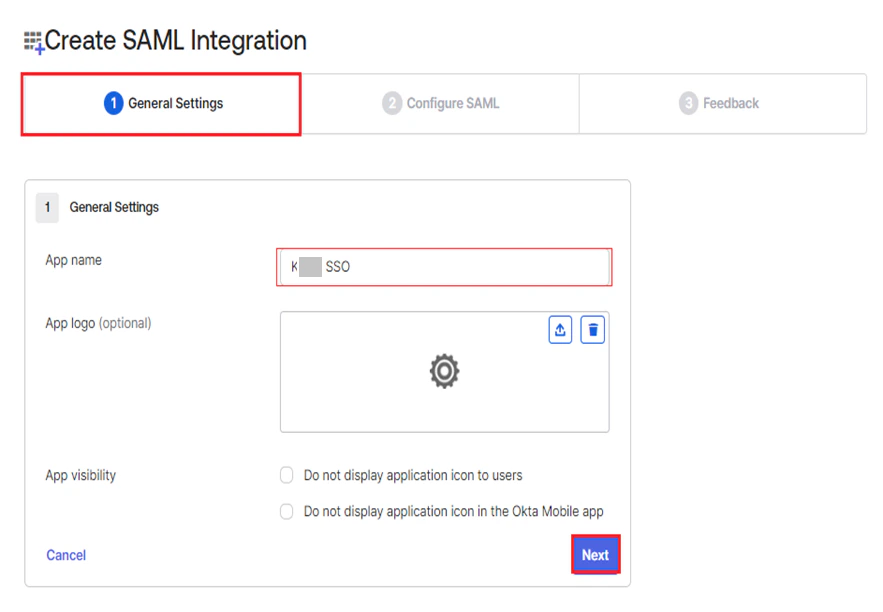
On the Create SAML Integration page, provide the App Name under General Settings, and click Next.
-
Copy the following values from AI for Process’ SSO setup page and paste them into Okta under Configure SAML:
- ACS url for SP initiated SAML flow: Paste into Single sign-on URL.
- ACS url for IDP initiated SAML flow: Paste into Audience URI (SP Entity ID).
- Click Next.
- Click Finish under Feedback on Okta’s Create SAML Integration page.
- Once the app is created, go to the Sign On tab and click View Setup Instructions.
- On the How to Configure SAML 2.0 for
<app-name>application page, do the following from Okta into AI for Process:- Copy the Identity Provider Single Sign-On URL value and paste it into the Okta Single Sign-On URL.
- Copy the Identity Provider Issuer value into the Identity provider issuer.
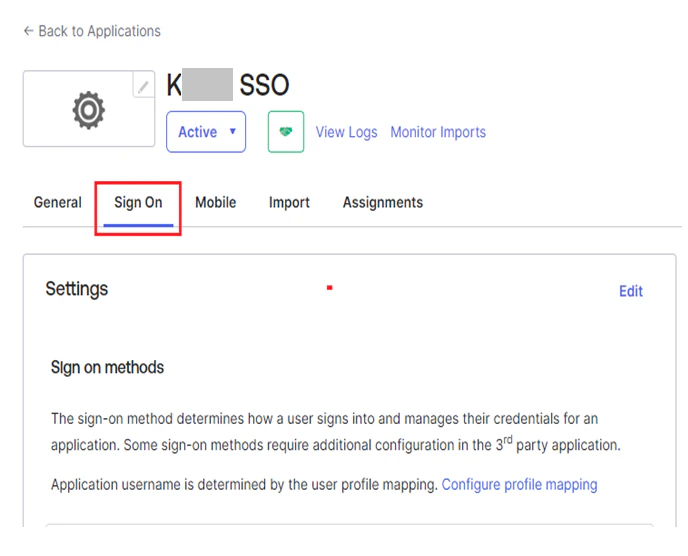
- Go to Sign On > SAML Signing Certificates on your Okta app.
- Click Download certificate under Actions for the required certificate.
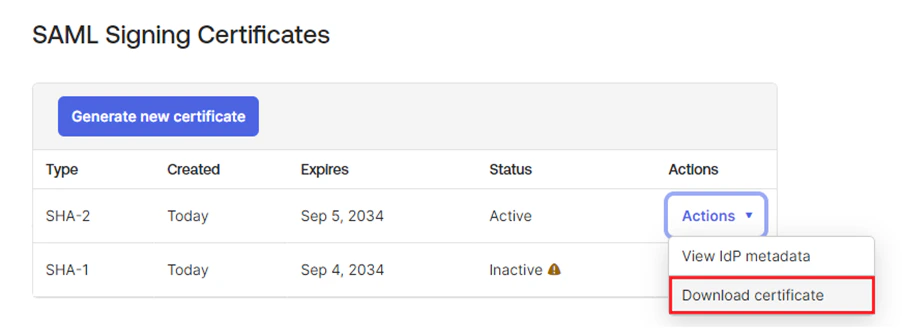
- Once the certificate is downloaded, open it in Notepad and copy the data between the BEGIN CERTIFICATE header and END CERTIFICATE footer.

- Paste the value into the Certificate field on AI for Process’ SSO setup page.
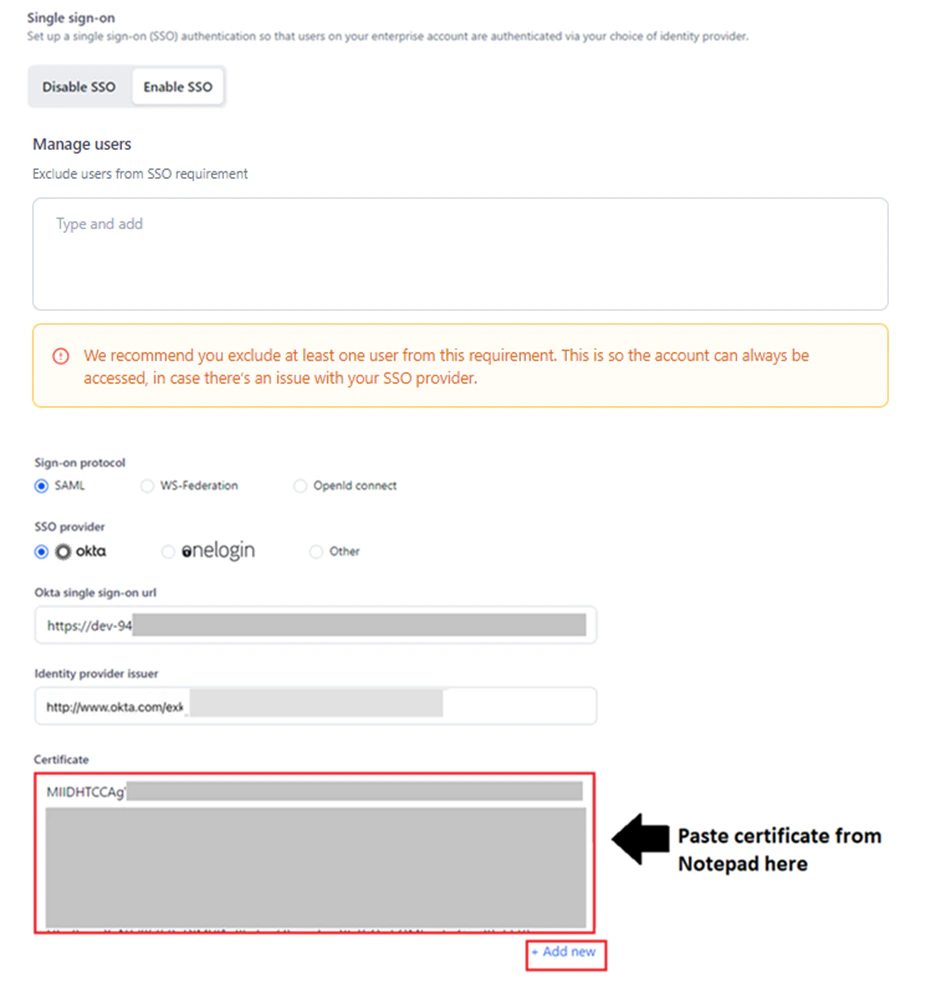
When multiple certificates are provided, the system uses the latest one. If the latest certificate is invalid, it automatically switches to other available certificates.
- Click Save.
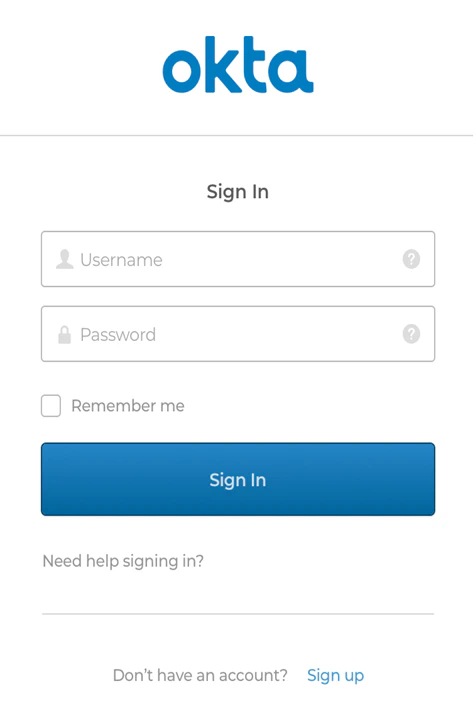
Once SSO for Okta is complete, the system will redirect to the Okta Sign in page for AI for Process account authentication.
OneLogin Configuration
To configure SSO using SAML and OneLogin:- Go to AI for Process’ Single sign-on page.
- Select the Enable SSO tab.
- Select SAML for Sign-on protocol and OneLogin for SSO provider.
- Log in to the OneLogin developer portal.
-
Go to Applications > Add Apps to access your app.

- To learn how to add a new app, see Add a new app.
- To learn how to configure apps, see Configure apps.
- Search for your AI for Process app and click Enter.
- Click your app to view the Add App page. Optionally, change the display name or the icons displayed to your users in the OneLogin portal, and then click SAVE. The AI for Process app has been added to your company apps for OneLogin and is listed on the app page.
-
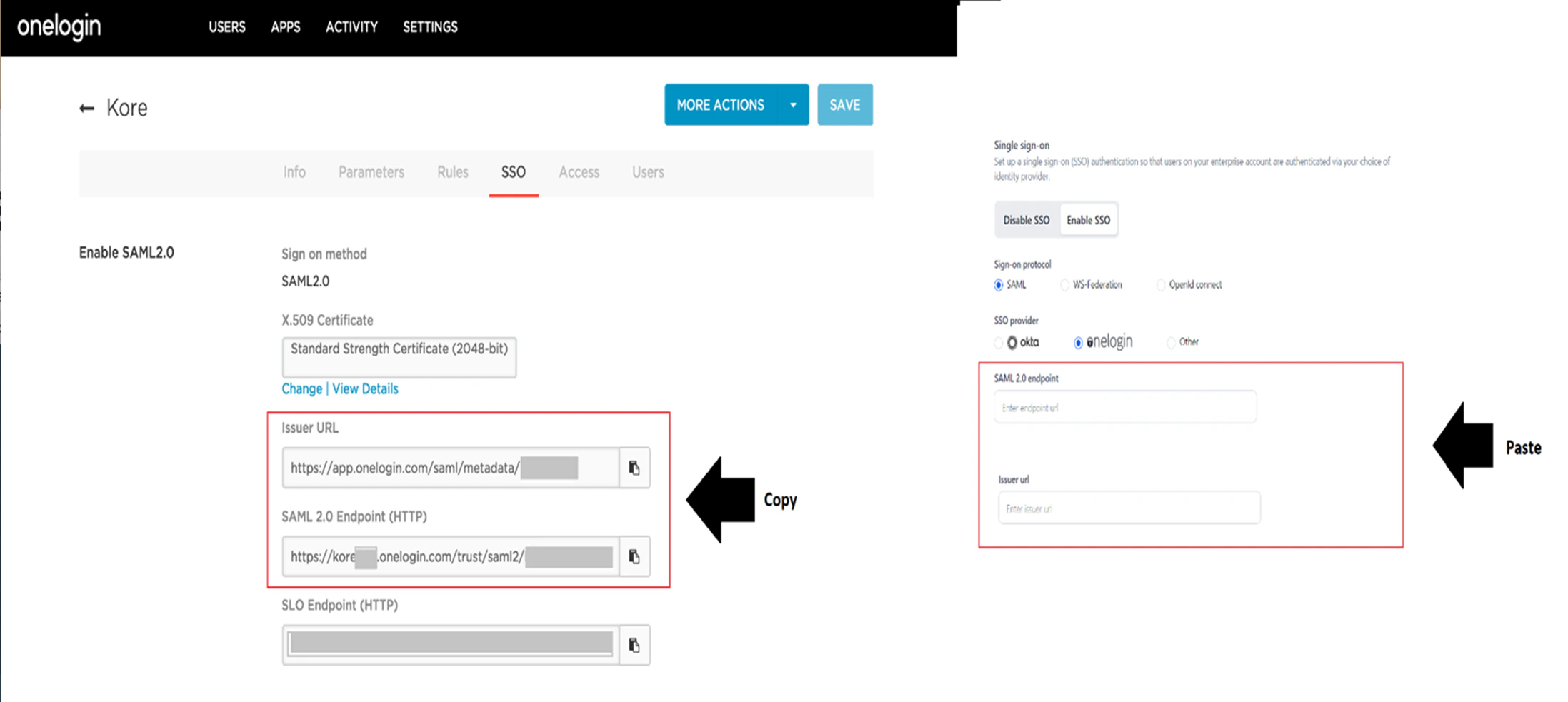
Copy the following values from SSO > Enable SAML2.0 on OneLogin and paste them into the relevant fields on AI for Process’ SSO setup page:
- OneLogin SAML 2.0 Endpoint (HTTP): Paste into SAML 2.0 endpoint.
- OneLogin Issuer URL: Paste into Issuer URL.
-
In the OneLogin X.509 Certificate field, click View Details. The Standard Strength Certificate (2048-bit) page is displayed.
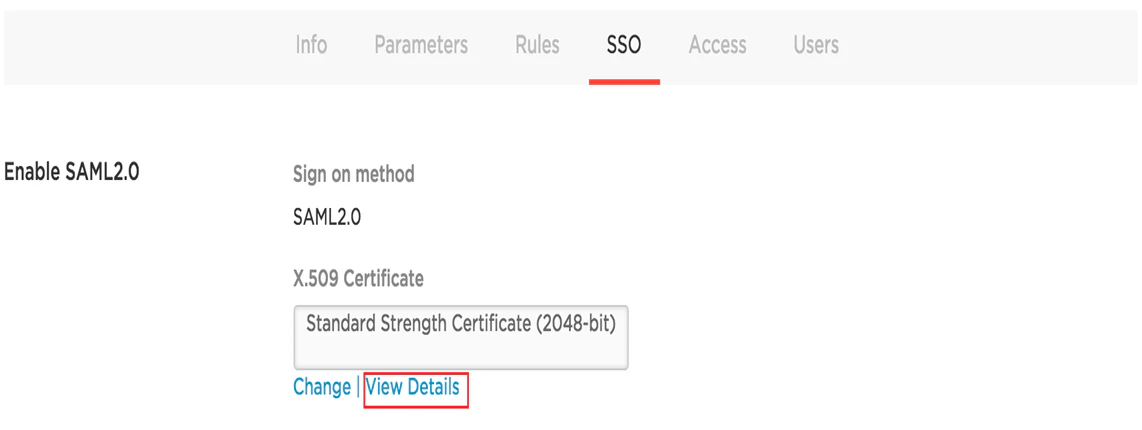
- In the X.509 Certificate section, copy the certificate data and then paste it into the X.509 Certificate field on AI for Process’ SSO setup page.
Copy data after the BEGIN CERTIFICATE header and before the END CERTIFICATE footer.
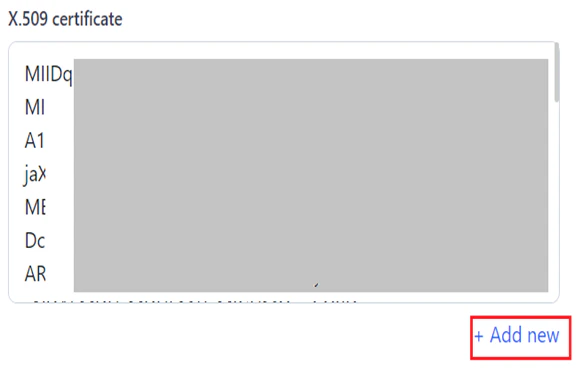
When multiple certificates are provided, the system uses the latest one. If the latest certificate is invalid, it automatically switches to other available certificates.
-
Copy the following field values from AI for Process’ SSO setup page into the relevant fields in OneLogin:
- ACS URL for SP Initiated SAML Flow.
- ACS URL for IDP Initiated SAML Flow.
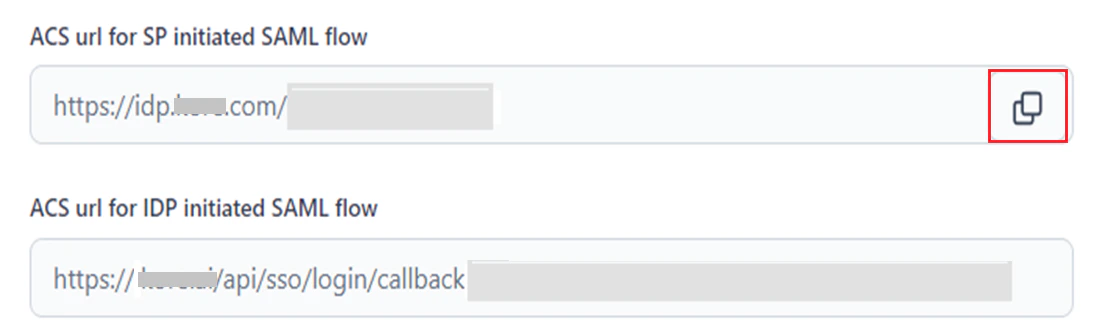
- Click Save on AI for Process and OneLogin.

Other SAML Providers
To configure SSO using SAML for other IDPs:- Go to AI for Process’ Single sign-on page.
- Select the Enable SSO tab.
-
Select SAML for Sign-on protocol and Other for SSO provider.
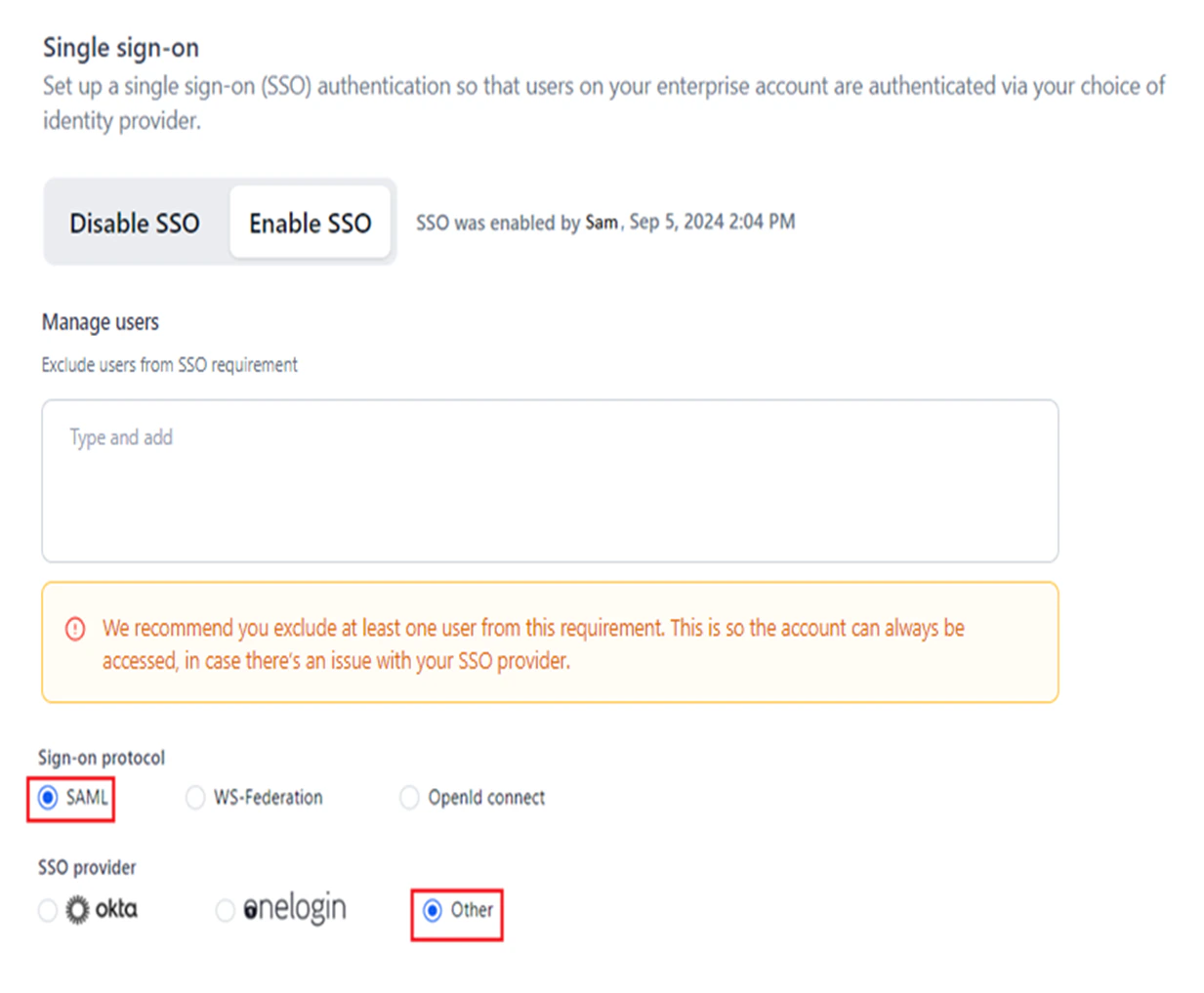
- Fetch the necessary SSO configuration parameters listed in the Configuration Parameters table from your app’s Settings page within the IDP developer portal.
- Paste them into the relevant fields on AI for Process’ SSO setup page.
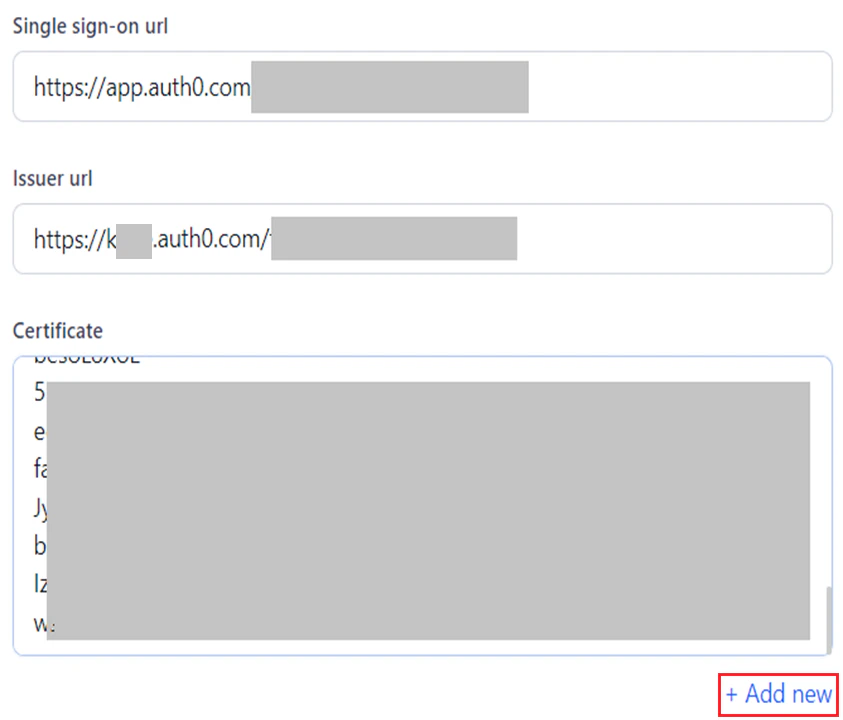
When multiple certificates are provided, the system uses the latest one. If the latest certificate is invalid, it automatically switches to other available certificates.
- Copy and paste ACS url for SP initiated SAML flow and ACS url for IDP initiated SAML flow values from AI for Process into the relevant app fields within the IDP’s developer portal.
- Click Save.
WS-Federation
WS-Federation (Web Services Federation) is a protocol used for federated identity management. It allows the secure sharing of identity information across different security domains or systems. It enables Single Sign-On (SSO) by allowing users to authenticate with a trusted IDP and access services across different organizations or platforms without logging in multiple times.How WS-Federation Works
When a user logs into a system that acts as an IDP and tries to access their AI for Process account, the following happens:- The relying party redirects the user to the IDP for authentication.
- The IDP authenticates the user through credentials or another authentication mechanism.
- Security Token Issued: Once authenticated, the IDP issues a security token containing the user’s identity and claims.
- Token Sent to Relying Party: The token is sent back to the relying party, which validates it.
- Access Granted: The user is granted access to the requested service based on the verified token.
Windows Azure Configuration
To configure SSO using WS-Federation and Windows Azure:- Go to AI for Process’ Single sign-on page.
- Select the Enable SSO tab.
- Select WS-Federation for Sign-on protocol and Windows Azure to Configure SSO for WS-Federation.
- Open Server Manager on the computer running AD FS, then choose AD FS > Workflows > AD FS Management.
-
Copy IdP URL from your IdP metadata (FederationMetadata.xml). You can find your ADFS Federation Metadata file URL on the AD FS server through ADFS Management in ADFS > Service > Endpoints > Metadata. It should look like this:
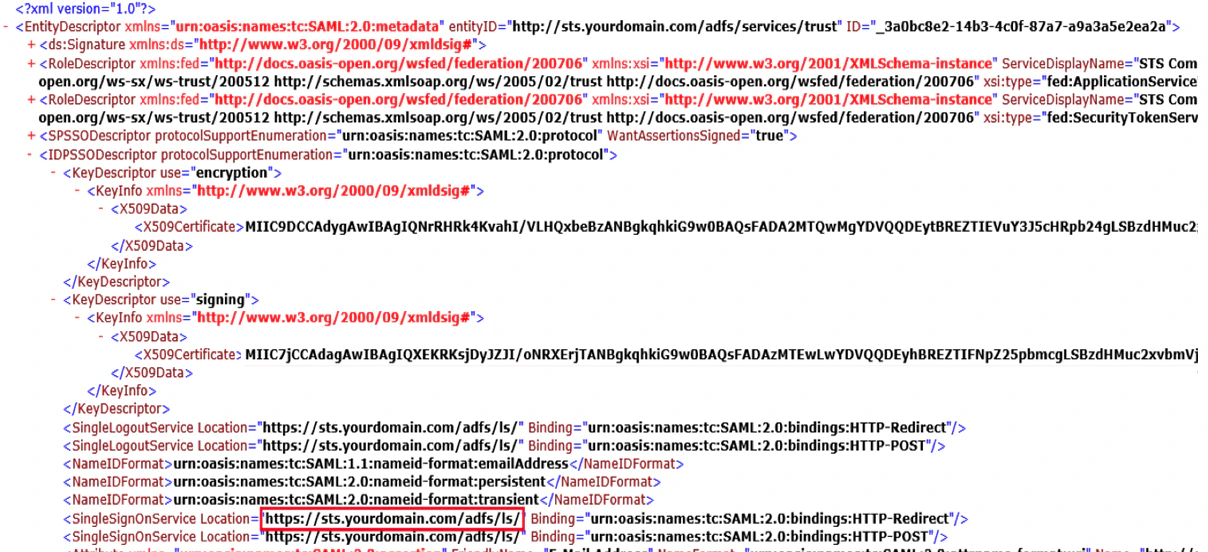
- Paste this value into the Azure AD sign-on end point url field on AI for Process’ SSO setup page.
-
Copy and paste this URL link into the Azure AD federation metadata document field on AI for Process’ SSO setup page.
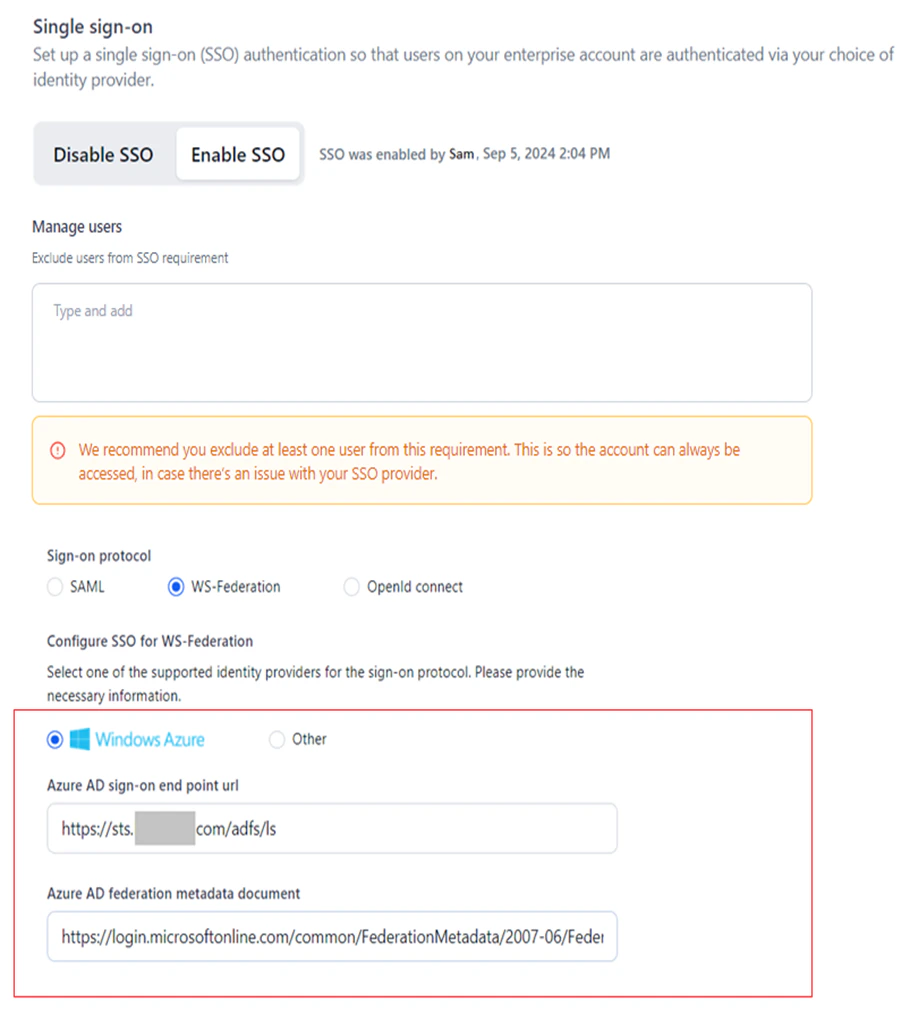
- Click Save.
Other WS-Federation Providers
To configure SSO using WS-Federation for other IDPs:- Go to AI for Process’s Single sign-on page.
- Select the Enable SSO tab.
- Select WS-Federation for Sign-on protocol and Other to Configure SSO for WS-Federation.
- Copy and paste the SSO endpoint URL from the IDP’s portal into AD sign-on end point url on AI for Process’ SSO setup page.
-
Copy and paste the URL for the WS-Federation metadata document from the IDP’s portal into the AD federation metadata document url on AI for Process’ SSO setup page.
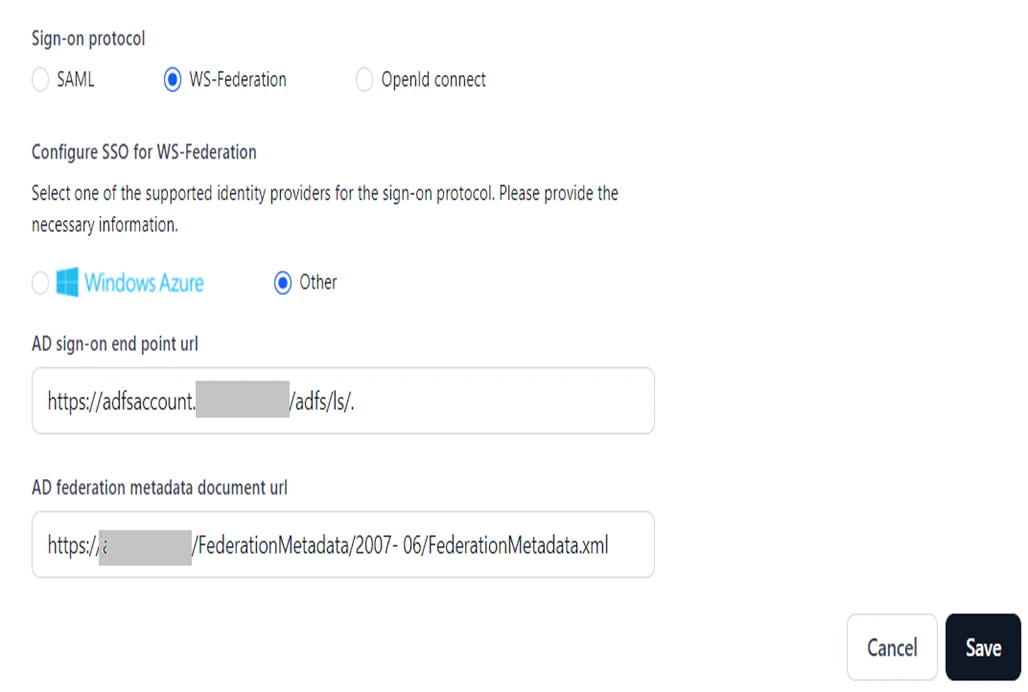
- Click Save.
OpenID Connect
OpenID Connect (OIDC) is an authentication layer built on top of the OAuth 2.0 framework that enables Single Sign-On (SSO) by providing a standardized way for applications to authenticate users and obtain user identity information. AI for Process currently supports Sign in with Google for this protocol.How OpenID Connect Works
When a user logs into a system that acts as an IDP and tries to access their AI for Process account, the following happens:- The application redirects the user to the IDP for authentication.
- The user logs in at the IDP portal.
- IDP redirects the user back with an authorization code.
- The application exchanges the code for ID and access tokens.
- The application validates tokens and grants access.
- Users can access other integrated applications without re-authenticating.
Google Configuration
To configure SSO using OpenID Connect and Google:- Go to AI for Process’s Single sign-on page.
- Select the Enable SSO tab.
-
Select OpenId Connect for Sign-on protocol and Sign in with Google to Configure SSO for OpenId connect.
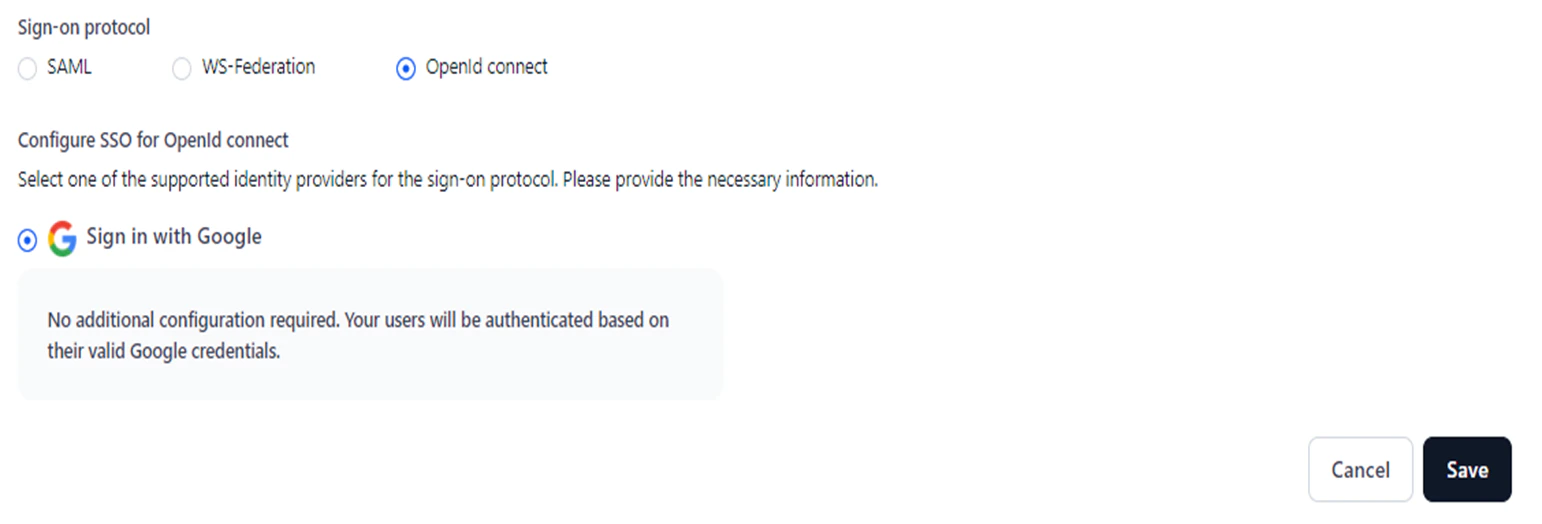
- Click Save.
No further configuration is needed. Users will be authenticated using their Google account’s username and password.
Disable SSO
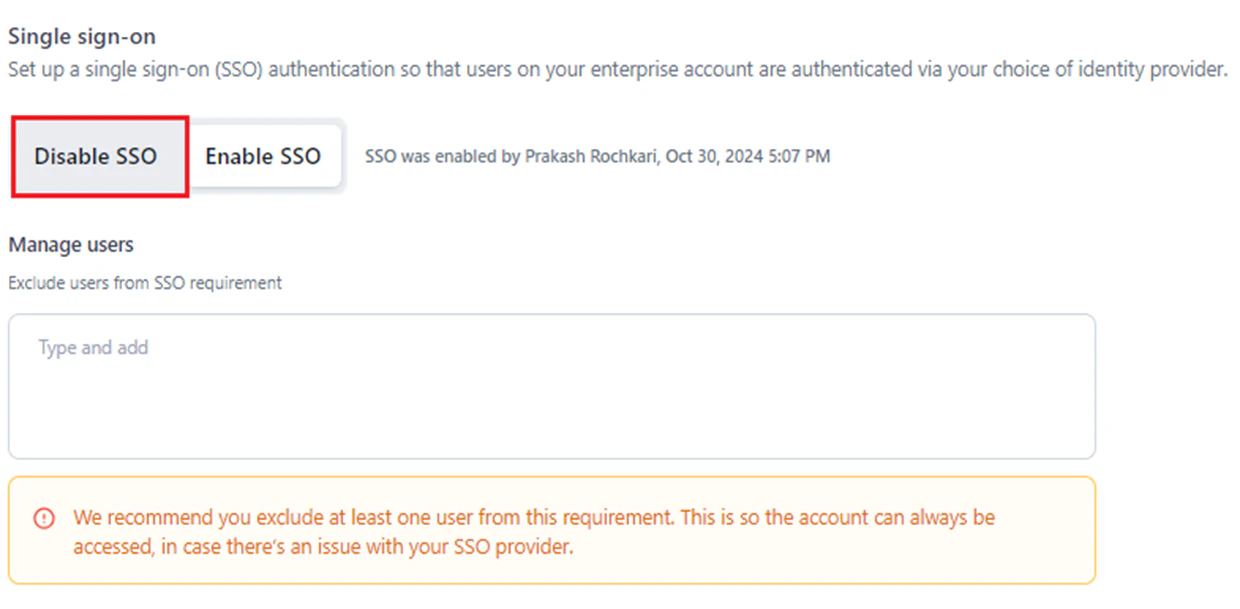
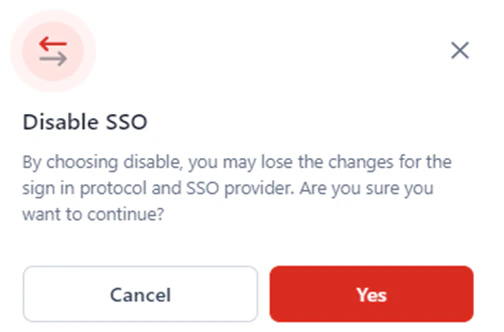
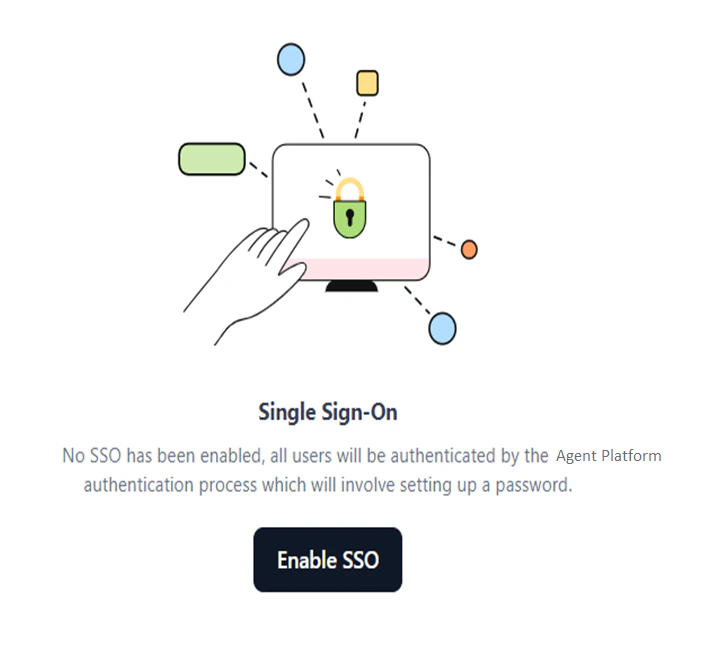
Disabling SSO removes the current configuration, reverts your account to the default sign-in flow, and disables SSO-based access through the configured provider. You can still view the previously configured SSO parameters for a specific protocol and provider by clicking the Enable SSO tab.- Access the Single sign on page.
-
Click the Disable SSO tab.
-
In the Disable SSO confirmation window, click Yes.
Exclude Users from SSO
The Manage Users feature lets the account owner exclude specific users from mandatory SSO, allowing them to use either the default sign-in or SSO. This is helpful in the following situations:- An error occurs during the SSO provider configuration, and the system prevents the user from logging in.
- The user wants to bypass log-in via the configured SSO provider.
- Technical issues arise with the SSO provider.
- The SSO configuration profile has expired.
- Business policy changes at the provider prevent the configured SSO from functioning.
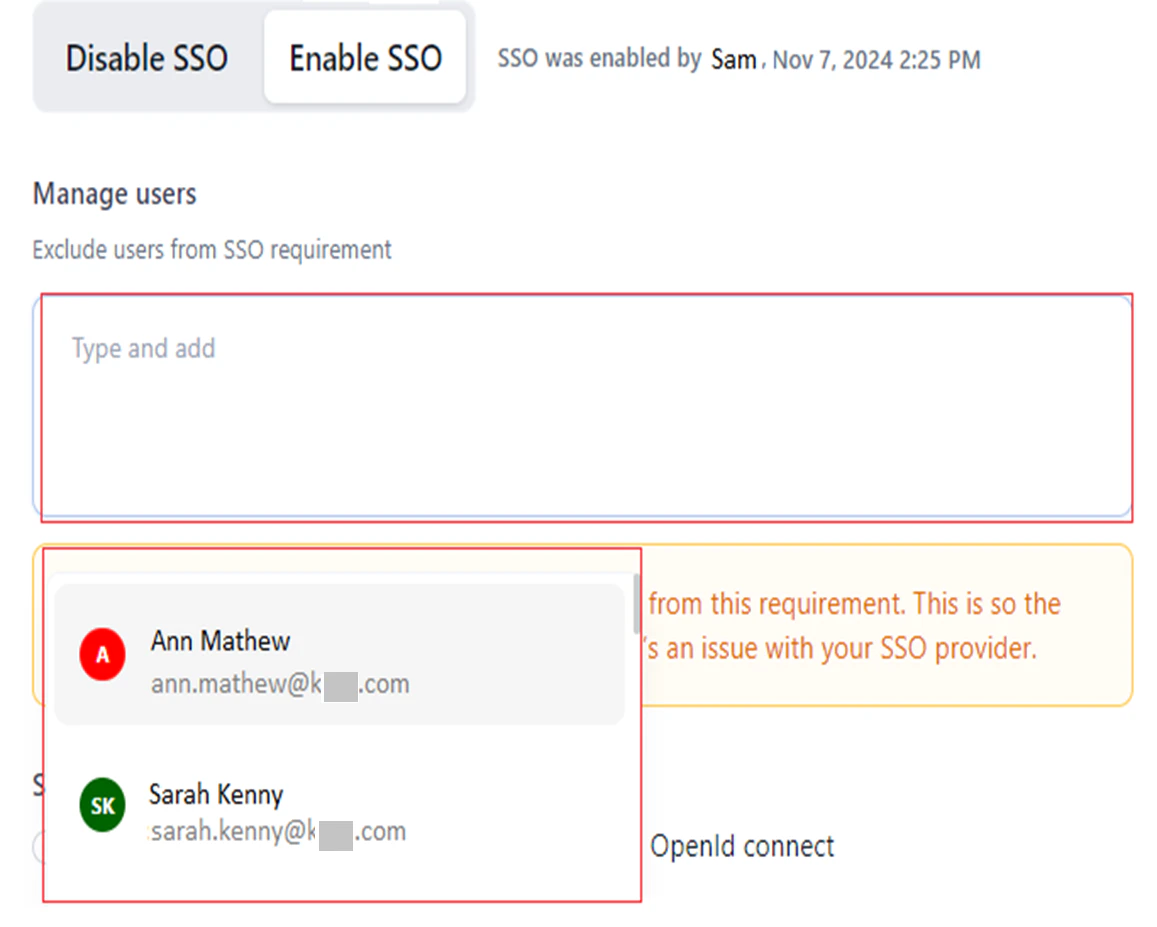
- By default, the account owner is excluded from the SSO requirement and can choose between the SSO flow or the default sign-in flow during login. It is recommended to exclude at least one more account user.
- Excluded users can instantly switch to another account without signing in through SSO, if SSO is enabled.
- For users who are not excluded:
- If SSO is enabled for the account, they must sign in via SSO.
- If SSO is disabled, they can switch accounts directly without additional sign-in.
- Navigate to the Single Sign-on page.
- Type and add an email address or select from the dropdown in the Manage Users textbox.
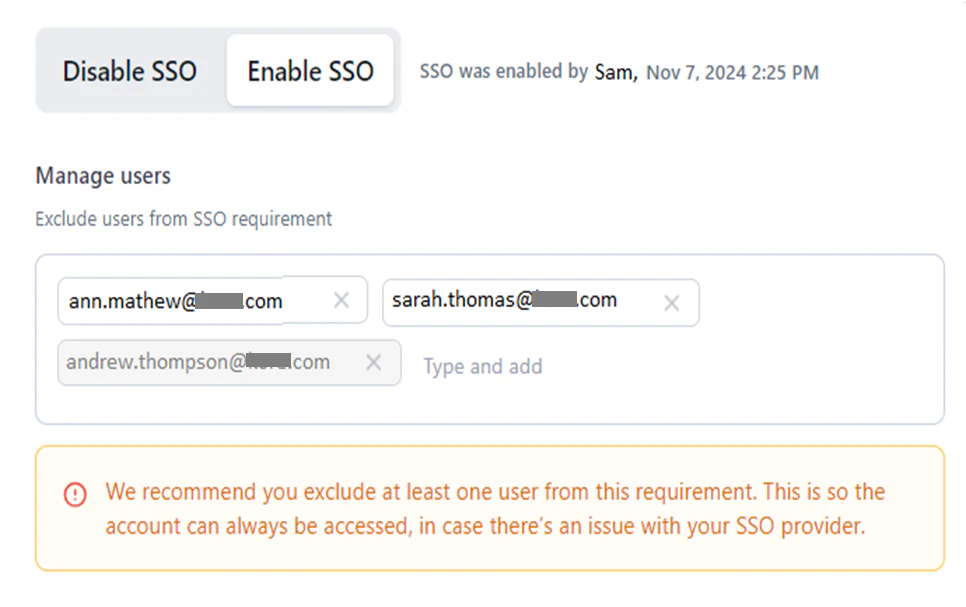
- Click Save.
Sign-In Flow for Excluded Users
During sign-in, the following screen is displayed for the excluded user.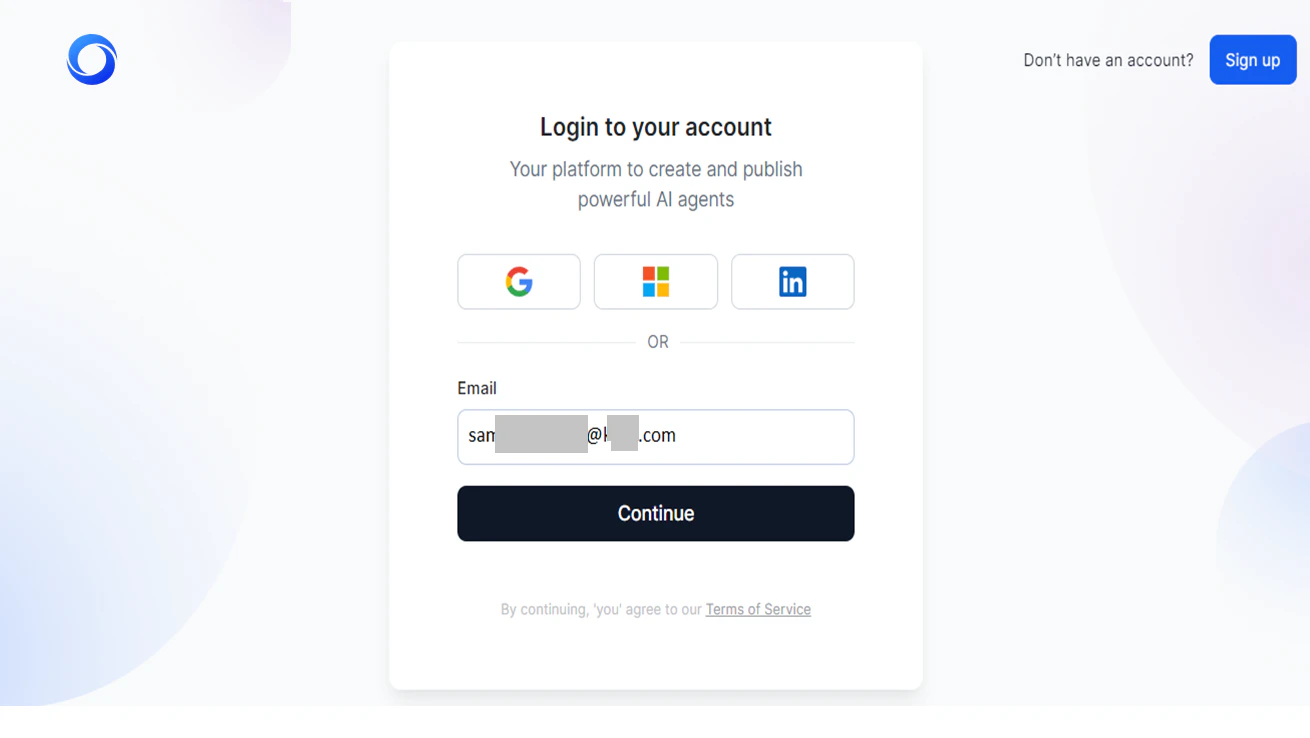

- Click Continue to log in using the configured SSO provider service’s sign-in page, for example, OKTA, as shown below:
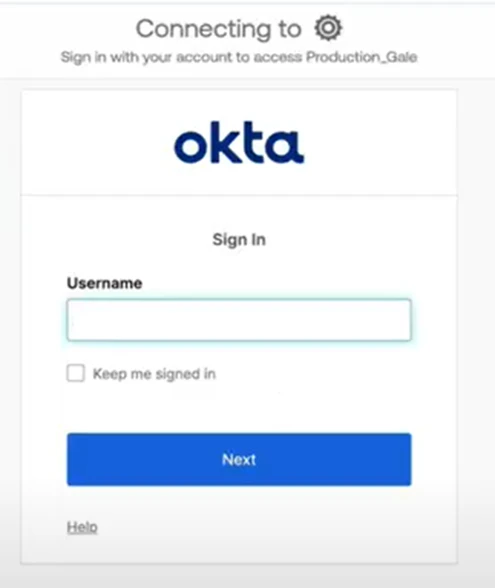
- Click “Having trouble logging in with SSO?” to sign in using the default option (email and password, Google, Windows, etc.) set during AI for Process sign-up.
Default Sign-in Flow
As an AI for Process admin, you can enable Single Sign-On (SSO) using a third-party provider. However, if your SSO security system fails or you forget your SSO credentials for your IDP, you can log in to AI for Process using either email sign-in or your default SSO provider.API Scopes
AI for Process introduces API scopes in the Settings console, moving from unrestricted management API keys to more secure, scoped API key-based application management. Users can select specific scopes for managing workflows, models, and guardrails. This allows for the creation of internal applications with restricted access to only the necessary API endpoints. By limiting API access, this feature reduces security risks, allowing administrators to generate multiple API keys and ensure secure, controlled access for authorized personnel. Important Considerations for API Keys- Scope-restricted access: API keys grant access exclusively to their assigned scopes.
- Unauthorized access: Any attempt to access unassigned scopes is automatically rejected.
- Multiple keys per app: You can generate multiple API keys for a single app.
- One key per app: An API key cannot be shared across multiple apps.
- Immutable keys: API keys can be deleted, but cannot be modified after they are created.
- Copy-once policy: For security reasons, each API key can only be copied once.
Use Case: Scoped API Access for Banking Departments
A bank automates workflows and integrates various internal systems across different departments, including Risk & Compliance, Customer Support, and Marketing. This requires access to APIs with different scopes.- Risk & Compliance Department: This team requires access only to models and workflows for generating reports from transaction logs and audit trails. The admin creates a scoped app that grants access to workflows and models. This prevents the team from accidentally accessing unrelated customer information available for guardrails.
- Customer Support Department: Support agents require access to monitoring AI customer interactions, but should not have access to risk and compliance workflows or model management. A scoped app ensures support teams stay within their operational boundaries.
Supported API Scopes
Implement API Scoping
To access API Scopes:- Log in → In AI for Process Modules top menu → Click Settings.
- Click Security & Control > API Scopes on the left navigation menu.
- Create an API app and assign scopes: API-scoped apps have limited and specific permissions tied only to the API endpoints they need. Creating an API-scoped app enables you to restrict permissions, enhance security, better control and monitor access, and tailor the app specifically to meet the integration’s needs.
- Create one or more API keys to access the app: API keys for scoped apps provide secure, manageable, and auditable access control tailored to the app’s needs, making access and usage safer and easier to track.
Create an API Application
To create an app:-
Click Create an API App or Create an App.
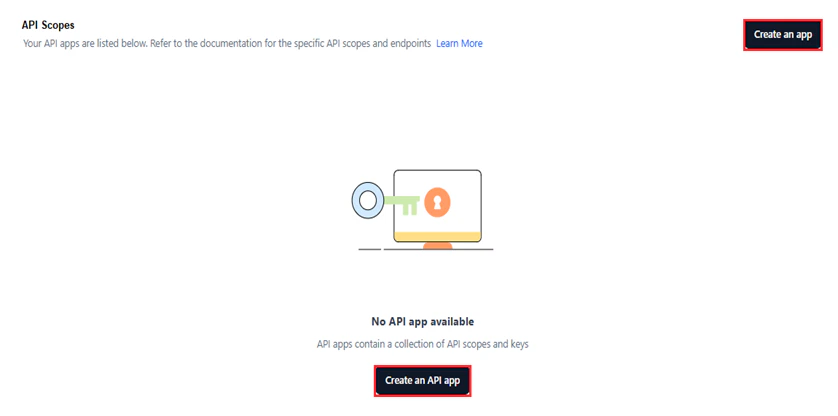
-
Click Untitled app and provide the app name.
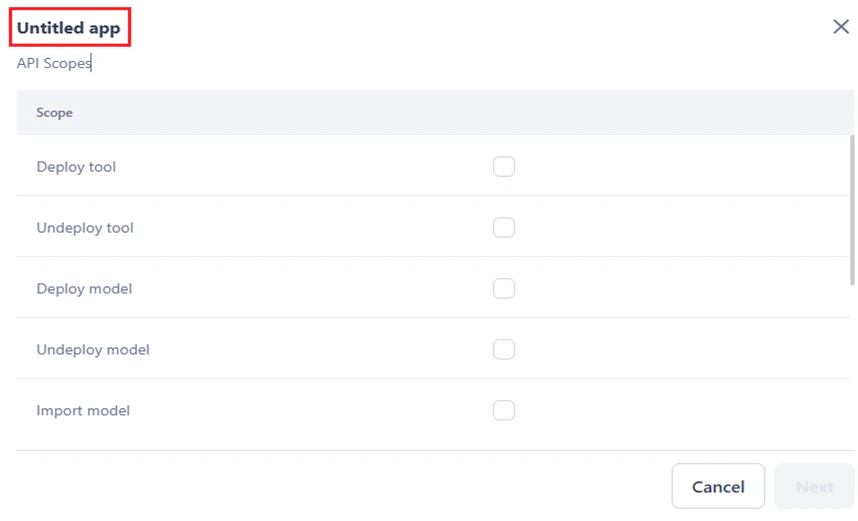
-
Select the required scopes from the list.
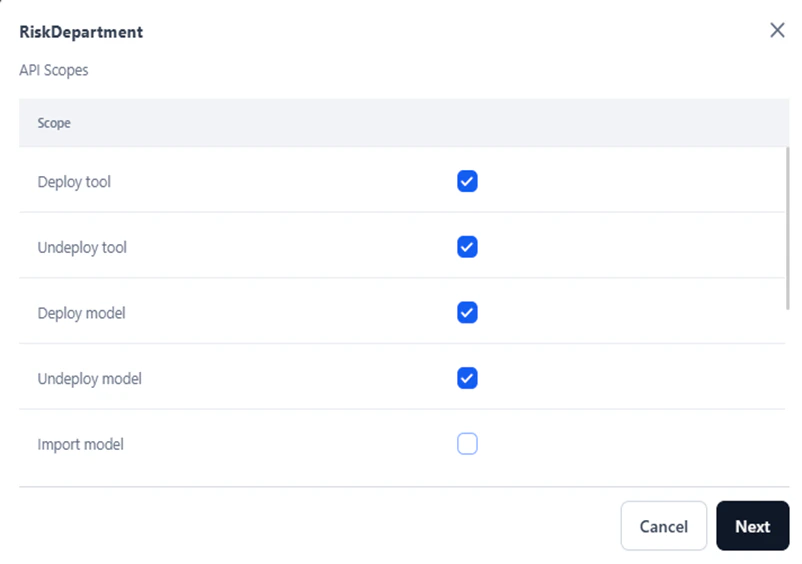
-
Click Next.
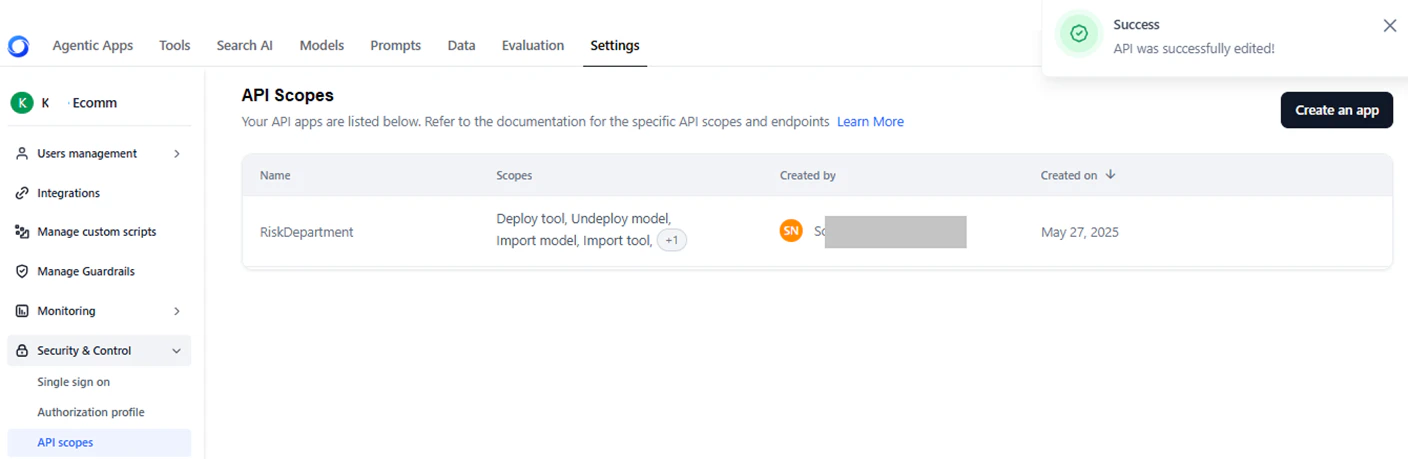
A success message is displayed, and the following window is displayed. Follow the steps in Create an API Key to complete the process.
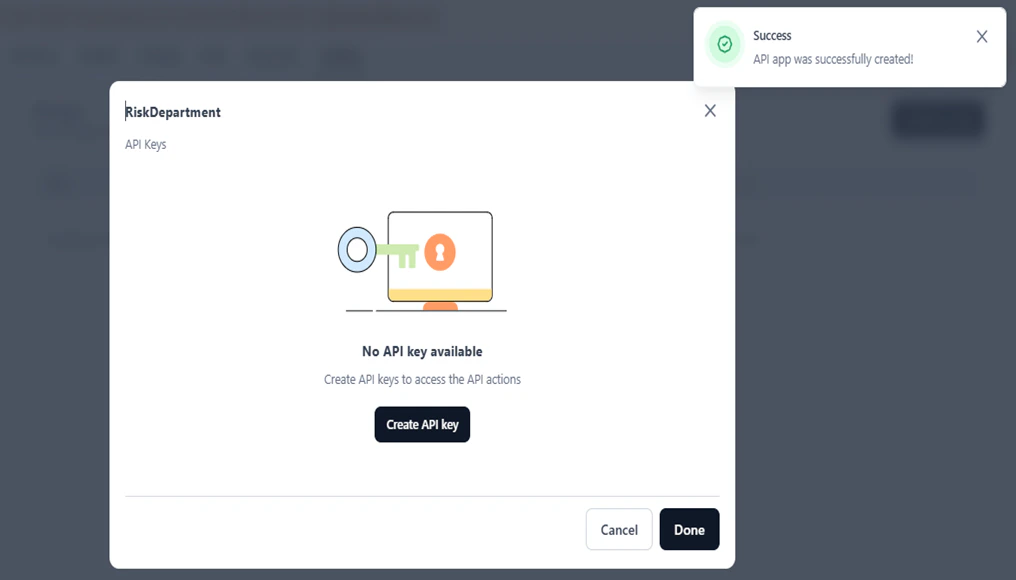
Create an API Key
To complete the app creation, create an API key:- Click Create API Key.
-
In the Create new API key dialog, provide a name and click Generate Key.
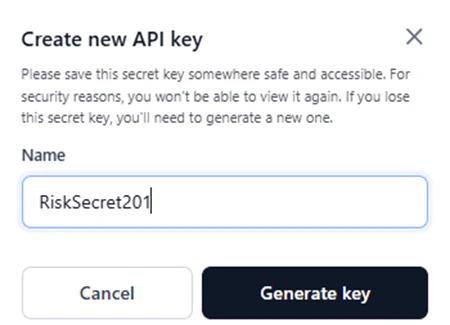
-
Once the key is successfully generated, click Copy and Close to copy the API key.
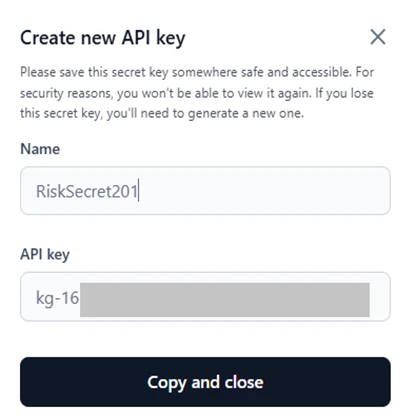
For security reasons, the API key is only shown once and is not stored or displayed again. Copy and save it in a secure location for future reference.What Happens If You Lose It?You’ll need to revoke the old key and generate a new one. This could disrupt services if the key is in use.
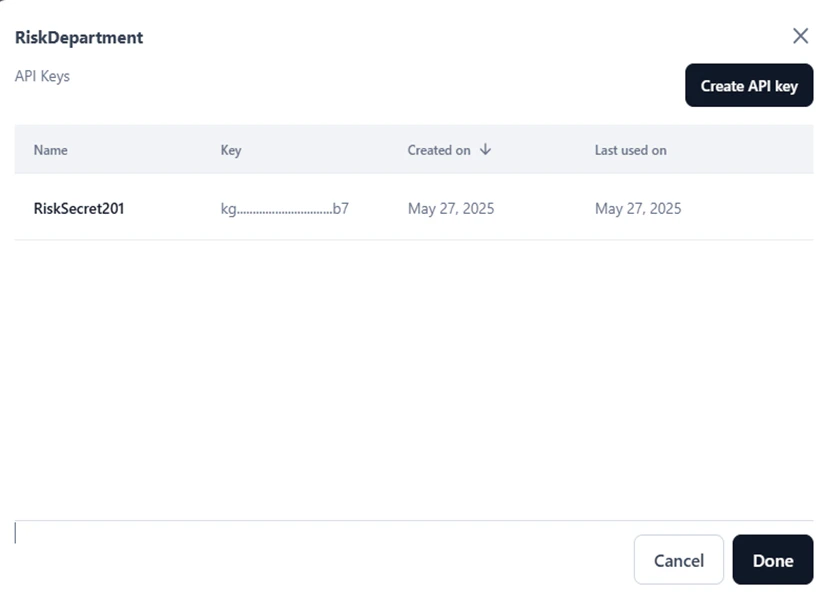
- Click Done.
- Name: The API app name.
- Scopes: The selected API scopes.
- Created by: The name of the user who created the app.
- Created on: The date when the app was created.

Manage API Apps and Keys
You can edit or delete an API app, including its name and scopes. However, you cannot edit an API key; you can only delete it.Edit App
To edit an API app:-
Hover over and click the Edit icon for the required app.

-
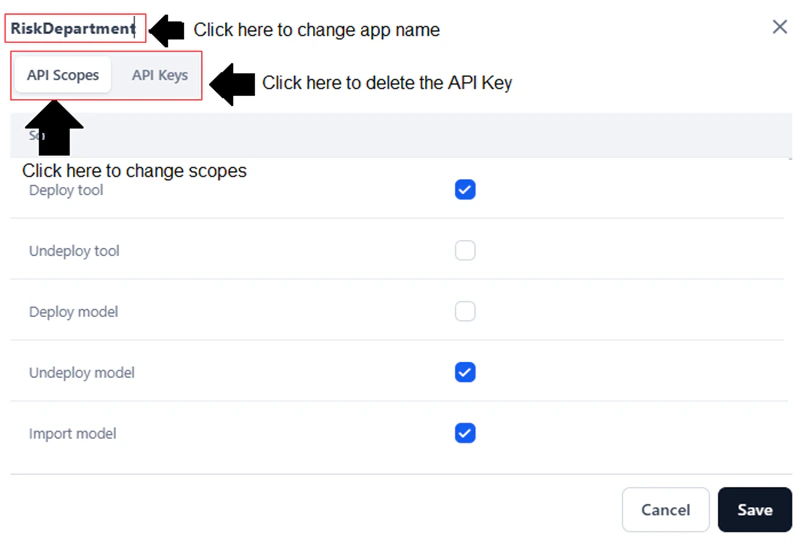
In the App’s configuration window, do the following:
- To change the app name, click and modify the title.
-
To change the scopes, click the API Scopes tab and select/unselect the listed scopes.
-
To delete an API key, follow the steps below:
- Click the API Keys tab.
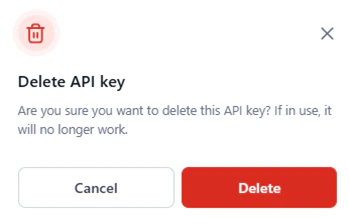
-
Hover over and click the Delete icon for the required key.

-
Click Delete in the confirmation window.
- Click Save.
Delete App
To delete an API app:-
Hover over and click the Delete icon for the required app.

-
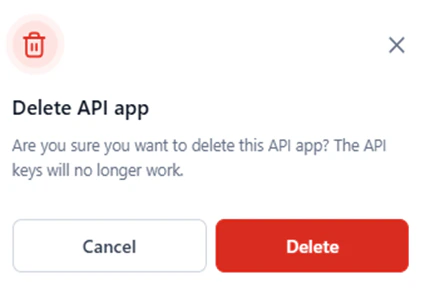
Click Delete in the confirmation window.
Authorization Profiles
AI for Process offers a secure and streamlined way to manage authorization when integrating with external web services. By configuring Authorization (Auth) Profiles, users can enforce access control policies while ensuring data privacy and regulatory compliance. Whether connecting to external or commercial models via custom APIs or integrating workflows through the AI or API node, the platform provides a structured framework to handle user authorization. This simplifies security configurations, strengthens access control, and enables smooth identity verification across various services. Key capabilities of managing Auth Profiles on AI for Process include:- Defining Authorization Rules: Specify auth methods and requirements, such as passwords, token fields, and custom authorization parameters.
- Securing Access: Ensure only authorized users or systems can connect to external services, protecting sensitive data from unauthorized access.
- Profile Reusability: Reuse Auth Profiles across multiple integrations and endpoints for consistency, reduced configuration effort, and streamlined maintenance.
- Connection Testing and Validation: Verify that identity and authorization tokens are correctly passed to external services, ensuring the integration is secure and functional.
- Log in → In AI for Process Modules top menu → Click Settings.
- Click Security & Control > Authorization profile on the left navigation menu.
Supported Auth Types
You can enable a single auth profile or create custom profiles tailored for accessing third-party web services. These profiles support the following authorization types:OAuth V2
OAuth 2.0 (OAuth2) is a standard authorization framework that enables applications to obtain limited, secure, and token-based access to a user’s account on an HTTP service, such as Google, Facebook, or GitHub without exposing the user’s credentials. It supports multiple grant types, uses scopes for permissions, and enables long-term access with refresh tokens, making it ideal for API authentication. Key Features- Secure, Token-Based Authorization – Grants access without sharing user credentials, using short-lived access tokens.
- Multiple Authorization Flows – Supports different grant types (e.g., Authorization Code, Client Credentials) for various use cases.
- Scope-Based Access Control – Users can grant apps limited permissions (e.g., read-only access).
- Refresh Token Support – Enables seamless re-authorization without requiring user login.
- Third-Party & Scalable Integration – Widely adopted for API authentication, allowing secure third-party access (e.g., “Sign in with Google”).
OAuth V2 Client Credentials
The Client Credentials flow is one of the OAuth 2.0 authorization grant types. It is primarily used in Machine-to-Machine (M2M) scenarios, where an application needs to access resources or perform operations on its own behalf — without user interaction. How it Works- The client application authenticates with the Authorization Server by presenting its client ID and client secret.
- Upon successful authentication, the Authorization Server issues an access token.
- The client uses this token to authenticate API requests to the Resource Server.
- Client Credentials: This flow uses the client’s unique identifier (client ID) and a secret (client secret) to authenticate the application with the authorization server.
- No User Interaction: Unlike flows involving user authorization (e.g., authorization code flow), the client credentials flow doesn’t require the user to log in or grant permissions.
- Machine-to-Machine (M2M) Communication: This flow is ideal for scenarios where one application needs to access resources owned by another application, such as microservices or server-to-server communication.
- Resource Access: The client uses the acquired access token to interact with the resource server and access protected resources.
- Access Token: The authorization server issues an access token, a short-lived credential that allows the client to access specific resources.
Add an Authorization Profile
To add an auth profile:-
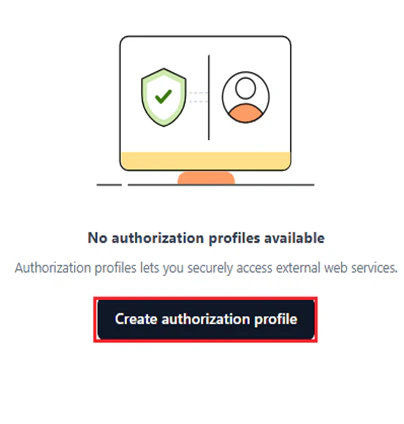
Click Create Authorization Profile if this is your first auth profile.
-
In the New Authorization Mechanism dialog, select the required option for Authorization Type.
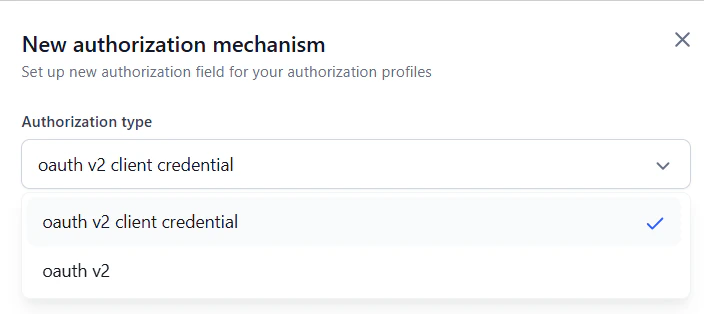
-
In the Identity Provider Name field, enter a name for the authorization type, which is mandatory.
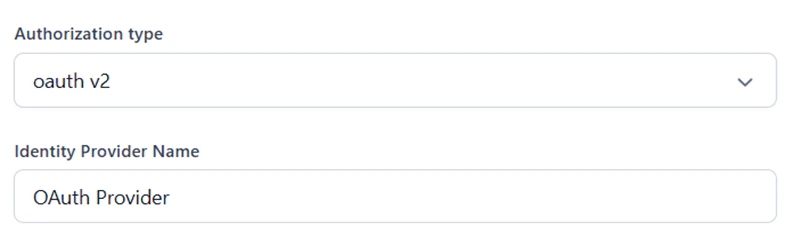
-
Provide the values for the mandatory authorization fields. For details, refer to Define Authorization Fields.
If the mandatory fields are left blank, validation error messages appear, as shown below.
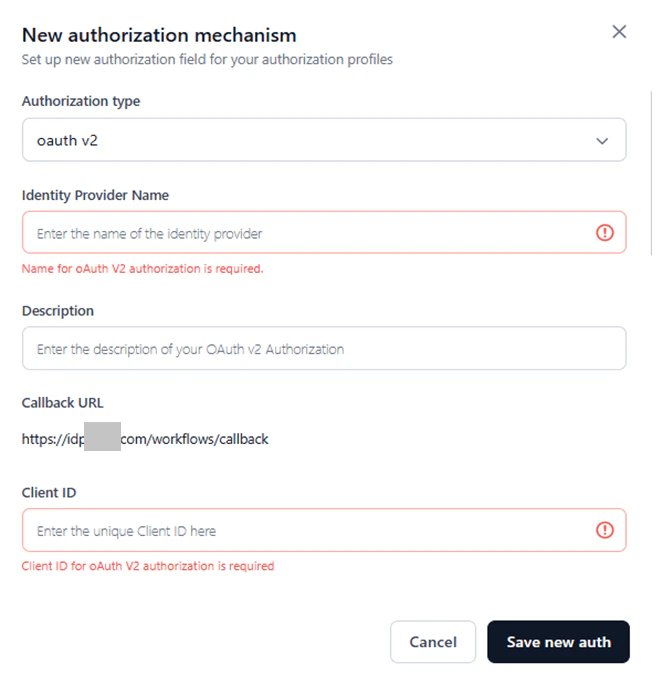
- (Optional) Click + Add Additional Field to add additional fields for authorization. See Add Additional Fields.
If the default Username and Password fields do not meet your authorization requirements, you can add custom fields using additional fields or authorization IDP form fields to the authorization process. For example, if a PIN code is required in addition to the standard login fields, you can include it as an extra input for the end user.
- (OAuth V2 only) Click + Add Authorization Field to add additional auth fields to your profile. For more information, see Add Authorization Fields.
- Click Save new Auth.
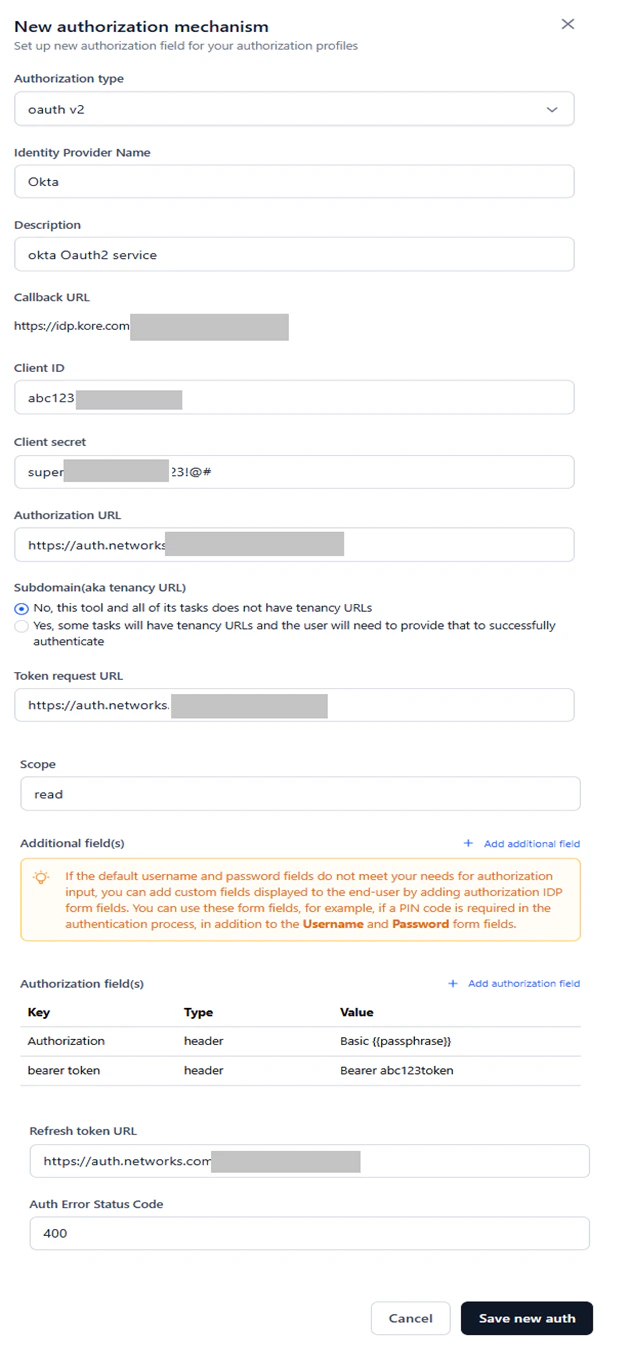
Define Authorization Fields
Define the following fields to configure the OAuth2 profile:Except for Scope, Description, Refresh Token URL, Additional fields, Authorization fields, and Auth Error Status Code, all the fields are mandatory.
Add Additional Fields
Additional fields collect extra authorization details from end users — such as a PIN code or device ID — alongside standard OAuth V2 credentials. Use them to align the authorization process with your security or compliance needs. To add additional fields:-
Click + Add Additional Field in the New Authorization Mechanism window and enter one or more key-value pairs.
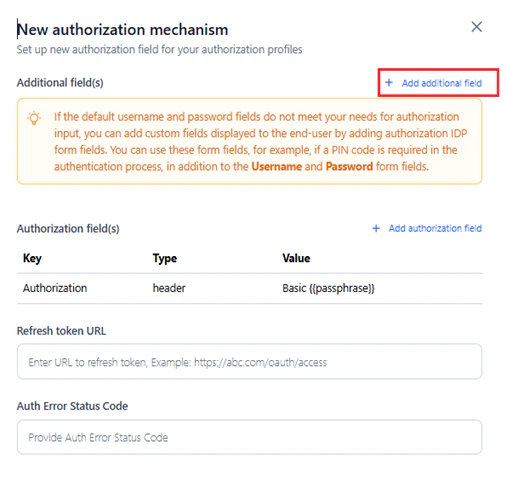
- Add values for the following fields:
- Click Done.
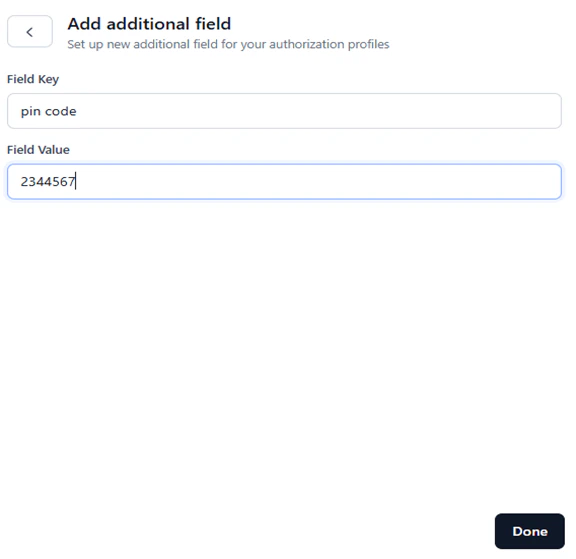
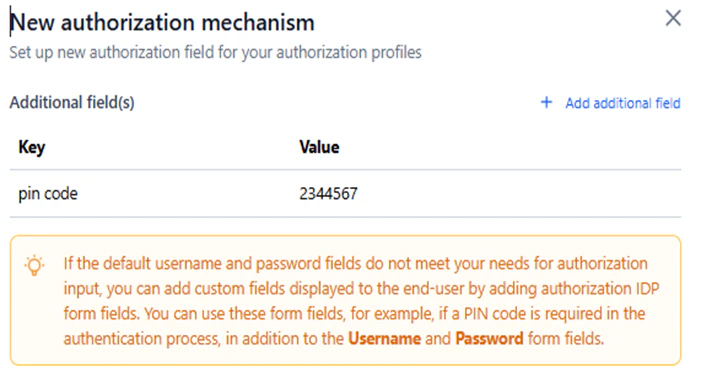
Add Authorization Fields
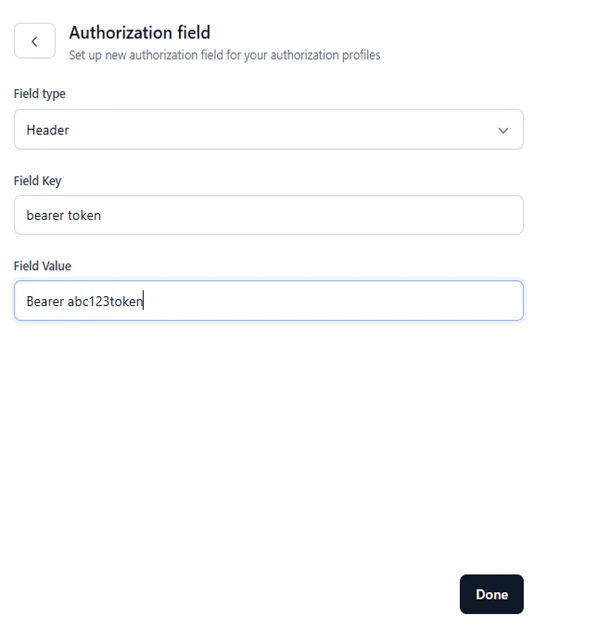
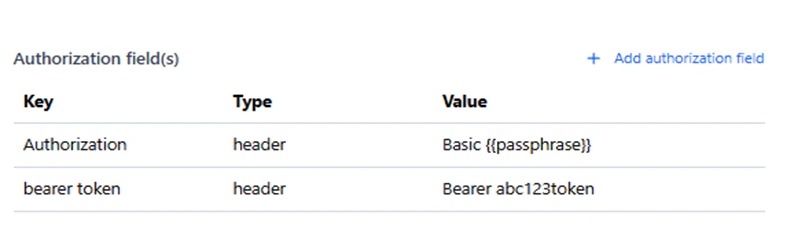
Authorization fields are data fields used in API requests to verify the identity of a user, system, or application and determine their permissions to access resources. These fields ensure authorization and access control in APIs, particularly for token-based authorization in AI for Process. To add auth fields:-
Click + Add Authorization Field in the New Authorization Mechanism window and enter one or more key/value pairs.
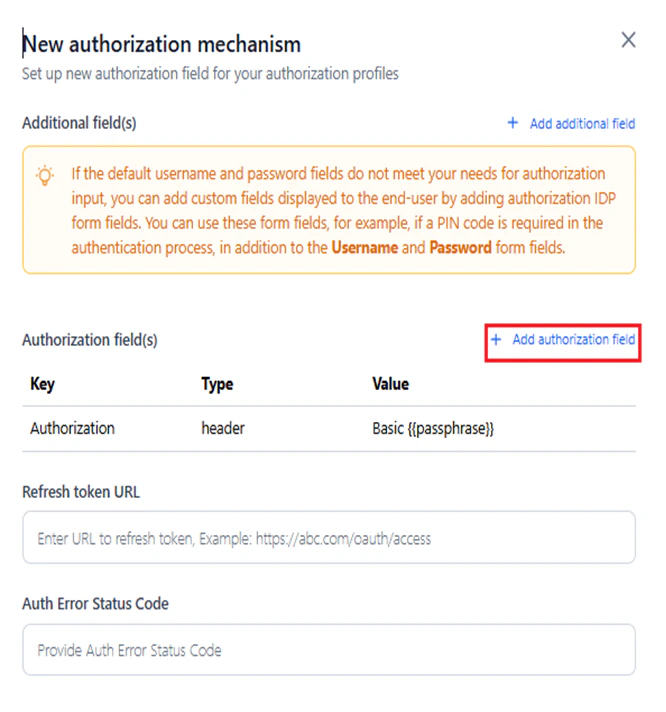
- Add values for the following fields:
- Click Done.
Authorization Profile Summary
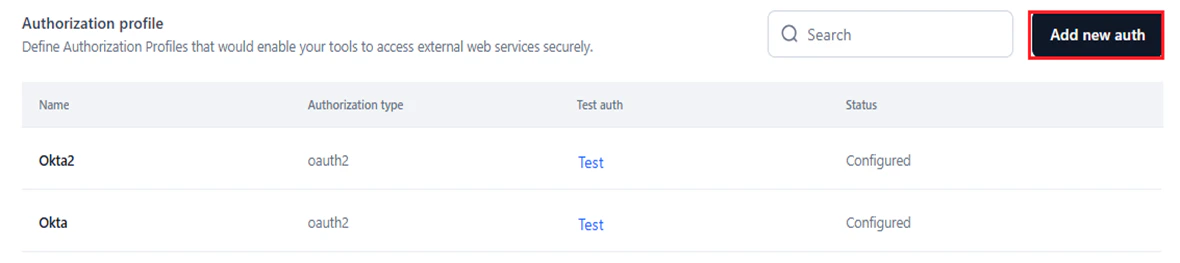
The Authorization Profile window displays the following for each profile:- Name: The name you provide to the Auth profile you create.
- Authorization Type: The method/type set for the Auth Profile. Currently, only oauth v2 is available.
- Test auth: Click the Test button corresponding to a configured profile to check if it establishes a connection with an external service based on the configured profile.
- Status: Displays Configured or Not Configured based on the configuration status.

Test an Auth Profile
Once all fields are provided in the New authorization mechanism window, click Test to validate the connection. AI for Process attempts to connect to the external service through the configured auth profile. A successful connection is shown below: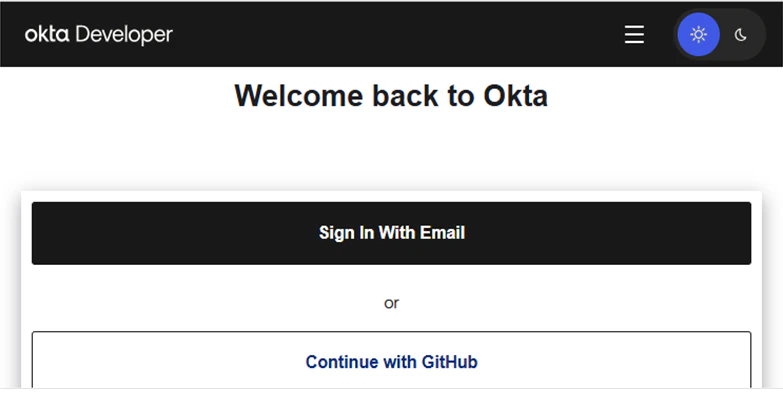
Manage Auth Profiles
Edit or delete a configured auth profile as needed.Edit
- Click the Ellipses icon for an Auth profile on the Authorization Profile page.
-
Click Edit.
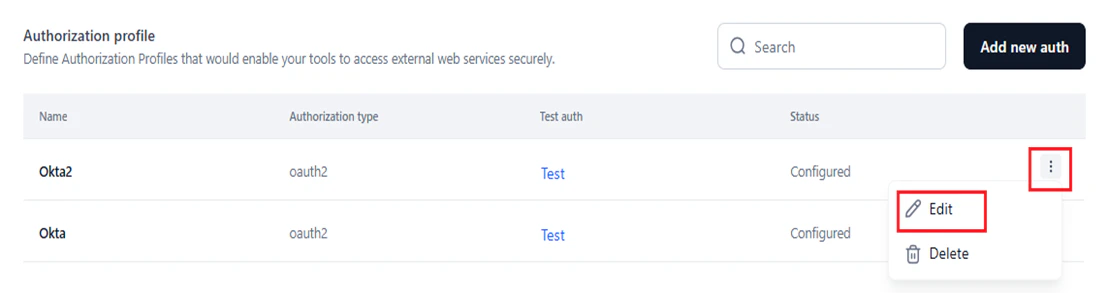
- Modify the required fields in the Update authorization mechanism window.
-
Click Update new auth.
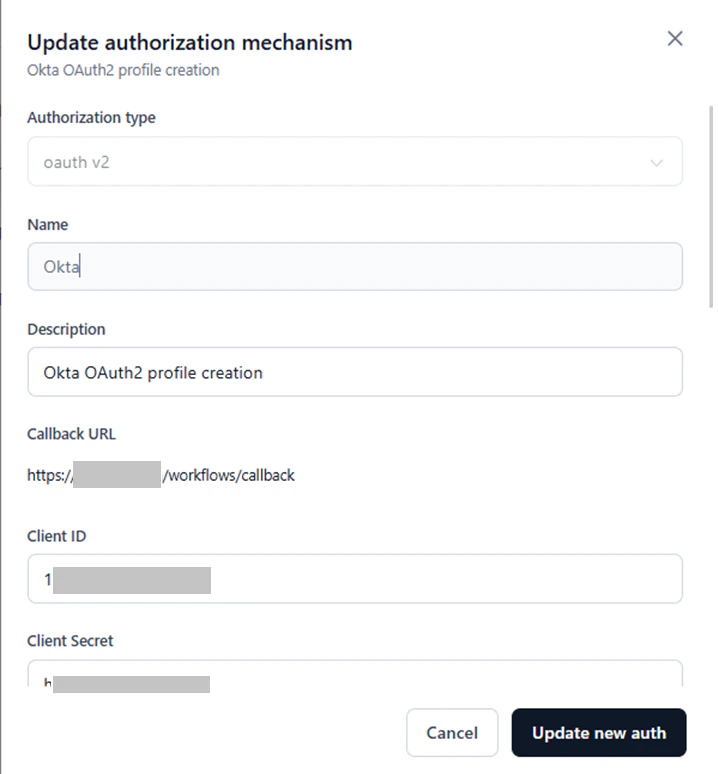
The Authorization Type and Name fields cannot be edited, but all other parameters can be modified.
Delete
To delete an auth profile:-
Click the Ellipses icon and select Delete.
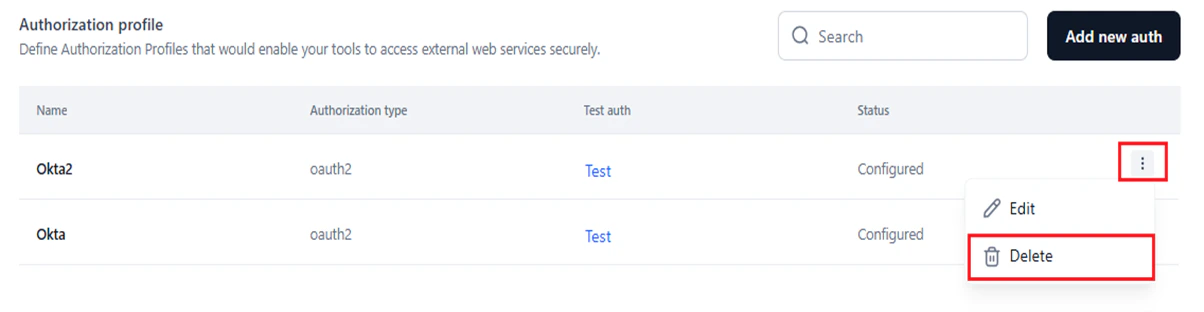
-
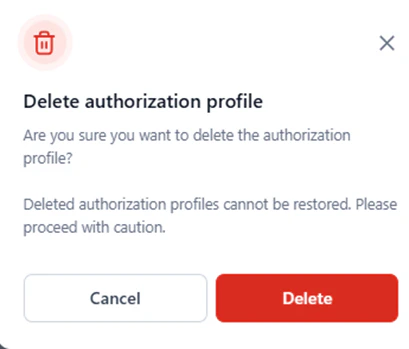
Click Delete in the following window.
Custom Scripts
Custom scripts let you deploy reusable code in isolated containers and call them from workflow nodes using secure API endpoints. Use the Manage Custom Scripts page in Settings to upload, configure, and deploy a complete script project without writing code directly in workflow nodes. Deployed scripts can be invoked from:- The API node endpoint when building a workflow.
- The Function node in the workflow automation flow.
- Task automation: Automate repetitive or complex tasks that require custom logic.
- Secure API integration: Integrate scripts into apps using API endpoints with secure authentication.
- Customization: Implement logic or workflows tailored to unique business requirements.
- Data processing: Transform, filter, or validate data to meet specific operational requirements.
- Error handling: Create custom error-checking and fallback mechanisms beyond standard system behavior.
Access the Script Deployment Wizard
-
In AI for Process, click Settings in the top menu.
- Click Manage Custom Scripts in the left menu.
Import and Deploy a Custom Script
Complete each step in order without skipping any.
- Access the script deployment wizard.
-
Click + Import or + Import new.
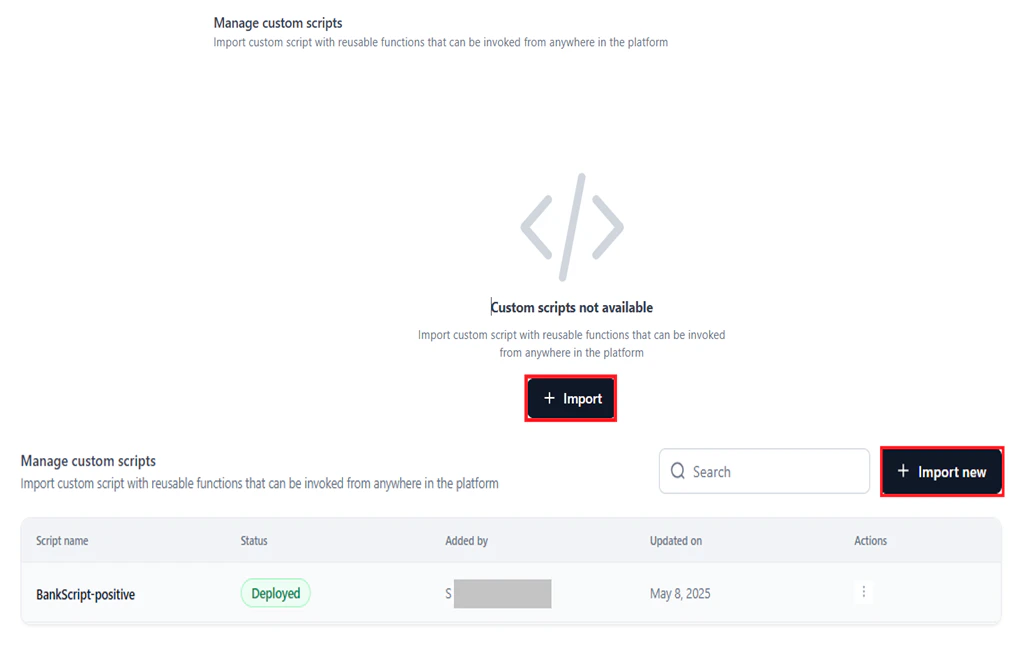
- Follow Step 1: General Details through Step 4: Review and Deploy.
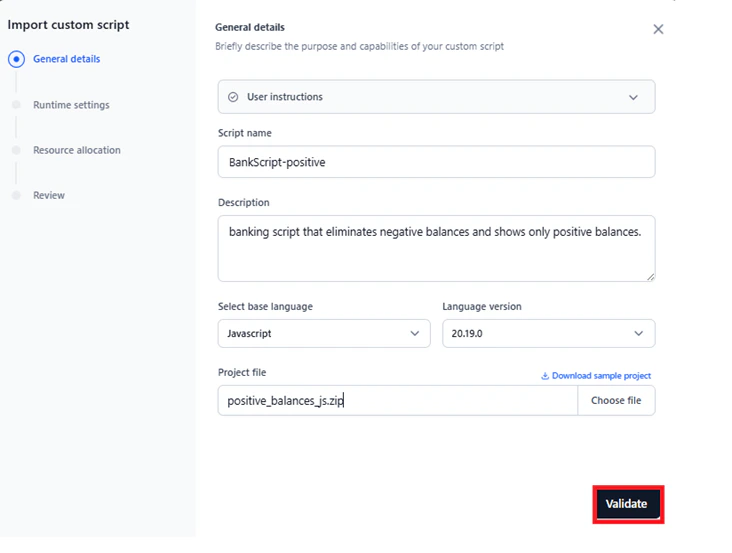
Step 1: General Details
- Enter a Script name.
- Enter a Description to define the purpose and capabilities of the script.
- Select the Base Language and Language Version. Supported options: JavaScript 20.19.0 and Python 3.10.15. The default version is auto-selected when you pick a language.
-
Under Project File, click Choose File and select a file from your local system. The supported file formats are
.zip,.gz, and.tarand the maximum permitted file size is 1 GB. -
Click Validate to check the file for errors.
- File matches the sample project structure and allowed format.
- Main file is not empty.
- Project file is within the 1 GB limit.
Custom Script Requirements
Follow these requirements to ensure your script runs correctly on the Platform. Main entry point Include amain.py (Python) or main.js (JavaScript) at the root directory of the archive file. This file is the main entrypoint for the service. Only the functions defined in this file are exposed via API endpoints or workflow integrations.
Modular code
You can organize code across multiple files. Only functions in main.py or main.js are exposed. Use additional files for helper functions or reusable logic, and import them into the main file.
Custom dependencies (optional)
Include a requirements.txt (Python) or package.json (JavaScript) at the root directory if your code has external package dependencies.
Relative imports
Use relative imports when importing between files in your project. Refer to the sample files for examples.
Environment variables
Access environment variables in your scripts as follows:
Python:
Step 2: Runtime Settings
Configure runtime variables to control how your script runs, stores configuration data, and stops executing.- Enter Key and Value pairs to declare environment variables accessible from your function.
-
Click + Add to add additional key-value pairs, or the Delete icon to remove a pair.
 The following default environment variables are available:
- UPLOADS_DIR: Read-only access to all files uploaded via the Public APIs. Use this to access data submitted to your account.
- WORKSPACE_DIR: Read-write directory for your function’s file operations. Data that your function stores or modifies is saved here.
- Set the Execution timeout in seconds. Allowed range: 30–600 seconds. Script timeouts prevent resource overuse from long-running or infinite-loop scripts, keep systems responsive, and enable error handling or retries when a script does not complete in time.
-
Click Next.

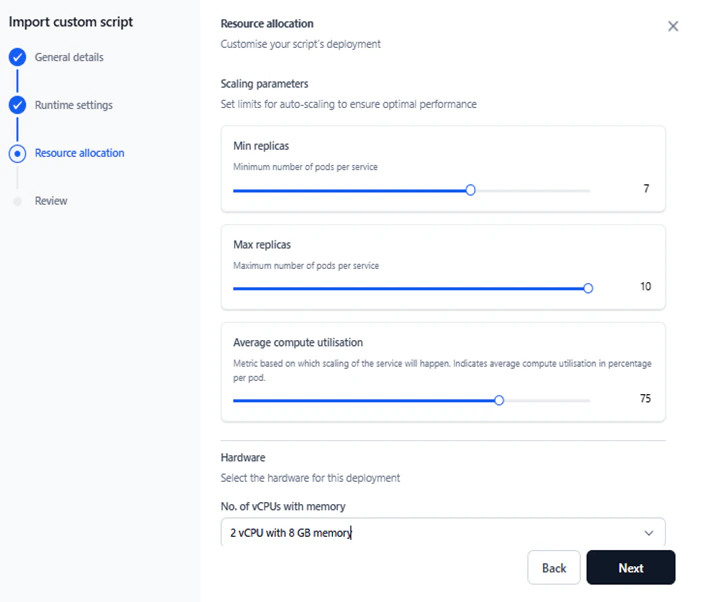
Step 3: Resource Allocation
Define scaling parameters and hardware requirements to ensure the script performs optimally under varying loads.-
Set the following Scaling parameters:
- Min Replicas and Max Replicas: Minimum and maximum number of pods per service to handle increased load. Allowed range: 1–10. Default: 1. Min Replicas must be less than or equal to Max Replicas.
- Average Compute Utilization: The metric used to trigger auto-scaling, expressed as average compute utilization (%) per pod. Default: 75. Allowed range: 1–100. This setting is disabled when Min and Max Replicas are equal.
-
Select the hardware profile for the deployment. The unit is number of vCPUs with memory. Profiles are virtualized for standardization.
-
Click Next.
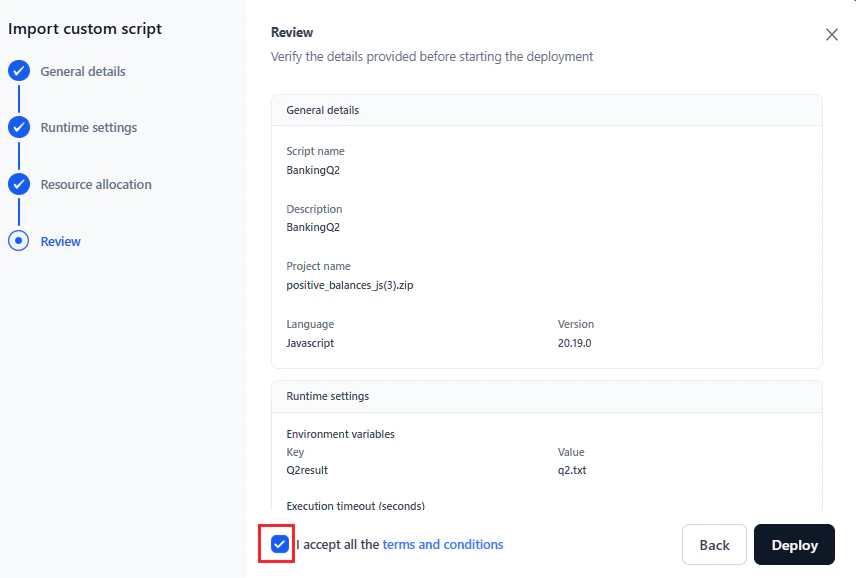
Step 4: Review and Deploy
- Review the General Details, Runtime Settings, and Resource Allocation sections. Click any section to return and modify values.
- Read the Terms and Conditions and select Accept to enable deployment.
-
Click Deploy.
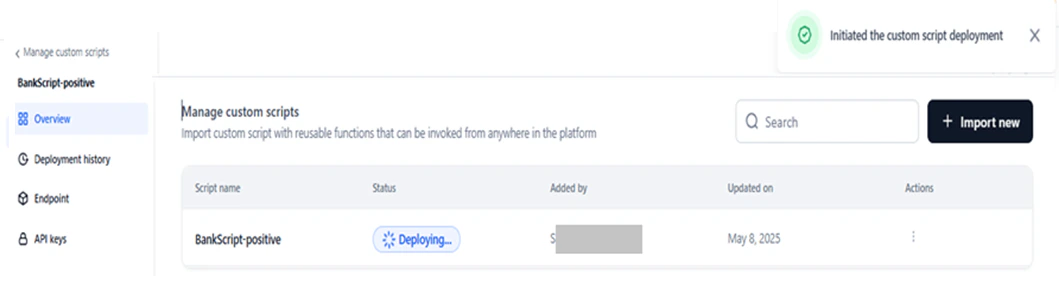
Email Notification
After successful deployment, a confirmation email with the subject “Custom script deployed successfully - API Endpoint Available” is sent to the admin. The email shows credits remaining and total allocation for the account.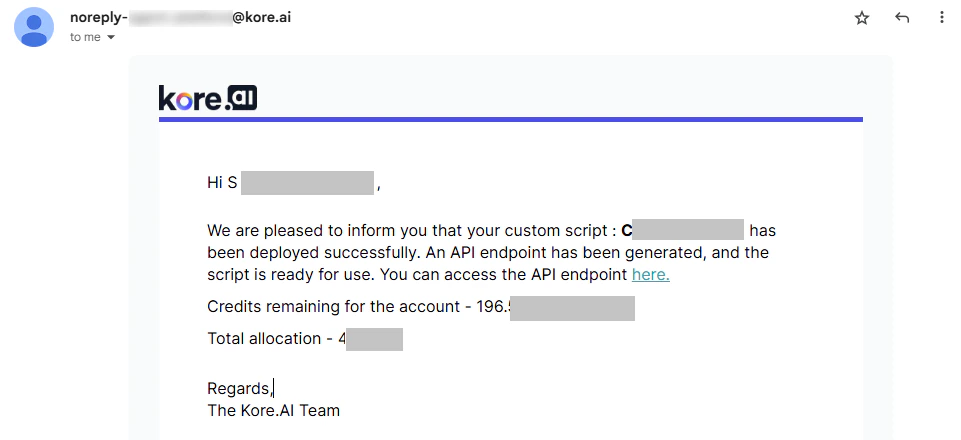
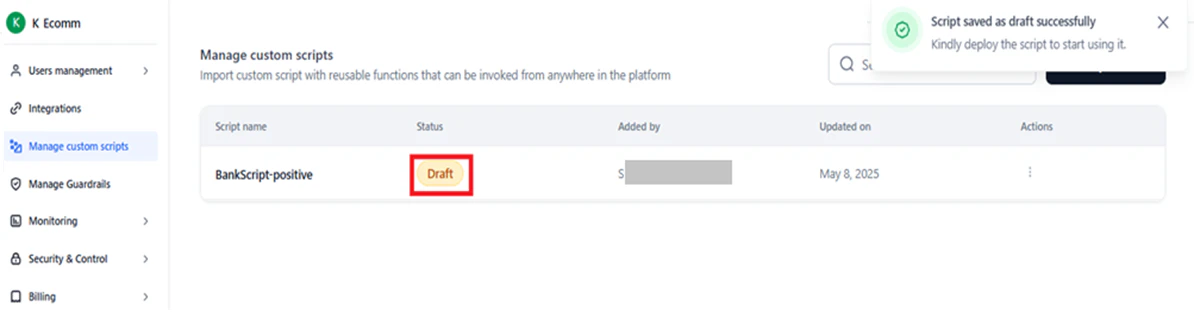
View Deployed Scripts and Statuses
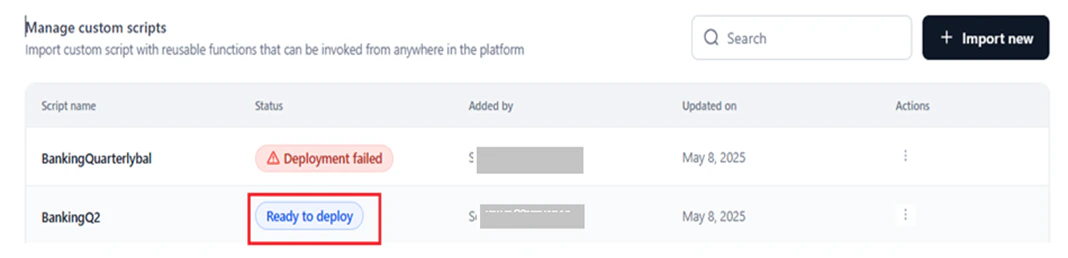
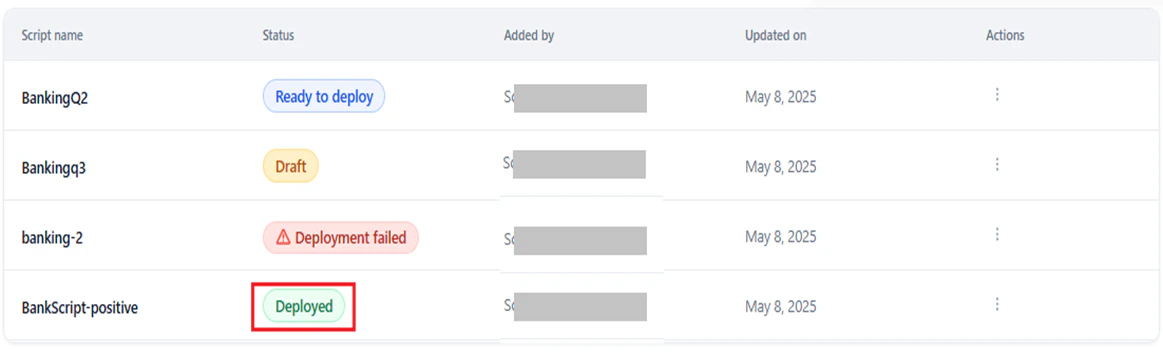
The Manage Custom Scripts page lists all scripts and their statuses once a script is deployed or saved as a draft.-
Search: Enter the script name in the Search field to filter the list.
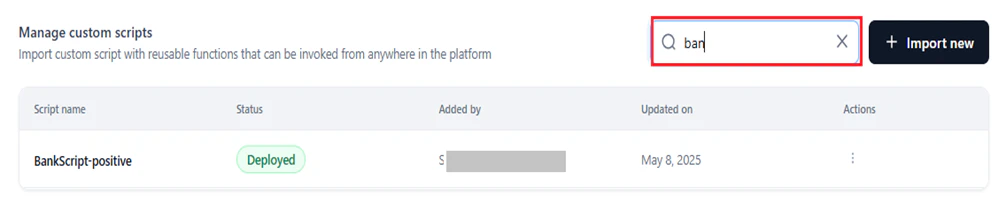
- Script Name: The name assigned during import.
-
Status: The current deployment status.
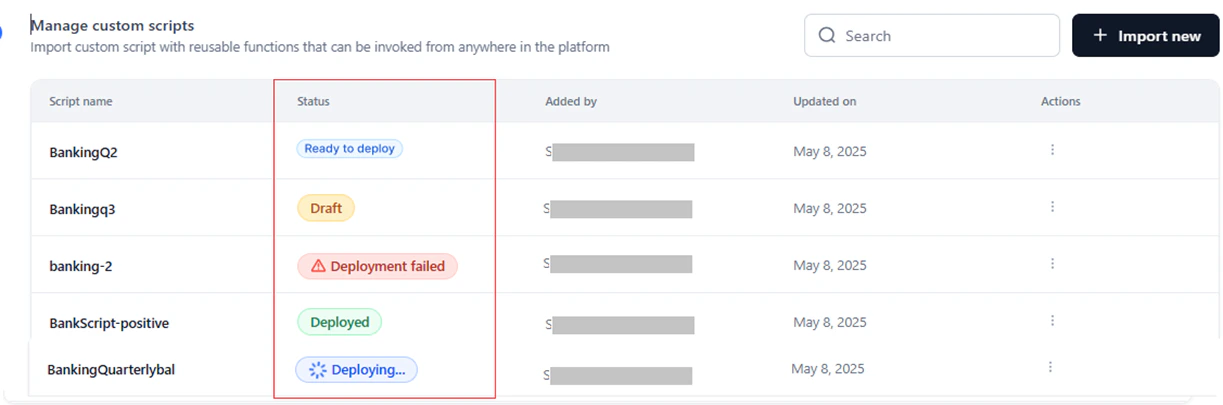
- Added by: The user who added the script.
- Updated on: The timestamp of the last action (deploy, redeploy, or undeploy).
- Action: Actions available based on the script’s status — undeploy, delete, or export.
Script Deployment Statuses
The table below lists all statuses and the actions available on each script management page.- The Updated on field is updated each time an action is taken on a script.
-
Hover over a Deployment Failed status to view the error tooltip with the failure reason.

Export a Script
Downloads the.zip folder of the script project to your local system.
To export a script:
-
On the Manage Custom Scripts page, click the Ellipses icon under Actions, then click Export.
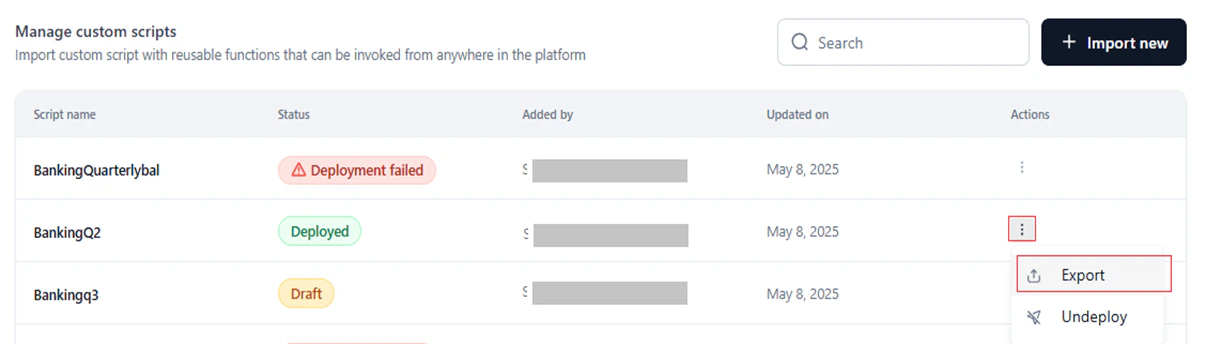
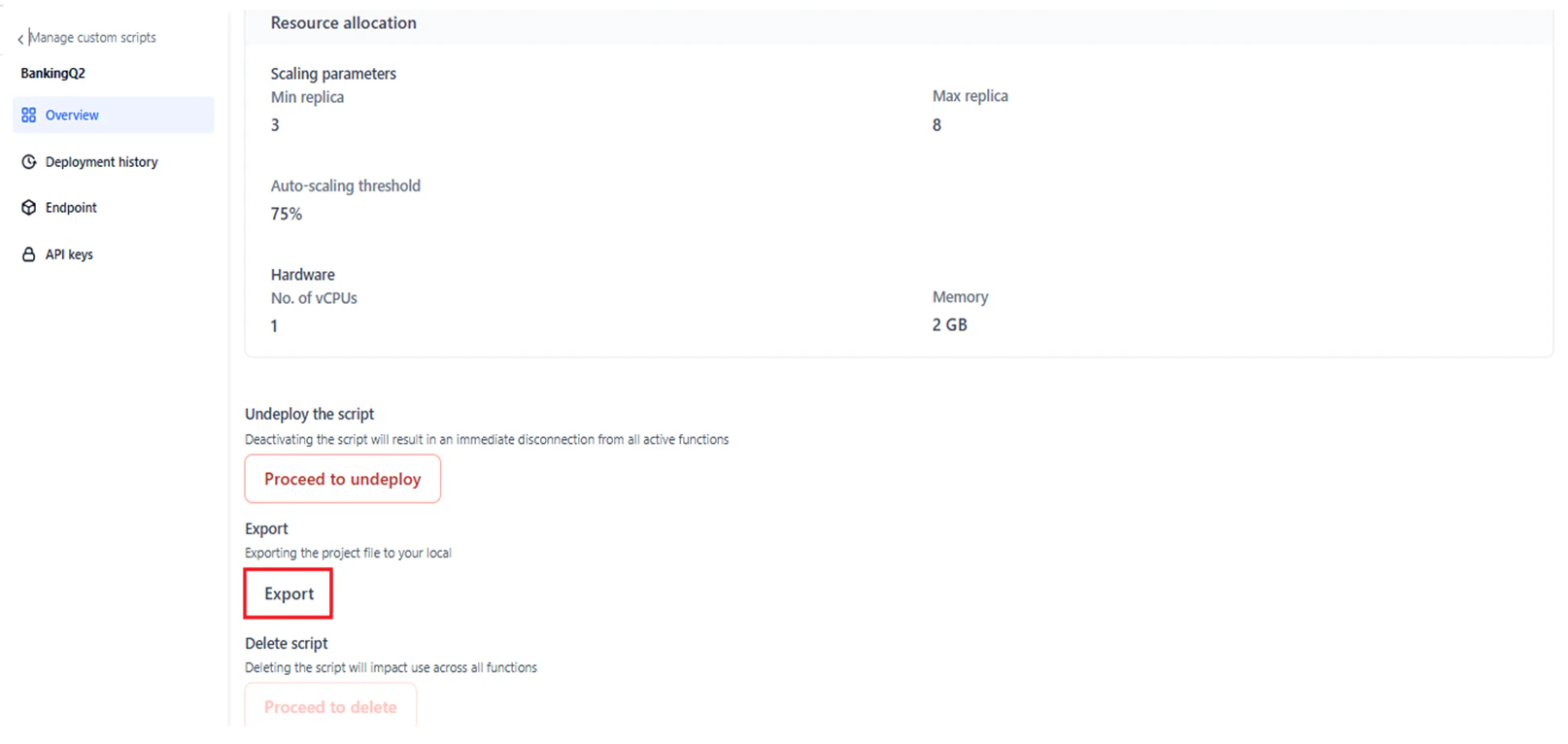
You can view the export status while it is in progress, on completion, or if it fails. You can cancel an export in progress.
Undeploy a Script
Undeploys the script from all its deployed locations on the platform.- An undeployed script can be redeployed. See Redeploy a Script.
- After redeployment, the script’s data and configurations are restored. You can edit the name and other parameters in the deployment flow.
- If no scripts are deployed, the Function node displays “No custom scripts deployed yet.” Undeployed scripts do not appear in the Script dropdown for the Function node.
-
On the Manage Custom Scripts page, click the Ellipses icon under Actions, then click Undeploy.
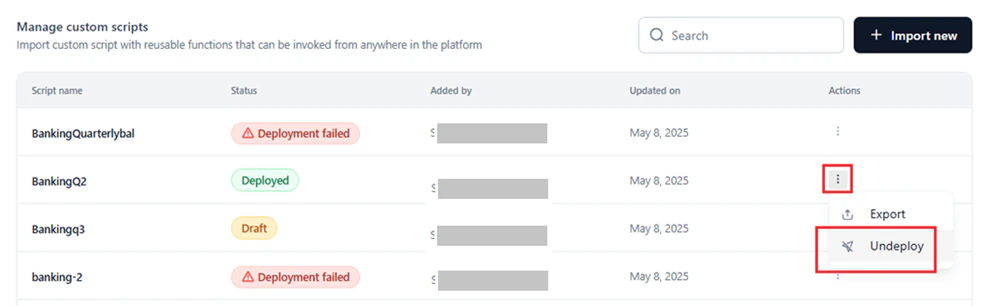
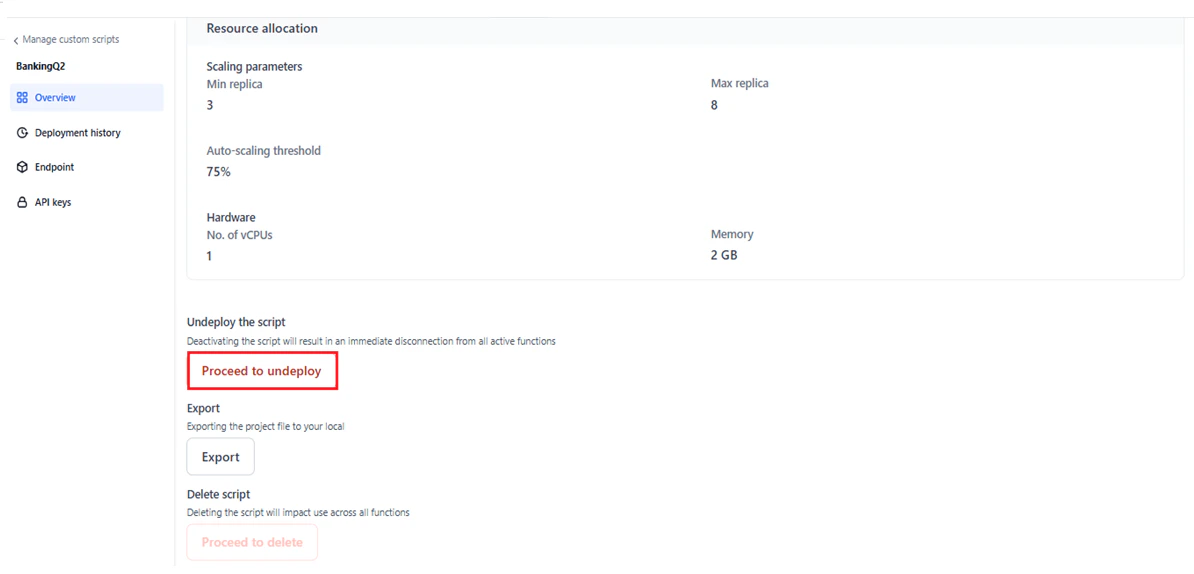
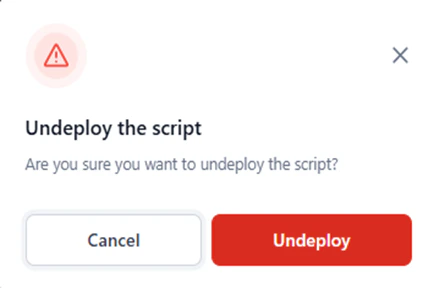
-
Click Undeploy in the confirmation window.
Email Notification
After a successful undeploy, a confirmation email with the subject “Your custom script has been undeployed successfully” is sent to the admin. The email shows credits remaining and total allocation for the account.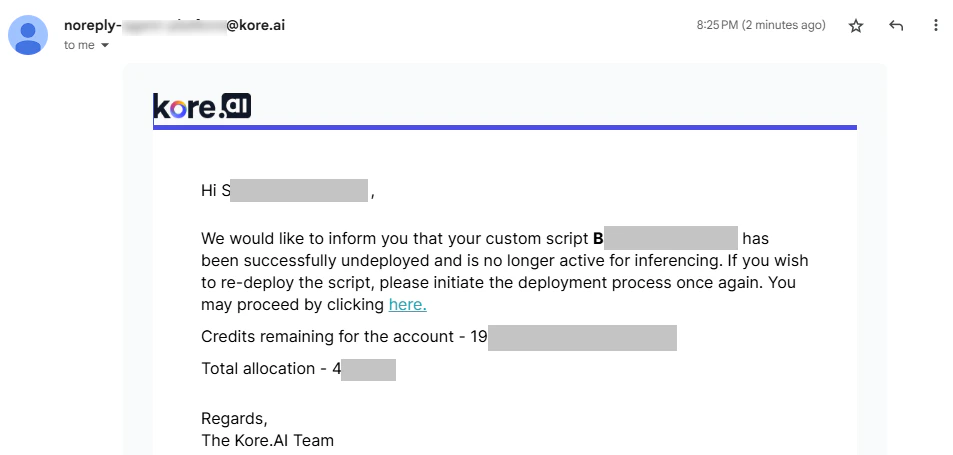
Delete a Script
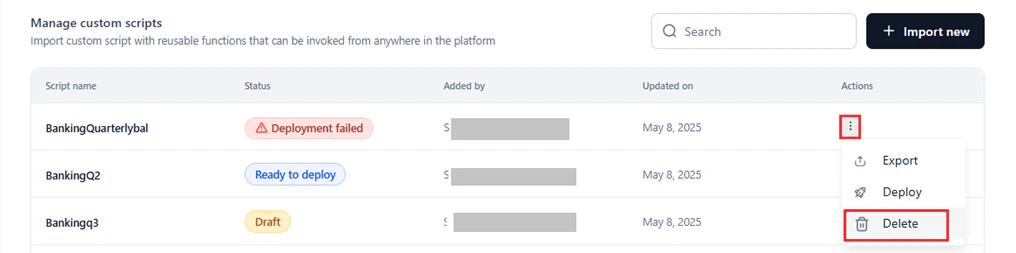
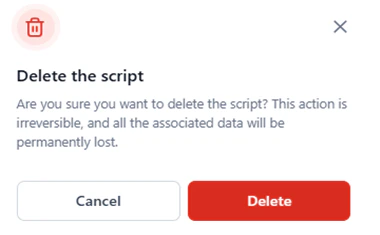
Permanently deletes a script, including its configurations and definitions, from the system. To delete a script:-
On the Manage Custom Scripts page, click the Ellipses icon under Actions, then click Delete.

-
Click Delete in the confirmation window.
Redeploy a Script
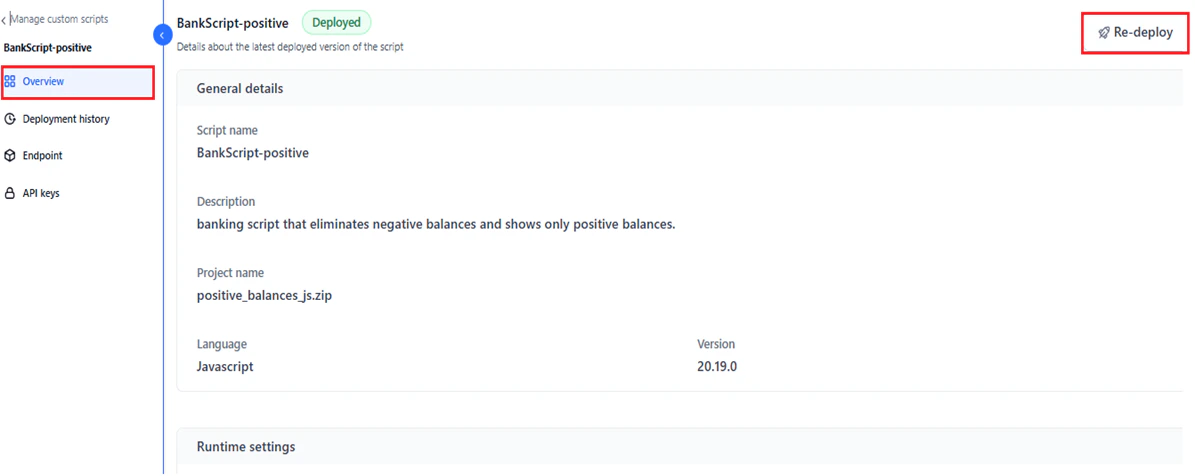
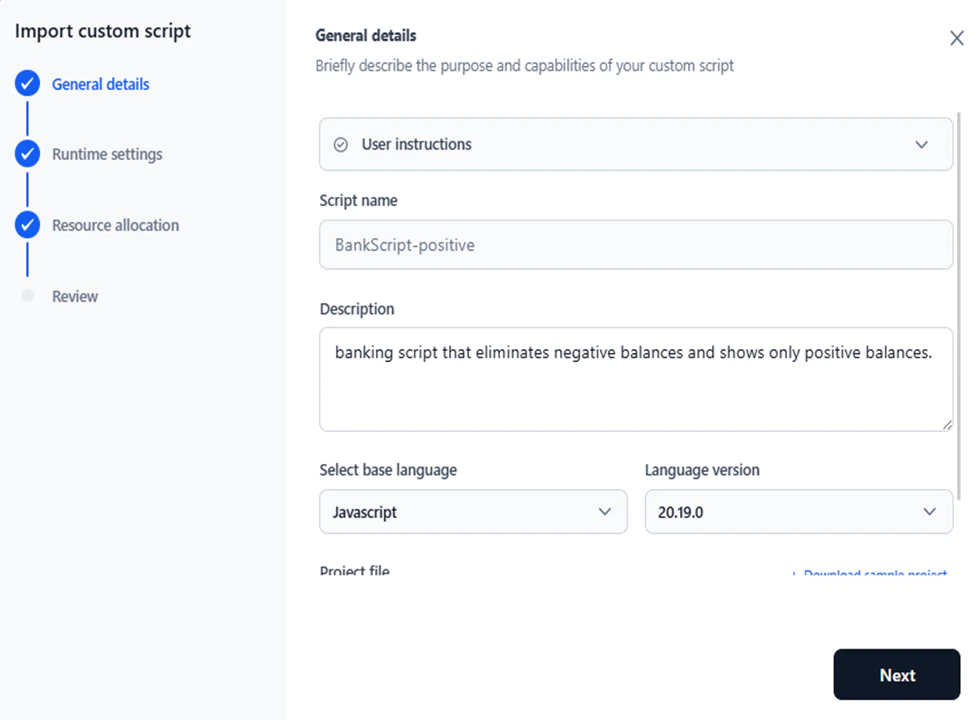
Redeployment lets you update a script’s description, project file, runtime settings, and resource allocation. You cannot change the script name, base language, or version number during redeployment. Redeploy is only available for scripts with the Deployed status. To redeploy a script:- Click the script with the Deployed status on the Manage Custom Scripts page.
-
Click Re-deploy on the Overview page.
-
The import wizard opens with the existing configuration. Update the required fields.
Script Overview
The Overview page shows the configuration details of the latest deployed version of a script. To open it, click any script entry on the Manage Custom Scripts page. The page is available for all script statuses and displays:- Script name and assigned status.
- General Details configuration.
- Runtime Settings configuration.
- Resource Allocation configuration.
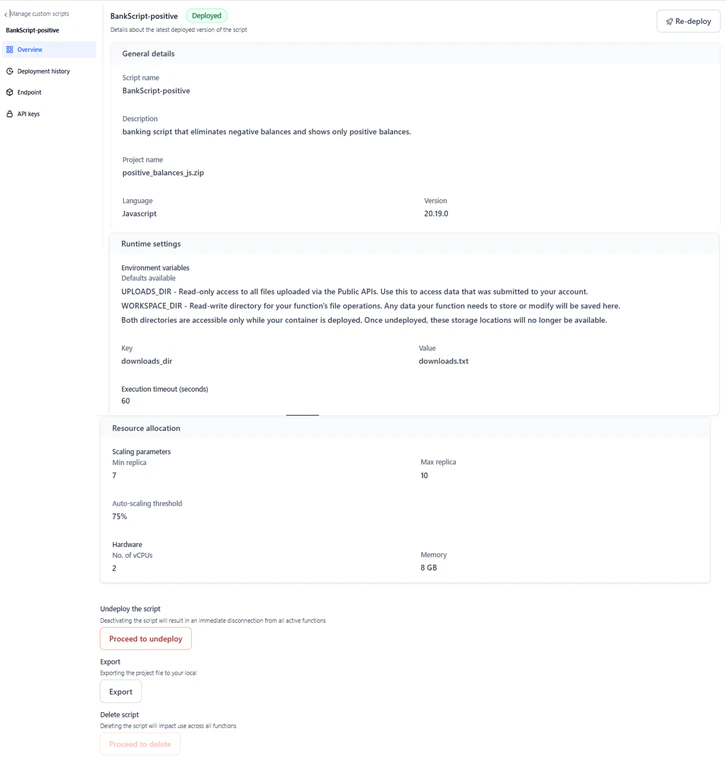
Deployment History
The Deployment History page shows previous and current deployment and undeployment actions for a script. Use it to track version history, deployment statuses, and actions performed.- Deployment history is available for the following statuses: Deployed, Deployment Failed, Deploying, and Ready to Deploy.
-
For scripts in Draft status, the page shows a prompt to deploy the script.
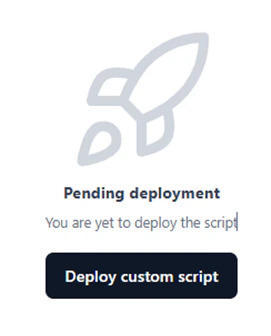
- Undeployment information is shown only when the status is Ready to Deploy.
-
Hover over a failed status to view the reason for failure.

- Deployment name and version: Starts at v1 and auto-increments. The version is appended to the script name and can be renamed.
- A green Check icon for the latest active deployment. Does not appear for failed deployments or undeployed scripts.
-
An Edit icon to rename the deployment version.

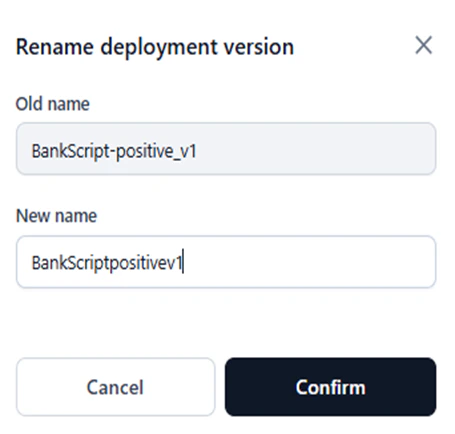
Follow the naming convention to avoid errors.
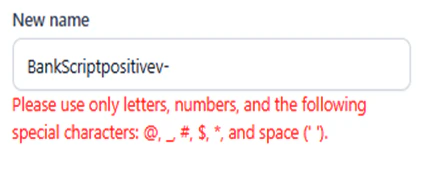
- Deployed on: Timestamp of the deployment or undeployment.
- Duration: Duration of the deployment. Shows ”–” for all statuses except Deployed.
- Deployed by: The system user who deployed or undeployed the version.

- Deployed by: Name of the user who performed the action.
- Start Time: When the deployment or undeployment started.
- End Time: When the deployment or undeployment ended.
- Time Taken to Deploy: Total duration from start to end.
- Status: Final outcome of the action (Success or Failed).
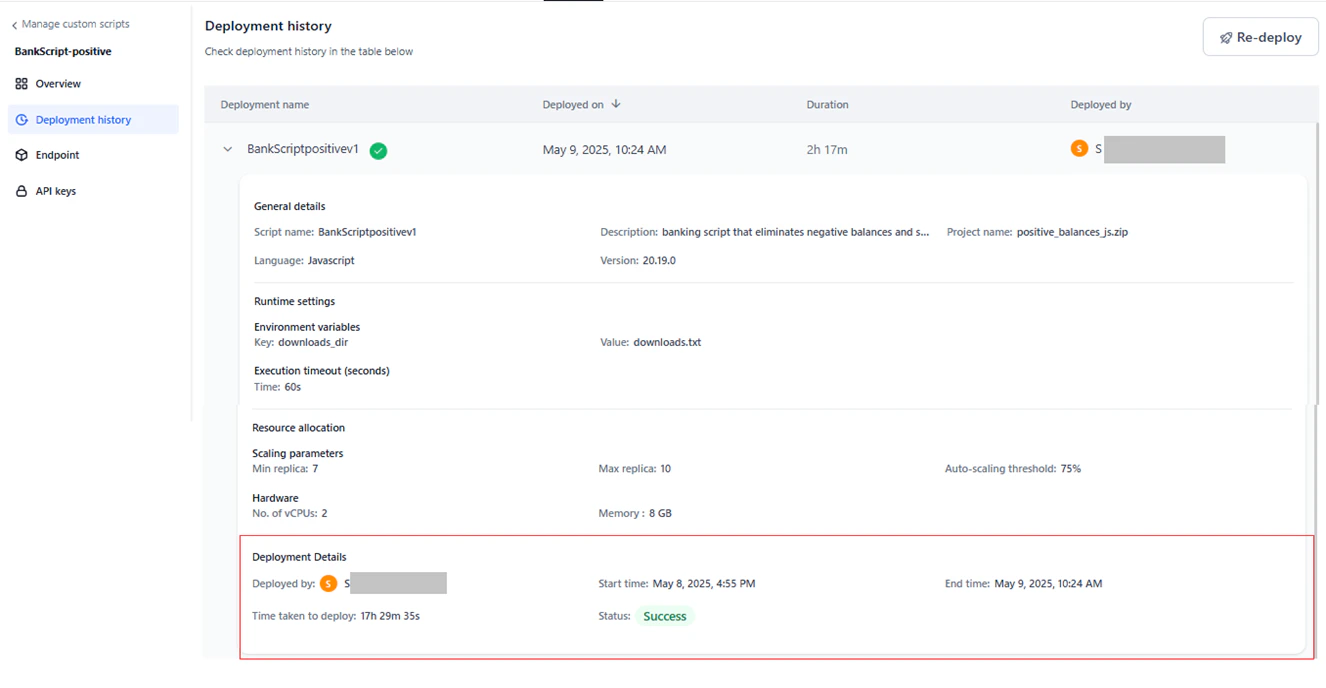
Deployment History by Status
Deployed

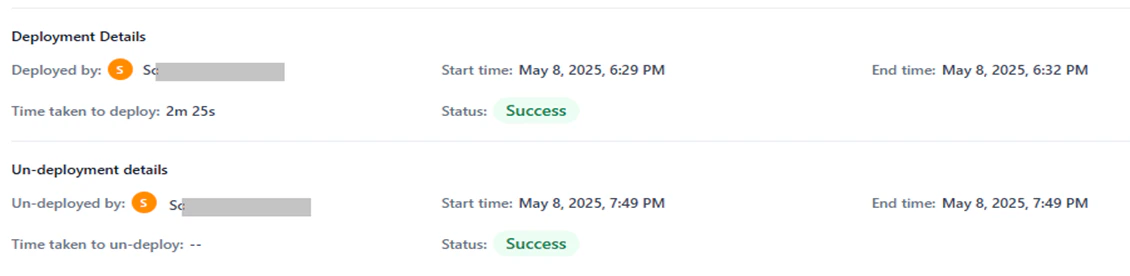

Endpoint
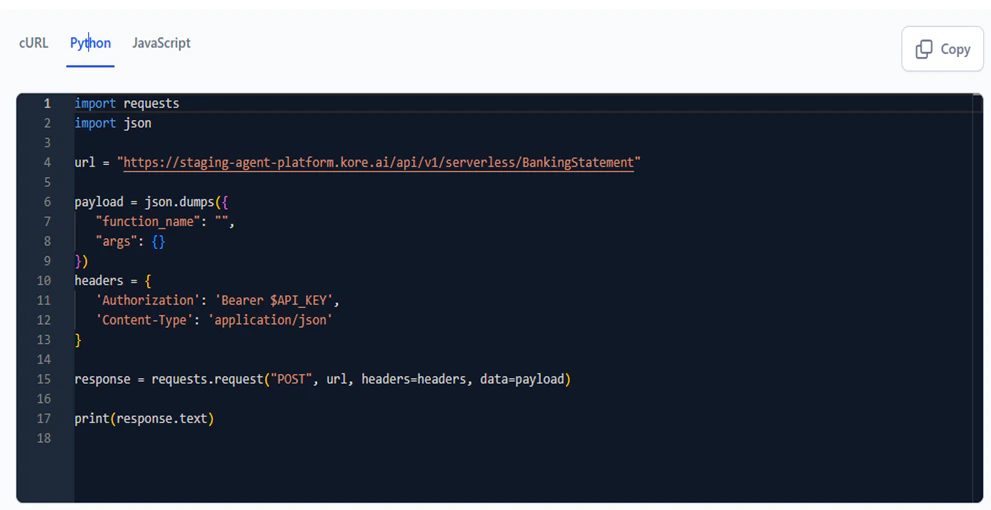
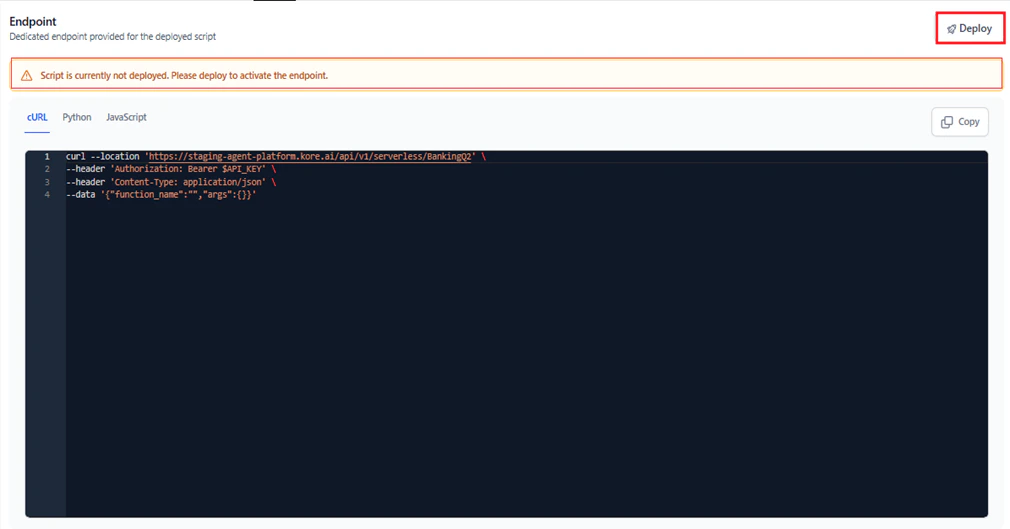
The Endpoint page shows the activated endpoint code for a deployed script in multiple formats. Copy the code in your preferred format to integrate it into your applications.The endpoint code is view-only and cannot be edited.
-
cURL: API endpoint information for the script.
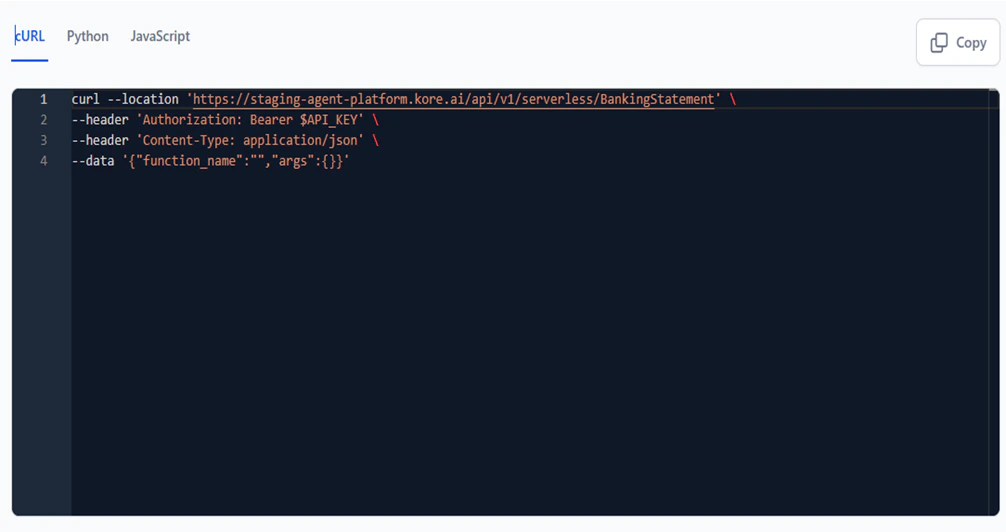
-
JavaScript: Payload JSON code in JavaScript format.
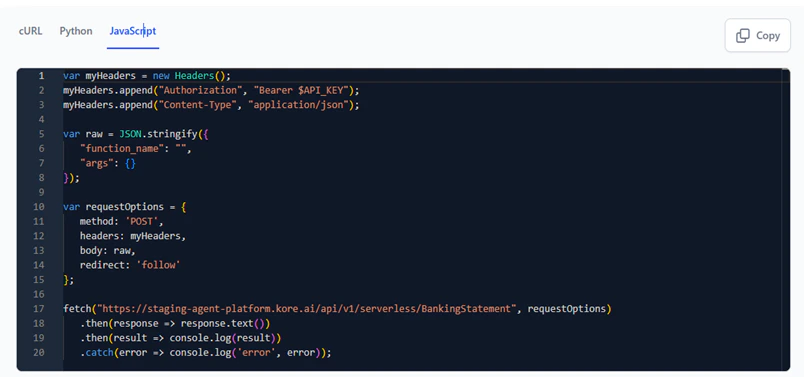
-
Python: Payload JSON code in Python format.

API Keys
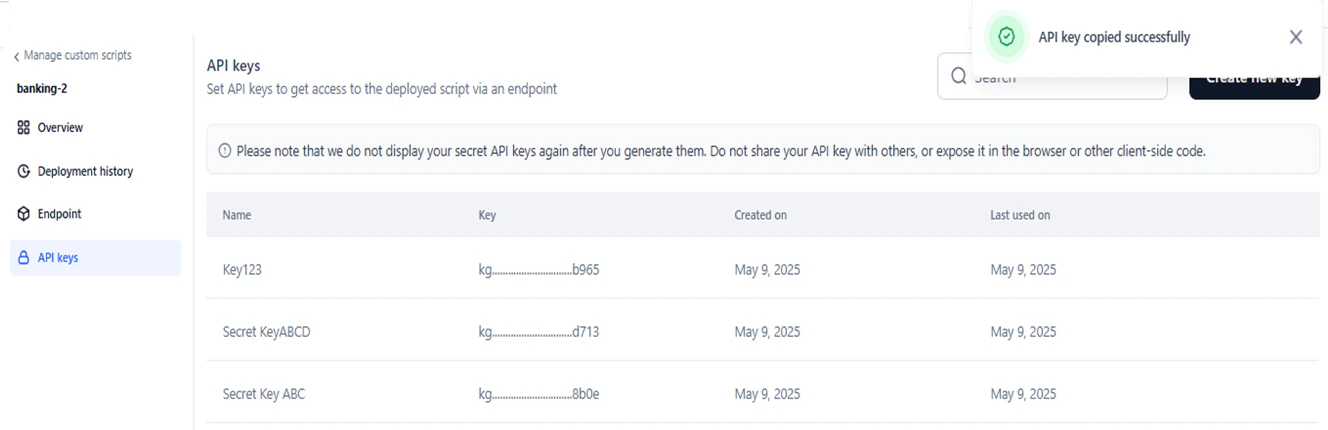
API keys control access to a deployed script’s endpoint. Create at least one API key before calling a script via an endpoint.You can create API keys for a script regardless of its deployment status. Keys can only be used after the script is successfully deployed.
Create an API Key
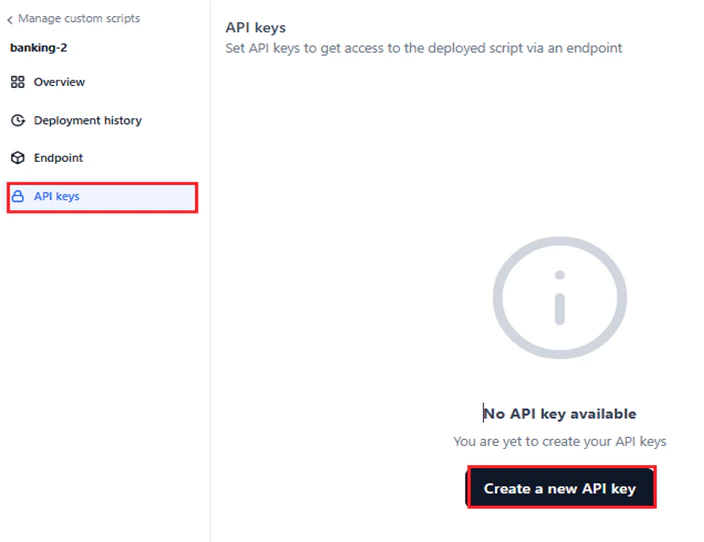
- Navigate to the API Keys page.
-
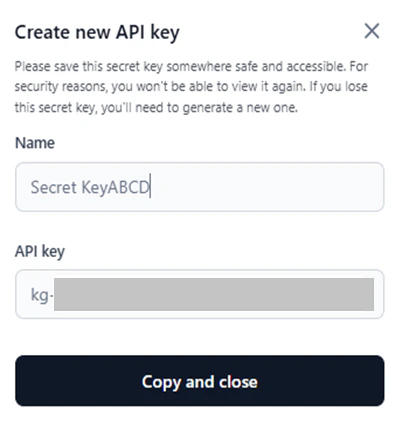
Click Create a New API Key or Create New Key.

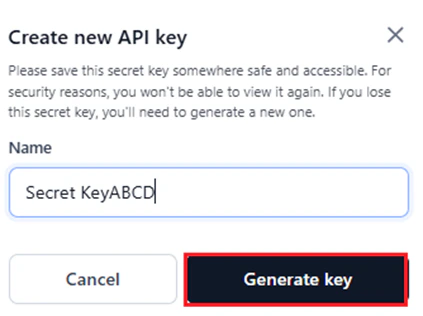
- Enter a unique name for the key. The default name is “Secret Key.”
-
Click Generate Key.
-
Click Copy and Close.
Delete an API Key
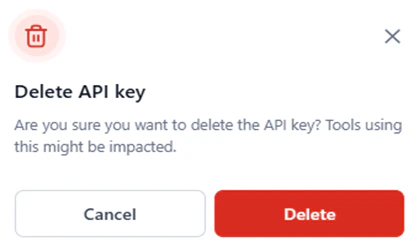
- On the API Keys page, hover over the key you want to delete.
-
Click the Delete icon.

-
Click Delete in the confirmation window.
Search API Keys
Enter the key name (partial or full) in the Search field to find a specific key.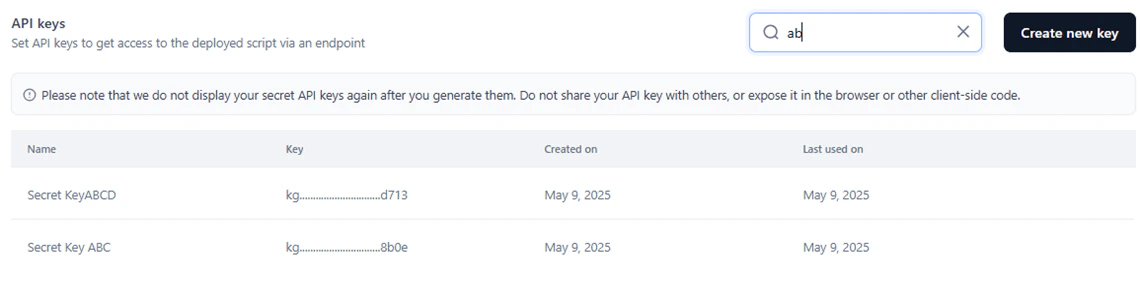
Use a Custom Script in the API Node
To call a deployed custom script from the API node in a workflow:-
In the API node configuration, click Define Request.
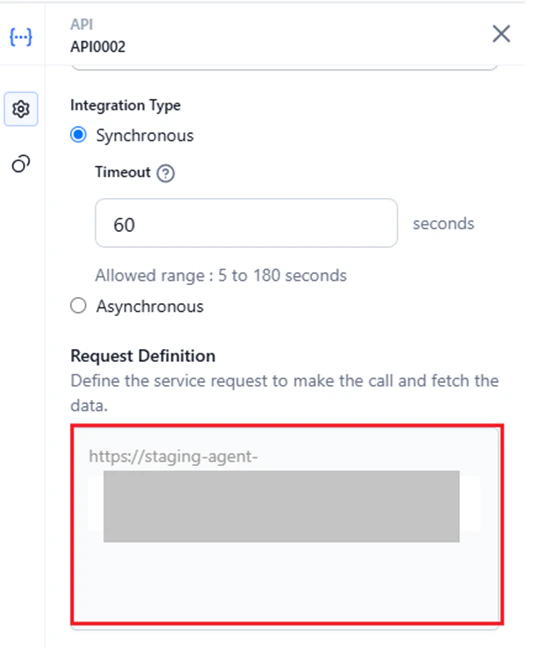
-
In the Edit Request dialog, configure the following:
- Select the request type.
-
Copy the cURL from the Endpoint page of the custom script.
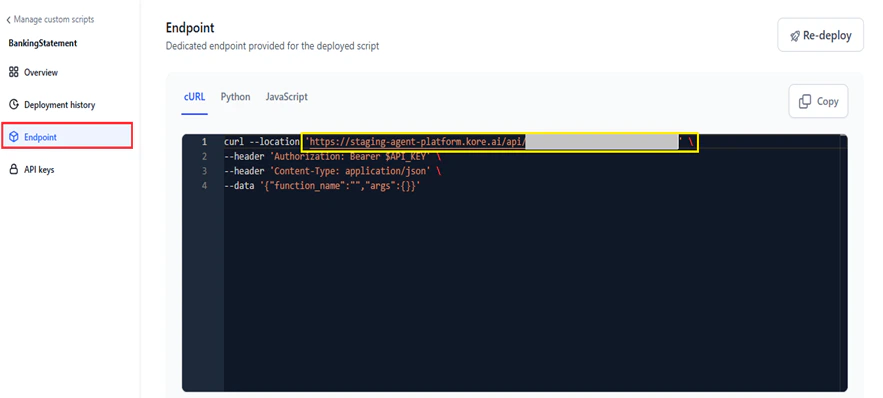
-
Paste it in the text field.
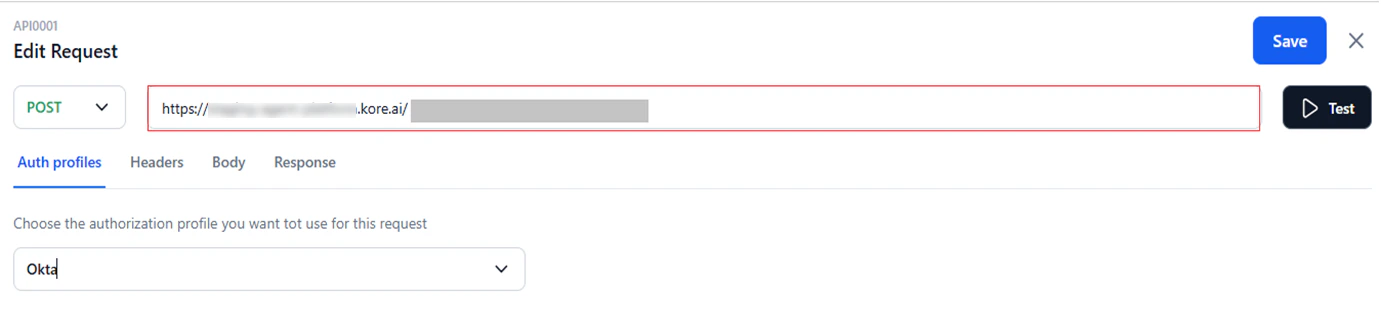
- In Auth Profiles, select an authentication profile or None (default) if authentication is not required. Learn more about Auth Profiles.
-
In the Headers tab, add key-value pairs. For example, Key:
Content-Type, Value:application/json. -
In the Body tab (not available for GET requests), select the content type:
- application/x-www-form-urlencoded: File uploads via HTTP POST. Key/value pairs are encoded by the platform.
- application/json: JSON data exchange between servers and web applications.
- application/xml: XML payload for SOAP services using POST, with the option to include node values.
- Custom: Non-standard payload formats, such as for blogs or custom variables.
- Click Test to send a test request. The API response appears in the Response tab.
- Click Save.