
Datasets are curated collections of agent interactions (sessions and traces) used for evaluation, regression testing, and quality assurance. They can also act as golden sets for validating agent behavior against known scenarios or edge cases.Documentation Index
Fetch the complete documentation index at: https://koreai.mintlify.app/llms.txt
Use this file to discover all available pages before exploring further.
Why Datasets Matter
Datasets help teams:- Organize training, testing, and production samples.
- Ensure portability by exporting datasets to external systems for analysis or model training.
- Enable focused evaluation within the dataset.
Core Capabilities
- Centralized view for managing all datasets within a project.
- Clear distinction between Static and Auto-Update datasets.
- Export options for offline workflows and reporting.
- Tools for analyzing session content and running evaluations directly on a dataset.
Key Use Cases
| Use Case | Description |
|---|---|
| Policy Evaluation | Test policies against a controlled dataset before enabling them on live traffic. |
| Manual Evaluation | Run ad-hoc evaluations, including LLM-as-a-Judge or numeric checks, on selected sessions. |
| Regression Testing | Check traces and telemetry from updated versions of the agentic system—such as prompt updates or model upgrades—before deploying to production. |
| Benchmarking | Compare multiple agent or model versions using comparable datasets designed to measure performance across scenarios. |
Dataset Types
Agent Management Platform supports two dataset types.| Static Dataset | Auto-Update Dataset | |
|---|---|---|
| Description | Manually curated, fixed collection of sessions. | Dynamically populates sessions based on saved filter conditions. Refreshes as new matching sessions arrive. |
| Best For | Regression testing, hand-curated benchmark sets, comparing model or prompt versions, reproducible quality checks. | Continuous monitoring, automatically collecting failures or anomalies, tracking emerging patterns such as negative sentiment or long latency traces. |
| Session Management | Manually add or remove sessions at any time. | Cannot manually add sessions. Filter criteria can be edited at any time. |
| Auto-Refresh | Does not update automatically. | Sessions refresh automatically as new telemetry arrives. |
Creating a Dataset
- Go to Evaluations → Datasets.
- Select Create Dataset.
- Choose a dataset type: Static or Auto-Update.
-
Configure the dataset details:
- Name and description
- For Static datasets: Manually select sessions.
- For Auto-Update datasets: Define filter criteria (date range, metrics, tags)
- Review the selected sessions in preview mode.
- Select Save.
Working with Datasets
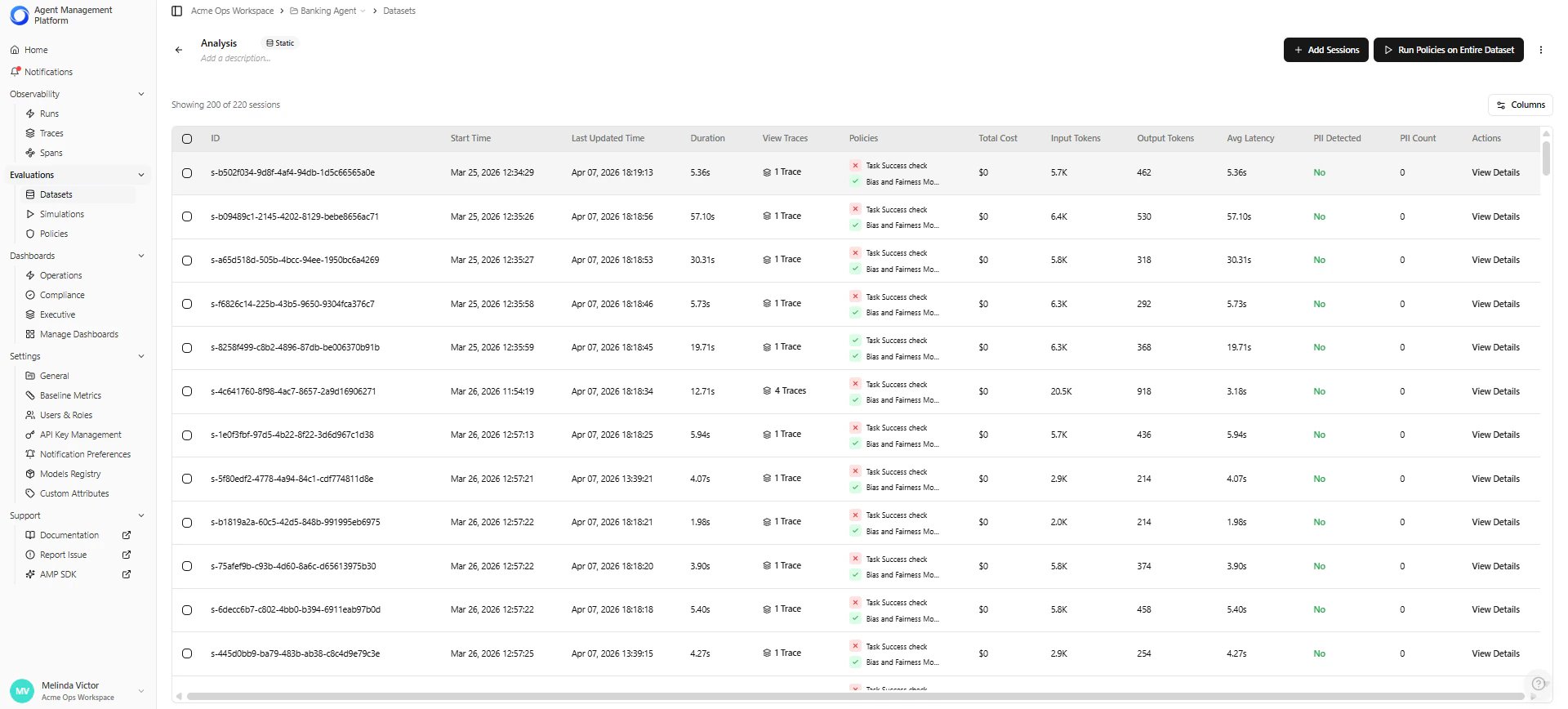
Selecting a dataset opens its detail view, where you can explore and work with all included sessions.Dataset Detail View
| Area | Description |
|---|---|
| Sessions List | View all sessions in the dataset, including metadata such as timestamp, duration, and status. |
| Inspect Sessions | Open a session’s detailed view to review input, output, traces, metadata, and evaluation results. |
| Overview Tab | Analyze aggregated metrics such as success rate, duration, and performance trends. |
| Filter Criteria | View the filter rules used to automatically populate sessions. Auto-Update datasets only. |
Add Sessions (Static Datasets Only)
Use this option to expand your dataset with additional sessions.- Select Add Sessions from the top bar.
- Browse and select sessions from the project.
- Confirm to include them in the dataset.
Run Policies on a Dataset
Evaluate dataset sessions against one or more policies.- Select Run Policies on Dataset.
- Choose one or more policies.
- Run evaluations across all sessions.
Multiple policies can run in parallel, allowing you to test different rules or metrics at the same time.
Managing Datasets
Edit a Dataset
Select the dataset you want to modify. Available edit options depend on the dataset type:- Static — Add or remove sessions.
- Auto-Update — Edit filter criteria.
Delete a Dataset
- Deletion removes only the dataset reference. The underlying telemetry data is not affected.
- Datasets linked to active policies or evaluations cannot be deleted.
Export a Dataset
You can export a dataset for offline workflows, model training, or external analysis.- Select the more options menu (⋮) in the top-right corner of the dataset.
- Select an export format: JSON, CSV, or JSONL.