Role Management in the Settings console implements Role-based Access Control (RBAC) for account, workflow, and agentic app features. When you invite or add a user, you assign a role that defines their module-level permissions and access. Use it to control user actions, update roles when job functions change, and revoke access when a user leaves. Key points:
  • Master Admin: Automatically assigned to the account creator. Has the highest access level — can create, modify, and delete custom role permissions and manage all users.
  • App Owner: Automatically assigned to the agentic app creator. Has full administrative access across all platform features and configurations.
  • Default role for new users: Viewer, which provides the minimum required access. Change this anytime in the Settings console.
  • System roles have preset permissions that cannot be modified or deleted. Duplicate a system role to customize it as a custom role.
  • Custom roles let you tailor permissions and access for specific organizational needs.

Role Types

A role type defines the scope of a role’s permissions. Roles are auto-assigned based on context:
Role TypeScopeAuto-assigned toManaged by
AccountUsers, integrations, and security permissionsUsers invited to the accountMaster Admin
WorkflowWorkflow configurations and deploymentsUsers invited to a workflowtool admin
AppAgentic app features, configurations, and deploymentsUsers invited to an agentic appApp Owner

System-defined Roles

System-defined (default) roles are built into the system at the account, workflow, and agentic app levels. Their scopes, permissions, and access levels are preset and cannot be modified or deleted. To customize, duplicate a system role and edit the copy. Account roles:
RoleDescription
Master AdminFull control over workflow and model management, and all Settings console features.
AdminAll permissions except model deletion, billing, and connectors.
MemberCan create workflows, add external models, and modify specific integrations.
ViewerView-only access across the platform.
Workflow roles:
RoleDescription
tool adminFull control over workflow management, versioning, sharing, deployment, deletion, configuration, monitoring, and API key creation.
tool managerAll workflow permissions except deletion.
tool editorCan create versions, deploy, monitor, and export workflows.
tool viewerCan view node details and generate output only.
App roles:
RoleDescription
App OwnerFull administrative access across all platform features and configurations. Cannot be removed from the system. Manages all other roles.
App AdminFull access to most Agentic App system features. Can modify all roles except the App Owner’s permissions.
App DeveloperFull access to core development features including configurations, workflows, guardrails, and data. Limited admin access.
App ViewerView-only access to specific features including configurations, workflows, guardrails, and simulation.
App TesterView-only access to most system features — can observe and test agents and analytics. Cannot write or modify production features.

Custom Roles

Custom roles apply to Account and Workflow role types only. Admins can fully configure the scope, permissions, and access levels to match organizational requirements. Example: A custom role “Banking workflow Conversation Moderator” can have full access to guardrail configuration but no access to create or deploy workflows. Important considerations:
  • After creating a custom role, it appears in the role dropdown during email invitations. custom role listing

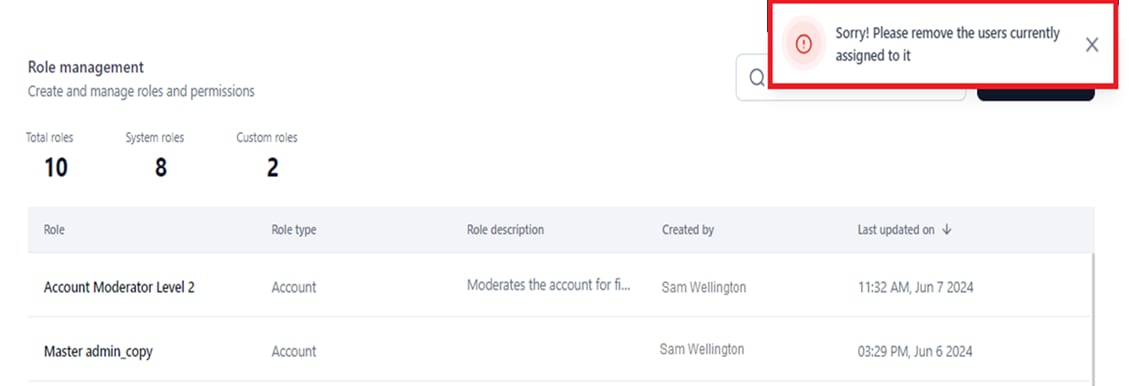
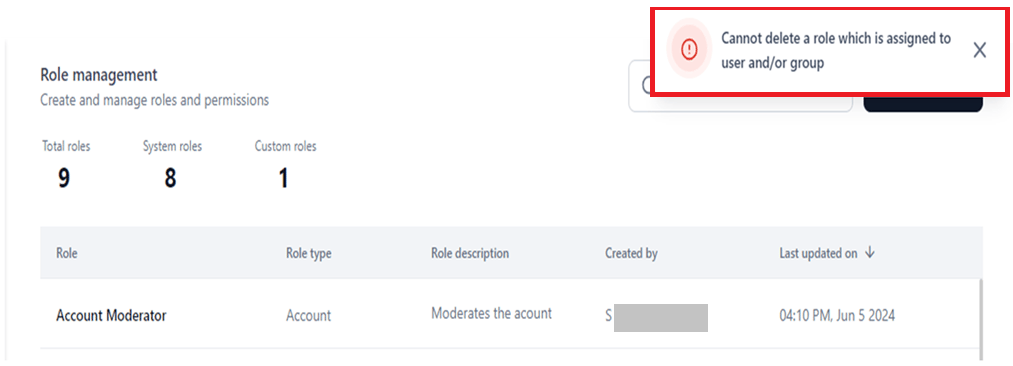
  • You cannot delete a custom role assigned to active users or included in a pending invitation. error custom role deletion To proceed, unassign the role or assign an alternative role to the affected users, then delete the custom role.
Permissions

A Permission is a specific action (or set of actions) a user can perform for a module. Permissions are determined by:
  • Access level: Full, Custom, View, or No Access.
  • Role type: Account, Workflow, or Agentic App.
  • Role category: Admin or Workflow.
Example: The system provides full access to create a workflow version to the tool admin role of the Workflow role type.

Access Levels

LevelDescription
FullView, add, edit, and delete module data.
CustomView, add, and edit module data. Cannot delete.
ViewView only. No edit or delete.
No AccessNo access to the module’s features.

Modules with Configurable Permissions

You can define permissions and access levels for the following modules:
  • Agentic Apps.
  • Workflows.
  • Models.
  • Prompts.
  • Data.
  • Evaluations/Evaluators.
  • Settings — including Integrations, User Management, Security and Control, Monitoring, Guardrails, and Billing.

Module-wise Permissions and Access Levels

The following tables summarize permissions and access levels for each default role type.

Admin Role

ModulePermissionMaster AdminAdminMemberViewer
WorkflowsCreate a workflowYesYesYesNo
Workflow ImportYesYesYesNo
ModelsAccess to Model (“View” is the default for a custom role)FullCustomCustomView
Add an external modelYesYesYesNo
Create a custom model and perform fine-tuningYesYesNoNo
Add open-source modelYesYesNoNo
Manage Deployment (deploy/undeploy/redeploy)YesYesNoNo
Create or Delete an API Key for a modelYesYesNoNo
Export ModelYesYesNoNo
Delete ModelYesNoNoNo
Model ConfigurationYesYesNoNo
PromptsAccess to a PromptYesYesYesYes
Create an ExperimentYesYesYesNo
SettingsAccess to Settings (all sub-permissions depend on this being enabled)FullCustomCustomNo Access
GuardrailsAccess to guardrails at the account levelYesYesYesYes
IntegrationsAccess to Integrations (“Full” is the default access)FullFullCustomView
Delete an IntegrationYesYesYesNo
Test an IntegrationYesYesYesNo
Update an IntegrationYesYesYesNo
Create an IntegrationYesYesYesNo
Disable an IntegrationYesYesYesNo
Users ManagementAccessFullFullNo AccessNo Access
Invite User (via email or import)YesYesNoNo
Bulk Import Users via filesYesYesNoNo
Assign/revoke system roles to users and manage profile and statusYesYesNoNo
GroupsYesYesNoNo
EnrolmentYesYesNoNo
Directory Sync to enroll usersYesYesNoNo
Manage Workflow Roles (Create and edit Custom roles, assign/revoke users)YesYesNoNo
Manage Admin Roles (Create and edit Custom roles, assign/revoke users)YesYesNoNo
Remove UsersYesYesNoNo
Manage User Settings (profile fields) — users with this permission can bulk change permissionsYesYesNoNo
Security and ControlAccessYesYesNoNo
Create API AppYesYesNoNo
Delete API AppYesNoNoNo
Update API AppYesYesNoNo
Create or Delete an API KeyYesYesNoNo
MonitoringAll actionsYesYesNoNo
Billing (Plans, invoice, subscribe/unsubscribe, token usage)All actionsYesNoNoNo
Workflow ManagementAll actionsYesYesNoNo
EvaluationsAccessFullCustomCustomView
Create projectsYesYesYesNo
Create Global EvaluatorsYesYesYesNo
Delete Global EvaluatorsYesNoNoNo
Edit Global EvaluatorsYesYesNoNo
Manage Custom ScriptsAccessFullCustomCustomView
Import New Custom ScriptYesYesYesNo
Deploy/Re-deploy custom scriptYesYesYesNo
Undeploy Custom ScriptYesYesNoNo
Delete Custom ScriptYesNoNoNo
Export ProjectYesYesNoNo
Overview and Other DetailsYesYesYesYes
Create/Delete an API KeyYesYesNoNo

Workflow Role

ModulePermissiontool admintool managertool editortool viewer
WorkflowsAccess to workflow (“Custom” is the default for a custom role)FullCustomCustomView
Create a workflow VersionYesYesYesNo
Import as a VersionYesYesNoNo
Share/Unshare workflows, Assign workflow Roles, Remove usersYesYesNoNo
Delete workflowYesNoNoNo
Export workflowYesYesYesNo
Monitoring Trace of a workflowYesYesYesYes
Editing WorkflowYesYesYesNo
Workflow configurationsYesYesYesNo
Create/Delete an API KeyYesYesNoNo
DeploymentManage Deployment (deploy/undeploy/redeploy)YesYesYesNo
GuardrailsManage Guardrails ConfigurationYesYesYesNo
MonitoringAudit LogYesYesNoNo

App Role — Agentic Apps

PermissionApp OwnerApp AdminApp DeveloperApp TesterApp Viewer
App ConfigurationFullFullFullViewView
AgentsFullFullFullViewView
Code workflowsFullFullFullViewView
SimulateFullViewViewViewView
AnalyticsFullFullFullViewNo
EnvironmentsFullFullViewViewNo
API KeysFullFullViewViewNo
Audit LogsFullViewViewViewNo
GuardrailsFullFullFullViewView
Sharing & PermissionsFullFullFullViewNo
VersionsFullFullFullViewNo
Workflows LibraryFullFullFullViewView
Export workflowFullFullFullViewNo
Detailed App role permissions:
ModulePermissionApp OwnerApp AdminApp DeveloperApp TesterApp Viewer
App ConfigurationsView Profile, View Config, view app versionsYesYesYesYesYes
Edit Profile, Edit Config, Import App version, Delete App versionYesYesYesNoNo
AgentsView AgentYesYesYesYesYes
Add Agent, Edit Agent, Link/Unlink workflows, Restore Agent/App Version, Create Agent VersionYesYesYesNoNo
WorkflowsView workflowYesYesYesYesYes
Add workflow, Edit workflow, Create/Edit/Delete Inline workflowYesYesYesNoNo
SimulateTestYesYesYesYesYes
AnalyticsView Sessions, Traces, GenerationsYesYesYesYesNo
EnvironmentsView EnvironmentYesYesYesYesNo
Create Environment, Delete Environment, Deploy VersionYesYesNoNoNo
API KeysView ListYesYesYesYesNo
Add KeyYesYesNoNoNo
Audit LogsView LogsYesYesYesYesNo
GuardrailsView GuardrailsYesYesYesYesYes
Add Guardrails, Edit GuardrailsYesYesYesNoNo
Sharing & PermissionsView UsersYesYesYesYesNo
Add Users, Update RoleYesYesYesNoNo

Evaluation Role

PermissionFullEditView
Edit a projectYesYesNo
Share a projectYesYesNo
User management — invite/delete users from projectYesNoNo
Delete a projectYesNoNo
Create/delete custom evaluatorsYesYesNo
Create/rename evaluationsYesYesNo
Delete EvaluationsYesNoNo
Run an EvaluationYesYesNo
Add, edit, and delete evaluator columns and run evaluationYesYesNo
Create a custom evaluatorYesYesNo
Save as a global evaluatorYesYesNo
Export evaluationYesYesNo
Automate evaluationYesYesNo
Import rowsYesYesNo
Add production data (model traces)YesYesNo
Run a promptYesYesNo
Table options (user-specific)YesYesYes

Role Management Dashboard

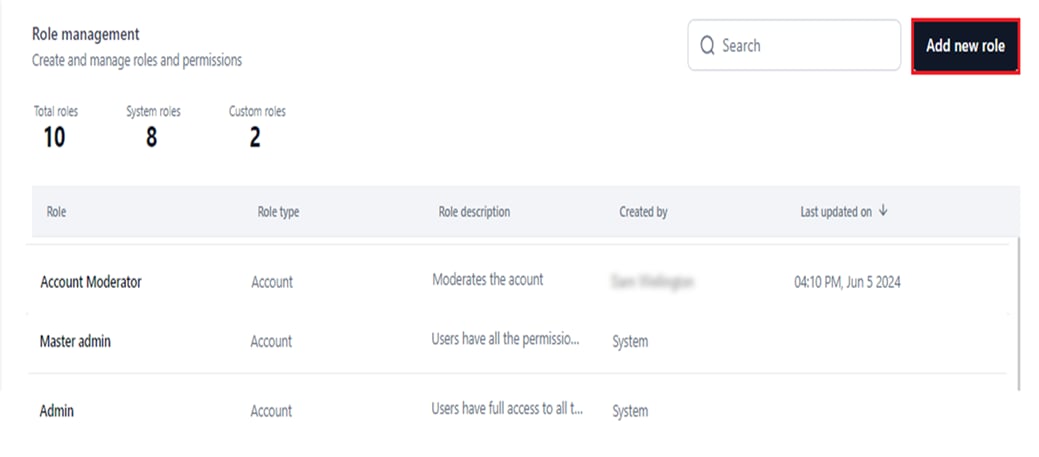
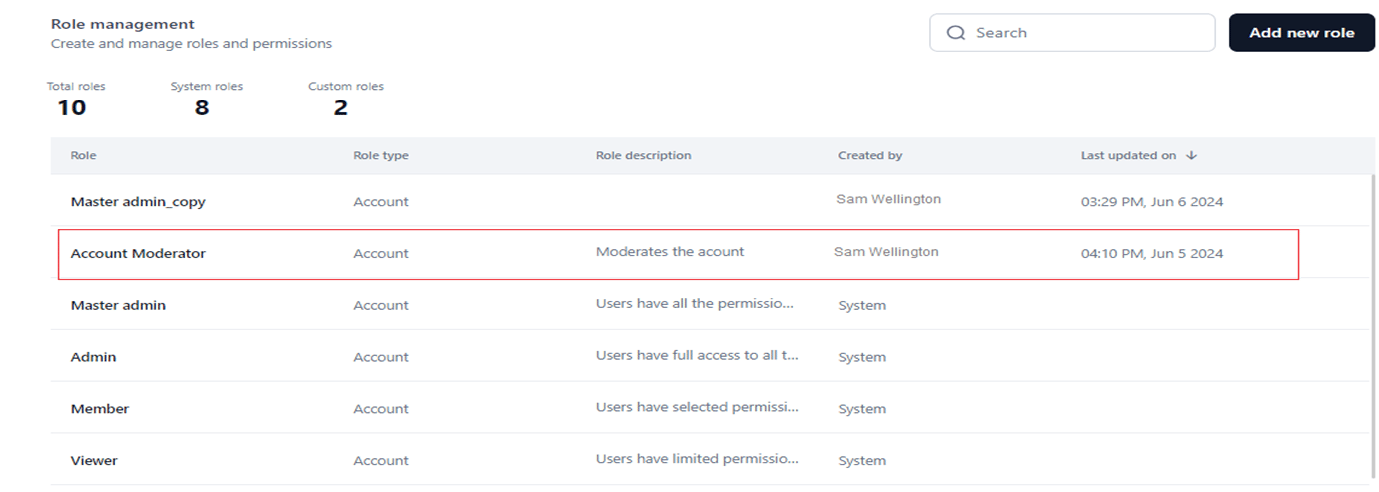
The Role Management dashboard shows all system and custom roles with their types, descriptions, and configurations. To access the dashboard:
  1. Click Settings on the top navigation bar. access settings
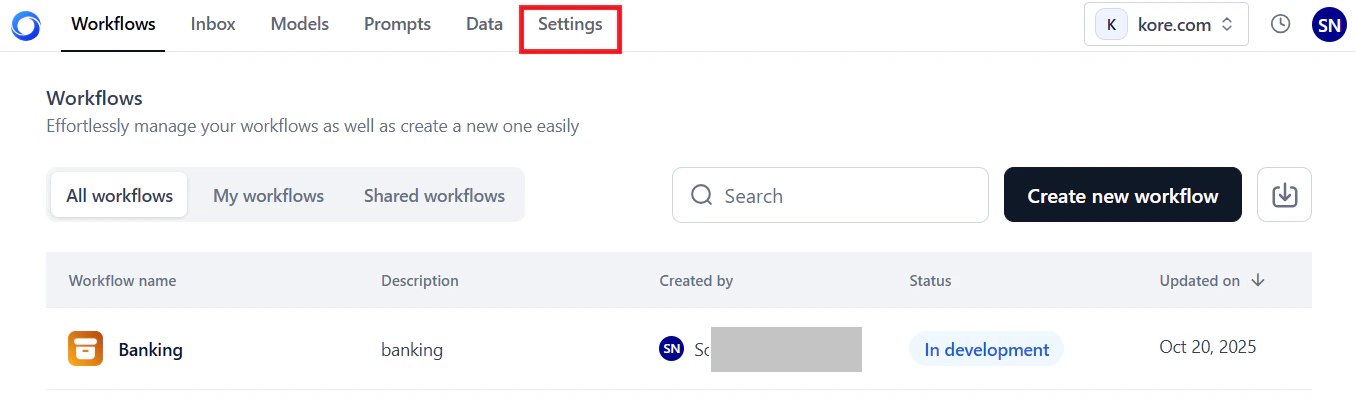
  2. In the Users Management section on the left menu, click Role Management.
The dashboard shows:
  • Summary counts: Total roles, system roles, and custom roles. summary of counts
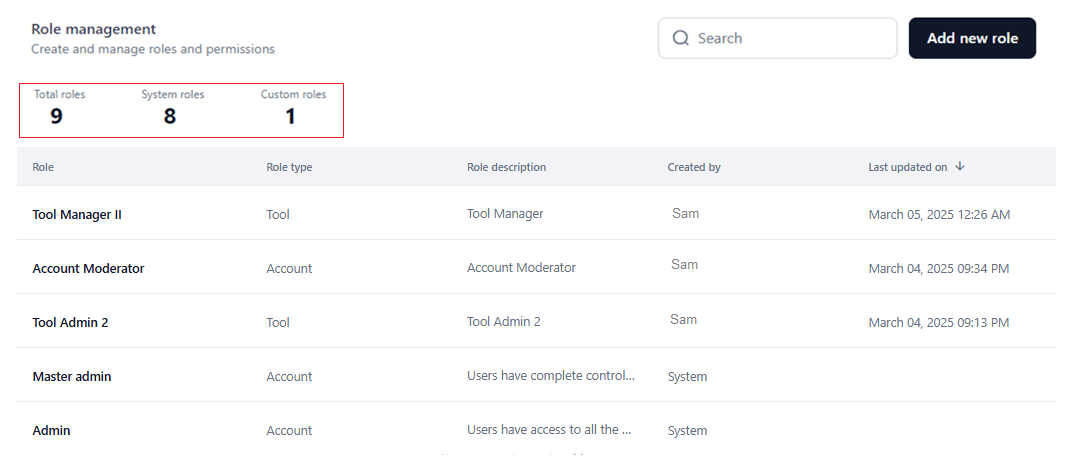
  • Role table with the following columns:
    • Role: The name of the system-generated or custom role.
    • Role Type: Scope of the role — Account, Workflow, or Agentic App.
    • Description: Pre-defined for system roles; you provide it for custom roles. Hover to view the full description.
    • Created by: Shows System for system roles, or the name of the user who created the custom role.
    • Last Updated On: The date and time the custom role was last updated. Not shown for system roles since they cannot be modified.
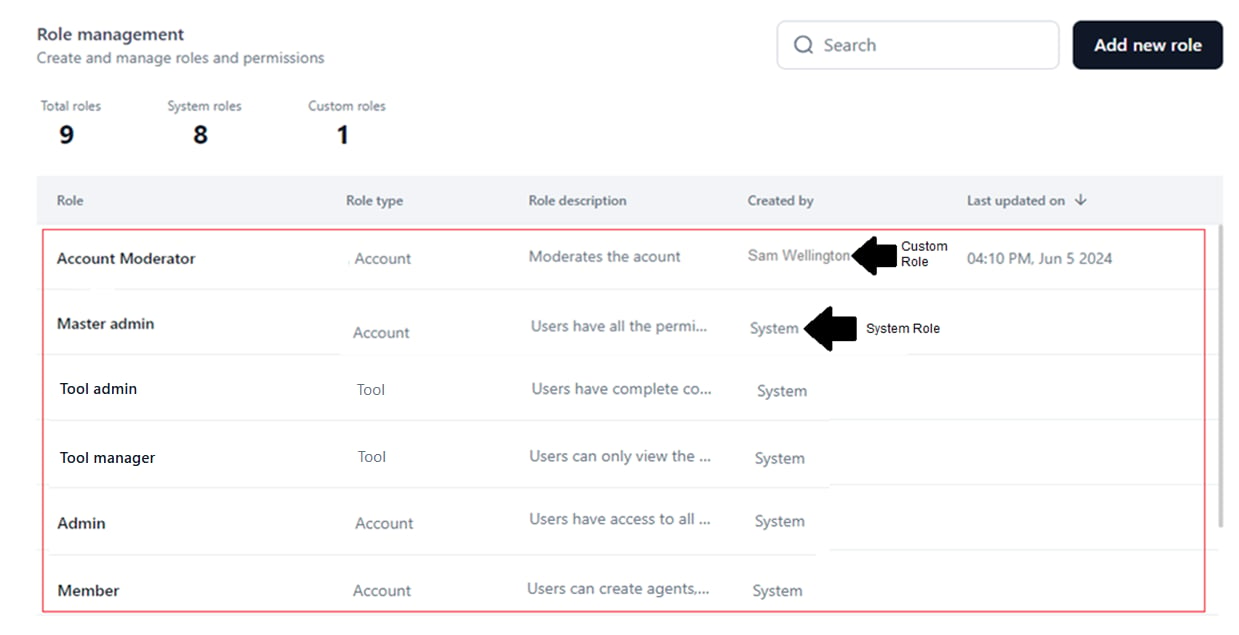
    custom and system roles

Search for a Role

  1. Go to the Role Management dashboard.
  2. Click the Search text field.
  3. Enter the role name.
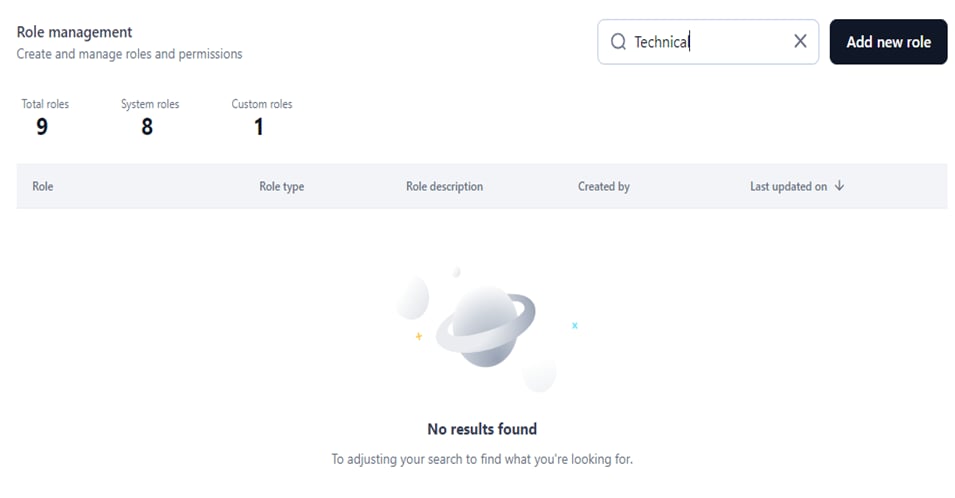
Matching results appear automatically. If no results are found: no results found

Manage System Roles

System roles cannot be created, modified, or deleted — permissions are pre-defined. You can duplicate them as custom roles and modify the copies.

View Role Details

  1. Go to the Role Management dashboard.
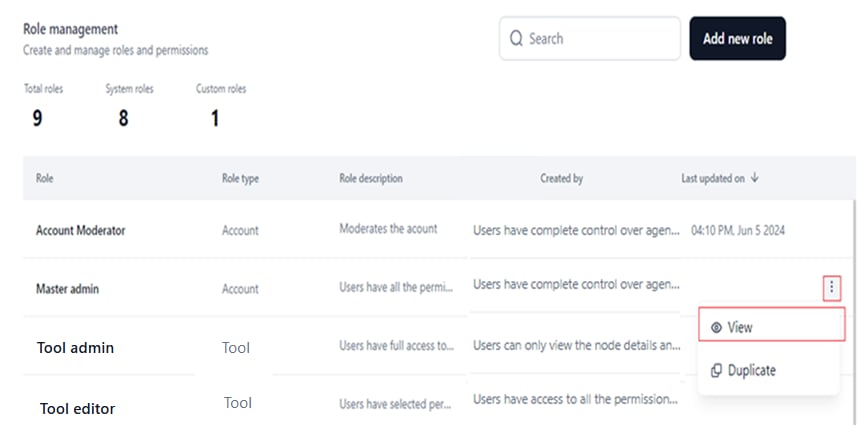
  2. Click the Ellipses icon for a system role.
  3. Select View. select view
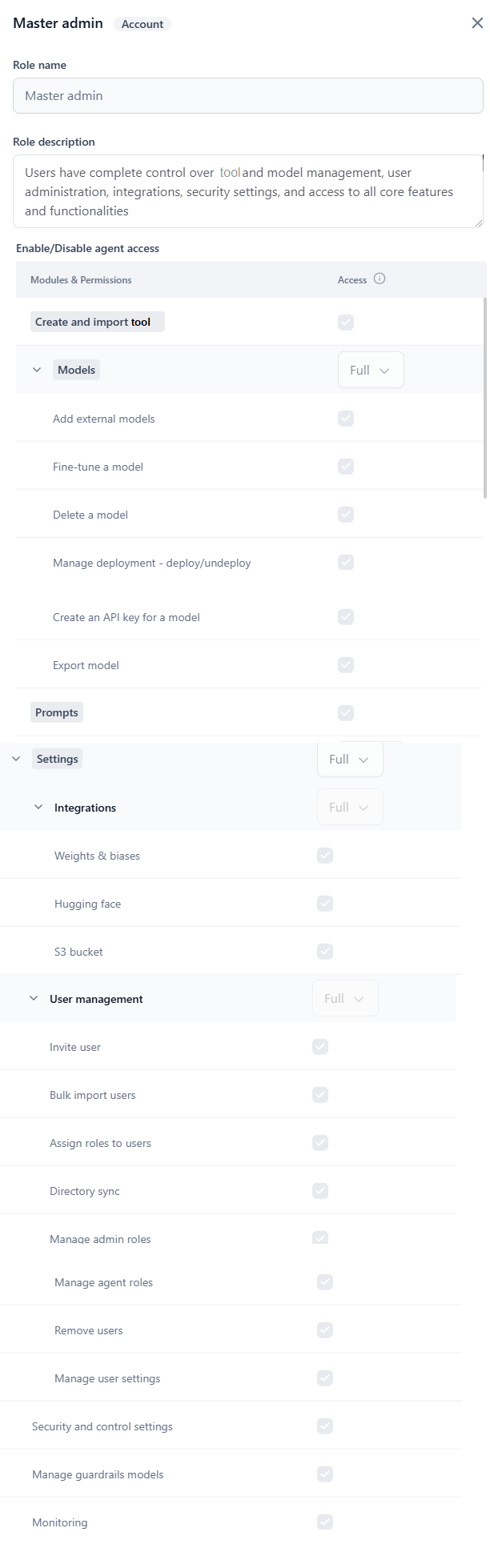
The details panel shows the role title, role type, name, description, and the configuration panel for module-wise permissions and access levels. module-wise permissions

Duplicate a System Role

Duplicating creates a custom role that copies the system role’s name, role type, and permission configurations. You can then modify, delete, or further duplicate this custom role.
  • Changes to the duplicate do not affect the original system role.
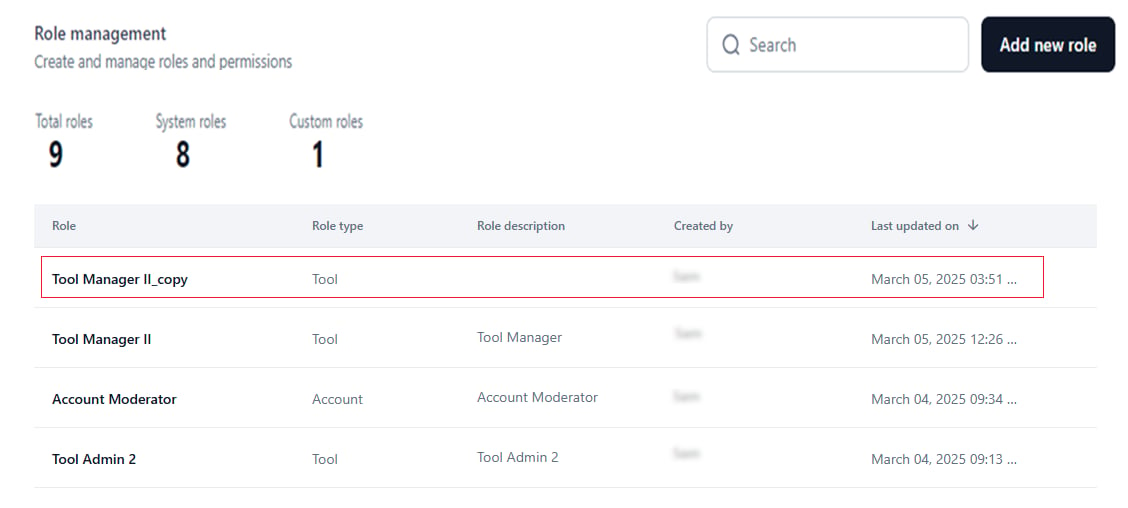
  • The Last Updated On value shows when the duplicate was created.
  1. Go to the Role Management dashboard.
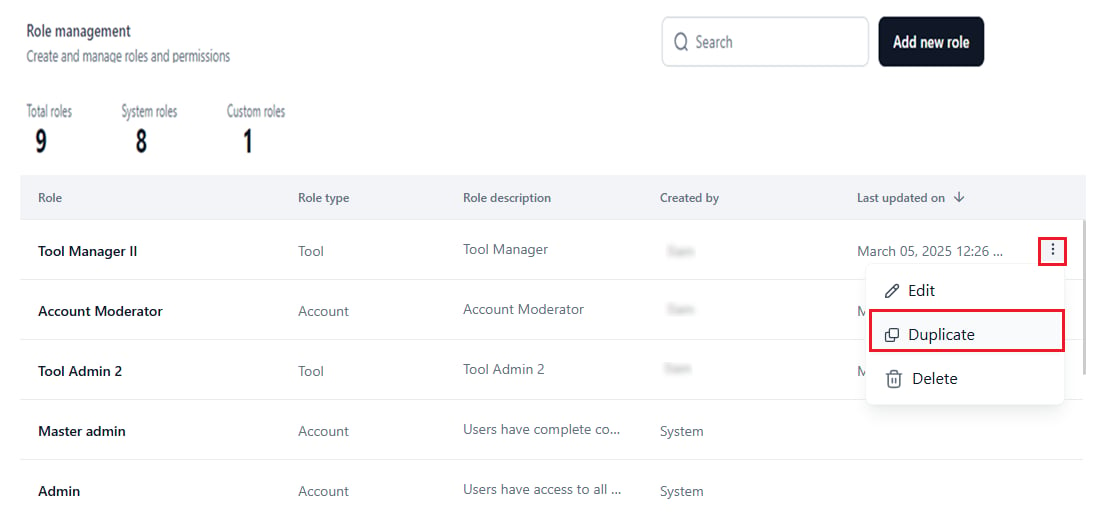
  2. Click the Ellipses icon for a system role.
  3. Select Duplicate. select duplicate
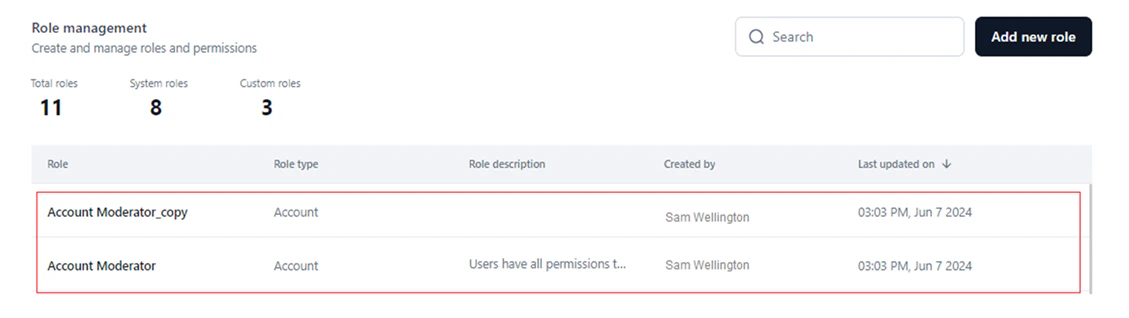
The duplicate appears with the system role name followed by copy. You can rename it. duplicate role

Manage Custom Roles

Add a Custom Role

  1. Go to Role Management on the Settings console.
  2. Click Add New Role. add new role
  3. In the New Role window:
    • Enter a unique Role Name and Role Description. enter role name and description
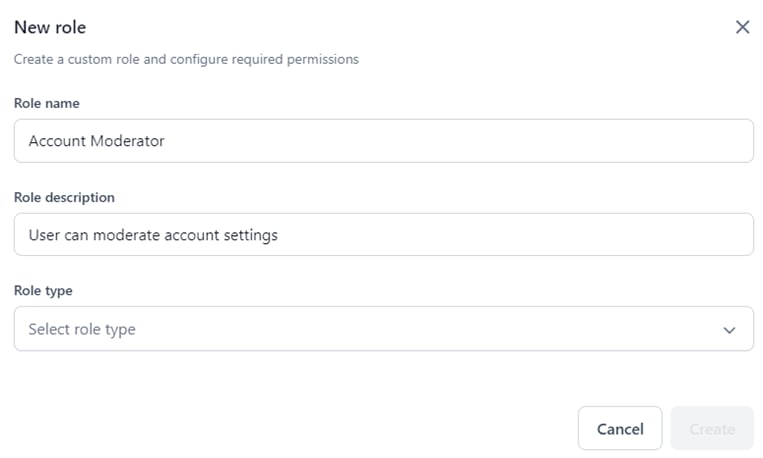
    • Select the Role Type from the dropdown. select role type
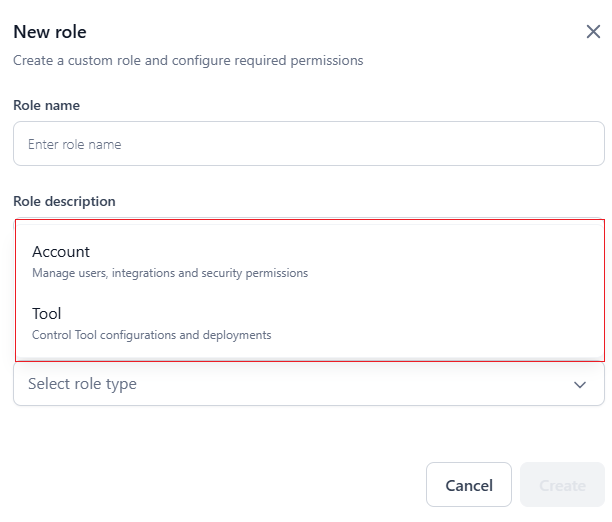
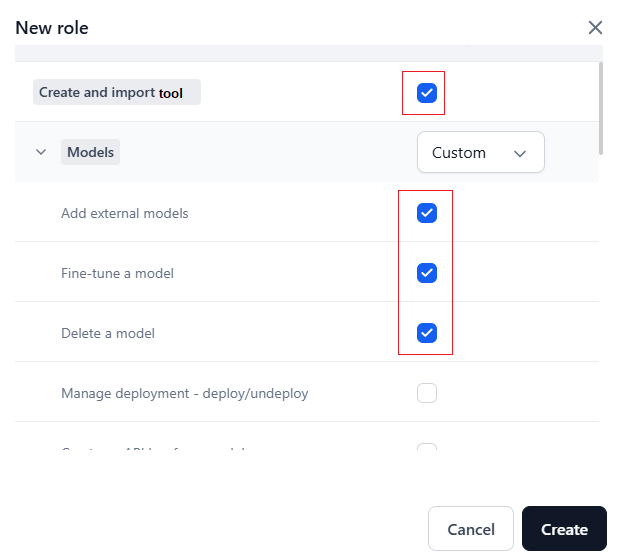
If Role Type is Account: Enable or select access levels for module-wise permissions in the Enable/Disable workflow access section. If you select Custom, you can individually enable or disable permissions for:
  • Create and Import workflow.
  • Create agentic apps.
  • Models (Add External models, Fine-tune, Delete, Manage Deployment, Create API key, Export).
  • Prompts.
  • Settings:
    • Integrations (Weights and Biases, Hugging Face, S3 Bucket).
    • User Management (Invite user, Bulk import, Assign roles, Directory Sync, Manage admin/workflow roles, Remove users, Manage user settings).
    • Security and Control Settings.
    • Manage Guardrail Models.
    • Monitoring.
    • Billing.
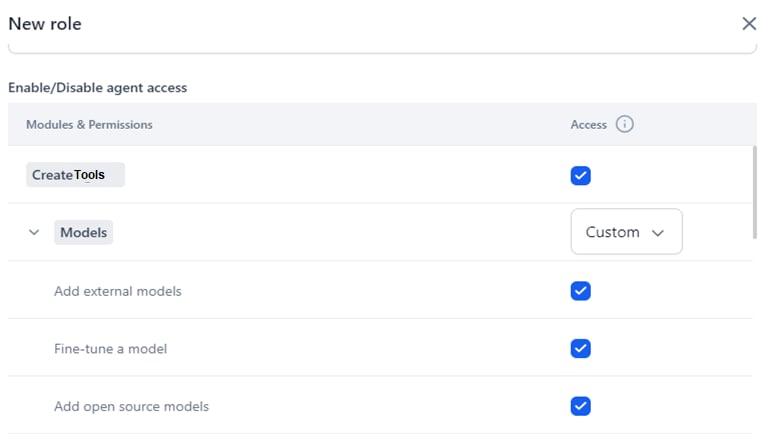
enable permissions Select access levels (Full, Custom, View, No Access) for Models, Settings, Integrations, and User Management. Access level behavior:
  • Select the access level for Models first to activate its permissions. Skipping this step automatically disables them. set models access
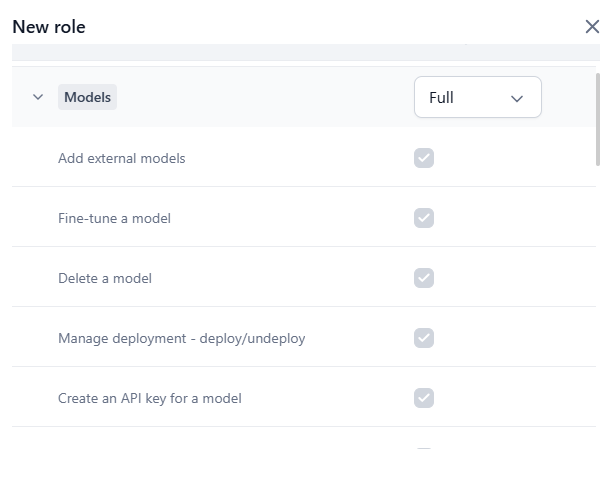
  • Full automatically selects all module permissions. full auto select
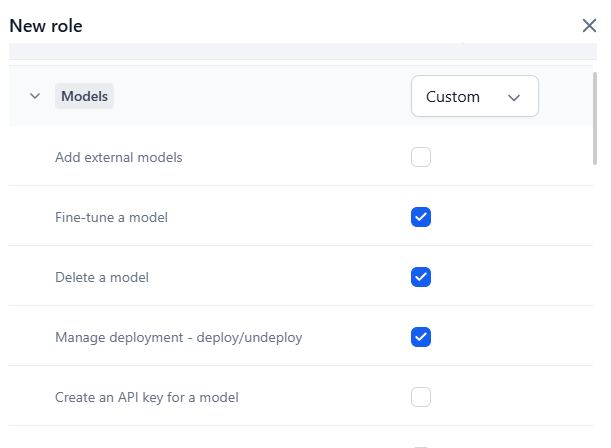
  • Custom lets you select individual permissions. select custom access
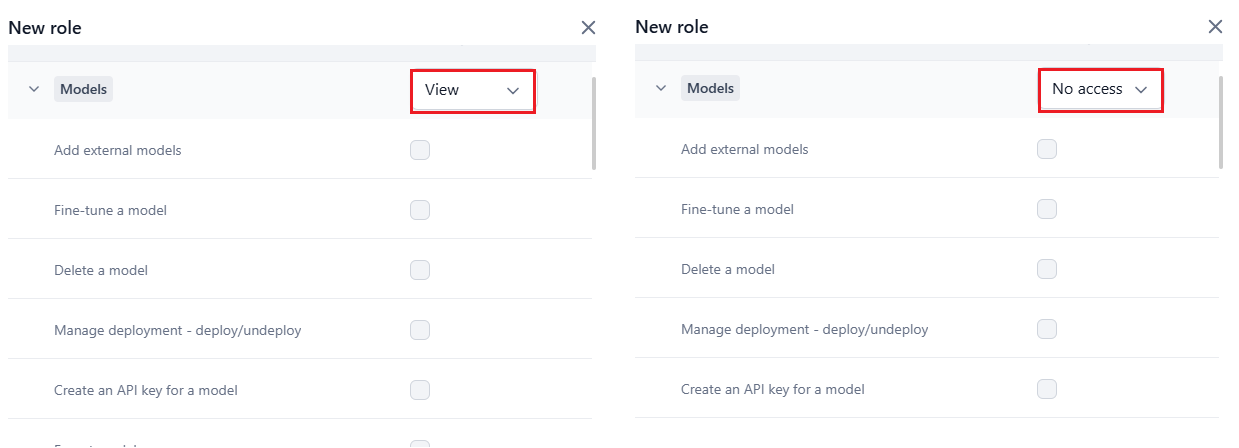
  • View and No Access disable permission selection. select view and no access
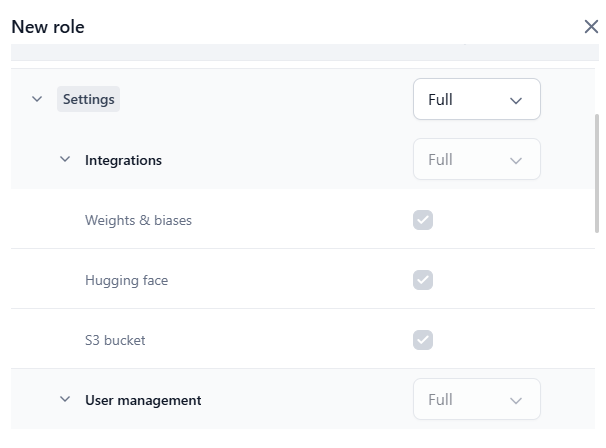
  • Full for Settings sets Integrations and User Management to Full, and enables all permissions for: Integrations (View is always on by default), User Management, Security and Control Settings, Manage Guardrail Models, Monitoring, and Billing. select full access
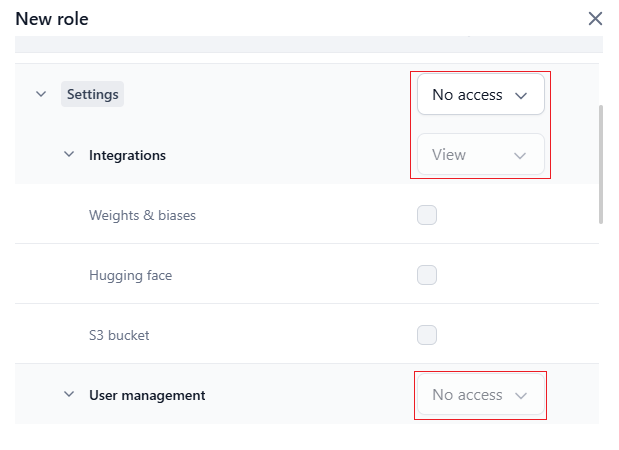
  • No Access for Settings sets Integrations to View and User Management to No Access, and disables all sub-permissions (View for Integrations remains on by default). no access
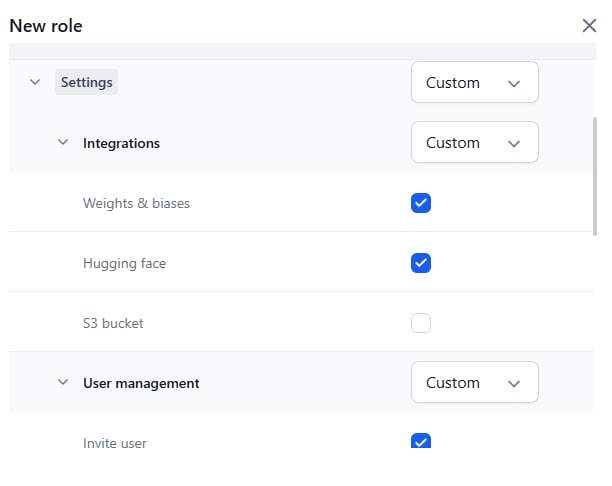
  • Custom for Settings sets Integrations and User Management to Custom, where you can select individual permissions. You can then change Integrations to Full or View, and User Management to Full or No Access. select custom
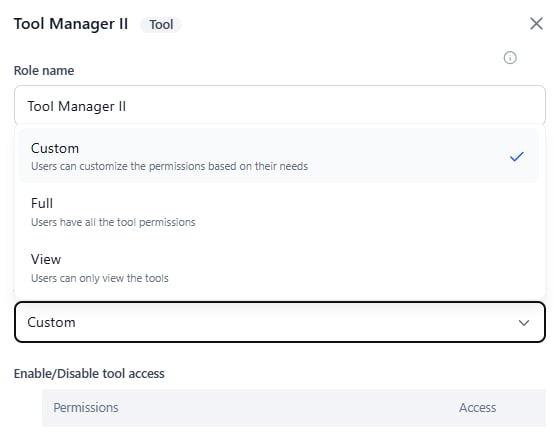
If Role Type is Workflow: Select Custom, View, or Full for Access. Custom is the default. access options Set workflow permissions in the Enable/Disable workflow access section:
  • View: All permissions automatically disabled.
  • Full: All permissions automatically enabled.
  • Custom: Select individual workflow permissions to enable.
  1. Click Create.
The custom role is created and listed on the Role Management dashboard. list new custom role

Edit a Custom Role

You can modify the role name, description, and access levels for Account or Workflow role types.
  • The Role Type cannot be changed after creation. Create a new custom role to assign a different type.
  • Updating a custom role changes permissions for all assigned users.
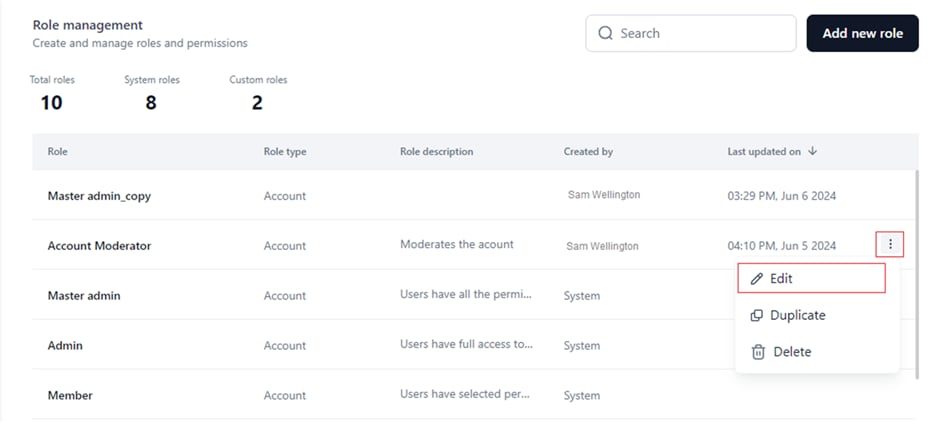
  1. Go to the Role Management dashboard.
  2. Click the Ellipses icon for the custom role.
  3. Select Edit. edit role
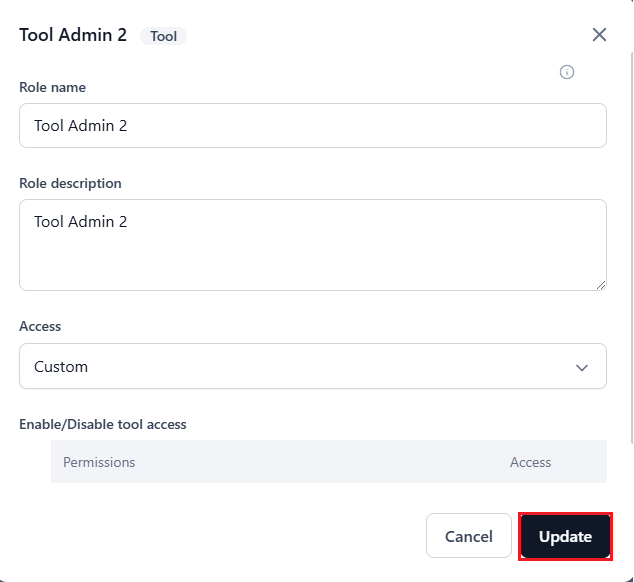
  4. In the Update Role window, edit the Role Name, Role Description, and/or Access level (Custom, Full, or View).
    You cannot reset access levels for module-wise permissions in the Enable/disable workflow access section.
  5. Click Update. update role window
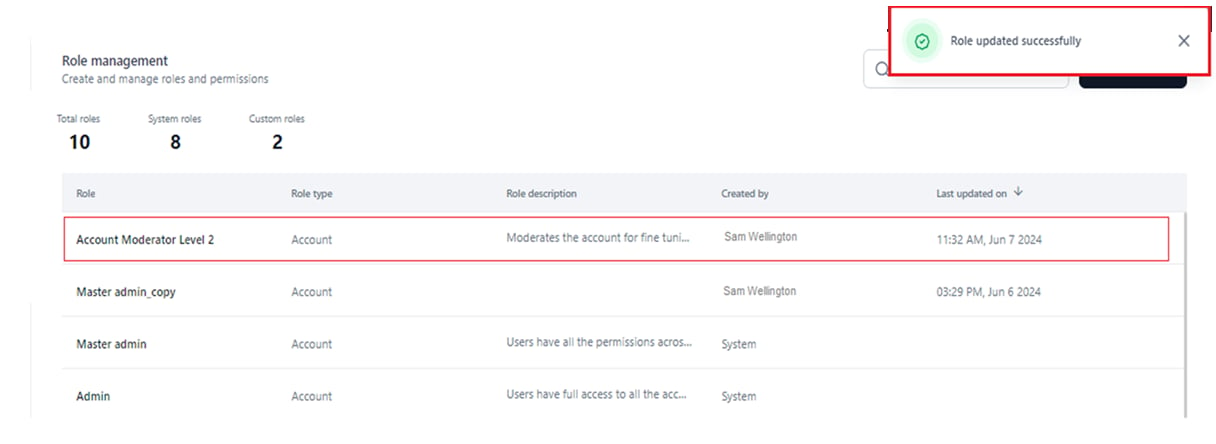
A success message confirms the update. role updated message

Delete a Custom Role

Deleting a custom role permanently removes it from the system and unassigns it from all users.
You can only delete one role at a time. Bulk delete is not supported.
Prerequisite: Ensure the custom role is not assigned to any active users. If it is, either reassign an alternative role to active users, or delete inactive users with this role.
  1. Go to the Role Management dashboard.
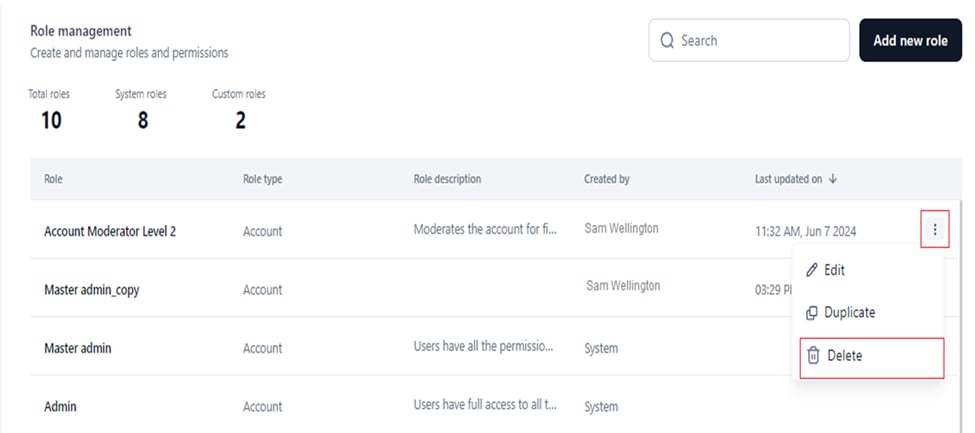
  2. Click the Ellipses icon for the custom role.
  3. Select Delete. select delete role
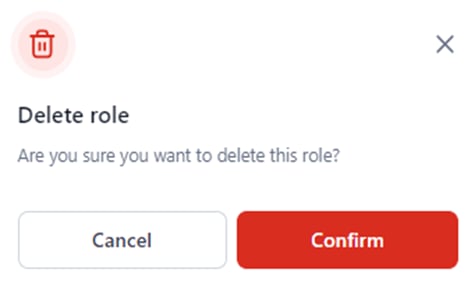
  4. Click Confirm. confirm delete role
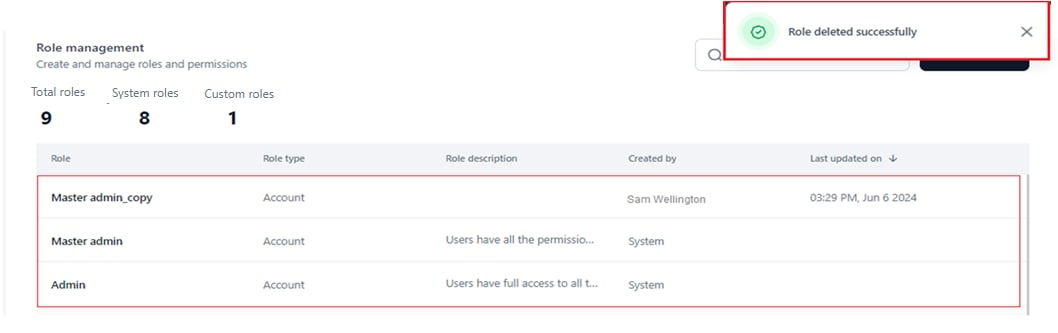
A success message appears and the role is removed from the dashboard. Deletion error If the role is assigned to active or inactive users, the following error appears: role deletion error Use one of the following workarounds:

Reassign an Alternative Role to Active Users

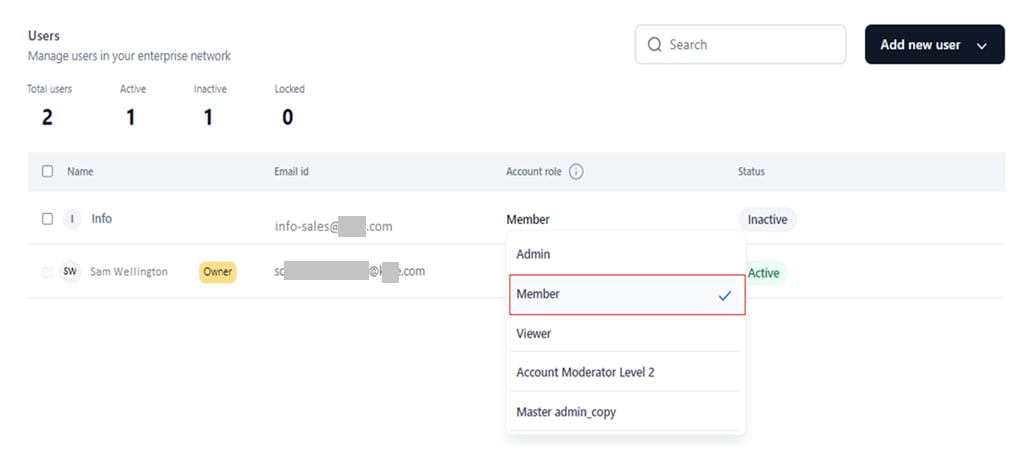
  1. Go to Users Management > Users on the Settings console.
  2. Click the Account Role entry for the user.
  3. Select the new role. reassign role
After reassigning, return to Role Management and delete the role. The custom role count decreases. custom role deleted

Delete Assigned Users

Go to the Users Management dashboard and delete all assigned users individually or in bulk. After deleting users, return to Role Management and delete the custom role.

Duplicate a Custom Role

Like a system role, you can duplicate a custom role to copy its name, role type, and permission configurations. Follow the same steps as Duplicate a System Role. duplicate custom role