- Invite users via email or bulk-import from a file.
- Synchronize users from your organization’s Active Directory (AD).
- Assign and change roles to control access and permissions.
- Monitor and manage user statuses — active, inactive, and locked.
- Configure user profile fields for your domain.
- Regularly review and update user roles.
- Use bulk import to add multiple users efficiently.
- Monitor locked users and inactive invitations.
Users Dashboard
The dashboard displays user counts by status and detailed user information including name, email, role, and status. User status types:
Add Users
You can add users via email invitation or by importing a file.Invite via Email
- Click Settings on the top navigation bar.
-
Click Users Management > Users > Add New User.
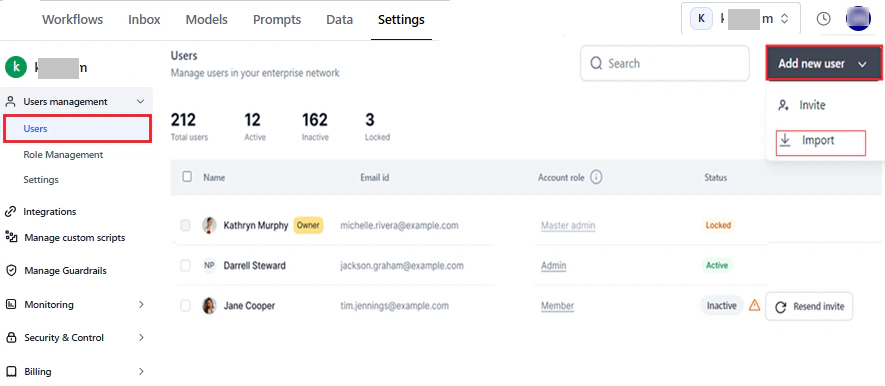
- Click Invite.
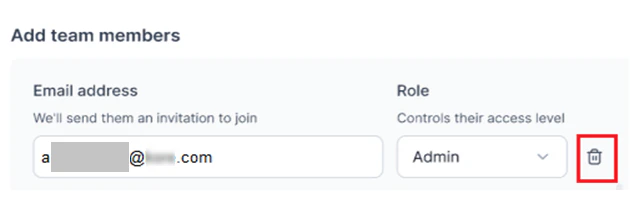
- Enter a valid email address.
-
Select a role from the dropdown to define the user’s access.
 System-defined and custom roles available in your account can be assigned. Learn more about roles and permissions.
 -
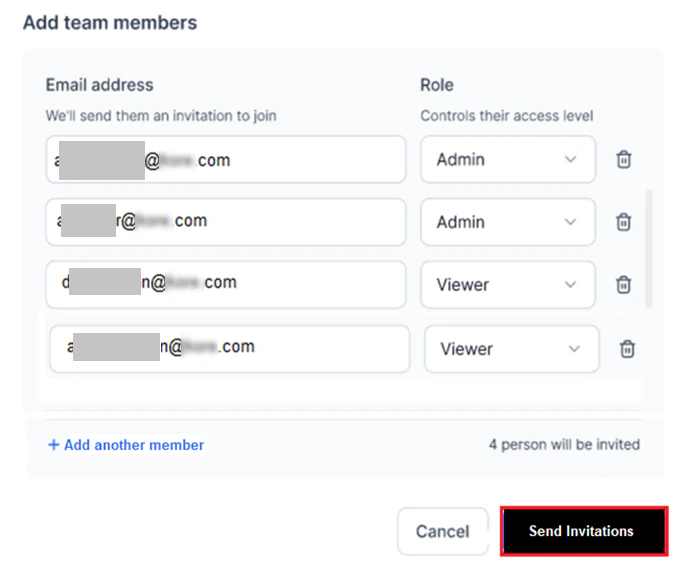
To invite multiple users, click + Add another member and repeat steps 4–5. To remove an invitation row, click the Delete icon.
-
Click Send invitation(s). The count updates as you add or remove invites.
- The field must not be empty.
- No spaces before, between, or after the email address.
-
Must include a valid domain (for example,
john@doe.com).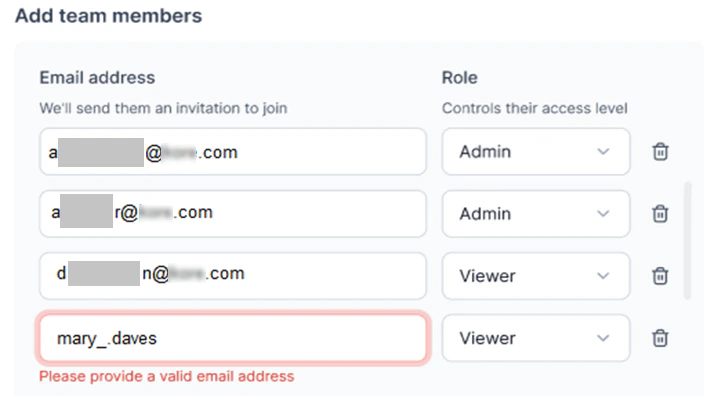
-
Duplicate invitations are not allowed. The system displays: “This email has already been added.”
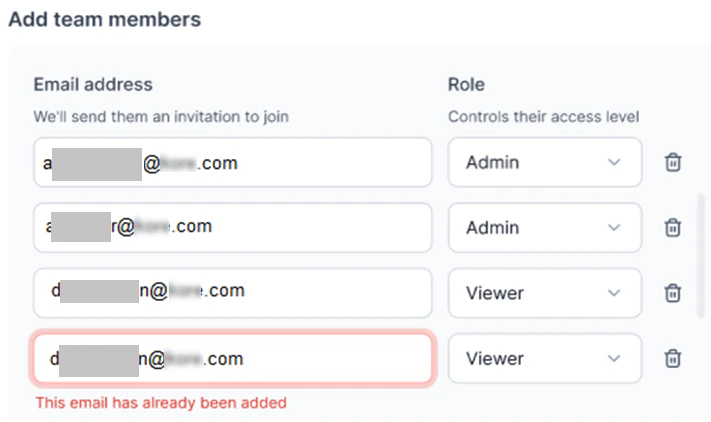
- Invitations expire 15 days after being sent.
- The user status is Inactive until the invitation is accepted, then changes to Active.
Bulk Import
The bulk import feature lets administrators add multiple users at once using.txt or .csv files.
Requirements:
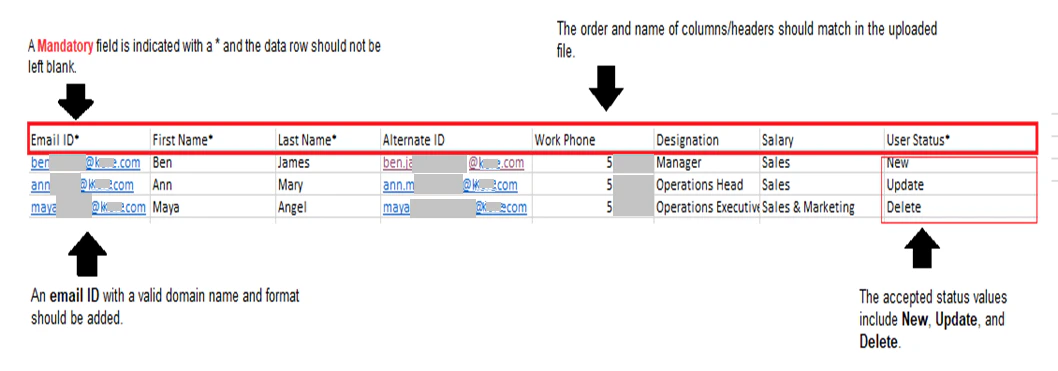
- Valid file types: .txt or .csv only.
- Required fields: name, email ID, and status.
- Each row must contain information for one user.
- Accepted delimiters: comma (
,), pipe (|), semicolon (;), and tab. - The first row must contain field names.
- Mandatory fields are marked with
*in the sample file. - The User Status field determines the post-import action: New, Update, or Delete.
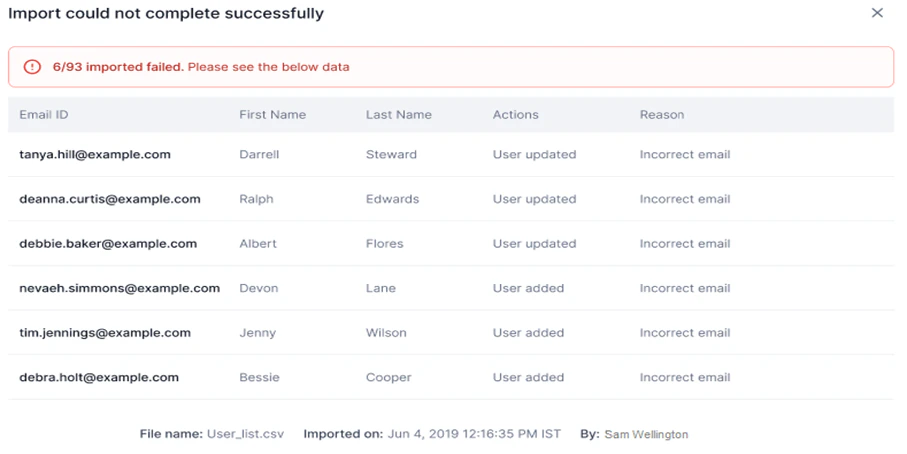
- Entries with invalid email formats or missing domains are skipped during import.
- Once validated, an email invitation is sent to activate the user’s account.
- If a user is already active in your account, no invitation email is sent.
Import Users from a File
-
Click Settings on the top navigation bar.
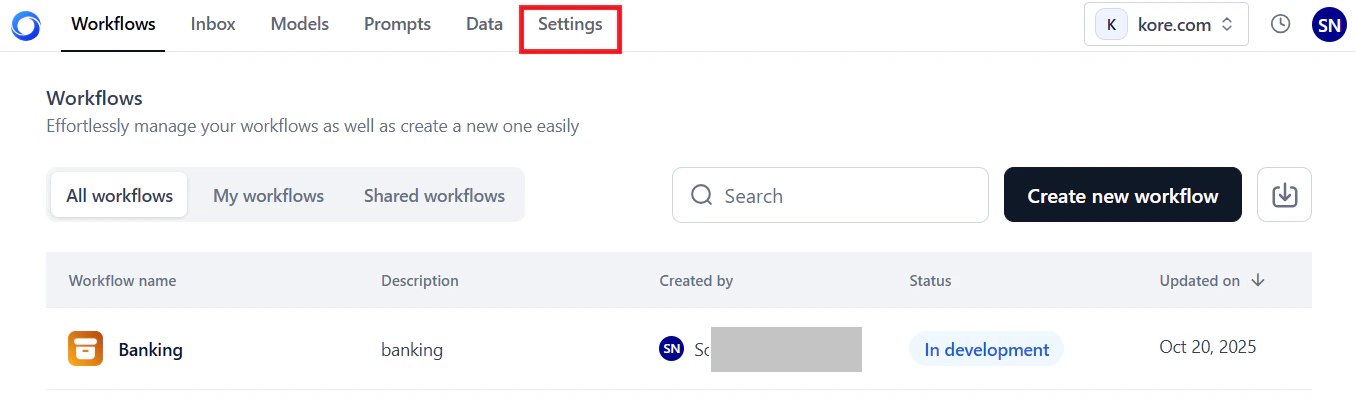
-
On the Users dashboard, click Add New User > Import.
-
On the Import Users page, upload the file by either:
-
Clicking Upload File and selecting the file from your system.
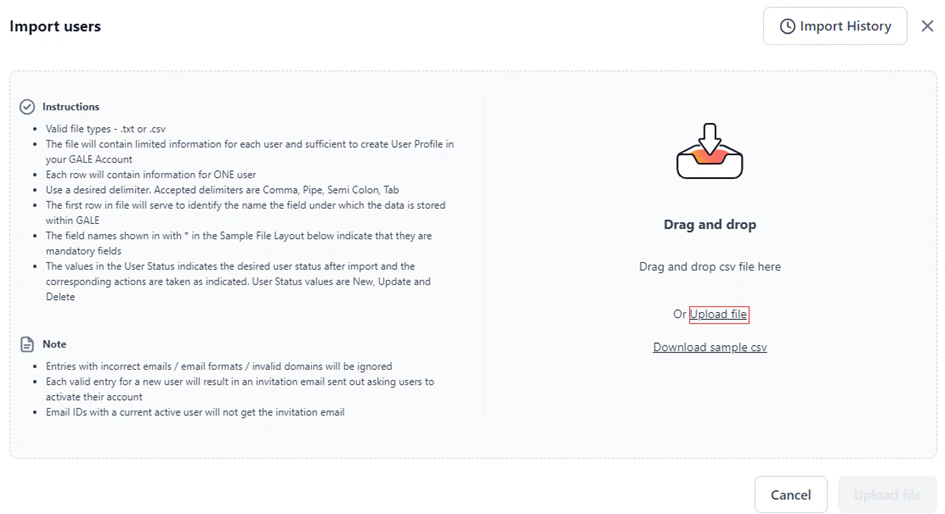
- Dragging and dropping the file into the Upload File window.
.csvfile for reference. The fields are pre-defined with data requirements.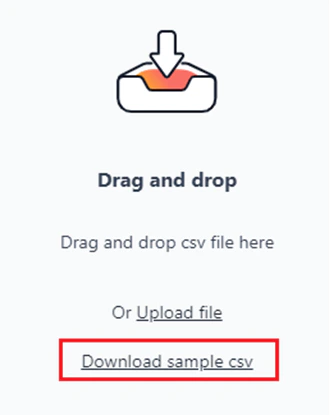
-
Clicking Upload File and selecting the file from your system.
-
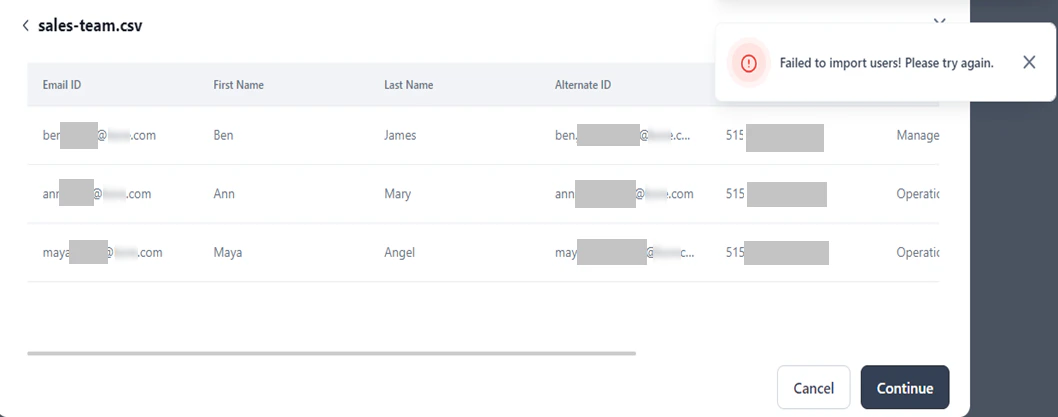
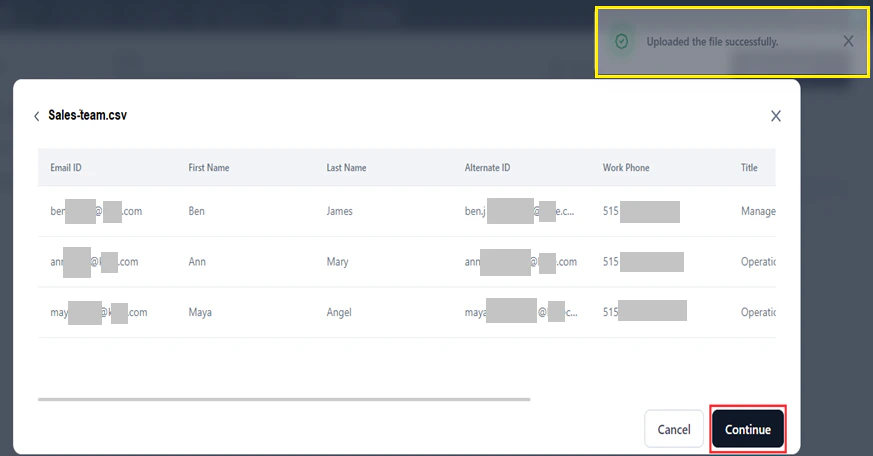
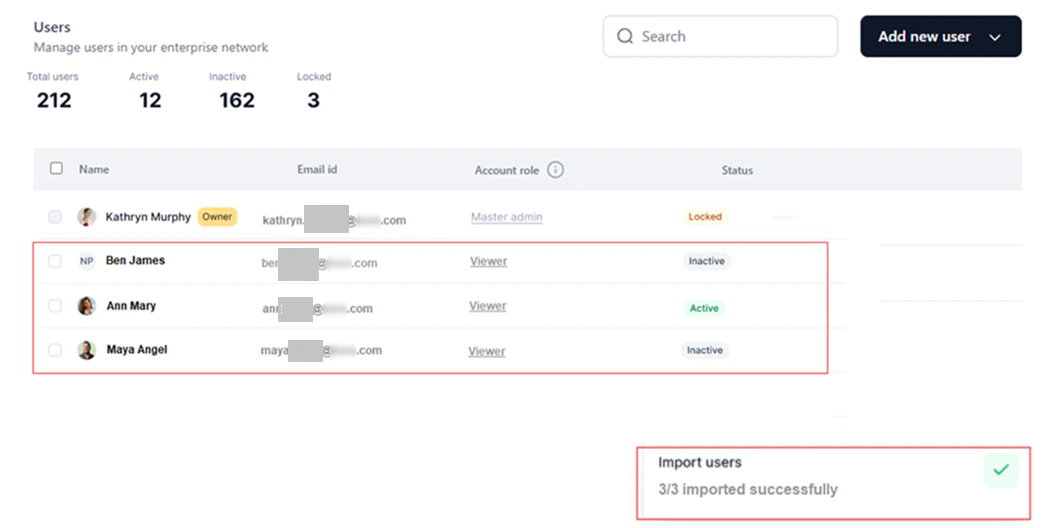
A preview window shows the file data with a success message. Click Continue.
-
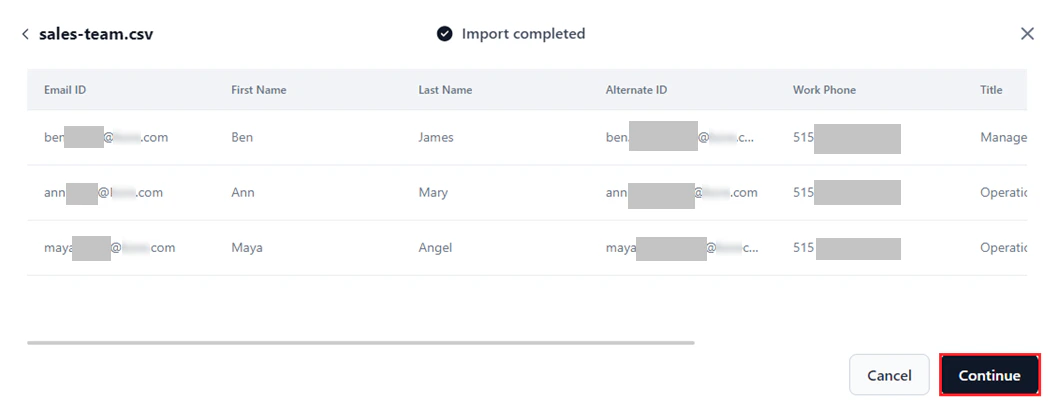
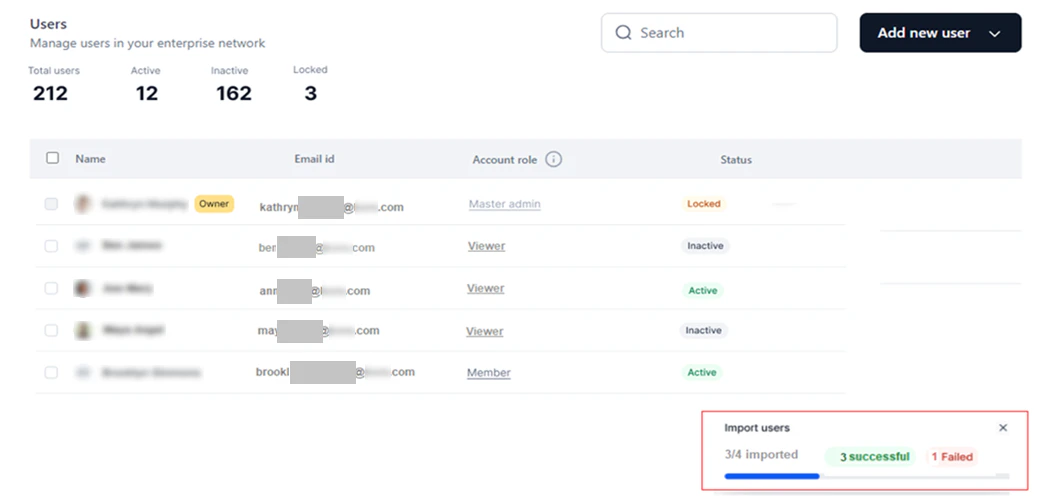
When the import completes, click Continue.
-
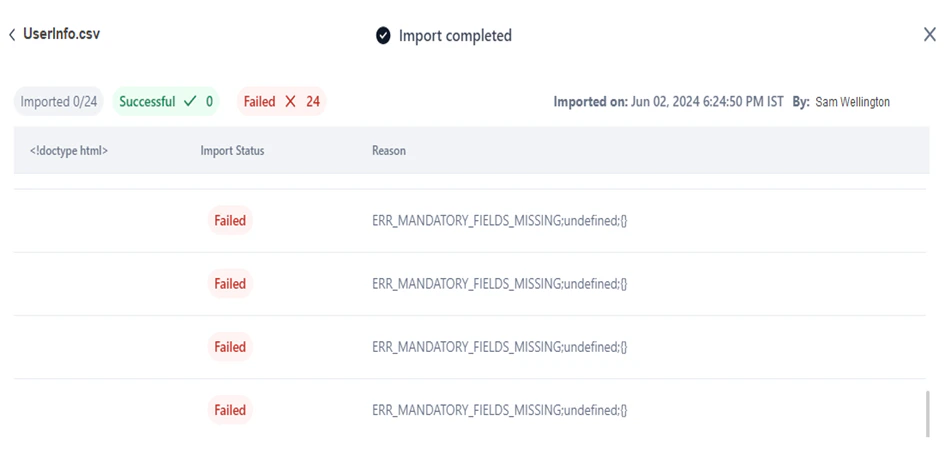
If validation errors exist, a window shows the import status and error reasons.
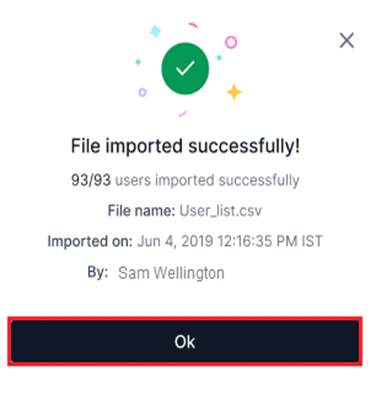
Imported users are assigned the Viewer role by default. You can change this later. Learn more.

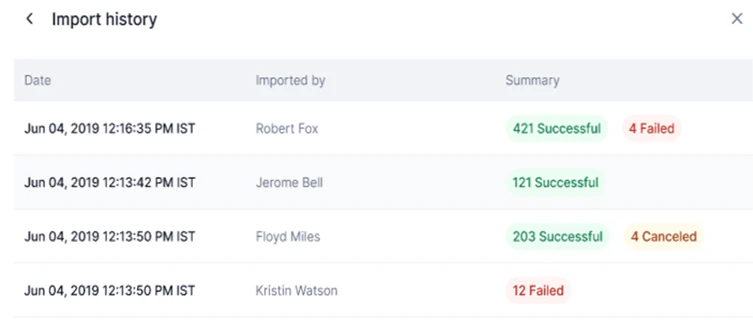
Import History
Click Import History in the Import Users window to view past imports.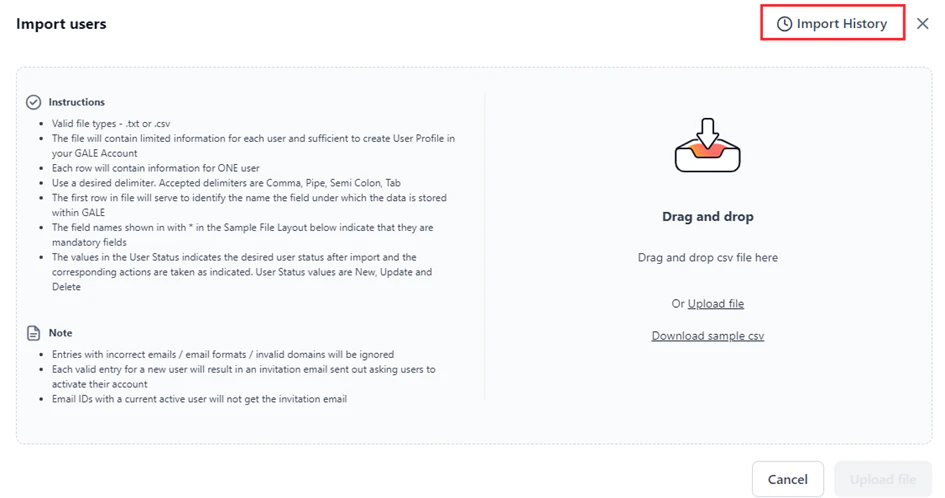
Manage Users
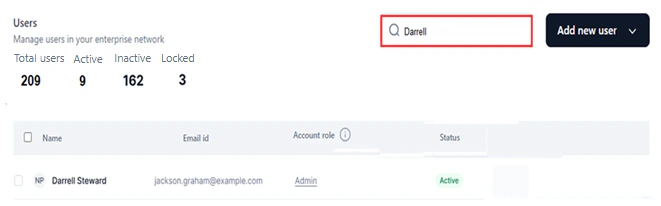
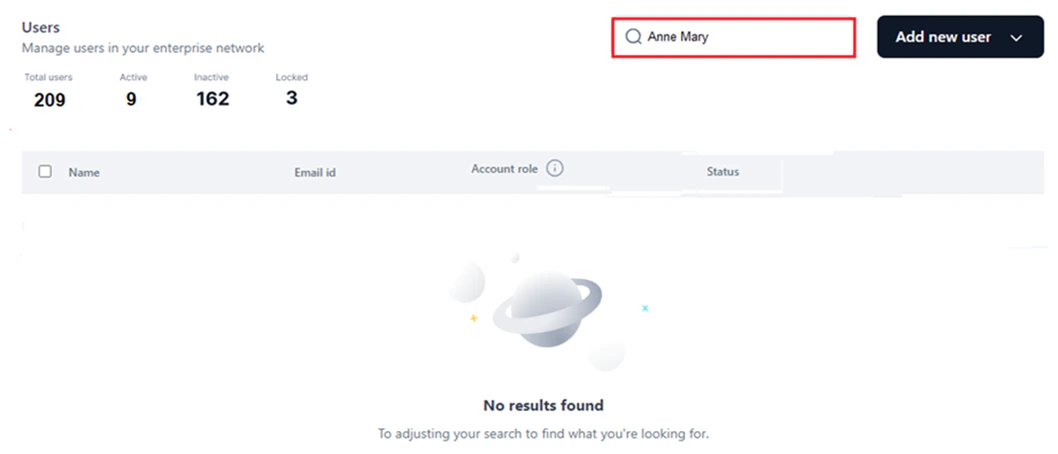
Search for a User
- Go to the Users dashboard.
- Click the Search text field.
- Enter the user’s name.
Unlock a Locked User
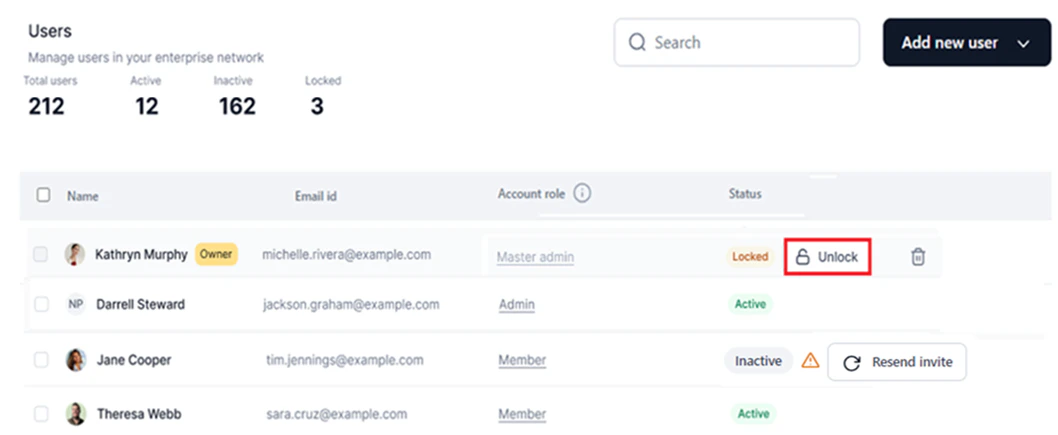
Locked users cannot access their accounts until an admin unlocks them.- Go to Settings > Users Management > Users.
- Hover over the user with status Locked.
-
Click Unlock.
- Click Confirm.
Change User Role
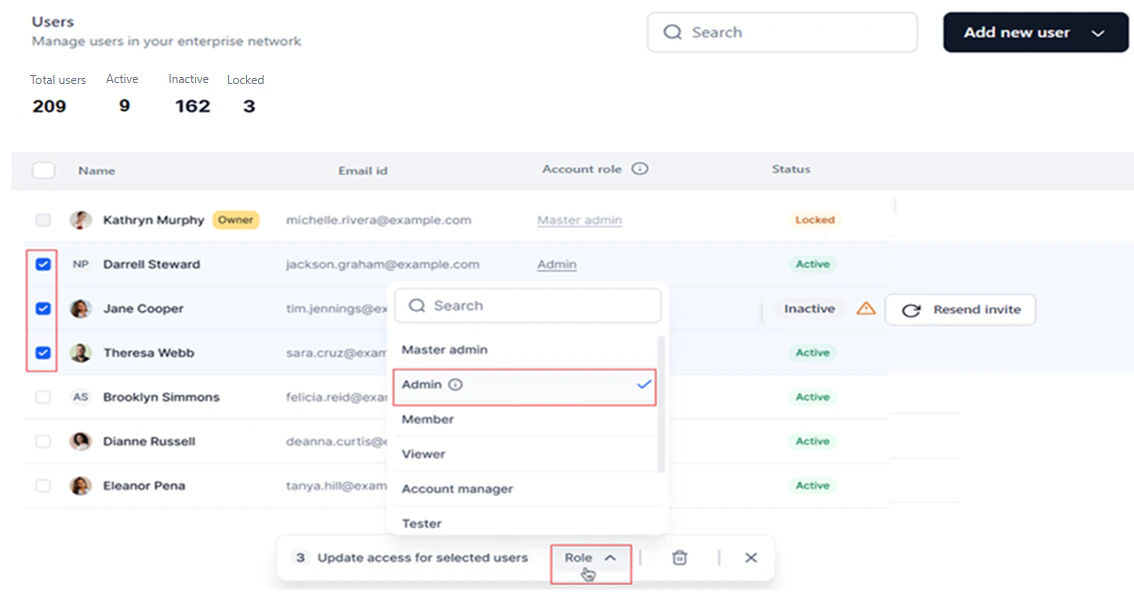
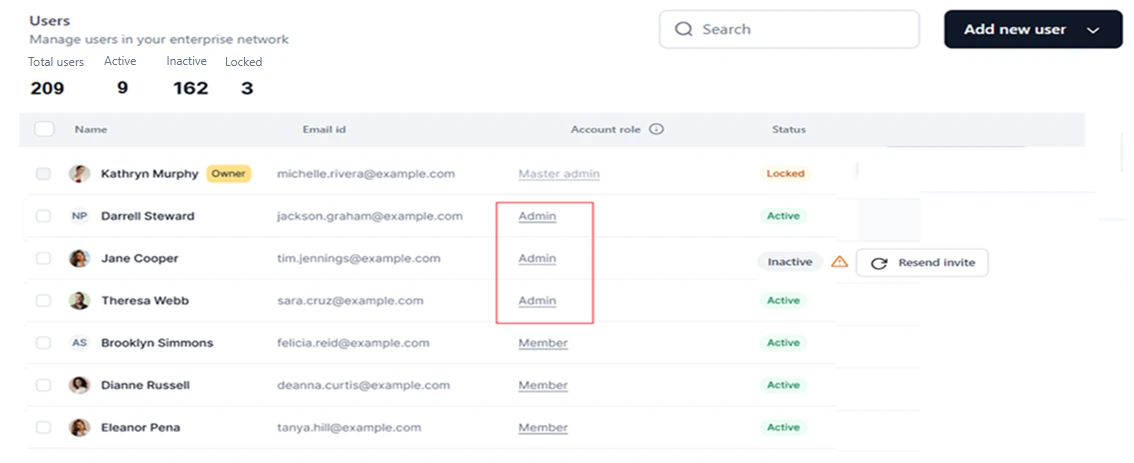
On the Users dashboard, you can change the account-level role for one or more users. Only roles allowed for the user type (admin or account) can be assigned. When you change a user’s role, the corresponding permissions and access levels apply automatically. To change an individual user’s role, see Reassign an Alternative Role to Active Users. Bulk role change To assign the same role to multiple users simultaneously:- Select the required users on the Users dashboard.
-
Click the Role dropdown in the bottom pane and select the role.
To assign different roles to multiple users, change roles individually.
Delete a User
Delete a single user:- Click Users Management > Users on the left menu.
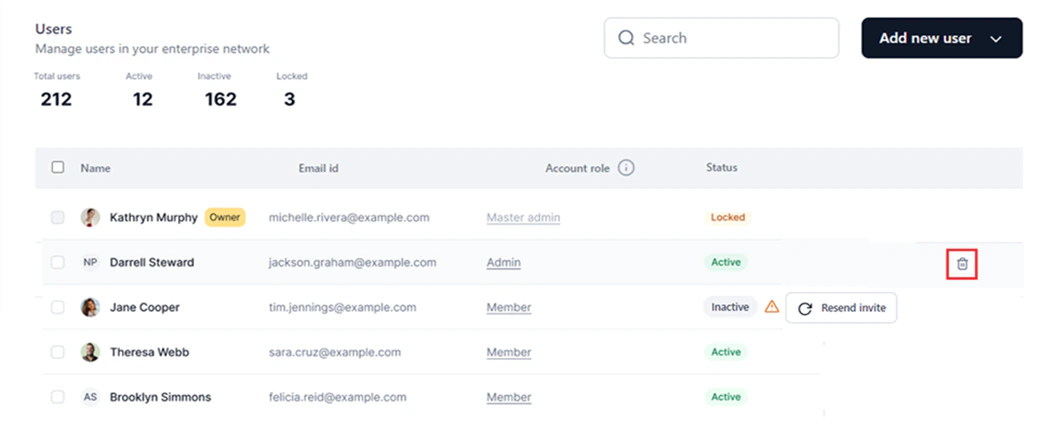
- Hover over the user entry you want to delete.
-
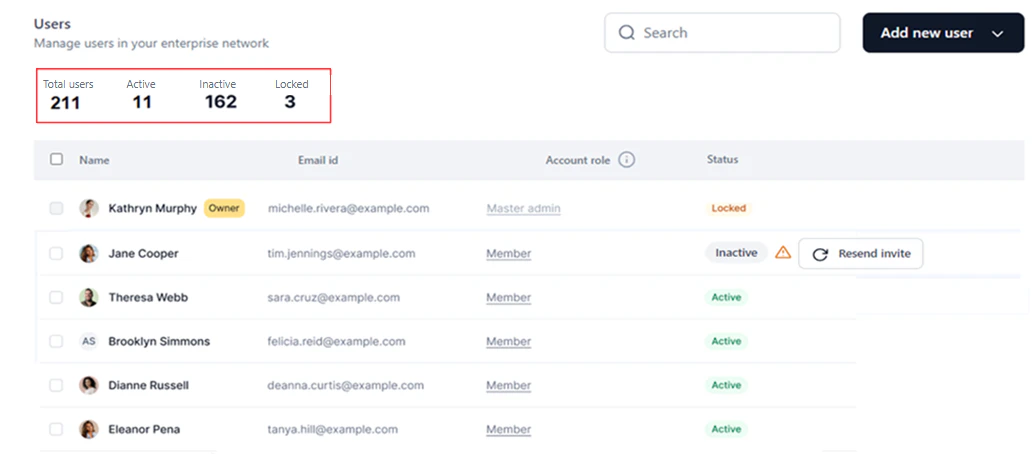
Click the Delete icon.
-
Select the required users and click the Delete icon at the bottom of the screen.
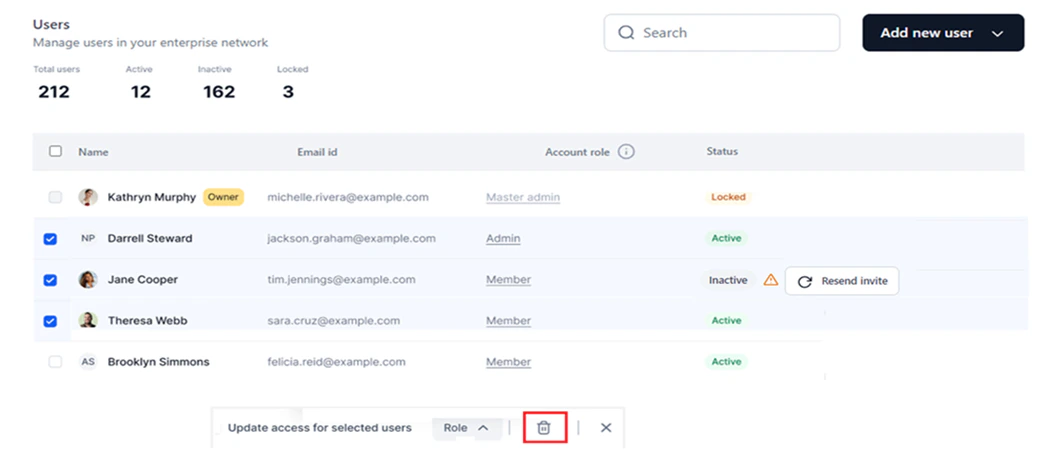
-
Click Remove in the Remove users window.
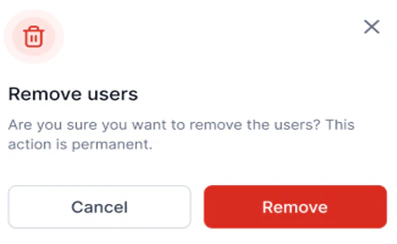
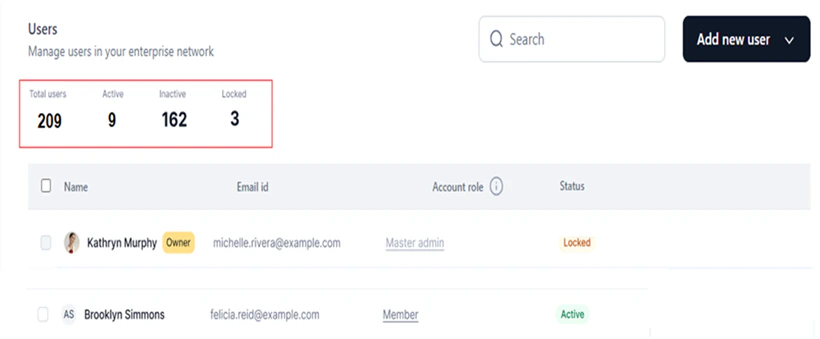
Deleting a user is permanent.
Active Directory Sync
By configuring Active Directory (AD) import, you can sync your organizational user information into the Settings console from a single source of truth, eliminating the need for email invitations or manual file imports. The auto sync feature keeps user data in AI for Process current, including deletions and modifications in the AD. Configuration steps overview:- Set up the Connection: Connect the Settings console to your organization’s AD.
- Import Organization Units: Choose the OUs from which to import user data.
- Specify User Attributes and Configure Rules: Define user profile fields and inclusion/exclusion rules for selective import.
- Schedule Automatic AD Sync: Set up scheduled sync to keep user data current.
Steps to Configure AD Sync
-
Click Settings on the top navigation bar.
-
On the Users dashboard, click Configure Directory in the Configure sync with directory section.
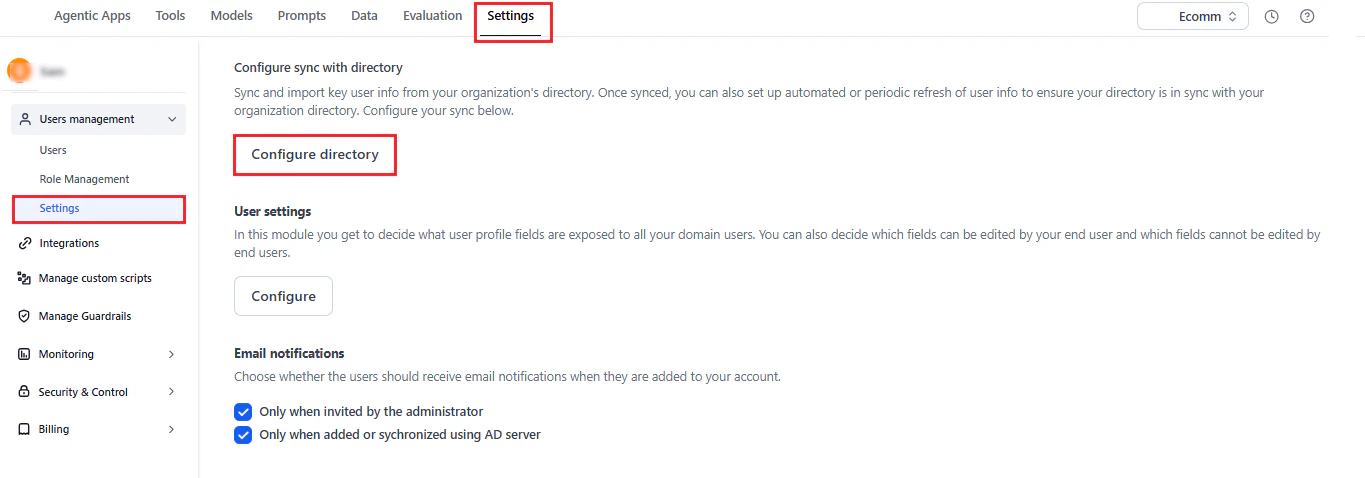
-
Complete the setup in the Configure Directory window by following each step in order.
- The left panel tracks your progress — completed steps show a check mark, and in-progress steps show a dot.
- Complete each step in order without skipping.
Step 1: Set up the Connection
-
Provide the following fields to configure the AD connection:
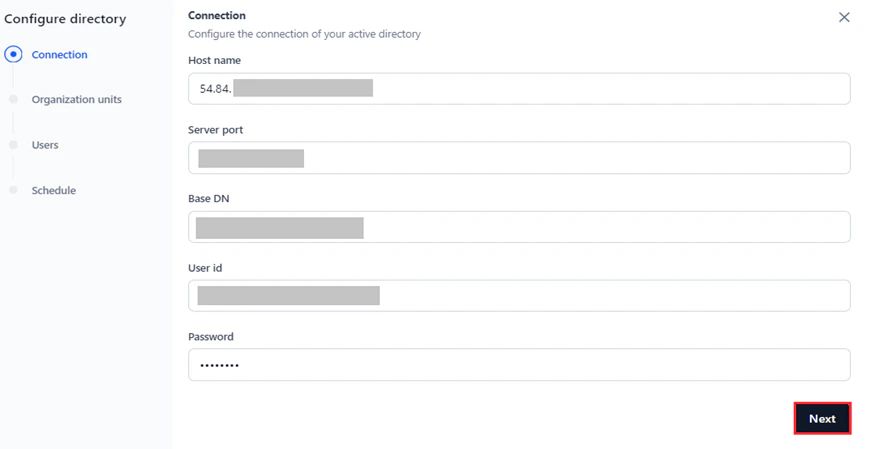
- Click Next to validate the credentials before proceeding. Validation errors appear on screen so you can correct them.
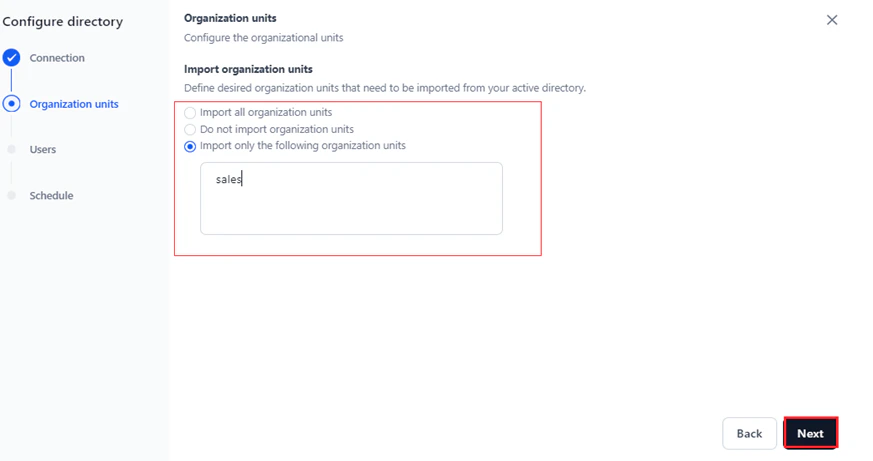
Step 2: Import Organization Units
-
Select one of the following options:
- Import all organization units: Imports user data from all OUs.
- Do not import organization units: No user data is imported from any OUs.
- Import only the following organization units: Imports user data only from the selected OUs.
-
Click Next to proceed to user profile fields mapping.
Step 3: Specify User Attributes and Configure Rules for Selective Import
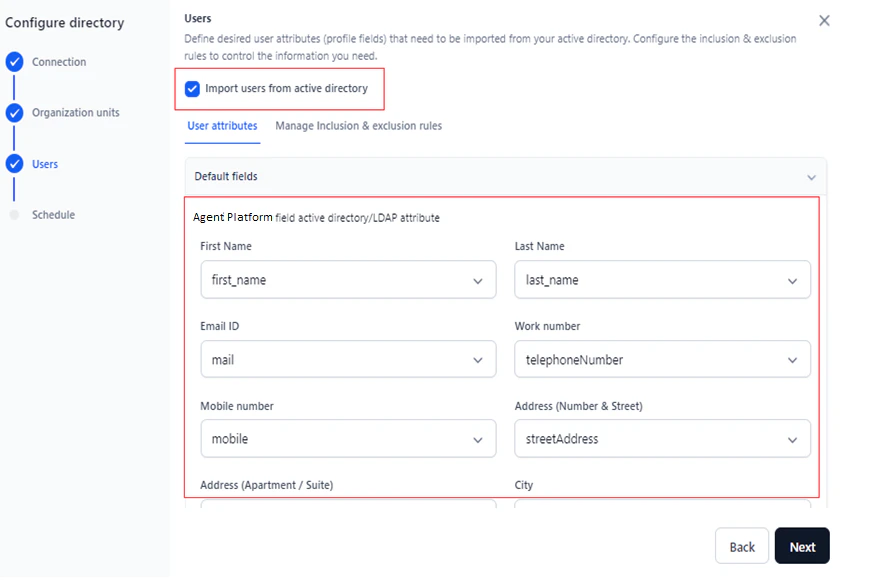
In this step, you can:- Define the LDAP user attributes (profile fields) to import from the AD.
- Set inclusion and exclusion rules to filter which users are imported.
- Inclusion rules: Define which users to include in sync or import based on criteria.
- Exclusion rules: Define which users to exclude from the AD import.
- (Optional) Select Import users from active directory to fetch default fields from the AD.
-
Click the User Attributes tab and map each field under Default Fields to the corresponding AD attribute from the dropdown.
-
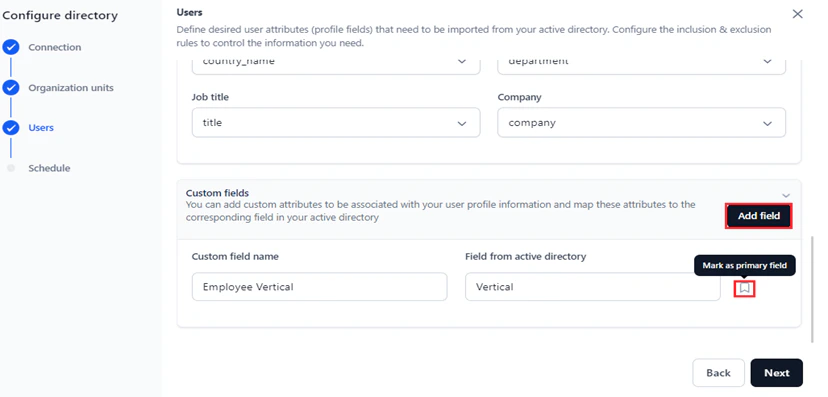
(Optional) To add custom field mappings in the Custom Fields section:
- Click Add Field.
- Enter the custom field name in Custom field name.
- Enter the corresponding AD field in Field from Active Directory.
- (Optional) Click the tag icon to set the custom field as the primary field. To delete this field, you must first remove the primary field tag.
- Click Next to complete the mapping.
 Deleting a custom field is only allowed if multiple fields exist.
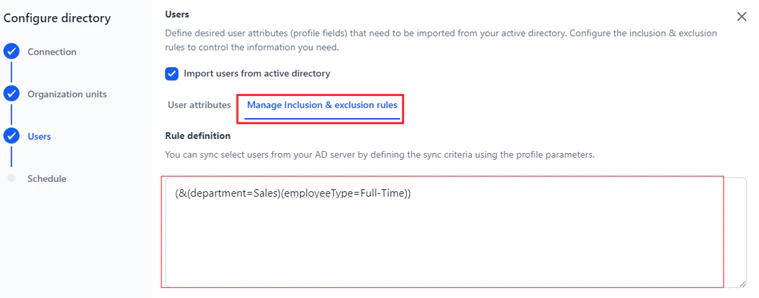
- Click the Manage Inclusion & Exclusion Rules tab.
-
Under Inclusion Rules, enter the rule expression using user profile parameters in the Rule Definition textbox, following LDAP filter syntax.
-
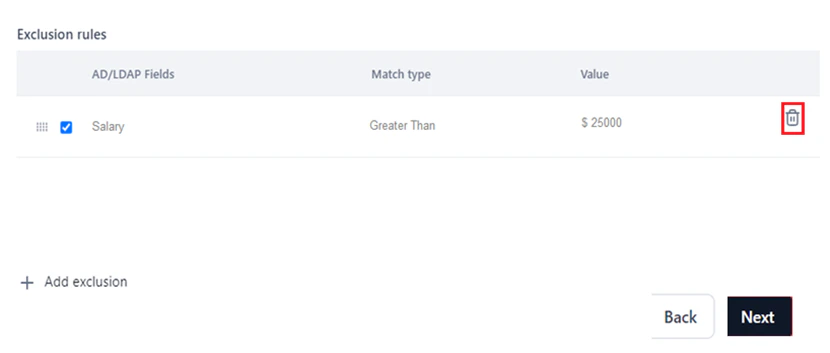
(Optional) Under Exclusion Rules, set the AD/LDAP field, Match Type, and Value. Match Type options:
Steps to set exclusion rules:
- Click + Add exclusion to add a new rule entry.
- Select the entry to enable the exclusion rule.
- Click Next to proceed.
All mandatory fields must be filled in before you can proceed to the next step.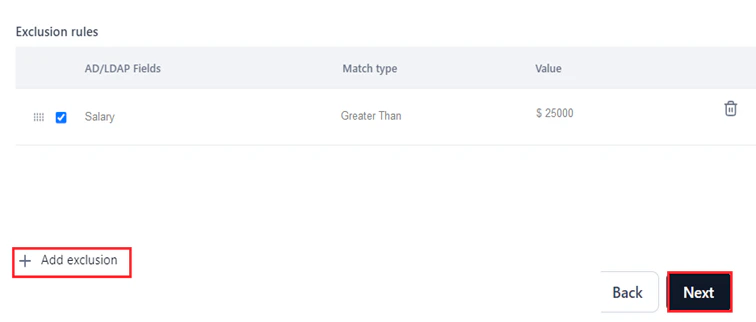
Step 4: Schedule Automatic AD Sync
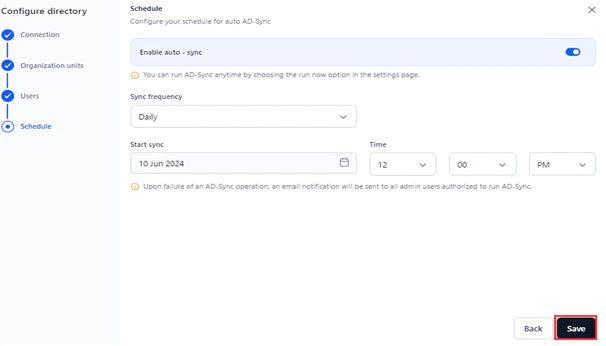
Enabling auto sync is optional but recommended to keep your AD data on AI for Process current.When auto sync is disabled, initiate AD sync manually by clicking Sync Now under Configure Sync with Directory.
-
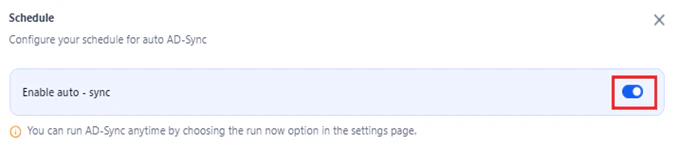
Click the Enable auto-sync toggle.
-
Configure the following sync fields:
Frequency options:
- For weekly and monthly syncs, you can select only one date from the calendar.
- You can only schedule sync with a future date and time.
-
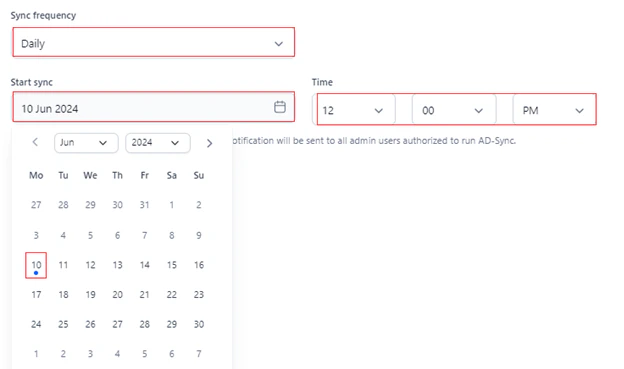
Daily: Syncs every day starting from the Sync Start date.
Example: Syncs daily from 10 June 2024 at 12:00 PM.
-
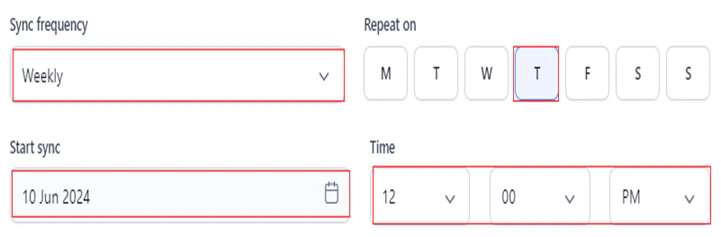
Weekly: Syncs on the selected day (Repeat On) every week, starting from the Sync Start date.
Example: Syncs every Thursday from 10 June 2024 at 12:00 PM.
-
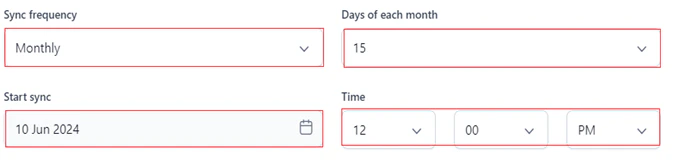
Monthly: Syncs on the designated day of each month, starting from the Sync Start date.
Example: Syncs on the 15th of each month, starting 10 June 2024 at 12:00 PM.
-
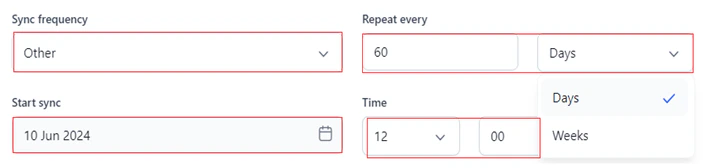
Other: Syncs at custom intervals (for example, every 60 days or weeks) starting from the Sync Start date and time.
Example: Syncs every 60 days, starting 10 June 2024 at 12:00 PM.
-
Click Save.
After Setup
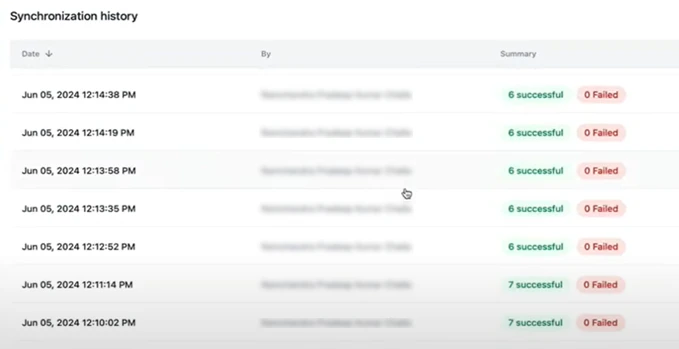
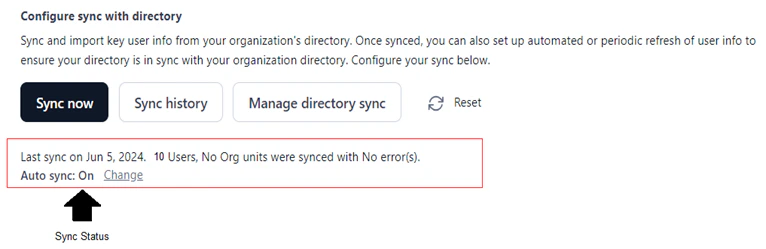
After configuring AD sync, the following options appear under Configure sync with directory:Even if auto sync is off, click the Change link in Sync Status to access and schedule auto sync on the configuration page.
Sync Status Email Notifications
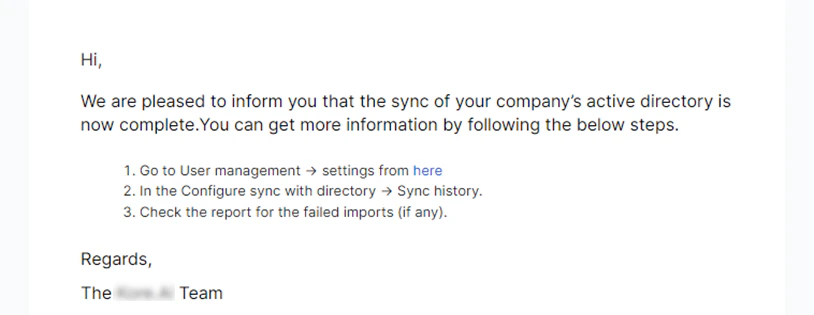
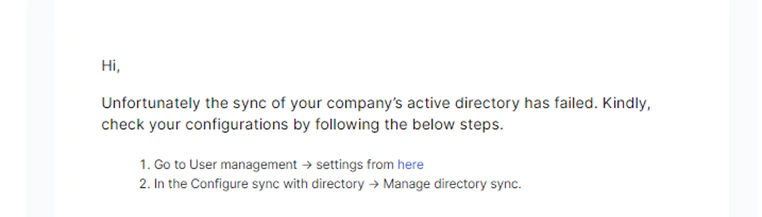
For a successful sync: