

System Settings
Co-Browse
Co-Browse lets agents navigate the same web page simultaneously with a customer. You can mask sensitive fields so agents can’t see confidential data during a session. To configure Co-Browse:- Go to Contact Center AI > CONFIGURATIONS > Settings > System Settings > Co-Browse.
- Turn on Enable Co-Browse. Agents see the co-browse option in their compose bar for supported channels.
- Enter Allowed Domains (comma-separated)—the domains permitted to run co-browse sessions.
- Enter Mask Patterns (regular expressions, semicolon-separated)—values that must be hidden from the agent’s view.
- Enter Mask CSS Classes-known CSS classes whose content must be hidden from the agent’s view.
- Select Save.
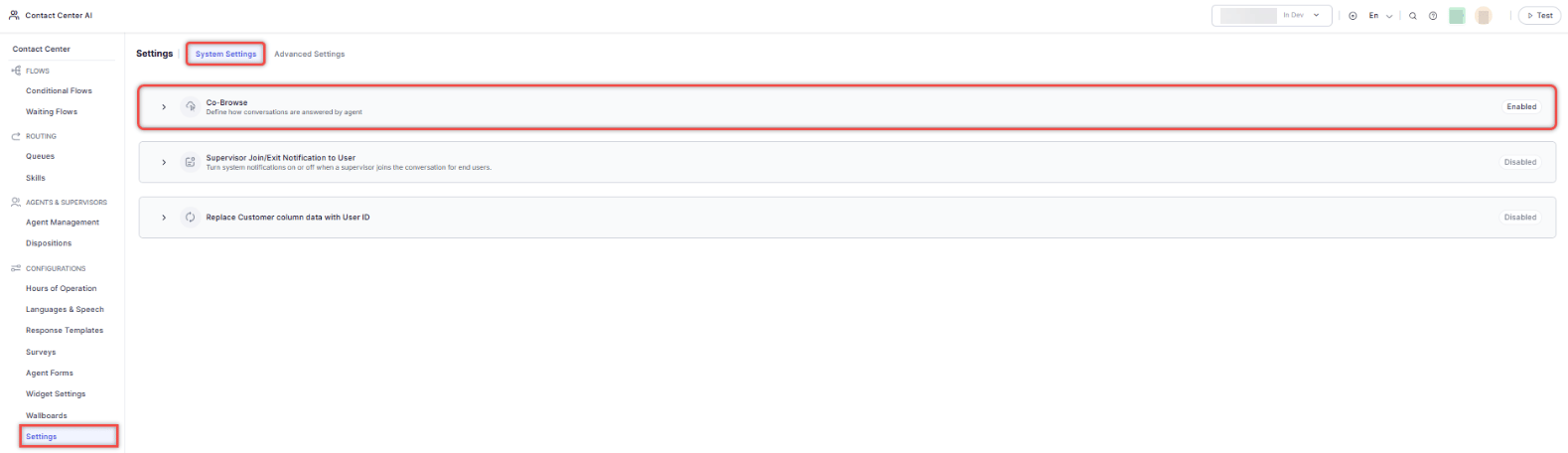
Supervisor Join/Exit Notification to User
By default, customers receive a system message when a supervisor joins or exits a chat. This setting lets you suppress those notifications to support silent supervision or internal monitoring. To configure:- Go to Contact Center AI > CONFIGURATIONS > Settings > System Settings > Supervisor Join Notification to User.
- The setting is enabled by default. To disable it, click the arrow to turn off the toggle.
All changes are recorded in Audit logs for traceability.
Automatic Away Status for Agent Inactivity
When enabled, the system automatically sets an agent’s status toAway if the configured Agent Inactivity Wait Time is exceeded after a conversation becomes overdue. This prevents inactive agents from receiving new interactions and keeps routing accurate.
Behavior:
To configure:
- Go to Contact Center AI > Settings > System Settings > Automatic Away Status for Agent Inactivity.
- Turn on the toggle to enable the feature.
Obscure Customer Info in Analytics Interactions
Administrators can hide customer Email IDs and Phone Numbers in the Interactions dashboard, the Details slider, and export files—replacing them with an internal User ID. Steps to configure Obscure Customer Info in Analytics - Interactions:- Go to Contact Center AI > Configurations > Settings > System Settings > Obscure Customer Info in Analytics - Interactions.
-
Enable the options you need:
All settings can be turned on or off independently. Mask IP address in transcripts is turned on by default. All other settings are turned off by default. If no settings are turned on, the platform displays customer information as Email ID or Phone Number.
Email Settings
Email Settings control how agents handle email distribution fields, contact suggestions, send confirmations, work bins, and outbound email access. To access: Go to Contact Center AI > Configurations > Settings > System Settings > Email Settings. Available settings:
This is an account-level setting, enabled by default for all agents. Disable it to prevent agents from modifying distribution lists.
Configure Inline Email ID Suggestions
- Select Bulk Upload.
- Upload or drag a CSV file with these columns: Contact Name, Email Address, Tags (optional).
- Map the CSV fields to system fields and select Validate.
- Review validation results and select Save.
Configure Email Work Bin
- Turn on the option to hold customer replies for the last handling agent before rerouting.
- Set the wait duration before standard queue routing applies.
- Turn on the Personal Work Bin View toggle to let agents manage conversations moved to their work bin without occupying interaction slots.
Configure Primary Email Action
Primary Email Action controls which option-Send or Send & Close-displays as the main option in the Agent Console email editor. The non-primary action remains available in the dropdown list. Steps to configure the Primary Email Action:-
Select the primary action.
- Select Save.
Changes to Primary Email Action are recorded in Change Logs, including the previous value, new value, administrator, and timestamp. Only administrators with access to System Settings > Email can modify this setting.
Delete Contacts
- Select a contact and select the Bin icon.
- Select Delete to confirm.
Agent Console Configuration
Agent Console Configuration controls two aspects of the Agent Console: session management across tabs and browsers, and the metrics visible in the Agent Console header. To access: Go to Contact Center AI > CONFIGURATIONS > Settings > System Settings > Active Console Configuration. Transfer Console to New Tab/Browser When turned on, agents can set the current tab as the active console, transferring all ongoing sessions from the previously active tab or browser. This prevents agents from running concurrent sessions across multiple tabs or devices. The setting is turned on by default. All transfer actions are recorded in audit reports. Agent Console Operational Metrics When turned on, agents can see their metrics in the Agent Console header based on the interactions they have handled. The header displays a maximum of three metrics at a time. Steps to configure Agent Console Operational Metrics:- Turn on the Agent Console Operational Metrics toggle.
- Select the metrics to display. A minimum of one and a maximum of three metrics can be selected at a time. When three metrics are selected, the remaining option is unavailable until one of the selected metrics is cleared.
-
Select Save.
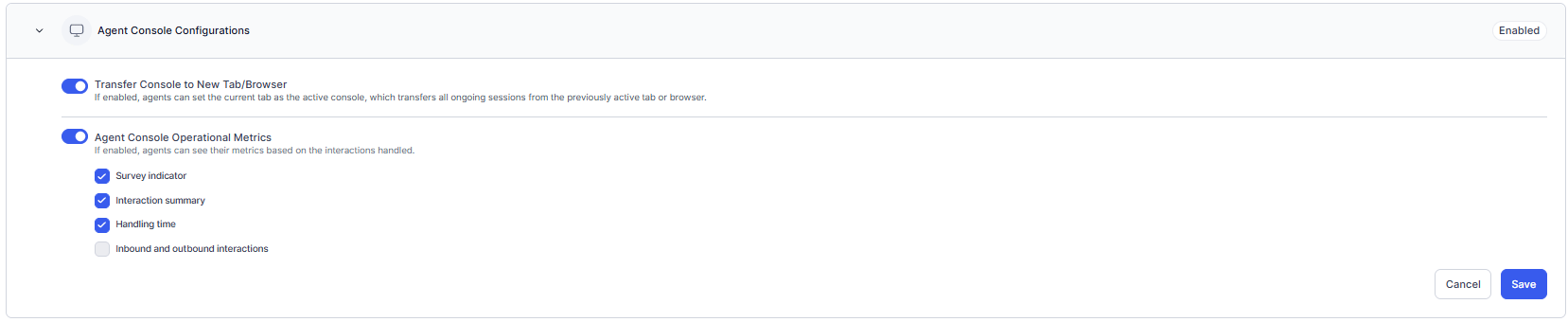
Existing and new accounts have Survey Indicator, Interaction Summary, and Handling Time selected by default.
Queue-Level Settings
Queue-Level Settings control outbound options, conversation routing during non-business hours, and dynamic queue prioritization. To access: Go to Contact Center AI > Configurations > Settings > System Settings > Queue-level Settings.Configure Dynamic Queue Reprioritization
- Turn on the Dynamic Queue Reprioritization toggle.
- Select a queue priority from 1 (highest) to 10 (lowest), then click Save.
- Every interaction is assigned a HOP Config ID when it enters a queue. This ID governs the Hours of Operation rules for that conversation’s entire lifecycle.
- The system doesn’t automatically update the HOP Config ID after assignment.
- Changing a queue’s HOP configuration doesn’t affect interactions already active or waiting in that queue.
Recommended: Instead of switching a queue’s HOP configuration while interactions are active, update the timings within the existing HOP configuration.Related: Queues-Optional Configuration
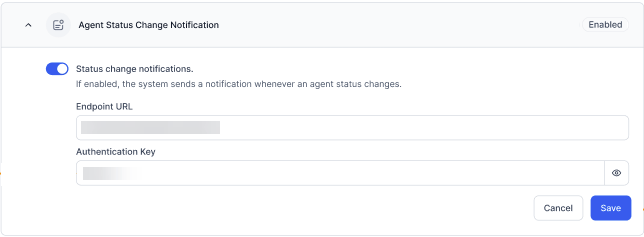
Agent Status Change Notification
When configured, the system sends agent status change events to a configured API endpoint. The notification includes the Agent ID, Status Type, Previous Status, Current Status, Event Timestamp, and Event Type. Steps to configure Agent status change notifications:- Turn on the Status change notifications toggle.
- Enter the Endpoint URL and Authentication Key.
-
Select Save.
Advanced Settings
Community WFM [Beta]
Community WFM integrates natively with Contact Center AI to provide workforce management capabilities including forecasting, scheduling, attendance tracking, and reporting.This feature is in Beta. Contact support to share feedback.
Prerequisites
Obtain the following from your Community WFM Purchase Order agreement before configuring:- Base URL
- Account ID
- API key
Configure and Enable Community WFM
- Go to CONFIGURATIONS > Settings > Advanced Settings > Community WFM [Beta].
- Enter the Base URL, Account ID, and API key.
-
(Optional) Turn on Data sync to enable data sharing from Contact Center AI to Community WFM for ML-based call volume forecasting.
Data sync starts from the current day and doesn’t include historical data.
- Select Save.
Stop Data Sharing
Turn off the Data sync toggle and confirm. Data exchange between Contact Center AI and Community WFM stops immediately. For more information, visit Community WFM.LLM-Based Conversation Summary
This feature lets administrators integrate external Gen AI models to power conversation summarization-extending language support and enabling custom summarization prompts beyond out-of-the-box capabilities. Benefits:Prerequisites
- Access to AI for Service (Platform) with administrative privileges
- A Gen AI connector provided by the platform team
- A configured external Gen AI model
Enable LLM-Based Summarization
- Go to Contact Center AI > CONFIGURATIONS > Settings > Advanced Settings > LLM based Conversation Summary.
- Turn on the Arrival and Closure summaries as required.
-
Select a summarization method:
- OOTB Kore Summarization (default)
- Using the model configured in the GenAI framework
The GenAI framework option is disabled until a valid model is configured.
Configure a Custom Model
- Open GenAI & LLM in AI for Service.
- Configure your external Gen AI model. Learn more.
- Define custom prompts for your summarization needs.
Reject Calls with a Delayed First Response
This setting controls when a call is considered “connected.” When enabled, a call is connected only after the platform sends its first message (first volley). If no initial response is generated within 10 seconds, the call is rejected and returned to the source-preventing customers from experiencing dead air. When to use: Enable this when transferring calls from an existing telephony provider to Voice Gateway (VG) and rare delays in response generation are causing dead air. To enable: Go to Contact Center AI > CONFIGURATIONS > Settings > Advanced Settings > Reject calls with a delayed first response and turn on the toggle.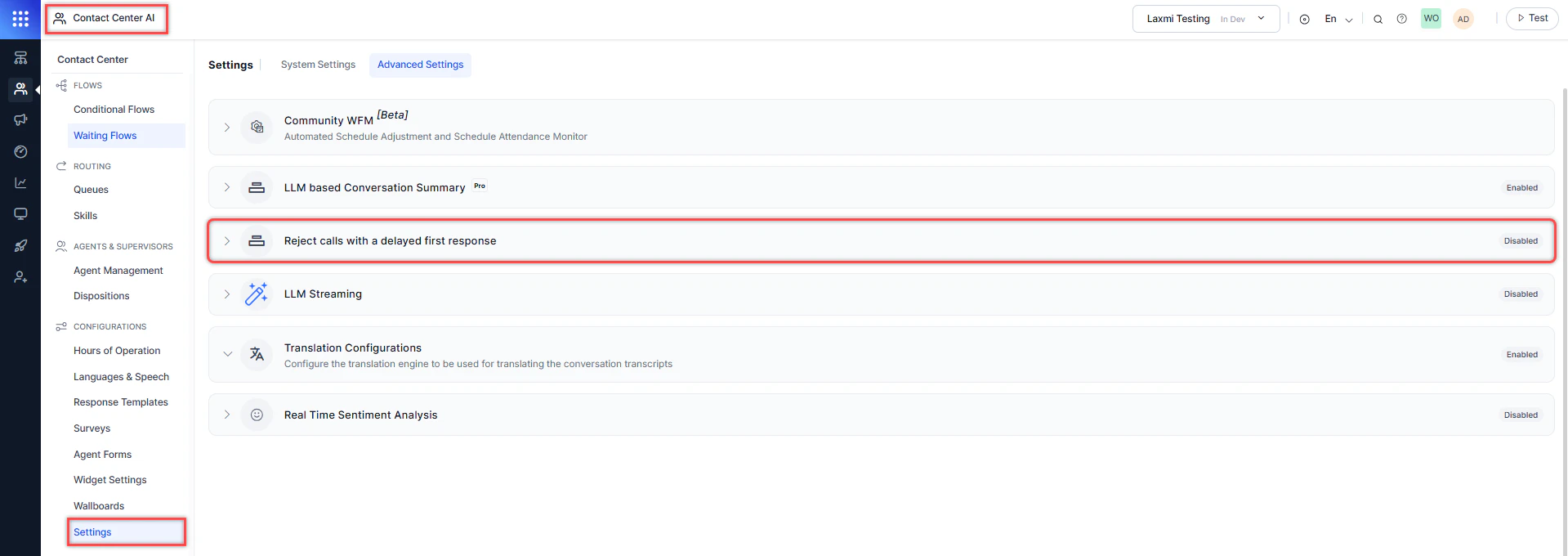
Translation Configurations
Translation Configurations enable real-time translation so agents can engage customers in their preferred language. The system translates agent content, including search responses, Dialog Tasks, text-only templates, and conversation transcripts, into the selected language. To configure:- Go to Contact Center AI > CONFIGURATIONS > Settings > Advanced Settings > Translation Configurations.
-
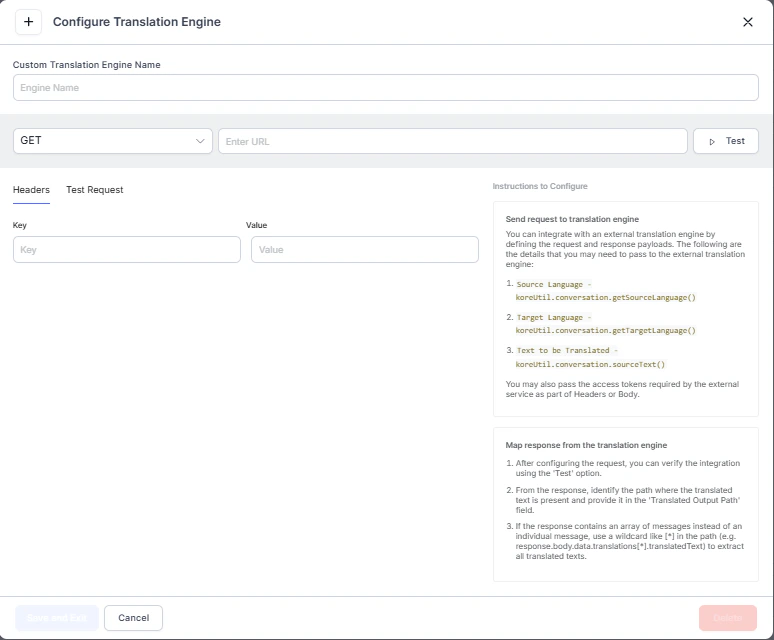
Turn on the translation toggle, then select a provider:
-
Select the locations to activate translation.
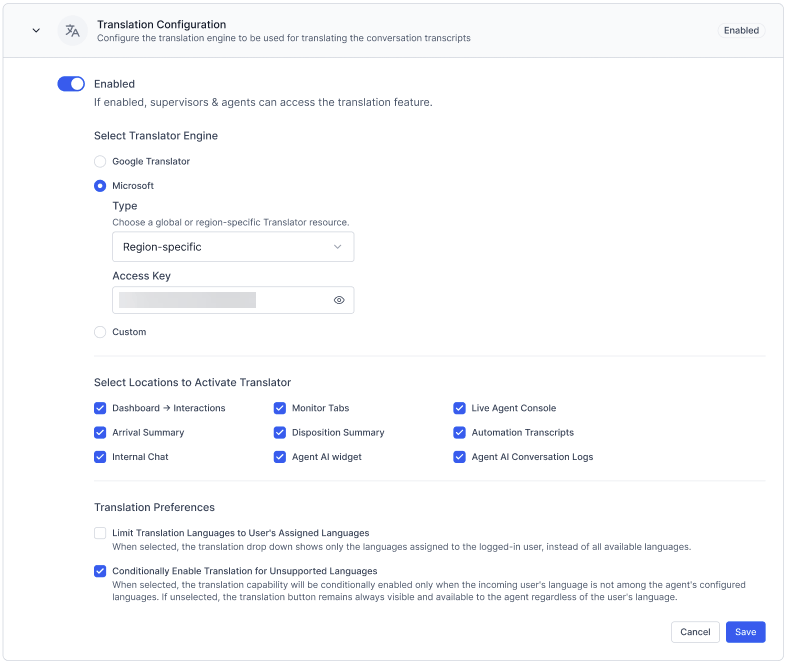
 Each location is an independent selection. Enabling one location doesn’t automatically enable translation for content in another. For example, selecting Live Agent Console translates chat, Assist, Search, and My Bot tab content in the console, but it doesn’t enable translation for the Agent AI Widget or Internal Chat—you must select those locations separately if you need their content translated too.
 - (Optional) Limit Translation Languages to User’s Assigned Languages: When enabled, the translation dropdown displays only the languages assigned to the logged-in user, rather than all available languages.
- (Optional) Conditionally Enable Translation for Unsupported Languages: When enabled, the translation option is displayed or hidden based on whether the user’s language is within the agent’s configured languages.
- Select Save.
Template messages aren’t translated in conversation transcripts.
Conditional Translation Enablement
When the Conditionally Enable Translation for Unsupported Languages setting is turned on, the system automatically controls the visibility of the translation option based on language compatibility between the user and the agent. The translation option behavior is as follows:- If the user’s language is within the agent’s configured languages, the translation option is disabled or hidden.
- If the user’s language isn’t within the agent’s configured languages, the translation option is enabled.
- If the user’s language can’t be determined, the translation option is enabled by default.
When conditional translation is enabled, translation is disabled for both the user and the agent. Messages aren’t translated, even if the agent writes in a different language. Conditional translation is based on the user’s language set at the time of agent transfer. It doesn’t respond to language changes or multilingual conversations at runtime. This behavior applies only in the agent console live interaction pane.
Language Selection in the Console
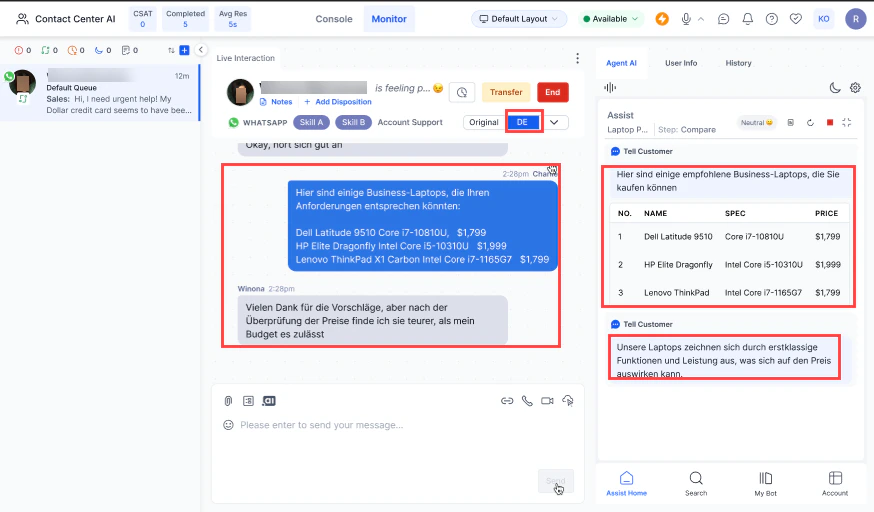
Agents can switch languages directly from the console:- Go to Contact Center AI > Console and select a language from the language dropdown.
- Select Mark as Default to set a language as the default for that agent.
-
Chat messages, Assist, Search, and My Bot tab content are translated into the selected language.
Conversation Logs Language
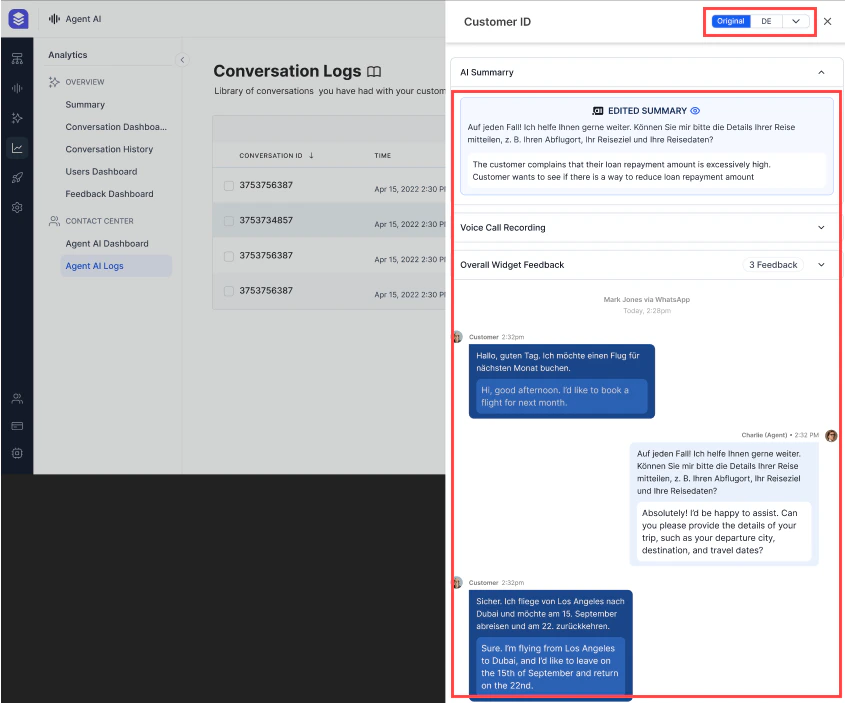
When Agent AI Conversation Logs is enabled, the Conversation Logs section includes a language dropdown with options to view the original, translated, or dual-language view.- Go to Contact Center AI > Analytics > Agent AI Logs.
- Select a Conversation ID.
-
Select Original to view both original and translated content side by side.
-
Select the abbreviated language name to view only the translated content.
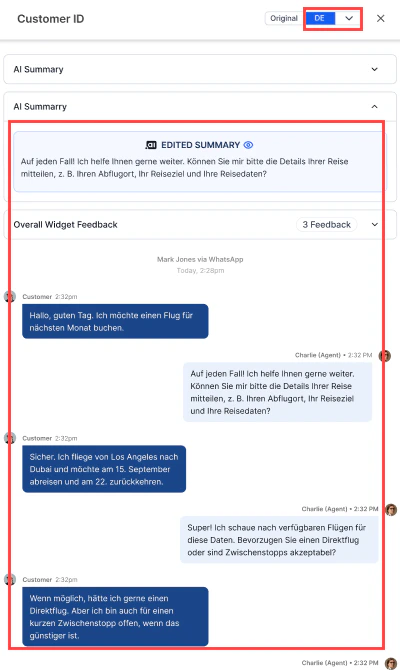
- Select another language from the dropdown to retranslate the content.
Real-Time Sentiment Analysis
Real-Time Sentiment Analysis displays a live sentiment indicator during active chat conversations, updating dynamically as the conversation progresses.Sentiment data is available only for interactions after deployment of release v3.13.0, provided this setting is enabled. Sentiment capture is unavailable for messages sent during configuration disruptions.
- Gives agents real-time visibility into customer sentiment.
- Enables more empathetic, emotionally aware responses.
- Helps agents tailor responses based on sentiment shifts.
- Provides interactive visual analysis of emotional trends.
- Go to Contact Center AI > CONFIGURATIONS > Settings > Advanced Settings > Real Time Sentiment Analysis.
-
Turn on the toggle. This feature is disabled by default.
Required: You must configure a custom model and enable the appropriate prompt in GenAI Tools.
Wrap-Up Code Prediction
Wrap-Up Code Prediction uses GenAI (LLM) to automatically suggest disposition codes during conversation wrap-up, based on the conversation transcript and predefined disposition metadata. This reduces manual tagging effort and improves reporting accuracy. To enable:- Go to Contact Center AI > Configurations > Settings > Advanced Settings > Wrap-up Code Prediction.
- Turn on the toggle to activate the feature. The system generates intelligent disposition suggestions based on actual conversation content.