

When Independent Transfer Evaluation is enabled in Quality AI Settings, coaching assignments are created per leg. QA users mark a specific transfer leg for coaching, not the whole conversation. Each agent involved in a transferred contact is coached only on the leg they handled. The coaching evidence and transcript context provided to the agent are scoped strictly to that leg.
Coaching Components
Coaching includes the following components:Permissions
Access to coaching capabilities depends on the user’s role and assigned permissions.Role-Based Access
Only users with QA Functionalities Access can manage coaching candidates, create coaching groups, assign coaching, or monitor group-level progress.
Access Coaching Assignments
Navigate to Quality AI > Coaching > Coaching Assignments > Assignments.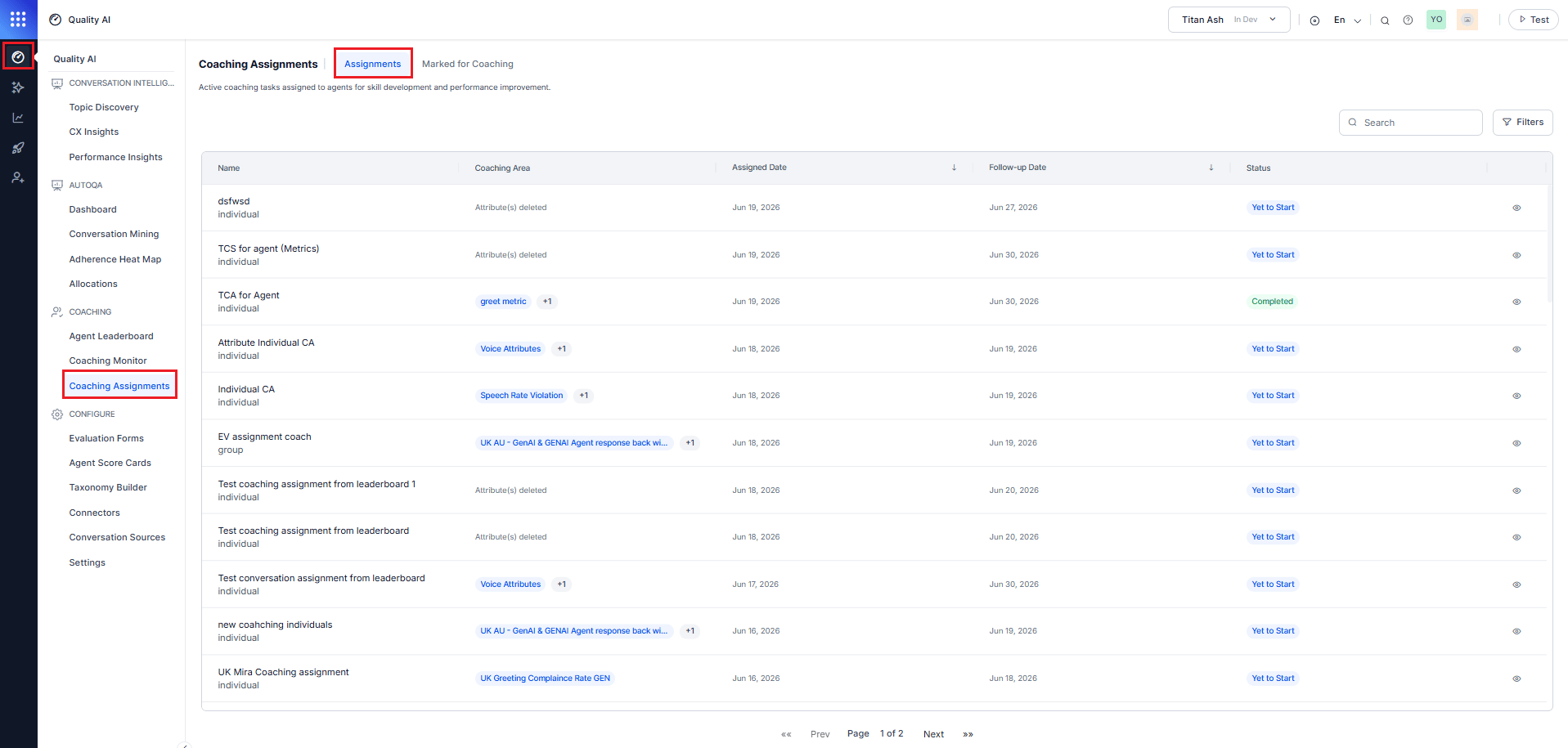
Workspace Tabs
The Coaching Assignments workspace has two tabs:Coaching Workflow
The coaching workflow provides an end-to-end process for identifying improvement opportunities, creating coaching assignments, notifying agents, and measuring coaching effectiveness.Identify Coaching Opportunities
Supervisors review evaluated interactions in the Agent Dashboard, and QA users review audit conversations to identify coaching opportunities. Agents can access their coaching assignments from the dashboard, where they can review coaching sessions, feedback, action plans, coaching interactions, and progress. For standard (non-transferred) interactions, the entire conversation is used as the audit context. For transferred calls with Independent Transfer Leg Evaluation enabled, QA users can mark a specific leg for coaching from that leg’s audit record. The coaching mark, supporting evidence, transcript, and evaluation results apply only to the selected agent and leg, not to the entire conversation. For more information, refer to:View Assignments
The Assignments tab lists all active coaching tasks. For a transferred call, selecting Audit Details for a coaching assignment takes the user directly to the specific leg referenced in the assignment, preserving the leg-level transcript and evaluation results. The system doesn’t default to the full multi-leg conversation view unless the user manually navigates to it.Assignment List
Assignment Status
Assignment Detail Flow
The Eye (View) icon provides progressive access from a coaching assignment summary to conversation-level details and then to full audit information.
For a transferred call, Level 3 opens the audit details for the specific leg the coaching assignment references, not the full multi-leg conversation.
Filter Assignments
Select Filters to open the filter panel and narrow the assignment list.
Select Apply to confirm and apply the selected filters.
Create Individual Coaching Assignments
Supervisors can create or add individual coaching assignments from the agent’s dashboard. For more information, refer to the Add Coaching Assignment.Marked for Coaching
The Marked for Coaching workspace helps supervisors manage agents identified for coaching during interaction reviews. Supervisors can organize coaching candidates into groups or individuals, create coaching assignments, add reference interactions, provide feedback, define action plans, and schedule follow-up reviews. Navigate to Quality AI > Coaching > Coaching Assignments > Marked for Coaching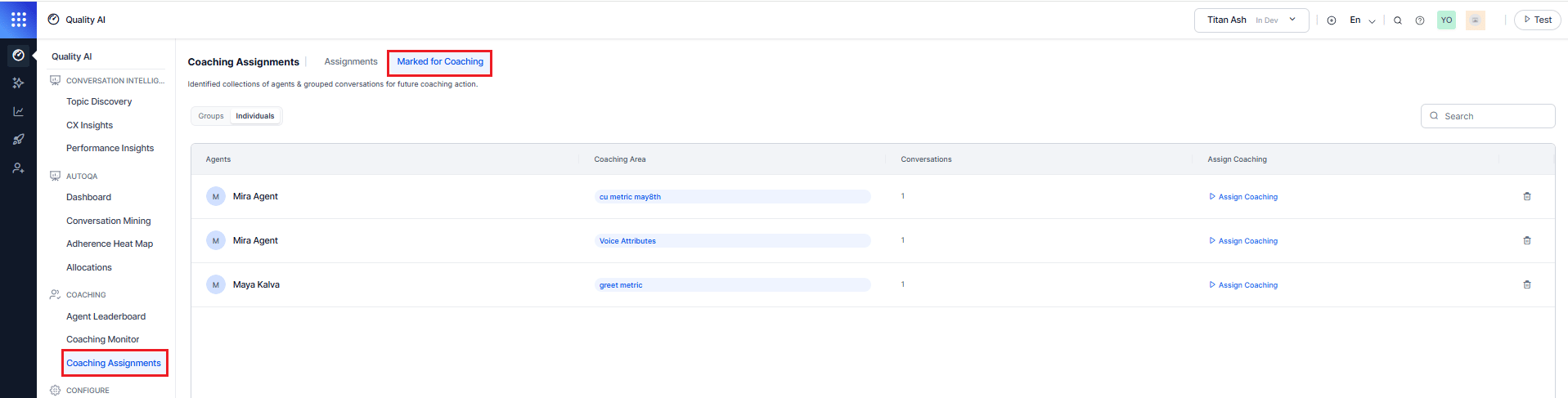
Create a New Coaching Assignment
You can create a coaching assignment from either the Groups or Individuals sub-tab. The assignment workflow is similar for both options, but the coaching candidates reviewed during assignment creation differ.Organize Coaching Candidates
Supervisors can organize coaching candidates as Individual agents or into groups based on similar coaching needs. When multiple agents require coaching on the same areas, supervisors can create coaching groups to streamline assignment creation. The Marked for Coaching workspace contains the following tabs:Step 1: Select a Coaching Candidate
- Select either the Groups or Individuals sub-tab.
- Review the available coaching candidates.
- Select Assign Coaching.
Groups
In the Group Assignments, the system creates an individual coaching assignment for each agent in the coaching group. The Groups list displays the following information:The Assign Coaching action is available only when the group contains one or more interactions.
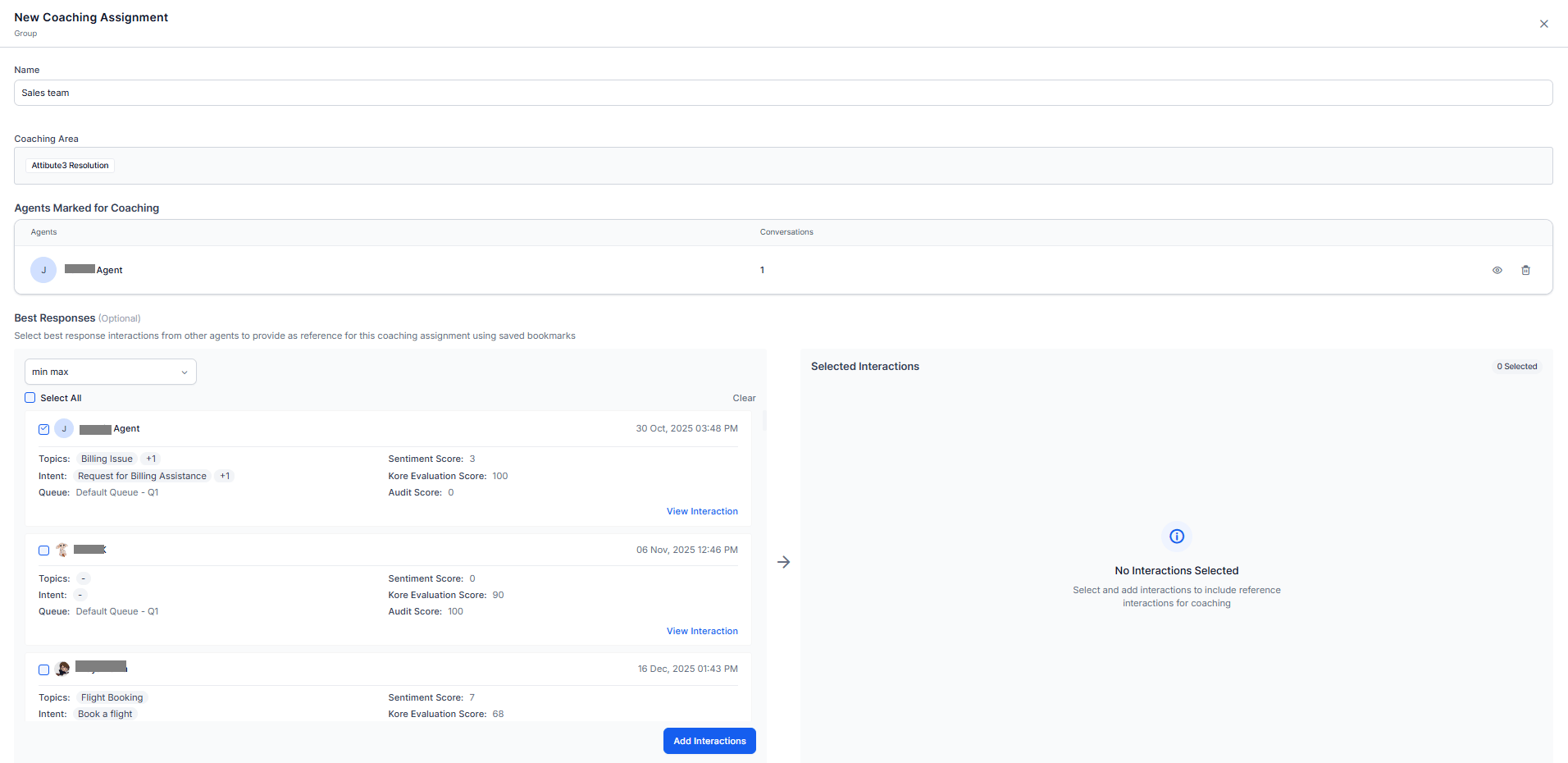
Agents Marked for Coaching (Groups)
The Agents Marked for Coaching section lists the agents included in the selected coaching group.Review Agent Interactions
- Select the View icon for an agent.
- Review the interactions associated with the selected agent.
- Use the search field to locate a specific interaction.
- Select View beside an interaction to open the audit review page.
Individuals
In the Individual Assignments, the system creates a coaching assignment for the selected agent. The Individuals list displays the following information: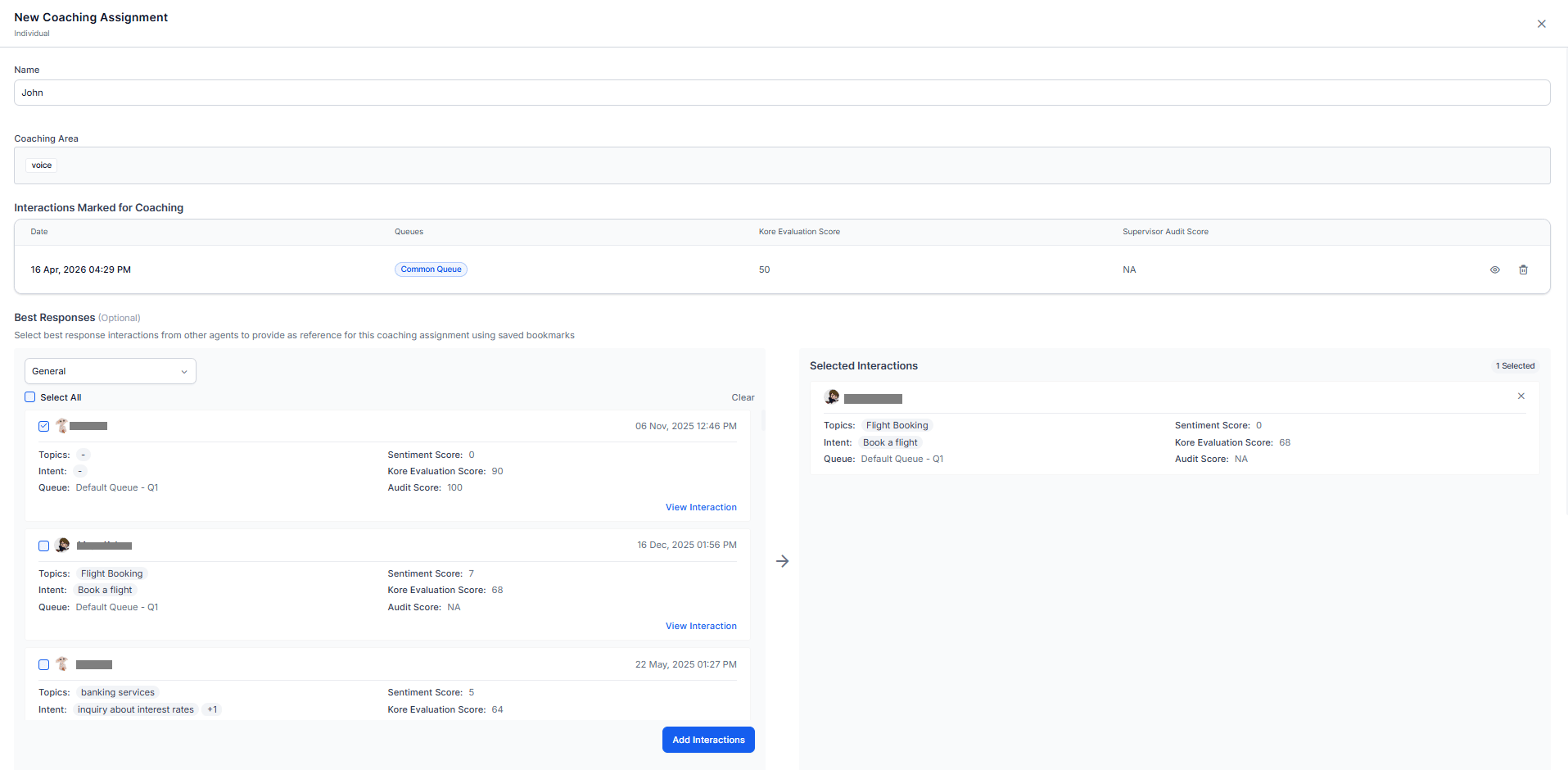
Interactions Marked for Coaching (Individuals)
The Interactions Marked for Coaching section lists the interactions selected for the coaching assignment.The interactions displayed in this section correspond to the value displayed in the Conversations column on the Individuals page.
Step 2: Complete Assignment Information
The New Coaching Assignment dialog opens.- Enter a Name for Groups or Individuals coaching assignment.
- Review the Coaching Area of Groups or Individuals associated with the coaching recommendation.
Step 3: Review Coaching Candidates
The information displayed in this section varies depending on whether the assignment originates from the Groups or Individuals sub-tab.Step 4: Review Interaction Details
For both Groups and Individuals, selecting the View icon opens the audit review page. The audit review page provides detailed information about the interaction.Step 5: Add Best Responses (Optional)
Use Best Responses to add bookmarked interactions from other agents as coaching examples.- Select a bookmark from Select Bookmark.
- Review the available bookmarked interactions.
- Select the required interactions.
- Move the selected interactions to Selected Interactions.
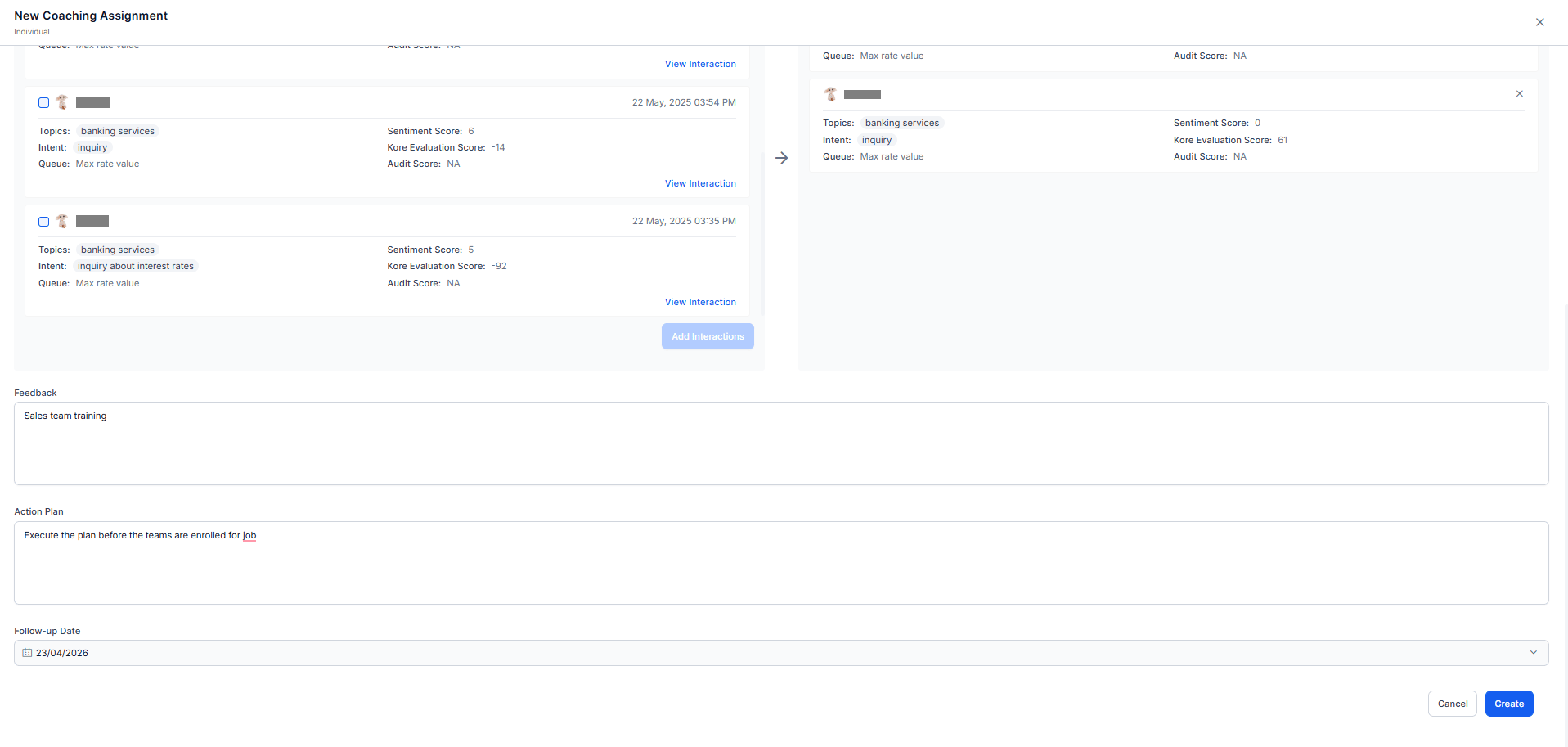
Step 6: Add Coaching Guidance
Complete the coaching details for the assignment.
For group coaching assignments, the system applies the same Best Responses, Feedback, Action Plan, and Follow-up Date to all coaching assignments created from the group.
Step 7: Coaching Assignments Notification
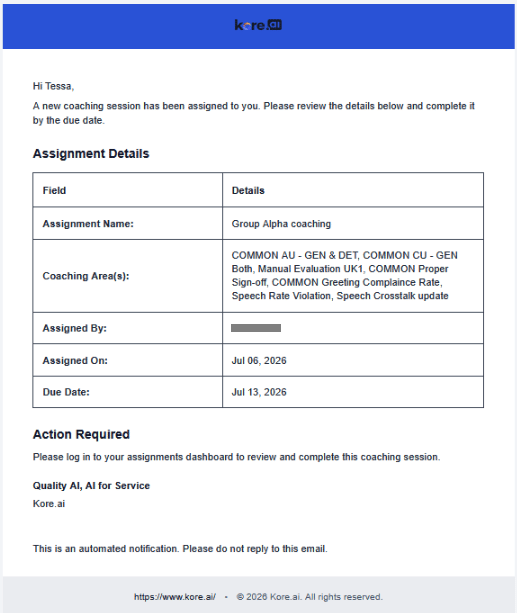
When a coaching assignment is created, Quality AI automatically sends an email notification to the assigned agent. For group coaching assignments, each assigned agent receives an individual notification containing assignment details and instructions to access the coaching assignment. This eliminates the need for agents to periodically check the Assignments dashboard. Notification Trigger
Email Contents
The notification email includes the following assignment details:
The email directs the agent to sign in to the Assignments dashboard to review and complete the coaching assignment.
Coaching assignment email notifications are sent to the email address configured on the agent’s user account. Verify that all agents have a valid email address in User Management before creating coaching assignments.
Step 8: Create the Assignment
- Review the assignment details.
- Select Create.
Common Actions
For both Groups and Individuals:- Review the interactions included in the coaching assignment.
- Use the search box to locate a specific interaction.
- Select View to review the interaction details.
- Select Delete to remove the interaction from the coaching assignment.
- Creates a coaching recommendation.
- Links the recommendation to the audited interaction.
- Associate the recommendation with the selected coaching areas.
- Associate the recommendation with the selected coaching group, when applicable.
- Makes the recommendation available for coaching assignment tracking and follow-up.
Assignment Validation Rules
The system creates the coaching assignment only when all of the following conditions are met:- All required fields contain values.
- At least one interaction remains in the assignment.
- The selected coaching areas are valid for the associated interactions and agents.
- Each agent in a group assignment has at least one eligible interaction.
- For transferred interactions, the user selects coaching areas (metrics or attributes) that apply to the specific call leg. If transfer-role scoping marks a metric Not Applicable for that leg, the user can’t select that metric as a coaching area for the leg.
Create a New Coaching Group
Select + Add New Group from the Groups sub-tab or from the Mark for Coaching dialog.
Select Save to create the group. The system creates the group in a pending state and adds it to the group list.
Invalid Coaching Area
The system validates coaching areas before it creates the coaching mark. If a coaching area doesn’t apply to the selected interaction or agent, the system displays an Invalid Coaching Area warning.
After you save, the system:
- Creates a coaching recommendation.
- Links the recommendation to the audited interaction.
- Associate the recommendation with the selected coaching areas.
- Associate the recommendation with the selected coaching group, when applicable.
- Makes the recommendation available for coaching assignment creation and tracking.
Agent View of Coaching Assignments
Agents can access their coaching assignments from their dashboard. This provides a centralized workspace to review assigned coaching sessions, feedback, action plans, coaching interactions, and progress. The system doesn’t show group membership or other group-level information to agents, even when assignments are created through a group coaching workflow. For more information, refer to the Agent Dashboard – Evaluation.Coaching Monitor
The Coaching Monitor provides supervisors with a consolidated view of coaching effectiveness across agents and assignments, showing progress and score trends by coaching area (evaluation metrics and agent attributes). It enables the supervisors tracking of coaching outcomes, evaluation scores, and agent performance trends, with filters to focus on specific areas and support informed follow-up discussions without reviewing each agent in detail. Navigate to Quality AI > Coaching > Coaching Monitor.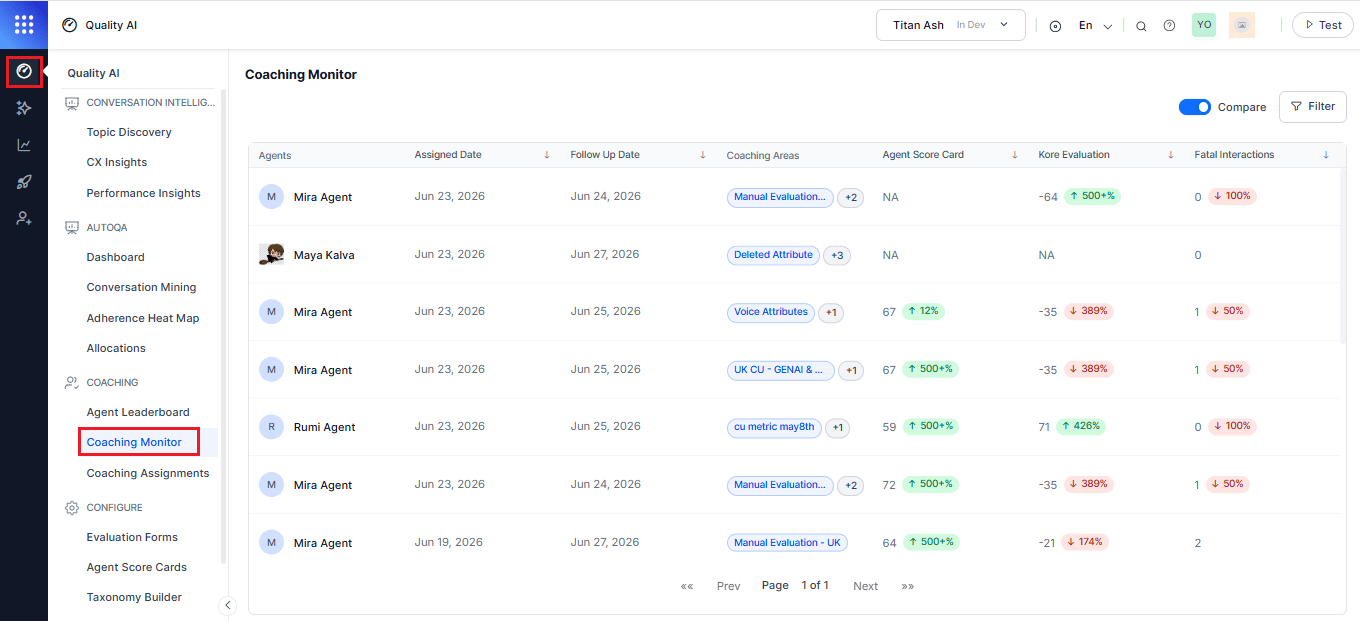
To track coaching area score trends across agents in the Coaching Monitor, enable AutoQA in Quality AI General Settings for automated interaction scoring.
Key Features
- Monitor coaching effectiveness across agents and assignments.
- Compare performance at the time of assignment with current performance.
- Track coaching progress by evaluation metric and agent attribute.
- Review follow-up schedules and coaching outcomes.
- Filter coaching assignments by date, coaching area, agent group, and agent.
- Coaching impact analysis excludes separate review of individual assignments.
Coaching Monitor Dashboard
The Coaching Monitor dashboard lists all coaching assignments and displays coaching progress metrics for each agent.Dashboard Columns
The following table displays key coaching assignment details.Compare View
Enable the Compare option to compare current performance with performance at the time the system created the coaching assignment. When users enable the Compare option, trend indicators (Spike) appear for the Agent Score Card, Kore Evaluation Score, and Fatal Interactions and highlight performance changes between the assignment date and the current date. Selecting these indicators displays performance improvements or declines between the assignment date and the current date.
Each row follows the same assignment type classification used in the Assignments tab.
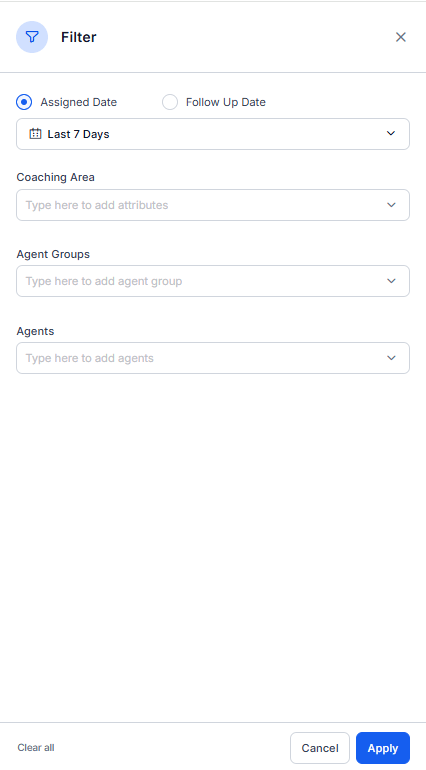
Filter Criteria
Use the Filter option to narrow the list of coaching assignments based on date, coaching area, agent group, or agent. This helps supervisors to find and review relevant coaching assignments.
Select Apply to apply the selected filter criteria to the dashboard.
Coaching Progress
Select an agent record in the Coaching Monitor dashboard to view the agent’s coaching progress. The Coaching Progress dialog compares performance at the time of coaching assignment with current performance for each coaching area.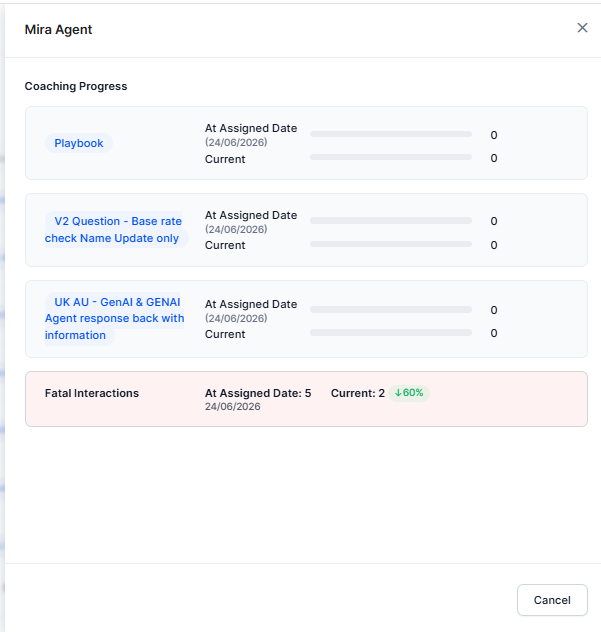
The score toggle recomputes scores based on the selected source. Switching the toggle updates both the Score at Assigned Date and Current Score columns to reflect the chosen score type.