

Model List
The Fine-Tuned Models page lists all available models with the following details: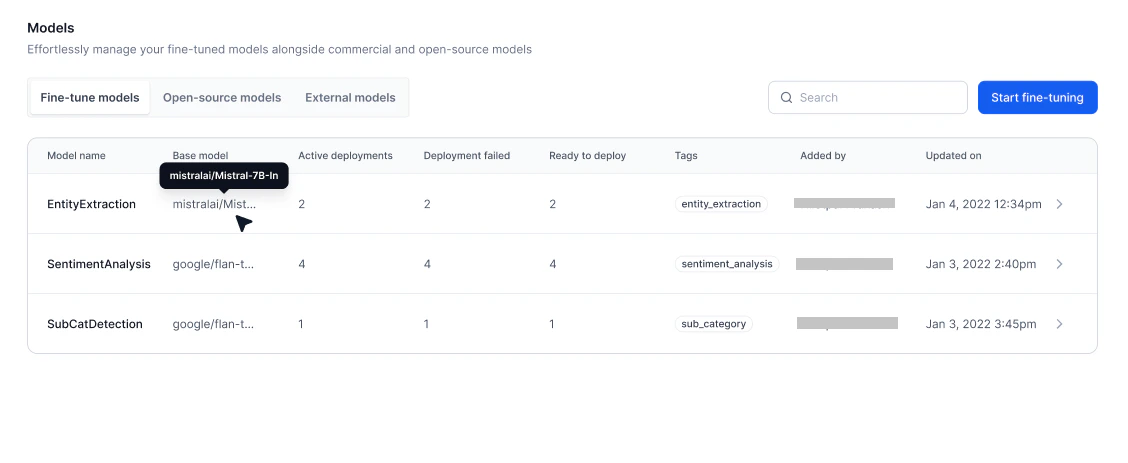
- Overview — View general information, training progress, and test results.
- Deployments — Manage all deployments for the selected model.
- Configurations — Edit model details, adjust endpoint timeout, or delete the model.
Create a Fine-Tuned Model
You can fine-tune a platform-hosted model or import one from Hugging Face. The process involves the following steps:- General details
- Selecting a base model
- Fine-tuning configuration
- Adding the training and evaluation datasets
- Adding the test dataset (optional)
- Selecting hardware
- Integrating with Weights & Biases (optional)
- Log in and click Model Hub under AI for Process.
-
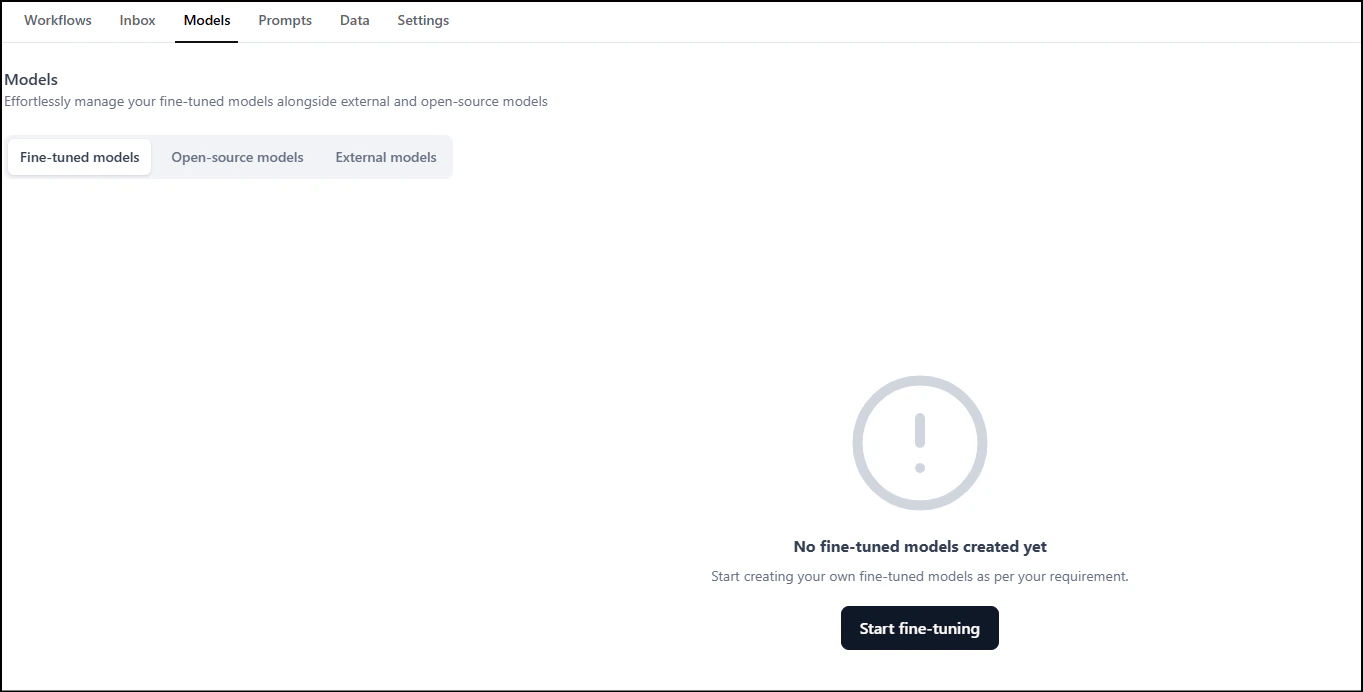
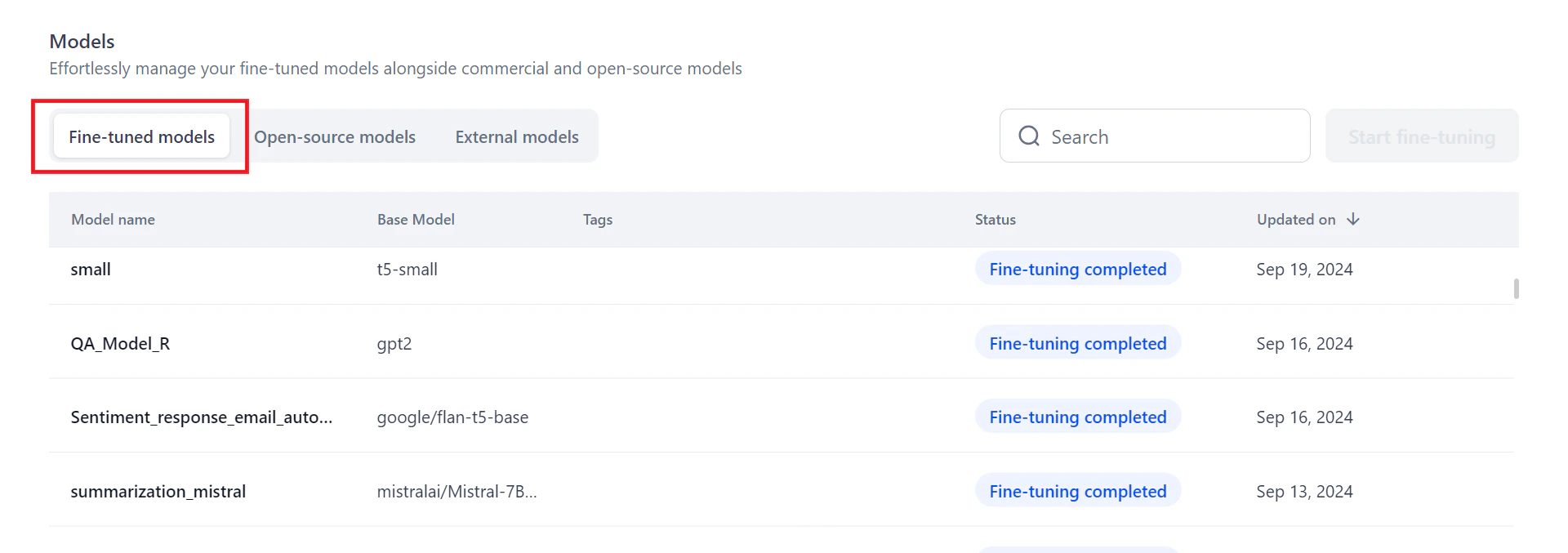
On the Fine-tuned models tab, click Start fine-tuning.
-
In the General details section:
- Enter a Model name and Description.
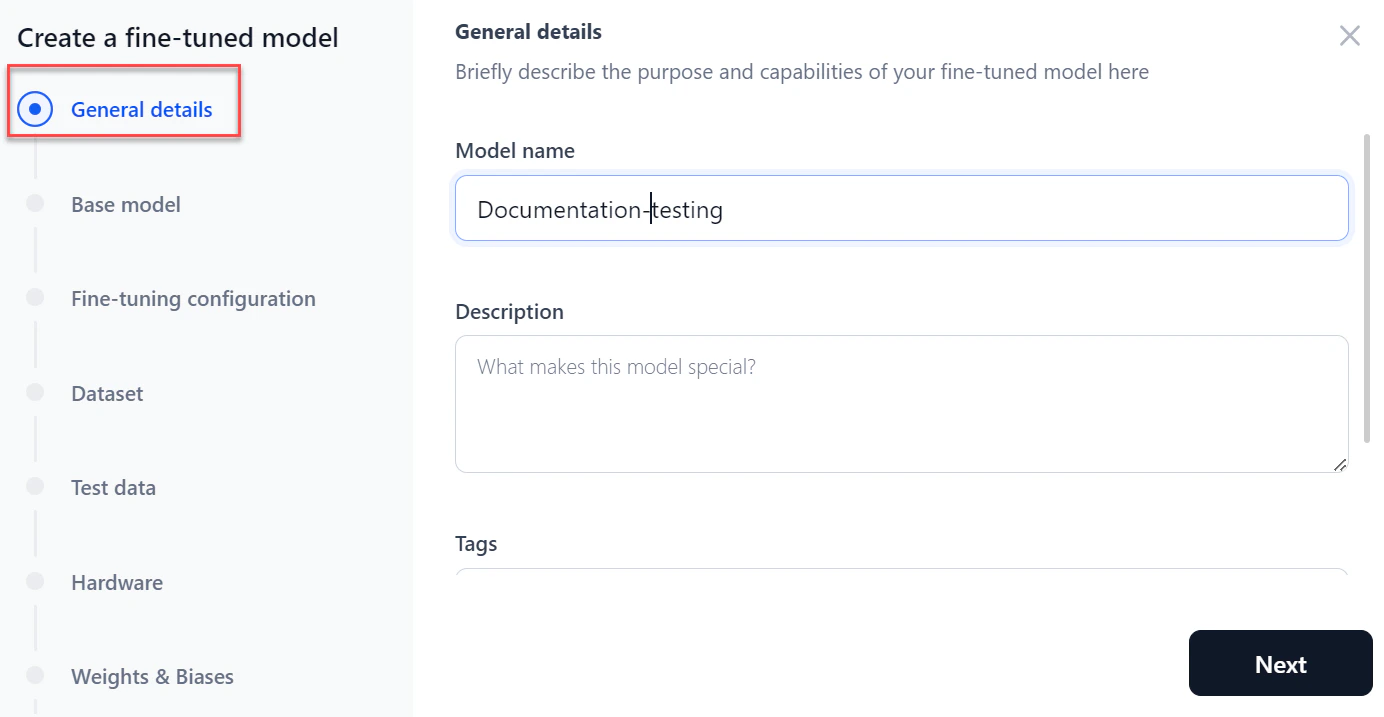
- Add tags to help search for the model and click Next.
- Enter a Model name and Description.
-
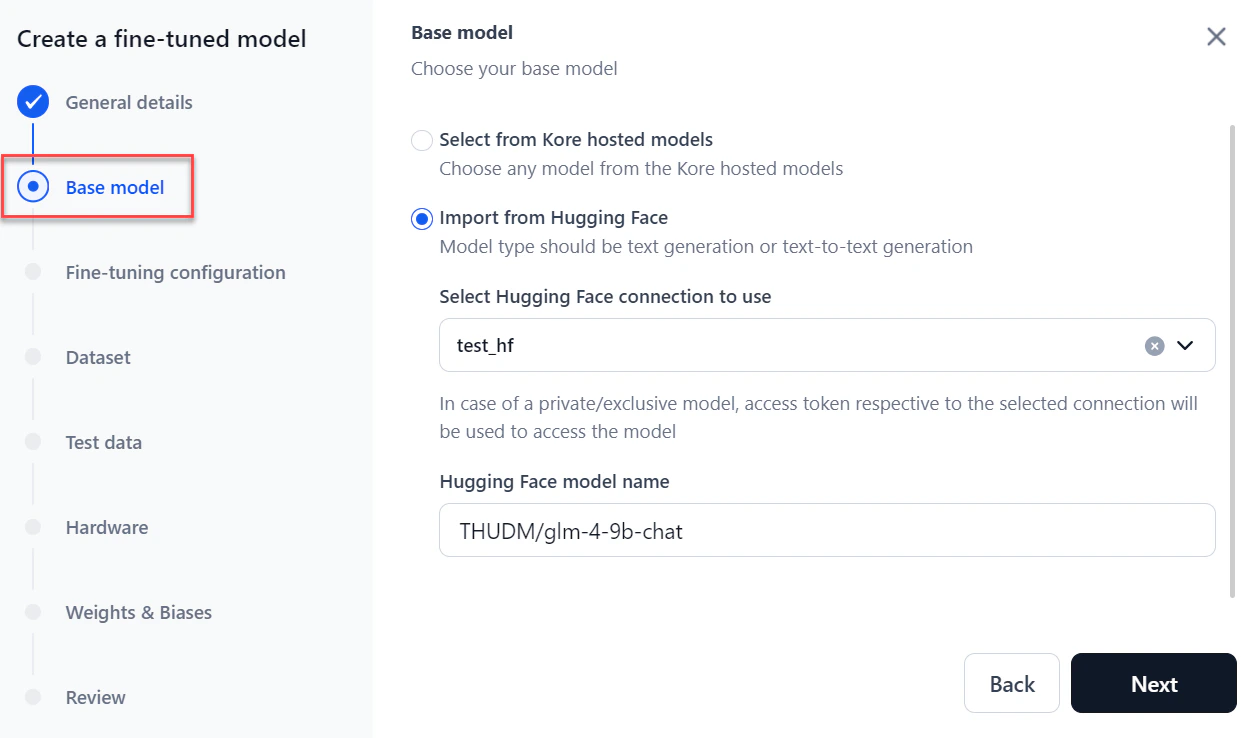
In the Base model section, choose the model to fine-tune:
-
Hosted models: Select the model from the dropdown and click Next.
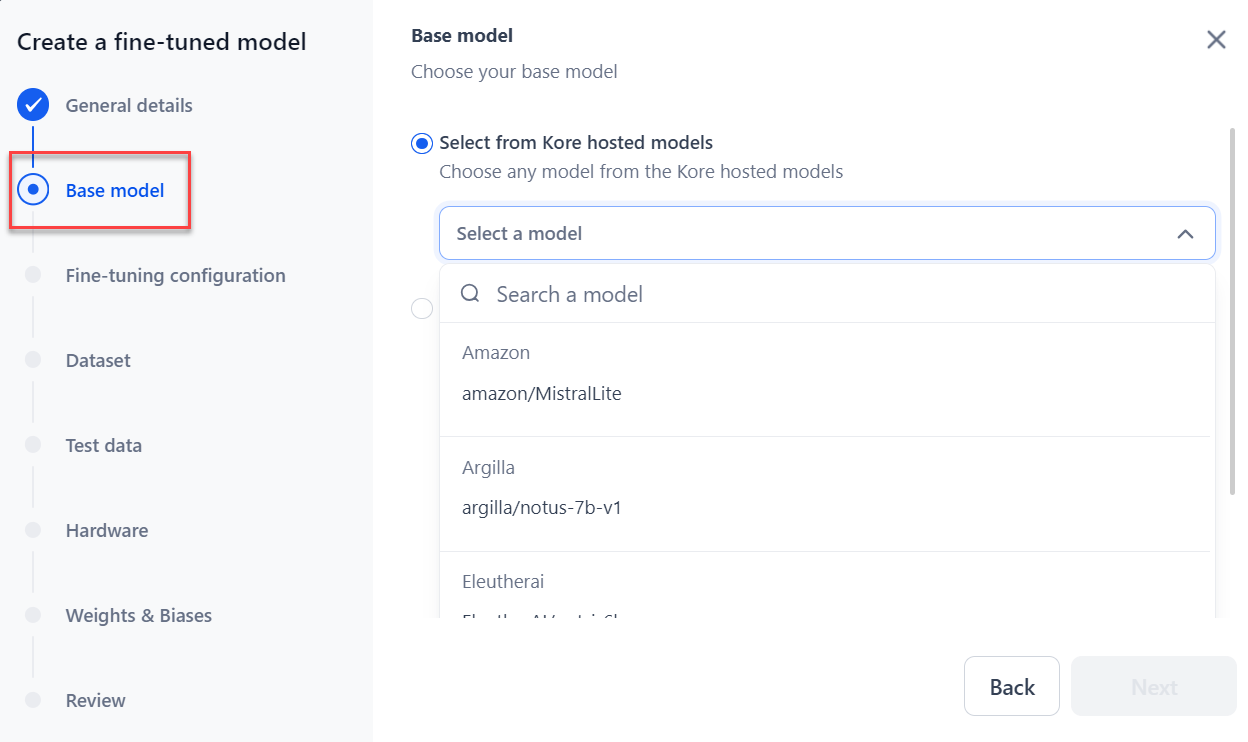Imported models are also included in the list.
-
Import from Hugging Face: Select the Hugging Face connection type, paste the model name, and click Next. For more information, see How to Connect to your Hugging Face Account.
-
Hosted models: Select the model from the dropdown and click Next.
-
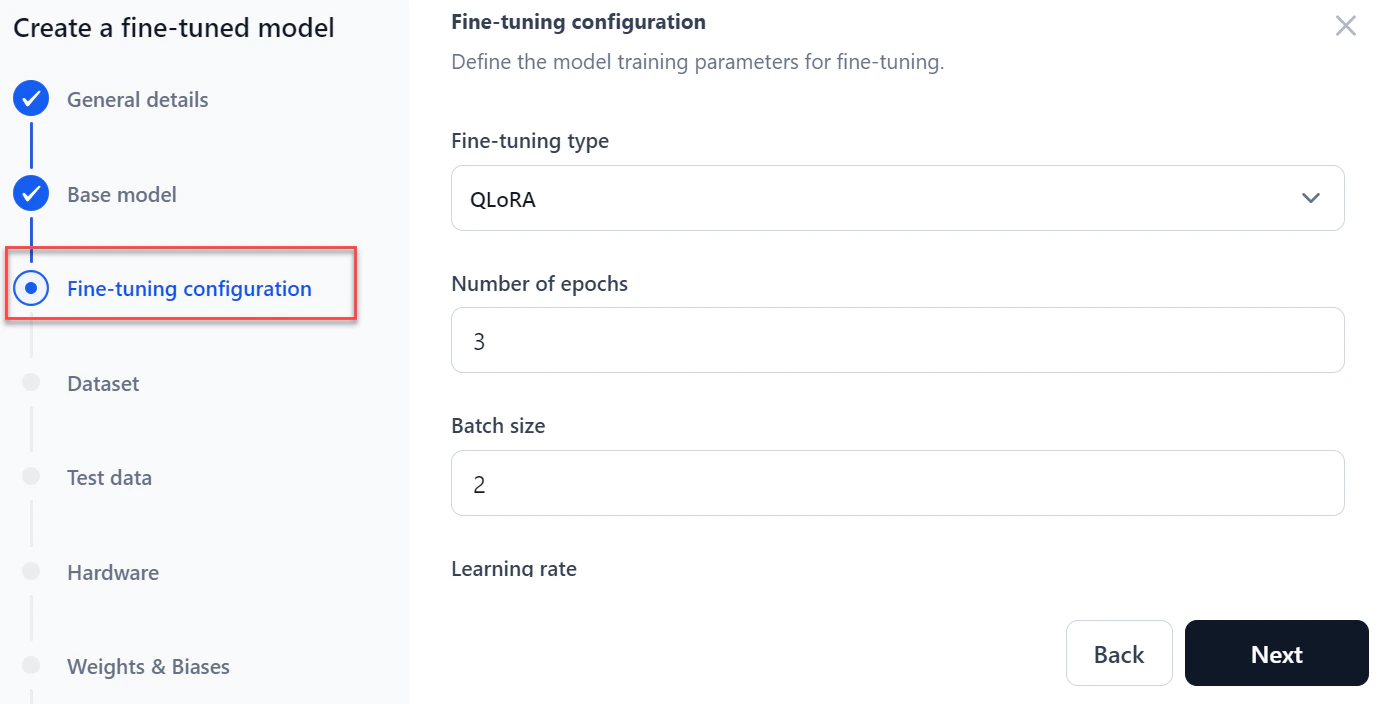
In the Fine-tuning configuration section:
-
Select a Fine-tuning type: Full fine-tune, LoRA (Low-Rank Adaptation), or QLoRA (Quantized LoRA).
Supported fine-tuning types vary by base model size:
- Enter the Number of Epochs — how many times the model processes the full dataset during training.
- Enter a Batch size — the number of training examples used per training iteration.
- Enter a Learning rate — the step size used during model optimization.
-
Click Next.
-
Select a Fine-tuning type: Full fine-tune, LoRA (Low-Rank Adaptation), or QLoRA (Quantized LoRA).
Supported fine-tuning types vary by base model size:
-
In the Dataset section:
-
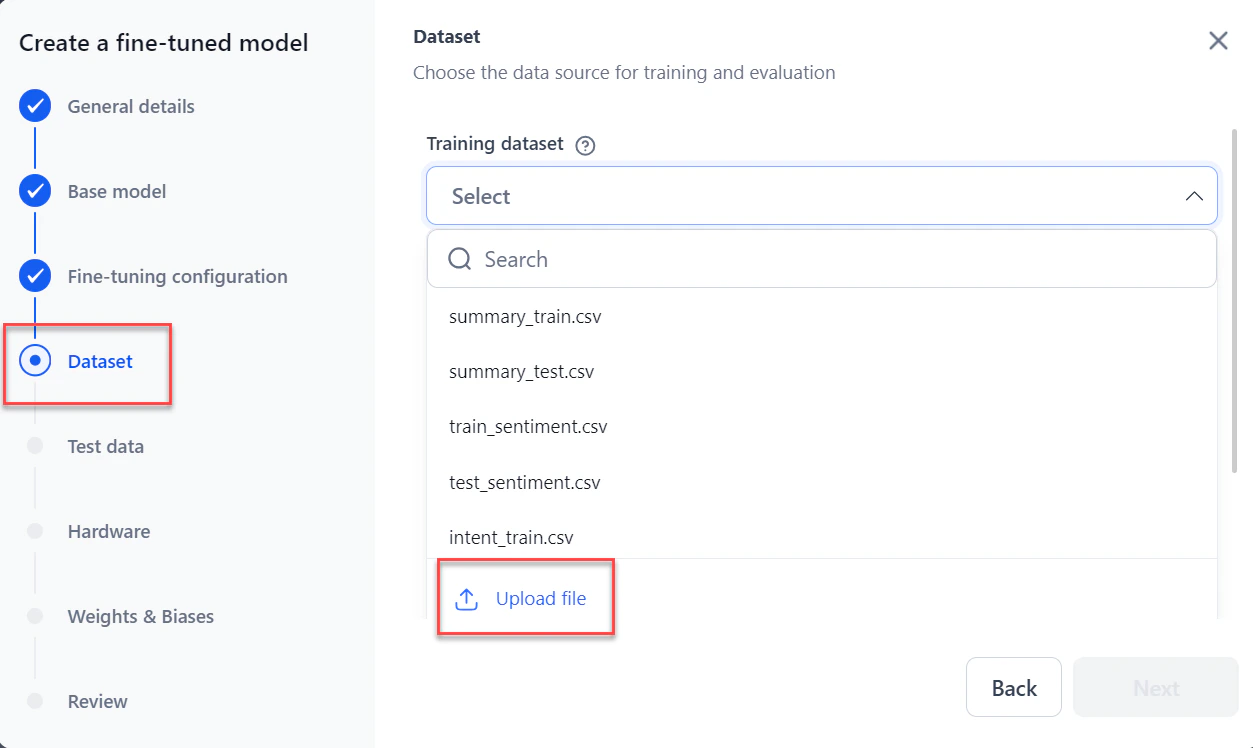
Select or upload the Training dataset from the dropdown.
The system accepts JSONL, CSV, and JSON files. Files must have at least two columns: one for the prompt and one for the completion. You can download a sample file.
-
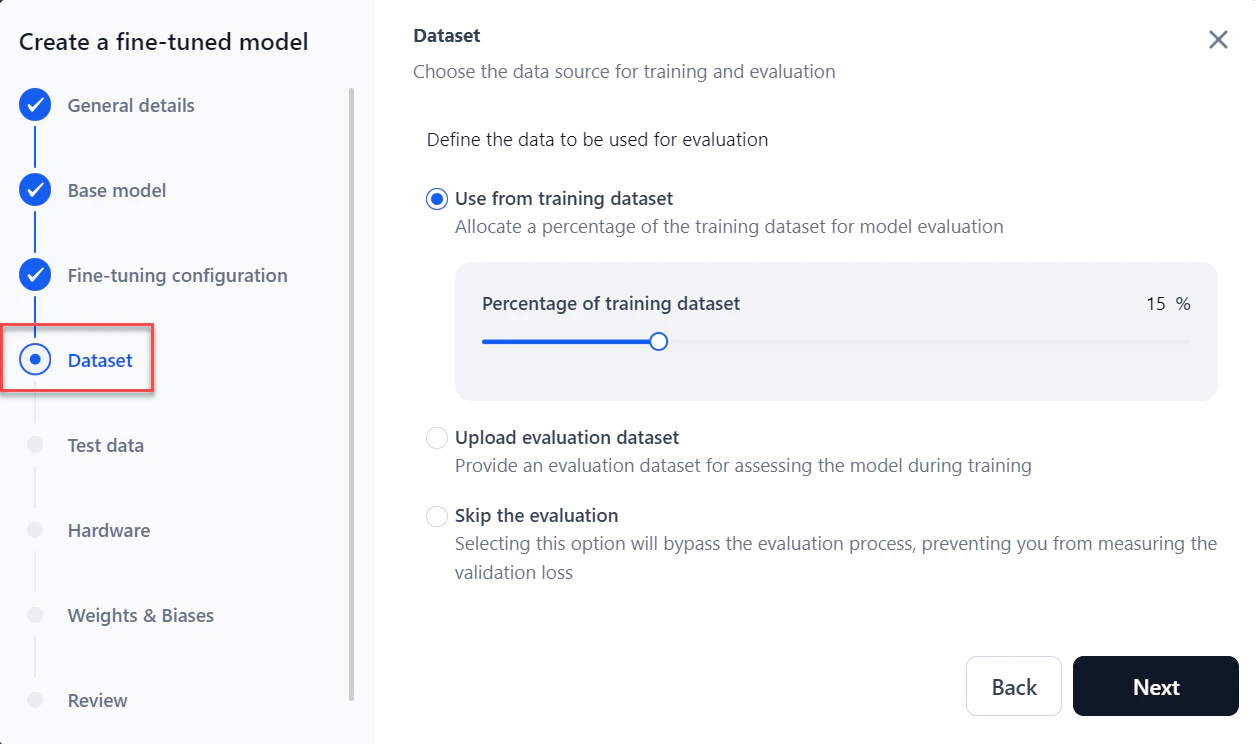
For Evaluation dataset, choose one of:
- Use from training dataset (default): Allocates a percentage of the training dataset for evaluation. Default is 15%.
- Upload evaluation dataset: Select or upload a separate dataset.
- Skip the evaluation: Skips model evaluation entirely.
-
Select or upload the Training dataset from the dropdown.
-
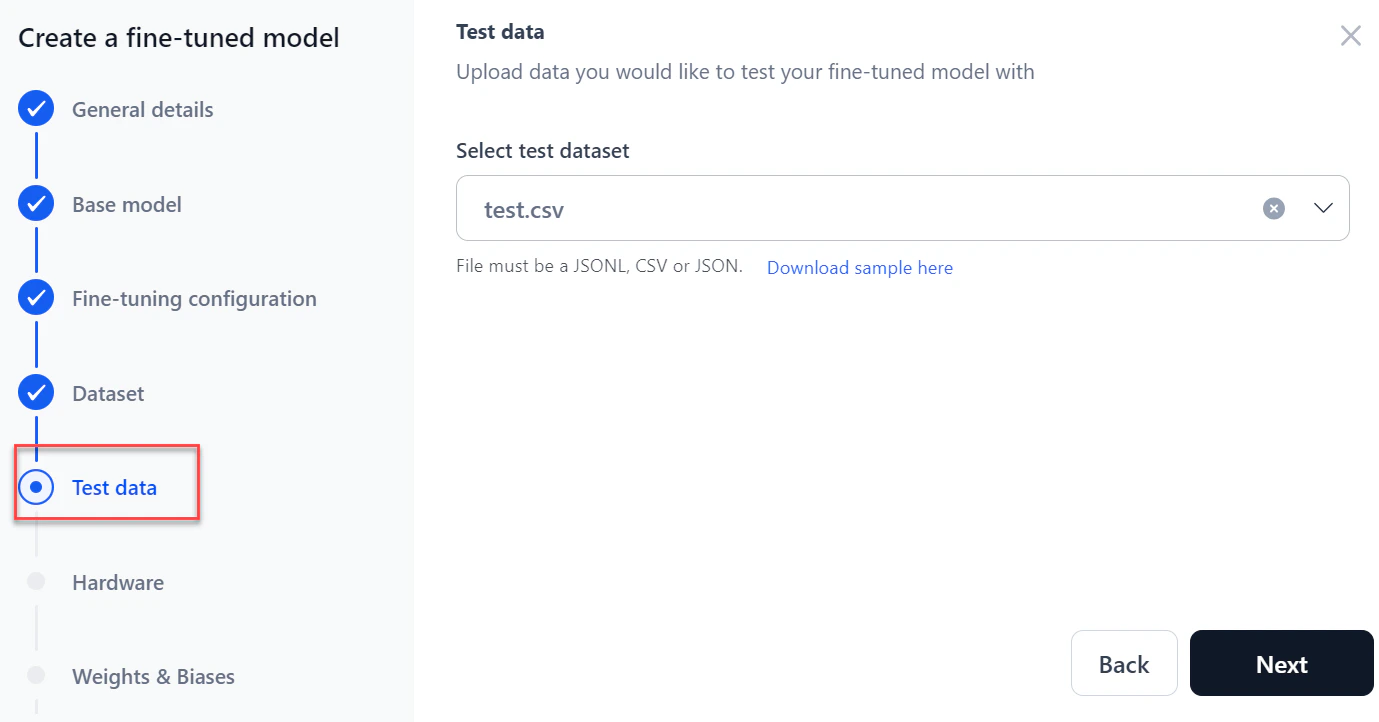
Select or upload a test dataset to test the fine-tuned model, then click Next.
The system accepts JSONL, CSV, and JSON files.
-
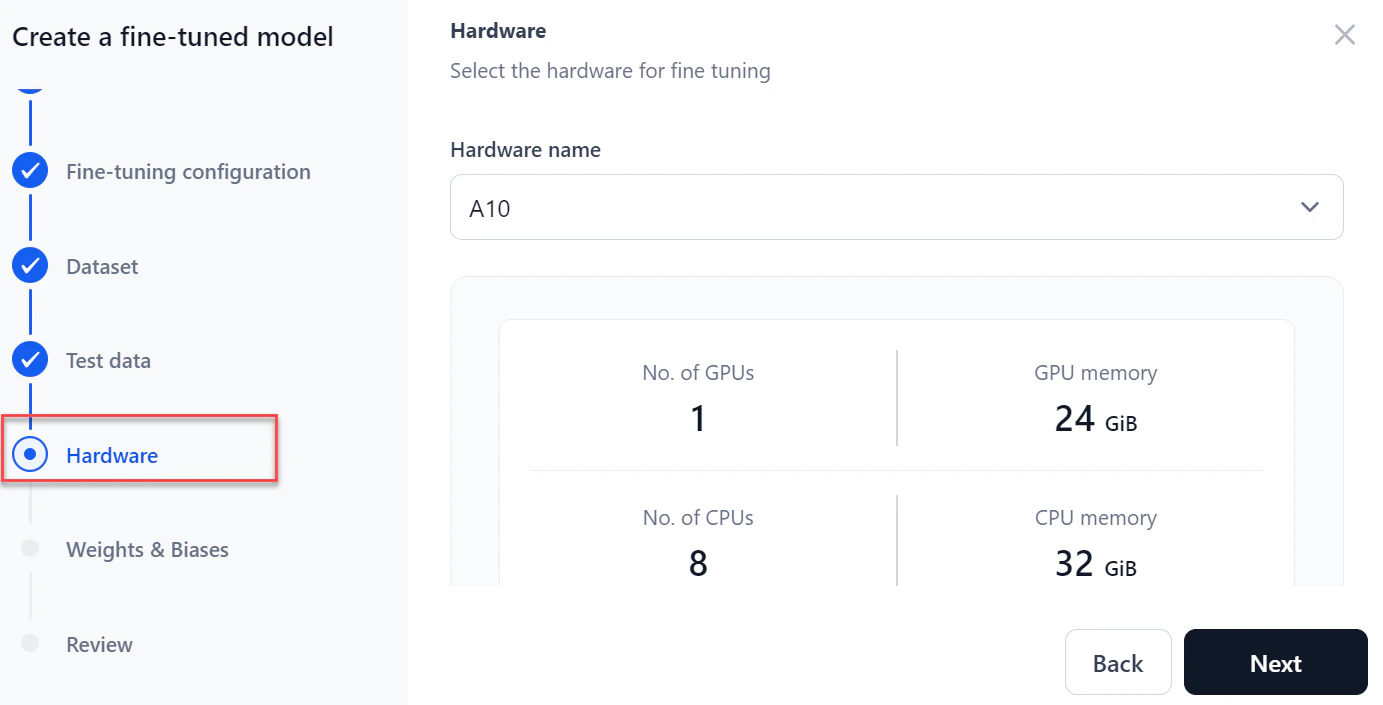
Select the required hardware from the dropdown and click Next.
-
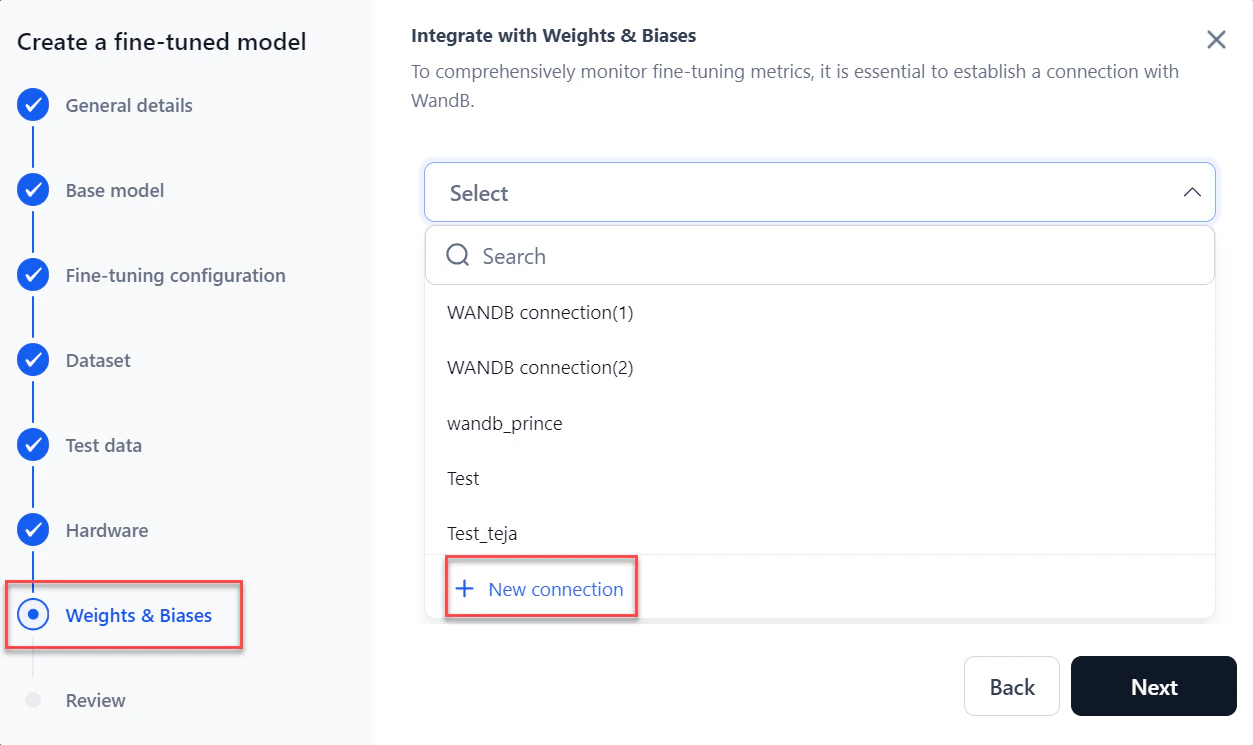
In the Weights & Biases section, select your WandB connection from the dropdown and click Next. To create a connection, click + New connection. For more information, see How to Integrate with WandB.
A Weights & Biases account is required. Enabling the integration shares real-time fine-tuning status with the platform for comprehensive monitoring of fine-tuning metrics. Use your API token to send fine-tuning data to the associated account.
-
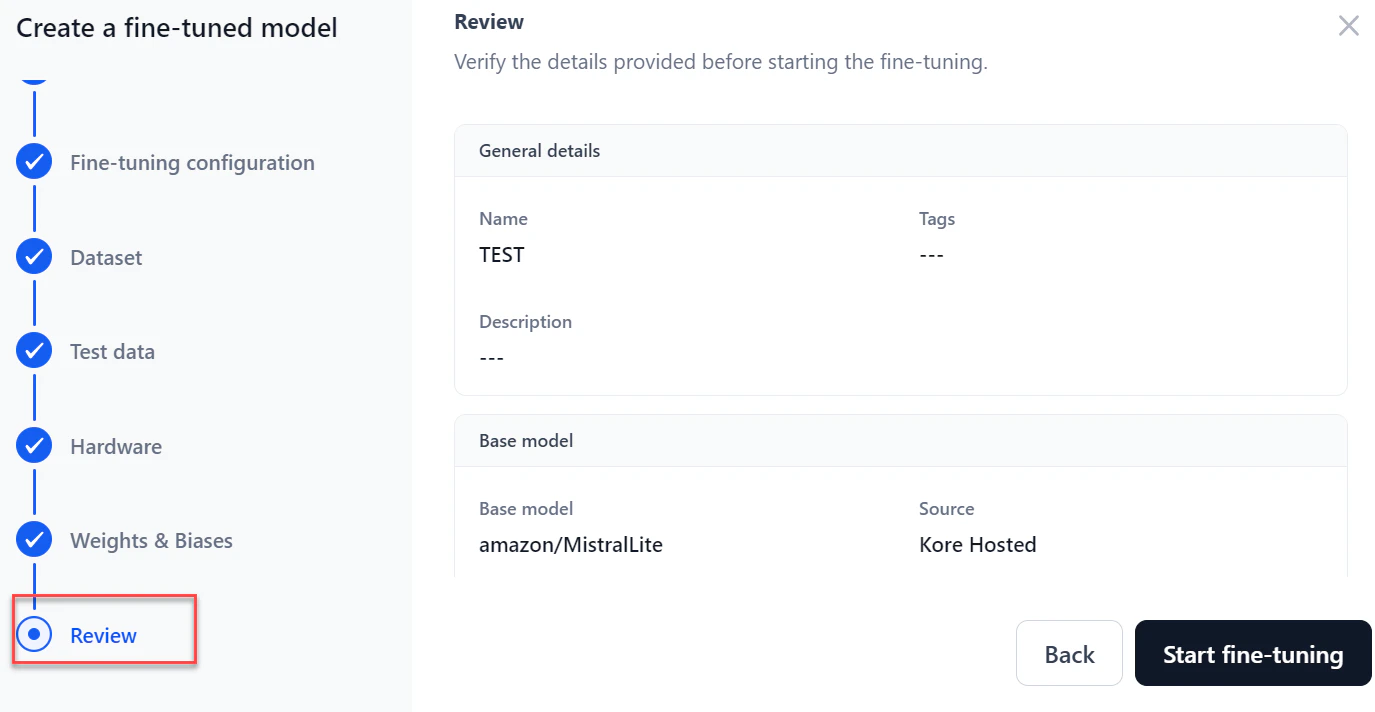
In the Review step, verify all details. Click Back to make changes.
-
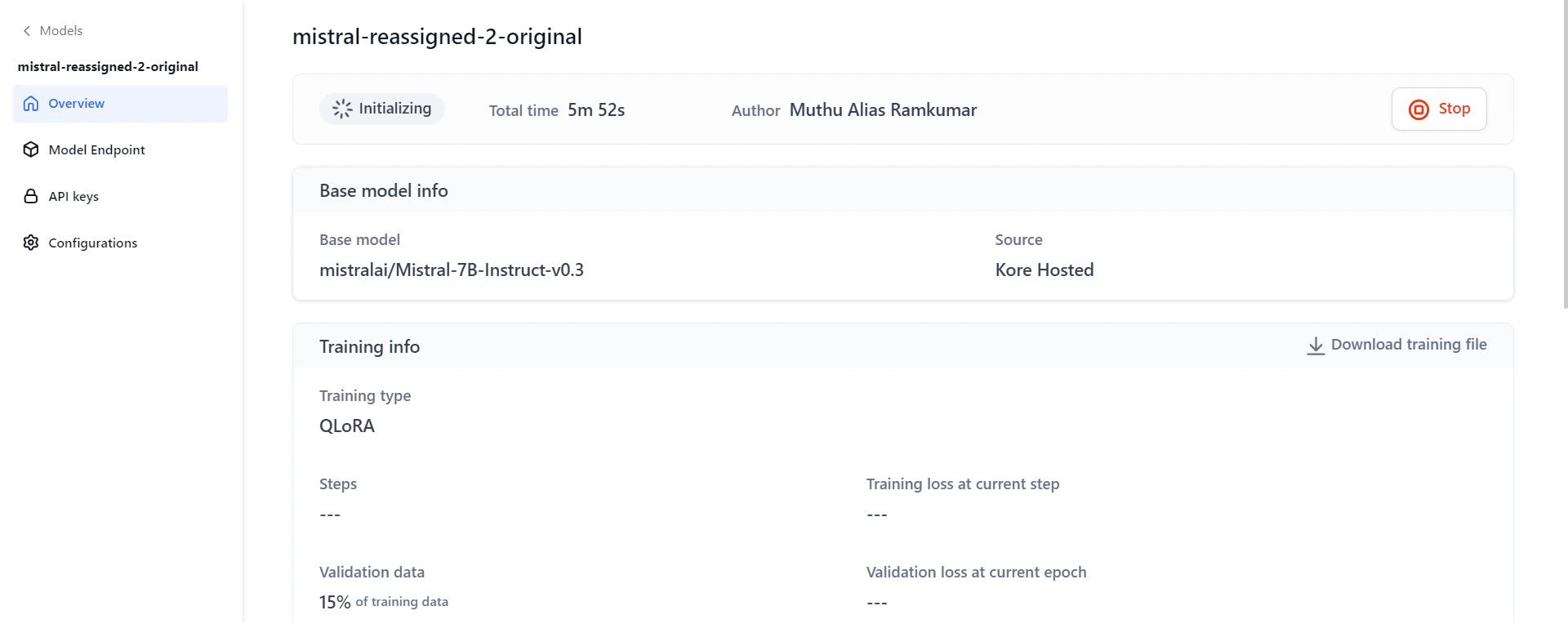
Click Start fine-tuning. The model Overview page displays real-time progress. After testing completes, you can download the training file, test results, and test data.
Monitor Fine-Tuning Progress
The model Overview page shows real-time progress during fine-tuning. Access it by clicking the model on the Fine-tuned models page.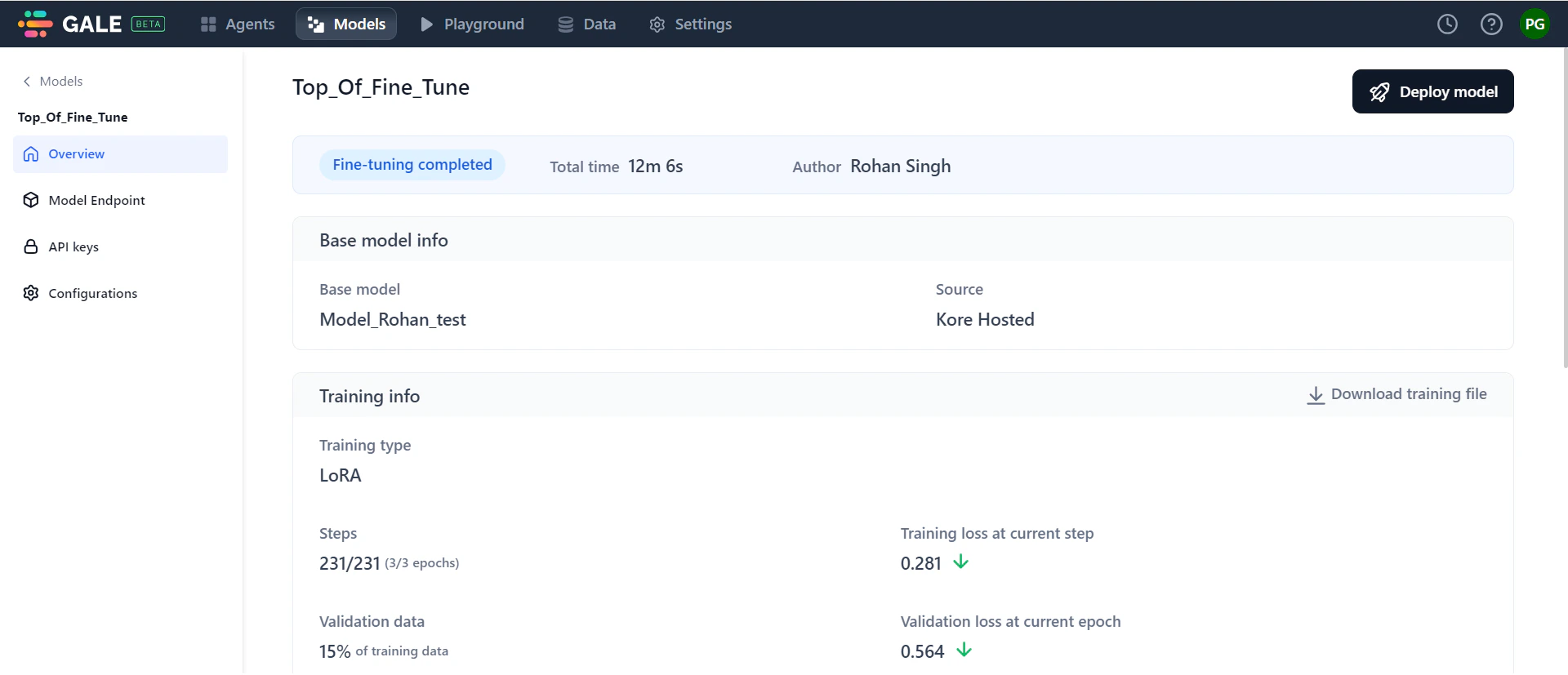
-
General Information: Shows progress status, total time, and author details. Progress statuses include: Initializing, Training in progress, Testing in progress, Fine-tuning completed, Stopped, and Failed.
If fine-tuning fails, the status changes to “Failed.” View the reason, make necessary changes, and click Re-trigger to restart. If you stop the process mid-way, click Re-trigger to restart from the beginning.
- Base model information: Shows the base model used and its source.
- Training information: Displays training type, number of training steps, training loss, percentage of validation data, validation loss, and training duration. Click the downward arrows next to training loss and validation loss to see their graphical trends.
- Test data information: Shows model performance on the test dataset using the BLEU score.
- Hardware information: Displays CPU and GPU utilization during fine-tuning.
- Training parameters: Summary of the parameters you configured.
Deploy a Fine-Tuned Model
After fine-tuning completes, deploy the model for use in AI for Process or externally.-
Open the model in one of these ways:
- Go to Models > Fine-tuned models, click the required model, then click Deploy model at the top-right of the Overview page.
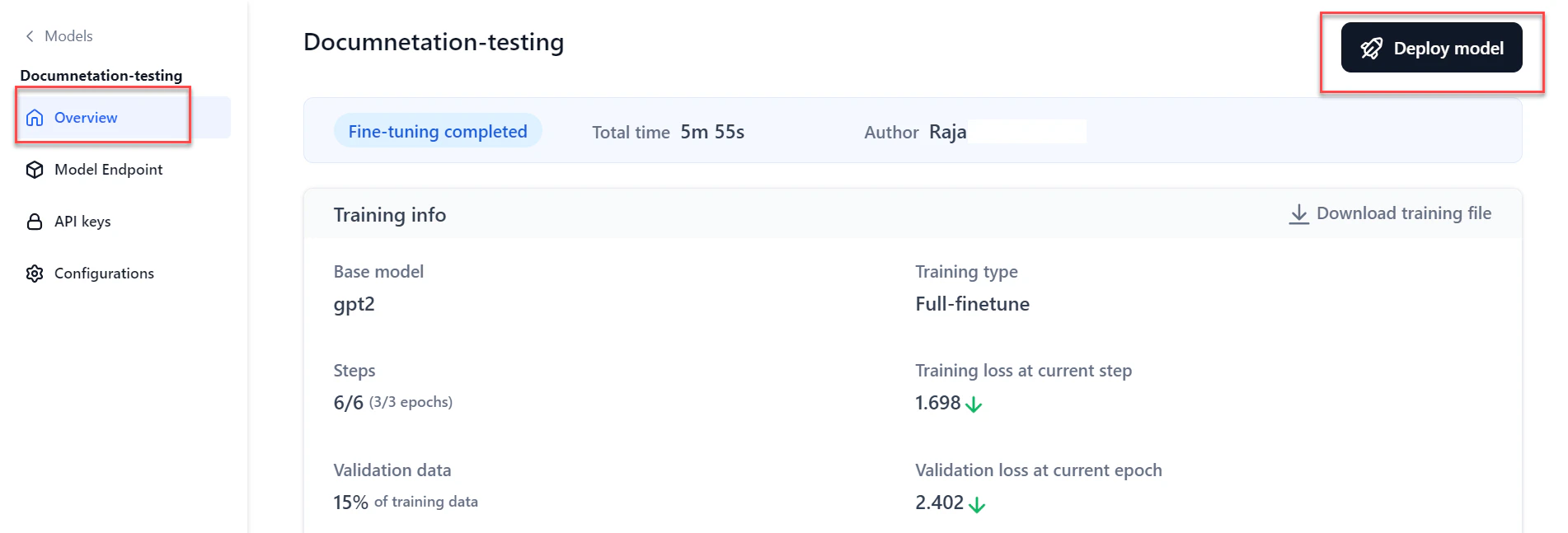
- Or click Model Endpoint in the left navigation, then click Deploy model.
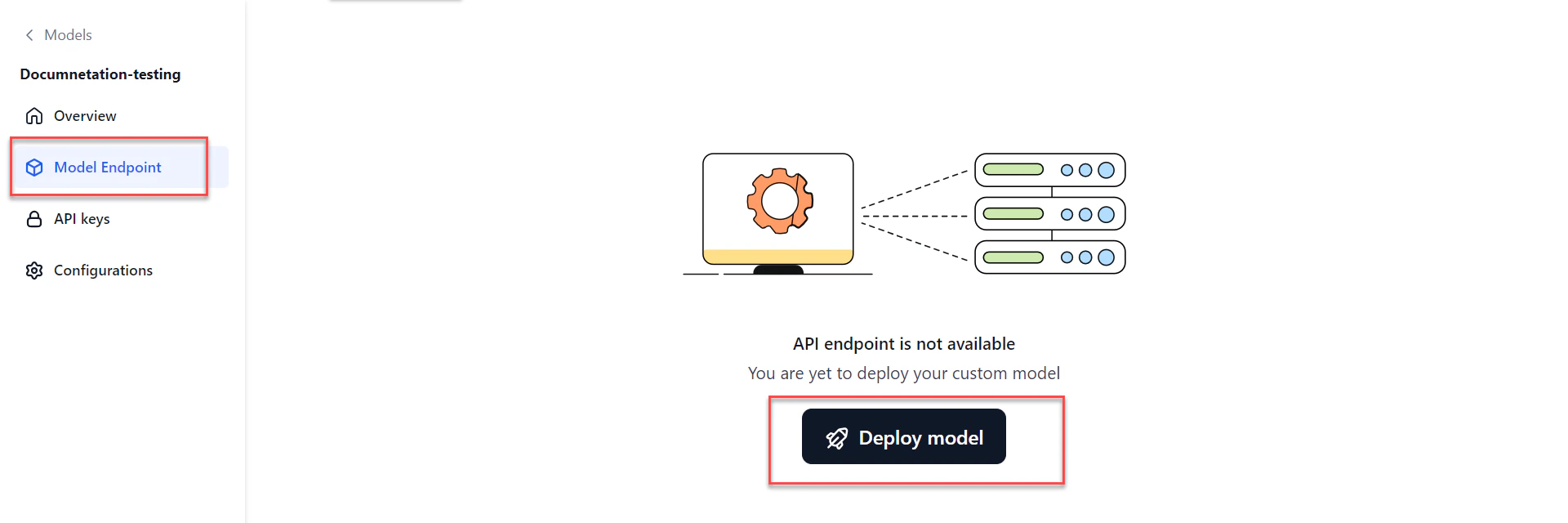
- Go to Models > Fine-tuned models, click the required model, then click Deploy model at the top-right of the Overview page.
-
In the General details section of the Deploy dialog:
- Enter a Deployment name and Description.
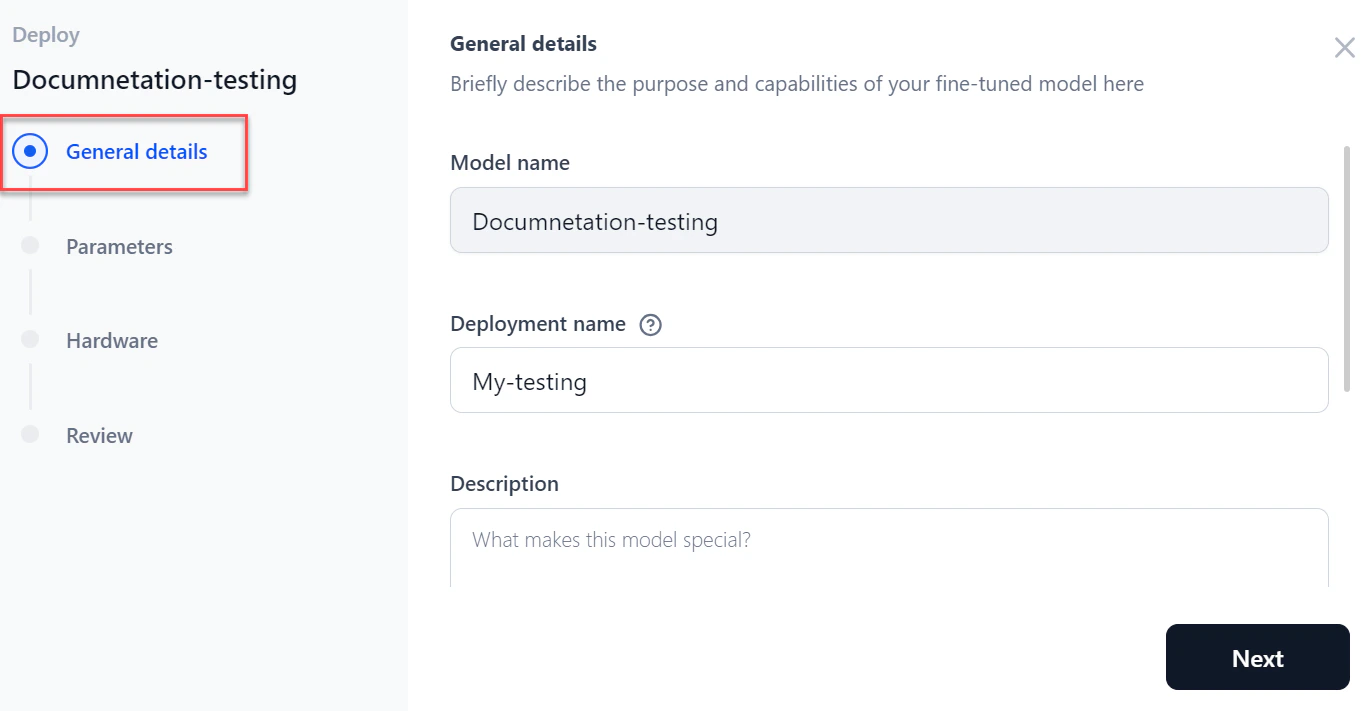
- Add tags and click Next.
- Enter a Deployment name and Description.
-
In the Parameters section, configure the following:
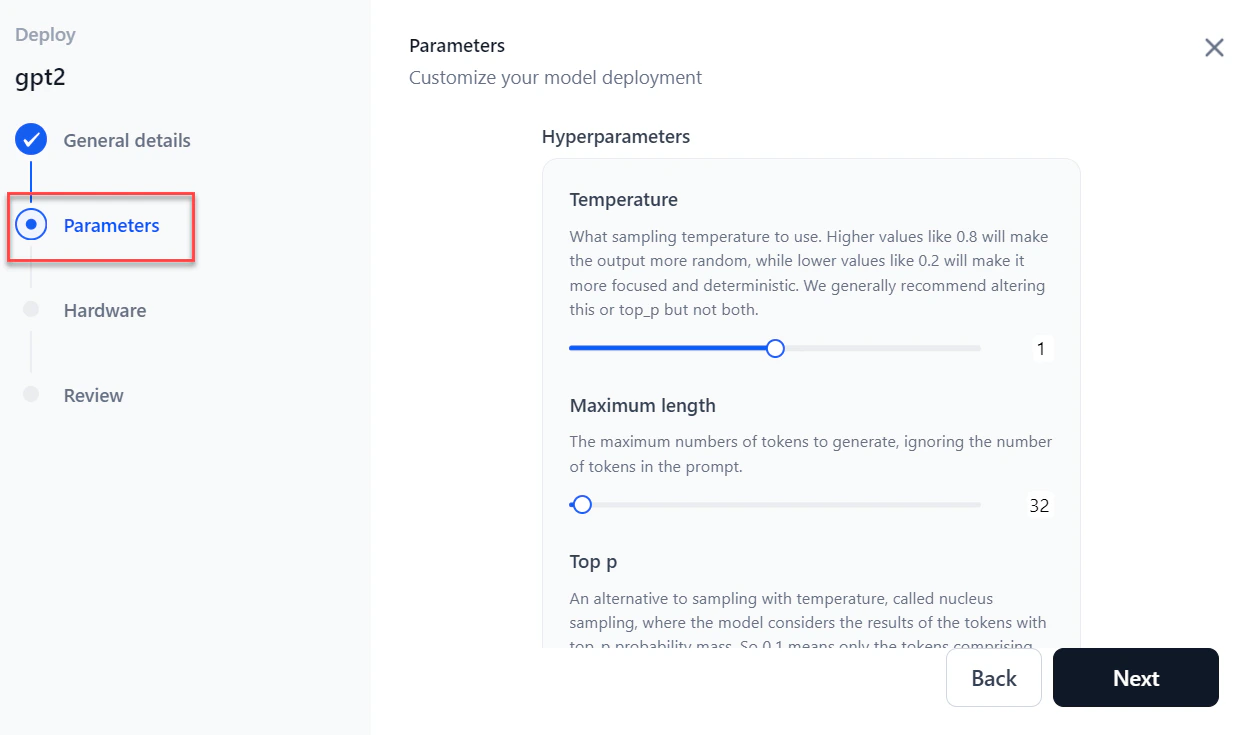
- Click Next.
-
Select the required Hardware from the dropdown and click Next.
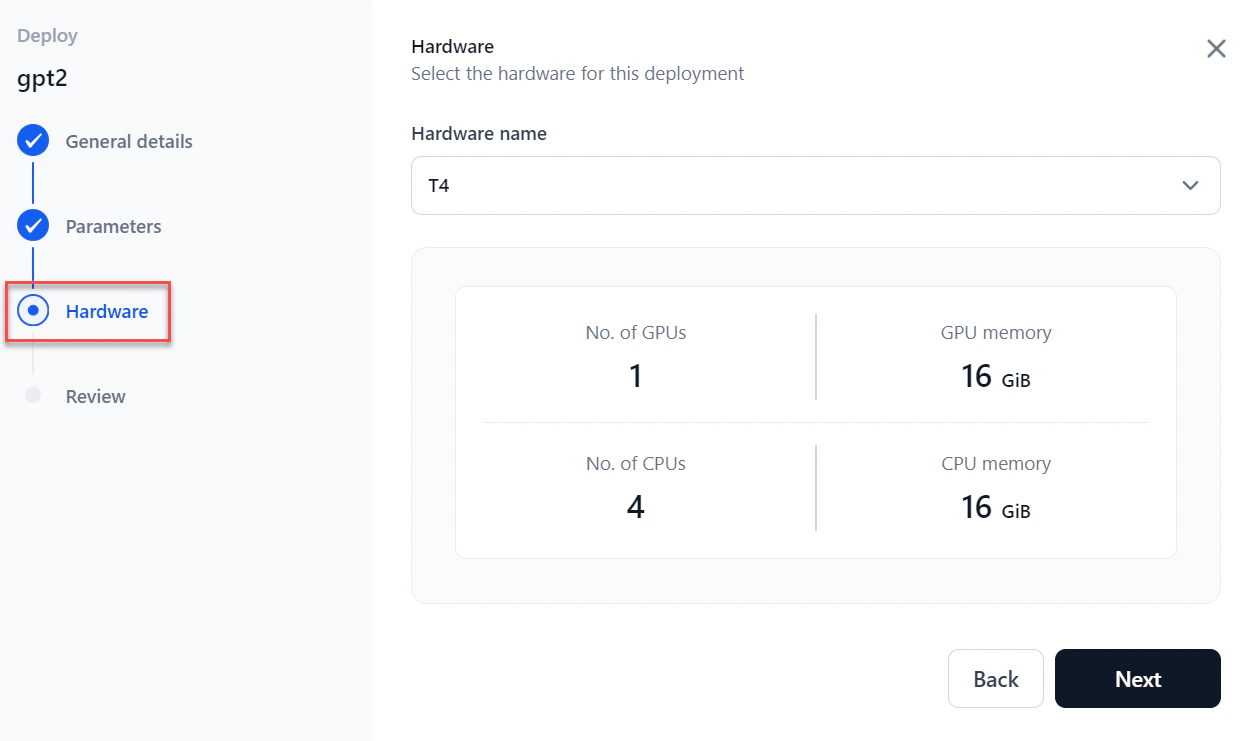
-
In the Review step, verify all details and select I accept all the terms and conditions.
 To make changes, click Back or select a specific step in the left panel.
 - Click Deploy. Once complete, the status changes to Deployed and an API endpoint is generated for the model.
View the API Endpoint
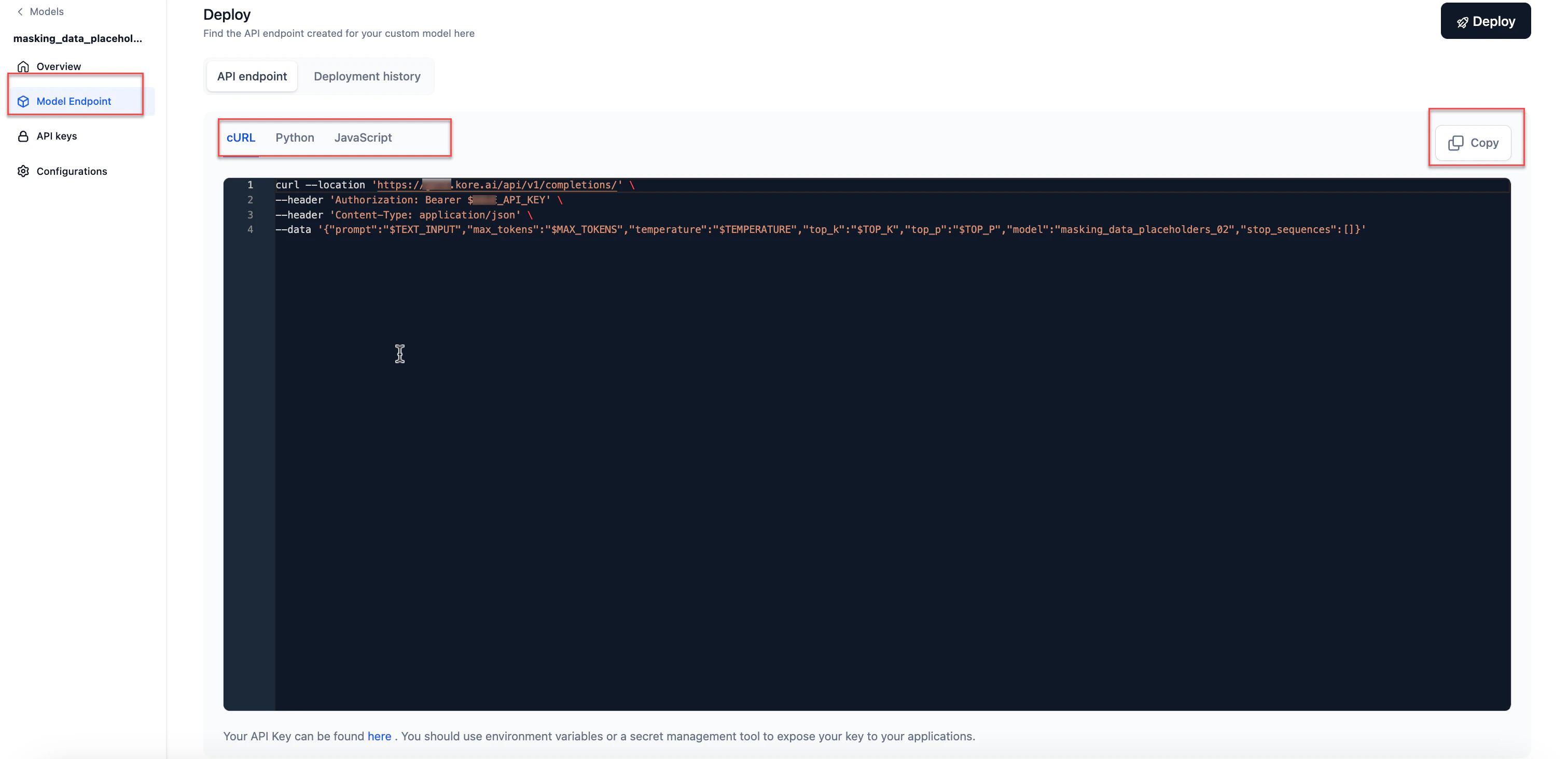
After deployment, an API endpoint is generated for external inferencing and for use across AI for Process.You receive an email notification when deployment completes and the API endpoint is ready.
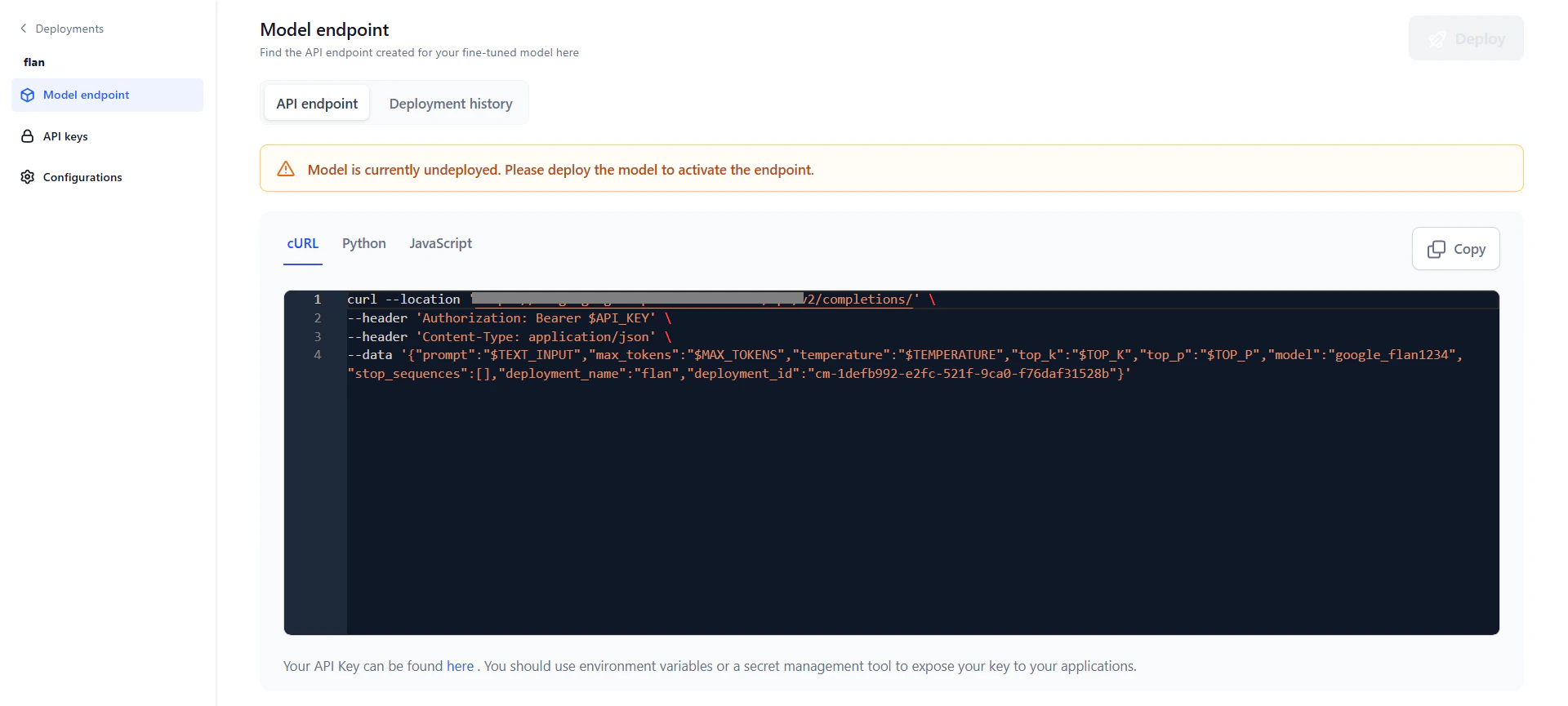
- Go to Models > Fine-tuned models and click the required model. Click Model Endpoint in the left navigation.
- Click the Copy icon to copy the API endpoint.
API endpoint use cases
Use the deployed fine-tuned model in AI for Process for:- The Prompt Playground — compare prompts across commercial, open-source, or fine-tuned models.
- A workflow in the workflow builder via the AI Node.
Manage Deployments
Each model can have multiple deployments tracked independently. Click the Deployments tab on the model detail page to see all deployments.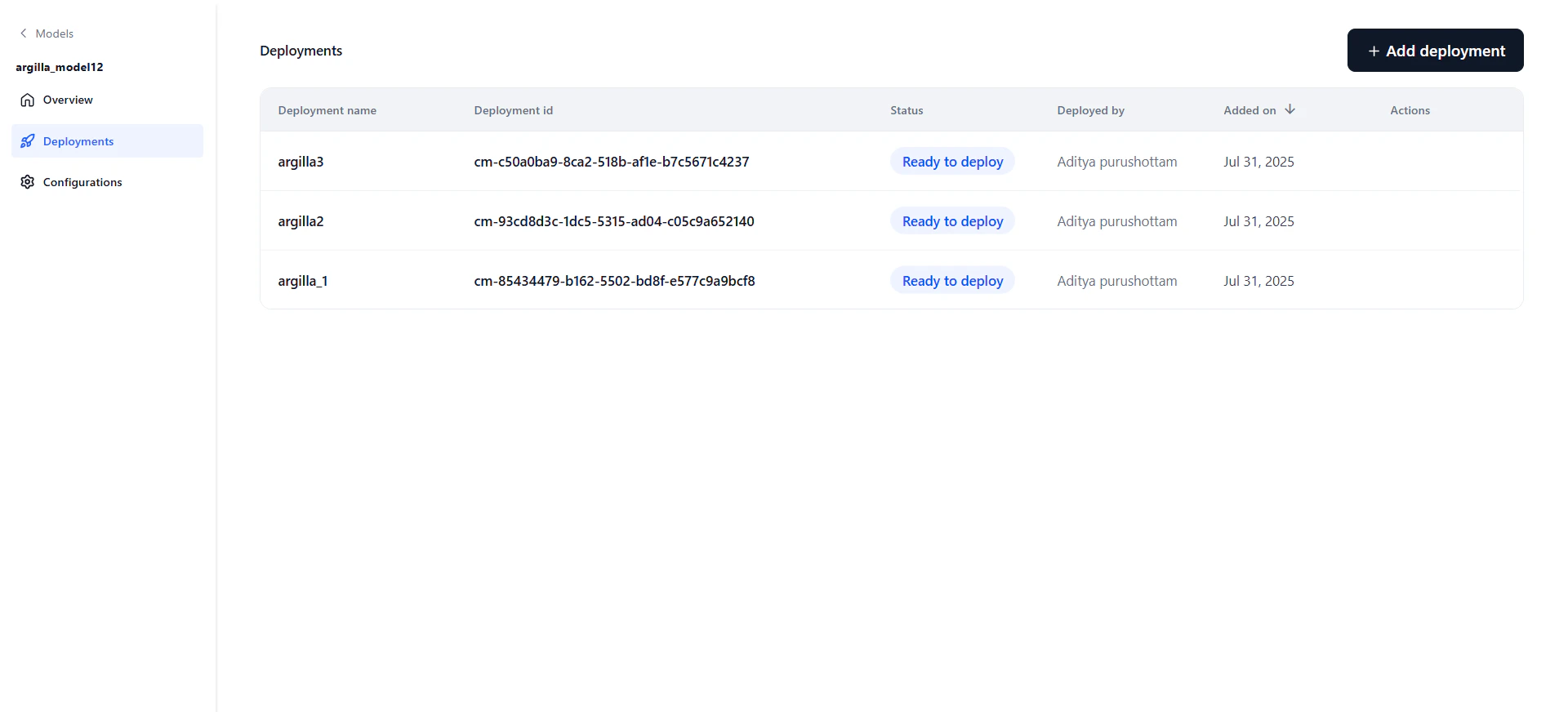
Deployment History
The deployment history table tracks the full lifecycle of the model, showing each version’s deployment name, timestamp, duration, and the user who performed the deployment. After deploying, you can modify parameters and redeploy. The system appends a version number to the original deployment name and increments it with each redeployment. For example, “Flan T5” becomes “Flan T5_v1,” then “Flan T5_v2,” and so on. Editing the deployment name doesn’t affect versioning — subsequent redeployments always use the original name. The most recent deployment is marked with a green tick. Click any version to view its details.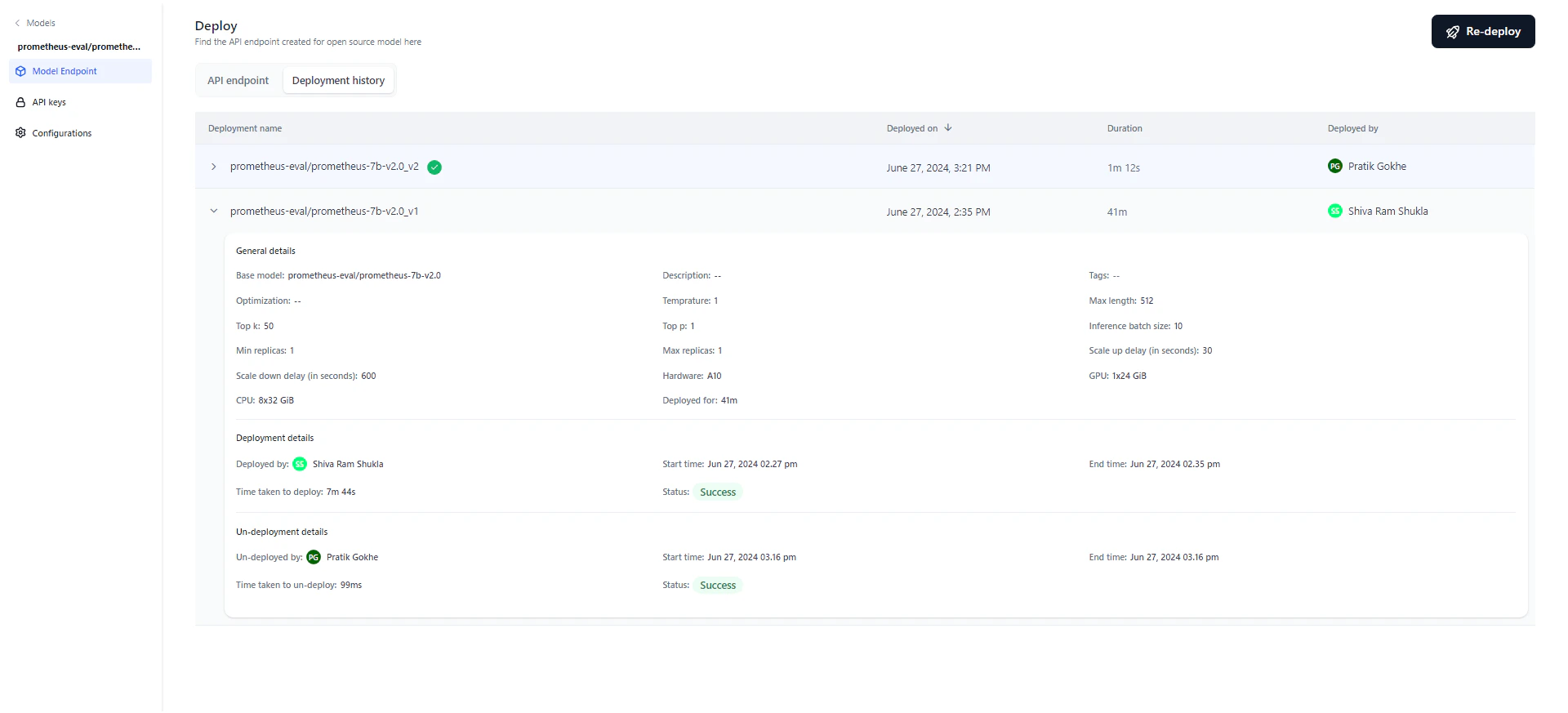
- General details: Model name, description, tags, optimization technique, parameters, hardware, and deployment duration.
- Deployment details: Who deployed the model, start and end timestamps, duration, and status (Success, Failed, or Deploying). Hover over “Status” on a failed deployment to see the reason.
- Un-deployment details: Appears only if the model was undeployed, either manually or automatically. Shows who initiated the undeployment and the start/end timestamps.
Generate an API Key
Generate an API key to share access to your fine-tuned model with trusted users. A secure API key is required to connect to the model from an external environment.- Go to Models > Fine-tuned models and click the required model. Click API keys in the left navigation.
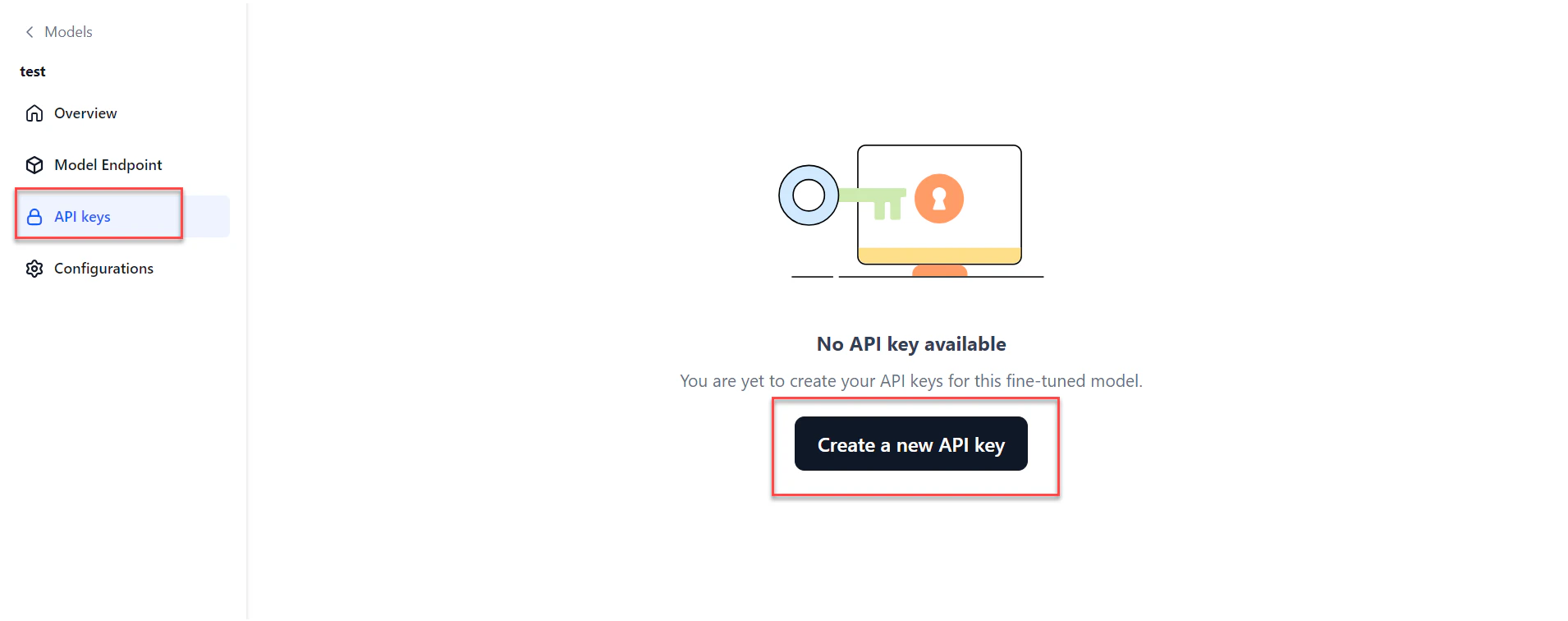
- Click Create a new API key. The Create new API key dialog opens.
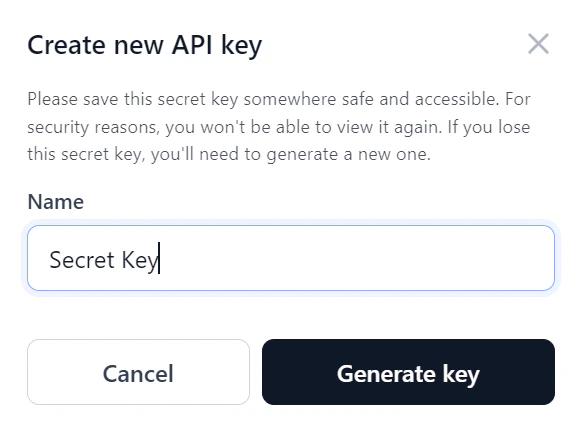
- Enter a Name for the key and click Generate key.
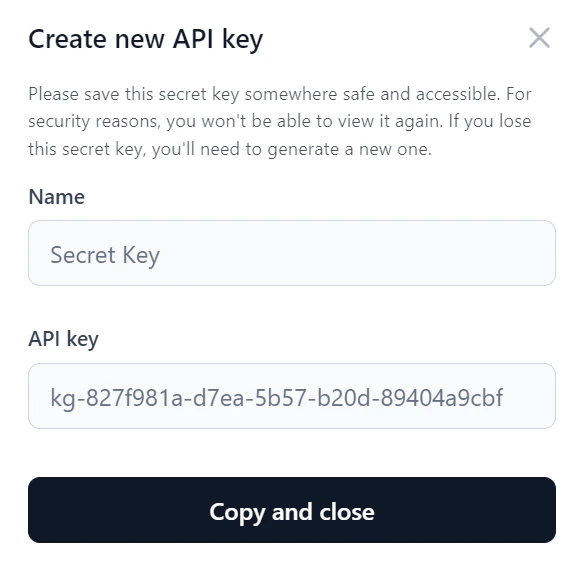
- Click Copy and close to copy the key and share it as needed.
Configure a Fine-Tuned Model
On the Configurations page, you can edit the model name, description, and tags, adjust the endpoint timeout, undeploy, or delete the model.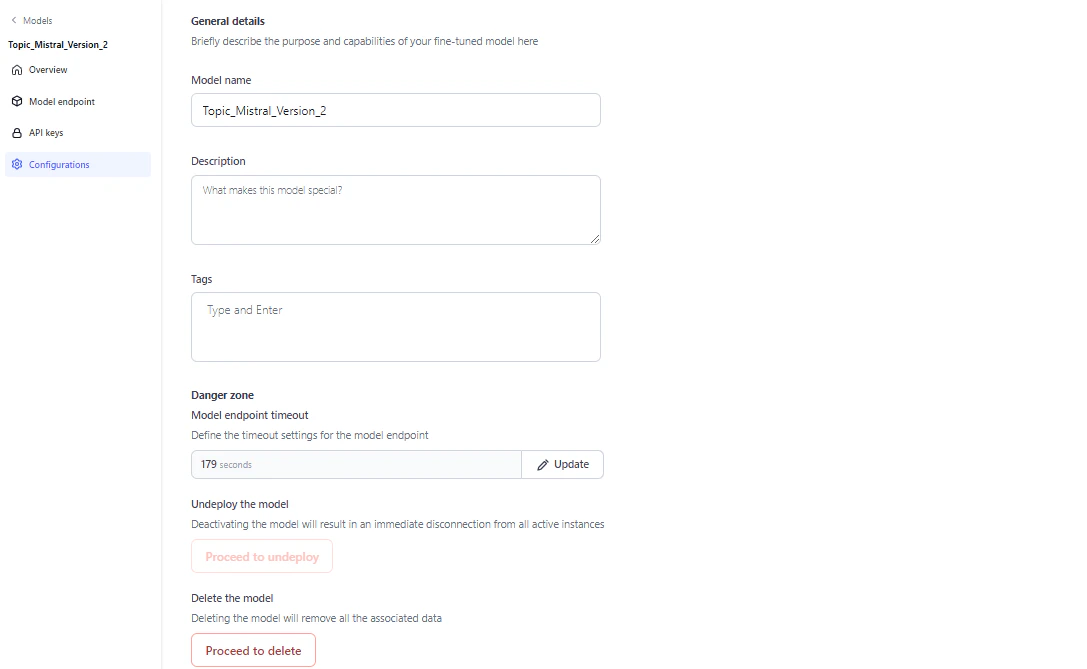
Model endpoint timeout
Set a specific timeout for your model’s endpoint. The allowed range is 30 to 180 seconds (3 minutes). The default is 60 seconds. If a request isn’t completed within the set time, the endpoint returns a timeout error.Timeout precedence: Workflow timeout > Node timeout > Model timeout.
Undeploy the model
Undeploy the model if it’s no longer in use. Undeploying disconnects the model immediately from all active instances. Click Proceed to undeploy on the Configurations page and follow the on-screen instructions.Delete the model
You can delete an undeployed model. Deleting the model removes all associated data. Click Proceed to delete on the Configurations page and follow the on-screen instructions.Export a Fine-Tuned Model
You can export your fine-tuned model for external reference.- On the Models page, click the three dots icon next to the model name. A menu appears.
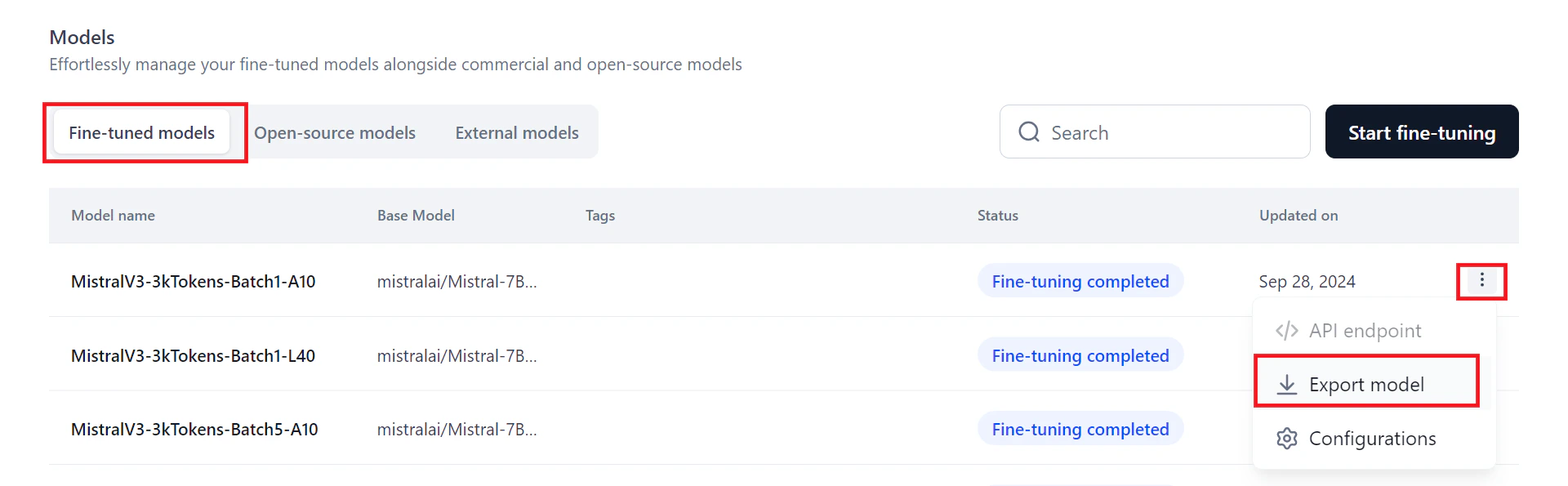
- Click Export model. The exported zip file saves to your downloads folder.