- Easy Integration - Guided setup for OpenAI, Anthropic, Google, Cohere, or Amazon Bedrock.
- API Integration - Custom model connection using an API endpoint, authentication, and request configuration.
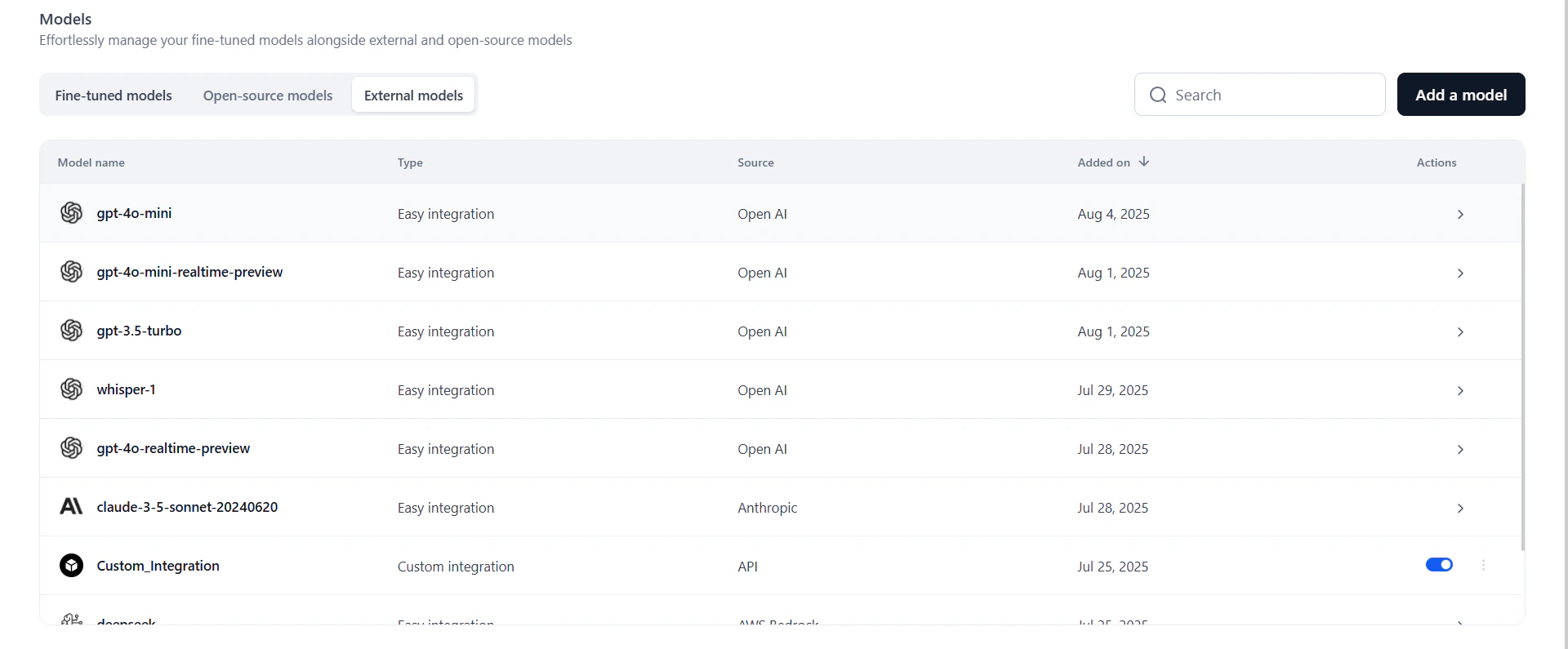
View External Models
The External Models tab lists all models connected to your workspace via Easy Integration or API Integration.
Click a model to view or manage its connections.
Add an External Model
Easy Integration
Use Easy Integration to connect models from OpenAI, Anthropic, Google, Cohere, or Amazon Bedrock via a guided setup.Integrate with OpenAI, Anthropic, Google, or Cohere
- Click Models in the top navigation bar.
-
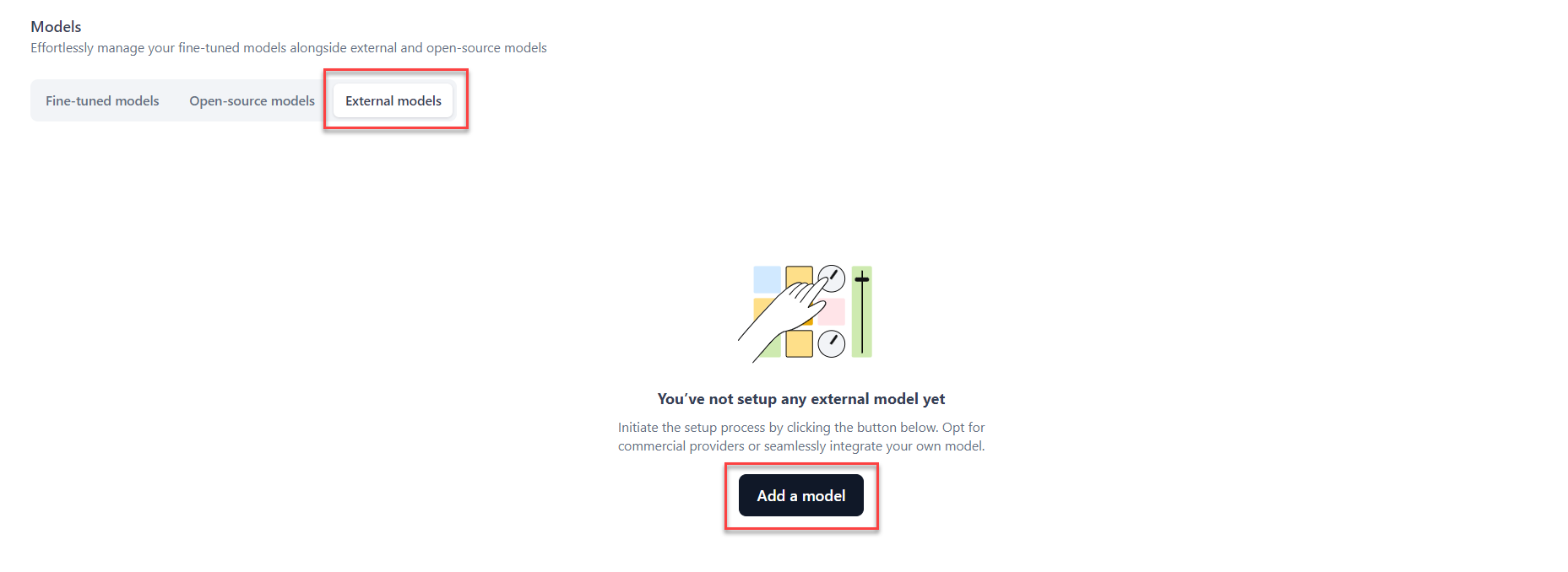
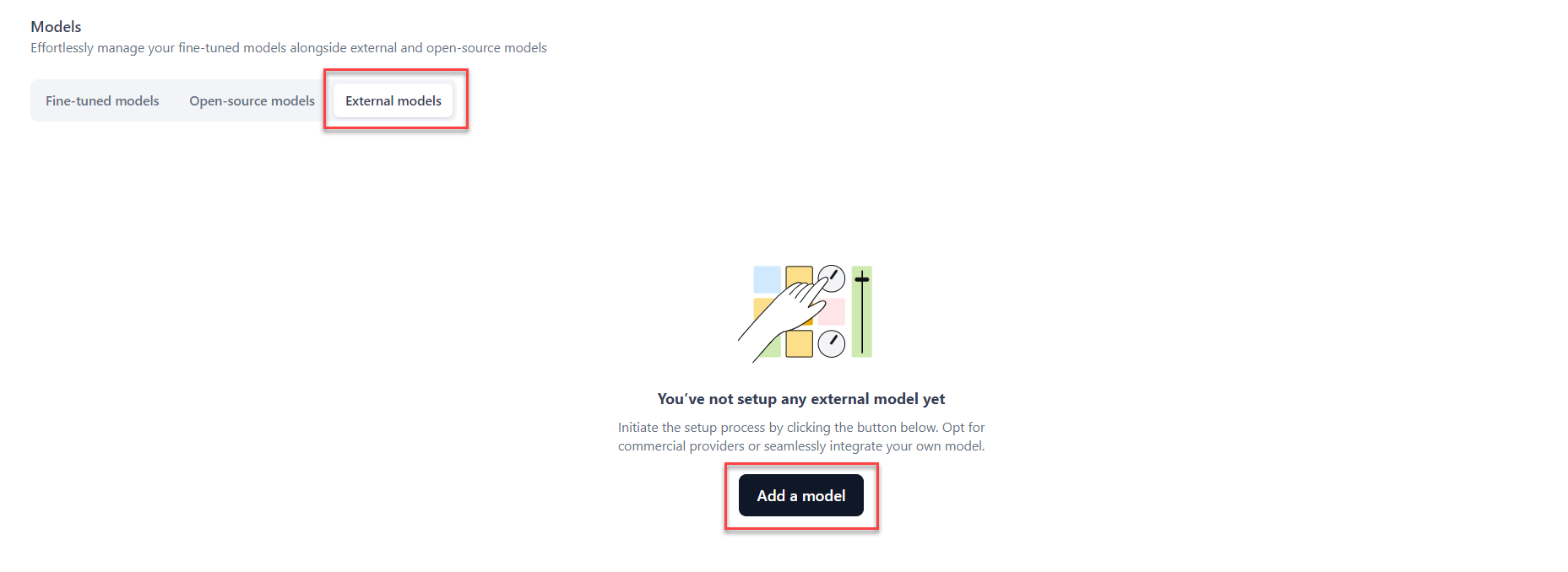
Go to the External Models tab and click Add a model. The Add an external model dialog opens.
-
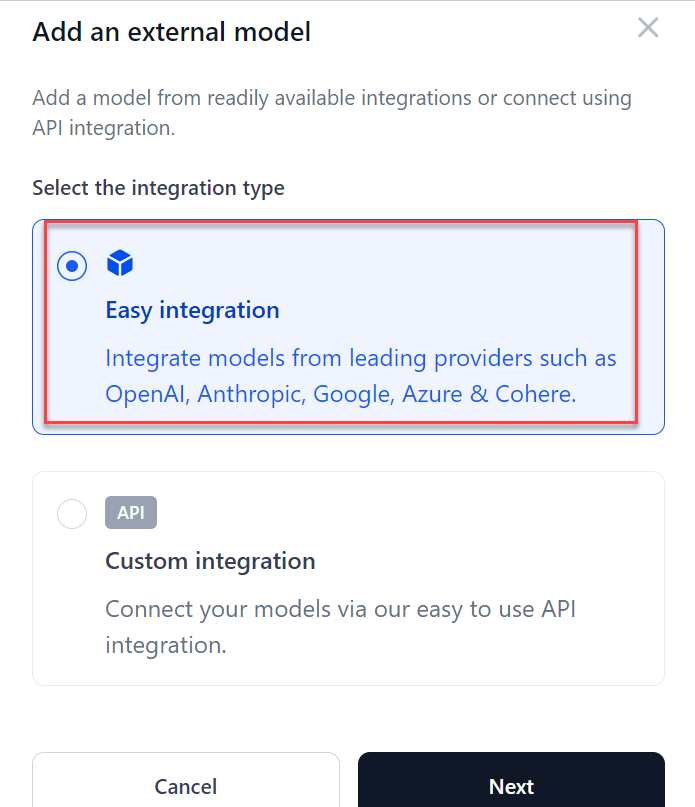
Select Easy integration and click Next.
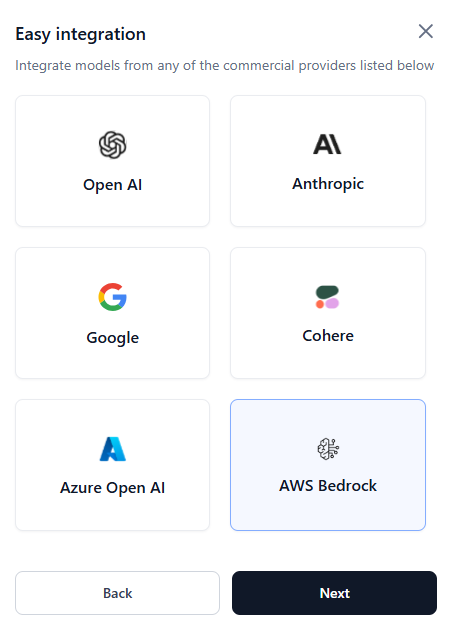
- Select a provider and click Next. See the full list of supported models.
- Select a model and click Next.
- Enter the API key from your provider and click Confirm.
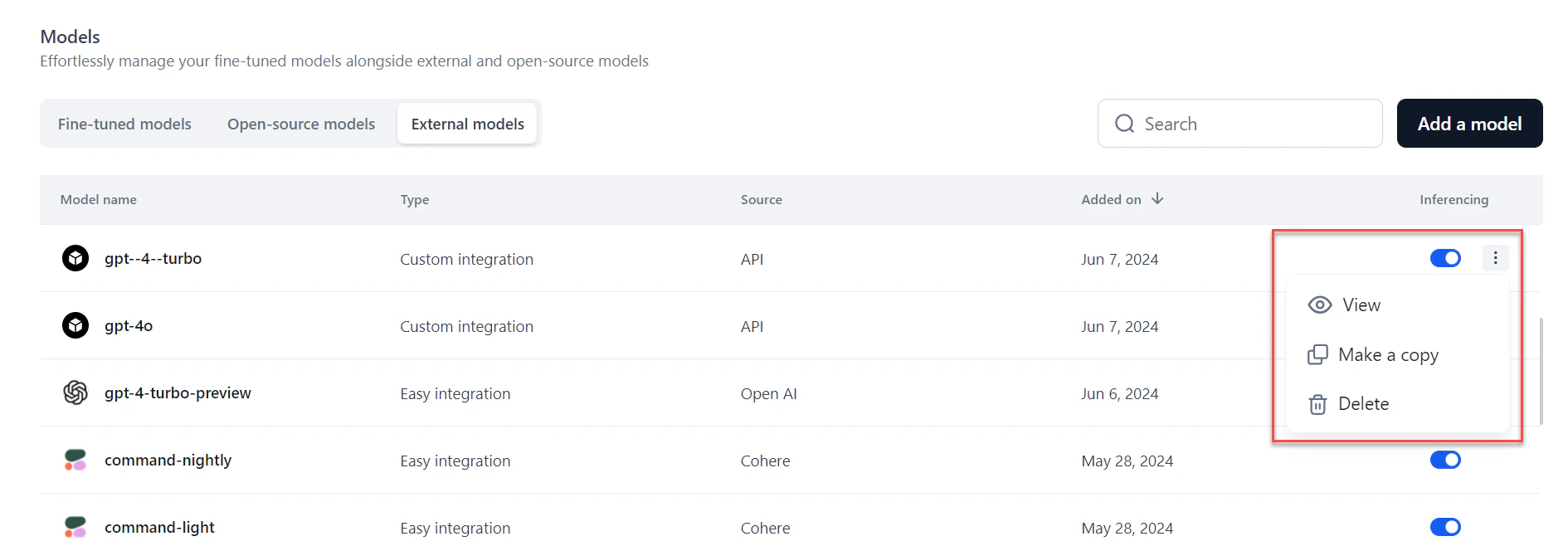
- To edit or delete a model, click the three-dot icon next to its name.
- Use the Inferencing toggle to enable or disable the model across AI for Process. If the toggle is off, selecting the model in the playground returns an error that the model is not active.
Configure Amazon Bedrock Access
Before integrating Amazon Bedrock models, set up IAM credentials in your AWS account. This enables secure cross-account access using AWS STS. Create the IAM Role and Trust Policy Create an IAM role in your AWS account with permission to invoke Bedrock models. For guidance, see the AWS IAM role creation guide and AWS IAM policy examples for Bedrock. Assign the following permissions to the role:<kore-arn> with the AWS account ID provided by the platform:
https://sts.us-east-1.amazonaws.com/. The STS region must match the IAM role’s region, not necessarily the model’s region.
Register Your IAM Role
After creating the IAM role, raise a support ticket to register it with AI for Process:
- Submit a support ticket with your IAM Role ARN, requesting that it be added to the trust policy.
- Wait for confirmation from Support that the role has been registered.
Without this step, the platform cannot assume your IAM role. Both your AWS account and the Kore.ai environment must explicitly trust each other for secure cross-account access.
- Base foundation models: Use the standard model IDs from the AWS supported models list.
- Marketplace-deployed models: Go to Bedrock Console → Model Access → Subscriptions and locate the Model ARN. Enter only the model name after
foundation-model/. For example, fromarn:aws:bedrock:us-east-1::foundation-model/your-model-id, enteryour-model-id. - Models with inference profiles (provisioned throughput): Go to Bedrock Console > Provisioned Throughput, copy the Inference ARN or ID (for example,
bedrock:provisioned-model-inference/my-throughput-id), and entermy-throughput-idin the Model ID field.
Integrate with Amazon Bedrock
Complete Configure Amazon Bedrock Access before these steps.- Click Models in the top navigation bar.
- Go to the External Models tab and click Add a model.
-
Select Easy integration > AWS Bedrock and click Next.
-
In the AWS Bedrock dialog, configure the following:
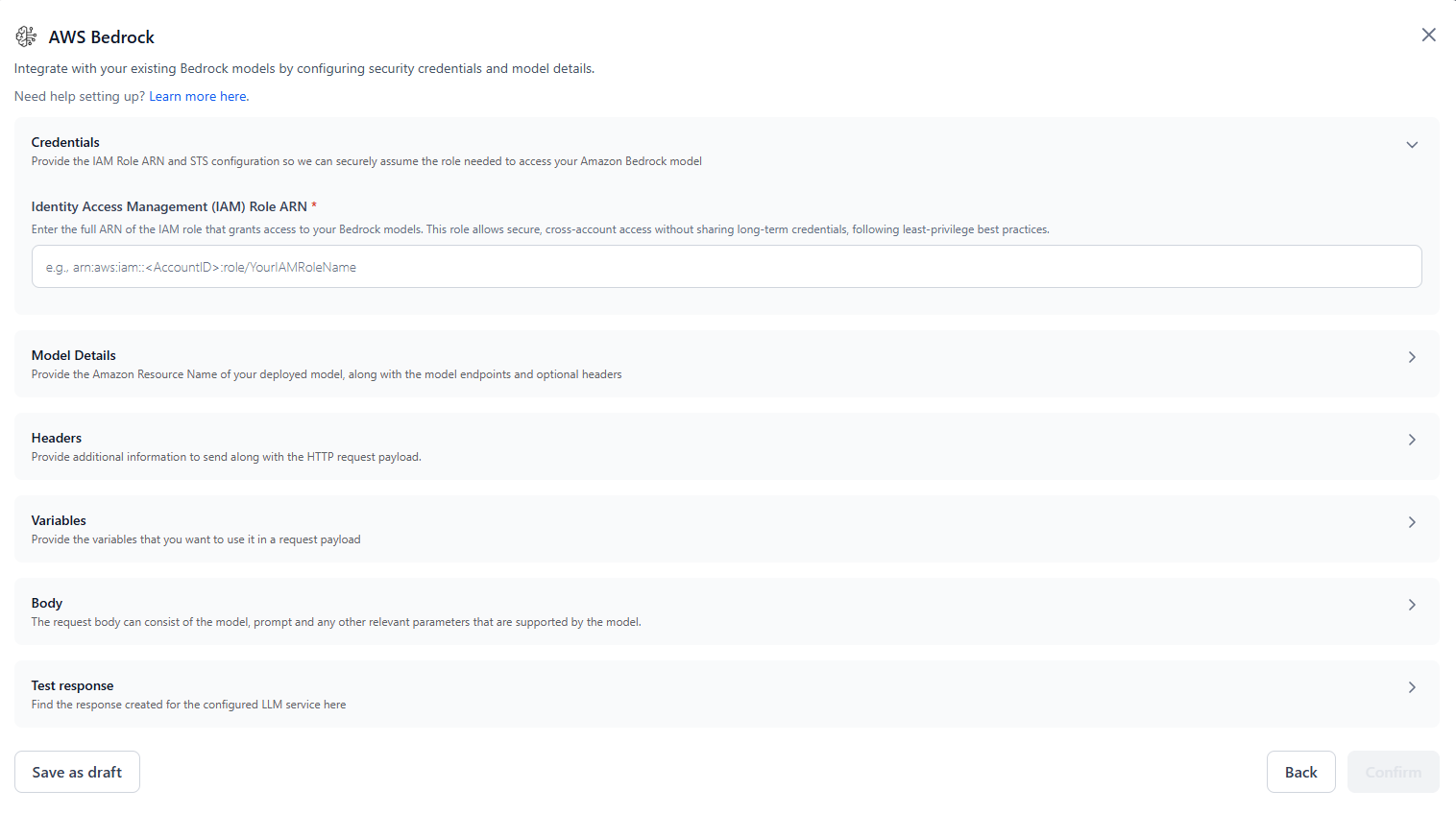
- Identity Access Management (IAM) Role ARN: Enter the full ARN of the IAM role with Bedrock permissions.
- Trusted Principal ARN: Pre-populated and read-only. This is the AI for Process IAM principal used to assume your role.
- Model name: Enter a display name to identify this model within your workflows.
- Model ID: Enter the Model ID or Endpoint ID. See Find the Model ID and Region above.
- Region: Specify the AWS region where the model is deployed.
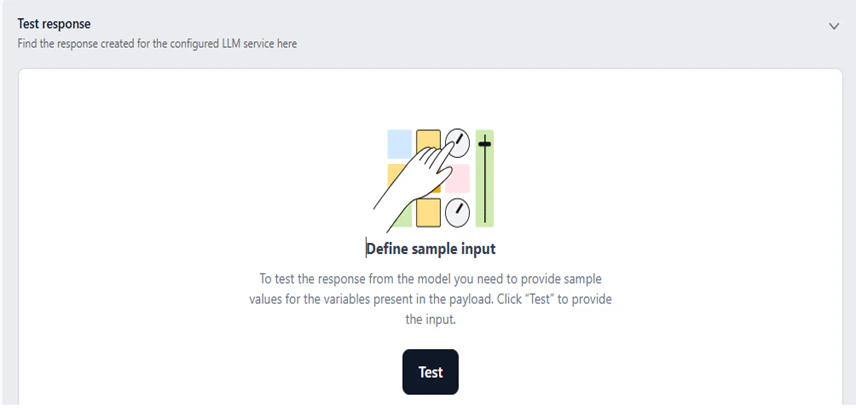
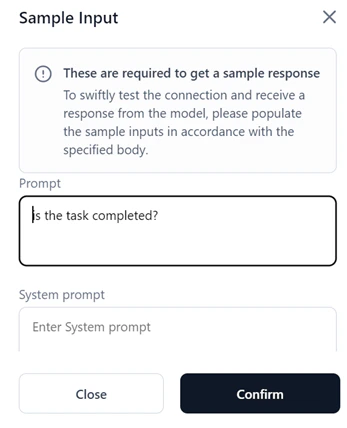
"Content-Type": "application/json". Variables: Define input variables for your request payload. For example:{{prompt}},{{system.prompt}}. Body: Enter a sample JSON request body. Use{{variableName}}to bind input fields dynamically. The structure must follow the model-specific API schema. - Under Test Response, enter sample values for your variables and click Test to invoke the model and preview the response.
- Under Configure JSON Path, define JSON paths to extract the output text and token counts from the response.
- Click Save as draft to store the configuration without activating it, or click Confirm to add the model.
API Integration
Use API Integration to connect a custom model by configuring the endpoint, authentication, and request-response structure.- Click Models in the top navigation bar.
-
Go to the External Models tab and click Add a model.
-
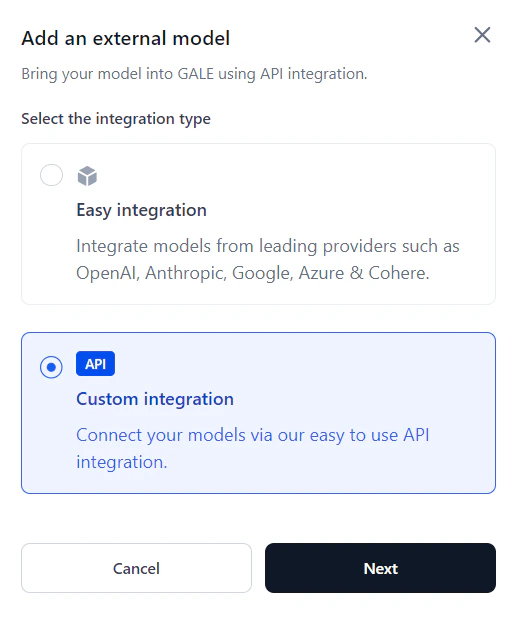
Select Custom integration and click Next. The Custom API integration dialog opens.
-
Enter a Model name and Model endpoint URL.
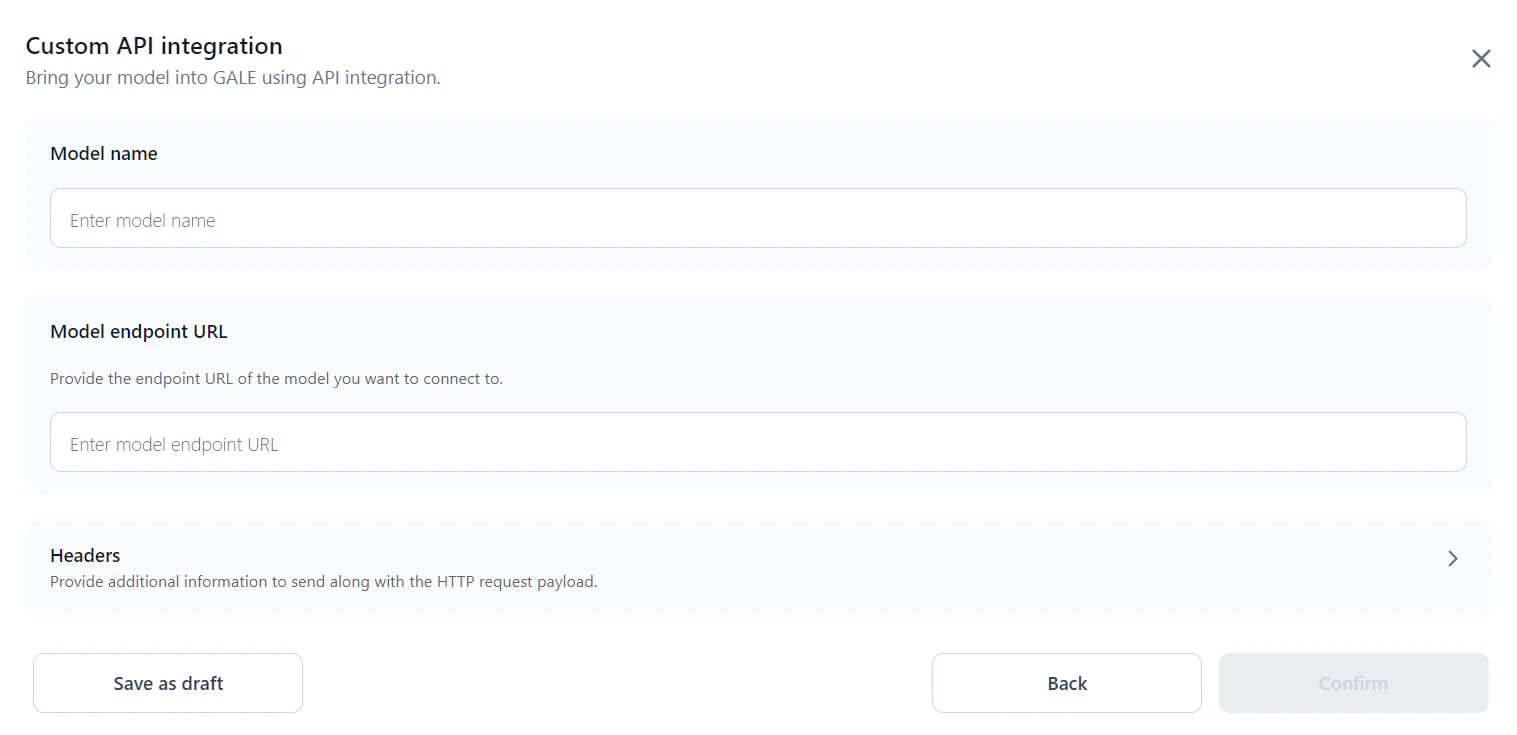
-
Select an Authorization profile for the request, or select None to proceed without authentication. See Authorization Profiles for details.
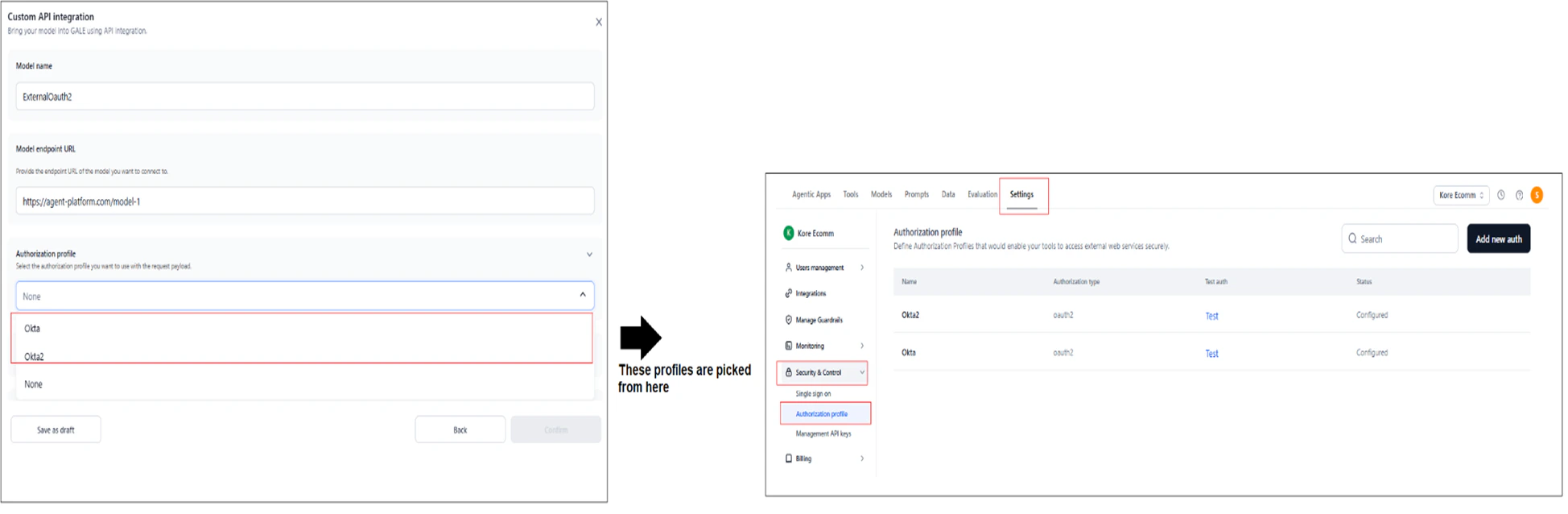
-
In the Headers section, enter the Key and Value for each header to send with the request.
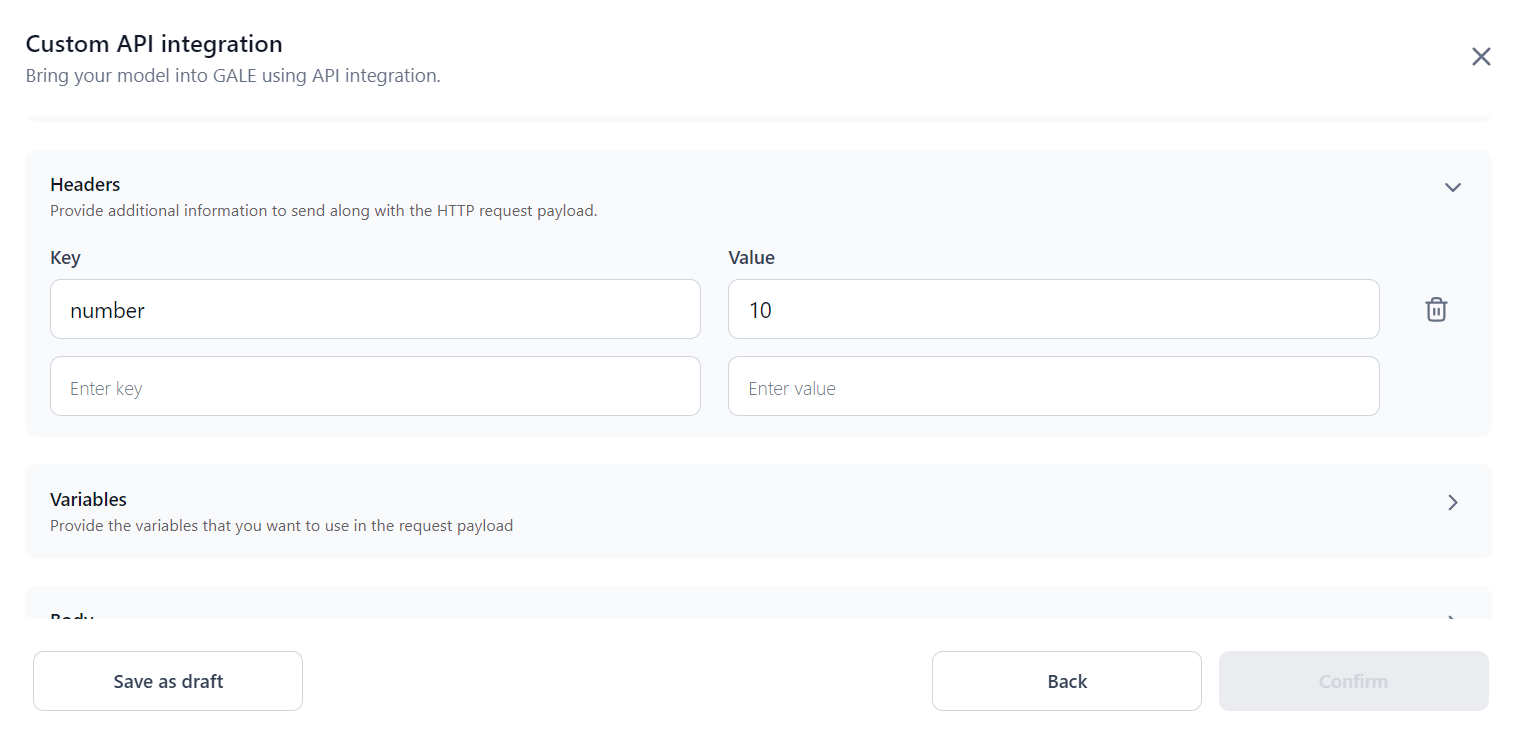
-
In Model configurations, select one of the following options:
Option A: Default
Manually define variables, the request body, and test the model response.
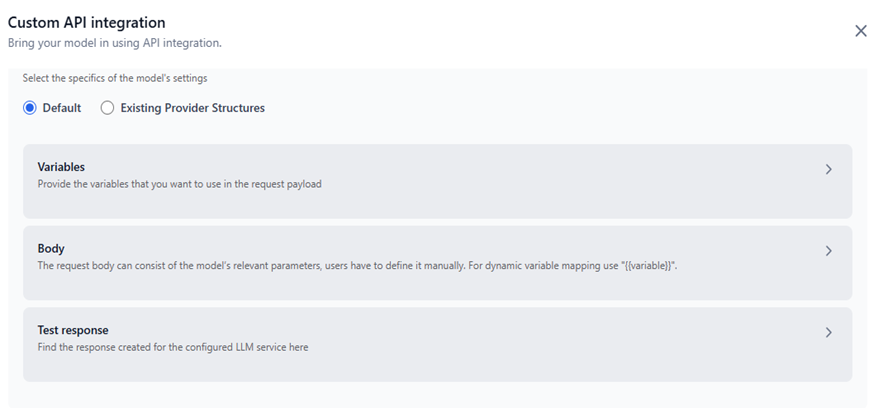
-
Variables: Define the variables for the request payload.
-
Prompt variables: The Prompt variable is mandatory by default. Enable the System prompt and Examples toggles if needed.
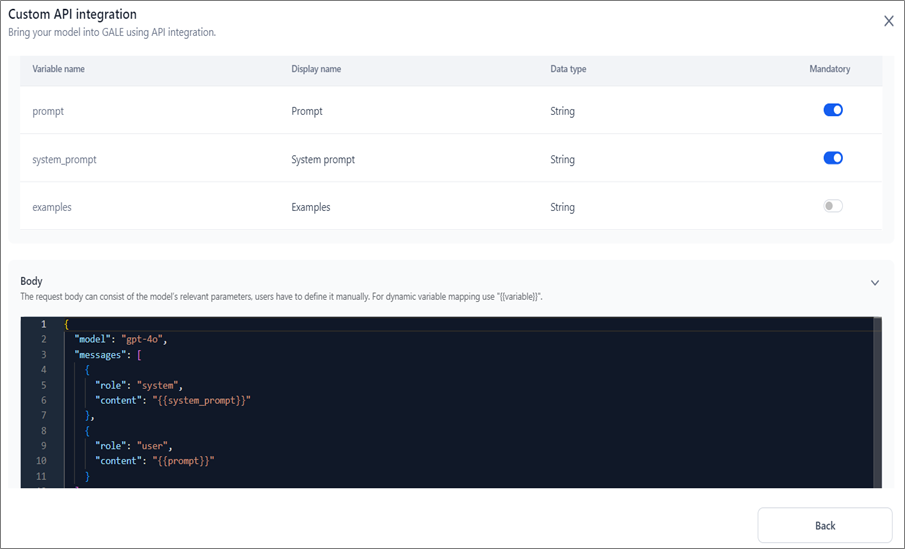
-
Custom variables (optional): Click the Custom variables tab and then +Custom variables. In the dialog, enter the Variable name, Display name, and Data type.
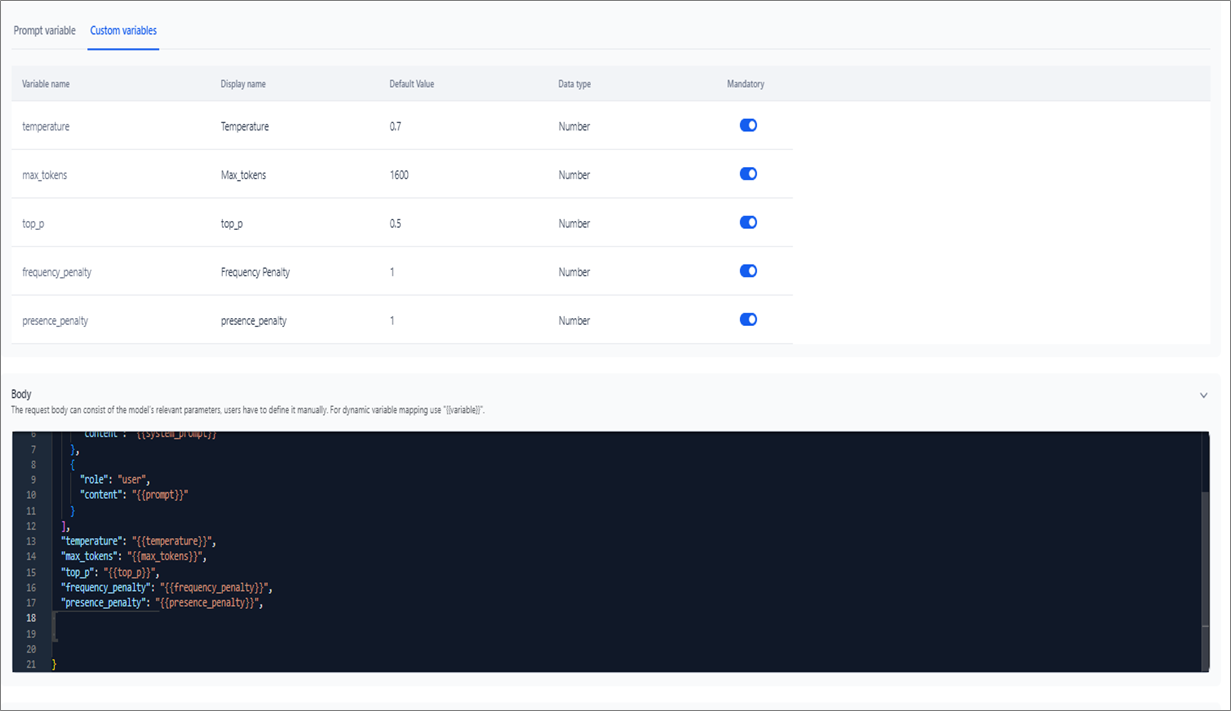
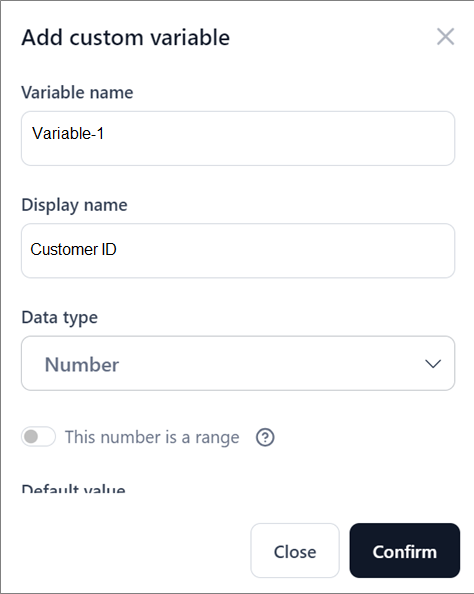
-
Prompt variables: The Prompt variable is mandatory by default. Enable the System prompt and Examples toggles if needed.
-
Body: Define the request body with the model’s parameters. Use
{{variable}}for dynamic mapping. Ensure the format is correct — incorrect formatting causes API testing to fail.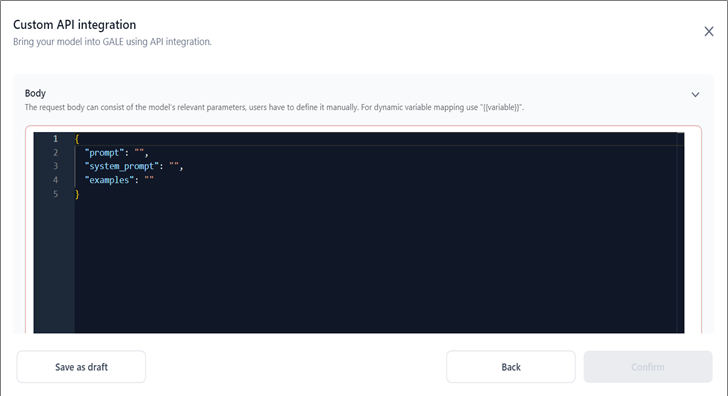
-
Test Response: Click Test to invoke the model.
-
Output Path: The JSON key containing the model’s output. This determines which key maps to the response in Prompt Studio. For example:
choices[0].message.content.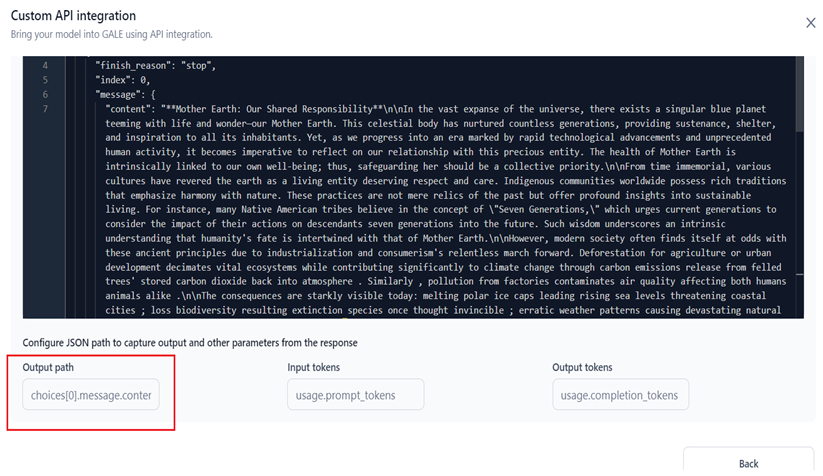
-
Input Tokens: The JSON key for input token count. For example:
usage.prompt_tokens.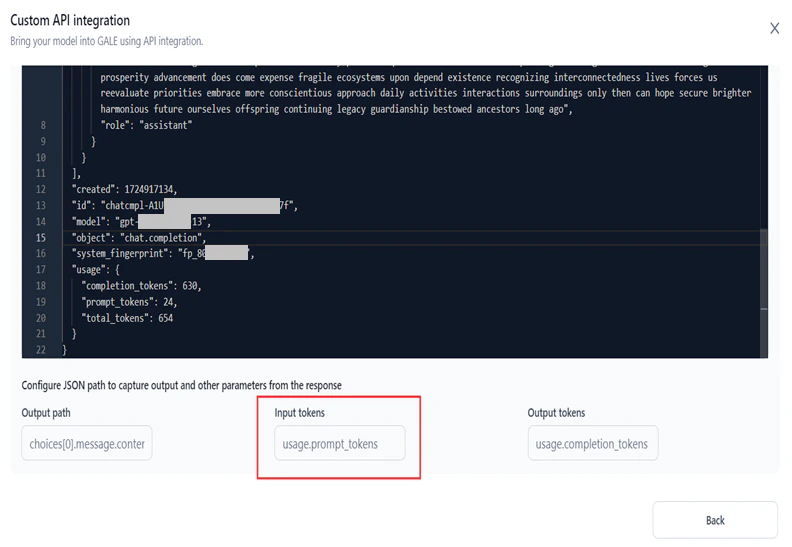
-
Output Tokens: The JSON key for output token count. For example:
usage.completion_tokens.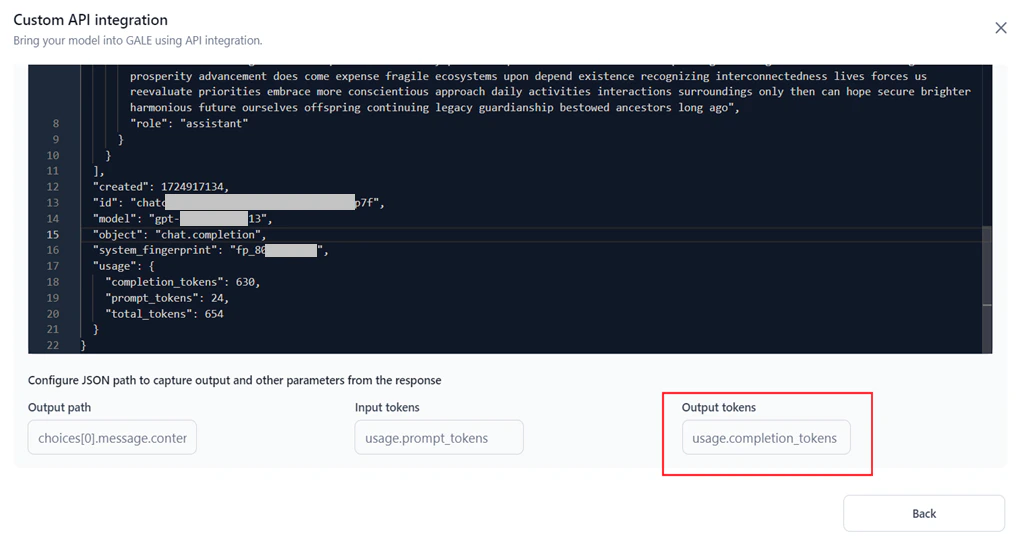
-
Output Path: The JSON key containing the model’s output. This determines which key maps to the response in Prompt Studio. For example:
-
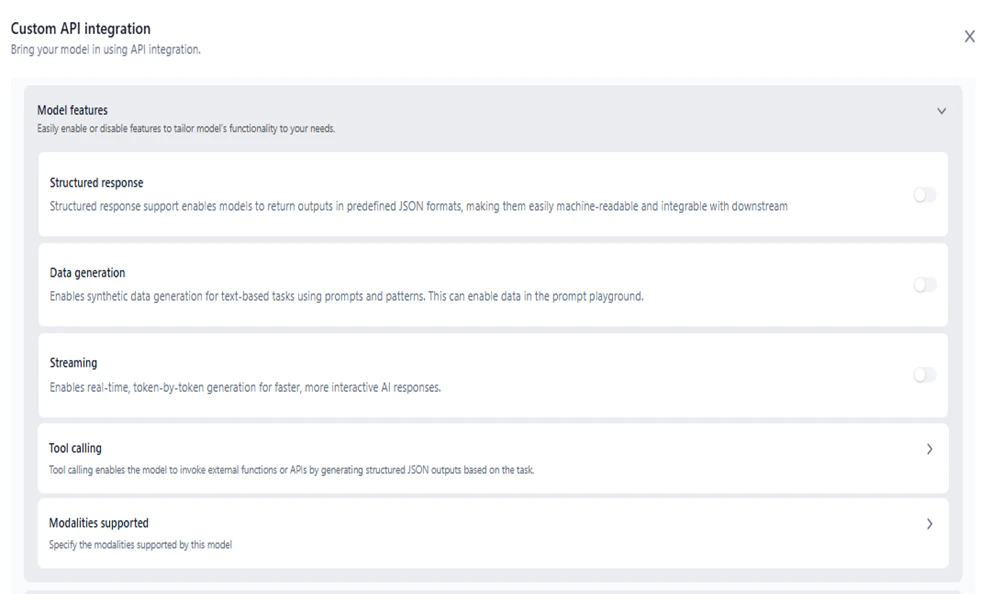
Model Features: Enable one or more features. At least one must be enabled.
Enable only those features that the model supports. Enabling unsupported features may cause unexpected behavior.
-
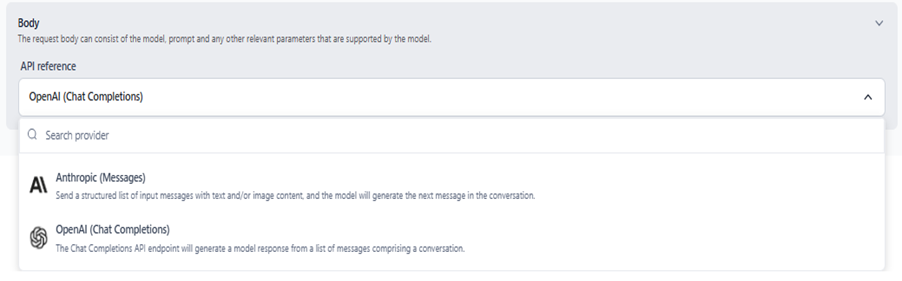
Body: Select a provider schema to map the request-response structure.
- Anthropic (Messages): Uses the Anthropic Messages API schema.
- OpenAI (Chat Completions): Uses the OpenAI Chat Completions API schema.
-
Variables: Define the variables for the request payload.
- Click Confirm to add the model to the External Models list.
Manage Connections
Each external model can have multiple connections, each with its own credentials or API key. You can track usage, billing, and analytics per connection independently. For example, you can add multiple API keys for the same commercial model (such as multiple GPT-4 keys for OpenAI), with each key managed as a separate connection. When adding connections:- Each connection name must be unique.
- Each API key must be unique for the model.
Once added, the model and connection names appear across AI for Process. Where you select a model, you can also choose a specific connection if multiple are configured.
Manage API Integrations
Once a custom API integration is active and the Inferencing toggle is on, the model is available across AI for Process. You can disable inferencing at any time. To manage an integration, click the three-dot icon next to its name and select one of the following:- View: View integration details.
- Copy: Create an editable copy of the integration.
- Delete: Remove the integration.