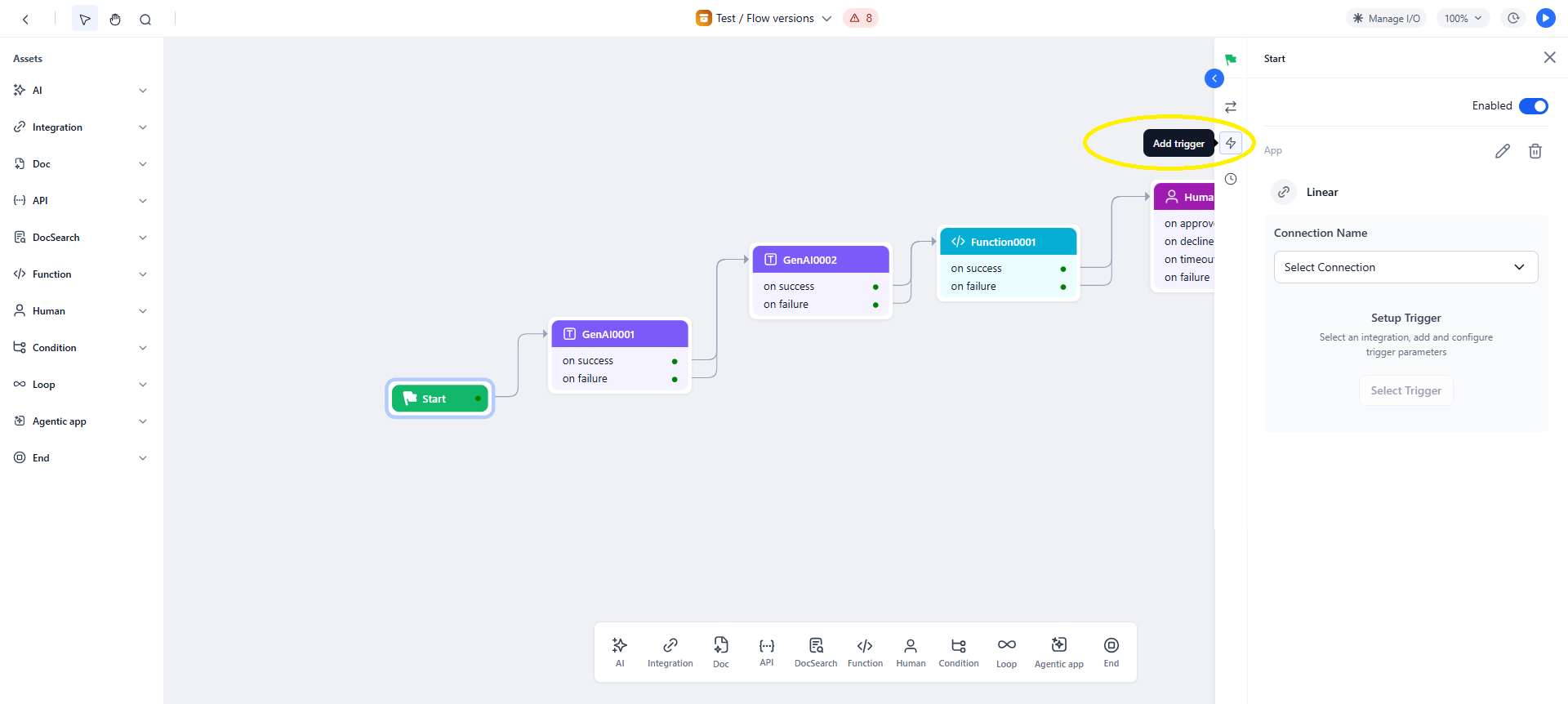
Trigger Types
The Start node supports two automation methods: event-based triggers and schedule-based triggers. You can use either or both on the same workflow.Event-based triggers
Event triggers start the workflow automatically when a specific event occurs in a connected third-party application—for example, when a Jira issue is created, a Salesforce record is updated, or a Slack message is received. Prerequisites:- Add the integration app to your workspace.
- Set up a connection and authentication profile for the integration. See Add a connection and Add authorization profile.
- In your workflow, click the Start node to open its configuration panel.
- Click Add Trigger and select the integration app.
- Enable the trigger and select a connection.
- Select the trigger event and configure its parameters.
- Save and test the workflow.

Triggers must be active and enabled. If a trigger becomes inactive, re-deploy the workflow and retest the authorization profile in Settings > Security & Control > Authorization profiles.
Supported third-party services
| Service provider | Triggers available |
|---|---|
| Asana | 1 |
| Canvas | 6 |
| Coda | 4 |
| Discord | 1 |
| Fireflies | 1 |
| Gmail | 2 |
| GitHub | 6 |
| Google Calendar | 7 |
| Google Docs | 3 |
| Google Drive | 7 |
| Google Sheets | 2 |
| Google Slides | 1 |
| Google Super | 16 |
| HubSpot | 2 |
| Jira | 3 |
| Linear | 3 |
| Mailchimp | 4 |
| Notion | 5 |
| OneDrive | 8 |
| Outlook | 5 |
| Pipedrive | 3 |
| Salesforce | 7 |
| Slack | 9 |
| Slackbot | 9 |
| Spotify | 3 |
| Stripe | 7 |
| TimelinesAI | 1 |
| Todoist | 1 |
| Trello | 5 |
| YouTube | 4 |
| Zendesk | 2 |
Schedule-based triggers
Schedule-based triggers start the workflow at a predetermined time or interval. The scheduler supports custom time zones for global operations. Steps to configure a schedule:- In the Start node configuration panel, click the Schedule icon and enable the scheduler.
- Set the frequency. See Schedule frequencies for options.
- Configure the start date, start time, and time zone.
- Save and test the workflow.

Schedule frequencies
| Frequency | Description |
|---|---|
| Daily | Runs every day. |
| Weekly | Runs every 7 days on a selected day of the week. |
| Monthly | Runs on a specific date each month. |
| Once | Runs at a selected date and time. |
| Cron | Runs based on a custom cron expression. |
| Custom | Repeats every N days or weeks. |
Trigger Payloads and Attachments
When an event trigger fires, the event data is passed into the workflow as variables accessible to all downstream nodes.- Trigger data can include contextual information, metadata, and event-specific IDs.
- Downstream nodes reference trigger values using the context object syntax:
{{context.steps.Start.inputVariable}}. - Attachments from triggers are provided as temporary URLs, valid for 24 hours. Only one attachment is supported per trigger event.
- Use clearly defined events to avoid unnecessary workflow runs.
- Validate payload field names before referencing them in conditions or expressions.
- Regularly verify integration connections to keep triggers active.
- Monitor trigger activity from Monitoring > Triggers in the left navigation of a deployed workflow.
Workflow Input and Output Variables
Input and output variables define the data contract for a workflow. Input variables provide data at runtime; output variables capture the results the workflow returns.- Input variables are available immediately after the Start node:
{{context.steps.Start.inputVariableName}} - Output variables can be set in any node, typically in the End node:
{{context.steps.NodeName.output}}
Add input variables
-
On the workflow canvas, click Manage I/O, or click the Start node. The Manage Input & Output dialog opens.

- On the Input tab, click + Add input variable. The Enter input variable dialog opens.
- In the Name (key) field, enter a name for the variable.
-
In the Type field, select a data type.
Type Notes Text Supports an optional default value. Number Supports an optional default value. Boolean Supports an optional default value. Remote file Accepts a file URL. Set the File URL timeout (5 minutes to 7 days). The default is 5 minutes. List of values (Enum) Define allowed values using Add Values +. The system validates input against these values and returns an error if an invalid value is provided. JSON Define the schema using the JSON editor. The value at runtime must conform to the schema. If the JSON is invalid, execution fails. - Optionally, enable the Mandatory toggle to require a value for this variable at runtime.
- Click Save.
Add output variables
- On the workflow canvas, click Manage I/O. The Manage Input & Output dialog opens.
- On the Output tab, click + Add output variable. The Enter output variable dialog opens.
- In the Name (key) field, enter a name for the variable.
- In the Type field, select a data type: String, Number, JSON, or Boolean.
- Click Save.
You can also add output variables directly in the End node using the Add a Key option.If a type mismatch occurs at runtime, the endpoint succeeds but includes a warning in the response with the key name and the nature of the mismatch.
API Keys and Workflow Access
When you deploy a workflow, the platform generates a dedicated API endpoint. External systems call this endpoint to invoke the workflow. API keys control who can access the endpoint.Create an API key
- In the Platform, select your workflow and click API keys in the left sidebar.
- Click Create a new API key. The Create new API key dialog opens.
- Enter a descriptive name for the key and click Generate key. The key is displayed once.
- Click Copy and close to save the key to your clipboard.

Workflow endpoints
After deployment, the platform generates sync and async poll endpoints automatically. An async push endpoint requires additional configuration.
| Endpoint type | Behavior |
|---|---|
| Synchronous | The client waits for the workflow to complete and returns the response immediately. Suitable for real-time operations. |
| Async poll | The workflow processes the request independently. The client periodically polls the integration to retrieve the response. |
| Async push | The workflow pushes the response to a client-specified callback URL as soon as processing is complete. Requires a callback URL and access token. |
-
On the Workflow endpoint page, click the Async push tab and click Enable / Settings.

- Turn on the Enable async toggle.
- Enter the callback URL of the external application that will receive the response.
- Enter the access token generated by the external application.
-
Set the timeout:
- Set timeout: 60 - 600 seconds (default: 180 seconds).
- No timeout: The workflow runs without a time limit.

-
Click Save. The async push endpoint is created.

Timeout precedence: Workflow timeout > Node timeout > Model timeout.