Conversation events define AI Agent behavior at key moments in a conversation lifecycle — such as task completion, failures, channel opt-in/out, and repeated responses.
End of Task
Triggered when the AI Agent is no longer expected to send or receive messages. When fired, the context is updated with:
- The reason the task ended (see table below).
- The name of the completed task. For FAQs, the task name is set to
FAQ.
Client-side implementations (BotKits, RTM, Webhook channels) can use the end-of-task reason flag to determine appropriate follow-up actions.
| Scenario | End of Task Flag |
|---|
| Reached the last node of the dialog | Fulfilled |
| Task canceled by the user | Canceled |
| Error in task or FAQ execution (no Task Failure Event, no hold tasks) | Failed |
| Linked dialog completed without returning to the parent dialog | Fulfilled_LinkedDialog |
| FAQ answered successfully | Fulfilled |
| Event executed via Run Script or Show Message (no tasks on hold) | Fulfilled_Event |
| Error in executing an event via Run Script or Show Message (no tasks on hold) | Failed_Event |
| User declines to resume an on-hold task (no other task on hold) | Canceled |
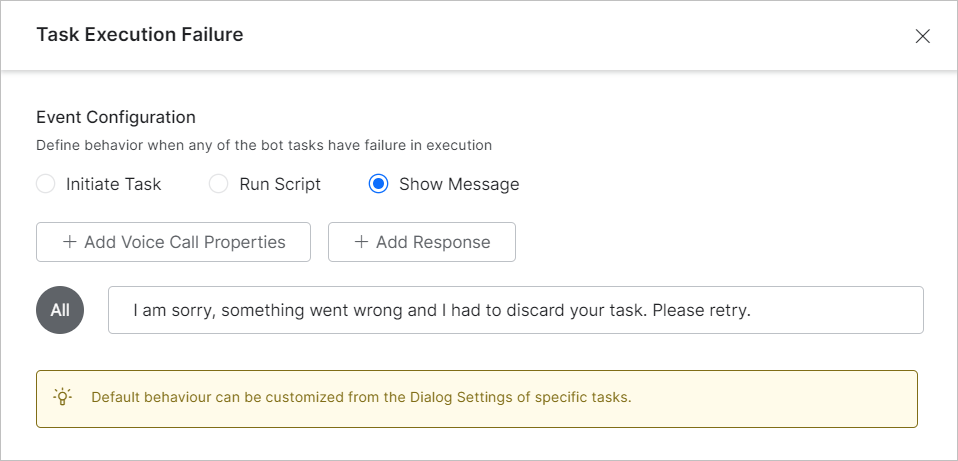
Task Execution Failure
Triggered when an error occurs during dialog task execution, including:
- AI Agent execution errors
- Service call failures or unreachable servers
- Agent transfer node errors
- Knowledge Graph task failures
- Webhook node failures
- Unavailable sub-dialog
- Errors parsing the AI Agent message
Defaults: Always enabled with the Show Message action. Cannot be disabled.
This app-level behavior can be overridden per task from the dialog task settings. Learn more
RCS Opt-In / Opt-Out Events
Triggered when a user opts in to or opts out of the RCS Messaging channel. Configure a follow-up response to confirm the user’s action.

Repeat Bot Response Event
Triggered when specific utterances (predefined or custom-trained) are detected on voice channels — IVR, Audiocodes, Twilio Voice, and SmartAssist Gateway — requesting the AI Agent to repeat its last response.
The Repeat Bot Response event uses the NLU multilingual model for non-English languages.
Priority Behavior
| Conflict Scenario | Behavior |
|---|
| Intent vs. Repeat event | Intent takes priority. |
| Sub-intent vs. Repeat event | Sub-intent takes priority. |
| FAQ vs. Repeat event | FAQ takes priority. |
| Group node sub-intent vs. Repeat event | Group node sub-intent takes priority. |
| Mid-conversation (no conflict) | Repeat event is triggered. |
Use Case
Scenario: In a Flight Booking AI Agent, a user on IVR says: “Sorry, I can’t hear you. Can you please repeat it again?” after the dialog has ended with a booking confirmation message.
Result: If the session is still active and the End of Task event has a follow-up message (e.g., “Is there anything else I can help you with?”), the Repeat Bot Response event repeats both the booking confirmation and the follow-up message together.
Enable the Event
-
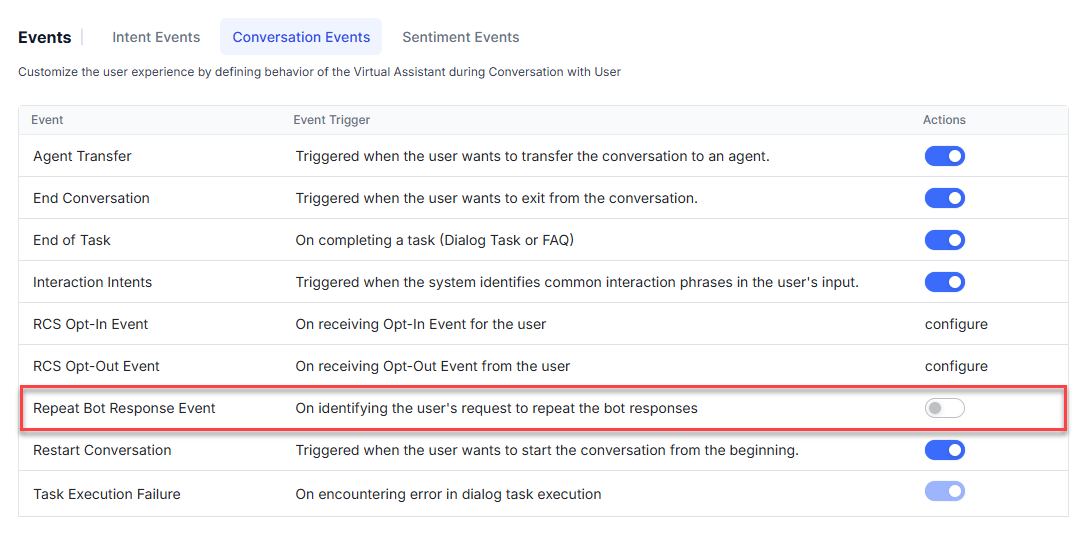
Go to Conversation Intelligence > Events.
-
Click Repeat Bot Response Event to configure it.
-
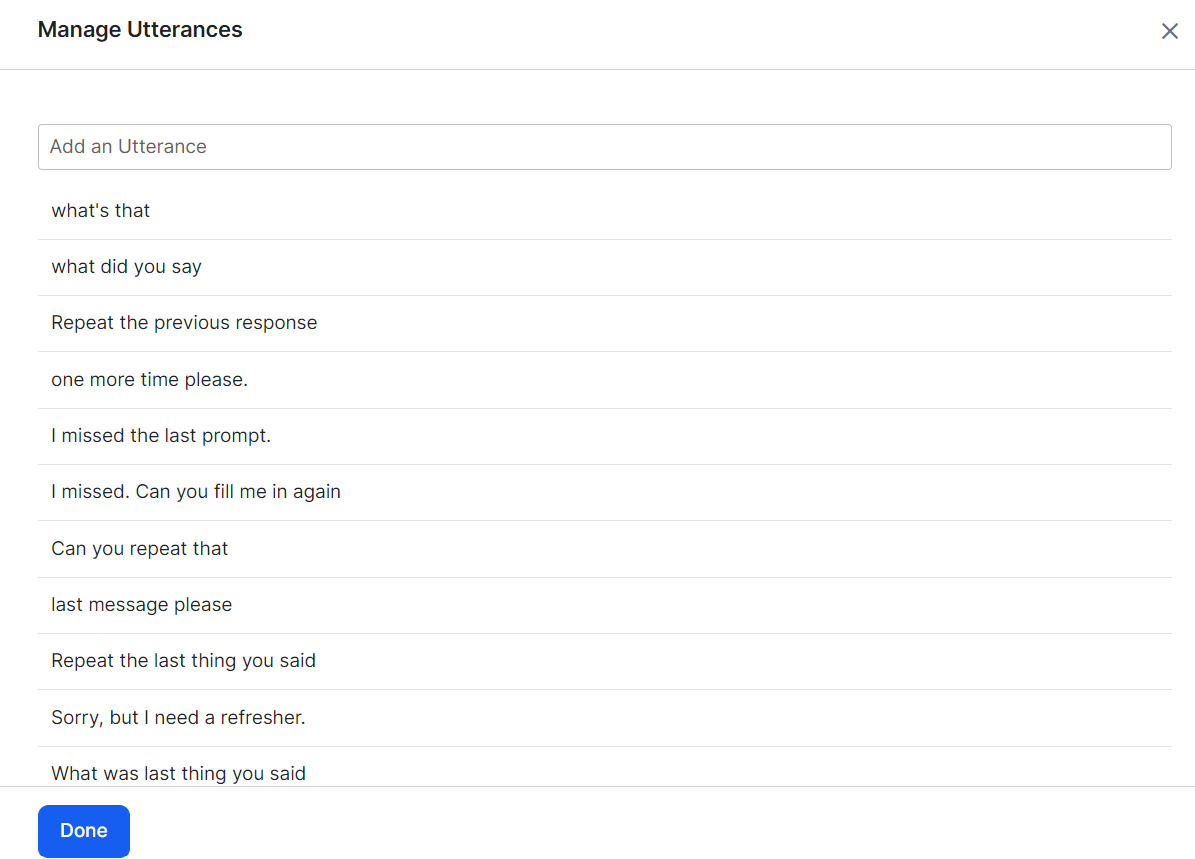
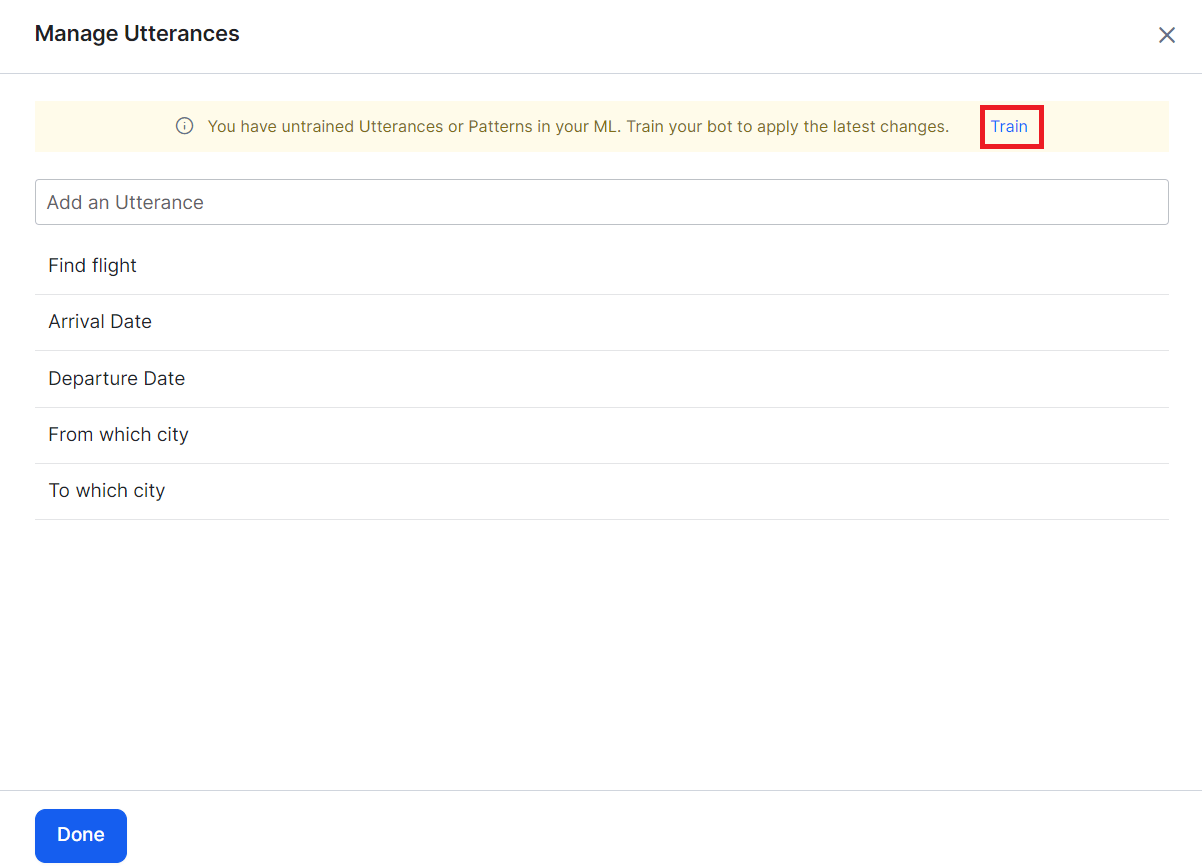
Click Manage Utterance to review or add pre-trained utterances.
-
Add more utterances as needed, then click Train.
-
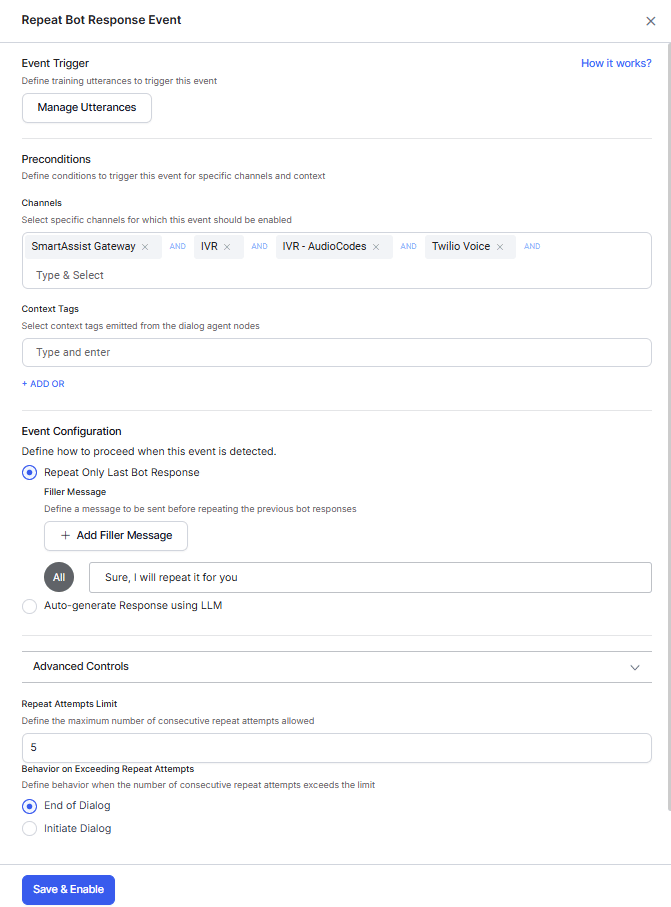
After training, configure preconditions:
- Channels — Add voice channels (IVR, IVR Audiocodes, Twilio Voice, SmartAssist Gateway).
- Context Tags — Add context objects to scope the event to specific dialog tasks. Learn more
-
Set the Event Configuration:
-
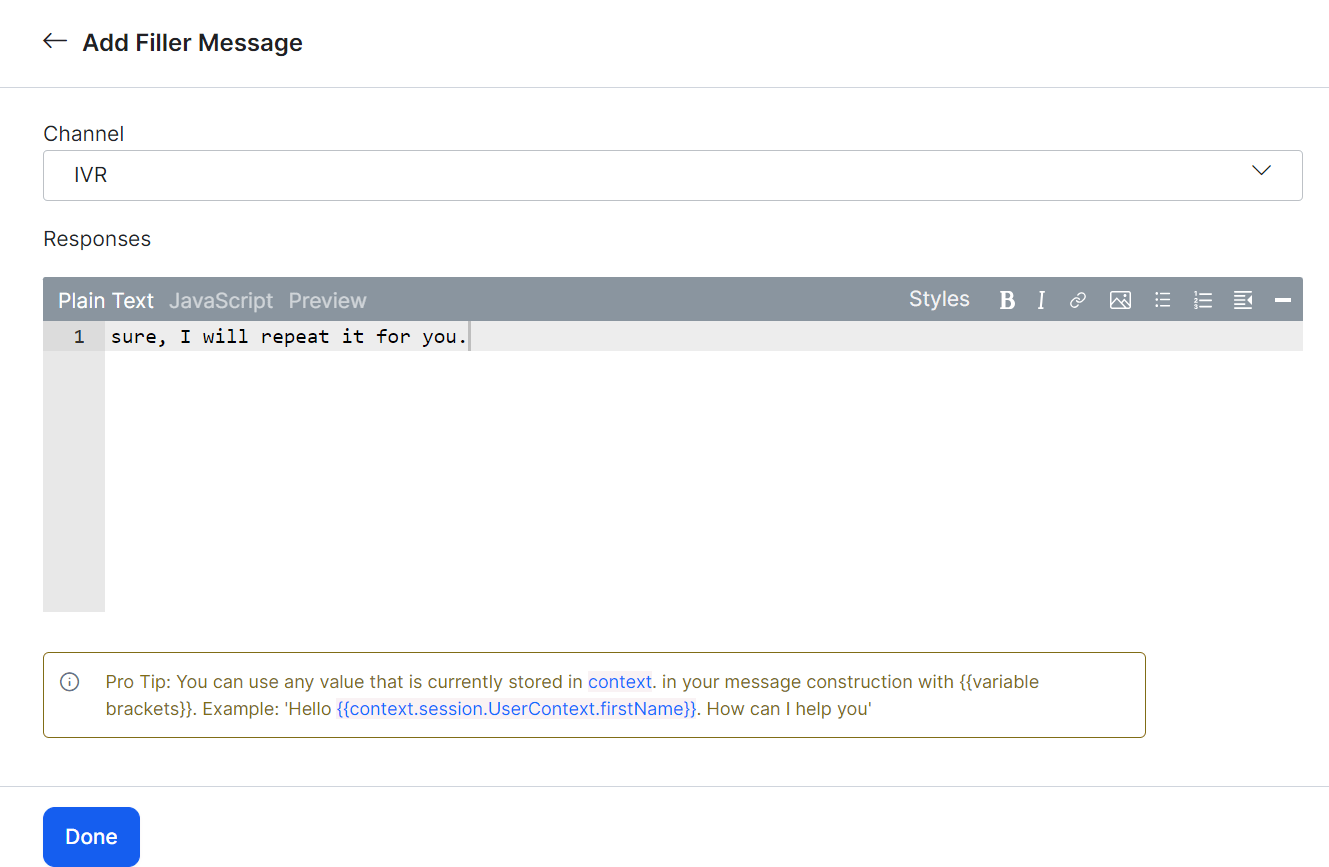
Repeat Only Last Bot Response (default) — Plays a filler message before repeating. Default filler: “Sure, I will repeat it for you.”
Click + Add Filler Message, select the IVR channel, enter the filler text, and click Done.
-
Auto-generate Response — Uses the LLM and Generative AI model to generate the repeated response. Requires the Advanced NLU model to be enabled. Click Enable Now to activate.

When Auto-generate is enabled, filler messages defined in step 6 are not used.
-
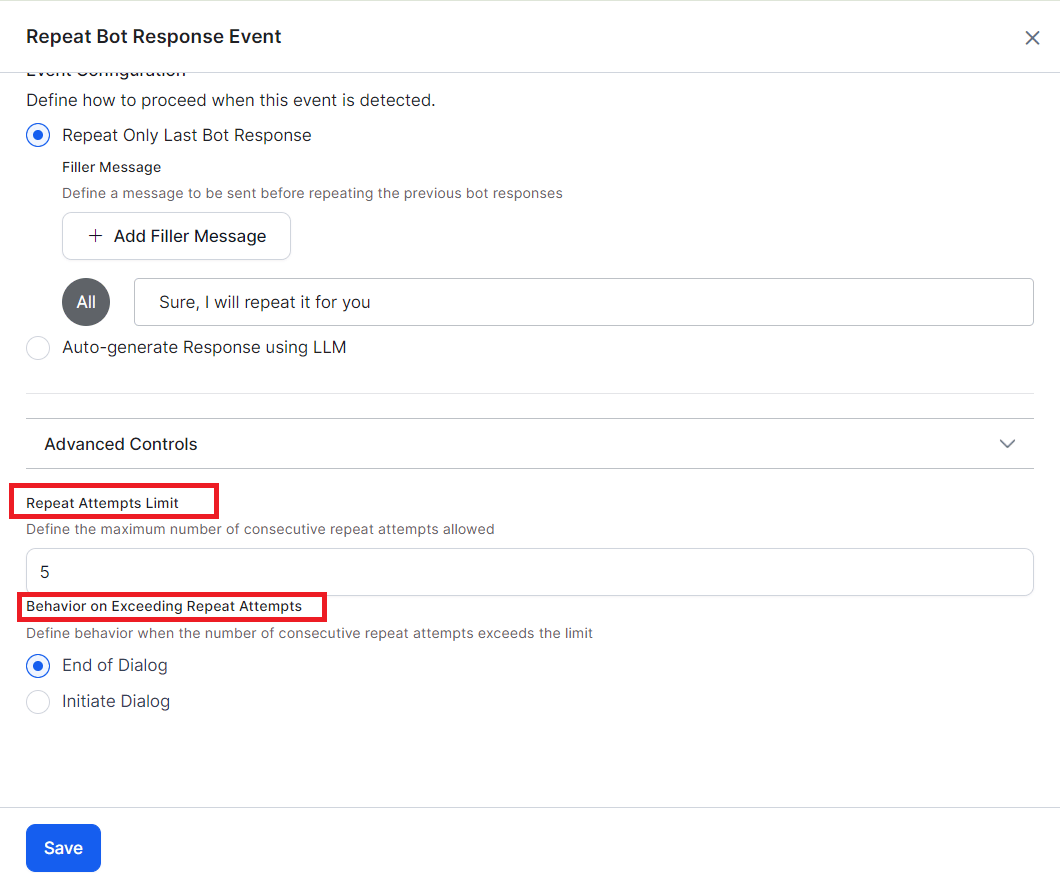
Expand Advanced Settings and configure:
- Repeat Attempts Limit — Number of retry attempts (1–10, default: 5).
- Behavior on Exceeding Repeat Attempts — Choose End of Dialog or Initiate Dialog (select which task to redirect to).
-
Click Save & Enable.
