Plan and Usage lets you monitor billing, track app usage, manage subscriptions, and access invoices — all from a single location. To access it, navigate to Product Switcher > Billing > Manage > Plan and Usage. Navigating to Plan and Usage

Plans

The platform offers three plans:
PlanDescription
EssentialCore features to get started building an AI chatbot.
AdvancedEverything in Essential, plus higher limits and more advanced features.
EnterpriseEverything in Advanced, plus enterprise features, custom pricing, and the highest limits.

How Billing Works

Billing is calculated differently depending on the product.

Automation AI

  • Billed per 15-minute billing session of user conversation.
  • Example: A 31-minute conversation = 3 sessions (0–15 min, 16–30 min, 31–end).
  • Sessions are tracked per app. In dynamic routing, the Parent app has its own sessions; sessions routed to a linked app are attributed to that linked app only.

Search AI

  • Included in Automation AI; uses the same 15-minute billing session.
  • Enterprise users can ingest up to 1 GB of data by default, with an additional 1% allowance. Contract-specific limits override this default.

Contact Center AI

Billed per agent seat:
Seat TypeHow It’s Counted
Named SeatsOne seat per agent, regardless of shifts. 100 agents across 3 shifts = 100 seats.
Concurrent SeatsBased on the maximum number of agents logged in simultaneously. 50 agents per shift across 3 shifts = 50 seats.

Agent AI

Billed per agent seat, same as Contact Center AI.

Add-ons

Billed separately from the base plan.

Plan Information

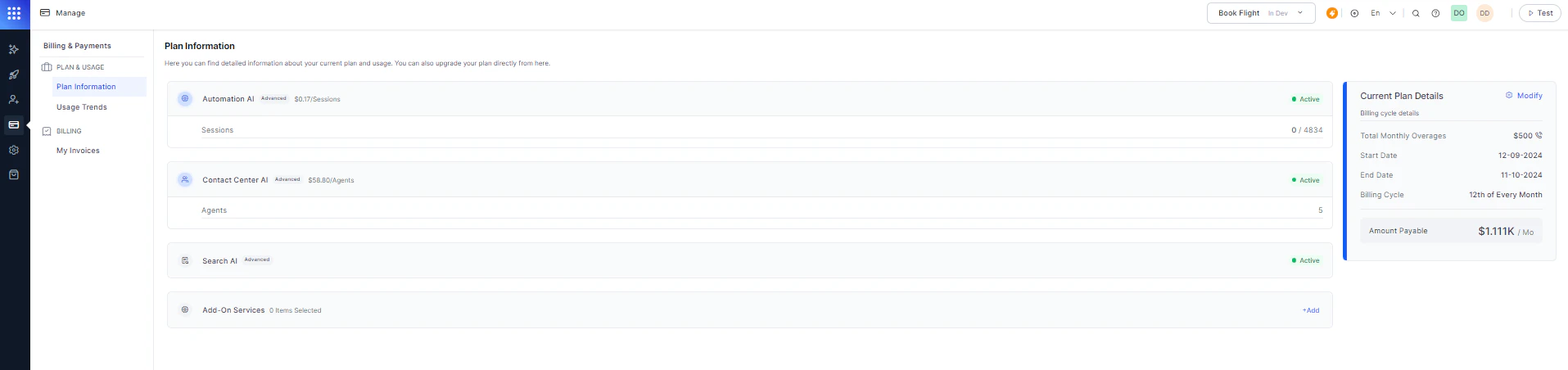
The Plan Information section shows your current plan and product usage. You can upgrade or modify your plan directly from here. Plan Information
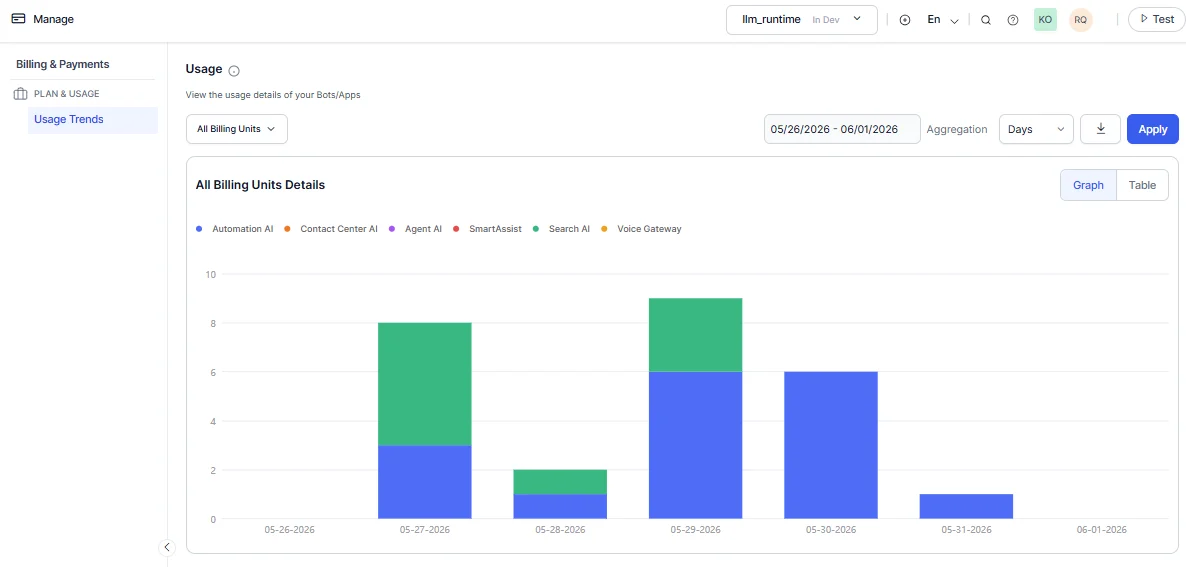
The Usage Trends dashboard provides a consolidated view of billing data across all your apps.
MetricDescription
Billing SessionsTotal billing sessions completed, including Automation AI interactions and API requests.
Voice SessionsTotal voice interactions, including STT, TTS, and Voice Gateway calls.
Agent CountConcurrent agent seats subscribed for the selected period. Not shown for Enterprise accounts.
Filtering options:
  • Filter by individual app.
  • Select a predefined range: 24 hours, 7 days, 30 days, or 90 days.
  • Set a custom date range.
Data is displayed as a graph or table. Hovering over a data point shows a tooltip with the date, billing sessions, voice sessions, and agent count. Usage Trends

Payment Methods

The following payment methods are available when adding funds.

PayPal

Link your PayPal email account to the platform’s payment gateway. PayPal Payment

Credit / Debit Card

Enter your card number, account holder name, expiry date, and CVV. Confirm with an OTP. Credit/Debit Card

Wire Transfer

Transfers funds directly from one bank account to another. Wire Transfer Important notes for wire transfers:
  • When you place a wire transfer order, it is registered with a pending payment clearance status. You will receive an email from Paypro with steps to complete the transfer. Order Details
  • Wire transfers take 4–8 business days. Paid credits are loaded only after the transfer is successful. If your balance runs out while a transfer is pending, you can add funds using an alternative method (credit card or PayPal).

Subscribe or Modify a Plan

  1. Navigate to Manage > Plan & Usage.
  2. In Plan Information, click Subscribe (for a new plan) or Modify (to change your current plan). Subscribe Modify
  3. Select a plan and click Proceed and Modify. Proceed and Modify
  4. Enter your Billing Information, select a Payment Method, and enter payment details.
  5. Click Submit Order. Submit Order

Deployment Flow

The following rules govern app deployment approvals in a Standard Workspace:
Workspace StateAdmin Action
Free credits availableAdmin can approve deployment without any additional steps.
Free credits exhaustedAdmin cannot approve deployment until funds or credits are added.
Paid credits availableAdmin can approve deployment.

Invoices

Invoices are available for Standard Accounts only (subscriptions to Usage Plans and Support Plans). Enterprise Account invoices are not displayed.

View Invoices

  1. Log in to the XO Platform and select the app for which you need the invoice.
  2. Navigate to Product Switcher > Billing > Manage > My Invoices. Invoices Navigation
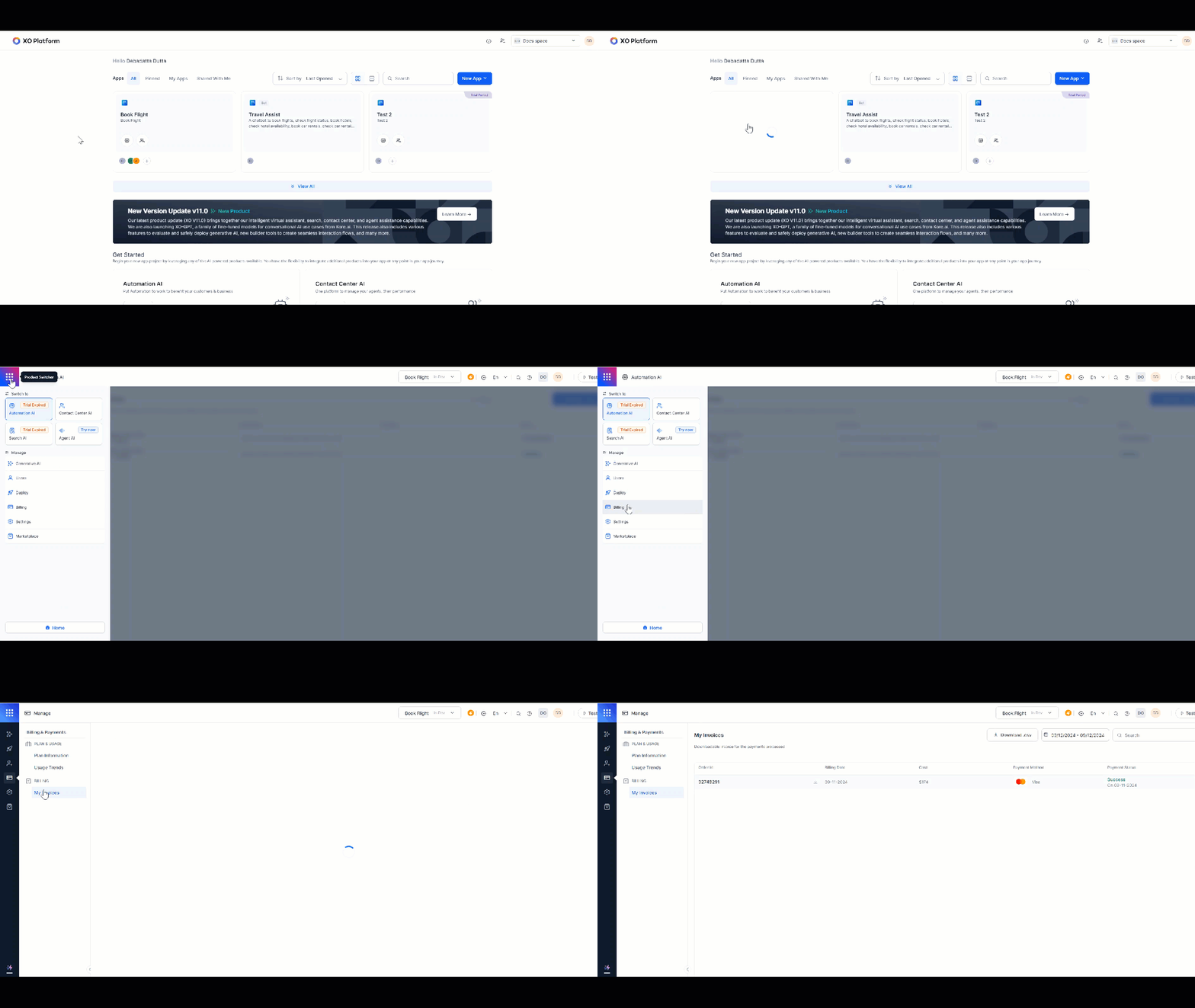
  3. Invoices are listed in chronological order with the following fields:
    • Order ID
    • Billing Date
    • Cost
    • Payment Method
    • Payment Status
  4. Click Download to download an invoice as a PDF. You can also export the billing report as a .csv file. Invoices List

Email Notifications

The platform automatically sends emails to app developers and account owners when specific events occur.

Product Emails

EmailDescription
Sign-up OTP / Resend OTPProvides an OTP to complete the self-signup process.
Forgot PasswordProvides a verification link to reset the password.
Two-Factor OTP / Resend OTPProvides an OTP for two-factor authentication (2FA).
Workspace Approval RequestNotifies the account owner of an access request, asking for approval or denial.
Workspace Approval AcceptedConfirms that an access request to the workspace has been approved.
Workspace Approval RejectedInforms the requester that their access request was declined.
Invite New User (Admin Console)Invites a new user to join a platform workspace.
Invite Existing User (Admin Console)Invites an existing user to join a platform workspace.
Invite New User (from bot)Invites a new user to join an app on the platform.
Invite Existing User from Bot (not part of account)Invites an existing user to join an app, with steps to access its features.
Invite Existing User from Bot (part of account)Invites an account member to join an app via bot invitation.
Bot PublishConfirms the successful publication of a bot.
Free Tokens ExhaustedInforms the user that free tokens for Generative AI features are exhausted, with steps to configure their own LLM.

Pricing Emails

EmailDescription
Automation AI SubscriptionConfirms activation of the Automation AI subscription and successful payment.
Contact Center AI SubscriptionConfirms activation of the Contact Center AI subscription and successful payment.
Automation AI & Contact Center AI SubscriptionConfirms activation of both subscriptions and successful payment.
Add-on: Voice Gateway with ASR and TTSConfirms activation of the Voice Gateway add-on with ASR and TTS.
Single Add-on Subscription (e.g., Advanced RAG)Confirms activation of a single add-on subscription.
Multiple Add-onsConfirms activation of multiple add-on subscriptions.
Auto-Renewal SuccessfulConfirms successful subscription renewal with plan, billing amount, and next billing date.
Auto-Renewal UnsuccessfulAlerts the user of a renewal failure and the number of days before services stop.
Trial ExpiredInforms the user that their trial has ended and prompts an upgrade to a paid plan.
Subscription ExpiredInforms the user that their subscription has expired and prompts renewal.
Subscription CanceledConfirms that the subscription cancellation has been processed and billing has stopped.