
Prerequisites
- At least one custom script must be deployed and executed via API call or API/Function node.
-
If no script has been deployed and executed yet, or if it has been deployed but not run, the following message is displayed.
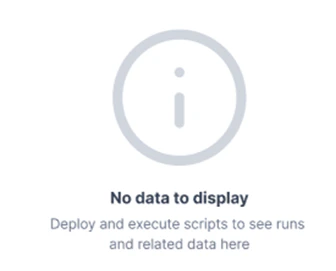
- If a previously executed script is undeployed, existing run and log data remains accessible. No new runs or logs are generated until the script is redeployed and executed again.
Access Custom Scripts monitoring
-
Go to Settings in the AI for Process top menu.
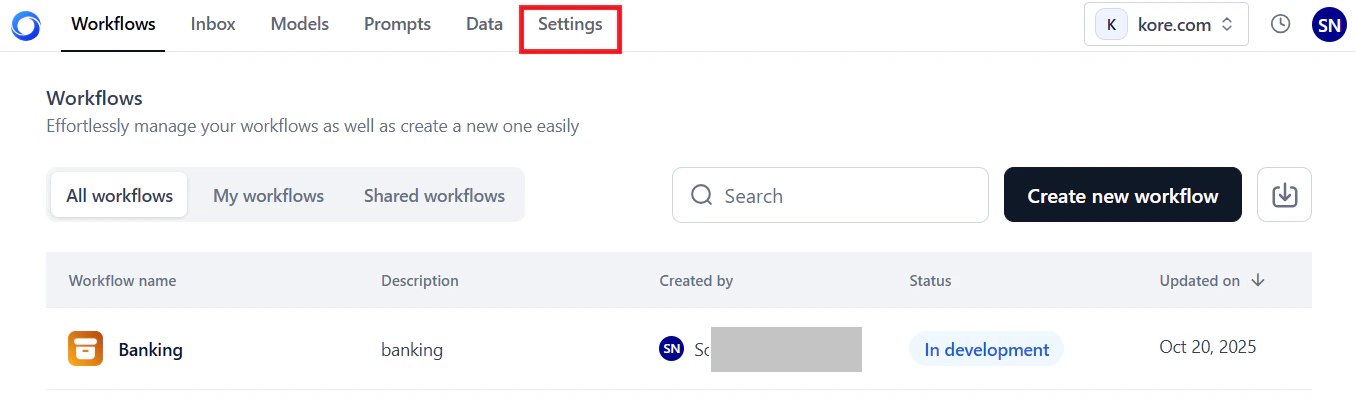
- In the left menu, select Monitoring > Custom scripts.
-
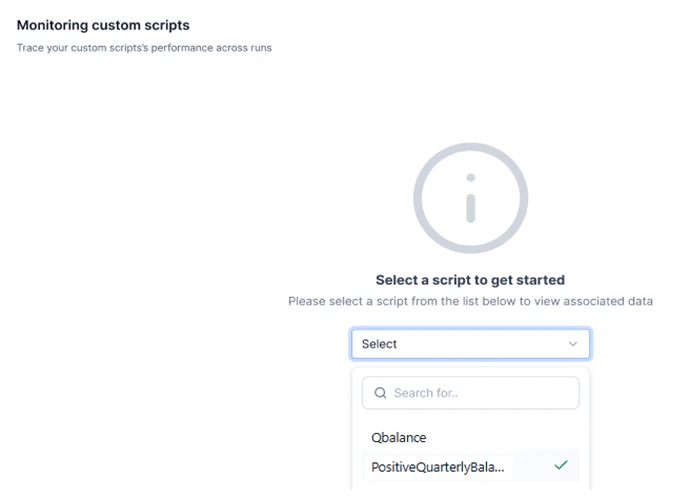
If accessing for the first time, select a script from the dropdown.
Dashboard overview
The dashboard has two tabs for analyzing script performance:- All Runs — Run-level data including status, deployed version, response time, function, and source.
- Logs — Log-level data for functions executed within the script, including input, output, errors, and debug data.
Customize the view
| Control | Description |
|---|---|
| Script Name dropdown | Switch between deployed and executed scripts. |
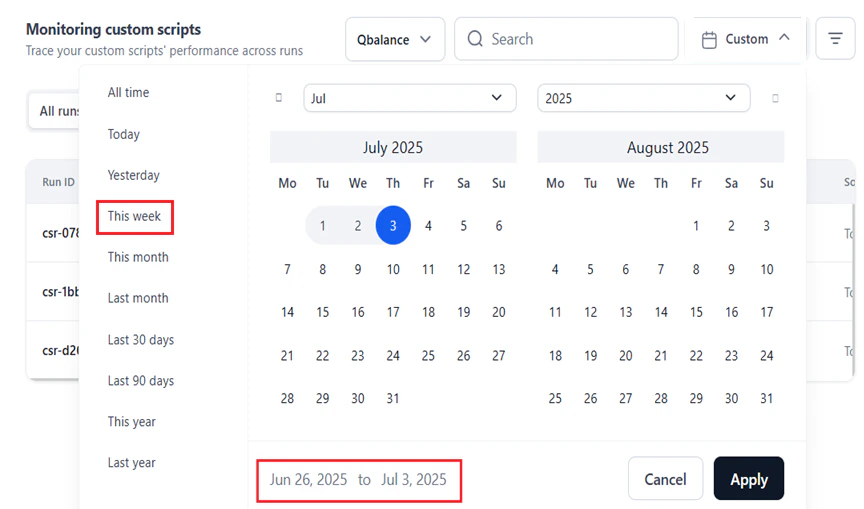
| Time Selection filter | View data for a specific past period or the current day. See Time-based filtering. |
| Filter By | Multi-field, multi-level filter for targeted analysis. See Column filtering. |
In All Runs, all columns except Executed On can be used as filters. In Logs, all columns except Timestamp can be used as filters.
UI features
-
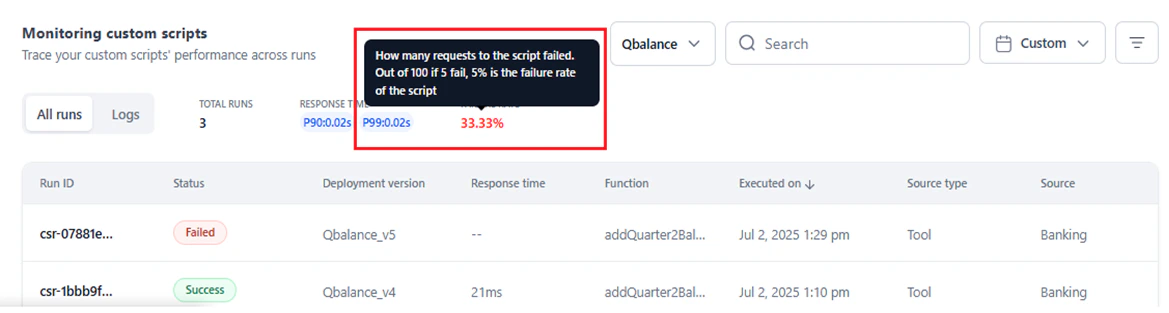
Tooltips: Hover over metrics for additional information.
-
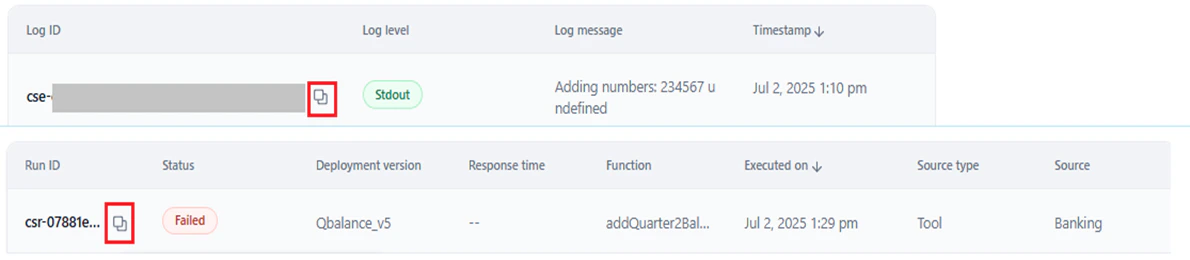
ID copying: Click the copy icon when hovering over Run ID or Log ID.
-
Script selection: Switch between scripts using the dropdown.

-
Status indicators: Green labels for successful runs, red labels for failed runs, and In Progress for scripts currently deploying.

-
Navigation: Use the arrow buttons or keyboard shortcuts (
Kfor previous,Jfor next) to move between records.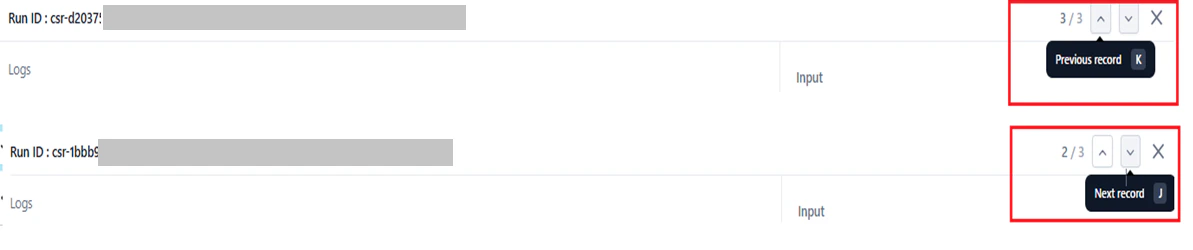
All Runs
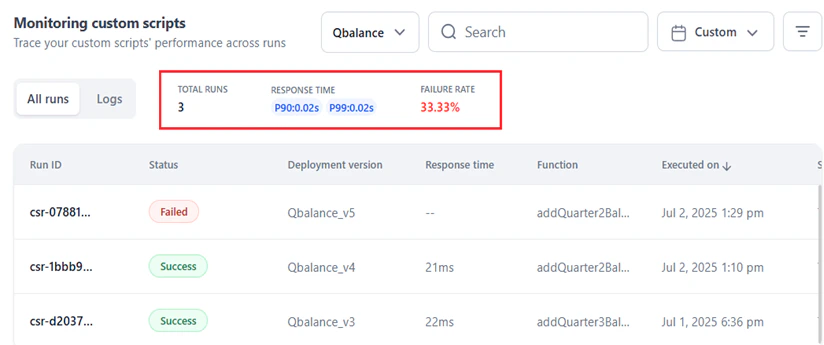
The All Runs tab shows performance metrics and run-level metadata for the selected script.Performance metrics
| Metric | Description |
|---|---|
| Total Runs | Total executions since deployment. Indicates usage volume and billing impact. |
| Response Time (P90) | 90% of runs complete within this time. Lower values indicate reliable performance. |
| Response Time (P99) | 99% of runs complete within this time. Higher values suggest performance outliers or issues. |
| Failure Rate | Percentage of failed runs. For example, 1 failure in 3 runs = 33.33%. |
Run-level data
| Column | Description |
|---|---|
| Run ID | Unique identifier for the script run. |
| Status | Success, Failed, or In Progress. |
| Deployment Version | Version number, incrementing with each deployment. |
| Response Time | Execution duration. Empty for failed or in-progress runs. |
| Function | Name of the executed function. |
| Executed On | Date and time of execution. |
| Source Type | Workflow or API (from endpoint). |
| Source | Name of the triggering source. |
Best practices for All Runs
- Identify runs with low or high response times. Use P90 and P99 thresholds to isolate underperforming runs.
- Analyze the Source and Source Type to diagnose failures, delayed response times, and other issues.
- Click a run record to open the record view for that run.
Logs
The Logs tab shows execution logs captured during script runs.Log visibility depends on how the script is configured:
- Default logging (
print(),console.log()): Logs appear only after the run completes. - korelogger: Logs populate in real-time, with structured log levels (Info, Debug, Warning, Error). See Enhanced logging.
- Failed runs can generate logs if logging is implemented correctly.
Performance metrics
Total Logs indicates the total number of logs recorded during execution. This metric helps determine:- Script activity level — how many actions or events were logged.
- Debugging depth — more logs indicate detailed logging, which aids debugging.
- Execution complexity — a high log count may indicate multiple operations or functions.
- Error visibility — whether sufficient logging is available to trace issues.
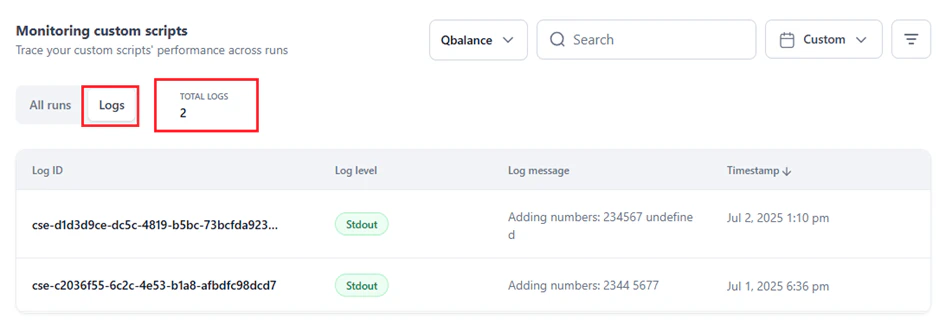
Log-level data
| Column | Description |
|---|---|
| Log ID | Unique log identifier. |
| Log Level | Stdout, Stderr, Info, Debug, Warning, or Error. See Enhanced logging for gVisor-supported log levels. |
| Log Message | Recorded message for the specific action. |
| Timestamp | Date and time of the log entry. |
Best practices for Logs
- Analyze the input and output for each run (identified by Run ID) using log data: Log ID, Log level, Log message, and Timestamp.
- Use the input and output code editors in the record view to analyze and troubleshoot logs.
Filter runs and logs
Time-based filtering
Use the Custom time selection dropdown (top-right) to filter runs or logs by a specific past period or the current day.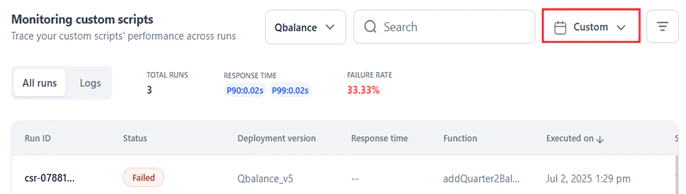
Data is displayed only if the selected script ran during the selected period.
Column filtering
Apply column filters to narrow down runs or logs. This works similarly to the Audit Logs filter, with an additional contains operator that matches results including a specific keyword or value. For example, filtering Log message contains “Adding” shows only logs where the message includes that string.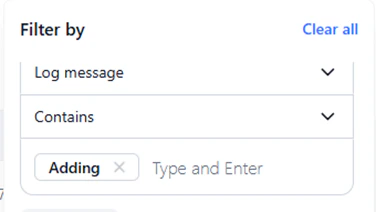
Add a column filter
- Select the All Runs or Logs tab.
- Click the Filter icon (top-right).
-
Click + Add Filter.
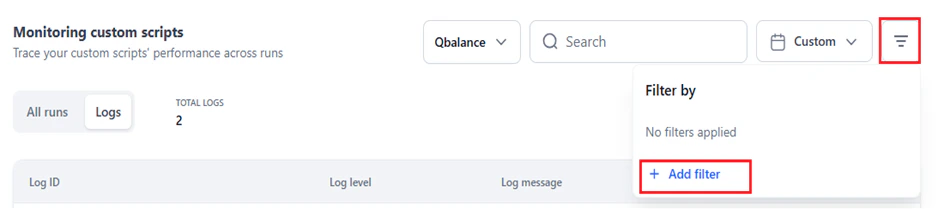
-
In the Filter By window, select a column, operator, and enter a value.
 Enter multiple values in the Enter Value field by pressing Tab after each entry. The system filters on all entered values.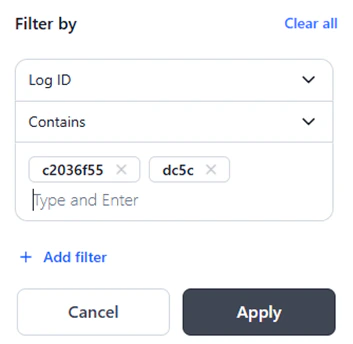
- Click Apply.
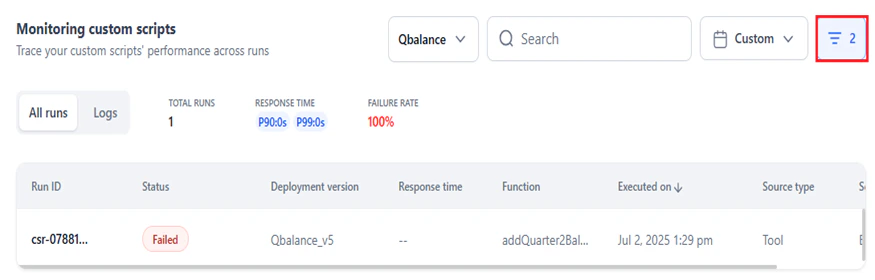
Multiple filters
Combine filters using AND or OR operators for multi-level filtering. AND and OR operators cannot be mixed in the same filter set. See Add multiple filters for details.Record view
Click any run in All Runs to open the record view. The record view shows:- Run ID
- Log-level details: Log ID, Log level, Log message, and Timestamp
- JSON editors showing the script’s input and the function’s output
- Navigation buttons (or use
Kfor previous,Jfor next)
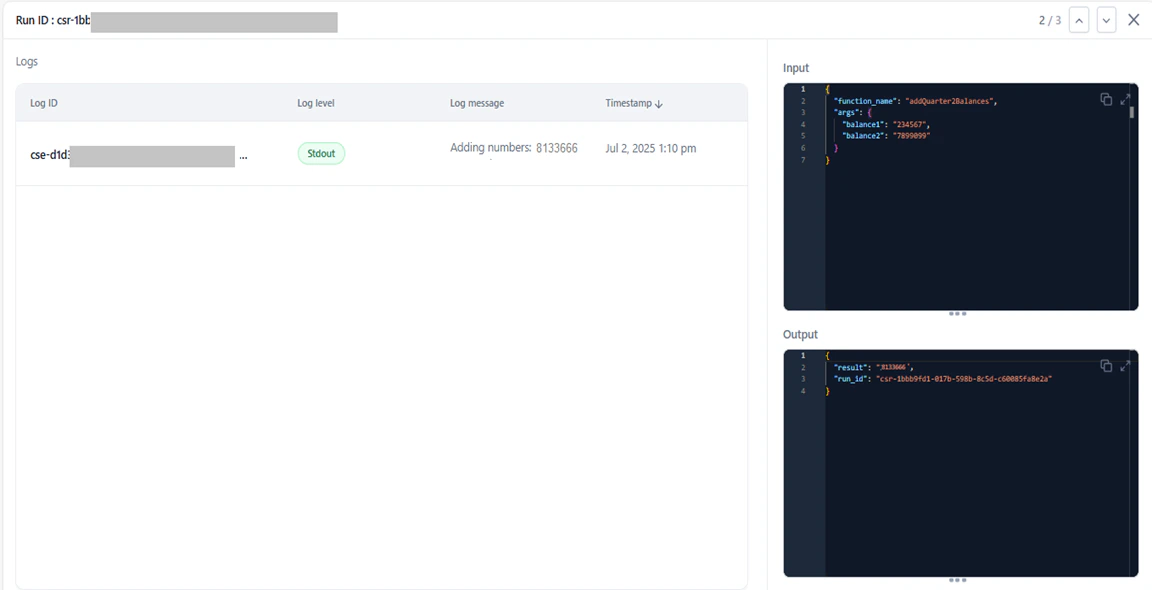
- Trace a specific run for debugging.
- Inspect input and output values.
- Identify failures, performance bottlenecks, unexpected inputs or outputs, and misconfigured logic.
Enhanced logging
AI for Process supports two logging options for custom scripts running on the gVisor service.- Standard logging (
print()in Python,console.log()in JavaScript): Logs appear in the Logs tab only after the script execution completes (success or failure). - korelogger: Logs stream in real-time as they are generated. Recommended for live monitoring and debugging due to its log-level control and immediate visibility.
Option 1: Standard logging
Standard logging uses default logging functions. Logs are captured asstdout during script execution.
Example (Python):
stdout:
Option 2: korelogger (recommended)
Thekorelogger library supports structured log levels and enables real-time log streaming. Logs are also captured in stdout in this format:
You can modify the log format as required.
stdout:
| Field | Description |
|---|---|
traceparent | Links related operations together. |
run_id | Identifies each script execution. |
deployment_id | Tracks which version of the script ran. |
source | Shows where the log came from. |
source_type | Categorizes the type of source. |
log.message and log.level in the attributes field.
You can modify the structure of the
attributes field as required.Export runs and logs
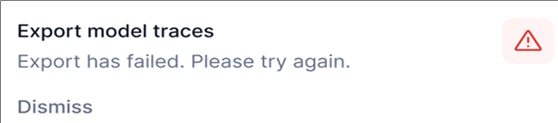
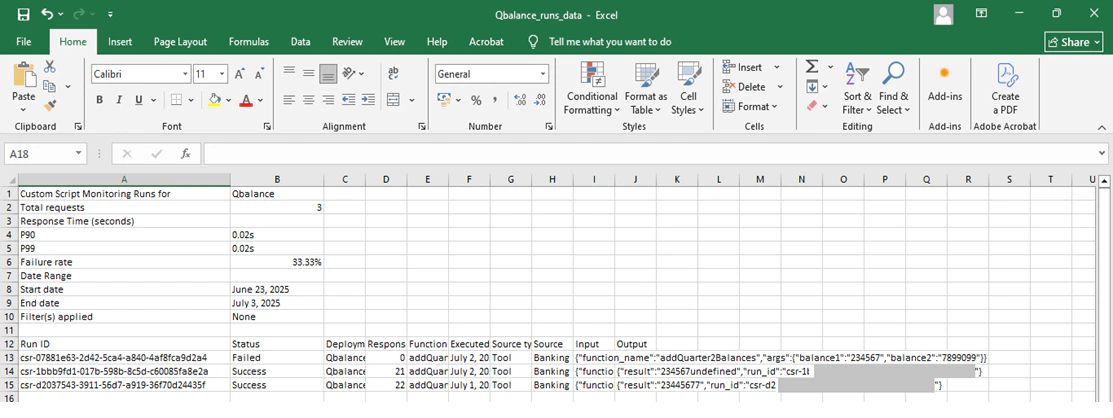
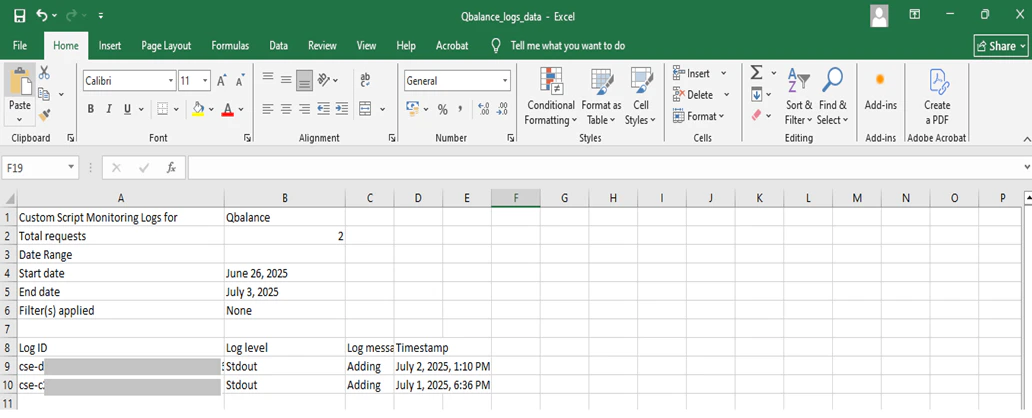
Export All Runs or Logs data as a.csv file. The export reflects the selected date range and applied column filters.
- Select the All Runs or Logs tab.
- Click the Ellipses button (top-right) and select Export.
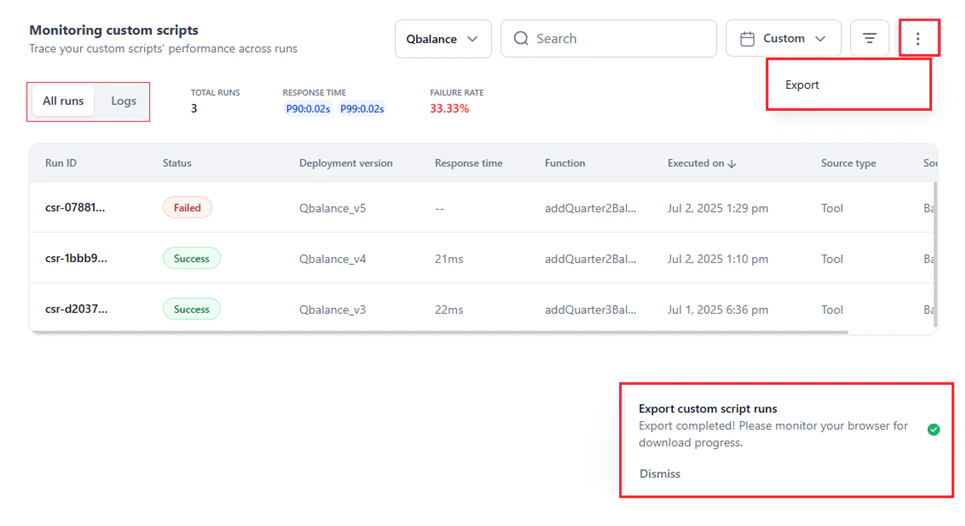
- Runs data:
<scriptname>_runs_data(example:Qbalance_runs_data) - Logs data:
<scriptname>_logs_data(example:Qbalance_logs_data)
Each user’s export runs independently. One user’s cancellation or adjustment does not affect another user’s export.