
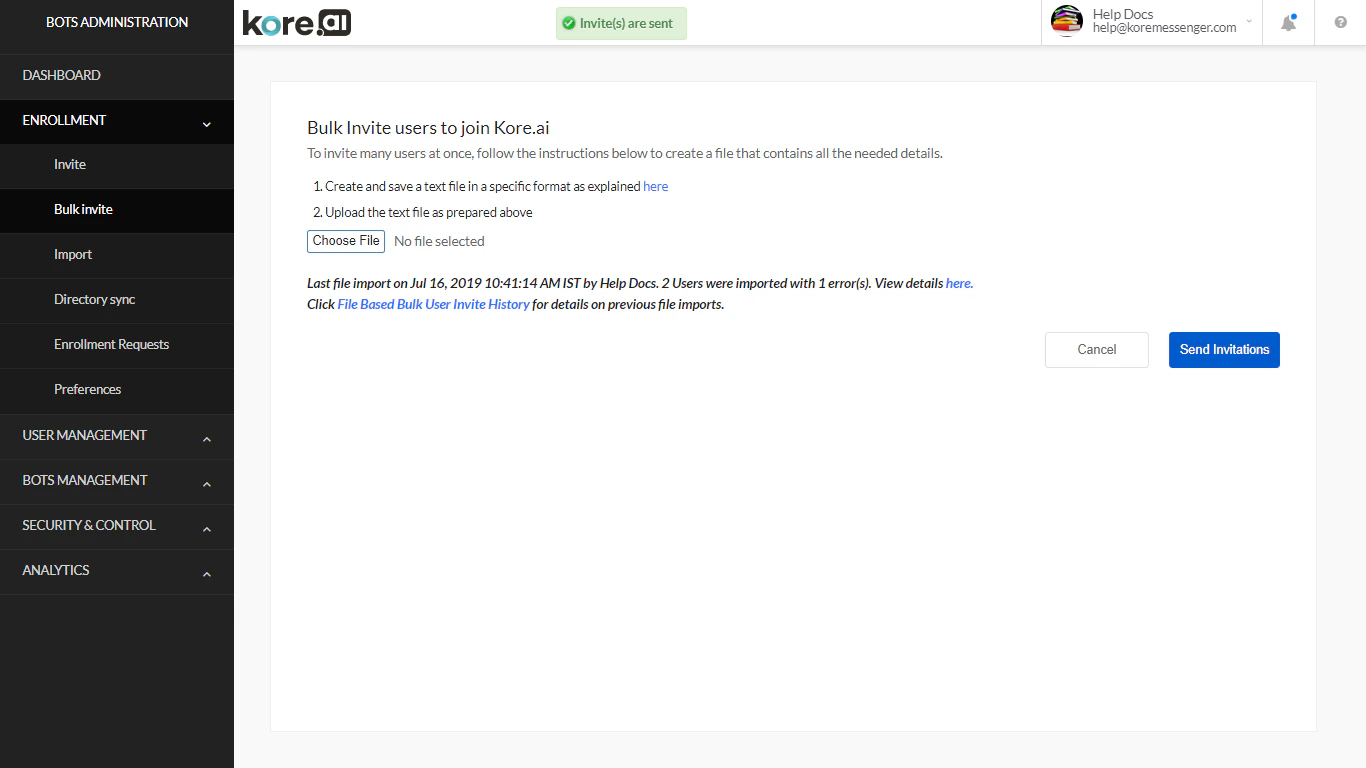
Back to Admin Console Use the Bulk Invite page to invite a large number of users at once by uploading a text file of email addresses.Documentation Index
Fetch the complete documentation index at: https://koreai.mintlify.app/llms.txt
Use this file to discover all available pages before exploring further.
Before You Start
- The import file must be a
.txtfile with one email address per line, or a comma-separated list. - Entries with invalid email formats are ignored.
- Invitation emails are sent to each successfully imported address.
- Existing account users are not sent invitations.
Step 1 — Create the Invite File
- Open a text editor.
-
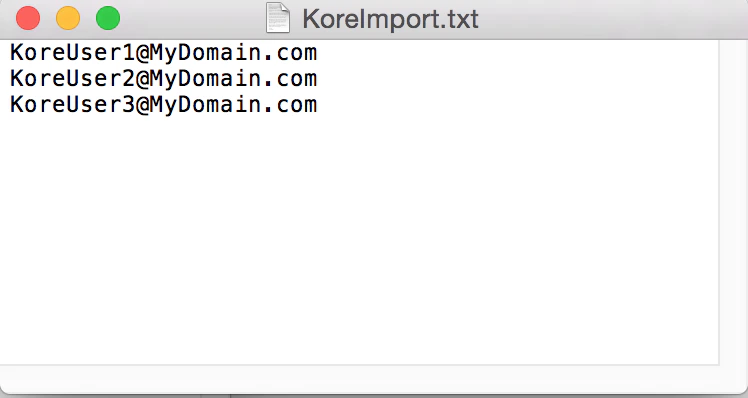
Enter one email address per line:
-
Save the file as a
.txtfile (for example,KoreInvite.txt).
Step 2 — Upload the File
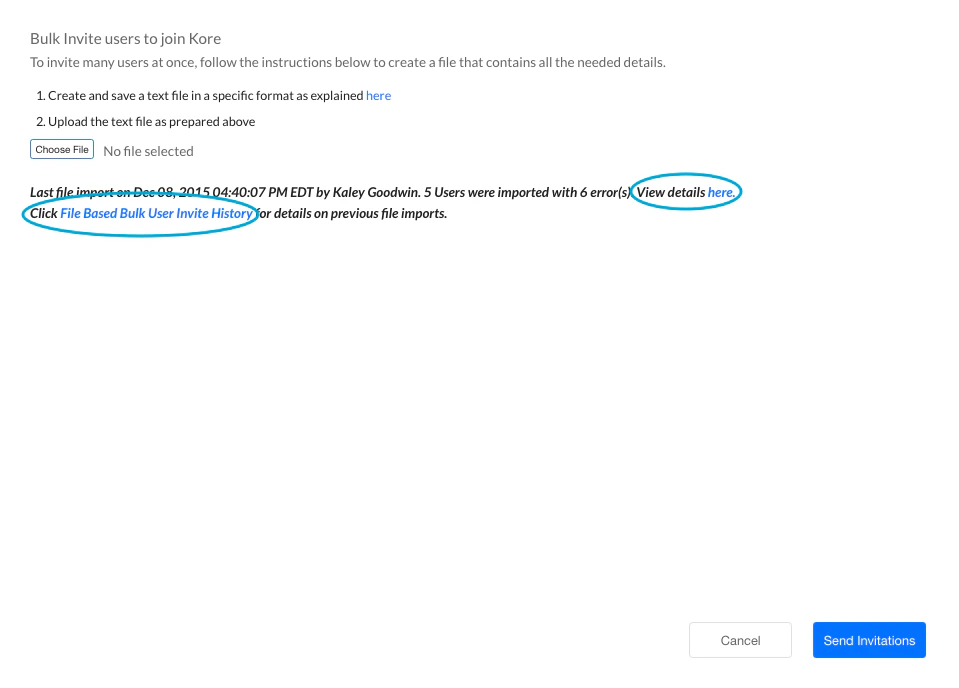
- In the Enrollment module, select Bulk Invite.
- Select Choose File and open your invite file.
- Select Send Invitations.
- Select View details here to review per-user import results.
- Select File Based Bulk User Invite History to view results from prior imports.
View Current Import Results
- On the Bulk Invite page, select View details here.
-
The Report on File Based Bulk User Invite dialog opens.
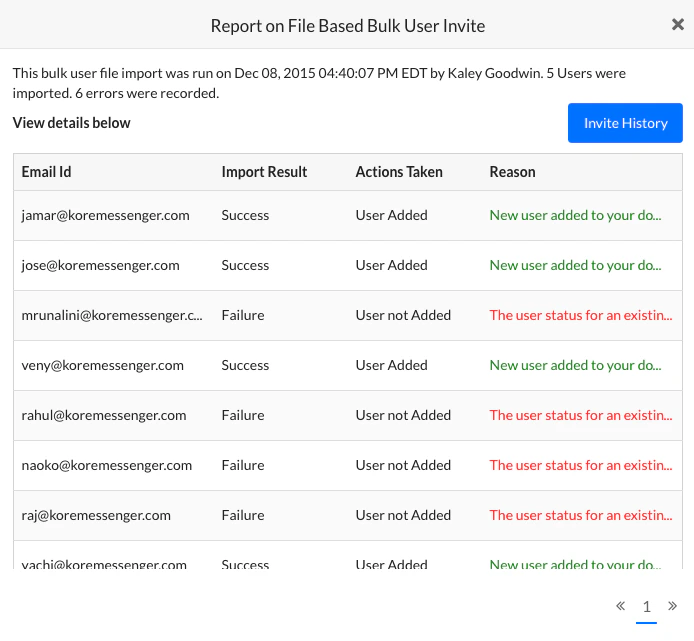
- Select Invite History to view results from a previous import date.
View Import History
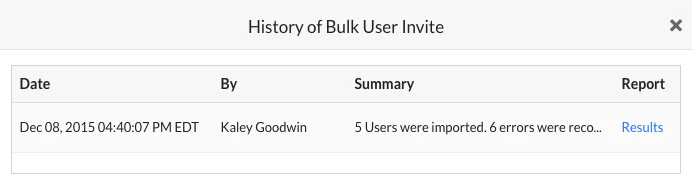
- On the Bulk Invite page, select File Based Bulk User Invite History.
-
The History of Bulk User Invite dialog opens.
-
In the Report column, select Results for the import you want to review.