Back to Admin Console Configure Kore.ai to synchronize with your organization’s LDAP Active Directory to enroll users automatically. You can sync user profiles, set up scheduled syncs, and define inclusion/exclusion rules. Kore.ai syncs user data (name, department, title, phone, location, status) from your AD. Your Active Directory is never modified during sync. Deactivated AD users are automatically deactivated in Kore.ai during the next scheduled sync.Documentation Index
Fetch the complete documentation index at: https://koreai.mintlify.app/llms.txt
Use this file to discover all available pages before exploring further.
Prerequisites
- Administrative access to read and execute actions on your LDAP server
- Familiarity with LDAP queries and LDAP server administration
- Microsoft Active Directory LDAP Server
Configuration
- In the Enrollment module, select Directory Sync.
- Select Cloud-Based Connector.
-
Under Configure, select Configure.
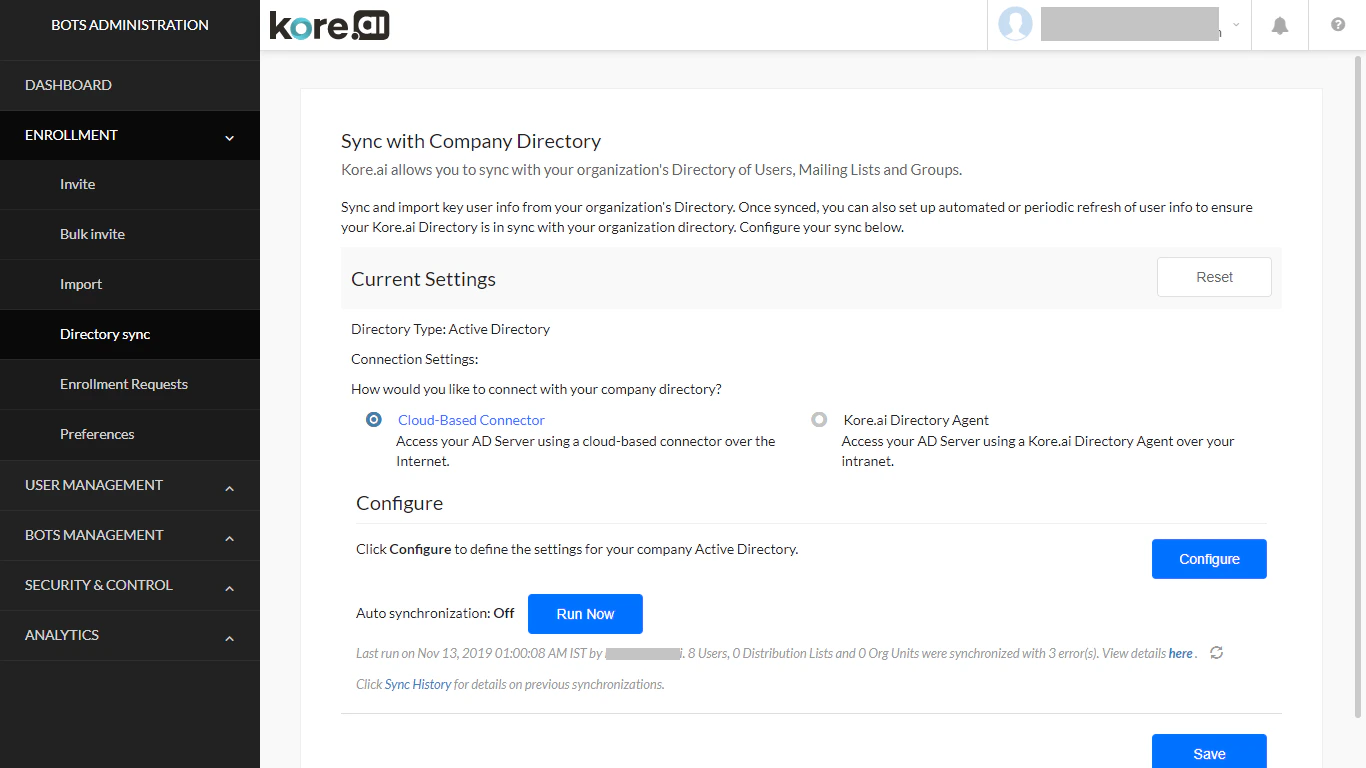
If your bot was built before platform v7.3, you may see an Upgrade option. Configuring without upgrading disables access to AD sub-groups, custom field mapping, and inclusion rules. The older version will be deprecated in upcoming releases.
Connection Tab
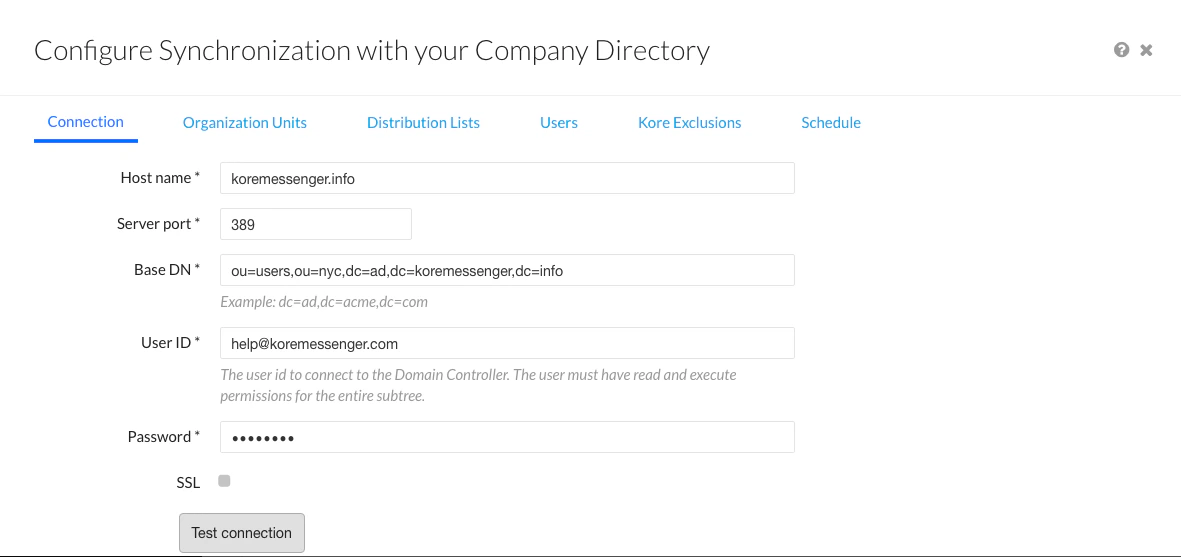
| Field | Description |
|---|---|
| Host Name | Domain host name or IP (for example, www.iana.org or 10.12.6.151) |
| Server Port | Port number for the domain host (for example, 10042) |
| Base DN | Server location for users and groups (for example, dc=kore,dc=com) |
| User ID | Username for authentication to the domain controller |
| Password | Password for authentication to the domain controller |
| SSL | Enable for HTTPS connections |
| Test Connection | Validate the host and authentication settings |
Organizational Units Tab (Optional)
Define which Org Units to import. Groups and sub-groups from selected OUs are synced, maintaining the AD hierarchy. Options:- Import all Organization Units
- Don’t import any units
- Import specific units
Distribution Lists Tab (Optional)
Select Import Distribution Lists from Active Directory if needed.Users Tab
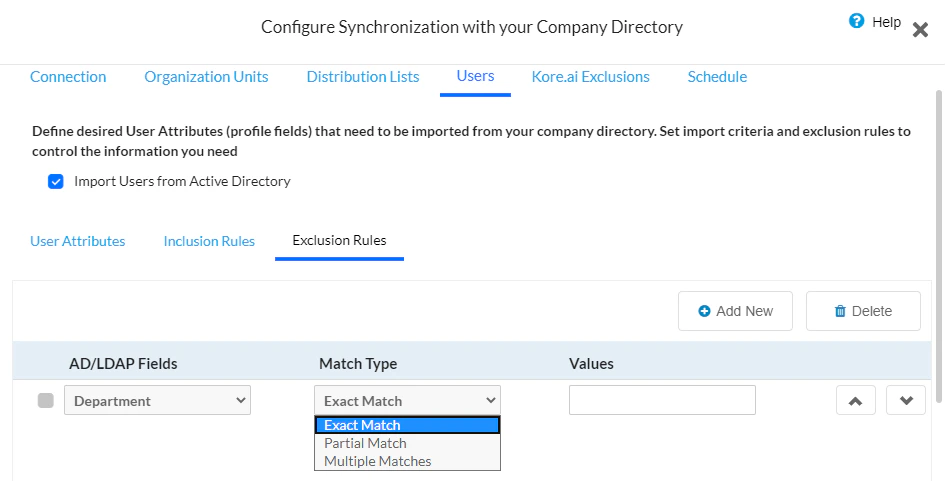
Configure the user attributes and rules to import. User Attributes sub-tab:- Use Default mapping (Kore.ai profile fields to LDAP attributes)
- Or create Custom mappings with attribute names and values
Kore.ai Exclusions Tab (Optional)
Prevent Active Directory from overwriting specific users, distribution lists, or organizational groups in Kore.ai.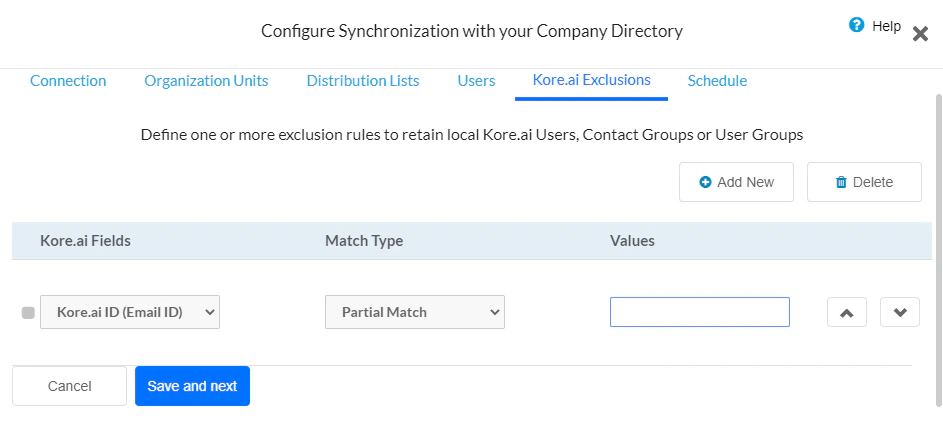
Schedule Tab
Configure the automatic synchronization schedule.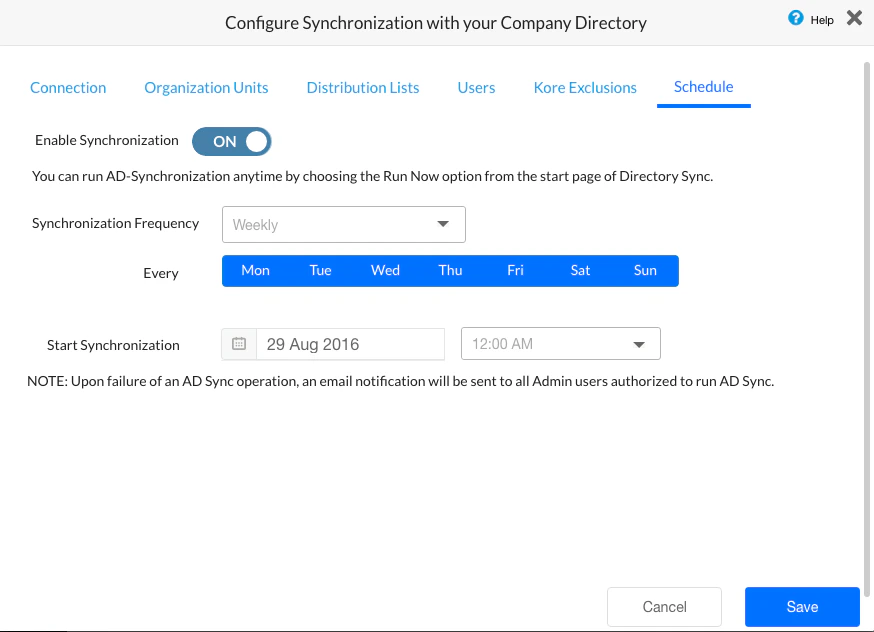
- Enable Enable Synchronization.
-
Set Synchronization Frequency:
Option Description Daily Set start date and time Weekly Set day of week and start date/time Monthly Set day of month and start date/time Other Set number of days or weeks and start date/time
Deleted Users
When a user is deleted or marked deleted in AD, the following applies in Kore.ai:- The user is deleted from the platform for that specific account.
- The user record is retained in the database for audit and cross-reference.
- Login attempts are blocked.
- If the user belongs to multiple accounts, they retain access to other accounts where they are still active.
- Users can’t be deleted if they are a Bot Owner or Account Owner — these appear in AD Sync logs with a reason.
Manual Sync
To trigger a sync immediately:- In Enrollment > Directory Sync, go to the Current Settings section.
-
Select Run Now.
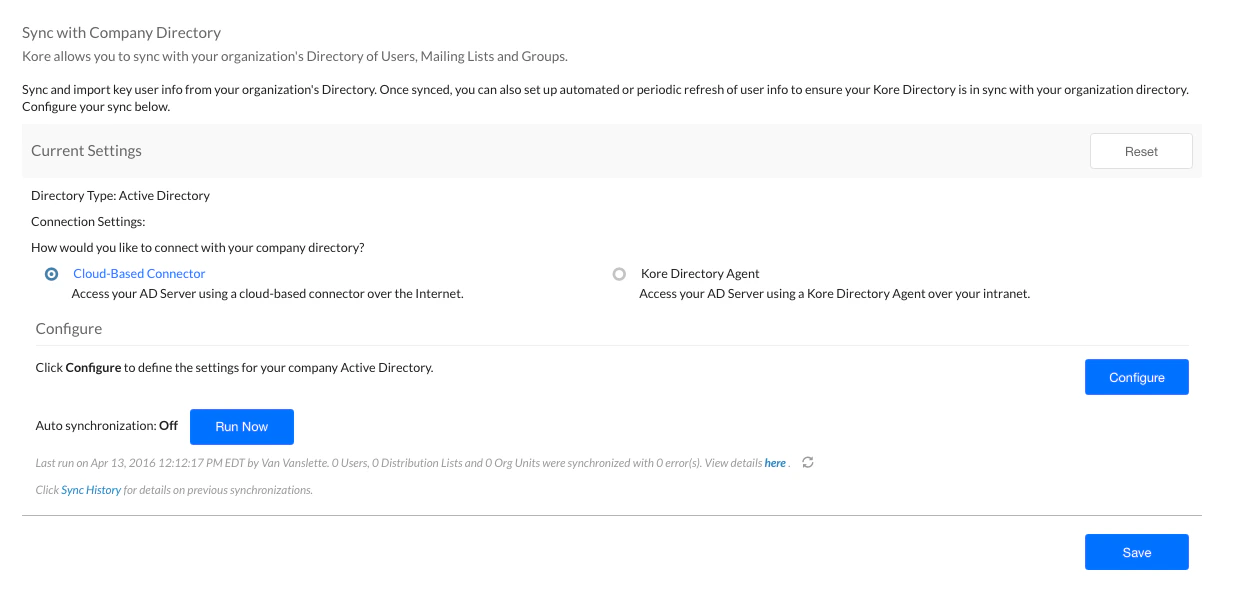
View Sync Report
To view the last sync results:-
In Enrollment > Directory Sync, select the here link in the Current Settings section.
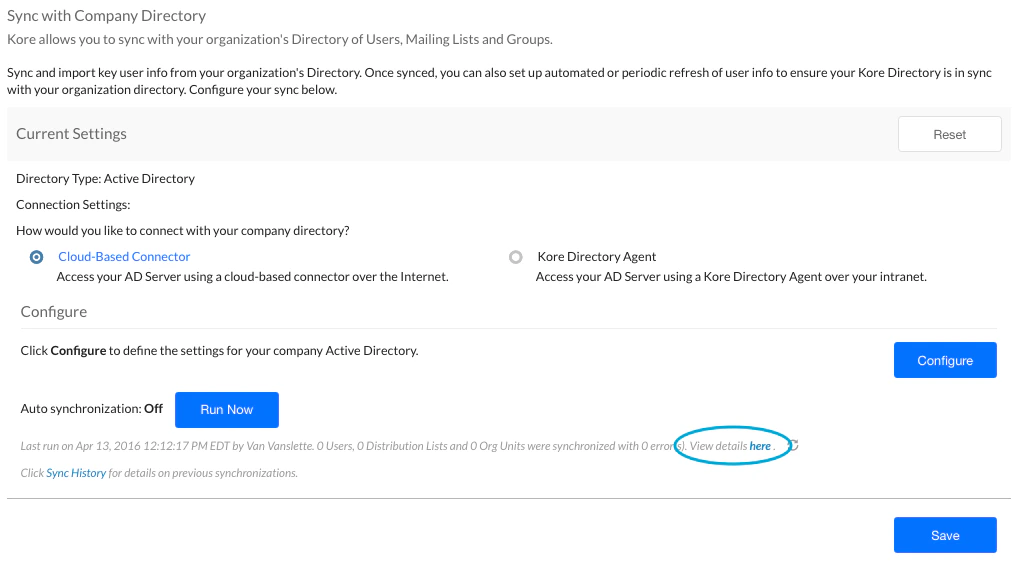
-
The Report on Active Directory Sync dialog opens.
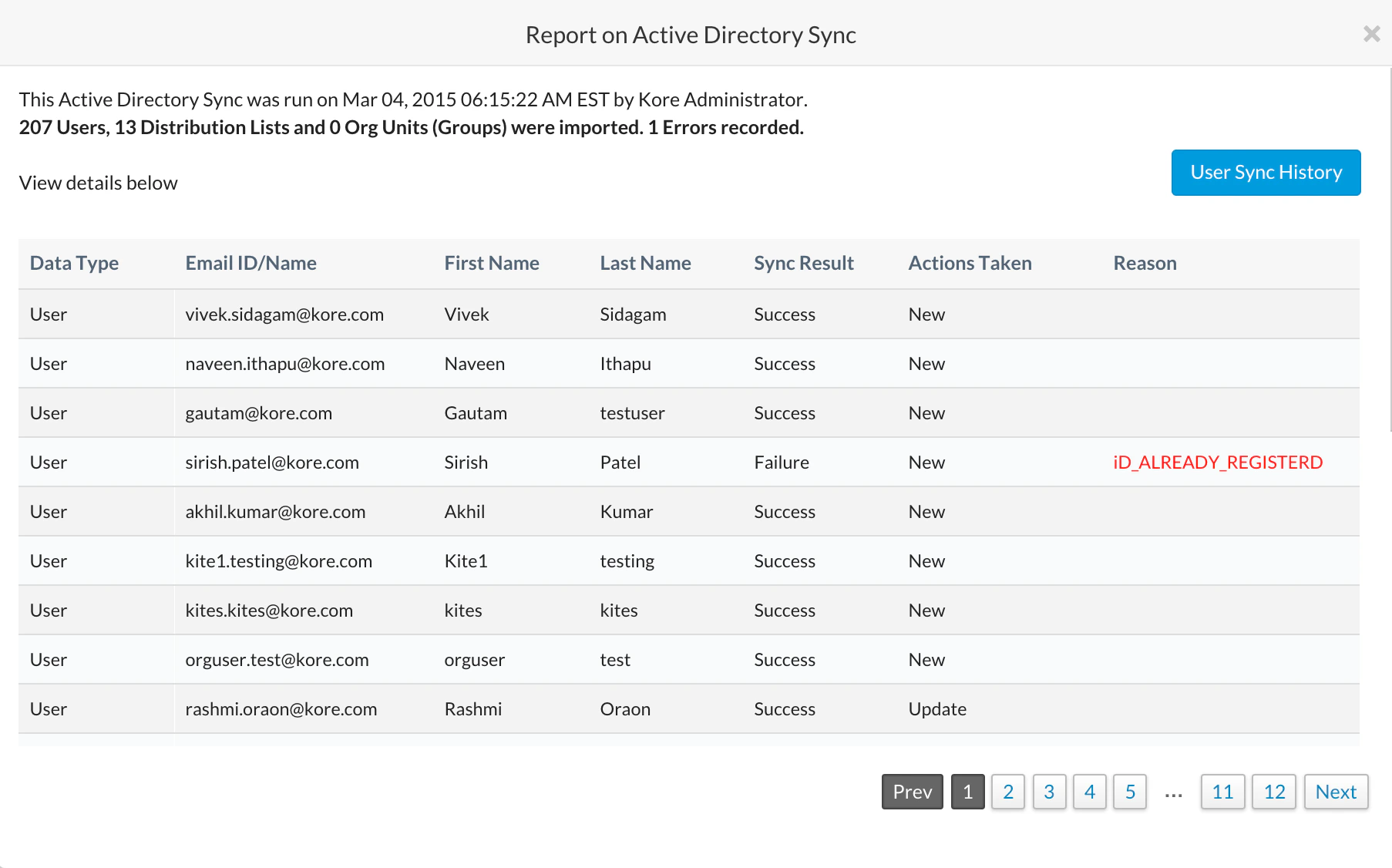
View Sync History
To view all historical sync operations:-
In Enrollment > Directory Sync, select Sync History in the Current Settings section.
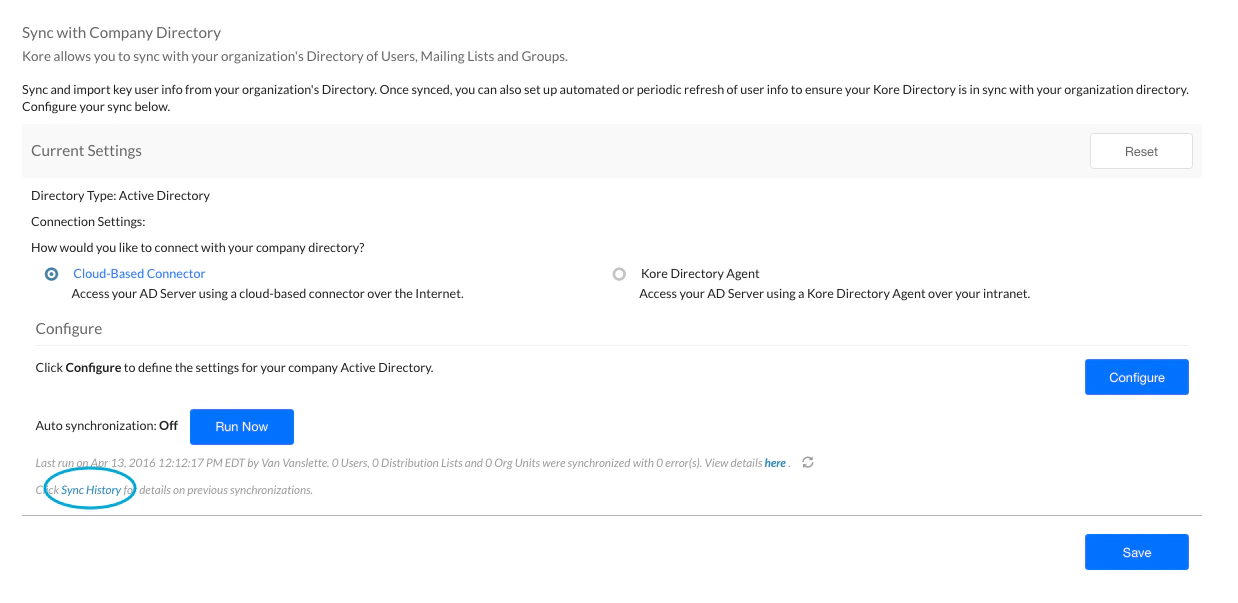
-
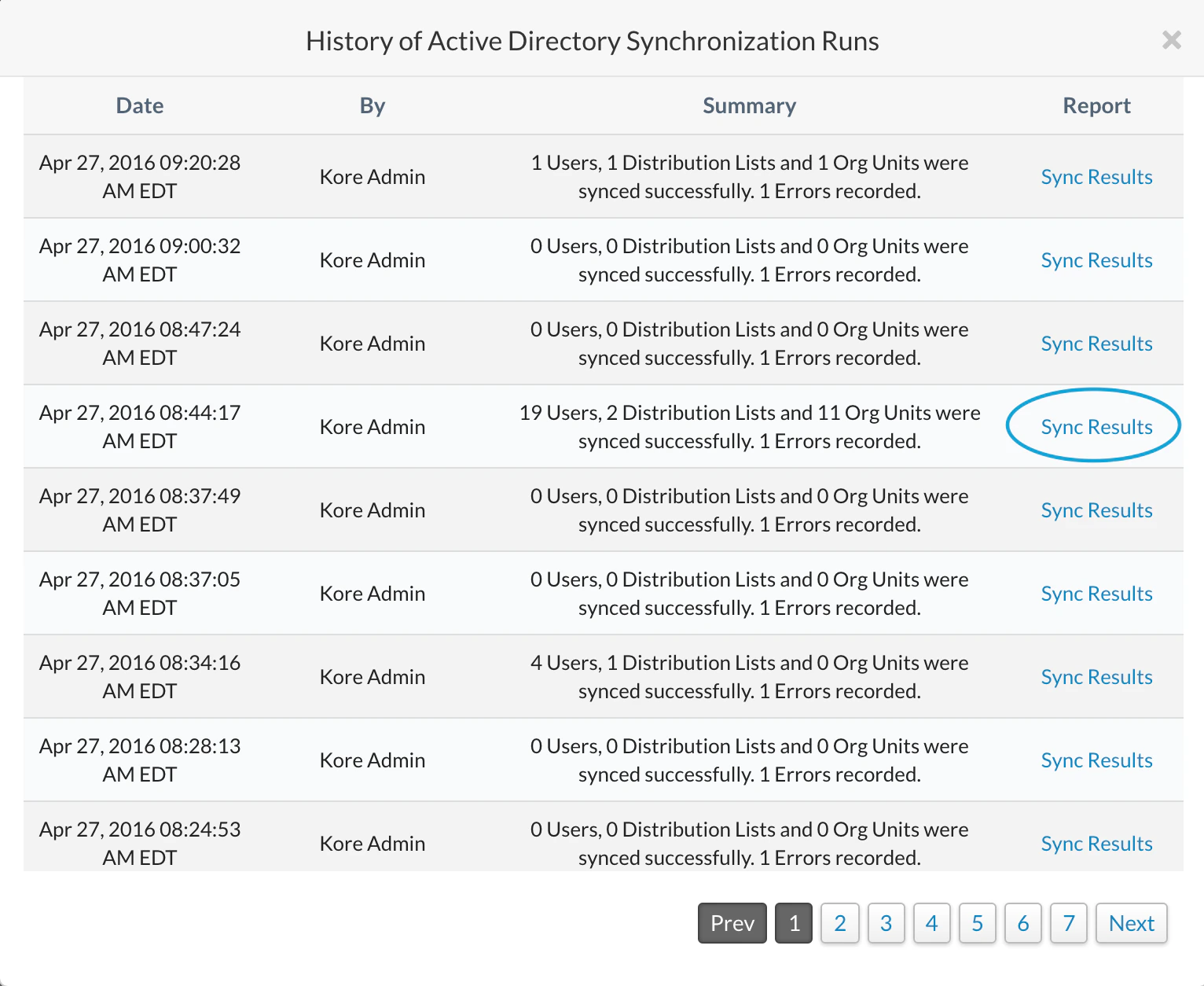
In the History of Active Directory Synchronization Runs dialog, select Sync Results in the Report column for the run you want to view.