

Configure Single Sign-On (SSO)
Use this section to configure Single Sign-On for your domain users. When you enable SSO, users authenticate through your identity provider instead of using AI for Service credentials. This streamlines access and improves security. If you don’t enable SSO, users authenticate through the AI for Service sign-in process, which requires them to set a AI for Service password. You can configure the password policy in the Security Settings module. Select Configure to set up your SSO method.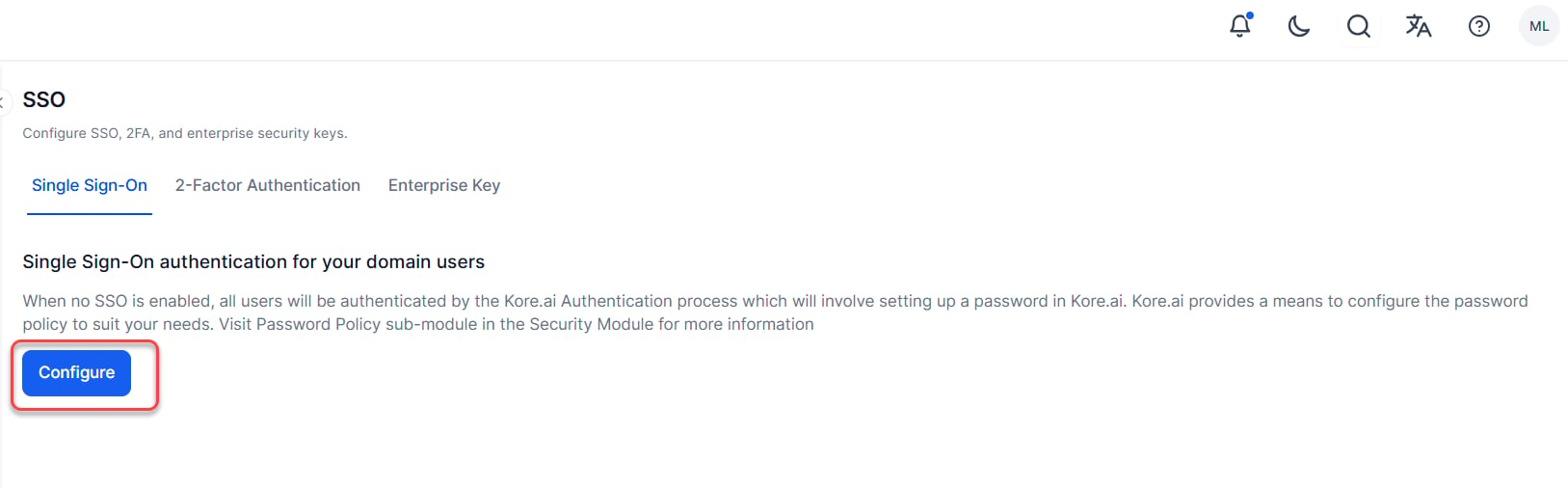
- OpenID Connect (OIDC)
- Security Assertion Markup Language (SAML)
- WS-Federation sign-on protocol
Enable or Disable SSO
Depending on the security required for your company, you can enable or disable Single Sign-On (SSO) for users accessing the application. When you disable SSO or when the SSO authentication validity period expires, users must create and log on using their credentials. If no account-specific password policies have been defined, then default password policies are automatically enabled for the users.OIDC
Complete the steps in the following procedure to configure SSO using OIDC in the Security & Control module of the Admin Console.- On the Single Sign On page, select Configure, then Enable SSO.
- In the Select suitable Sign-On Protocol section, select OpenID Connect.
- In the Configure SSO for OpenID Connect section, select an identity provider, for example, Sign in with Google.
- Select Create.
WS-Federation
Complete the steps in the following procedure to configure Single Sign-On (SSO) using the WS-Federation protocol in the Security & Control module of the Admin Console.- On the Single Sign On page, select Configure, then Enable SSO.
- In the Select suitable Sign-On Protocol section, select WS-Federation.
-
In the Configure SSO for WS-Federation section, select an identity provider, and then define the settings for:
-
Windows Azure®
- Azure AD Sign-On End Point URL: The URL that AI for Services ends sign-on and sign-off requests using Azure. The response for the authentication is sent to the Reply URL defined in your Azure Active Directory configuration settings.
- Azure AD Federation Metadata Document: The URL for the federation metadata document used for authentication with Azure Active Directory.
-
Other: Generic WS-Federation identity provider configuration, other than Azure
- AD Sign-On End Point URL: The URL that the platform sends sign on and sign off requests using your WS-Federation identity provider.
- Identity provider issuer: The entity that provides the user identities, including the ability to authenticate a user.
-
Windows Azure®
-
In the administrative console for your Single Sign-On provider, you will also need to define the URLs that are used to exchange data between the application and your SSO provider. While the URL names may vary by SSO provider, you will need to define these URLs:
-
SAML 2.0
- LDAP Attribute: nameId
- Claim Attribute: uri
-
SAML 1.1
- LDAP Attribute: nameId
- Claim Attribute: emailAddress
-
Assertion Consumer Service (ACS) URL or Callback URL as
https://idp.kore.com/authorize/callback.
-
SAML 2.0
- In addition to authentication values, you must pass the email address of the user as an LDAP attribute from Active Directory when using ADFS. For more information, see Attributes for ADFS.
- Select Create.
SAML
Security Assertion Markup Language (SAML) is a standard protocol for web browser Single Sign-On (SSO) using secure tokens. SAML eliminates all passwords and instead uses standard cryptography and digital signatures to pass a secure sign-in token from an identity provider to a SaaS application. SAML provides a solution to allow your identity provider and service providers to exist separately from each other. When a user logs into a SAML-enabled application, the service provider requests authorization from the appropriate identity provider. The identity provider authenticates the user’s credentials and then returns the authorization for the user to the service provider, and the user is now able to use the application.How SAML works
SAML SSO works by transferring the user’s identity from one place (the identity provider) to another (the service provider). This is done through an exchange of digitally signed XML documents. Consider the following scenario: A user is logged into a system that acts as an identity provider. The user wants to log in to a remote application, such as a support or accounting application (the service provider). The following happens:- The user accesses the remote application using a link on an intranet, a bookmark, or similar and the application loads.
- The application identifies the user’s origin (by application subdomain, user IP address, or similar) and redirects the user back to the identity provider, asking for authentication. This is the authentication request.
- The user either has an existing active browser session with the identity provider or establishes one by logging into the identity provider.
- The identity provider builds the authentication response in the form of an XML-document containing the user’s username or email address, signs it using an X.509 certificate, and posts this information to the service provider.
- The service provider, which already knows the identity provider and has a certificate fingerprint, retrieves the authentication response and validates it using the certificate fingerprint.
- The identity of the user is established, and the user is provided with app access.
Implementation
There are two ways SAML can be used within Platform:- For developer authentication to access the App Builder,
- For user authentication to access the App.
Use case 1: App builder authentication.
Enterprises can set up access to the App builder tool using the enterprise SSO. App developers and admins can log into app builder using SSO done by the enterprise identity provider. SSO flow from Platform: The following is the flow within the Platform once SSO is configured using SAML:- The client makes a call to the AI for Service app server (using the login URL) with user details to get identity provider info (SAML).
- The AI for Service app server initiates a handshake request with the AI for Service idproxy server.
- The AI for Service ID Proxy server initiates a request to the identity provider (SAML) with user details.
- On successful authentication, the identity provider (SAML) returns an assertion response to the AI for Service ID Proxy server.
- Upon verifying the response from the identity provider, AI for Service idproxy server initiates a request to the AI for Service app server.
- On successful authentication of the token from AI for Service idproxy server, AI for Service app server grants access to the user.
Use case 2: End-user authentication
In this scenario, the chat interface is embedded on the customer portal or Mobile app that requires user authentication via SSO.The App access is automatically limited to authenticated users. If the task requires API invocation that requires SSO-based authentication, the developer can follow the below steps
- On the client, developer needs to retrieve SSO token of the logged in user and pass it to the app using the secureCustomPayload parameter in the Bot SDK API.
- In the dialog task, the App developer can write custom logic to read this token and add it as API headers for secure API calls made using service node or webhook node.
Configuring SSO using SAML
Complete the following steps to configure Single Sign-On (SSO) using Security Assertion Markup Language (SAML) protocol in the Admin Console. AI for Servicealso supports WS-Federation and OpenID Connect (OIDC) protocols.OKTA Configuration
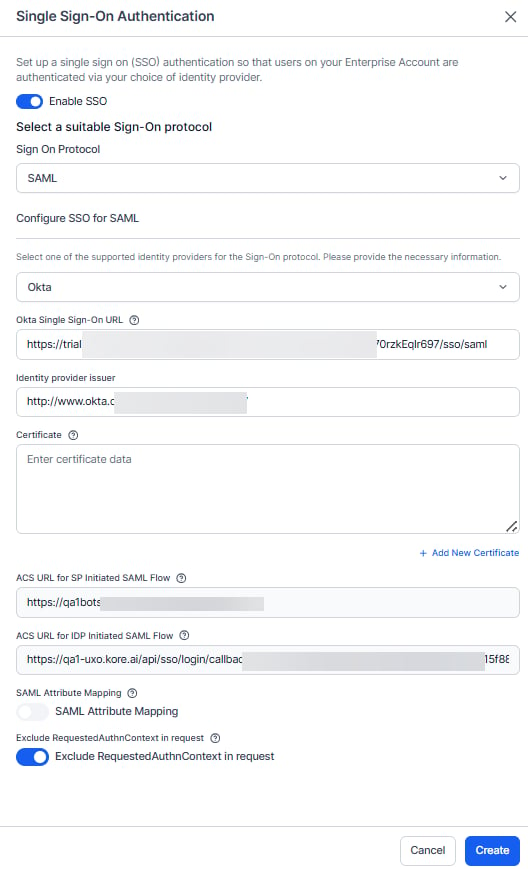
- On the Single Sign On page, select Configure, then Enable SSO.In the Security & Control module on the Single Sign On page in the Admin Console, click Enable SSO.
- In the Select a suitable Sign-On Protocol section, select SAML.
- In the Configure SSO for SAML section, select an identity provider, and then define the settings for one of:
- Okta Single Sign-On URL: The SSO URL for Okta this is to enable Service Provider-initiated SAML flow.
- Identity Provider Issuer: The entity that provides the user identities, including the ability to authenticate a user.
- Certificate: The public certificate stored by the service provider from the identity provider used to validate a user’s signature. You can add multiple (max of 2) certificates, delete already added invalid certificates, the platform will use the latest certificate for authorization, in case it’s invalid, then the older certificate is used.
- ACS URL for SP Initiated SAML Flow: This is the redirect URL for Service Provider-initiated SAML flow.
- ACS URL for IDP Initiated SAML Flow: This is the account-specific URL for Identity Provider-initiated SAML flow.
- Skip 2FA Authentication – This setting lets administrators determine whether users must complete two-factor authentication (2FA) during their first login. The 2FA step can be skipped at the Service Provider (SP) level, the Identity Provider (IdP) level, or at both levels, based on the configuration.
- Select the IdP (Identity Provider) checkbox to skip 2FA enforcement at the identity provider during first-time authentication.
- Select the SP checkbox to skip 2FA enforcement at the service provider during first-time authentication.
- SAML Attribute Mapping: Enable this option to map SAML Attributes with AI for ServiceGroup Names or Admin Roles Names. Once enabled, you can:
- Define how the SAML attributes should be mapped with AI for Serviceattributes:
- Full Sync: Every time the user signs in, the platform will update the user’s Group and Role assignments based on the SAML Attributes present in the response. All existing assignments will be removed. Only the new group or role assignments as available in the SAML response will be assigned
- Inclusion Only: Every time the user signs in, the platform will only assign the new group or roles available in the SAML response. All existing assignments will be retained. New assignments will be added as available in the SAML responses
- define one or more mapping pairs. Each pair includes
- SAML Attribute Name: Name of the SAML attribute as available in the SAML response
- SAML Attribute Value: Value associated with the SAML attribute
- Attribute Type: Refers to the type of mapping to be associated that’s Group Name or Role Name
- Group Name: Refers to any of the user groups defined in the AI for Serviceaccount
- Role Name: Refers to the following
- Admin Roles defined in the AI for Serviceaccount
- App Builder Access
- New App Creation
- Manage Data Tables and Views
- AI for ServiceAttribute: Refers to either Group Name or Role Name. The list should include the following:
- List of all Admin Roles
- App Builder Access
- New App Creation
- Manage Data Tables and Views
- Define how the SAML attributes should be mapped with AI for Serviceattributes:
- Restrict Auto - Onboarding - Enable this option to restrict automatic user onboarding during IdP-initiated login for users who don’t exist in the Kore platform.
- Exclude RequestedAuthnContext in request - Enable this option to remove RequestedAuthnContext from SAML authentication requests.
- Click Save.
Okta for AI for Service SSO
To configure Single Sign-On in Okta for AI for Service, you must first add the AI for Service app to your Okta account, and then copy URLs and the security certificate from Okta into your AI for Service account. This topic describes how to add the AI for Service app to your Okta account and then access the URLs and certificate needed for the AI for Service configuration for SSO using Okta. To complete this procedure, you must have already selected Okta as a SAML provider on the Single Sign On page in the Admin Console. To add the AI for Service app to Okta- Log on to Okta.
- On the Home page, select Admin. The Dashboard page is displayed.
- On the top navigation bar, select Applications. The Applications page is displayed.
- Select Add Application. The Add Application page is displayed.
- Select Create application
- In the General settings, provide an App name and select Next.
-
In Configure SAML, provide the Single Sign-On URL. To obtain this:
- Login to Admin Console
- Navigate to Security & Control > Single Sign on page
- Enable SAML and select Okta as the identity provider.
- Locate the ACS URL for SP Initiated SAML Flow field. This field contains the required Single Sign-On URL.
- For on-prem accounts, the ACS URL for SP Initiated SAML Flow is displayed as
https://idproxy-dev.kore.com/authorize/callback. This needs to be updated as “single sign on URL” in Okta platform andhttps://idproxy-dev.kore.comneeds to be updated as the “Audience URL” - You can provide the Attribute statements like emailId, firstName as per your requirement.
-
To configure the ACS URL for IDP-Initiated SAML Flow, copy and paste the complete URL that you get from your admin. In case you are using internal redirection URLs, please reach out to your internal admin/network teams. To get the ACS URL for IDP Initiated SAML Flow, check “Use this Recipient URL and Destination URL”. Enter the Audience URI field as ACS URL for SP Initiated SAML Flow
https://idp.kore.com/authorize/callback.This URL is a temporary URL. Once you add the AI for Service app in Okta, this URL changes as per your organisation’s domain requirements. You must copy the final ACS URL again and paste it in the field. For more information, read How to configure Okta SSO in AI for Service Platform community post. - Select Finish.
- On the Sign On tab, in the Settings section, select View Setup Instructions.
-
Copy the URLs in the:
- Identity Provider Single Sign-On URL field to the Okta Single Sign-On URL field in AI for Service.
- Identity Provider Issuer field to the AI for Service Identity Provider Issuer field
-
In the Okta X.509 Certificate field, copy the certificate data, and then paste the data into the AI for Service Certificate text box.
Only data after the BEGIN CERTIFICATE header and before the END CERTIFICATE footer should be copied and pasted into AI for Service.
- In AI for Service, select Create. This will complete the integration of the Okta login.
OneLogin Configuration
OneLogin – For more information, refer below, or in the OneLogin documentation, see Configuring SSO for AI for Service.- SAML 2.0 Endpoint: The HTTP SSO endpoint for OneLogin to enable Service Provider-initiated SAML flow, for example,
https://app.onelogin.com/trust/saml2/http-post/sso/358111. - Issuer URL: The URL for the OneLogin issuer, for example,
https://app.onelogin.com/saml/metadata/358111. - X.509 Certificate: The public certificate stored by the service provider from the identity provider used to validate a user signature. You can add multiple (max of 2) certificates, delete already added invalid certificates, the platform will use the latest certificate for authorisation, in case it’s invalid, then the older certificate will be used.
- ACS URL for SP Initiated SAML Flow: This is the redirect URL for Service Provider-initiated SAML flow.
- ACS URL for IDP Initiated SAML Flow: This is the account-specific URL for Identity Provider-initiated SAML flow.
- Skip 2FA Authentication: This setting lets administrators determine whether users must complete two-factor authentication (2FA) during their first login. The 2FA step can be skipped at the Service Provider (SP) level, the Identity Provider (IdP) level, or at both levels, based on the configuration.
- Select the IdP (Identity Provider) checkbox to skip 2FA enforcement at the identity provider during first-time authentication.
- Select the SP checkbox to skip 2FA enforcement at the service provider during first-time authentication.
- SAML Attribute Mapping: Enable this option to map SAML Attributes with AI for Service Group Names or Admin Roles Names. Once enabled, you can:
- Define how the SAML attributes should be mapped with AI for Service attributes:
- Full Sync: Every time the user signs in, the platform will update the user’s Group and Role assignments based on the SAML Attributes present in the response. All existing assignments will be removed. Only the new group or role assignments available in the SAML response will be assigned
- Inclusion Only: Every time the user signs in, the platform will only assign the new group or roles available in the SAML response. All existing assignments will be retained. New assignments will be added as available in the SAML responses
- define one or more mapping pairs. Each pair includes
- SAML Attribute Name: Name of the SAML attribute as available in the SAML response
- SAML Attribute Value: Value associated with the SAML attribute
- Attribute Type: Refers to the type of mapping to be associated, that’s Group Name or Role Name
- Group Name: Refers to any of the user groups defined in the AI for Service account
- Role Name: Refers to the following
- Admin Roles defined in the AI for Service account
- App Builder Access
- New App Creation
- Manage Data Tables and Views
- AI for Service Attribute: Refers to either Group Name or Role Name. The list should include the following:
- List of all Admin Roles
- App Builder Access
- New App Creation
- Manage Data Tables and Views
- Define how the SAML attributes should be mapped with AI for Service attributes:
- Restrict Auto - Onboarding - Enable this option to restrict automatic user onboarding during IdP-initiated login for users who don’t exist in the Kore platform.
- Exclude RequestedAuthnContext in request - Enable this option to remove RequestedAuthnContext from SAML authentication requests.
OneLogin for AI for Service SSO
To configure Single Sign-On in AI for Service using OneLogin, you must first add the AI for Service app to your OneLogin account and then copy URLs and the security certificate from OneLogin into your AI for Service account. This topic describes how to add the AI for Service app to your OneLogin account and then access the URLs and certificate needed for the AI for Service configuration for SSO using OneLogin. To complete this procedure, you must have already selected OneLogin as a SAML provider on the Single Sign On page in the Admin Console. To add the AI for Service app to OneLogin- Log on to OneLogin.
- On the APPS menu, click Add Apps. The Find Applications page is displayed.
- In the Search field, enter AI for Service, and then press Enter. The AI for Service app for OneLogin is displayed.
- Click the AI for Service app. The Add AI for Service page is displayed.
- Optionally, change the display name or the icons displayed to your users in the OneLogin portal, and then click SAVE. The AI for Service app is added to your Company apps for OneLogin, and the AI for Service app page is displayed.
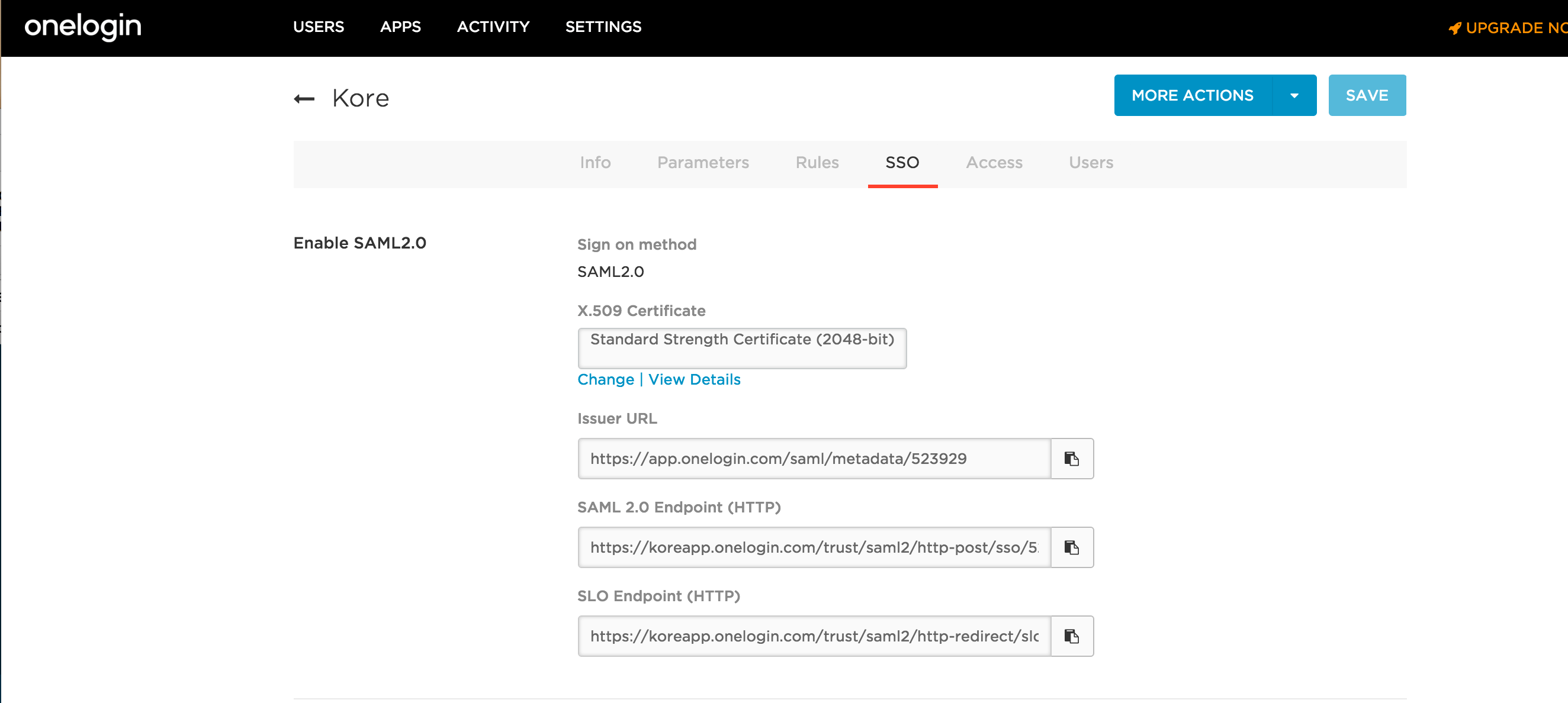
- On the SSO tab, in the Enable SAML2.0 section, copy the URLs in the:
- OneLogin SAML 2.0 Endpoint (HTTP) field to the AI for Service SAML 2.0 Endpoint field
- OneLogin Issuer URL field to the AI for Service Issuer URL field
- In the OneLogin X.509 Certificate field, click View Details. The Standard Strength Certificate (2048-bit) page is displayed.
-
In the X.509 Certificate section, copy the certificate data, and then paste the data into the AI for Service X.509 Certificate text box.
Copy and paste only the data after the
BEGIN CERTIFICATEheader and before theEND CERTIFICATEfooter in AI for Service. - In AI for Service, select Create.
Bitium Configuration
-
Single Sign-On URL: The HTTP SSO endpoint for Bitium to enable Service Provider-initiated SAML flow, for example,
https://www.bitium.com/7655. -
Issuer URL: The URL for the OneLogin issuer, for example,
https://bitium.com/7655/saml/82456/metadata.xml. - Certificate: The public certificate stored by the service provider from the identity provider used to validate a user signature. You can add multiple (max of 2) certificates, delete already added invalid certificates, platform will use the latest certificate for authorization, in case it’s invalid then the older certificate would be used.
- ACS URL for SP Initiated SAML Flow: This is the redirect URL for Service Provided initiated SAML flow.
- ACS URL for IDP Initiated SAML Flow: This is the account-specific URL for Identity Provided initiated SAML flow.
-
Skip 2FA Authentication: This setting lets administrators determine whether users must complete two-factor authentication (2FA) during their first login. The 2FA step can be skipped at the Service Provider (SP) level, the Identity Provider (IdP) level, or at both levels, based on the configuration.
- Select the IdP (Identity Provider) checkbox to skip 2FA enforcement at the identity provider during first-time authentication.
- Select the SP checkbox to skip 2FA enforcement at the service provider during first-time authentication.
-
SAML Attribute Mapping: Enable this option to map SAML Attributes with AI for Service Group Names or Admin Roles Names. Once enabled, you can:
- define how the SAML attributes should be mapped with AI for Service attributes:
- Full Sync: Every time the user signs in, the platform will update the user’s Group and Role assignments based on the SAML Attributes present in the response. All existing assignments will be removed. Only the new group or role assignments as available in the SAML response will be assigned
- Inclusion Only: Every time the user signs in, the platform will only assign the new group or roles available in the SAML response. All existing assignments will be retained. New assignments will be added as available in the SAML responses
- define one or more mapping pairs. Each pair includes
- SAML Attribute Name: Name of the SAML attribute as available in the SAML response
- SAML Attribute Value: Value associated with the SAML attribute
- Attribute Type: Refers to the type of mapping to be associated, that’s Group Name or Role Name
- Group Name: Refers to any of the user groups defined in the AI for Service account
- Role Name: Refers to the following
- Admin Roles defined in the AI for Service account
- App Builder Access
- New App Creation
- Manage Data Tables and Views
- AI for Service Attribute: Refers to either Group Name or Role Name. The list should include the following:
- List of all Admin Roles
- App Builder Access
- New App Creation
- Manage Data Tables and Views
- define how the SAML attributes should be mapped with AI for Service attributes:
- Restrict Auto - Onboarding - Enable this option to restrict automatic user onboarding during IdP-initiated login for users who don’t exist in the Kore platform.
- Exclude RequestedAuthnContext in request - Enable this option to remove RequestedAuthnContext from SAML authentication requests.
AI for Service SSO for Bitium
To configure Single Sign-On in Bitium for AI for Service, you must first add the AI for Service app to your Bitium account and then copy URLs and the security certificate from Bitium into your AI for Service account. This topic describes how to add the AI for Service app to your Bitium account and then access the URLs and certificate needed for the AI for Service configuration for SSO using Bitium. To complete this procedure, you must have already selected Bitium as a SAML provider on the Single Sign On page in the Admin Console. To add the AI for Service app to Bitium- Log on to Bitium.
- On the Manage Company Name menu, select Manage Apps, then select Add an App. The Add Apps dialog is displayed.
- In the Search field, enter AI for Service, and then press Enter. The Install AI for Service app for Bitium dialog is displayed.
- On the Manage Organization menu, select Manage Apps, and then select AI for Service.
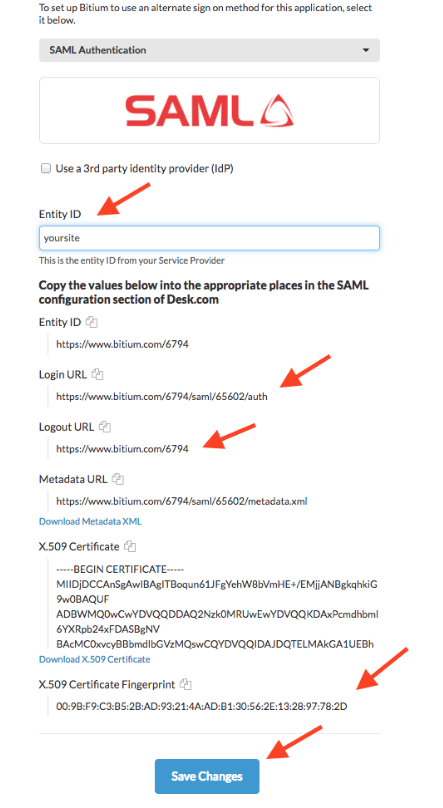
- On the Single Sign-On tab, in the Select a Single Sign-On Provider section, select SAML Authentication.
-
Copy the following URLs from Bitium into the Admin Console Bitium configuration section:
- Bitium Login URL field to the AI for Service Single Sign-On field
- Bitium Logout URL field to the AI for Service Issuer URL field
-
In the Bitium X.509 Certificate field, copy the certificate data, and then paste the data into the Admin Console Certificate text box.
Only data after the **BEGIN CERTIFICATE header and before the ENCERTIFICATE footer should be copied and pasted into AI for Service.
- In AI for Service, select Create. To test the configuration, log off the Admin Console and log on again. The Bitium portal should be displayed.
- Single Sign-On URL: The URL that AI for Service sends sign on and sign off requests using your WS-Federation identity provider. This is to enable Service Provider initiated SAML flow.
- Issuer URL: The URL for the WS-Federation metadata document used for authentication with Active Directory.
- Certificate: The public certificate stored by the service provider from the identity provider used to validate a user signature. You can add multiple (max of 2) certificates, delete already added invalid certificates, platform will use the latest certificate for authorization, in case it’s invalid then the older certificate would be used.
- ACS URL for SP Initiated SAML Flow: This is the redirect URL for Service Provided initiated SAML flow.
- ACS URL for IDP Initiated SAML Flow: This is the account-specific URL for Identity Provided initiated SAML flow.
-
Skip 2FA Authentication – This setting lets administrators determine whether users must complete two-factor authentication (2FA) during their first login. The 2FA step can be skipped at the Service Provider (SP) level, the Identity Provider (IdP) level, or at both levels, based on the configuration.
- Select the IdP (Identity Provider) checkbox to skip 2FA enforcement at the identity provider during first-time authentication.
- Select the SP checkbox to skip 2FA enforcement at the service provider during first-time authentication.
-
SAML Attribute Mapping: Enable this option to map SAML Attributes with AI for Service Group Names or Admin Roles Names. Once enabled, you can:
- define how the SAML attributes should be mapped with AI for Service attributes:
- Full Sync: Every time the user signs in, the platform will update the user’s Group and Role assignments based on the SAML Attributes present in the response. All existing assignments will be removed. Only the new group or role assignments as available in the SAML response will be assigned
- Inclusion Only: Every time the user signs in, the platform will only assign the new group or roles available in the SAML response. All existing assignments will be retained. New assignments will be added as available in the SAML responses
- define one or more mapping pairs. Each pair includes
- SAML Attribute Name: Name of the SAML attribute as available in the SAML response
- SAML Attribute Value: Value associated with the SAML attribute
- Attribute Type: Refers to the type of mapping to be associated that’s Group Name or Role Name
- Group Name: Refers to any of the user groups defined in the AI for Service account
- Role Name: Refers to the following
- Admin Roles defined in the AI for Service account
- App Builder Access
- New App Creation
- Manage Data Tables and Views
- AI for Service Attribute: Refers to either Group Name or Role Name. The list should include the following:
- List of all Admin Roles
- App Builder Access
- NewApp Creation
- Manage Data Tables and Views
- In the administrative console for your Single Sign-On provider, you will also need to define the URLs that are used to exchange data between AI for Service and your SSO provider. While the URL names may vary by SSO provider, you will need to define these URLs:
- Assertion Consumer Service (ACS) URL or Callback URL as
https://idp.kore.com/authorize/callback. - In addition to authentication values, you must pass the email address of the user as an LDAP attribute from Active Directory when using ADFS. For more information, see Attributes for ADFS.
- Identity URL or Sign On URL as
https://idp.kore.com
- Assertion Consumer Service (ACS) URL or Callback URL as
- define how the SAML attributes should be mapped with AI for Service attributes:
- Restrict Auto - Onboarding - Enable this option to restrict automatic user onboarding during IdP-initiated login for users who don’t exist in the Kore platform.
- Exclude RequestedAuthnContext in request - Enable this option to remove RequestedAuthnContext from SAML authentication requests.
- Select Create.
Attributes for ADFS
When you configure Single Sign-On using LDAP for ADFS, in addition to authentication attributes, your third-party SSO provider can send additional attributes to AI for Service through the Assertion Consumer Service (ACS) URL or Callback URL. If you are using a built-in AI for Service app for SSO, such as Windows Azure for WS-Federation protocol, or OneLogin for SAML protocol, required attributes are already configured for AI for Service when you add the AI for Service app to your SSO provider admin console. The following data is an example of attribute data passed to AI for Service in the callback URL.EmailAddress, which is required. The Email Address attribute uses the following nameId format:
Mapping Attributes in ADFS
ADFS is a service provided by Microsoft as a standard role for Windows Server that provides a web login using existing Active Directory credentials. When using SAML or WS-Federation protocols to log on with ADFS, you can pass other values in addition to the authentication values. The attribute values are defined as Claim Rules in the Relying Party Trust dialog in the SQL Server admin console. To edit the Claim Rules, select the Relying Party Trusts folder in ADFS Management, and then select Edit Claim Rules from the Actions sidebar. To add a new rule, select Add Rule, and then select the Send LDAP Attributes template. Enter the following mapping values:- SAML 2.0
- LDAP Attribute: nameId
- Claim Attribute: uri
- SAML 1.1
- LDAP Attribute: nameId
- Claim Attribute: emailAddress