

Rules
A rule combines a trigger (the condition) and an action (what happens when the condition matches). Each rule is independent, and you can turn it on or off, edit, delete, or tag it. Rule types:Pre-built Rules
None Intent
Prevents false positives during intent identification and trains the system to distinguish valid intents from ambiguous or incorrect ones. This rule is on by default. You can’t turn it off or delete it, but you can add utterances to improve accuracy. To add None Intent utterances:- Go to Agent AI > Agent Experience > Agent Coaching.
-
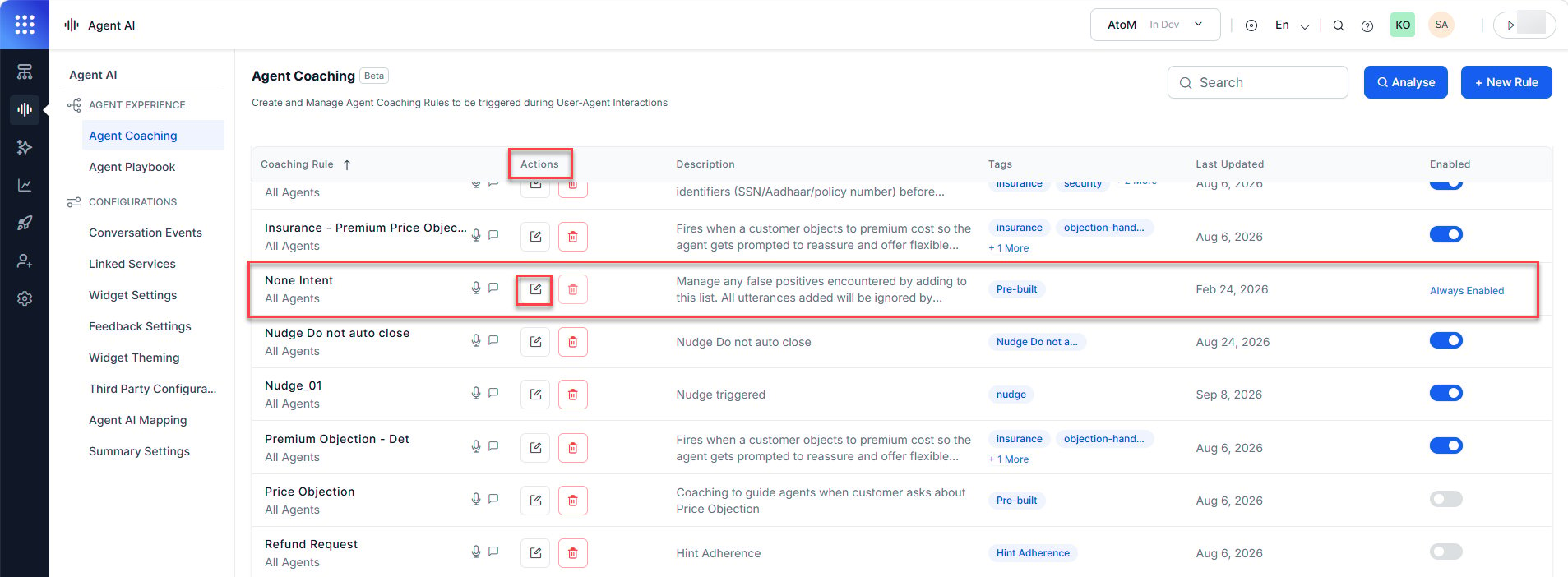
Select Edit on the None Intent pre-built rule.
- Select Add Utterance(s).
- Choose an input method:
To use AI Assist, turn on OpenAI in Generative AI Tools and turn on Generating Opposite… under the Co-Pilots section.
- Select AI Assist.
-
Select rules from the Add Rules list and select Add.
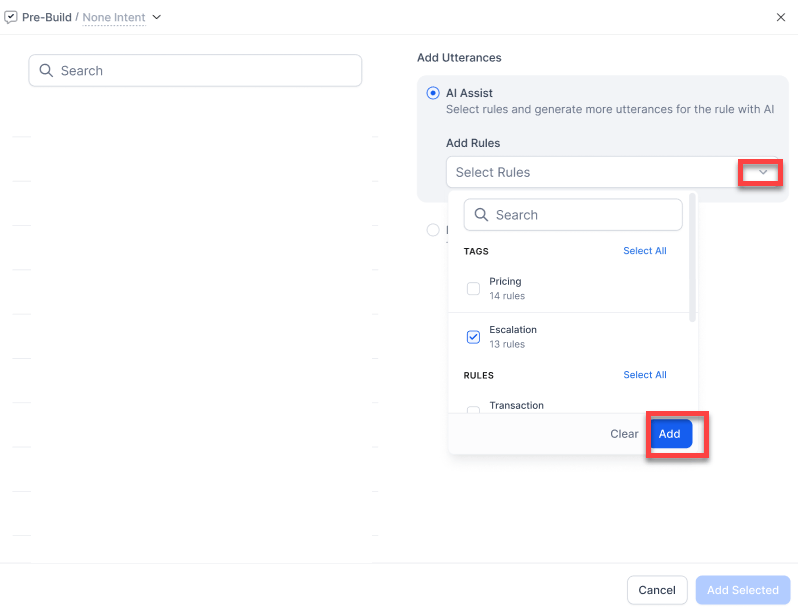
- The AI generates similar utterances. Select the ones you want.
- Select Add Selected, then Save.
- Select Input Utterances Manually.
-
Enter an utterance in the Utterances field and press Enter.
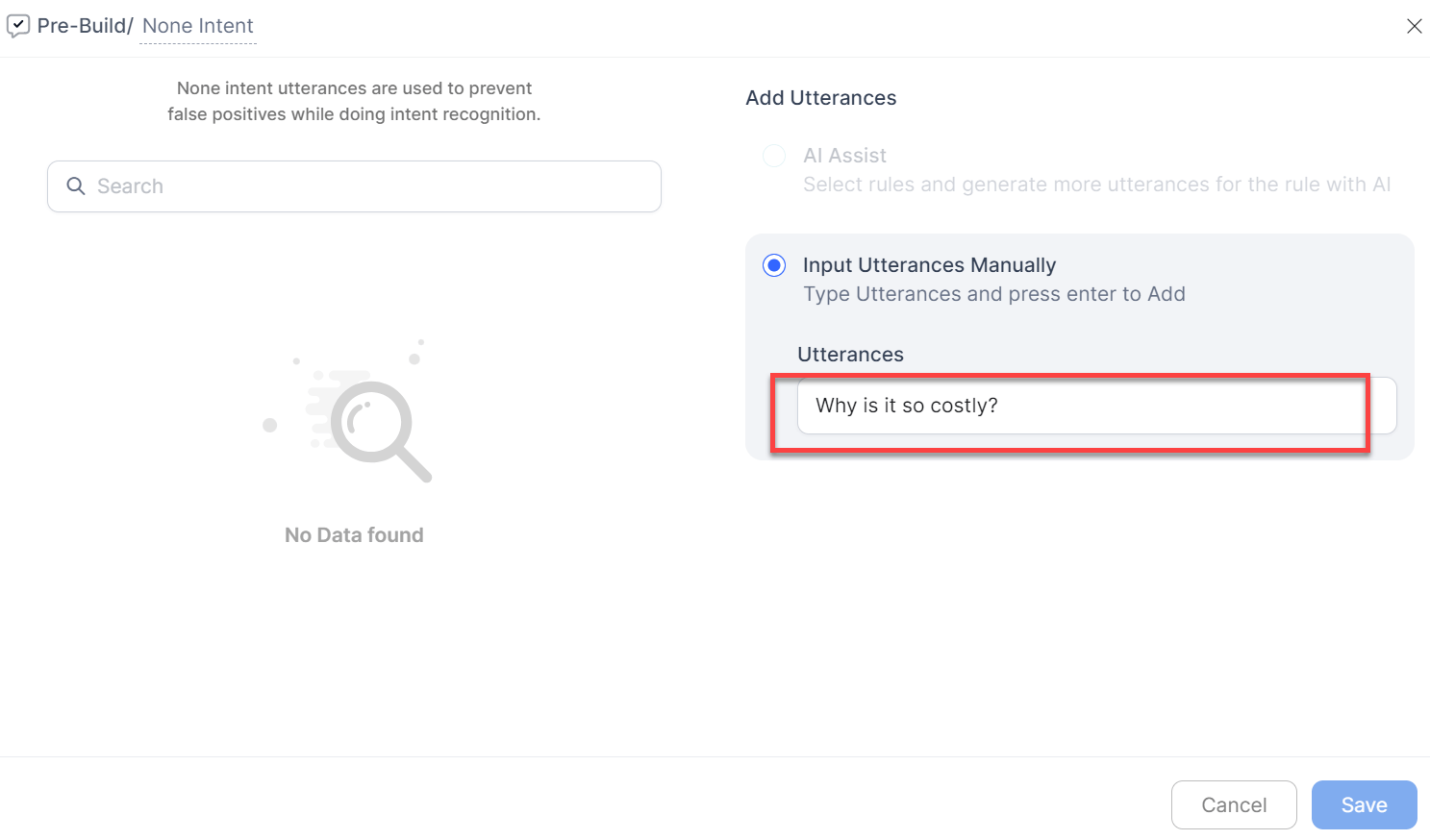
- Repeat for additional utterances, then select Save.
Price Objection
A pre-built rule for handling customer price objections. You can customize the conditions and actions and turn it off, but can’t rename or delete it.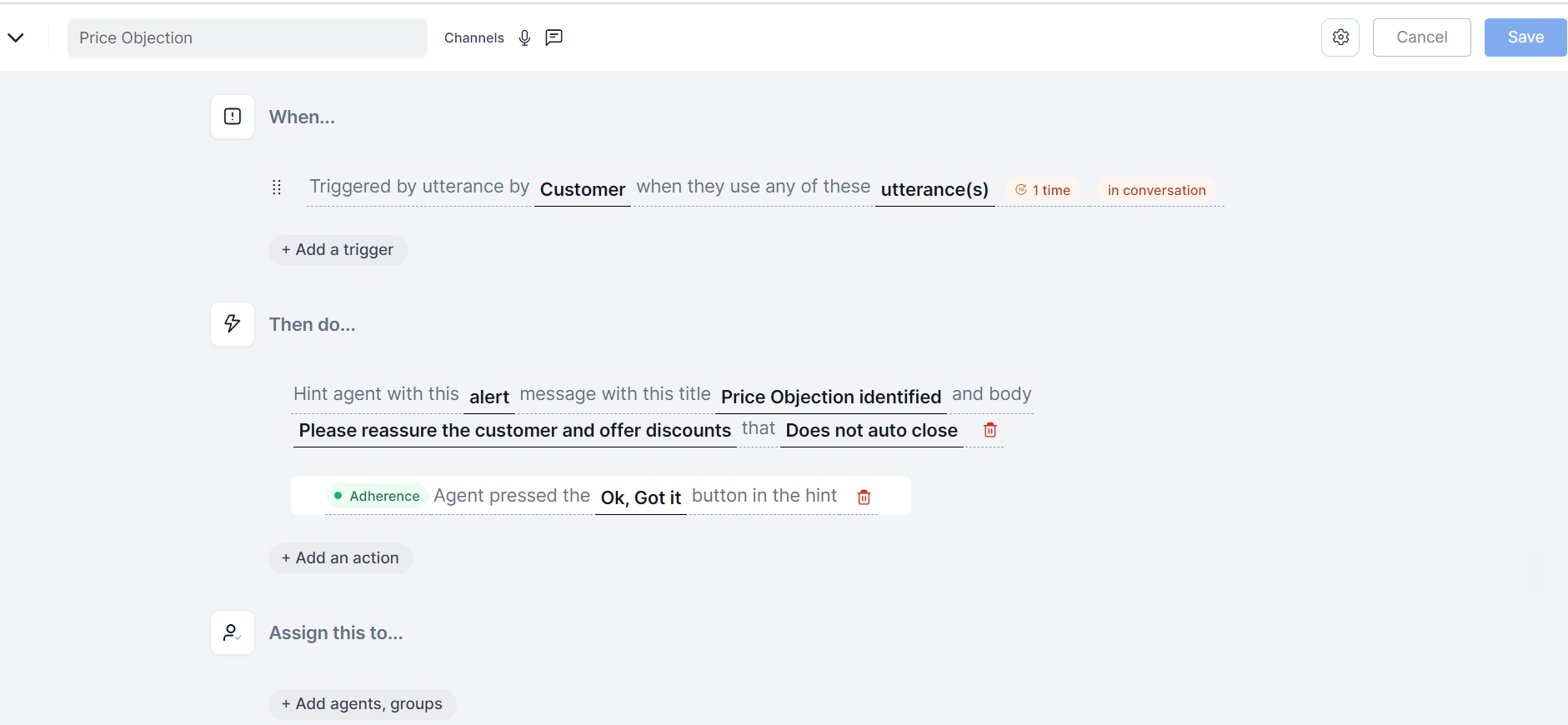
Managing Rules
Create a Rule
- Go to Agent AI > Agent Experience > Agent Coaching.
- Select + New Rule.
-
Fill in the rule details:
- Select Apply.
- Select + Add a trigger to define when the rule triggers. See Triggers.
- Select + Add an action to define what happens. See Actions.
- Select + Add agents, groups to assign the rule. See Assign Rules.
- Select Save.
Edit a Rule
- Go to Agent AI > Agent Experience > Agent Coaching.
- Search for the rule by its name or browse the list.
- Select Edit on the rule.
Rules lock during editing — only one user can edit a rule at a time. If you leave a rule idle for 15 minutes or leave the screen, the lock releases automatically.
Delete a Rule
- Go to Agent AI > Agent Experience > Agent Coaching.
- Select Delete on the rule you want to delete.
- Confirm by selecting Yes.
Turn on or off a Rule
Go to Agent AI > Agent Experience > Agent Coaching and select the Enabled toggle on any rule to turn it on or off. A confirmation message appears.Optimize utterance matching for coaching rules
The Analyze feature compares the utterances in your coaching rules and pairs similar utterances across different rules. When two rules share highly similar utterances, the system can trigger both at once, creating ambiguity when it selects the next best action (NBA). Keep your utterance training data unique across rules so each coaching rule triggers as intended.A similarity score near 1.00 means the two rules share duplicate training utterances. No threshold change can separate them — edit the training data instead.
Analyze utterance matches
- Go to Agent AI > Agent Coaching.
- Select Analyse.
- Choose Overall Analysis or Custom Utterance.
Overall analysis
Overall analysis compares training utterances across all your coaching rules and flags rules with similar or overlapping matches. When you select Overall Analysis, the Overall coaching analysis page opens. The page lists ambiguous utterance pairs and sorts them by similarity score, highest first.Custom utterance
Custom utterance analysis lets you test up to 10 utterances against your coaching rules before you add them to a rule. Test custom utterances- Select Custom Utterance.
- Enter an utterance in the Utterances box.
- Select + Add Utterance to add another utterance.
- Select the X icon next to an utterance to remove it.
- Select Analyse.
Analysis results reference
Match fields — Thresholds and Ambiguous pairs tabs
Summary fields — Threshold summary tab
The Custom utterance analysis dialog doesn’t support entering an expected rule ID. As a result, Top one correct and Expected in Set always show a dash for custom utterance tests.
Optimize utterance matching for coaching rules
The Analyze feature compares the utterances in your coaching rules and pairs similar utterances across different rules. When two rules share highly similar utterances, the system can trigger both at once, creating ambiguity when it selects the next best action (NBA). Keep your utterance training data unique across rules so each coaching rule triggers as intended. A similarity score near 1.00 means the two rules share duplicate training utterances. No threshold change can separate them — edit the training data instead.
Analyze utterance matches
- Go to Agent AI > Agent Coaching.
- Select Analyse.
- Choose Overall Analysis or Custom Utterance.
Overall analysis
Overall analysis compares training utterances across all your coaching rules and flags rules with similar or overlapping matches. When you select Overall Analysis, the Overall coaching analysis page opens. The page lists ambiguous utterance pairs and sorts them by similarity score, highest first.Custom utterance
Custom utterance analysis lets you test up to 10 utterances against your coaching rules before you add them to a rule. Test custom utterances- Select Custom Utterance.
- Enter an utterance in the Utterances box.
- Select + Add Utterance to add another utterance.
- Select the X icon next to an utterance to remove it.
- Select Analyse.
Analysis results reference
Match fields — Thresholds and Ambiguous pairs tabs
Summary fields — Threshold summary tab
The Custom utterance analysis dialog doesn’t currently support entering an expected rule ID. As a result, Top one correct and Expected in Set always show a dash for custom utterance tests.
Triggers
Triggers define when a rule activates. Every rule requires at least one trigger. Three trigger types are available.Utterance Triggers
Triggers when a customer or agent says something matching the configured utterances. To set up an Utterance Trigger:-
In the rule, select + Add a trigger > Utterance.
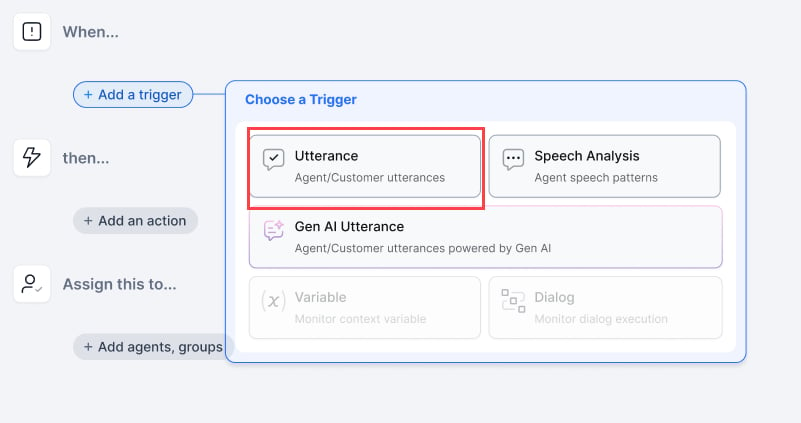
- Select {select person} and choose Agent or Customer.
- Select {set utterances} and enter an utterance. The AI suggests similar utterances with frequency percentages.
-
Select the utterances to include, then select Add.
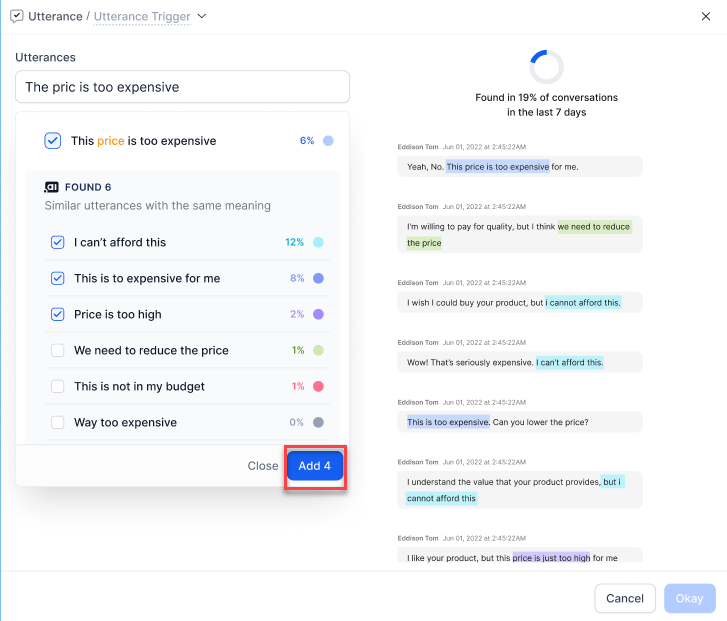
- Select Okay, then Save.
- Set the frequency (how many times the utterance must occur).
-
Set the time frame:
- Press Enter to save.
Speech Analysis Triggers
Triggers based on speech patterns such as cross talk, dead air, speaking speed, or talk ratio. To set up a Speech Analysis Trigger:- Select + Add a trigger > Speech Analysis.
- Select {speech type} and choose a type.
Cross Talk configuration:
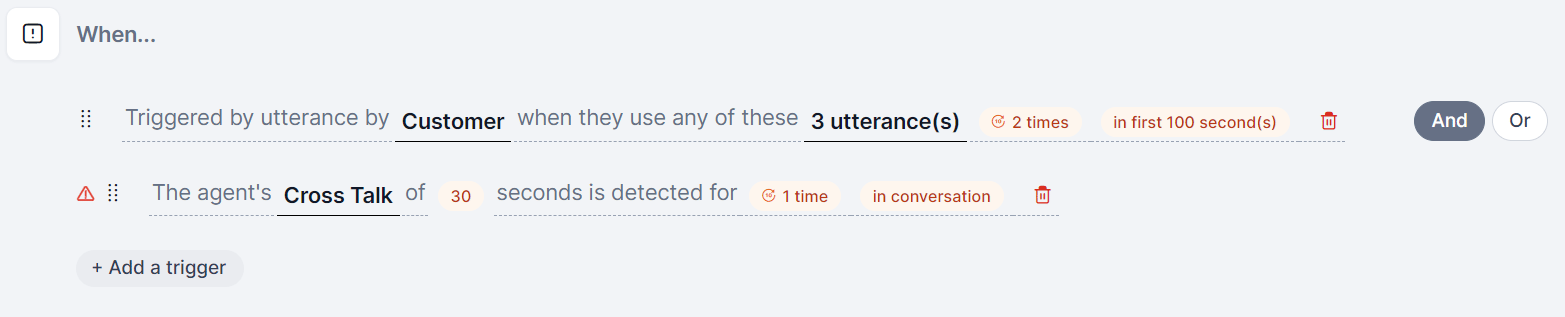



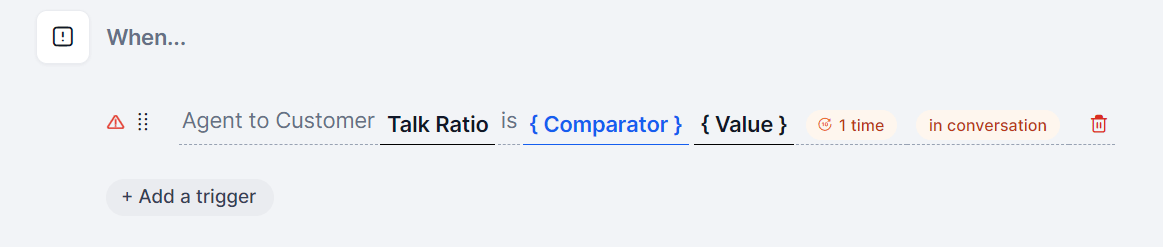
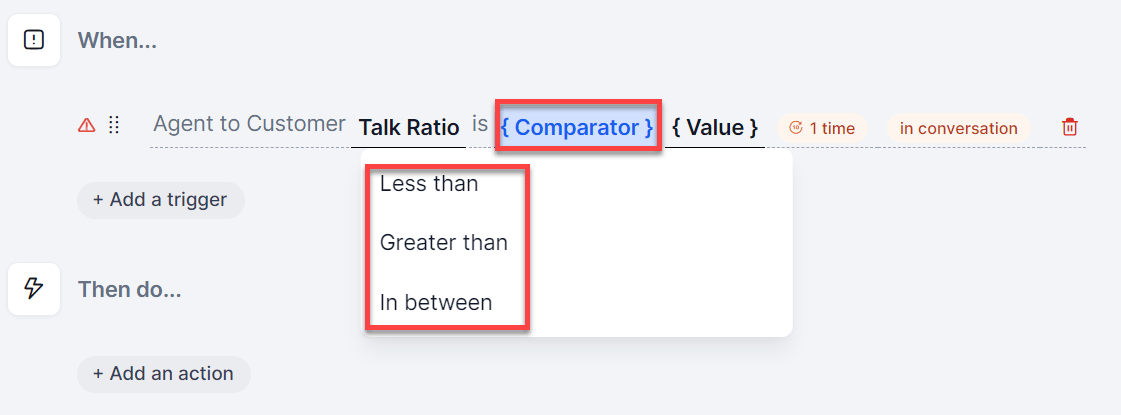
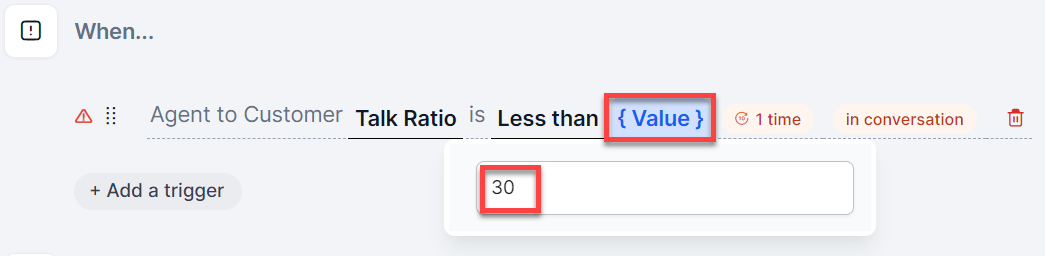
A validation error appears if the configured duration is shorter than the selected conversation time period or if the trigger setup is incomplete.
Gen AI Utterances
Uses AI-powered prompts to analyze real-time conversations. When an utterance matches the configured prompt, the rule triggers. To set up a Gen AI Utterance trigger:- Select + Add a trigger > Gen AI Utterances.
- Select {select person} and choose Agent or Customer.
- Select {set prompt} and enter a prompt in the Enter Prompt box.
- Select the tick mark to save.
- Set the frequency and time frame.
Combining Triggers (And/Or)
You can combine multiple triggers on a single rule using the And or Or logic.- Select + Add a trigger to add a second trigger.
-
Choose And or Or.
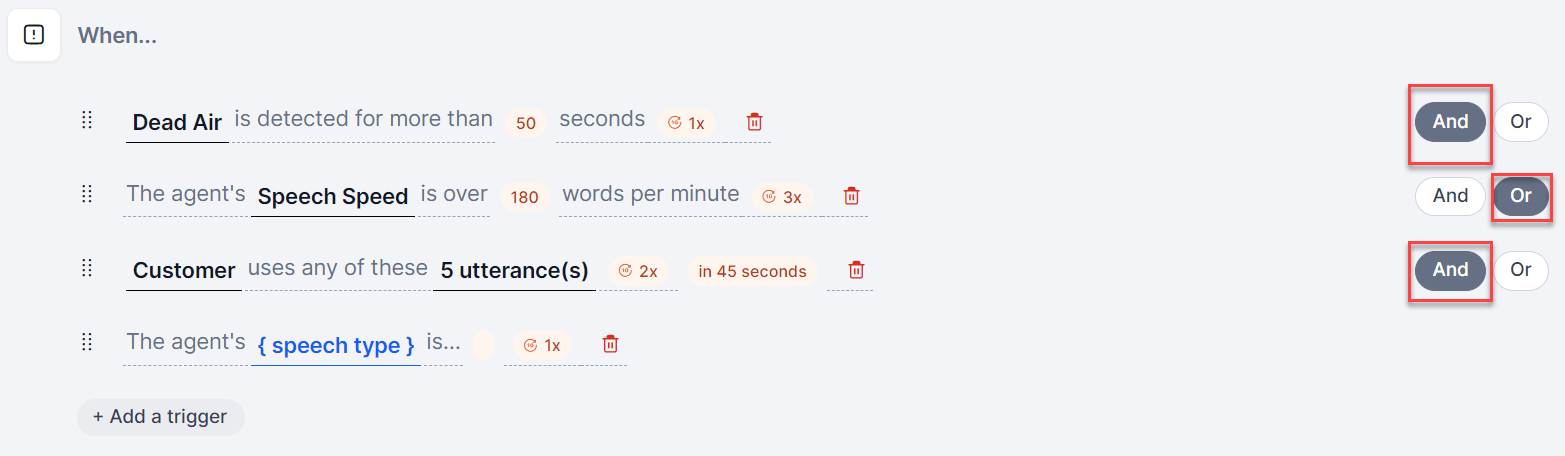
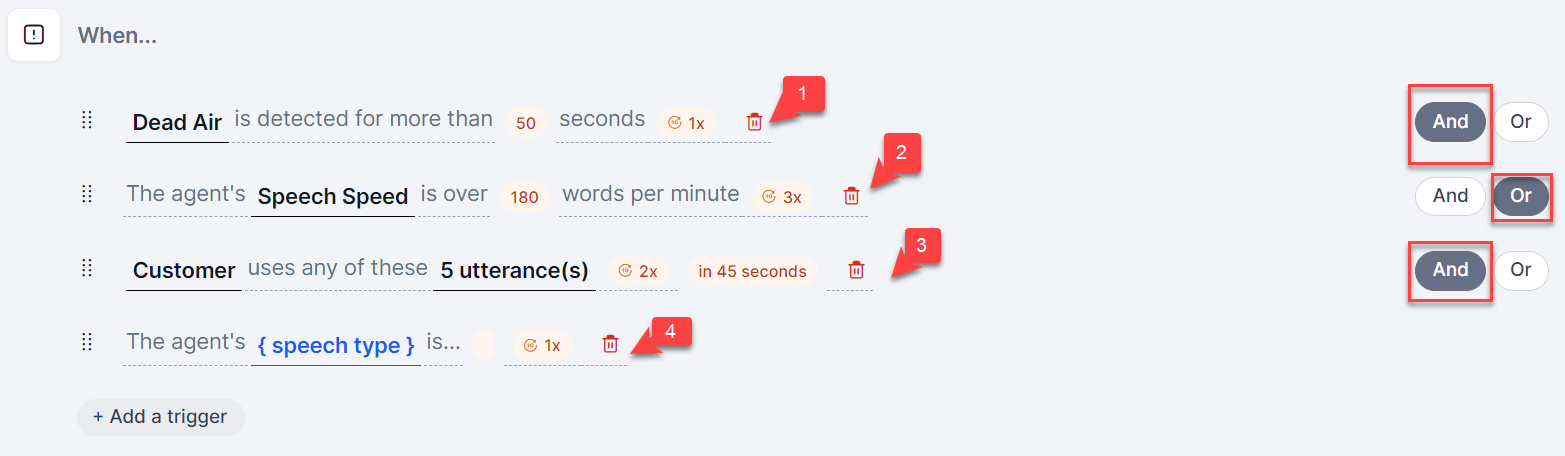
Actions
Actions define what happens when a trigger activates. Three action types are available: Nudge Agent, Hint Agent, and Email Manager. Nudge and Hint actions support adherence tracking.Adherence
Adherence tracks whether an agent follows through on a coaching instruction. You can set it up for Nudge and Hint actions.Nudge Agent
Short, disappearing messages that appear on the agent’s screen and may or may not auto-close, depending on configuration. These messages compliment or redirect agents mid-conversation. Nudge types: Positive, Neutral, Alert, and Critical. To set up a Nudge Agent action:- Select + Add an action > Nudge Agent.
- Select {Choose} and pick a nudge type (Positive, Neutral, Alert, Critical).
-
Select {Choose} and enter the nudge message. Optionally, select Use Gen AI Output to generate the message from a prompt, and add a fallback message.
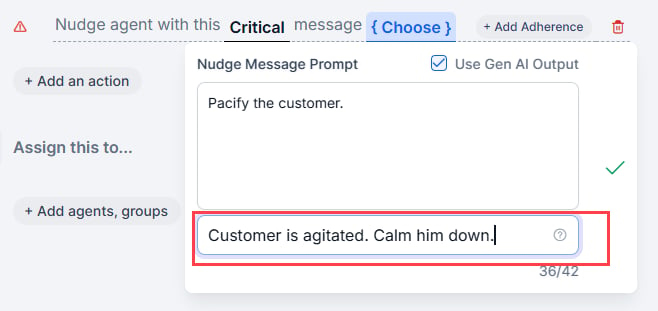
- Select the tick mark to save.
-
Set the display option:
- Optionally, select + Add Adherence and choose Acknowledge Pressed or Utterance.
Hint Agent
Pop-up messages that advise agents to take action. May or may not auto-close, depending on configuration. Hint types: Positive, Neutral, Warning, and Critical. To set up a Hint Agent action:- Select + Add an action > Hint Agent.
- Select {Choose} and pick a hint type.
-
Enter a title. Optionally, use Gen AI Output to generate the title from a prompt, with a fallback (up to 42 characters).
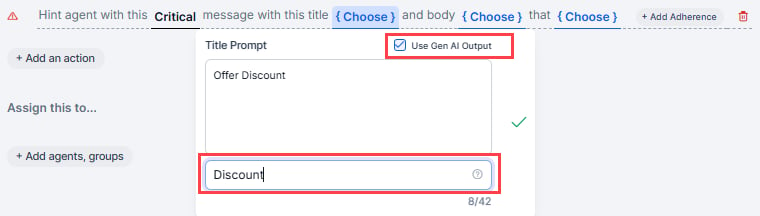
- Enter a message body. Optionally, use Gen AI Output with a fallback (up to 300 characters).
-
Set the display option:
- Optionally, select + Add Adherence and choose Acknowledge Pressed or Utterance.
Email Manager
Sends a push notification to a manager’s desktop for situations requiring supervisor awareness, such as repeated cross talk or customer profanity, instead of agent-facing nudges or hints. To set up an Email Manager action:- Select + Add an action > Email Manager.
-
Select {select people} and enter one or more manager email addresses (comma-separated).
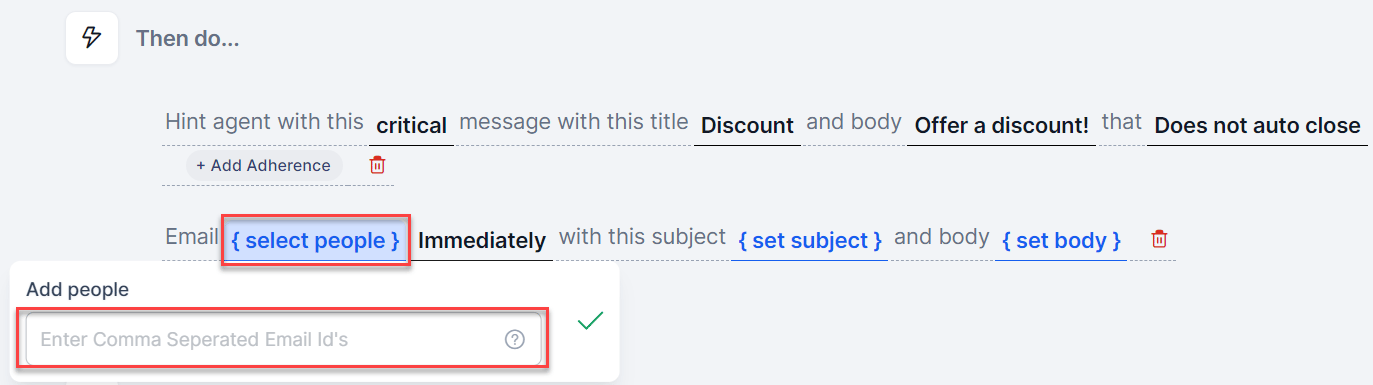
- Select the tick mark to save.
- Select {set subject} and enter a notification subject.
- Select {set body} and enter the notification content.
- Select the tick mark to save.
Assign rules
By default, the system assigns rules to All Agents. You can narrow the assignment to specific agents or groups.-
In the rule, select + Add agents, groups under Assign this to….
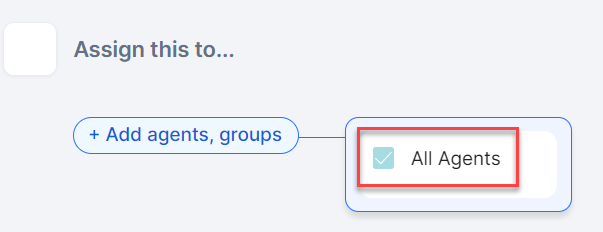
- Select the agents or groups.
- Select Save.