

Playbook Main Page
Displays all playbooks in the system. Use this page to create, edit, and delete playbooks.Playbook Types
Create a Playbook
Create a Primary Playbook
- Sign in to AI for Service.
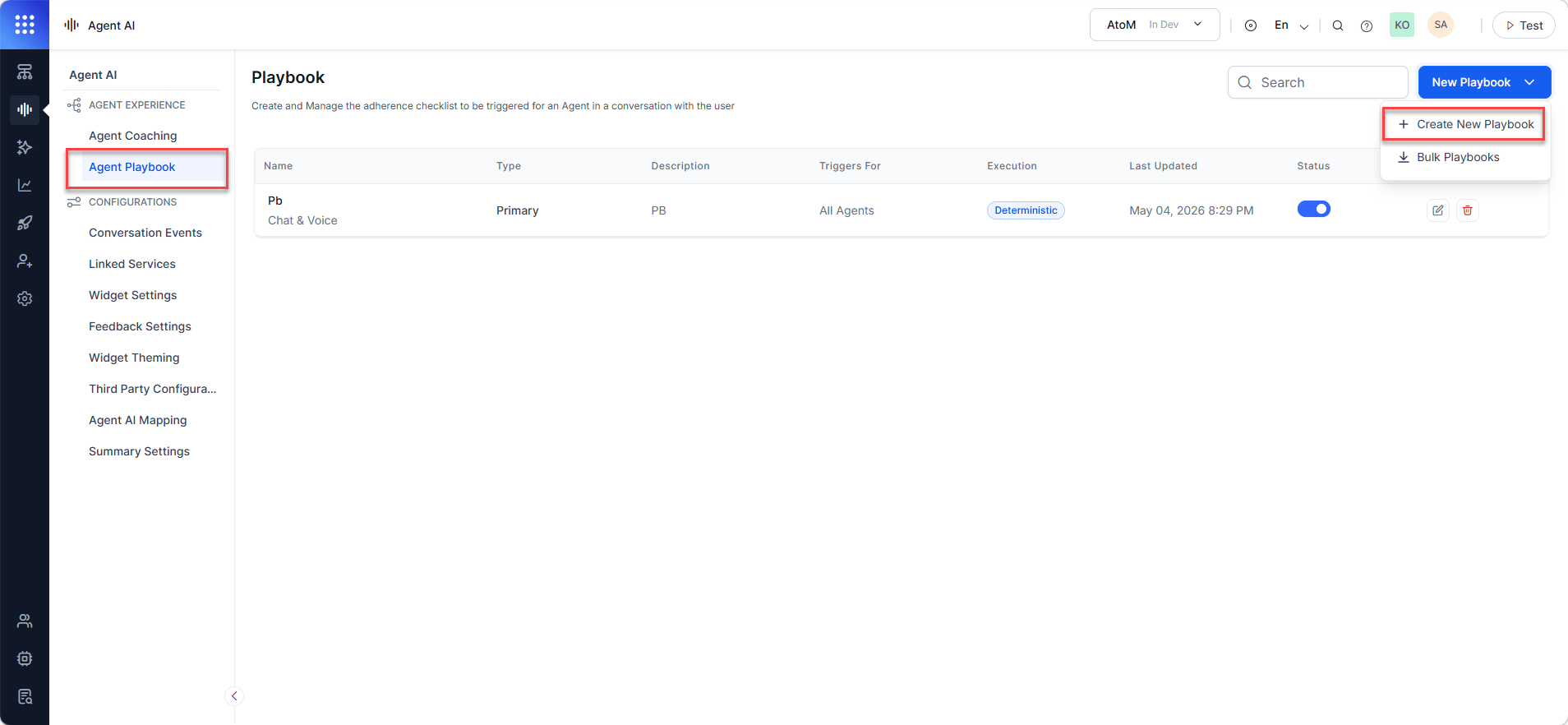
- Select Agent AI > Agent Experience > Agent Playbook.
-
Select + New Playbook > Create New Playbook.
-
Fill in the General Settings:
-
Select Save. The system creates the playbook with two default stages (Open and Close), five sample steps, and the following note:
You may experience runtime latency depending on the selected GenAI model.
- Select Done.
Create a Dynamic Playbook
- Follow steps 3-4 from Create a Primary Playbook, but select Dynamic in the Type field.
- Select the Assignments menu to define which agents see this playbook. The default selection is Trigger for all interactions.
- Select the Triggers menu to define when the playbook appears on the widget.
-
Choose a trigger type:
By Customer’s Utterance:
- Enter an utterance.
For Deterministic type step trigger and adherence, the AI suggests options similar to your entry. Select the utterances to include, and select Add.
- Select Save.
- Select a Dialog Task from the Automation list.
- Select when the playbook triggers (Wait for dialog Execution for…):
- Initiated — triggers when the Dialog Task starts.
- Completed — triggers when the Dialog Task finishes.
- Enter an utterance.
- Select Save.
Create Bulk Playbooks
Bulk playbook creation lets you upload a knowledge article (KA) and auto-generate multiple playbooks. This reduces manual entry and helps you scale standard operating procedures into real-time agent guidance. To create bulk playbooks:- Sign in to AI for Service.
- Select Agent AI > Agent Experience > Agent Playbook.
- Select + New Playbook, and then select Bulk Playbooks.
-
Expand Instructions and ensure your files meet the following requirements:
- Use PDF format only.
- Keep each file under 1 MB.
- Remove all images, media, and hyperlinks.
- Split large documents into smaller, topic-specific files.
- Upload or drag-and-drop a knowledge article (PDF).
- Select Next. The method defaults to Gen AI Based.
-
Select Generate Playbooks. If the system displays an error, complete the following settings:
a. From the main menu, go to Generative AI > Gen AI Features.
b. Select All Modules > Agent AI.
c. Go to Automated Playbook Generation and select a model with prompts. To use a model without prompts, create a custom prompt first. Follow this doc to create custom prompts.
d. Select a prompt or select Add New to create a new one. Follow this doc for help.
e. Turn on the Status toggle. -
Select the edit icon next to a playbook.
Each bulk-created playbook shows a bulk-created badge and a Review status.
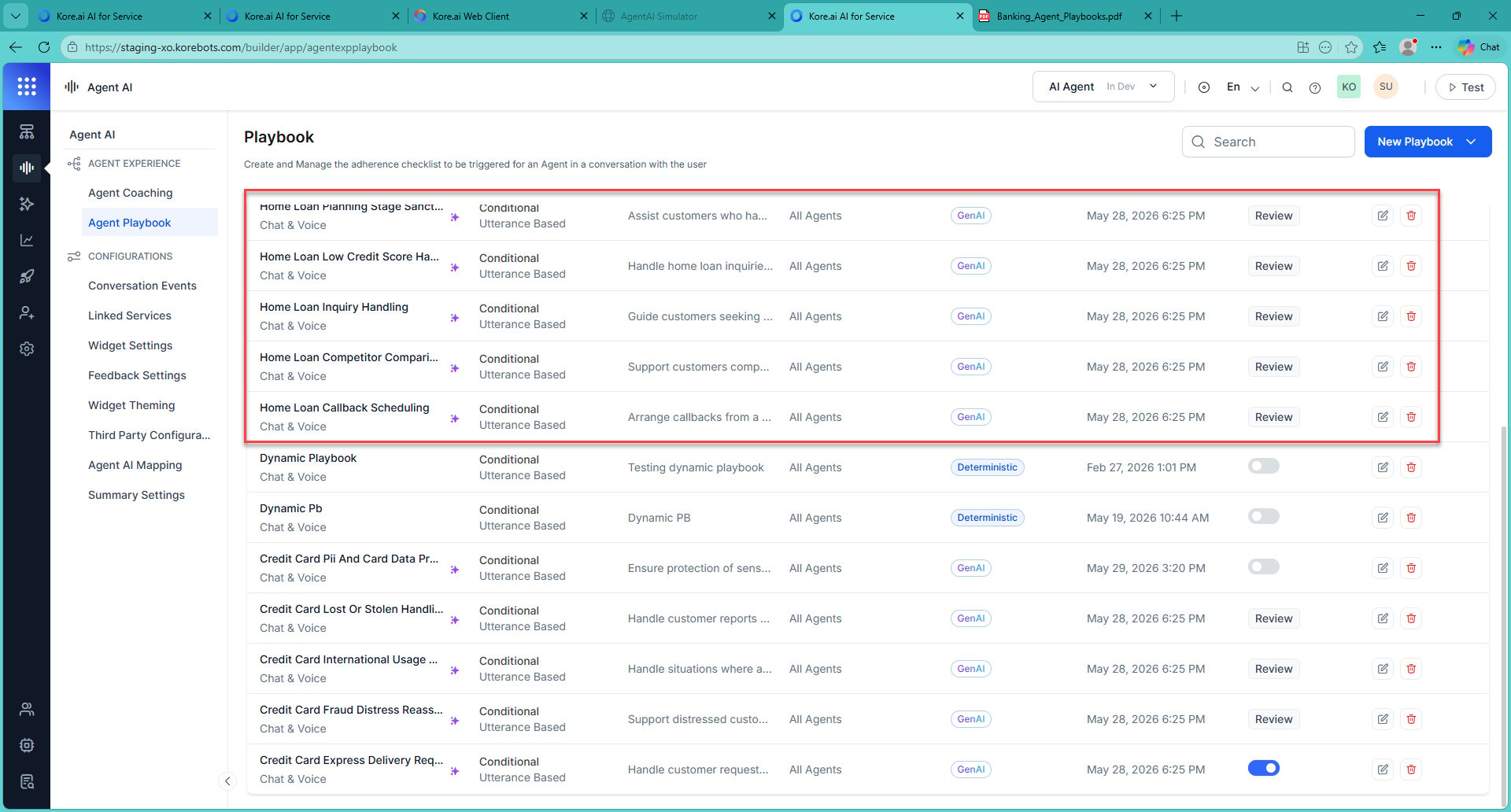
- Select Review & Update.
- Turn on the Status toggle.
-
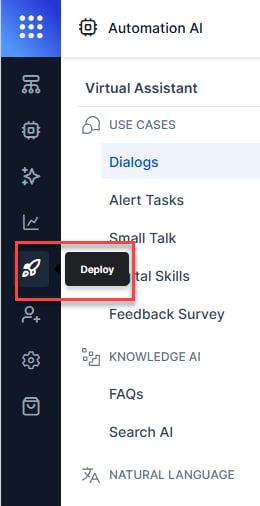
Select Deploy from the left navigation, and then select Publish.
- Enter a comment, and then select Confirm.
Configure Playbook Steps
Stages and Steps
The system organizes playbooks into Stages (primary groupings) and Steps (tasks within each stage). Primary playbooks have Open and Close stages by default. For Dynamic playbooks, you add stages manually.Create a Step in a Primary Playbook
- Open the playbook and select + Add Step.
- Enter a Step Title and Step Body.
- To allow sending the step content to the customer, select Enable send/copy.
- Select Add Buttons and choose Yes/No confirmation buttons.
- Yes — marks the step as complete.
- No — marks the step as incomplete.
- Optionally change button colors or delete buttons.
- Select Save.
Create a Step in a Dynamic Playbook
- Open the Dynamic Playbook, and select + Add Stage.
- Enter a stage name, and select the check mark.
- Select + Add Step, then follow steps 2-6 from Create a Step in a Primary Playbook.
Step Adherence
Step adherence tracks whether an agent completed a step. By default, agents manually mark the steps as complete. You can configure automatic adherence based on utterances or dialog execution. To configure automatic adherence:- Open the playbook, and select + Add Step.
- Select Step Adherence.
-
Select an adherence method:
By Agent’s Utterance:
- Enter an utterance.
For Deterministic type step trigger and adherence, the AI suggests options similar to your entry. Select the utterances to include, and select Add.
- Select Save.
- Select a Dialog Task from the Automation list.
- Select when adherence is recorded:
- Initiated — step is marked complete when the task starts.
- Completed — step is marked complete when the task finishes.
- Enter an utterance.
- Select Apply.
Assign a Playbook
Control which agents see the playbook.- Open the playbook and select the Assign button in General Settings.
-
Choose an assignment option:
- Select Save.
Edit a Playbook
-
Select the vertical ellipsis(⋮) next to a playbook, and then select Edit.
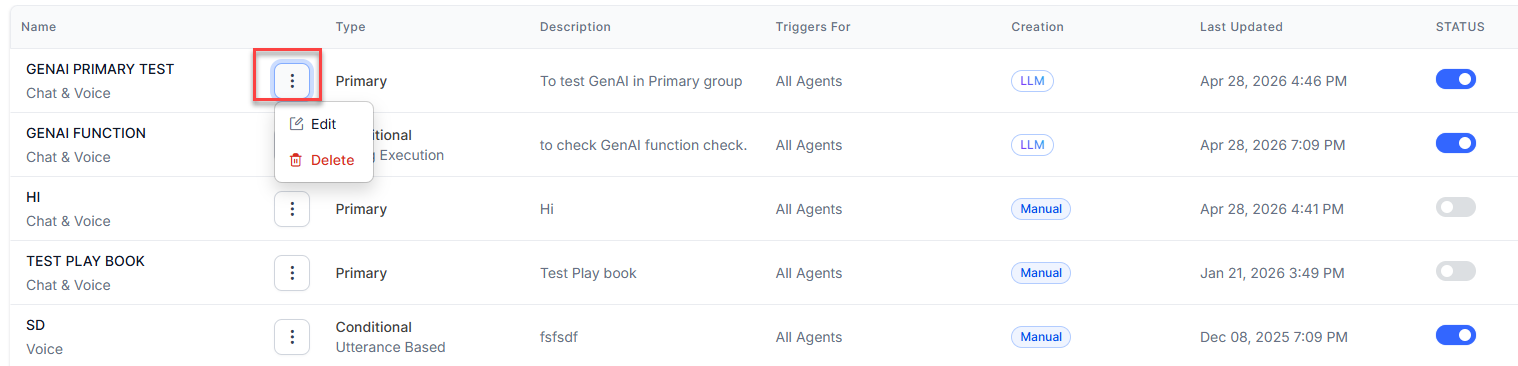
- Select Settings and make your changes.
- Select Update.
Delete a Playbook
- Select the vertical ellipsis(⋮) next to a playbook, and then select Delete.
- Confirm by selecting Yes.
Edit a Step
- Select the vertical ellipsis(⋮) next to a playbook, and then select Edit.
- Select the step you want to edit.
- Make changes on the Step Configuration page.
- Select Update.
Delete a Step
- Select the vertical ellipsis(⋮) next to a playbook, and then select Edit.
-
Hover over a step and select Delete.
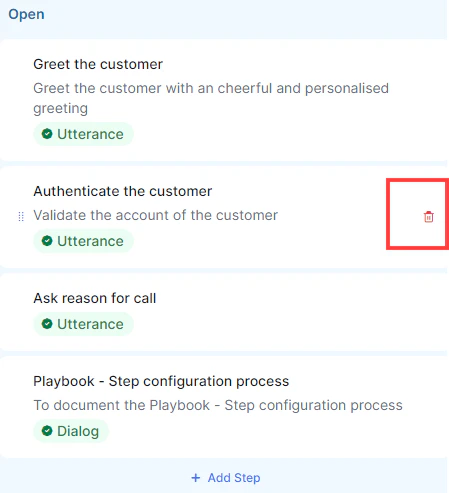
- Confirm by selecting Delete in the Delete Step window.