Problem Statement
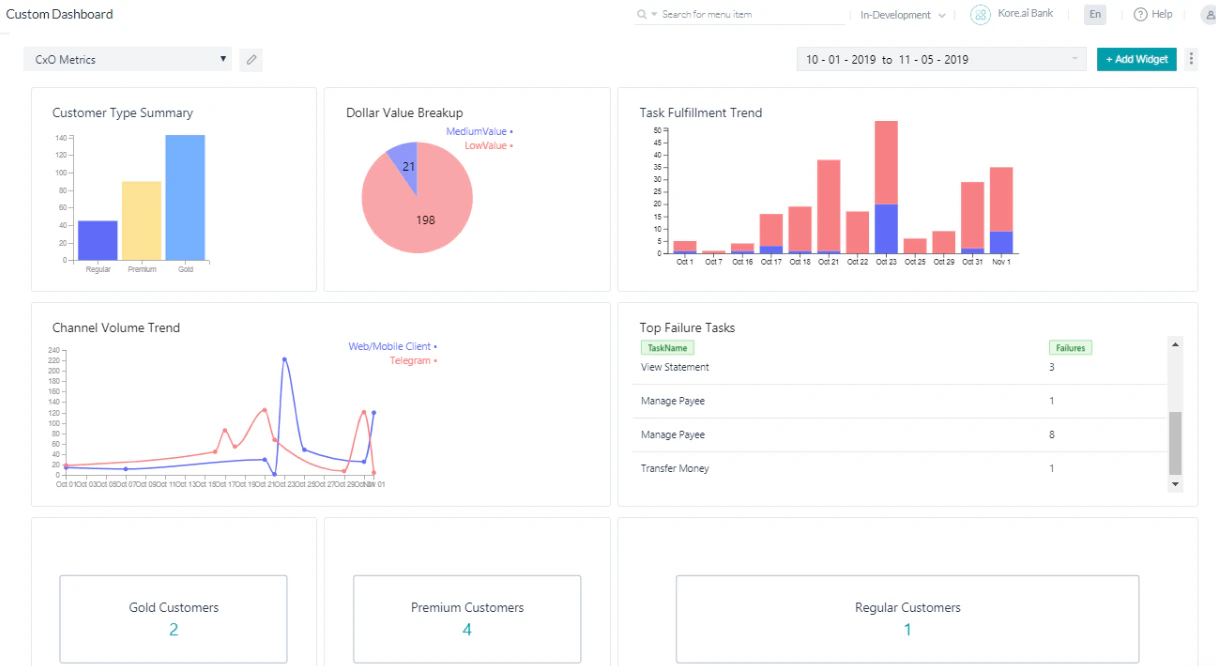
As a Banking AI Agent client, you want to track the following metrics:- Dollar Value Breakup
- Customer Type Summary
- Task Fulfillment Trend
- Top Failure Tasks
- Channel Volume Trend
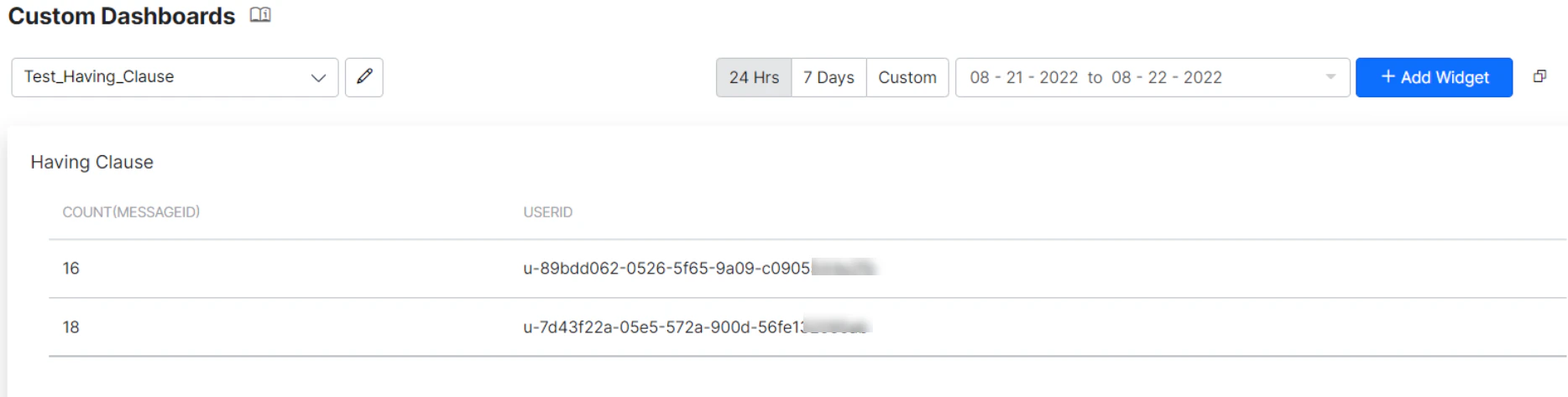
- Filter the Messages using the Having clause
Pre-requisites
- AI Agent building knowledge.
- Custom Meta Tags usage. See Custom Meta Tags for more information.
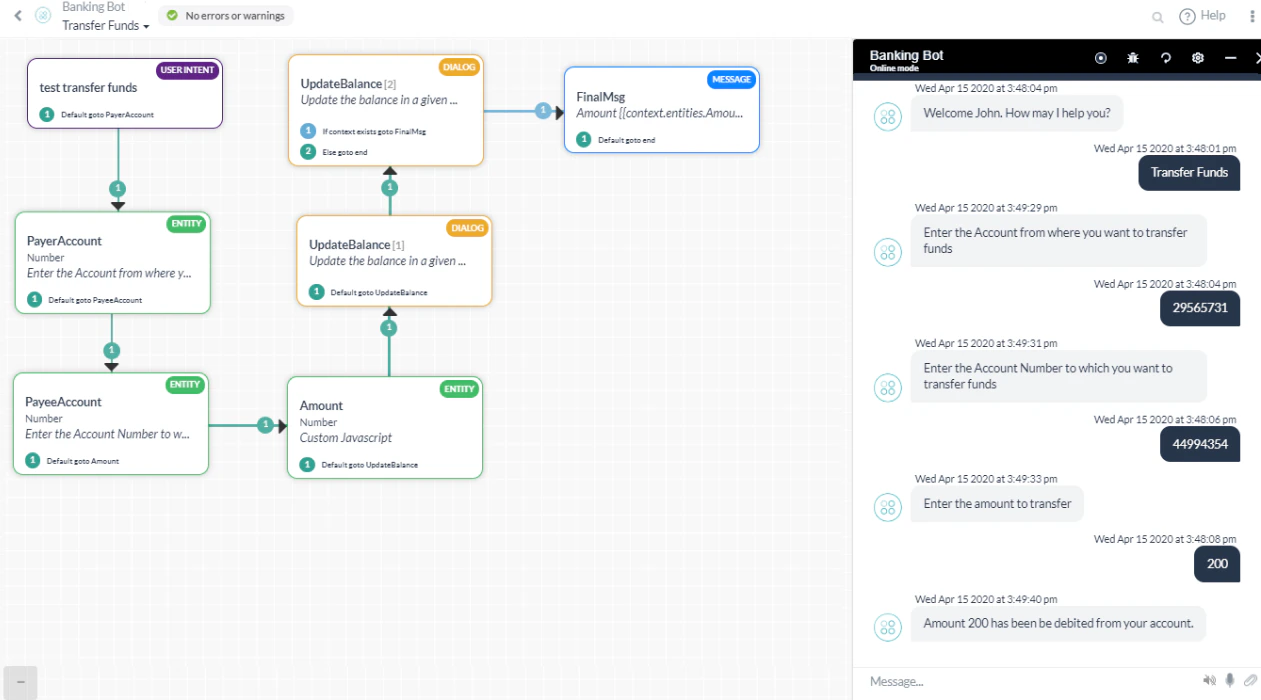
- A Banking AI Agent with the following dialog tasks:
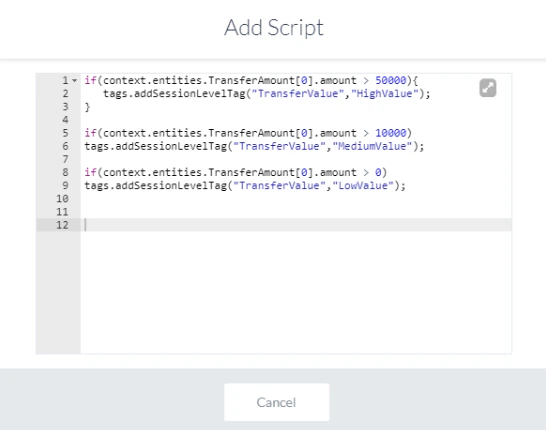
TransferValue based on the amount transferred:
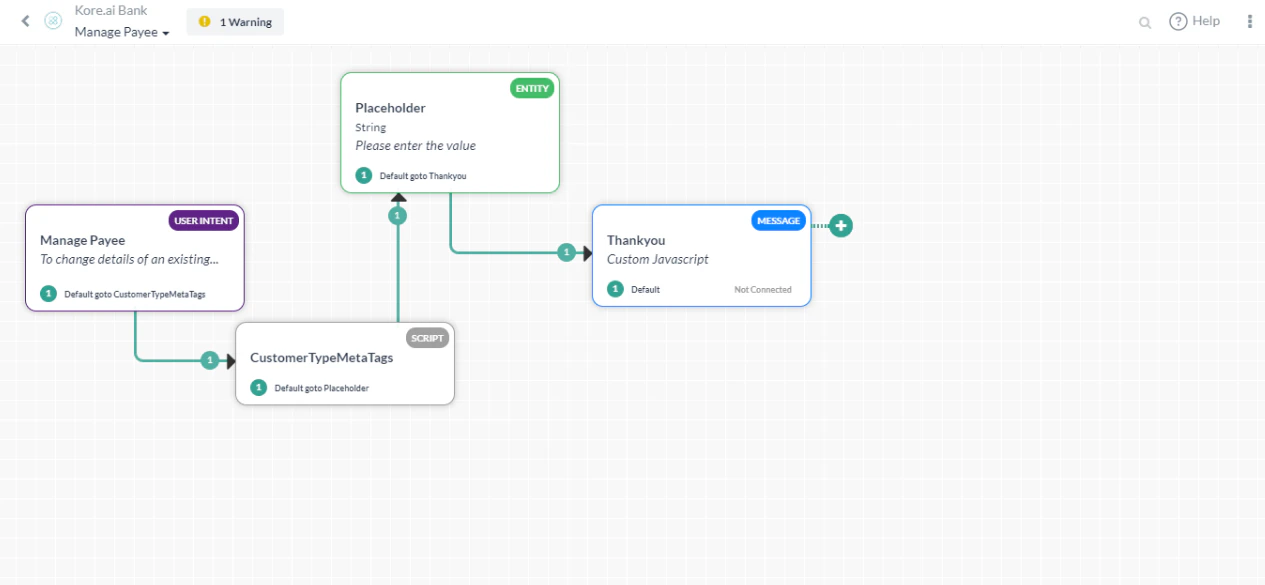
CustomerType meta tag:
Implementation
- From the left navigation panel, under Dashboard, click Custom Dashboard.
-
Click Create a New Dashboard.
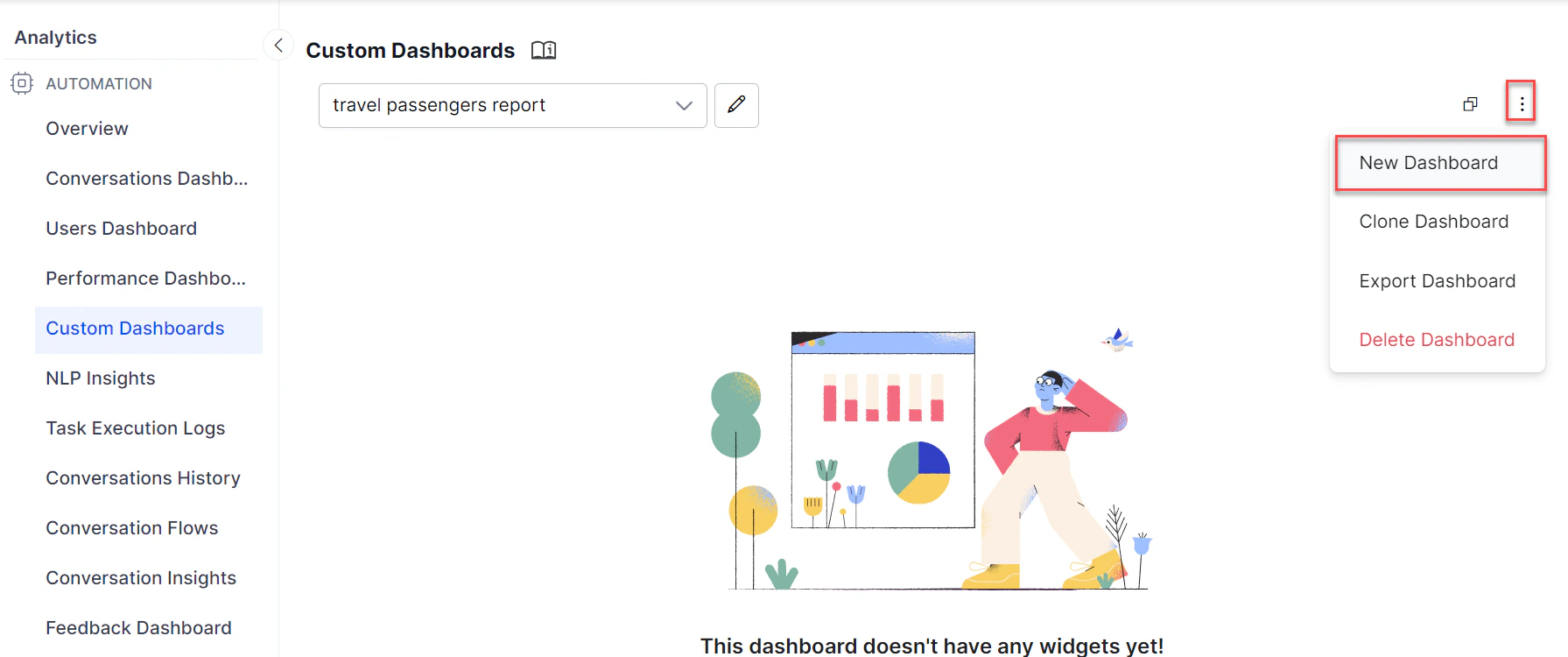
- Use the Add Widget button to add widgets for each scenario. You can add up to 4 widgets per row and organize them by moving within or across rows. Widgets can also be manually resized.
Dollar Value Breakup
- Click Add Widget.
-
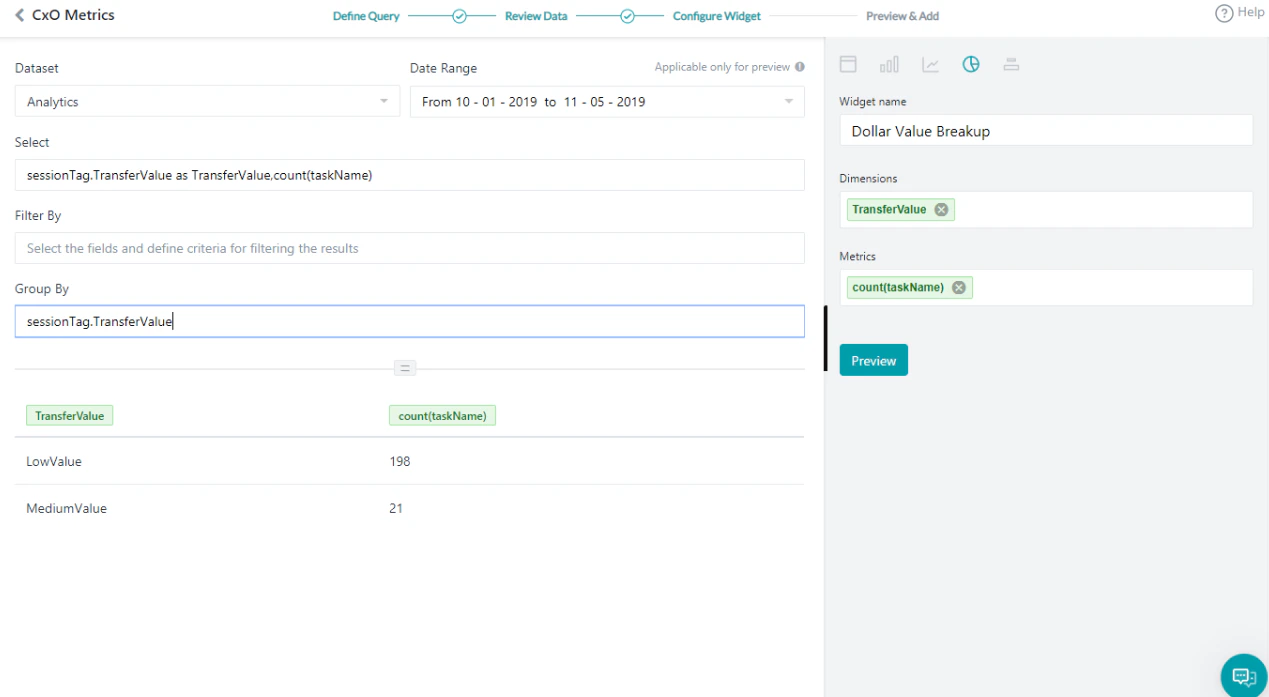
Query setup:
- Dataset: Analytics
- Select:
sessionTag.TransferValue as TransferValue, count(taskName) - Group By:
sessionTag.TransferValue - Click Run to see the results.
-
Widget setup:
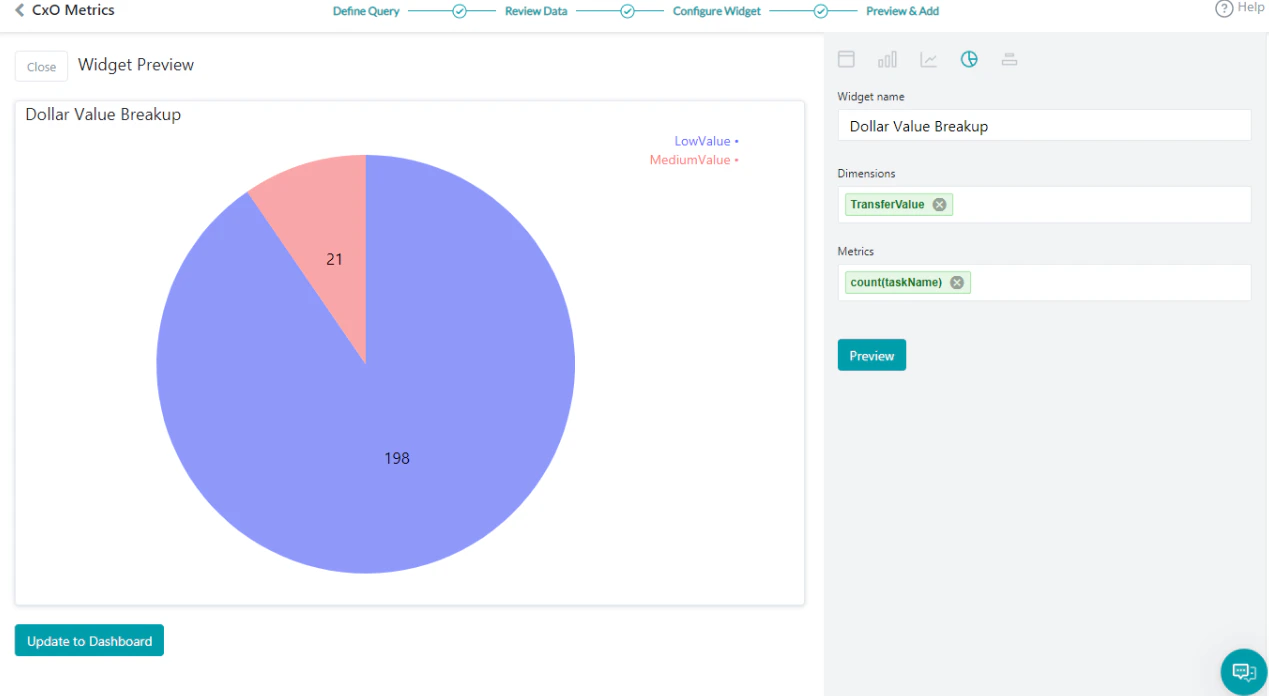
- Chart type: Pie chart
- Dimension:
TransferValue - Metrics:
count(taskName)
-
Click Preview, then click Update to Dashboard.
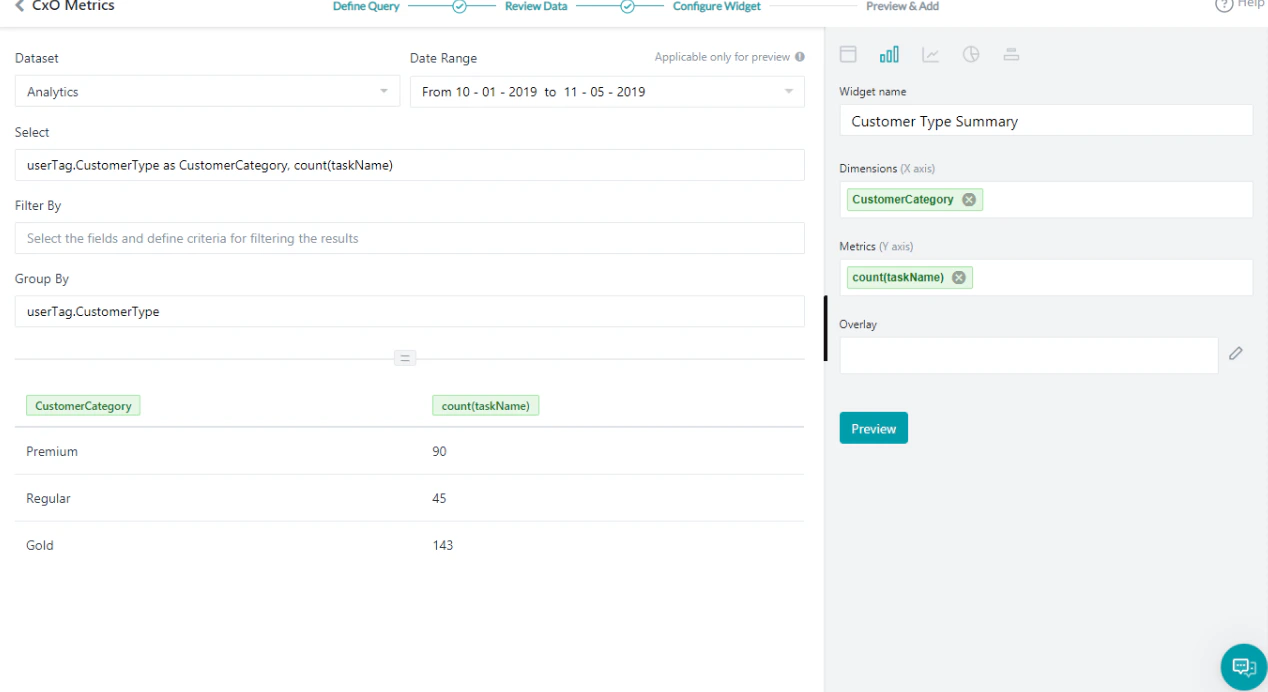
Customer Type Summary
This query provides usage statistics based on customer type.- Click Add Widget.
-
Query setup:
- Dataset: Analytics
- Select:
userTag.CustomerType as CustomerCategory, count(taskName) - Group By:
userTag.CustomerType - Click Run to see the results.
-
Widget setup:
- Chart type: Bar chart
- Dimension:
CustomerCategory - Metrics:
count(taskName)
- Click Preview, then click Update to Dashboard.
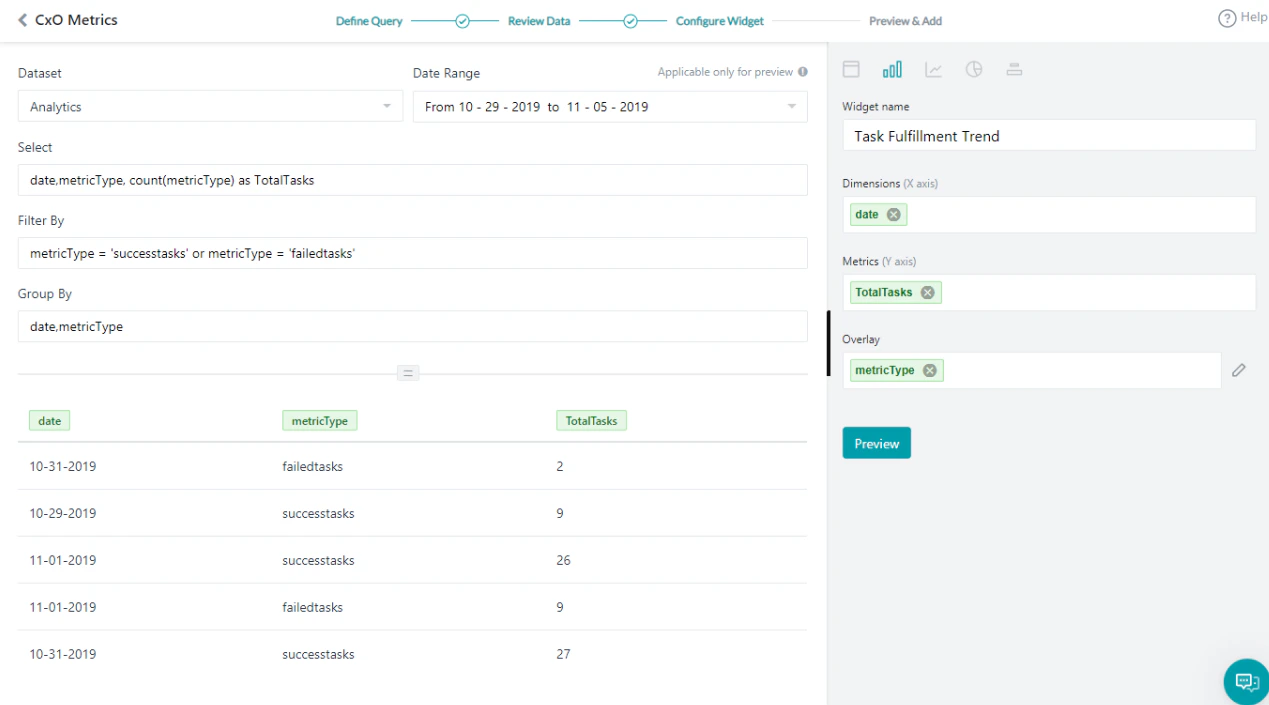
Task Fulfillment Trend
This query provides day-wise task success vs. failure trends.- Click Add Widget.
-
Query setup:
- Dataset: Analytics
- Select:
date, metricType, count(metricType) as TotalTasks - Filter By:
metricType = 'successtasks' or metricType = 'failedtasks' - Group By:
date, metricType - Click Run to see the results.
-
Widget setup:
- Chart type: Bar chart
- Dimension:
date - Metrics:
TotalTasks - Overlay:
metricType
- Click Preview, then click Update to Dashboard.
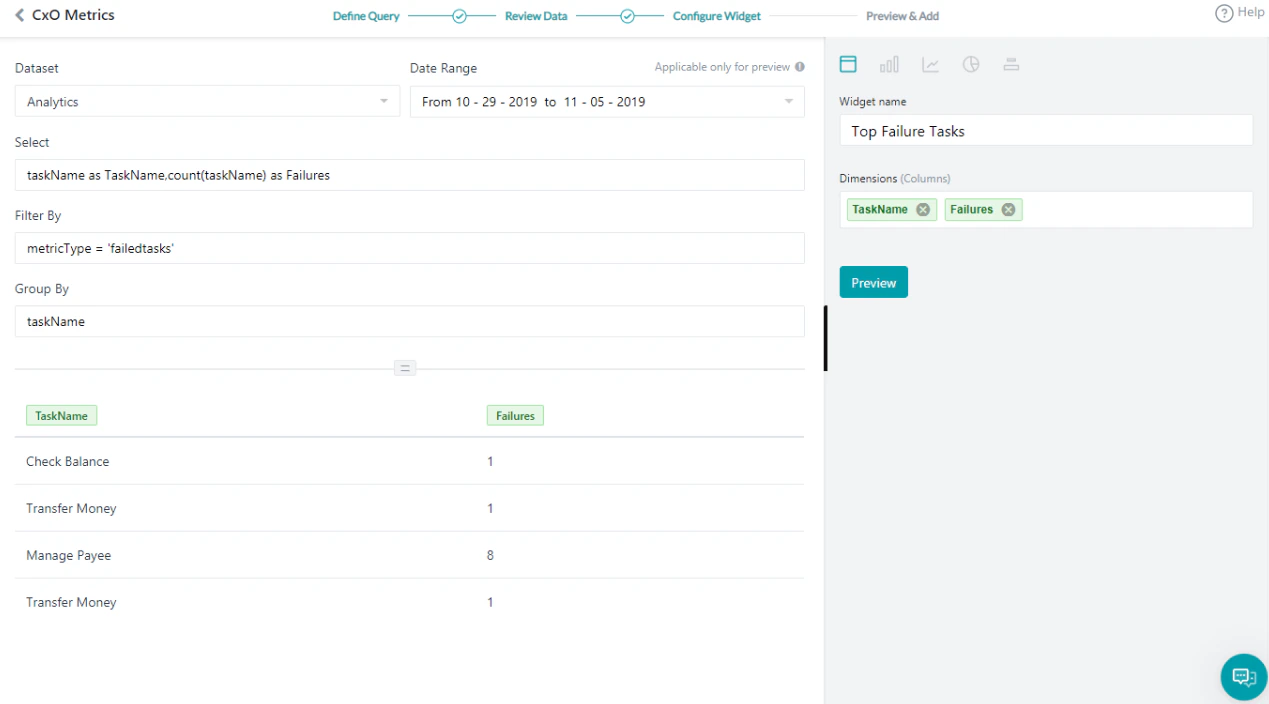
Top Failure Tasks
This query shows the top tasks that are failing.- Click Add Widget.
-
Query setup:
- Dataset: Analytics
- Select:
taskName as TaskName, count(taskName) as Failures - Filter By:
metricType = 'failedtasks' - Group By:
taskName - Click Run to see the results.
-
Widget setup:
- Chart type: Table chart
- Dimension:
TaskNameandFailures
- Click Preview, then click Update to Dashboard.
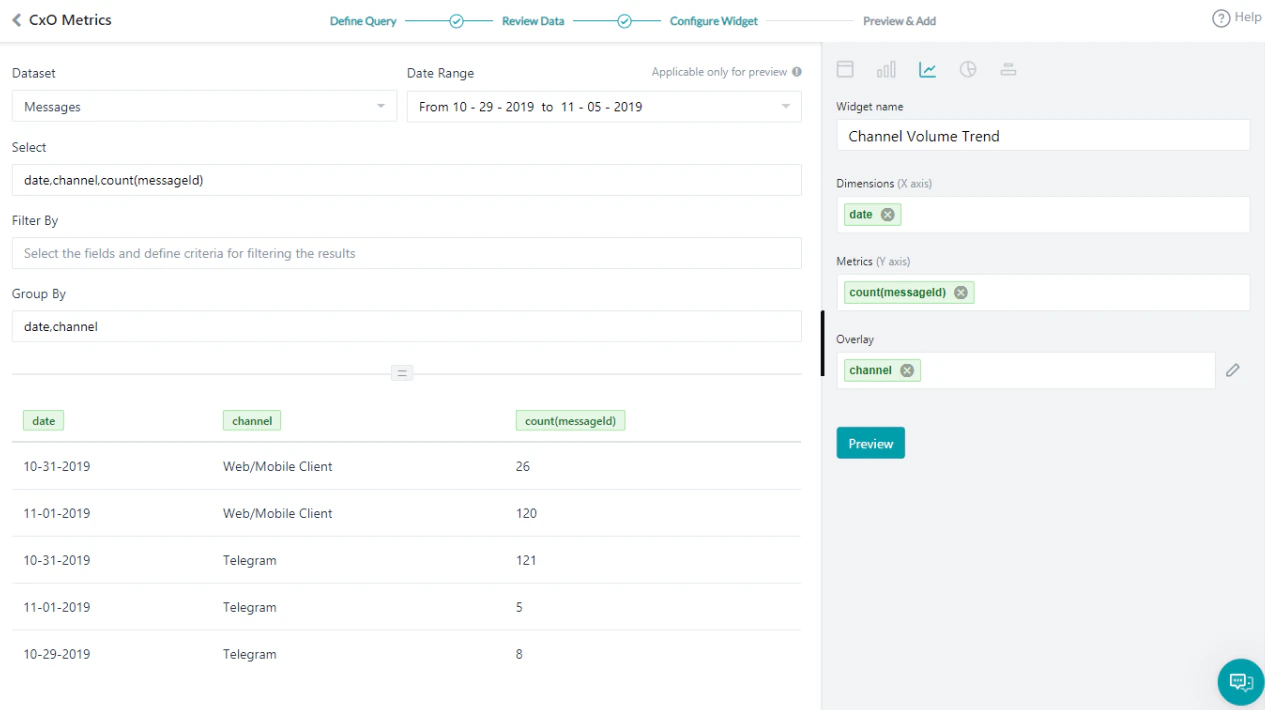
Channel Volume Trend
This query provides channel-wise usage details.- Click Add Widget.
-
Query setup:
- Dataset: Messages
- Select:
date, channel, count(messageId) - Group By:
date, channel - Click Run to see the results.
-
Widget setup:
- Chart type: Line chart
- Dimension:
date - Metrics:
count(messageId) - Overlay:
channel
- Click Preview, then click Update to Dashboard.
Filter the Messages using the Having Clause
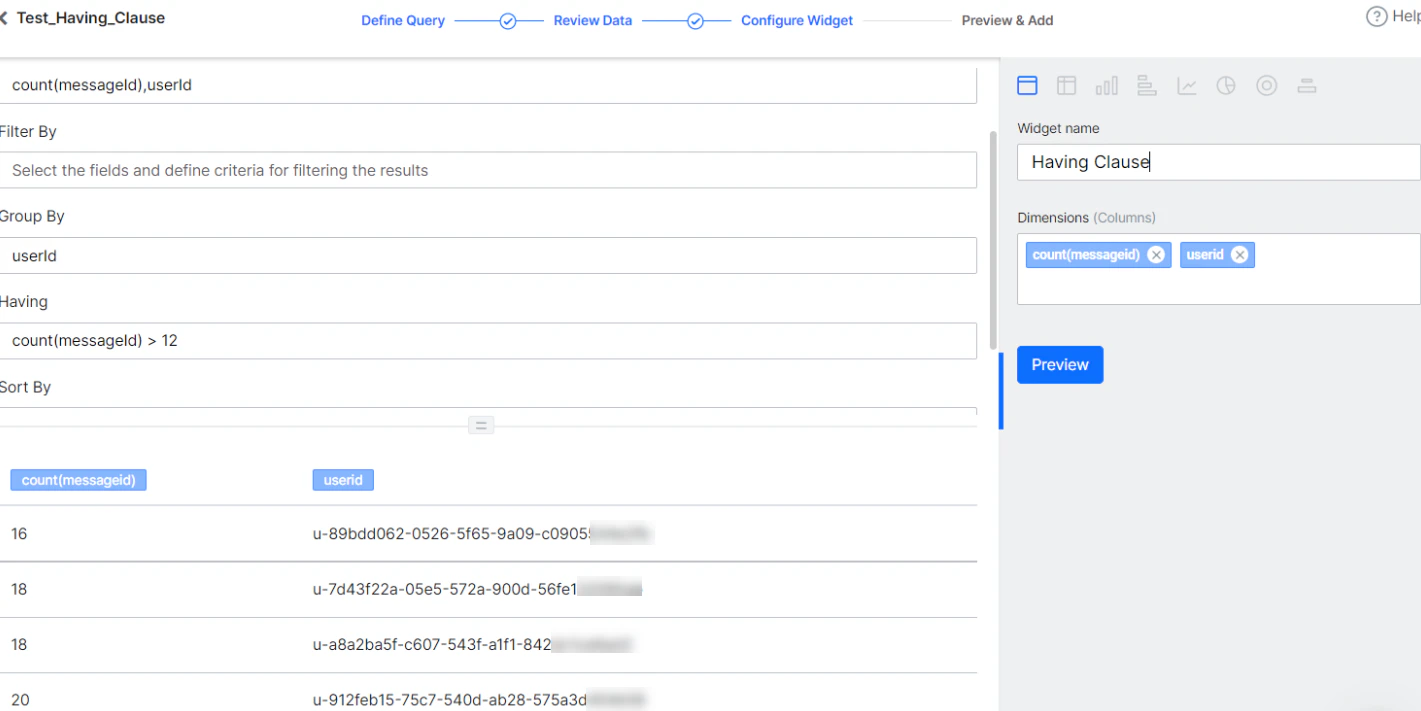
This query uses a Having clause to display the number of messages per userId where the user has interacted with the AI Agent more than 12 times.- Click Add Widget.
-
Query setup:
- Dataset: Messages
- Select:
count(messageId), userId - Group By:
userId - Having:
count(messageId) > 12 - Click Run to see the results.
-
Widget setup:
- Chart type: Table chart
- Dimension:
count(messageId),userId
-
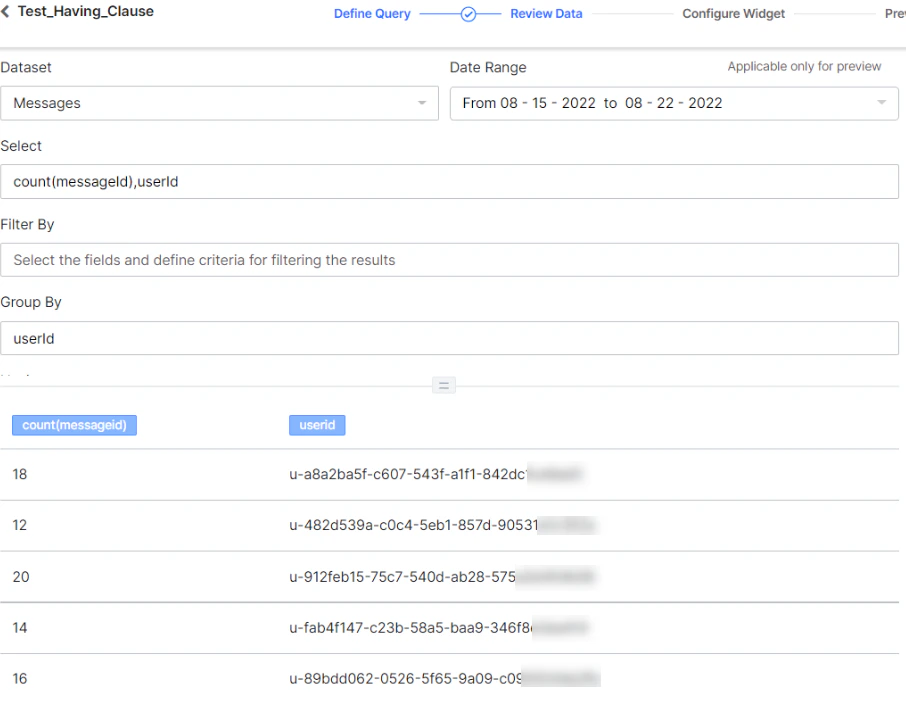
The following shows results when retrieving the count of all messages grouped by userId (without the Having clause):
-
The following shows results when using the Having clause (only users with more than 12 messages):
-
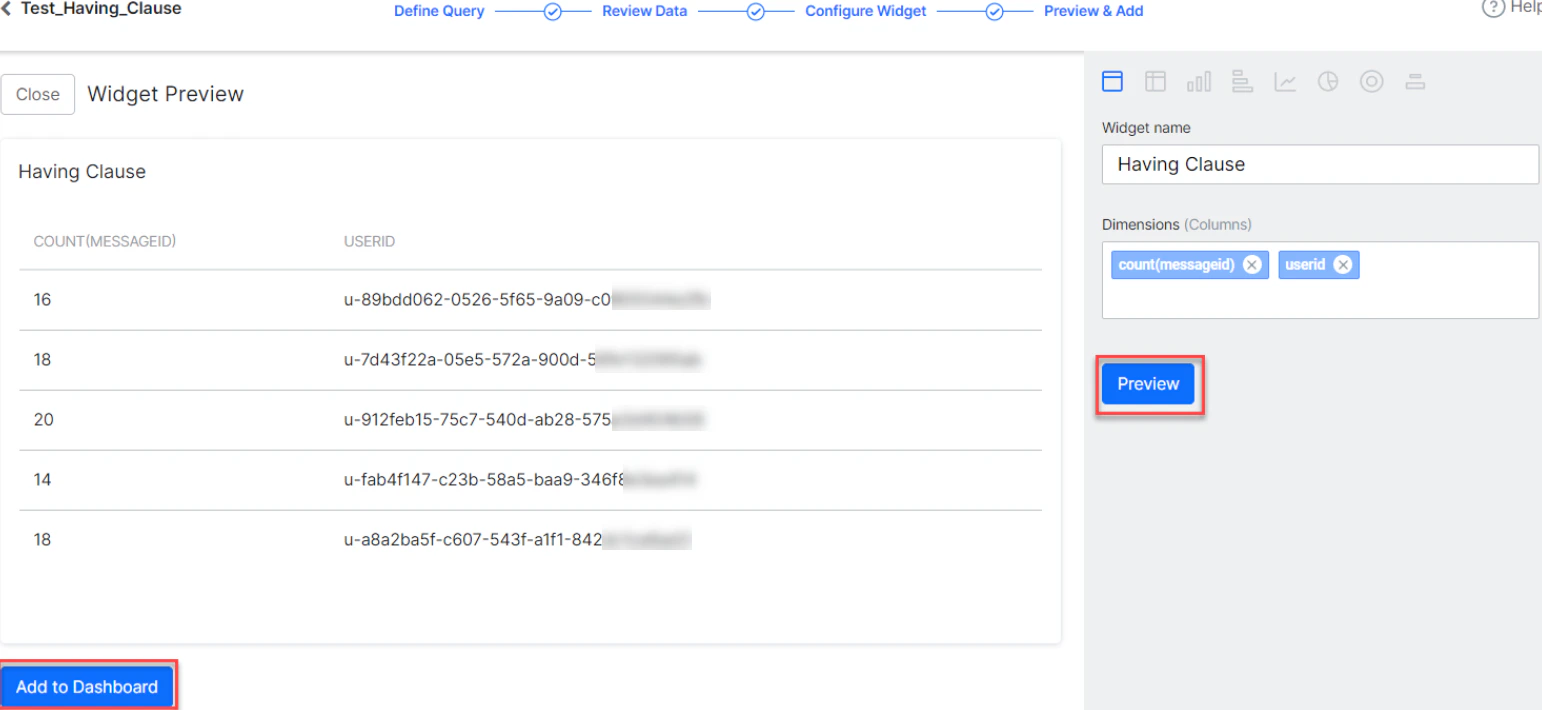
Click Preview, then click Add to Dashboard.
-
The Having clause widget is added to the dashboard: