

Defining Meta Tags
The platform allows you to add tags to various nodes in a dialog task such as a dialog node, entity node, and others. This option is available from the Instance Properties tab, under Advanced Controls.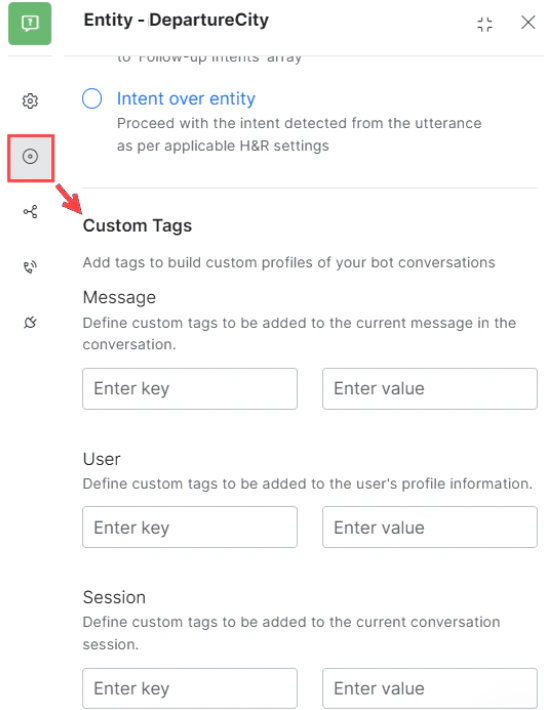
- User Level: Added to the user’s profile information to capture user-specific data. For example, to track conversations with a premium customer, define a user-level tag with the user name or a qualifier as the value.
- Message Level: Added to the message of the current node. If the current node isn’t associated with a message, the tag gets added to the immediately previous node that has a message. For example, to track bookings to a specific city like Chicago, define a message-level tag. The platform rolls up message-level tags to the task level — if a task ends as a Success or Failed Task, all message-level tags emitted during the task execution are associated with that event. You can filter Success Tasks and Failed Tasks using message-level tags.
- Session Level: Added to the current session of the user. These are useful for tracking conversation sessions from a specific time frame (for example, a holiday season) or a geographic domain.
- For service, script, webhook, and form nodes, tags are emitted on reaching the nodes.
- For entity, message, confirmation, and other nodes, tags are emitted on successful execution of the nodes.
- To add a User level tag:
tags.addUserLevelTag("tagname","tagvalue") - To add a Session level tag:
tags.addSessionLevelTag("tagname","tagvalue") - To add a Message level tag:
tags.addMessageLevelTag("tagname","tagvalue")
Updating Meta Tag Values
Meta Tag values may be modified after being assigned. Note the following rules:- The latest value assigned for a key overrides the previously assigned value.
- Update rules by tag level:
- Message-level tags: You may set a value multiple times within the script; the last set value is assigned against the message. The value can’t be updated after the message is sent to the user.
- Session level tags: The value can be set any number of times throughout the session. The last value assigned is retained and should be used for all analytics purposes. Values can’t be updated after the session is closed.
- User level tags: The value can be set any number of times throughout the session. The last value assigned is retained. Values can be edited at any time.
Using Meta Tags
Once Meta Tags are defined, you can use them to:- Filter conversations in NLP Insights based on Meta Tag values. The NLP Insights export file also includes Meta Tag information.
- Filter activity details in the Usage Metrics Dashboard and Admin Console Dashboard based on Meta Tag values.
- Filter Chat History. Exported Chat History also includes Meta Tag values.
- Filter records from the Conversation History API and Sessions API by meta tags.