Back to Analytics Overview NLP Insights provides in-depth analytics on your AI Agent’s performance in identifying and executing tasks, enabling you to improve training and intent coverage. To view the NLP Insights dashboard:
  1. Click Analytics on the left navigation pane. The Analytics panel opens with the list of reports. Navigating to NLP
  2. Click NLP Insights under the Automation section of the Analytics panel.
  3. Select appropriate filters and click Apply.
The NLP Insights page displays information in the following sections:
  • Intent Found: Number of identified intents.
  • Intent Not Found: Number of unidentified intents.
  • Unhandled Utterances: Number of unhandled utterances.
  • Pinned: Pinned NLP Insight records for easy access and viewing.
In the latest platform version, the NLP Insights section retains only NLP-related analytics data for task identification. Task execution analytics are available in the Task Execution Logs section.

NLP Analytics Fields

Intent Found

The Intent Found tab includes all user utterances successfully identified by the platform. An intent represents the goal the customer has in mind; the phrases used to express the intent are called user utterances.
Check for false positives where an utterance is wrongly identified for an intent.
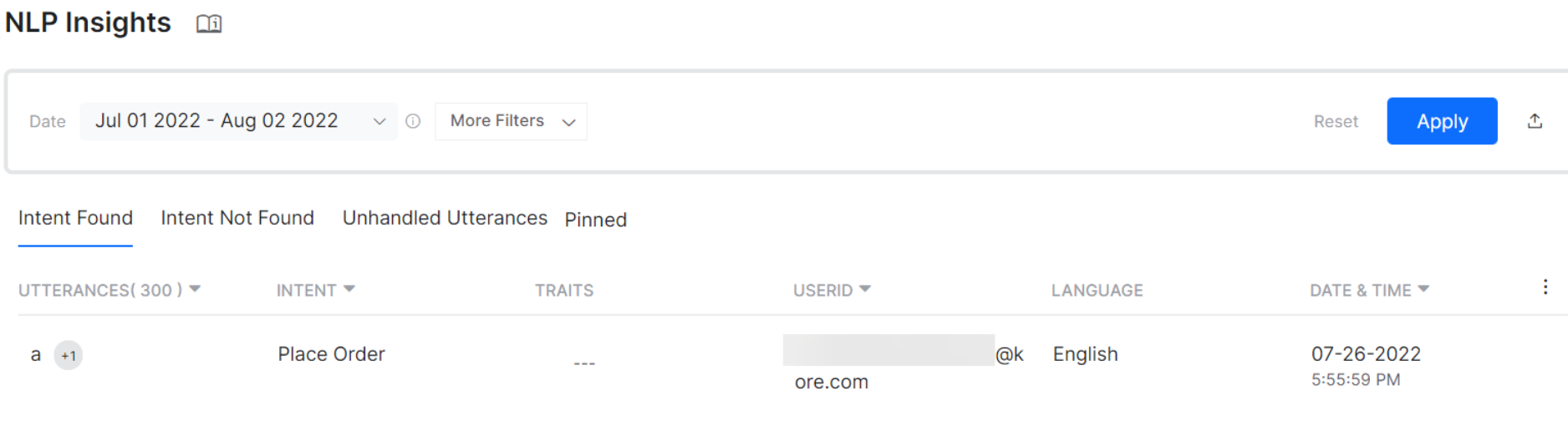
Intent Found Example:
User: I want to know my order confirmation
AI Agent: Would you like to switch to Track Order?
User: Yes
AI Agent: Let's log you in. How would you like to go ahead – Log in or Guest?
In this conversation, the utterance “knowing the order confirmation status” is recognized and mapped to the Track Order intent.
FieldDescription
UtterancesUtterances identified by the AI Agent, grouped by similarity by default. Click the Utterances header to disable Group by Utterances.
IntentThe intent or task identified. If identified via a Dialog Task, the task name is shown. If answered using Answer from Document, this column shows Answer from Documents. Click the Intent header to enable Group by Intent.
CategoryFulfillment type: Single Intent, Multi Intent, Small Talk, Conversation Event, or Generate Answer.
TraitsTraits identified for the listed utterances. Available for data generated after June 1, 2021. Click the Traits header to enable Group by Traits.
UserIDThe end user’s ID. View metrics by Kore User ID or Channel User ID. Channel-specific IDs are shown only for users who interacted during the selected period.
LanguageThe language in which the conversation occurred. For multi-lingual AI Agents, filter by language. Defaults to all enabled languages.
Date & TimeDate and time of the chat. Sort by Newest to Oldest or Oldest to Newest.

Intent Not Found

The Intent Not Found tab includes all user utterances that the platform could not identify due to invalid training, insufficient training data, or the intent not existing in the AI Agent. Intent Not Found Example:
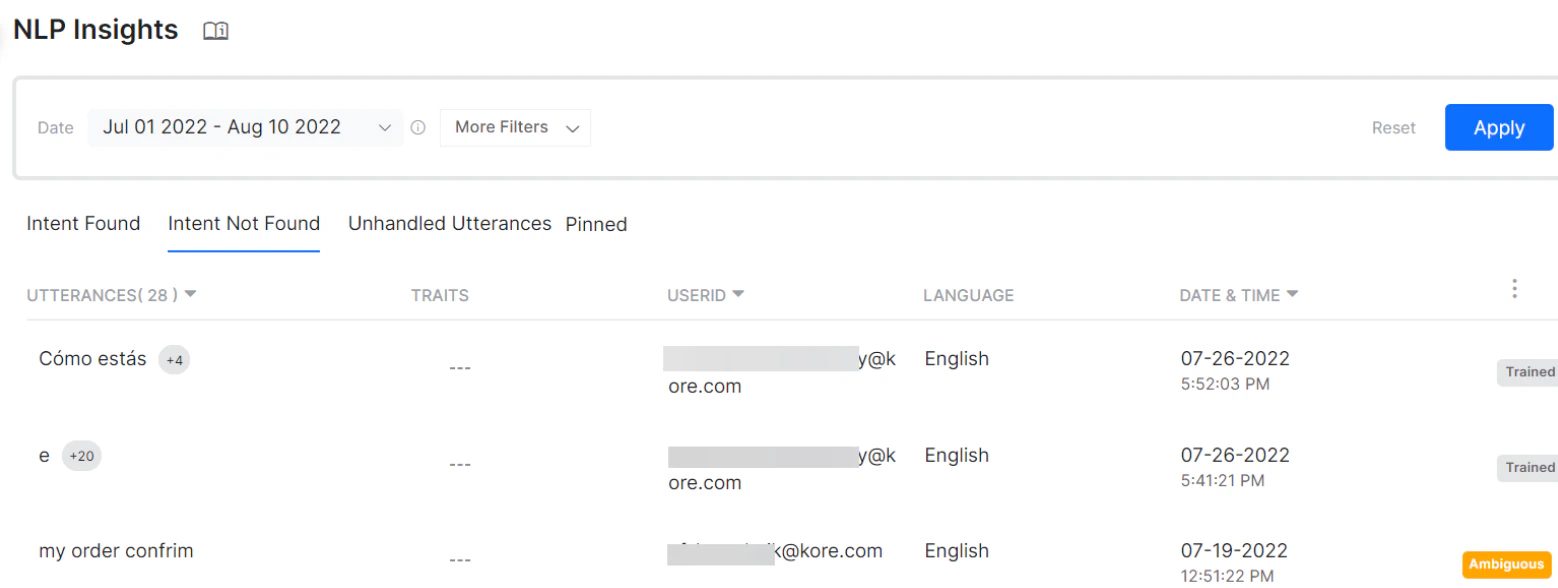
User: I want to know my account statement
AI Agent: I'm sorry, I did not recognize the value you have entered. Please select a value from the list.
In this conversation, the AI Agent does not recognize “knowing the account statement” due to invalid training, insufficient training, or unavailability of the intent.
FieldDescription
UtterancesUtterances not identified by the AI Agent, grouped by similarity by default. Click the Utterances header to disable Group by Utterances.
CategoryFulfillment type: Single Intent, Multi Intent, Small Talk, Conversation Event, or Generate Answer.
TraitsTraits identified for the listed utterances. Available for data generated after June 1, 2021. Click the Traits header to enable Group by Traits.
UserIDThe end user’s ID. View metrics by Kore User ID or Channel User ID. Channel-specific IDs are shown only for users who interacted during the selected period.
LanguageThe language in which the conversation occurred. Defaults to all enabled languages.
Date & TimeDate and time of the chat. Sort by Newest to Oldest or Oldest to Newest.

Unhandled Utterances

Unhandled Utterances help analyze unidentified inputs received from users during task execution at an entity node, message node, or confirmation node. These insights identify the need for additional training or new intents. The following fields are unique to this tab:
  • Prompt Type: Entity node, Message node, or Confirmation node.
  • Node Name: Name of the node where the utterance was not handled.
  • Task Name: Name of the task where the utterance was unidentified.
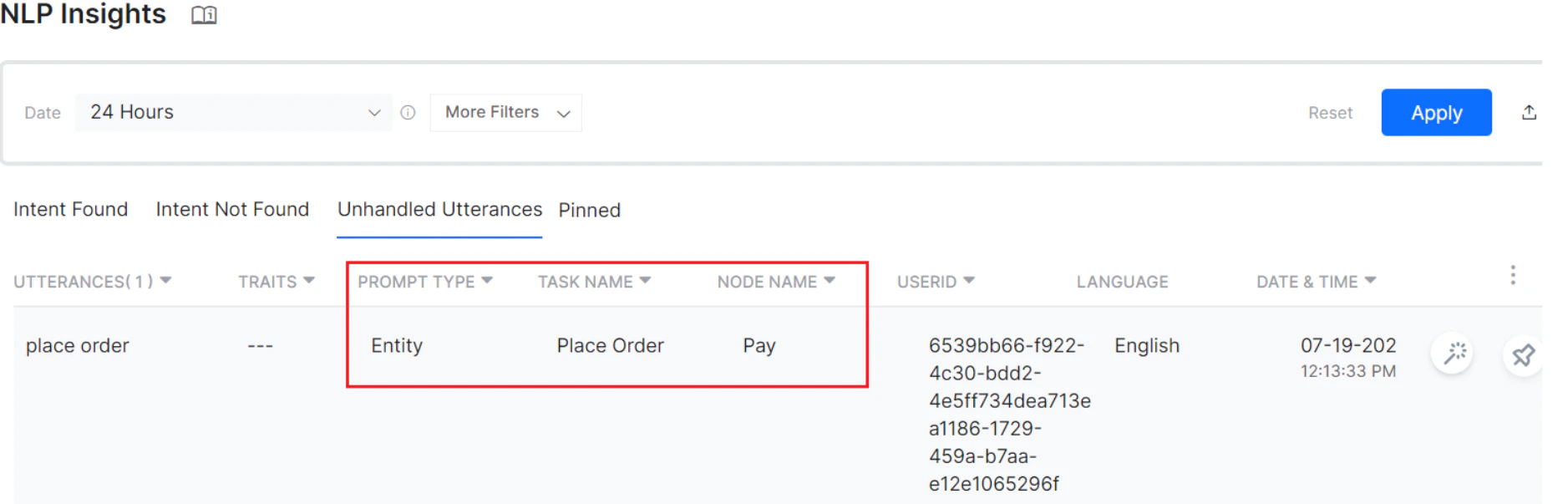
Unhandled Utterances Group by functionality is available for Utterances, Traits, Prompt Type, Task Name, and Node Name.
Unhandled utterances are available for all conversations with product version 9.3 or higher.
Examples: At an Entity Node:
User: I want my account statement
AI Agent: Please enter your Customer Id
User: Where do I find it?
AI Agent: Sorry, that is an incorrect input. Please enter your Customer Id
At a Message Node:
User: I want to book a flight for today
AI Agent: Enter the flight number
User: 12434
AI Agent: Enter number of seats required
User: 3
AI Agent: Your flight is booked. Would you like to:
   * Book a Hotel
   * Book a sightseeing tour
User: I want to Cancel the Flight
AI Agent: I'm sorry, I don't understand. Please enter again.
At a Confirmation Node:
AI Agent: How may I help you
User: I want to book a flight
AI Agent: Enter the number of seats
User: 2
AI Agent: Please confirm if you want two seats
User: I want to hire a cab
AI Agent: I cannot understand it, can you rephrase it
FieldDescription
UtterancesUnhandled utterances grouped by similarity by default. Click the Utterances header to disable Group by Utterances.
TraitsTraits identified for the listed utterances. Available for analytics generated after June 1, 2021. Click the Traits header to enable Group by Traits.
Prompt TypeEntity node, Message node, or Confirmation node. Click Prompt Type header to enable Group by Prompt Type.
Task NameThe task identified for the user utterance. Click Task Name header to enable Group by Task.
Node NameThe name of the service, script, or WebHook within the task. Click Node Name header to enable Group by NodeName.
UserIDThe end user’s ID. View metrics by Kore User ID or Channel User ID. Channel-specific IDs are shown only for users who interacted during the selected period.
LanguageThe language in which the conversation occurred. Defaults to all enabled languages.
Date & TimeDate and time of the chat. Sort by Newest to Oldest or Oldest to Newest.

Pinned

The Pinned tab displays records pinned from the Intent Found, Intent Not Found, or Unhandled Utterances tabs.
FieldDescription
UtterancesPinned utterances, grouped by similarity by default. Click the Utterances header to disable Group by Utterances.
IntentThe intent associated with the pinned utterance. Click the Intent header to enable Group by Intent.
Type of IssueShows the reason for failure in case of Task Failure records.
UserIDThe end user’s ID. View metrics by Kore User ID or Channel User ID. Channel-specific IDs are shown only for users who interacted during the selected period.
LanguageThe language in which the conversation occurred. Defaults to all enabled languages.
Date & TimeDate and time of the chat. Sort by Newest to Oldest or Oldest to Newest.

NLP Insights Analysis

Features

  • Filter information by user utterances, intent, user ID, date period, channel, language, and custom tags. See Filter Criteria for more details.
  • Complete meta-information is stored for later analysis, including the original utterance, channel, extracted entities, custom tags, detailed NLP analysis with engine scores, and ranking and resolver scores.
  • View the chat transcript up to the point of the user utterance, including user profile and conversation session details.
  • Train the utterance directly from the list. Trained utterances are marked accordingly.
  • Pin important records for later tracking. Pinned records appear on the Pinned tab.
  • Sort by Date and Time (Oldest to Newest, Newest to Oldest). Export insights data as a CSV file.
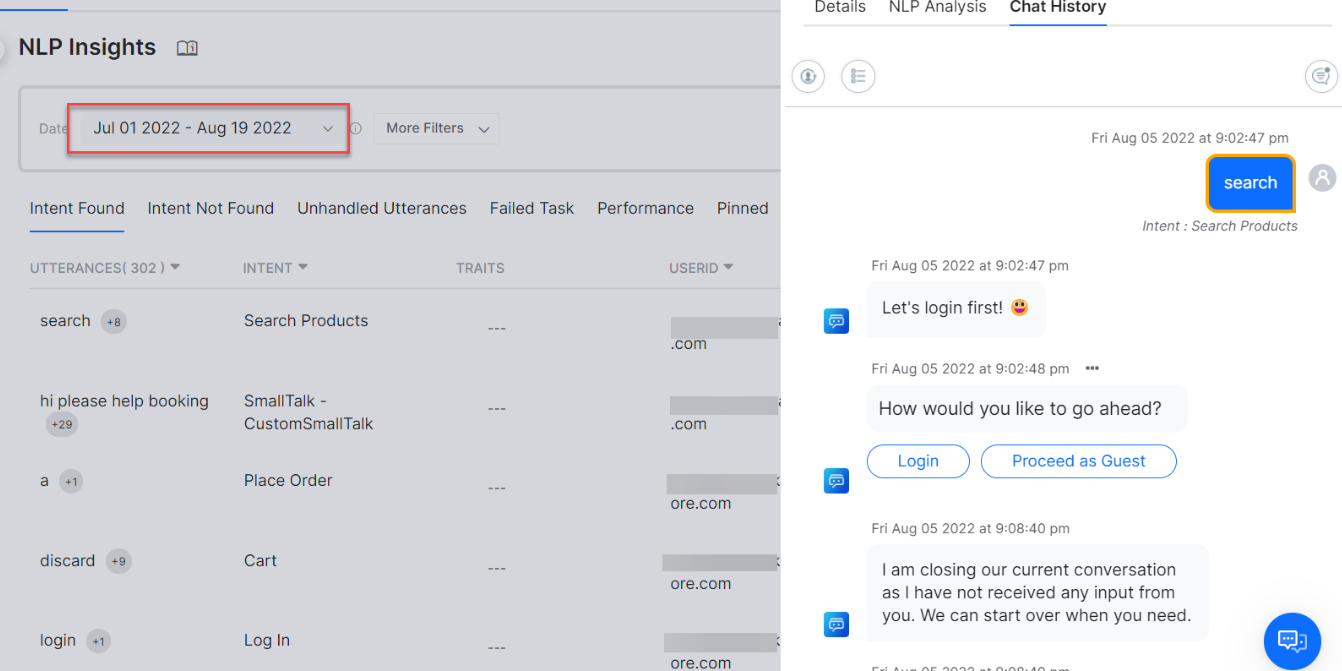
NLP Insights Analysis
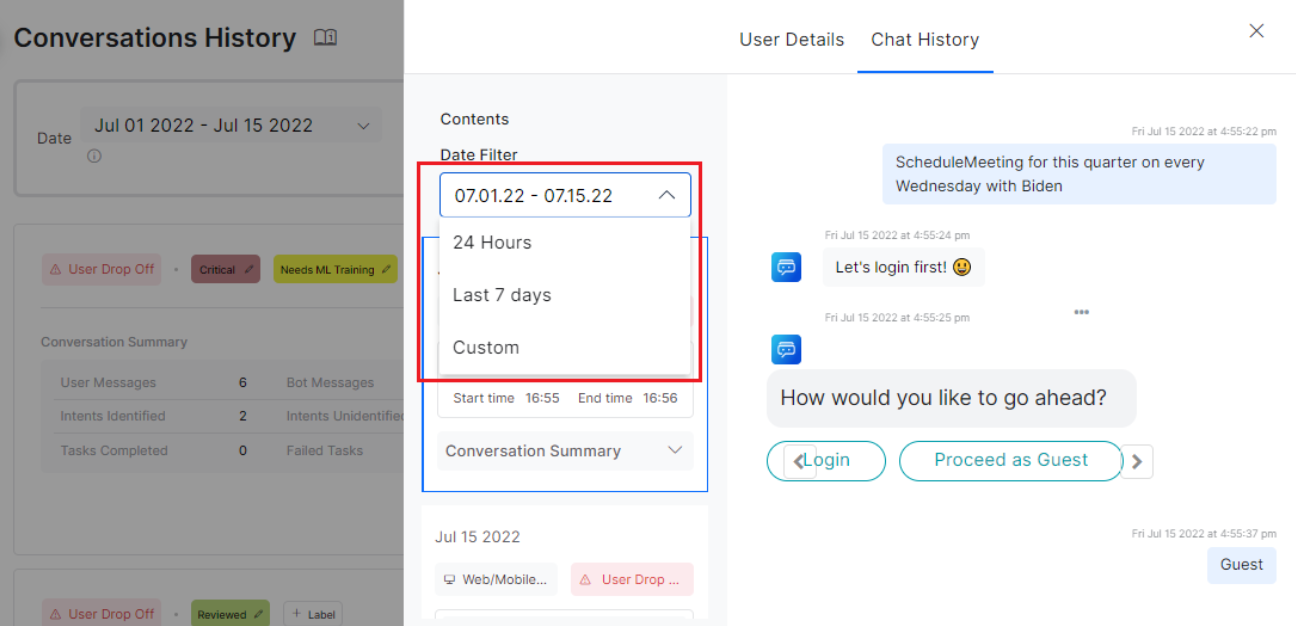
The NLP Insights page shows conversations from the last 24 hours by default. Use the Date drop-down to select 24 hours, the last 7 days, or a custom period.

Fields Matrix

The following matrix shows field availability across NLP Insights tabs:
FieldIntent FoundIntent Not FoundUnhandled UtterancesPinned
Utterances
IntentXX
TraitsX
UserID
Language
Date & Time
Prompt TypeXXX
Task NameXXX
Node NameXXX
Failure PointXXXX
Type of IssueXXX
TypeXXXX
Total RunsXXXX
Success%XXXX
2XX ResponsesXXXX
Non 2XX ResponsesXXXX
Avg Response TimeXXXX
LogXXXX
Debug PointXXXX
ChannelXXXX

Filter Criteria

You can filter information on the Insights page using various filters. Save the entered filter criteria and set it as the default filter using Save as Default Filter. Filter criteria differ slightly between tabs. The relevant filters are applied when switching between tabs on the Insights page. See Dashboard Filter Criteria for more details.

Detailed View

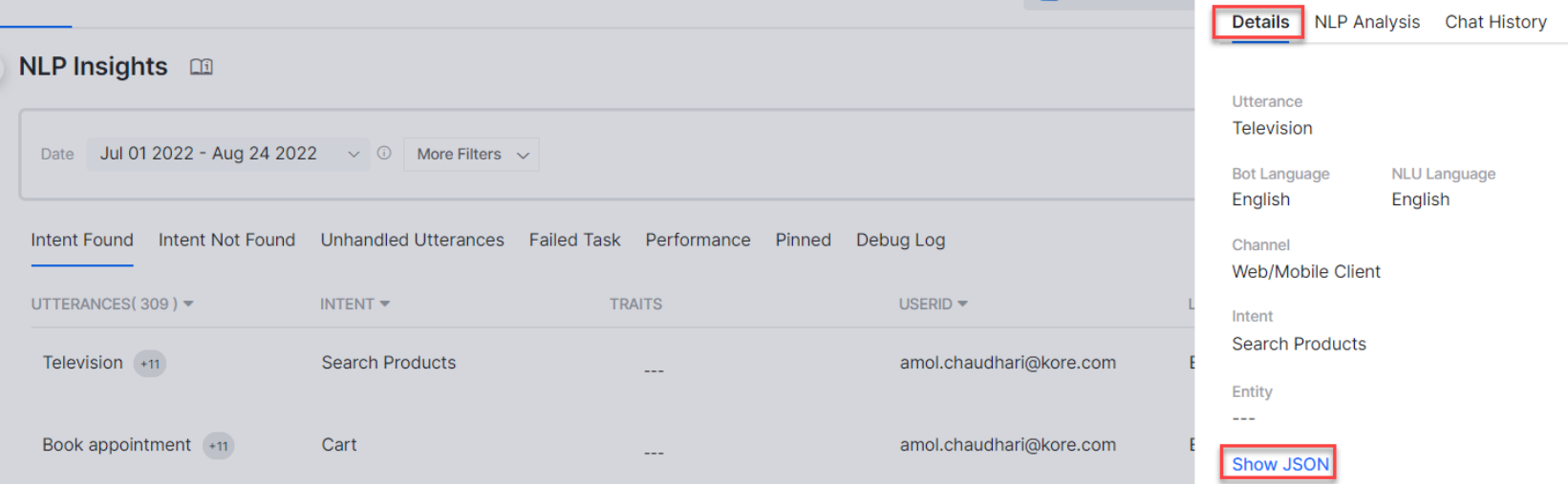
For any user utterance listed on the tabs, click the record to open more details. The record shows the following sub-tabs: Details, NLP Analysis, and Chat History.

Details

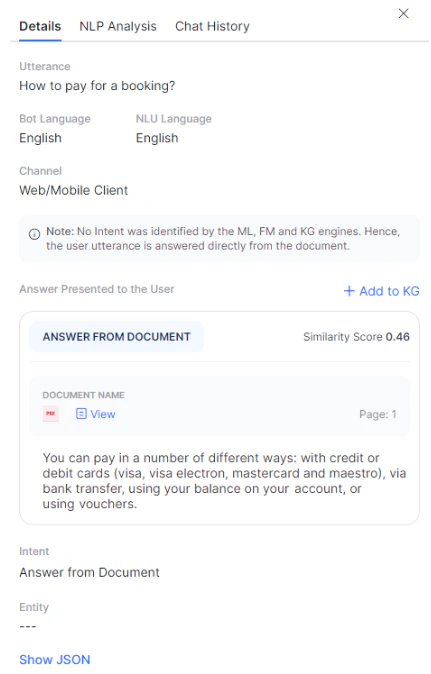
The Details tab shows the basic details of the session along with a JSON file that includes the NLP analysis for the conversation. Filter Criteria Details If the intent has been answered from a document, this section provides:
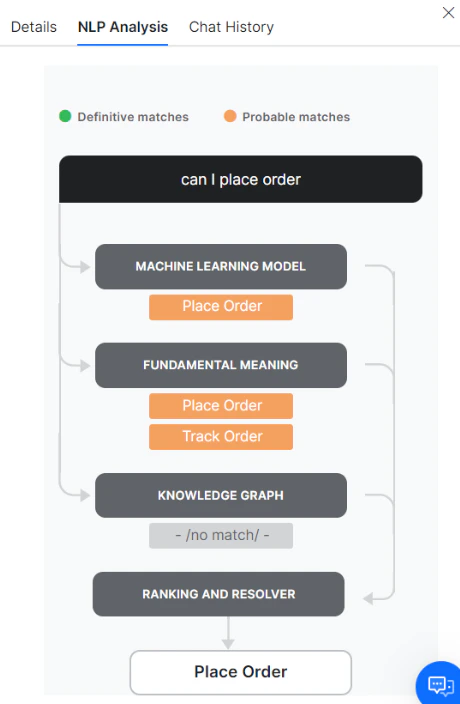
  • Information on the intent not being identified by the ML, FM, and KG engines, indicating the user utterance was answered directly from the document.
  • The answer presented to the user.
  • The document from which the answer was provided.
  • A Similarity Score for how similar the user query is to the document content.
  • An option to add the query to the Knowledge Graph as an FAQ.
Filter Criteria Details

NLP Analysis

This tab provides a visual representation of the NLP Analysis, including intent scoring and selection. NLP Analysis
Chat History

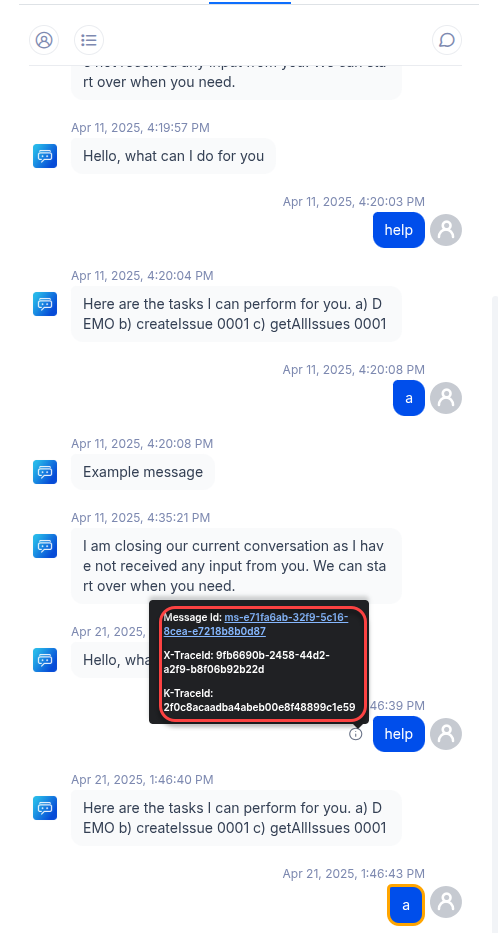
The Chat History tab shows the exact message or conversation for which the record is logged, along with the entire chat history of the user session. Chat History Chat History captures the following details:
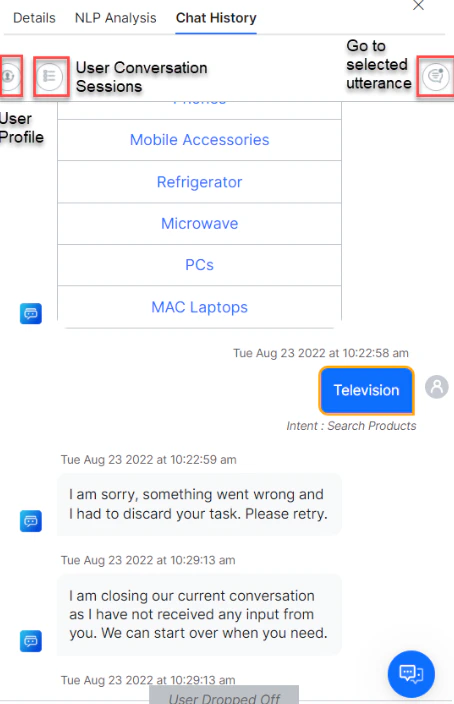
  • User Profile: A 360-degree view of the user and their usage metrics.
  • User Conversation Sessions: Lists all sessions of the user in the given period with the selected utterance section expanded.
  • Go to Selected Utterance: Clicking this icon highlights the selected utterance in orange.
  • X-Trace Id: A unique ID assigned to each incoming message, included in all platform logs.
  • K-Trace Id: Kore’s monitoring trace ID, useful for debugging purposes.
When hovering over a message, the info icon appears. Click the Info icon to view the Message Id associated with the message. Chat History Info Click the Message Id to view the X-Trace Id and K-Trace Id for the message. Chat History Trace
The X-Trace Id and K-Trace Id are retained in the logs for 30 days. Once expired, a tooltip displays: “Trace records for this message are not available”.
The following user information is displayed on the Chat History tab:
FunctionalityAttributeDescription
User ProfileKore User IDUser ID assigned by the platform.
User ProfileChannel DataData received from the channel (information available in the User Context).
User ProfileUser Meta TagsTotal number of meta tags associated with the user and key-value pairs for the most recent ones.
User ProfileLatest InteractionLast time the user interacted with the AI Agent.
User ProfileTotal Conversation SessionsTotal interactive and non-interactive sessions from the beginning of time.
User ProfileTotal Conversation Sessions in the Last 30 DaysTotal interactive and non-interactive sessions in the last 30 days.
User ProfileLast 30 Days’ Intent Detection Rate(Total identified intents / (Total identified intents + unidentified utterances)) × 100 over the last 30 days.
User ProfileIntents RequestedTotal identified intents + unidentified utterances.
User ProfileIntents IdentifiedTotal intents identified.
User ProfileLast 30 Days Goal Completion Rate(Successful tasks / (Total successful tasks + total failed tasks)) × 100 over the last 30 days.
User ProfileTasks InitiatedTotal successful tasks + total failed tasks.
User ProfileTasks CompletedTasks successfully completed.
User ProfileRecent Conversation FlowsTop 10 popular conversation flows executed by the user in the last 30 days.
User Conversation SessionsSession StartSession start date and time.
User Conversation SessionsSession EndSession end date and time.
User Conversation SessionsChannelChannel in which the session was initiated.
User Conversation SessionsAgent Transfer TagSessions where the user was transferred to an agent.
User Conversation SessionsDrop Off TagSessions where the user dropped off.
User Conversation SessionsTotal Success TasksCount of tasks successfully completed in the session.
User Conversation SessionsTotal Failed TasksCount of tasks failed in the session.
User Conversation SessionsIntents IdentifiedCount of intents successfully identified in the session.
User Conversation SessionsIntents UnidentifiedCount of unidentified intents and list of unidentified intents.
User Conversation SessionsConversation PathThe series of tasks initiated by the user in the session.
User Conversation SessionsSession Meta TagsCount of session meta tags with details of the most recent custom meta tags.
User Conversation SessionsMessage Meta TagsChat transcript annotated with message tags for messages with associated meta-tags.
User Conversation SessionsAgent TransferIndicates the point of agent transfer at the last message before transfer.
User Conversation SessionsDrop OffIndicates the point of drop off at the last message before dropping off.
Advanced Performance Details Clicking a service, script, or WebHook name opens the advanced details dialog, which lists each instance of its run along with separate tabs for successful and failed runs. Analyzing the average response time of different runs gives insight into aberrations in service or script execution. Click any row to open the JSON response associated with the service or script run.

DialogGPT NLP Insights Analysis

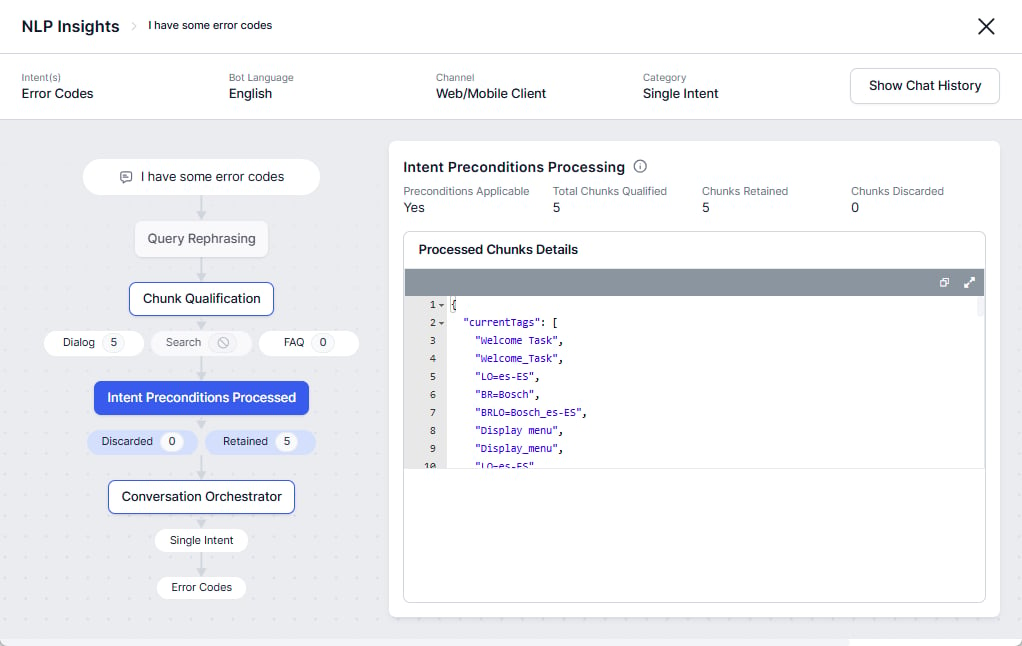
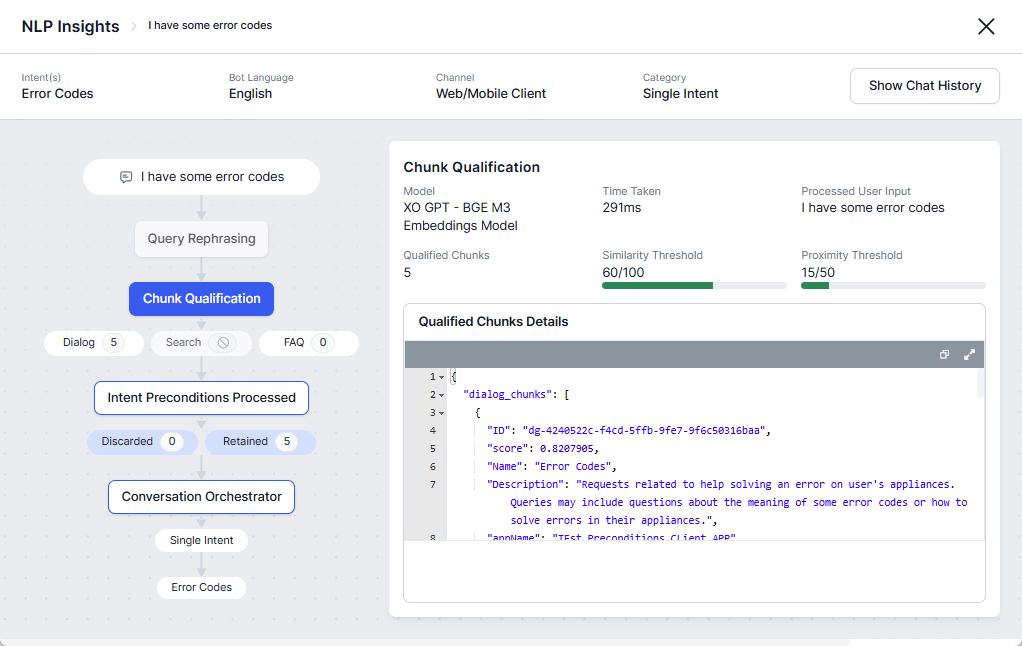
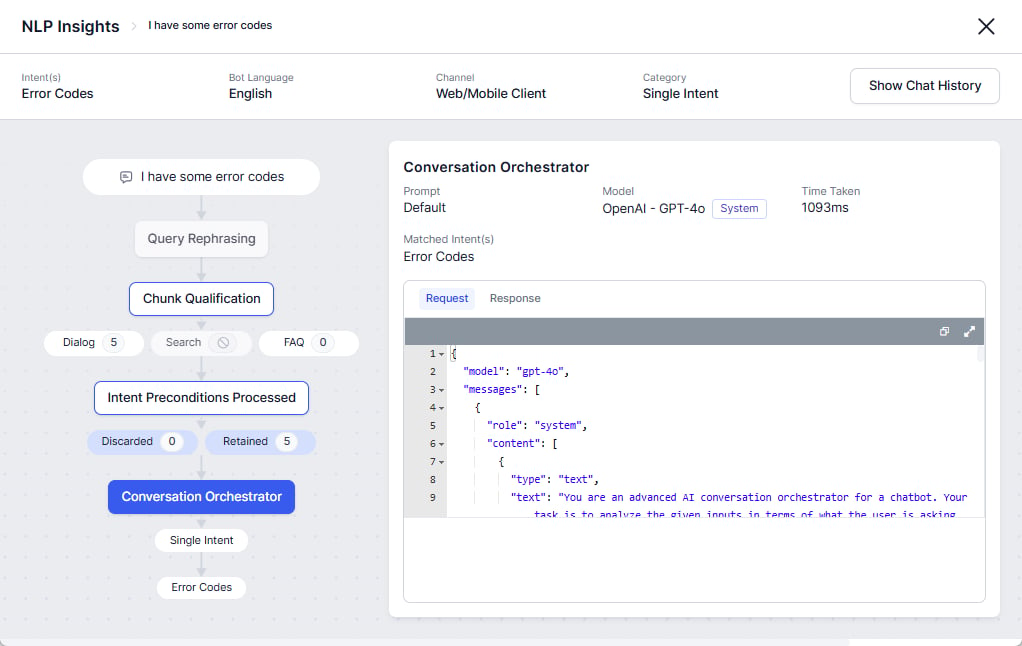
DialogGPT Analytics provides structured insights into how the system processes user inputs, detects intents, qualifies responses, and orchestrates conversations. It allows you to monitor intent classification, chunk qualification, response generation, and chat history, improving tracking, debugging, and compliance. Analytics also includes the DialogGPT-ConversationOrchestrator model output Fulfillment Type as a category, enabling developers to filter user inputs by triggered intents and review NLP details for deeper analysis.

Query Rephrasing

The system enhances user input through query rephrasing while preserving intent and improving recognition and response accuracy. It normalizes complex or ambiguous queries, correctly interprets synonymous variations, and enhances model comprehension by reducing inconsistencies.

Chunk Qualification

After rephrasing the user input, the system evaluates multiple response sources to identify the most relevant response chunks. It filters responses from Dialogs, Search, and FAQs, ensuring accurate and contextually appropriate results. This section displays key details including the model used, processed user input, processing time, number of qualified chunks, similarity thresholds, and proximity thresholds. Chunk Qualification
Conversation Orchestrator

After qualifying relevant response chunks, the Conversation Orchestrator determines the optimal fulfillment path for generating responses. It supports both Single-Intent and Multiple-Intent categorization. This section displays key details including the model and prompt used, processing time, and matched intents. Access the complete request and response logs for deeper analysis and troubleshooting. Conversation Orchestrator
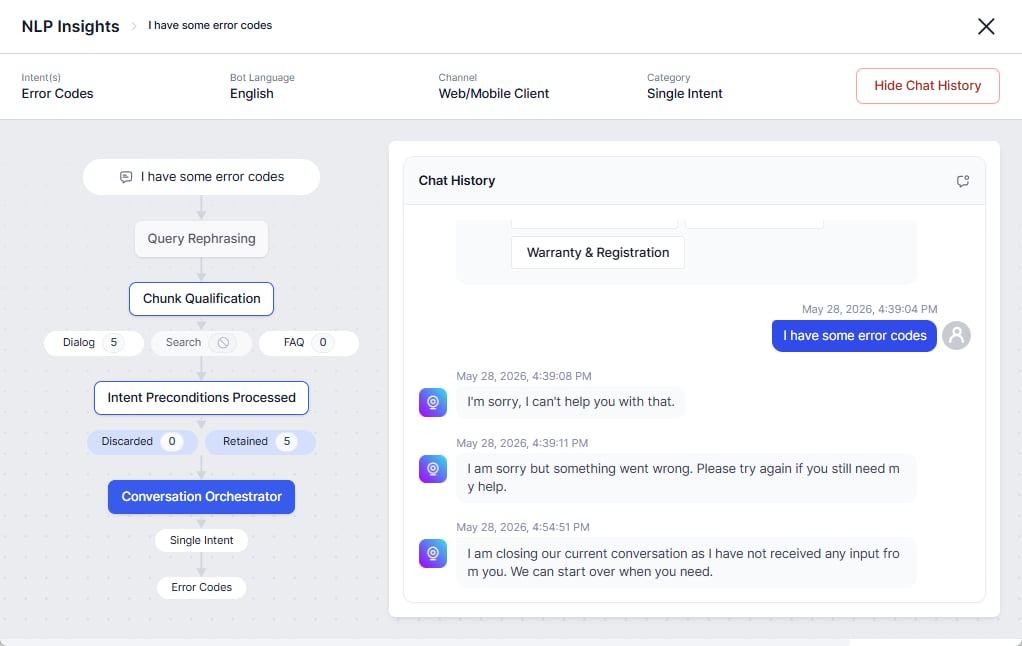
Chat History

The Chat History tab shows the exact message or conversation for which the record is logged, the entire chat history of the user session, and the intent and intent category. Chat History
Train the AI Agent

You can train specific intents and utterances from the Intent Found, Intent Not Found, and Unhandled Utterances tabs. Hover over a row and click the Train icon to open the Test & Train page.

Data Export

Export the data on the NLP Insights page to a CSV file by clicking the Export icon on the top right corner of the page. Data Export Once you click the icon, the export process starts and you can monitor progress in the Status Tracker dock. The file downloads to your local Downloads folder and contains data specific to the selected tab with detailed analysis based on the selected filters. The export also includes Meta Tag information.