

View the Conversations History Dashboard
-
Click Analytics on the left navigation pane. The Analytics panel displays the list of reports.

- Click Conversations History under the Overview section of the Analytics panel. The Conversations History dashboard appears on the right side of the page.
- Select the appropriate filters and click Apply.
Filter Views Page
The Filter Views page is the landing page displayed when you open Conversations History. It lets you view, create, and manage conversation filters. From this page you can:- View available conversation filters and their configurations.
- Create a custom filter to display only required data.
- Access the Conversations History Dashboard for the selected preset.
Prebuilt Filters
Prebuilt filters (also called presets) provide ready-made views for common use-case scenarios. They reduce the effort of manually reviewing each conversation to identify specific patterns. How it works:- The system checks the configuration parameters and filter conditions for each conversation session.
- The conversation session is automatically mapped to the matching filter.
- Based on the selected date range, the system fetches and displays conversations that meet the preset’s criteria.
Types of Prebuilt Filters
Feedback Prebuilt Filter
The Platform supports a Feedback filter on the Filter Views panel for creating custom feedback filters. The system groups and displays conversations based on:- Feedback Survey Template Type: NPS, CSAT, or Thumbs-up / Thumbs-down.
- Operator: Equals to, Less than or equals to, Greater than equals to, Greater than, or Less than.
- Value: The feedback survey score used for conditional logic evaluation.
Use the
OR operator to group conversations with different survey types when multiple conditions need to be satisfied.View Prebuilt Filters
-
On the Conversations History page, prebuilt filters are listed under the Filter Views section.
- Click Read More next to a filter name to see its configuration details.
-
Click any prebuilt filter name to open the Conversations History panel with the relevant data.

Create a Custom Conversation Filter
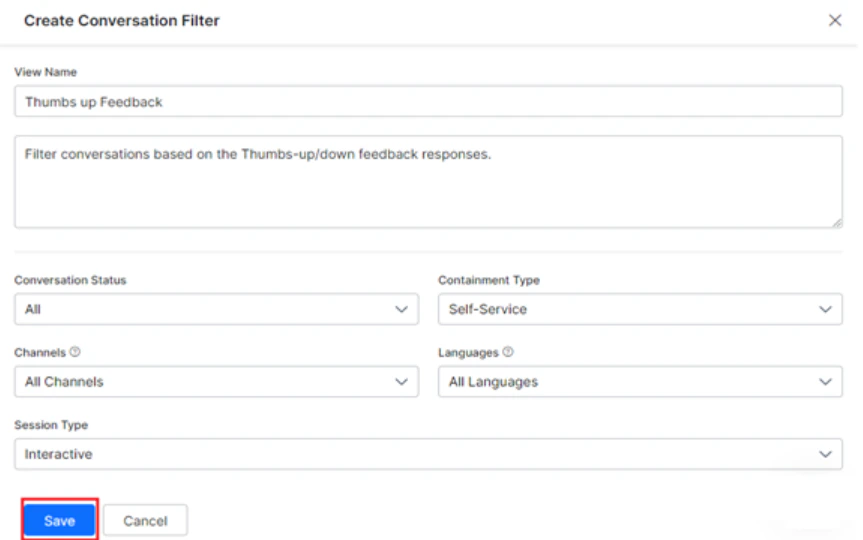
A custom conversation filter groups and displays selective conversation history data based on specific criteria.- On the Conversations History page, click + Create Filter.
- On the Create Conversation Filter panel, provide inputs for the following fields:
-
Click Save.
Edit a Conversation Filter
- Click the custom filter on the Filter Views page.
-
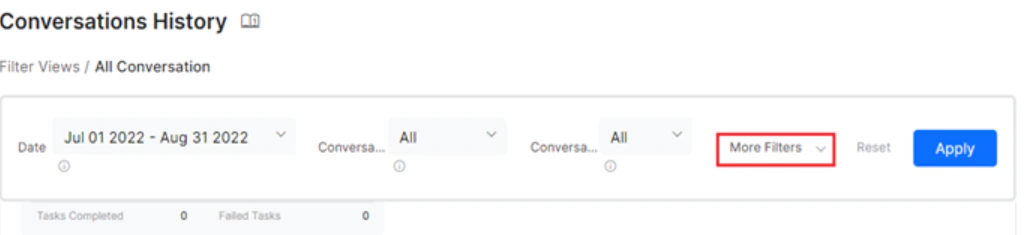
Click the More Filters dropdown on the Conversations History panel.
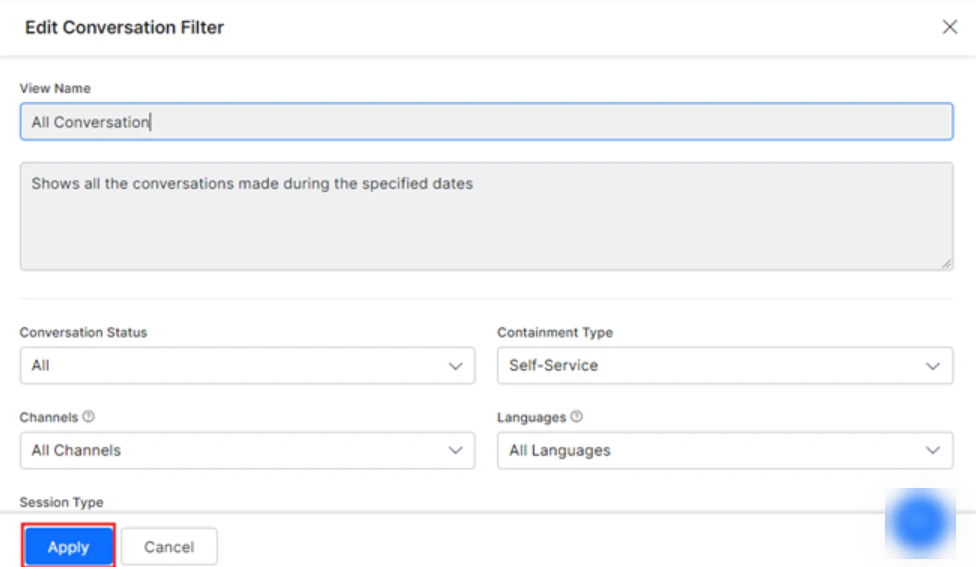
- Modify the required fields in the Edit Conversation Filter window.
-
Click Apply.
Filter Criteria
You can customize the Conversations History data view by selecting filter criteria on the dashboard.Conversations History Dashboard
The Conversations History Dashboard displays the following information for each conversation session that meets the defined filter conditions for the selected date range.Containment Type
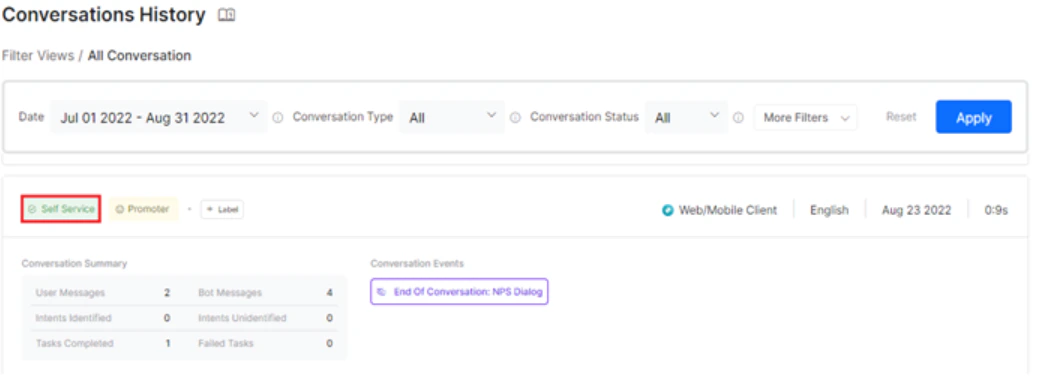
The following containment types are displayed at the top of the individual Conversations History details panel:- Self-service: The conversation with the AI Agent was successfully completed by the user.
- Agent Transfer: The conversation was transferred to a live agent using the Agent Transfer node in the Dialog Flow.
-
User Drop-off: The user stopped participating before the conversation was completed, due to an error in the flow or another reason.
Labels
A custom label helps identify conversations that require follow-up or indicate an action item for an analyst during review.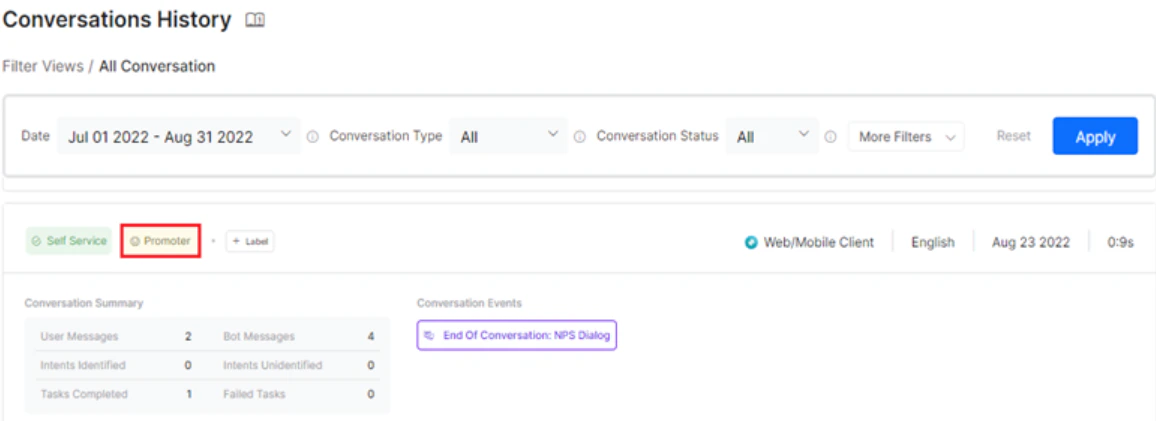
-
Click the + Label button on the Conversations History panel for the required conversation session.
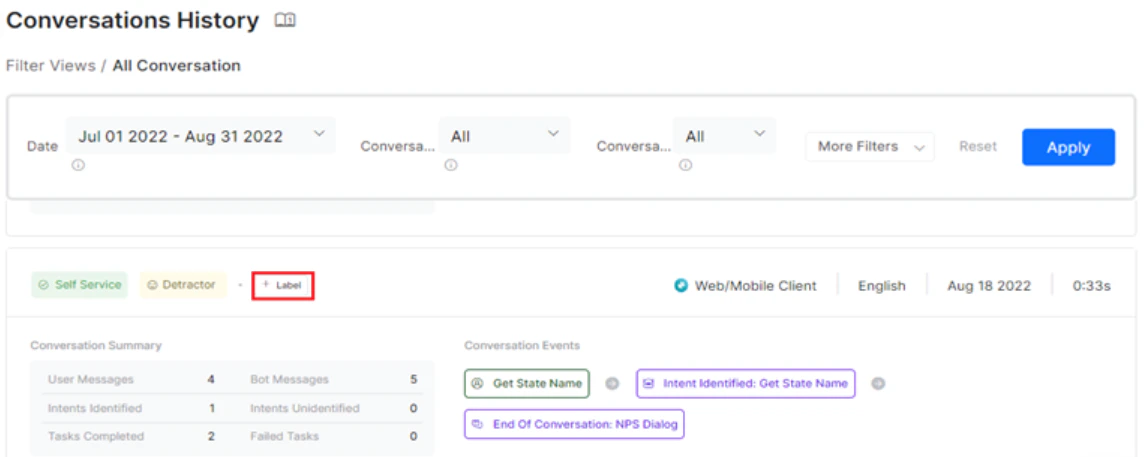
- In the Labels window, scroll down and click + Add.
-
Enter the label name and click the confirm icon.
You can select a different label color by clicking the color icon and using the color palette.
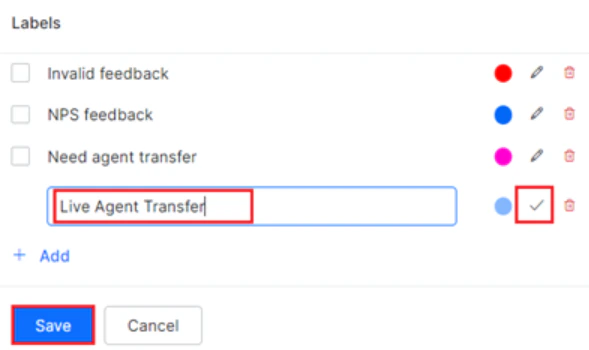
- Click Save.
- Click + Label for the conversation session.
- In the Labels window, click the edit icon for the label to modify.
- Make changes and click the confirm icon.
- Click Save.
- Click + Label for the conversation session.
- In the Labels window, click the delete icon for the label to remove.
- Click Save.
Other Conversation Parameters
The channel, language, date, and conversation duration are displayed at the top of the Conversation History analytics panel.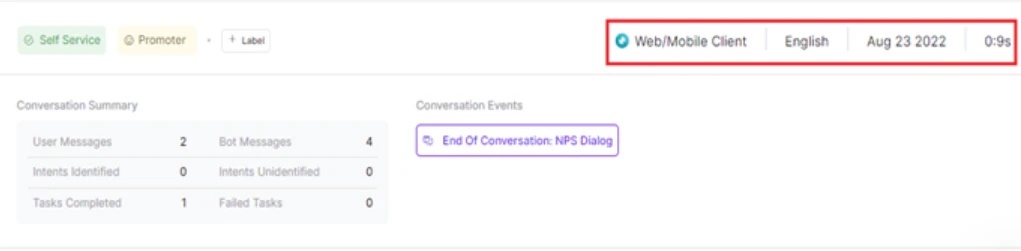
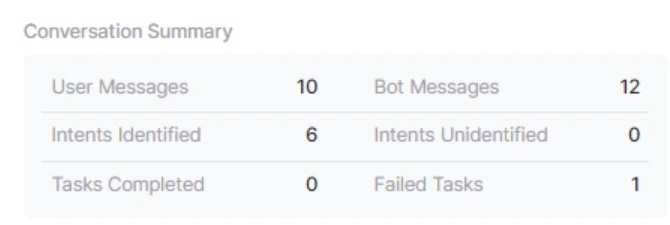
Conversation Summary
The following metrics are shown in the Conversation Summary:- User Messages: Number of messages sent by the user to the AI Agent.
- AI Agent Messages: Number of messages sent by the AI Agent to the user.
- Intents Identified: Number of user intents identified during the conversation.
- Intent Unidentified: Number of utterances that didn’t result in intent identification.
- Tasks Completed: Number of tasks successfully completed.
- Failed Tasks: Number of tasks that failed.
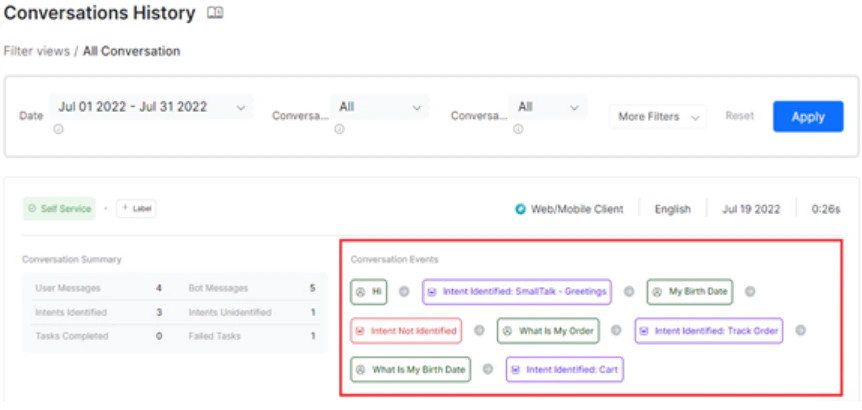
Conversation Events
Conversation Events indicate the sequence of occurrences during a conversation triggered by customer inputs and AI Agent responses. Events are categorized as regular or error-based.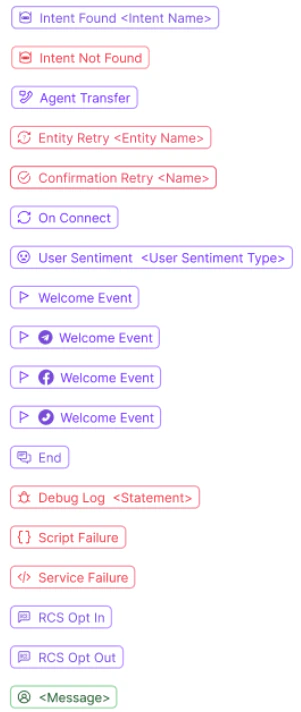
Enriched Chat Transcript
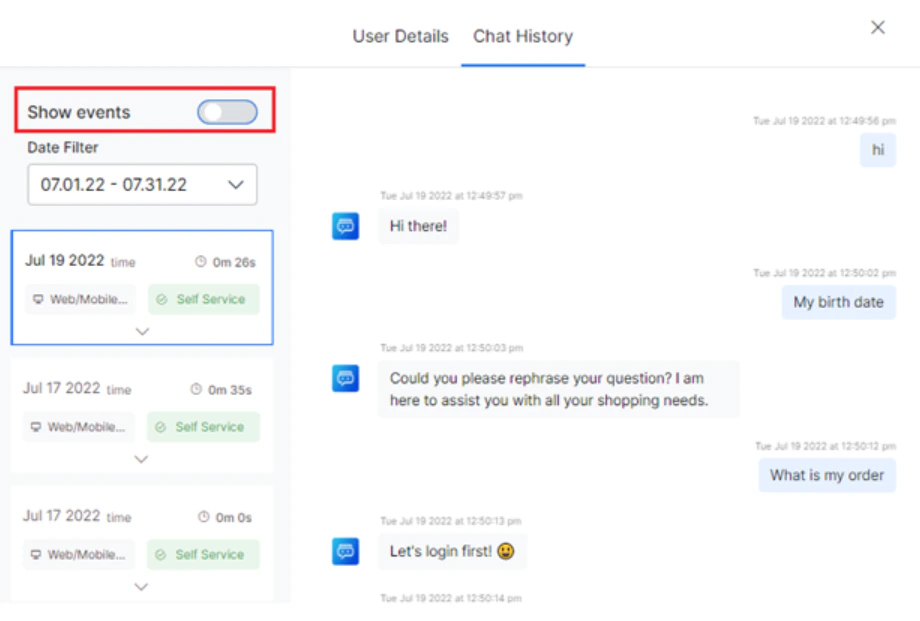
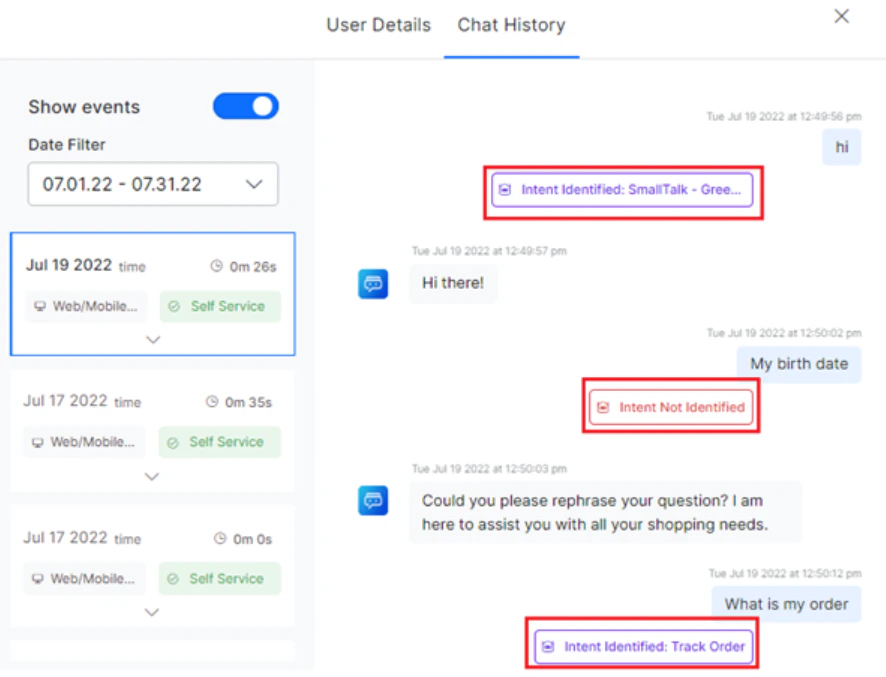
The Enriched Chat Transcript feature provides a detailed view of the conversation with all events associated with each message. It helps understand conversations at a granular level, identify issues, and improve AI Agent training. To view the Enriched Chat Transcript, enable the Show Events option (default) in the Chat History panel.Disabling Show Events displays only the chat transcript without events.
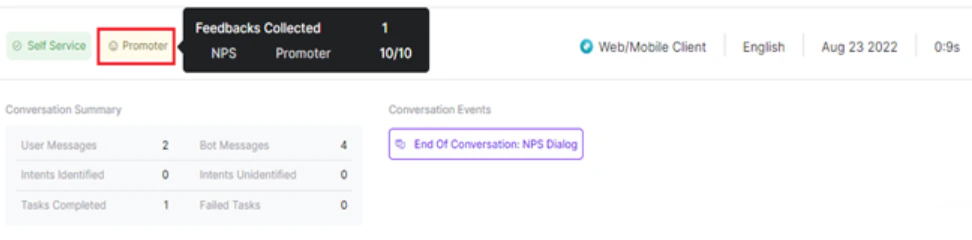
- Number of feedback responses collected.
- Type of feedback survey.
- Customer type (determined after feedback is submitted).
- Feedback score.
User Details
- Click either Conversation Summary or Conversation Event on the dashboard.
-
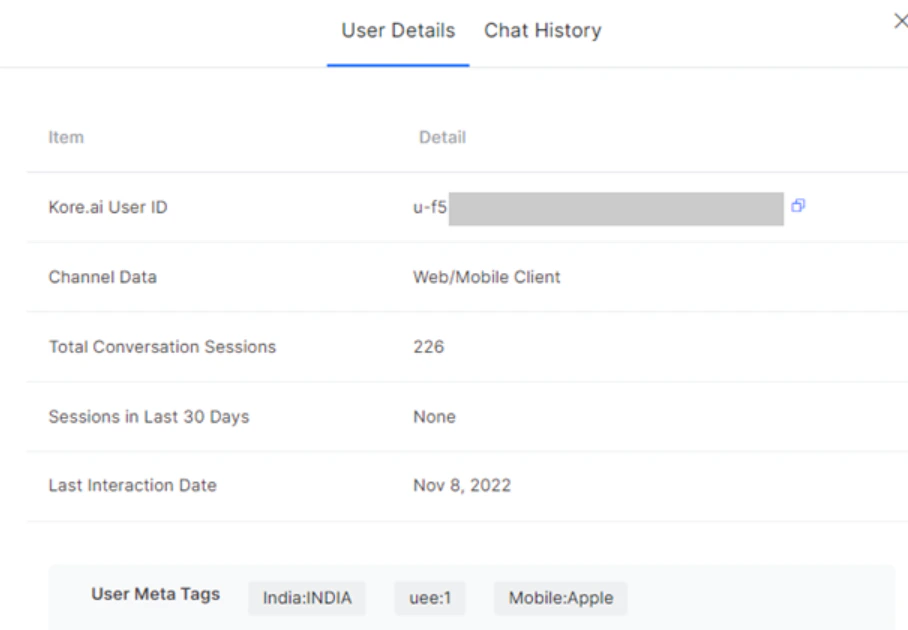
Click the User Details tab to view:
- User ID: Unique ID assigned to the agent.
- Channel Data: The conversational channel where the interaction occurred.
- Total Conversation Sessions: Total conversations handled by the agent in the selected period.
- Sessions in the Last 30 Days: Conversations handled within the selected period in the last 30 days.
- Last Interaction Date: Date of the agent’s most recent interaction.
- User Meta tags: Keywords used to identify important information in the conversation.
Chat History
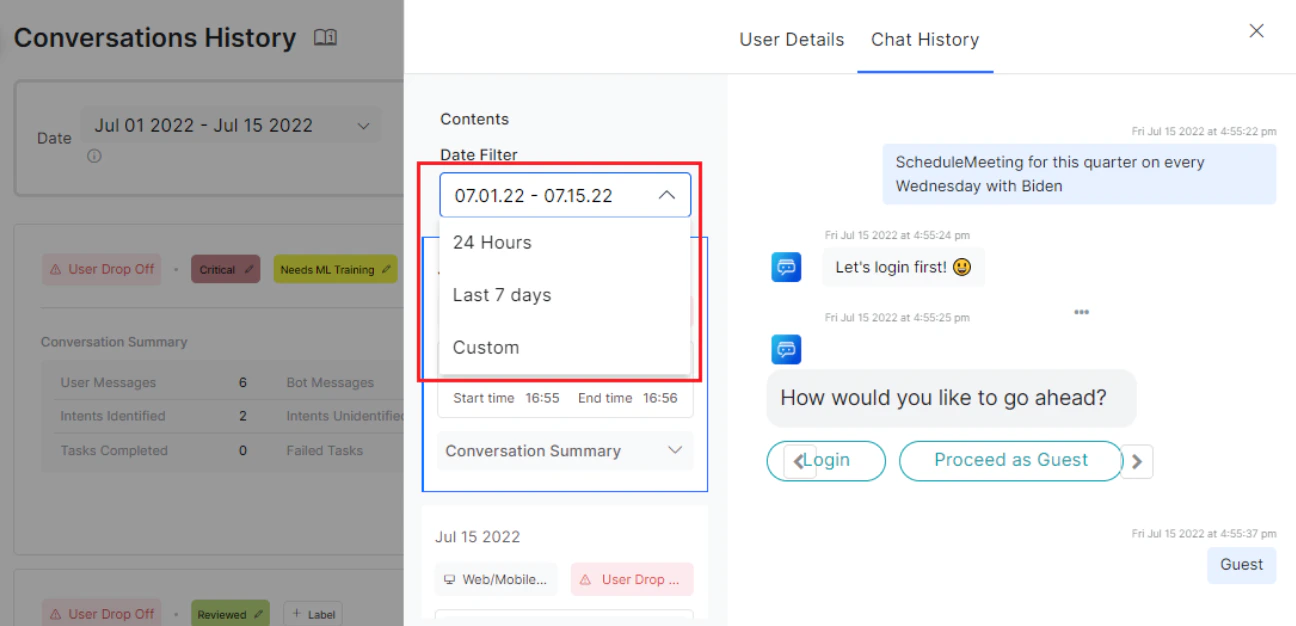
The Chat History panel displays the full conversation flow between the AI Agent and the customer, including events, actions, input requests, queries, and intent-based responses. Failed tasks and exceptions are also shown. To view Chat History:- Click an entry under Conversation Summary or an event under Conversation Events on the Conversation History dashboard.
-
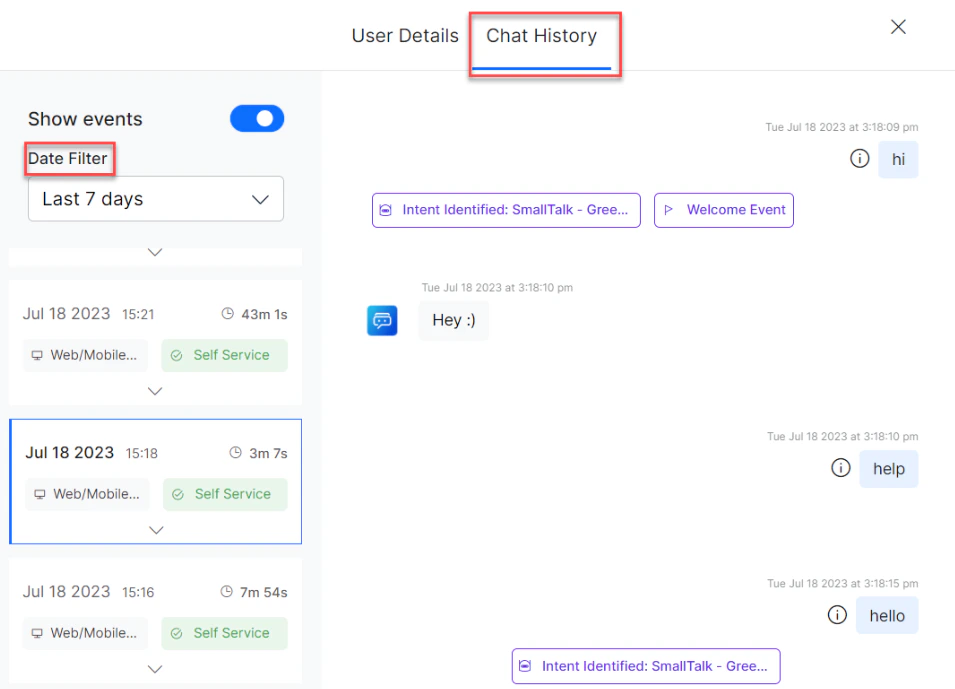
The Chat History window displays the conversation flow, along with:
-
Date Filter dropdown to select the period of Chat History.
-
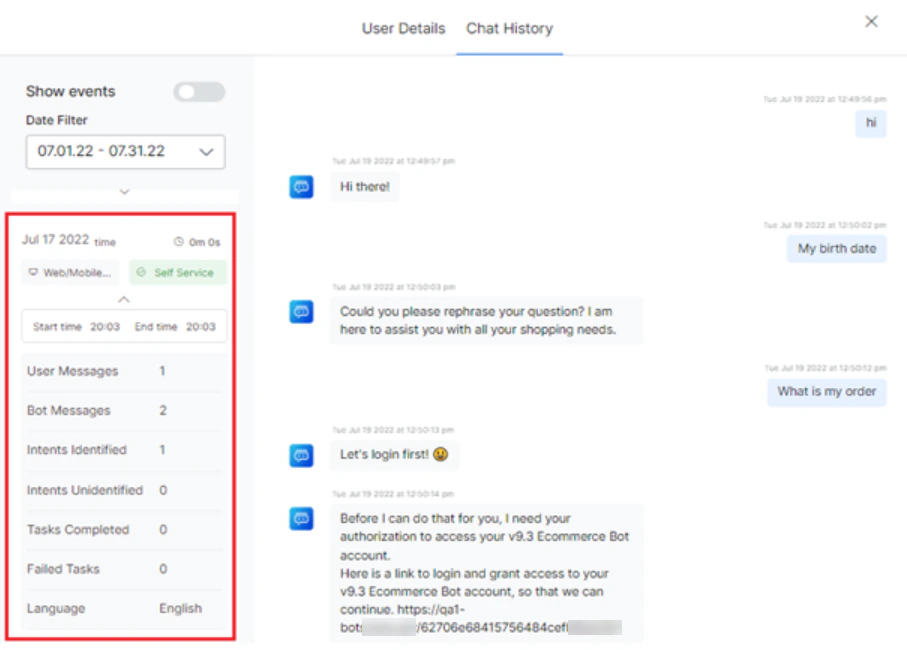
Date-wise summary of:
- Conversation channel
- Chat initiation event
- Chat duration
- Chat start time and end time
- Conversation summary (user messages, AI Agent messages, intents identified, intents unidentified, tasks completed, failed tasks)
- Language
- Event labels tagged to the conversation
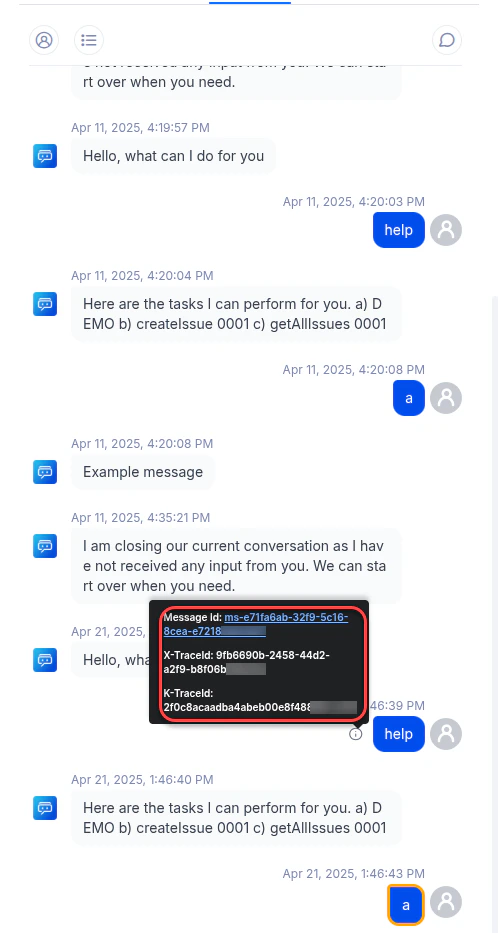
- X-Trace Id: A unique ID assigned to each incoming message, included in all platform logs.
- K-Trace Id: Kore’s monitoring trace ID, useful for debugging.
-
Date Filter dropdown to select the period of Chat History.
X-Trace Id and K-Trace Id are retained in logs for 30 days. After expiry, a tooltip displays: “Trace records for this message aren’t available.”
Define Alternate Text for JavaScript Messages
AI Agent designers can add context-specific Alternate Text to JavaScript messages or templates. This text appears alongside the JavaScript message tag in the Chat History window to clarify the message’s purpose. The Conversation History API response includes amessages.tags.altText parameter that captures the configured Alternate Text values.
How it works:
- Use the predefined function
tags.addAlternateText("value")to add Alternate Text to a JavaScript message or Web SDK template. - Provide a descriptive value, for example:
tags.addAlternateText("Accounts Selection Message").
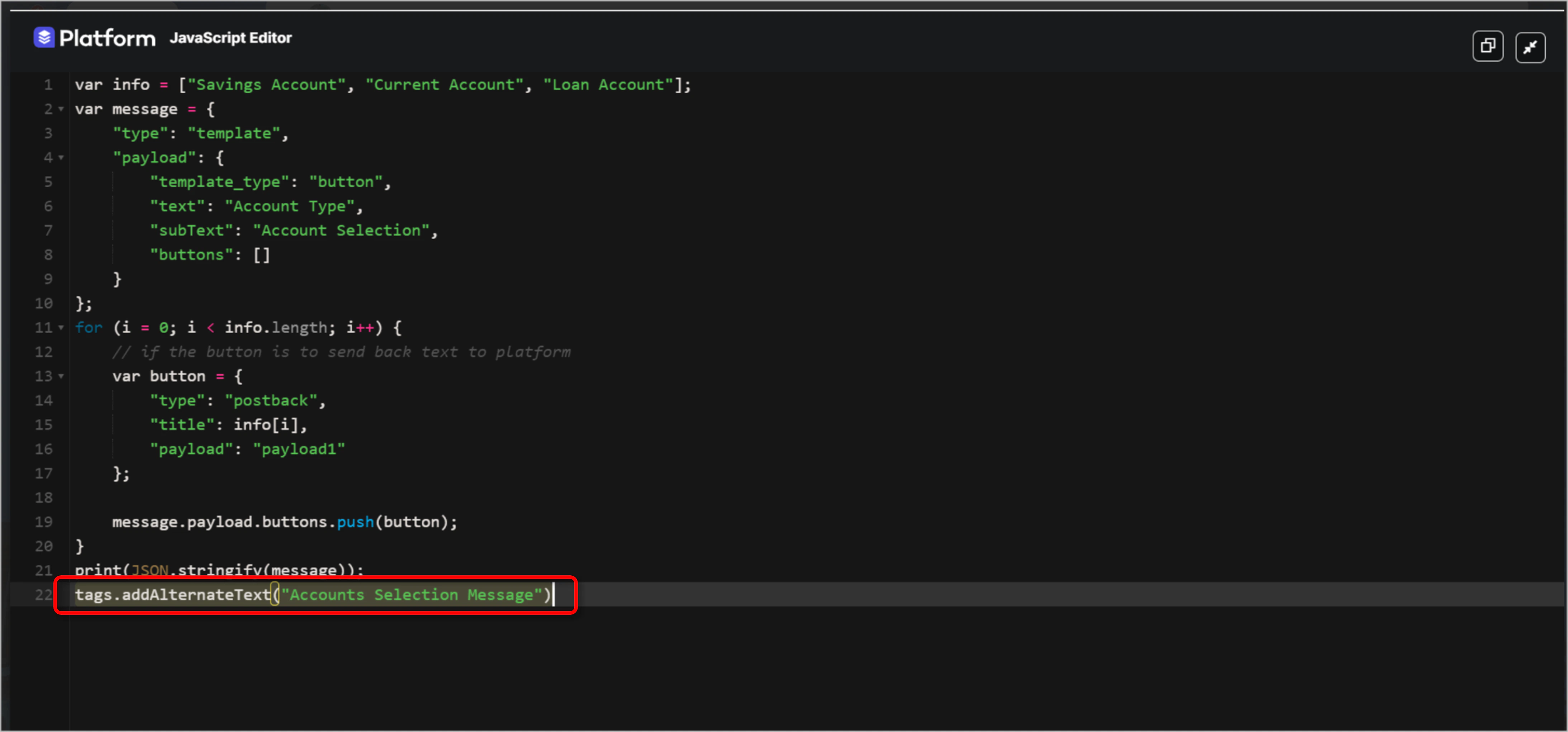
{} JavaScript tag.

- Static and dynamic values can be used for Alternate Text.
- Alternate Text can be defined for JavaScript messages in user prompts, error prompts, Small Talk, standard responses, FAQs, and events.
- When multiple Alternate Text values are added to a message, the platform assigns the latest value.
- In Chat History, the platform substitutes the payload label with the Alternate Text tag for all channel templates except the SDK Template.
Message Tags
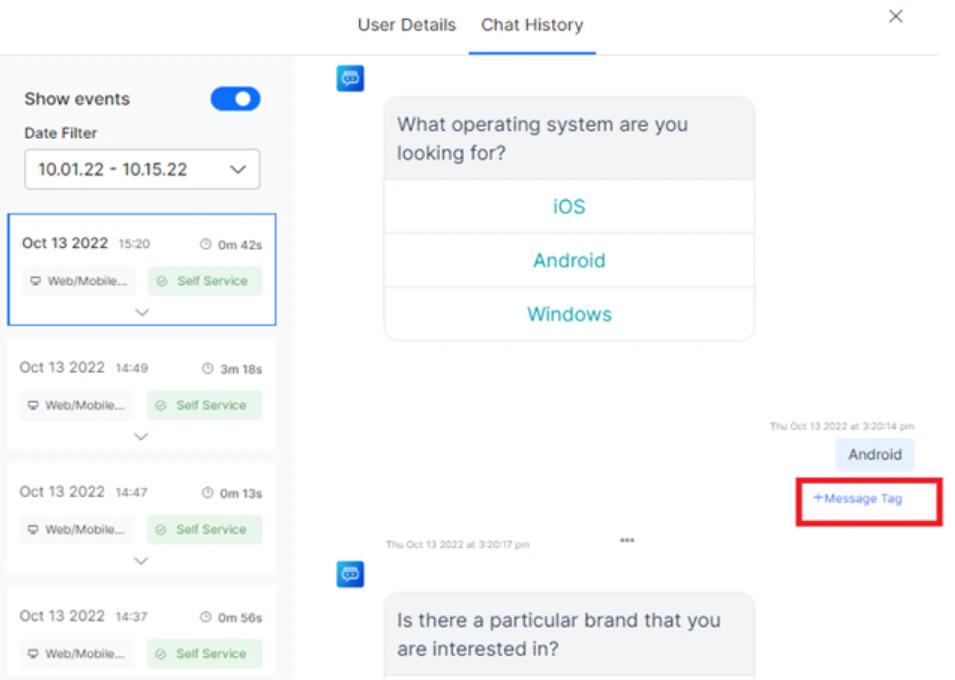
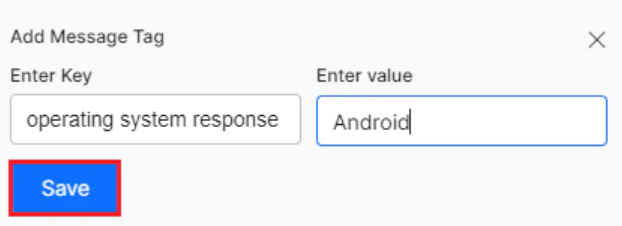
Message tags help identify and categorize messages in the chat transcript. They add clarity and context to conversations and can be reused across related conversations. System-defined tags are available by default. Custom tags are defined as key-value pairs, where the key is an identifier and the value is the expected customer response.- You can’t add the same key to a message more than once.
- A custom message tag can only be added or detached from a message, not edited.
- Hover over the message in the transcript where you want to add the tag.
-
Click +Message Tag.
-
In the Add Message Tag window, enter the Key and Value.
-
Click Save. The new tag appears below the message in the transcript slider.
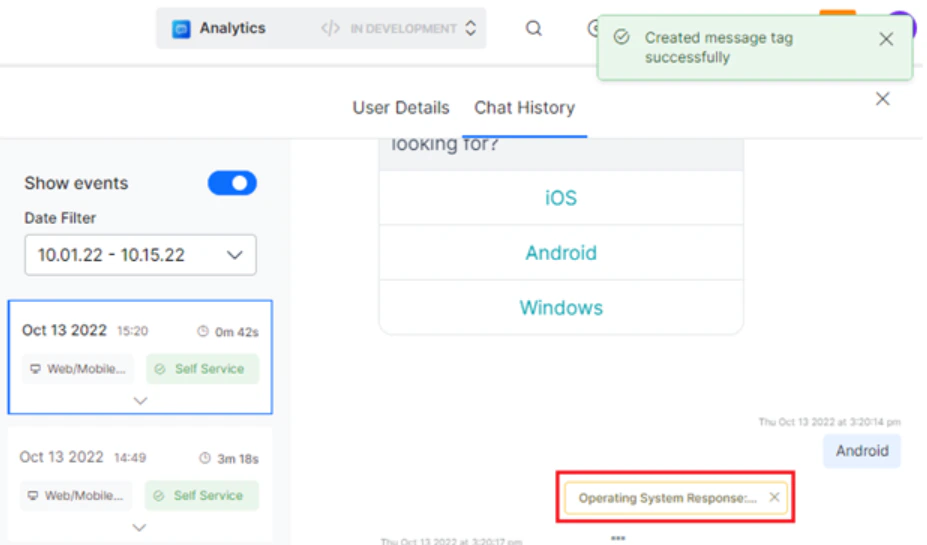
Custom message tags you create are available in the Custom Tags Filters section as filtering criteria.
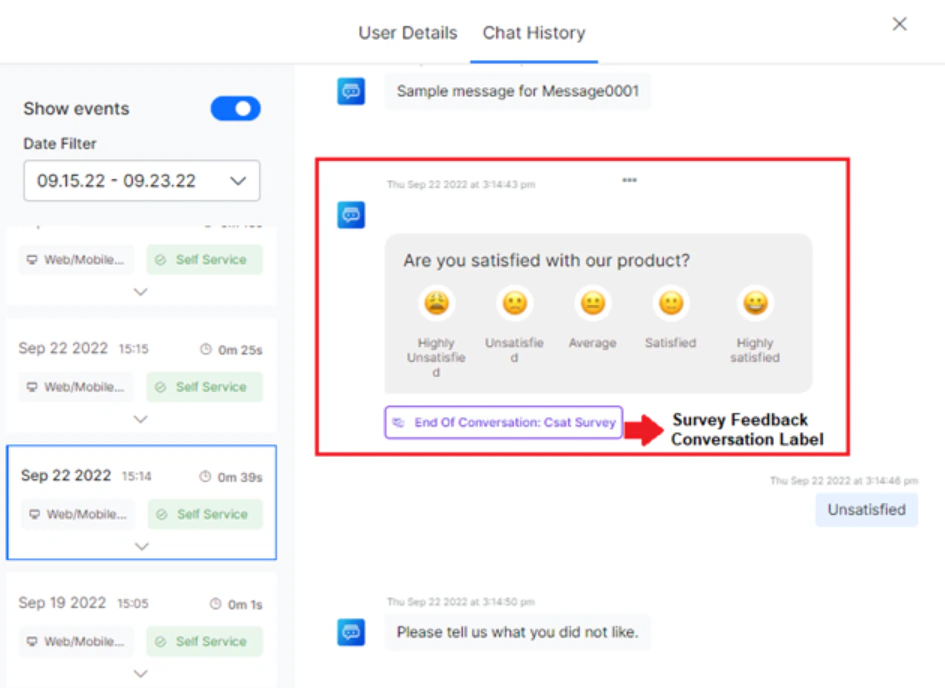
"End of Conversation: Survey Type" indicating the end of the conversation and the survey type. Responses are mapped to a key-value pair for the conversation timeline, useful for analyzing conversation quality and customer experience.
-
Start Time and End Time, along with real-time counts for:
- User Messages
- AI Agent Messages
- Intents Identified
- Intents Unidentified
- Tasks Completed
- Failed Tasks
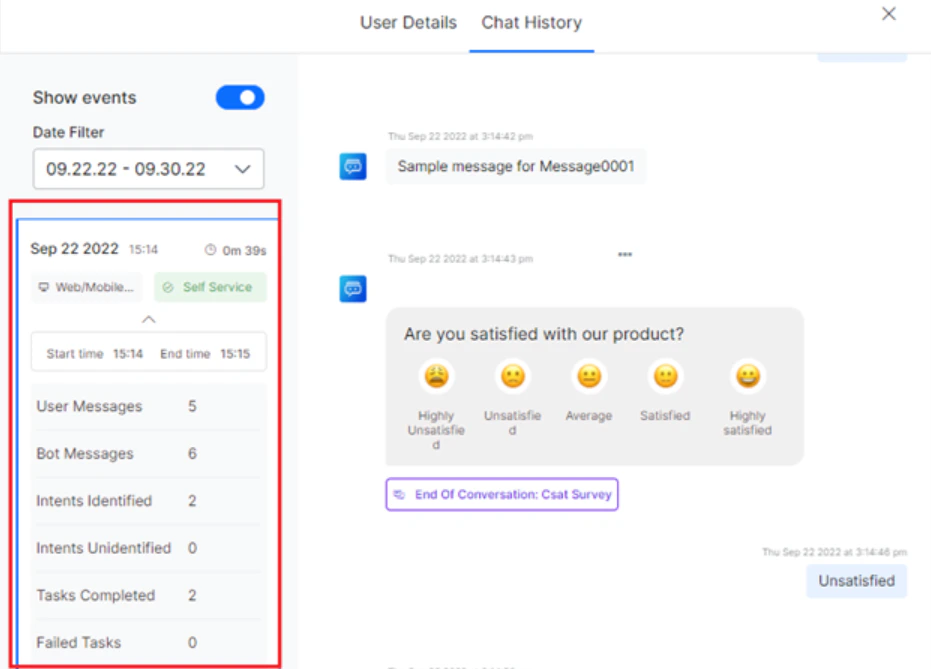
- The Feedback Event based on the event timeline with Key and Value.
-
The total number of feedback responses collected for the session, including:
- Type of Feedback
- Feedback response
- Score