

Conversation Sessions are different from Billing Sessions. Refer here for more on Billing Sessions.
Overview
A Conversation Session is defined as an uninterrupted volley between the end-user and the AI Agent.- Before the release of v7.2 of the platform, a new session was created after the inactivity duration (set as 15 mins) elapsed since the end-user’s last interaction.
- Post v7.2 release, after the inactivity duration (set as 15 mins) elapsed:
- If the end-user returns and continues with the same intent, the current session continues.
- If the end-user returns with a new intent or provides invalid input for the existing intent, a new session is created.
- Post v8.0 release, the platform gives you an option to:
- Proactively close sessions after inactivity — see Manage Sessions for details.
- Not proactively close sessions after inactivity — retains the v7.2 behavior described above.
- All conversations that include one or more messages from the user, marked as interactive sessions. These include all end-user interactions across all channels and events, including providing authorization details.
- All AI Agent-initiated conversion sessions, such as onConnect event messages, recorded as non-interactive sessions. These sessions are updated as interactive sessions as soon as a user message is received. Non-interactive sessions aren’t considered for calculating billing sessions.
- Developer interactions are also included as conversation sessions. A flag differentiates user sessions from developer sessions, and billing sessions aren’t created for developer sessions.
Inclusion of non-interactive and developer interactions in conversation sessions was implemented starting from v8.0.
Manage Sessions
This feature is only available post v8.0 of the platform release. You can define the Conversation Session behaviors in the Manage Sessions tab within App Settings > Advanced Settings.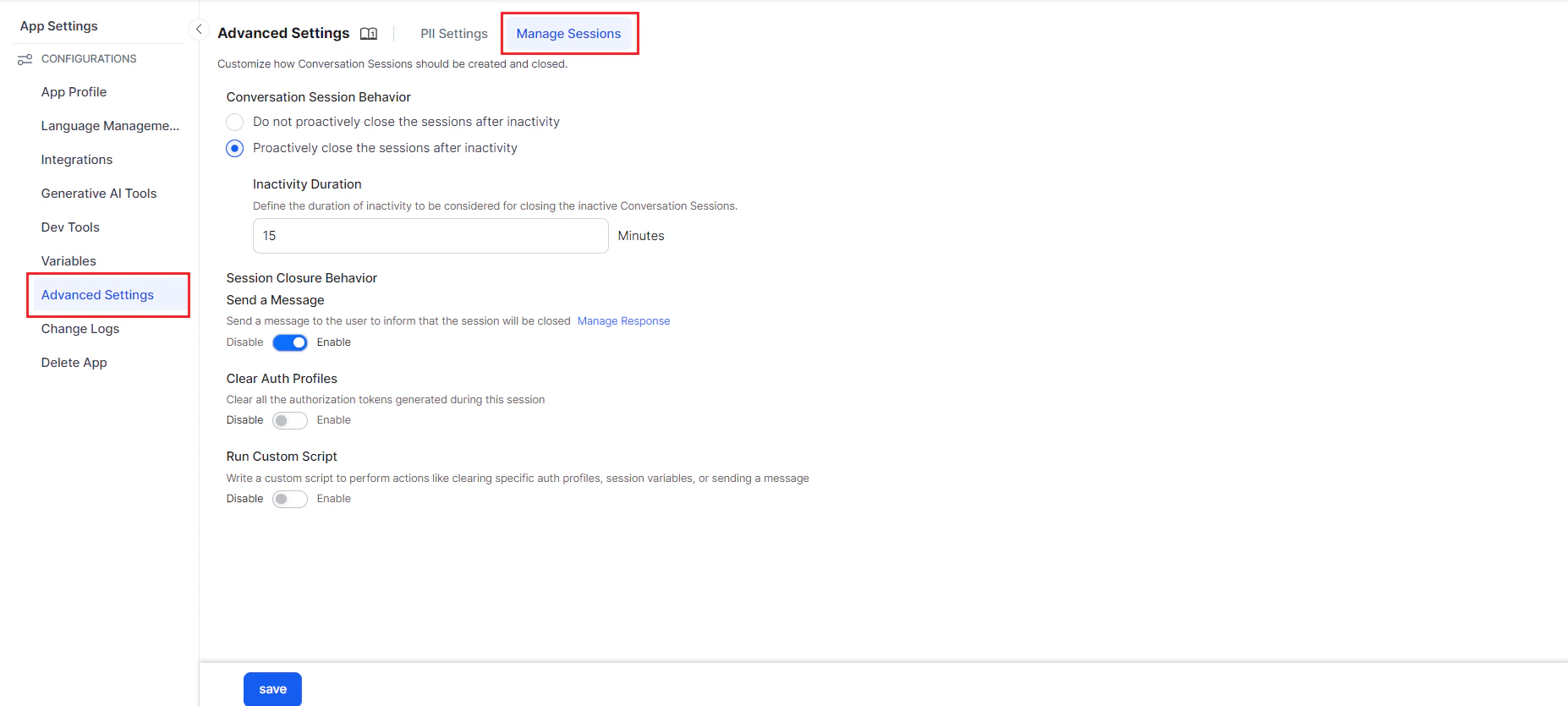
- Don’t proactively close the sessions after inactivity — Select this option to close the session only when the user returns after 15 minutes of inactivity and provides a new intent. This was the default behavior before v8.0. This option will be deprecated in future releases.
-
Proactively close the sessions after inactivity — Select this option to close the session after a defined duration of inactivity. Configure the following parameters:
-
Inactivity Duration — Set to 15 minutes by default. The session closes after the duration set here.
The minimum value is 5 min and the maximum value is 20160 min (14 days). These values can be configured at the application level through Koreconfig.
-
Inactivity Duration — Set to 15 minutes by default. The session closes after the duration set here.
-
Session Closure Behavior — Choose to close the session silently or notify the user by sending a message. Customize this message using the Manage response link. Click Add Response to add a new response.
To exclude specific channels from receiving session closure messages, use the Additional Settings option, available only when the Send a Message toggle is enabled. This opens a side sheet to select channels to exclude.
For new apps, the email channel is excluded by default to prevent unnecessary notifications, and any newly added channels are also excluded by default.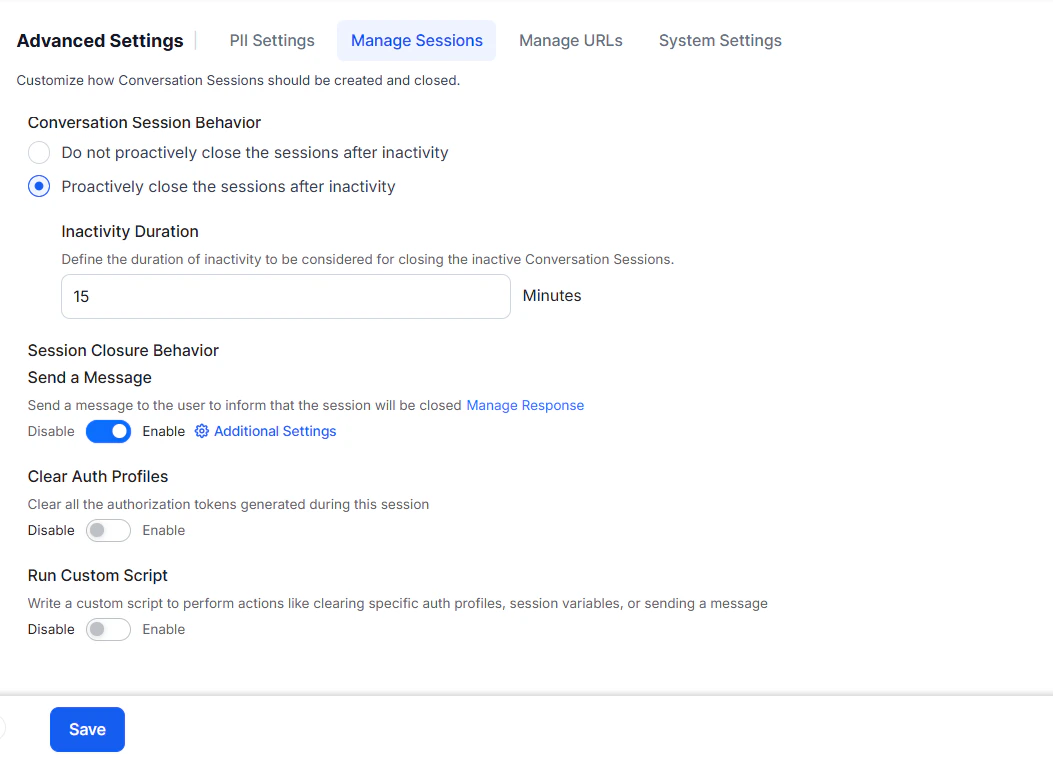
-
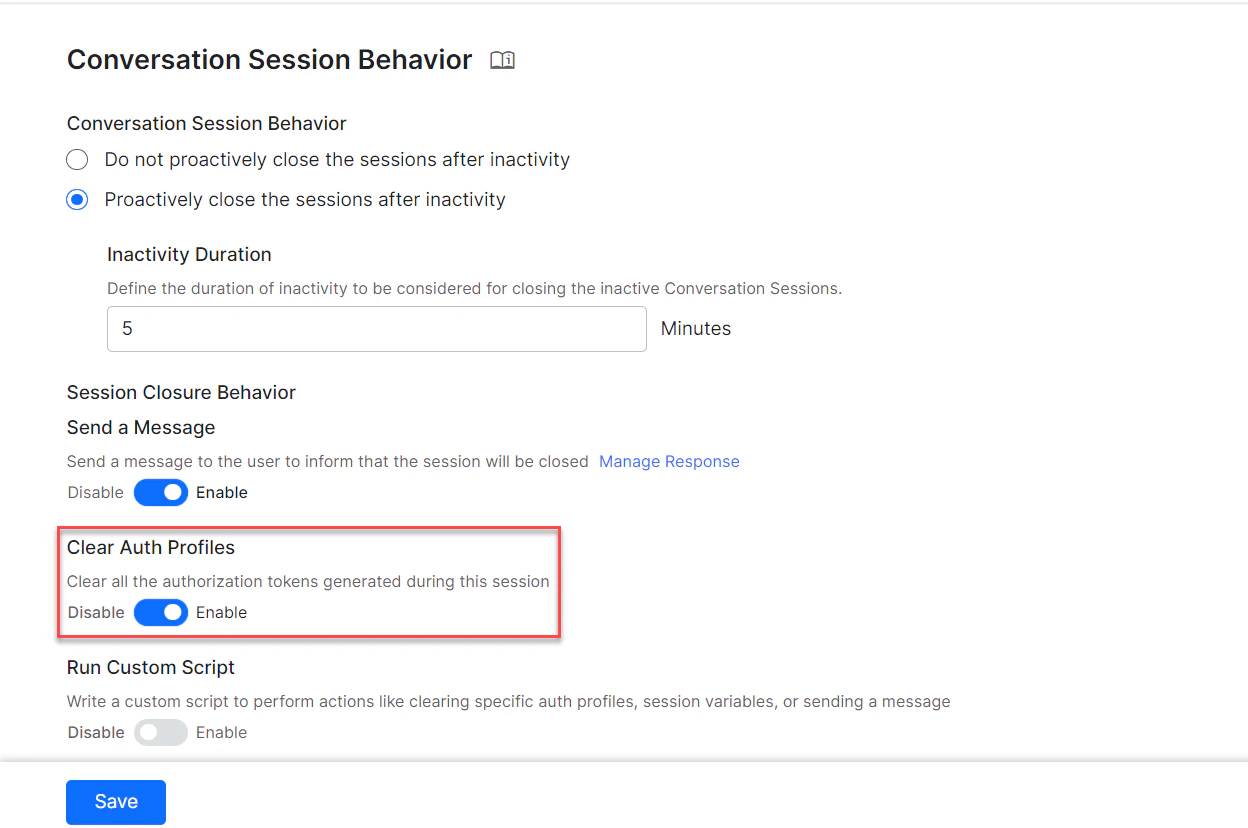
Clear Auth Profile — Enable Clear Auth Profiles to clear all authorization tokens and session variables associated with a particular session. Once enabled, you must provide authorization profile details again to re-authorize the session.
-
Run Custom Script — Use the custom script to invoke the
koreUtil.ClearAuthProfilesfunction to clear the authorization profile and associated session variables for that particular profile. For example, if you have multiple authorization profiles enabled for a session, usekoreUtil.ClearAuthProfilesto disable a specific authorization profile:koreUtil.ClearAuthProfiles ( [Auth_Profile_Name] )To clear all authorization profiles:koreUtil.ClearAllAuthProfiles ( )For more information, see the kore.UtilLibraries article.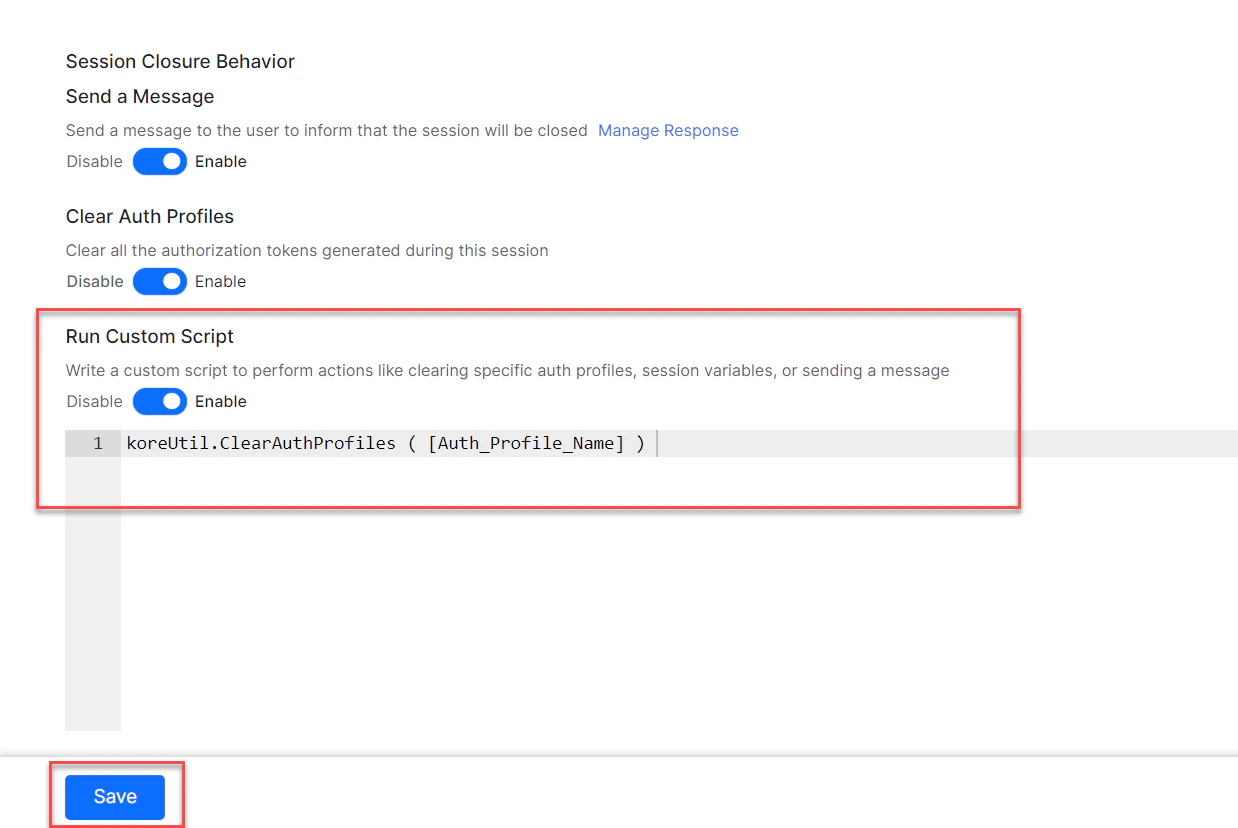
Implementation
When does a Conversation Session start?
Conversation Sessions are created for all interactions:- All end-user interactions across all channels and events — Conversation sessions are created for On_connect scenarios: Run a Script, Run a Message, and Trigger a Dialog. There are two categories:
- Interactive sessions — Conversations that include one or more messages from the user.
- Non-interactive sessions — Conversations with no messages from the user. All AI Agent-initiated conversion sessions start as non-interactive. These sessions are updated as interactive as soon as a user message is received. Non-interactive sessions aren’t considered for calculating billing sessions.
- Developer interactions are also considered for creating conversation sessions, but are marked separately from user sessions and aren’t counted for Billing Sessions.
When does a Conversation Session close?
- The platform proactively closes inactive sessions after the specified inactivity duration set in Manage Sessions.
- When the chat window is refreshed (that’s,
"refresh: true"is detected).
Discard and Discard all commands only stop the ongoing chat and don’t end the Conversation Session.
For discard all:For discard:
- The Dialog context, Current and Historic Tags are cleared.
- The Sentiment Tones are reset.
- The current Dialog context is cleared.
- The Current Tags are replaced with the last updated tags in the Historic Tags, and the Historic Tags are cleared.
What happens when a Conversation Session closes?
-
Post-session closure, the following information and variables are cleared:
- Conversation session
- App User Session (developer-defined variables without custom TTL)
- Dialog Context (Topic File and Conversation Details)
- If configured, the platform proactively sends a session closure message to users on supported channels before closing the session.
-
For
"refresh: true":- Complete session information is cleared.
- A new conversation session is created.