Configuring Basic Authorization
- Open the AI Agent for which you want to configure the Basic Authorization profile.
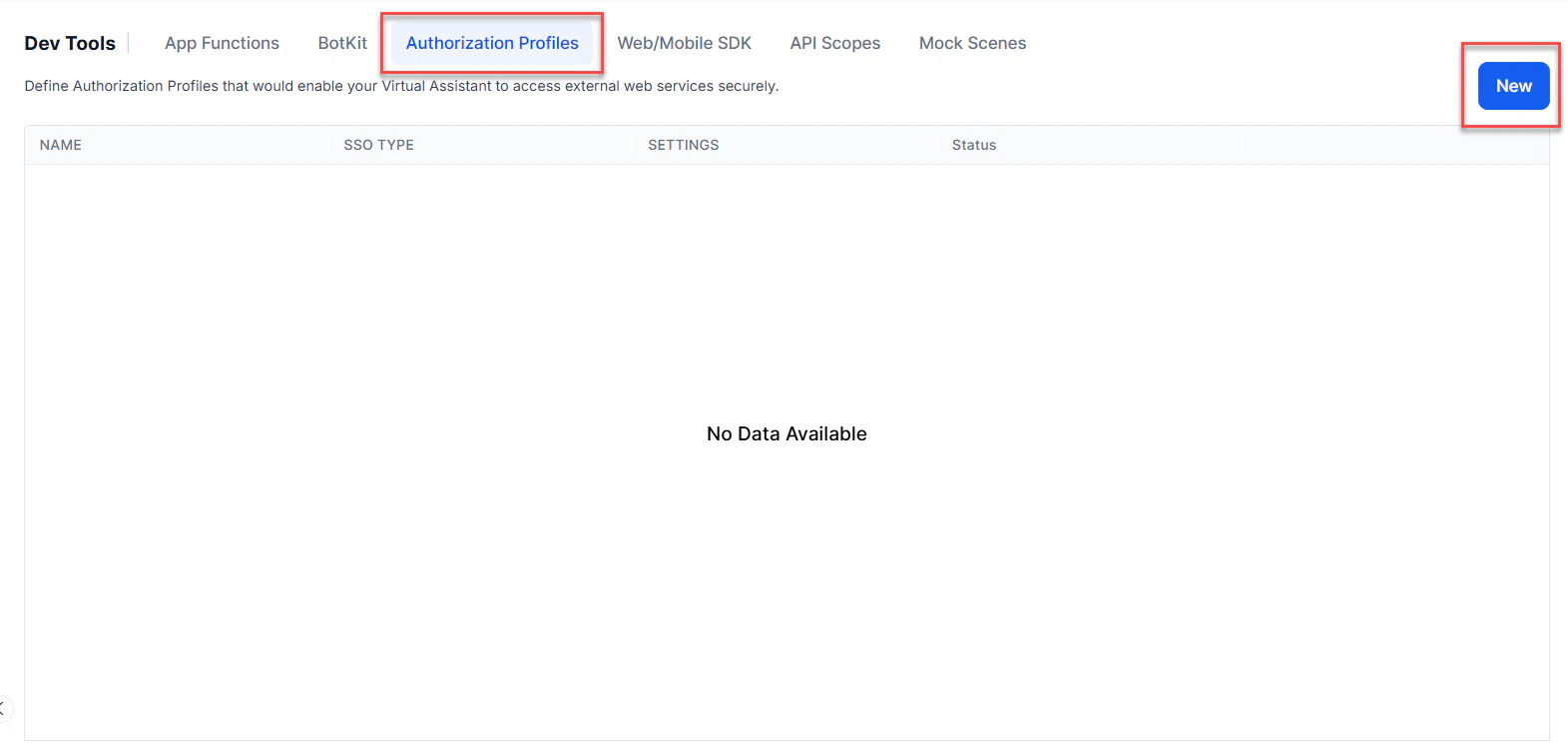
- From the left menus, click App Settings, then select Dev Tools > Authorization Profiles.
-
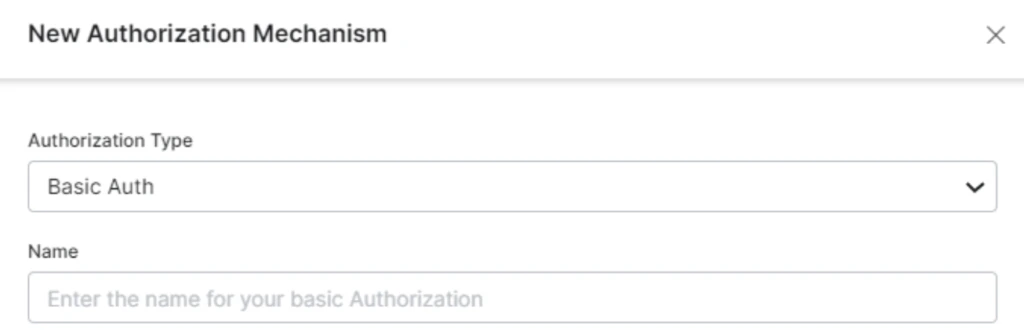
Click New to open the New Authorization Mechanism dialog.
- In the Authorization Type drop-down list, select Basic Auth.
-
In the Name field, enter the name for your Basic Auth type.
-
Enter the Description for the profile and select the API endpoint Method — either GET or POST.
 By default, the GET method is selected for existing apps.
 - Click Save.
Defining Tenancy
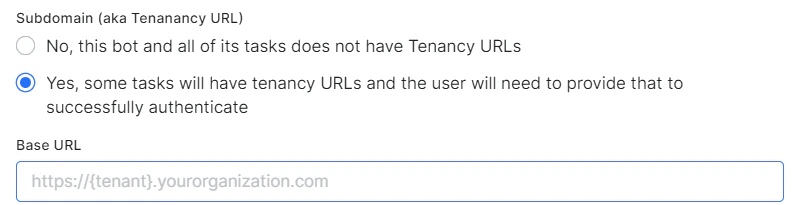
If required, in the Subdomain section, select Yes if the base URL for a web application or user interface uses a tenant name in the URL. For example,platform is the tenant organization for a web service that uses subdomain-based tenants, such as www.platform.example.com.
In the following example configuration, the tenancy URL contains the {tenant} organization placeholder.
Adding Form Fields
If the default username and password fields don’t meet your authorization input needs, you can add custom fields displayed to the end-user by adding authorization IDP form fields. For example, add a PIN code field in addition to the Username and Password form fields.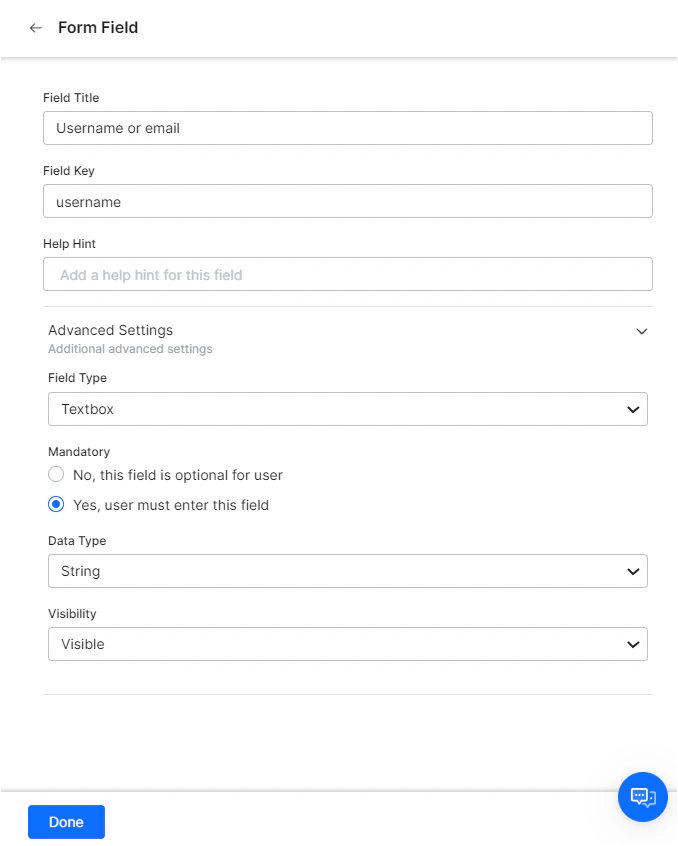
Defining Configuration Fields
The following table describes the fields used to define an authorization IDP form field.Adding Authorization Fields
By default, authorization fields are configured as part of the header of the request message. If your request requires additional authorization fields or the expected authorization isn’t part of the header (for example, social security number or PIN), click Add Authorization Fields and define the required fields.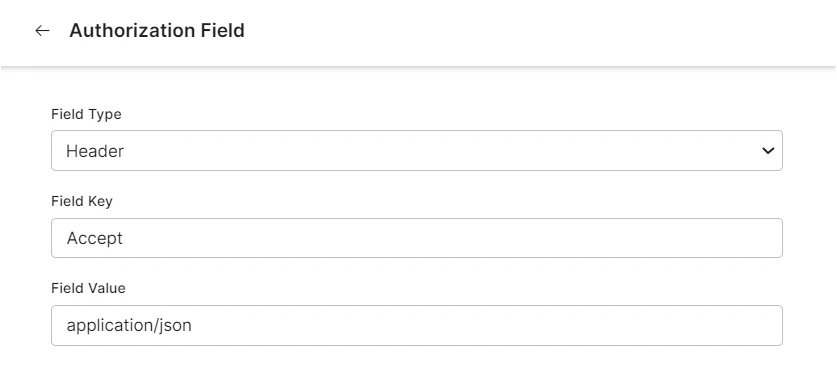
-
In the Field Type field, select one of the following depending on where in the request message the authorization fields are required:
- Header: The AI Agent looks for the authorization fields in the request header.
- Payload: The AI Agent looks for the authorization fields in the request body content.
- Query String: The AI Agent looks for the authorization fields as a query in the request body.
- Path Param: The AI Agent looks for the authorization fields in the request URL path.
- In the Field Key field, enter the name of the field for the selected Field Type.
- In the Field Value field, enter the value for the Field Key specified.
- Click Done. The new authorization field is added in the Authorization Fields section.
Authorization Check URL
In the Authorization Check URL field, optionally define a URL to test the authorization settings from the Platform before deploying the assistant. You can use dynamic fields, path parameter fields, query fields, and so forth, for example:https://platform.example.com/sap/opu/odata/sap/{{authfield1}}/?$format=json or https://{tenant}.service-now.com/api/now/v1/table/incident
For more information, see Using Session and Context Variables in Tasks.
Click Save to save the authorization settings and close the New Authorization Mechanism dialog.
Testing the Authorization
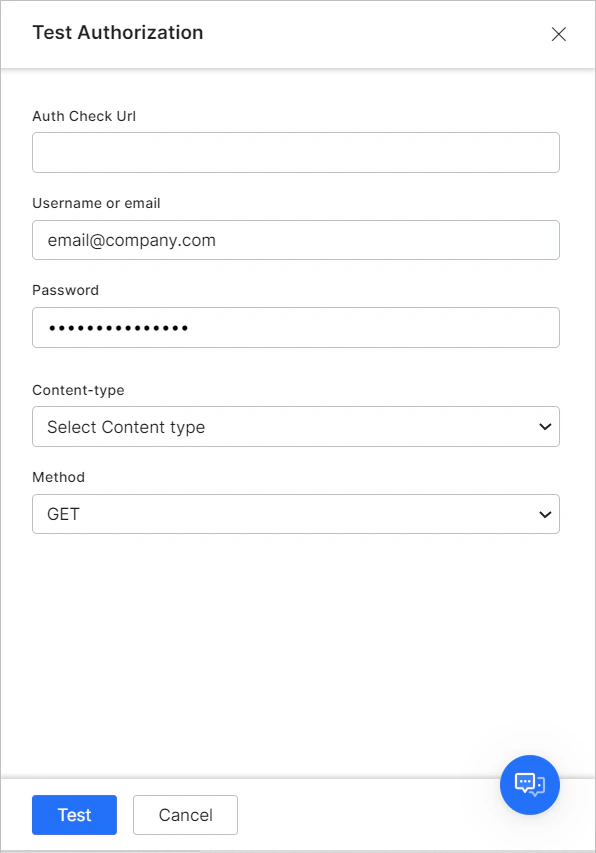
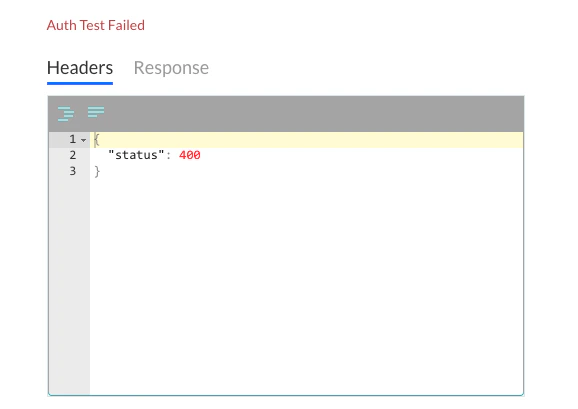
Once you save the authorization settings, test your authorization definition by clicking Test from the Authorization Profile page.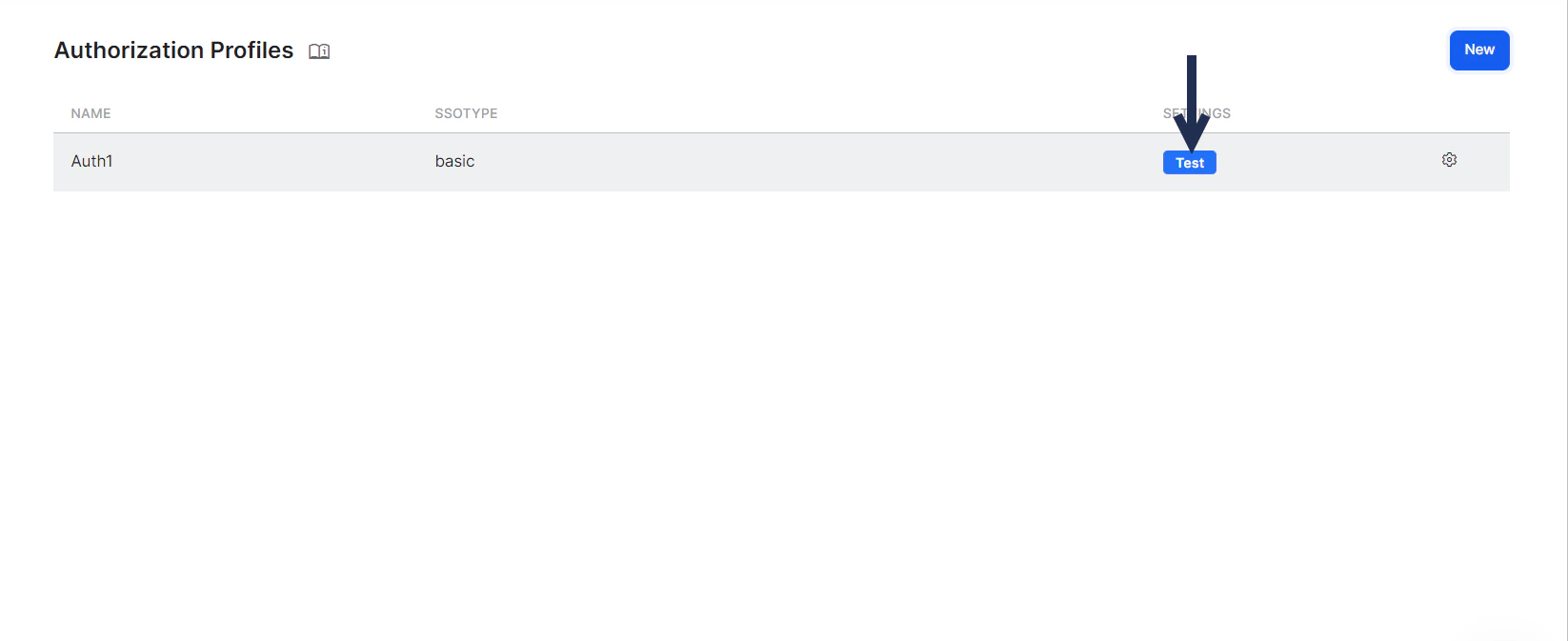
- In the Auth Check URL field, verify or enter the URL to test the authorization configuration.
- If your assistant uses subdomains, the Tenancy field is displayed — specify the tenant.
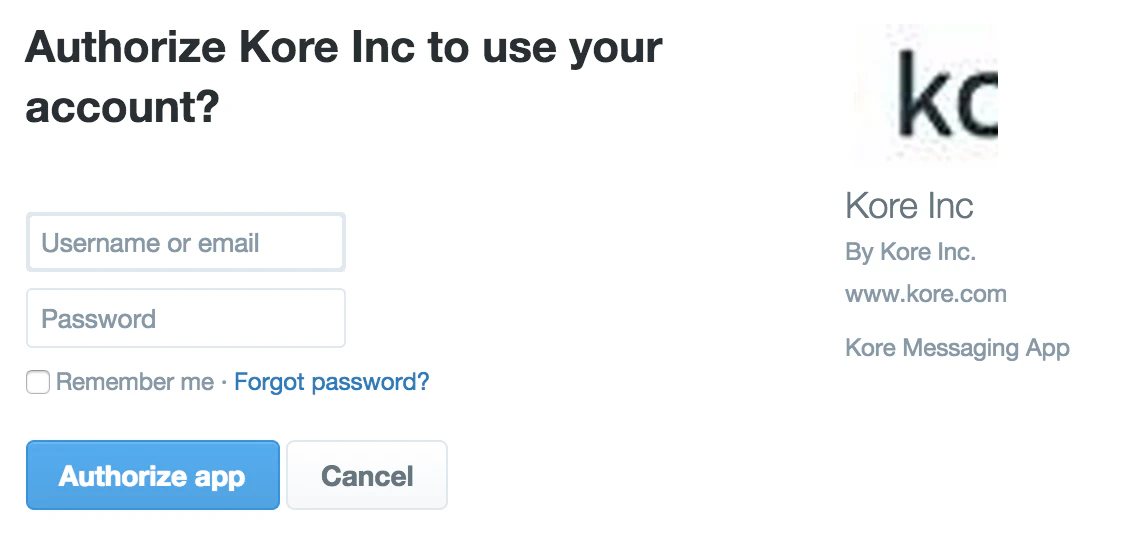
- Enter your User Name and Password for the web service.
- Select the content type expected for the URL in the Content-Type field.
- Select the Method for testing the URL — either GET or POST.
- Click Test to begin the authorization test.