

Prerequisites
- A fully functional AI Agent (example uses a Banking App)
- BotKit SDK downloaded from GitHub
- Node.js v10 or above — install from
https://nodejs.org/en/download/and verify withnode -v - NGROK to simulate the callback server:
- Windows: Download the zip, unzip, and run
ngrok.exe - Mac: Run
ruby -e "$(curl -fsSL https://raw.githubusercontent.com/Homebrew/install/master/install)" < /dev/null 2> /dev/nullin Terminal, then runbrew cask install ngrok
- Windows: Download the zip, unzip, and run
- A live agent platform (example uses LiveChatInc.com — free 30-day trial available)
Design and Configuration
- Open Platform.
- Select the app to configure for Agent Transfer.
-
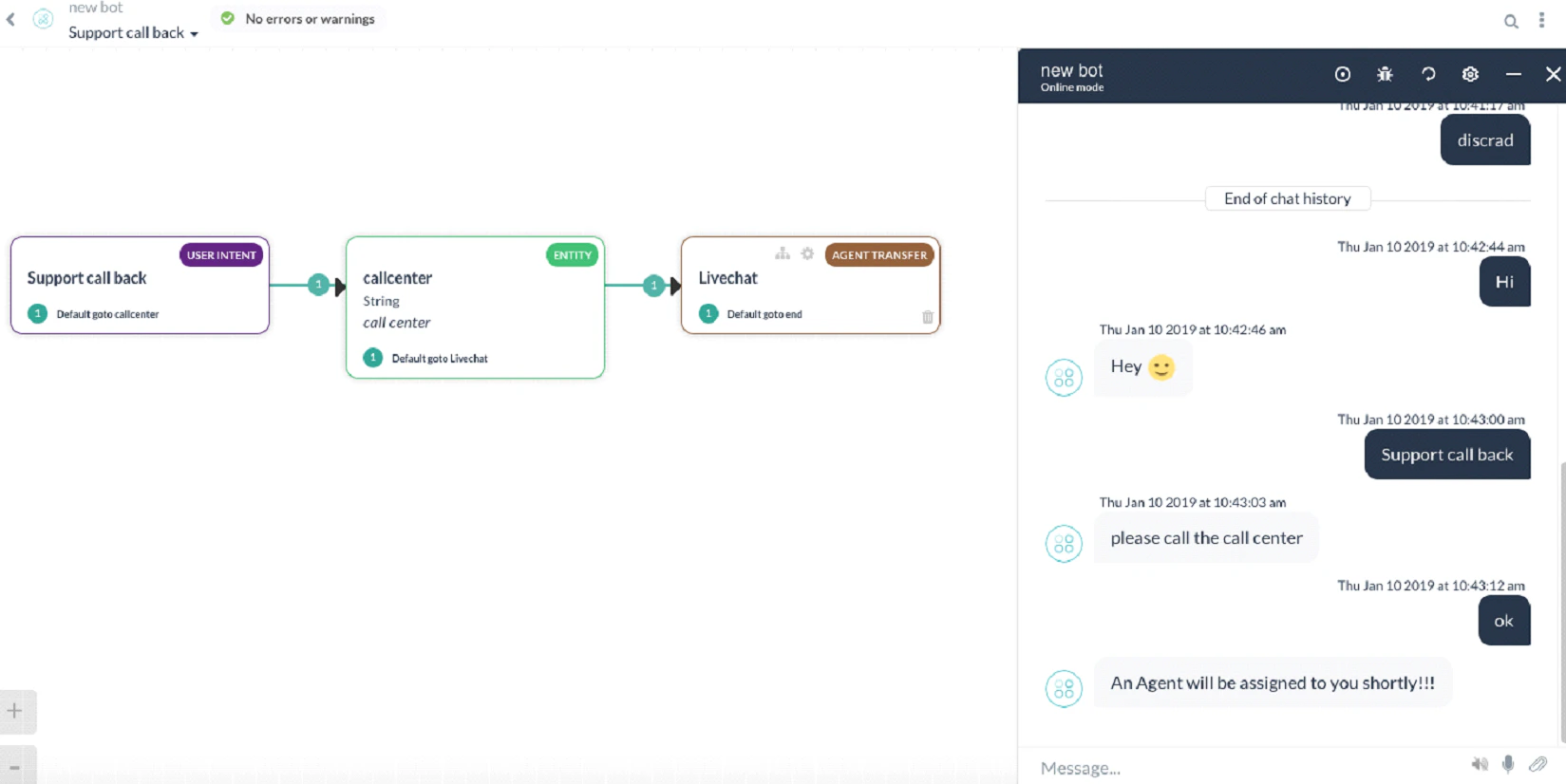
Open or create a dialog task (for example,
Support Call Back) and add an Agent Transfer node.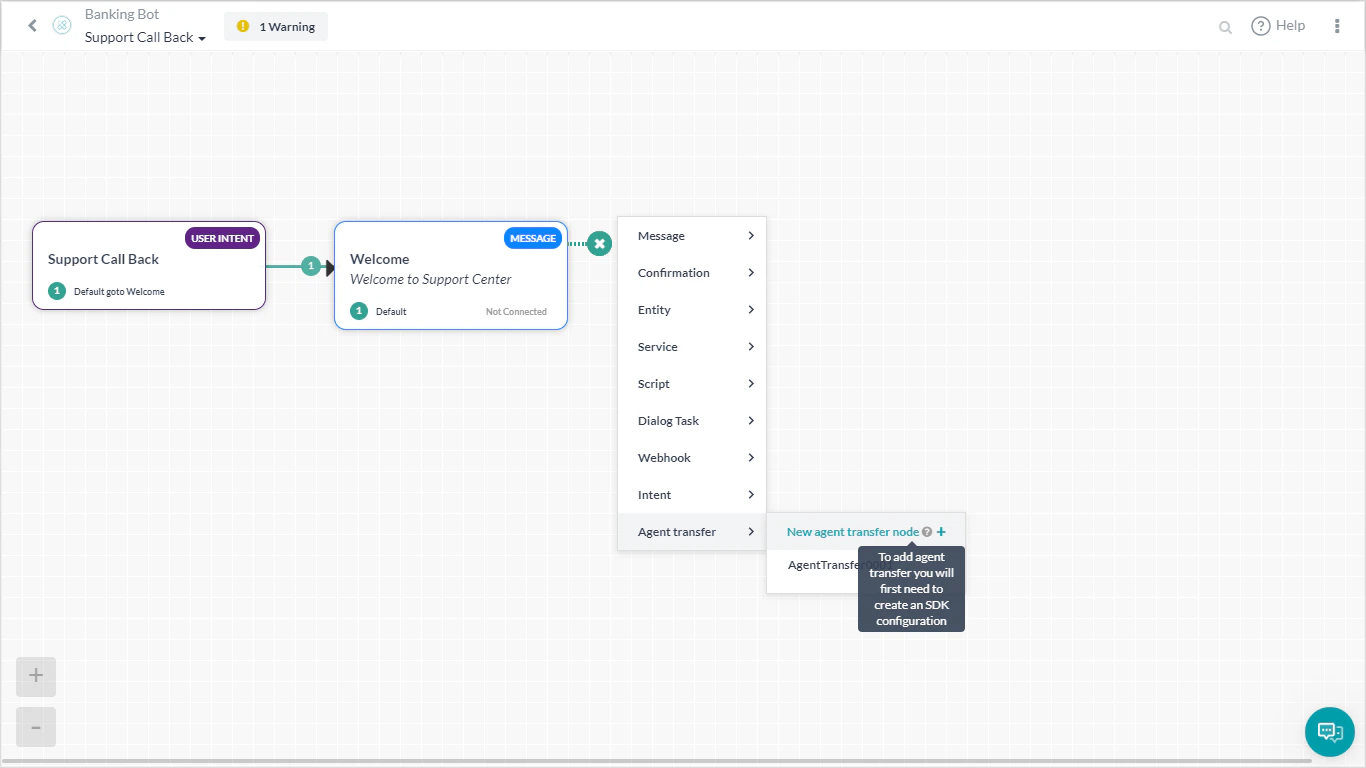
-
Enter a Name (for example,
LiveChat) and Description. Click Save. - If you see a message about SDK not being configured, proceed — SDK configuration is covered below.
- Go to App Settings > Integration > Agent Transfer > Custom (BotKit).
-
In the App Name section, select an existing app or click Create App to create a new one.
Note the App ID, Client ID, and Client Secret keys. RS256 and RS512 JWT signing algorithms are not supported for Custom BotKit.
-
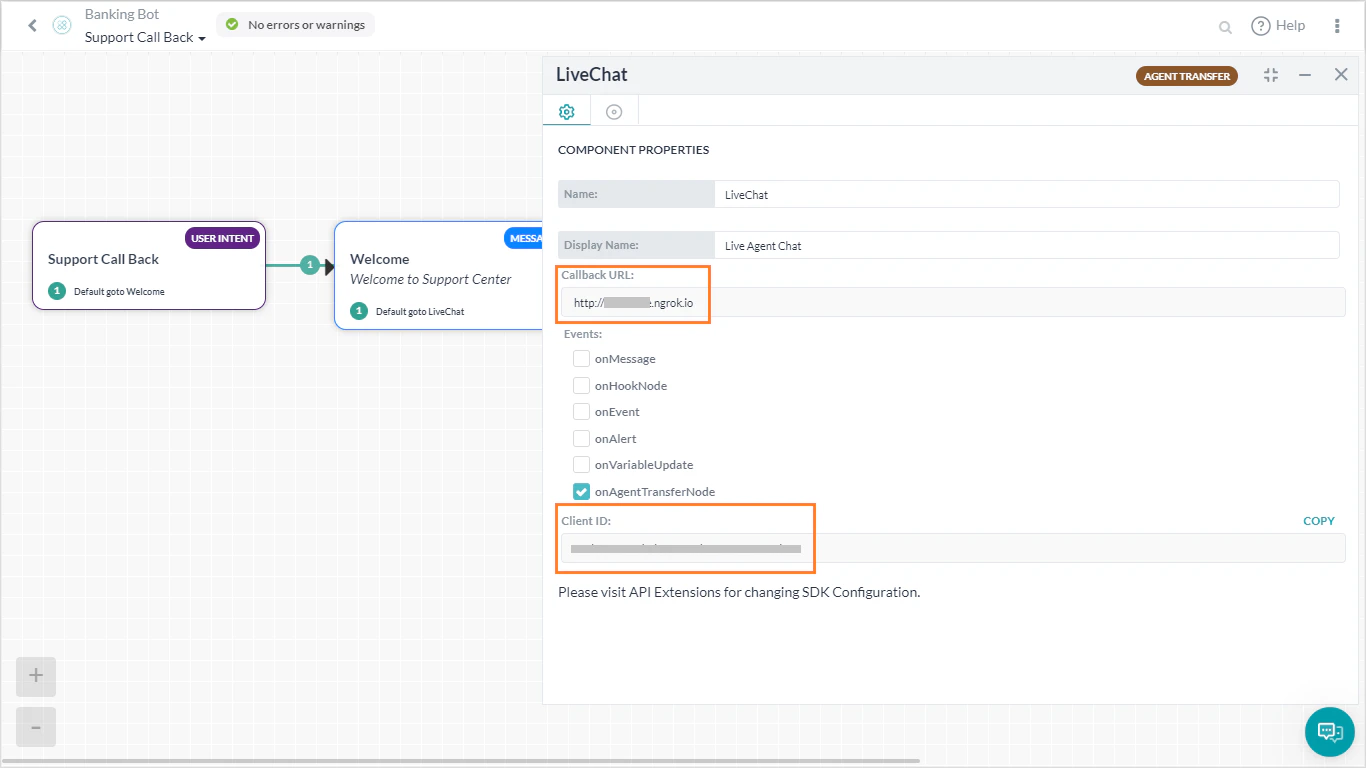
Enter the Callback URL:
-
In a terminal, run
ngrok http 8003. -
Copy the ngrok forwarding URL (format:
https://XXXXXXaa.ngrok.io).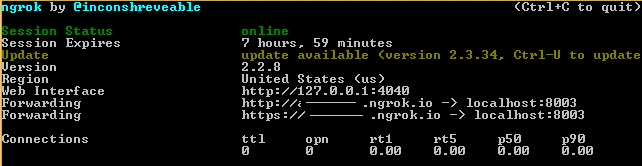
- Use this URL as the Callback URL and save.
The ngrok forwarding URL changes on every restart. Update the Callback URL each time ngrok is restarted. -
In a terminal, run
-
Open the dialog task and the agent transfer node to verify the configuration is saved. Select the required Events.
-
Get the LiveChat license code:
- Sign in to your LiveChat account.
- Go to Settings and select the chat link.
- Copy the license code from the URL (for example, from
https://lc.chat/now/104xx297/, the code is104xx297).
-
Edit the BotKit SDK files:
livechatapi.js- Set the
appIdandappNamefrom your app. - This file contains the Kore Initialization, Send Message, and Get Message APIs. Add any new agent transfer APIs here.
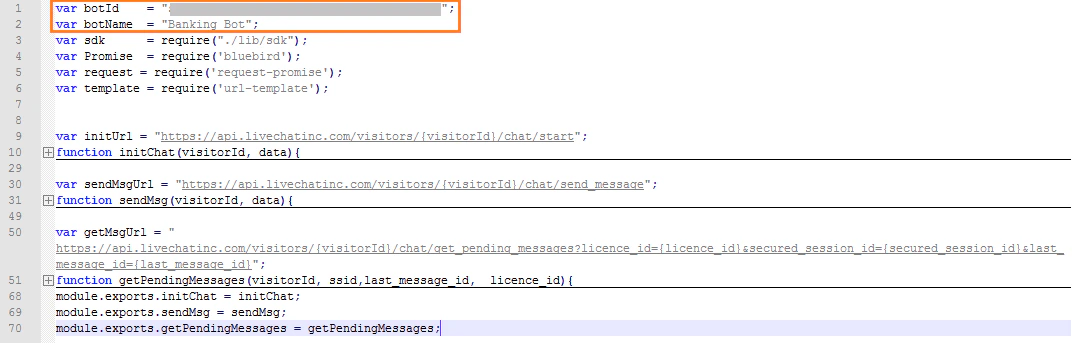
config.json- Set
Client ID,Client Secret, server ports, and the live agent license. Client IDandClient Secretcome from Events and Extensions - Agent Transfer.- The ngrok URL is the Callback URL — enter it as the URL field.
liveagentlicenseis the LiveChat license code from the chat link.
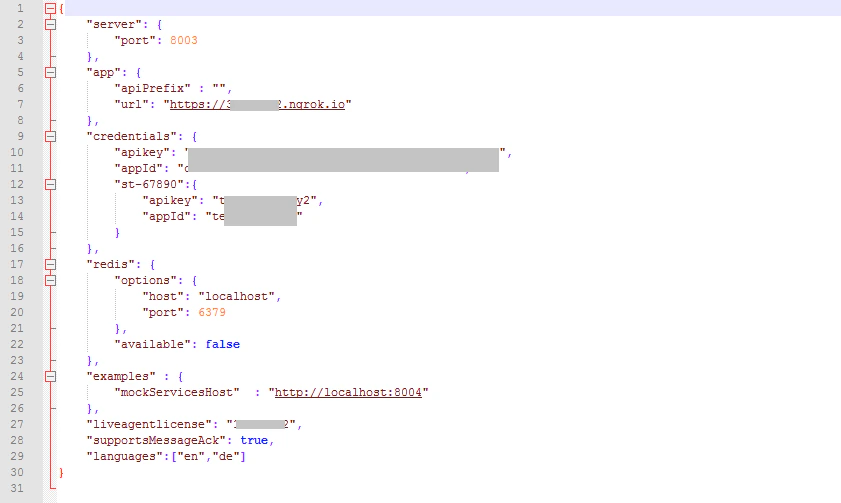
LiveChat.js- Set the
appIdandappNamefrom your app.
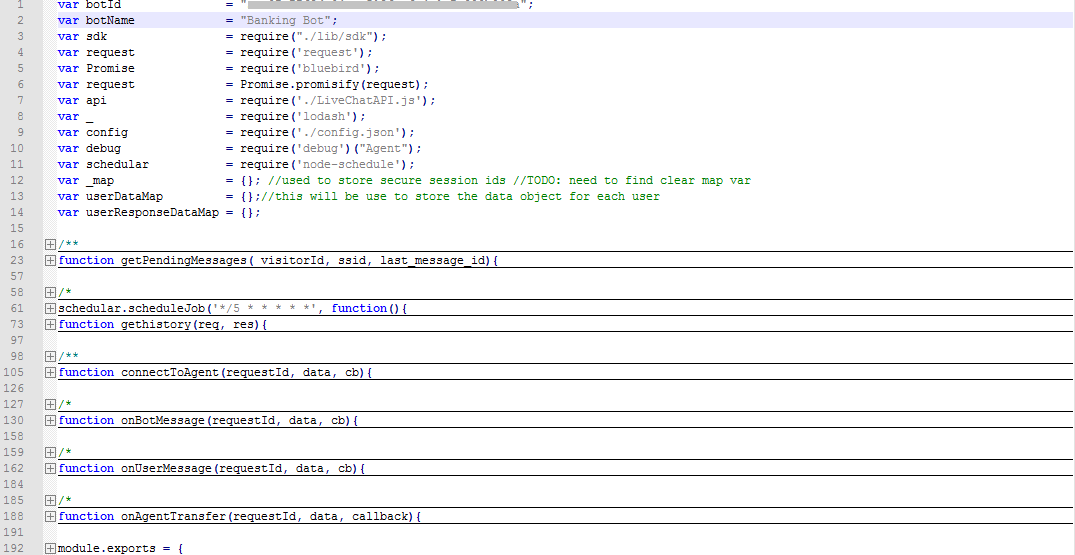
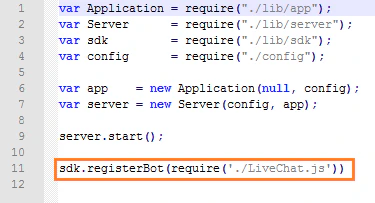
app.js- Add:
sdk.registerBot(require('./LiveChat.js')) - Remove any existing
sdk.registerBotstatements that aren’t needed.
- Set the
Execution
-
In a terminal, run the BotKit SDK:
-
Install any missing modules if errors appear:
- ngrok and Node.js will be running in separate terminals.
-
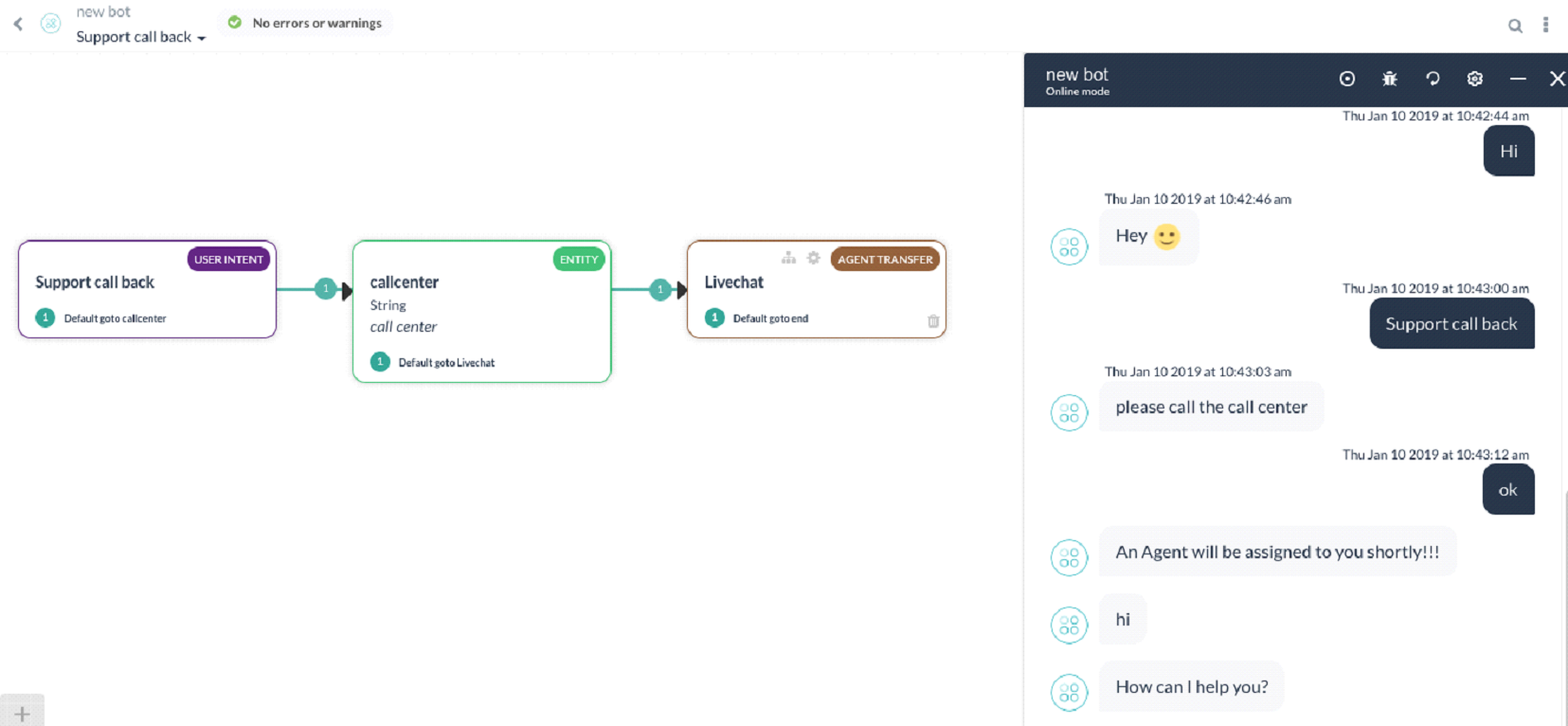
When a user initiates chat, the app transfers to an agent and notifies the user.
-
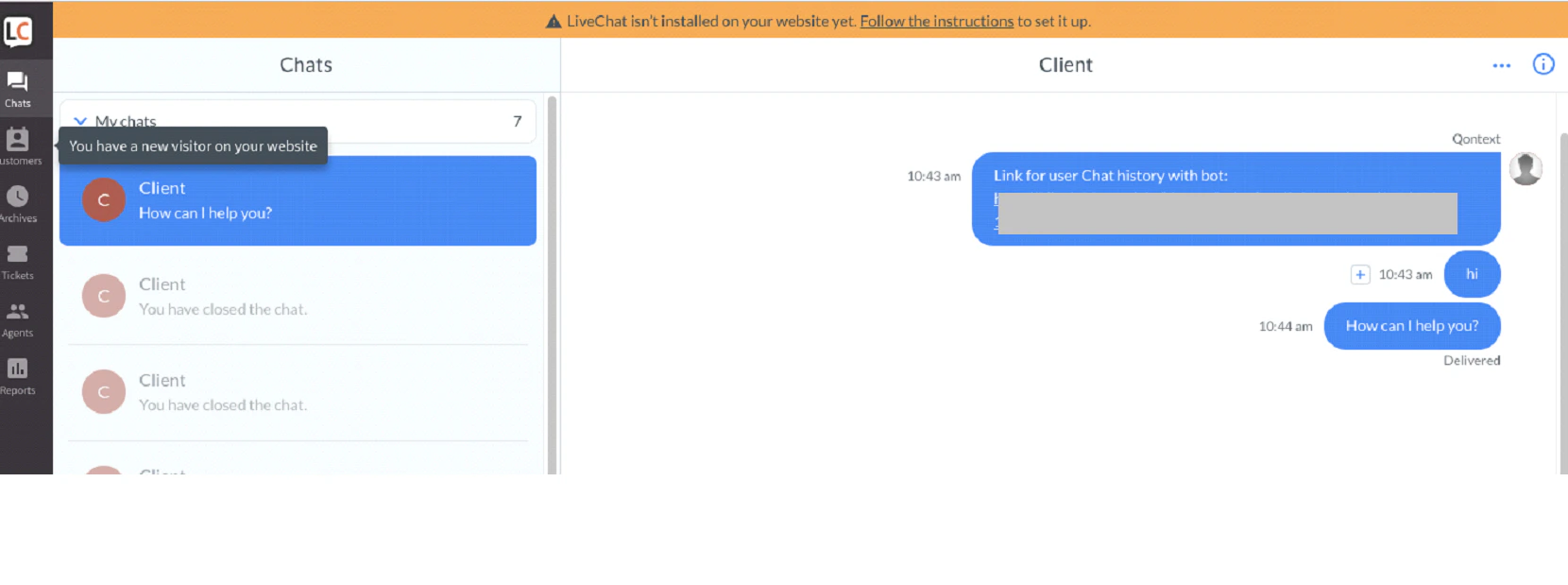
The agent receives a notification on LiveChat.
-
The connection is established and the conversation continues.
Events
The events and methods for sending messages between user, app, and agent are defined in
LiveChat.js.