

With Scheduled Processing enabled, supervisors can also open Pending and Validation Failed conversations directly from Conversation Mining before Quality AI processing completes.
Key Capabilities:
Prerequisites
Before using AI-Assisted Manual Audit, confirm the following:Access AI-Assisted Manual Audit
Navigate to Quality AI > Conversation Mining > Interactions > AI-Assisted Manual Audit.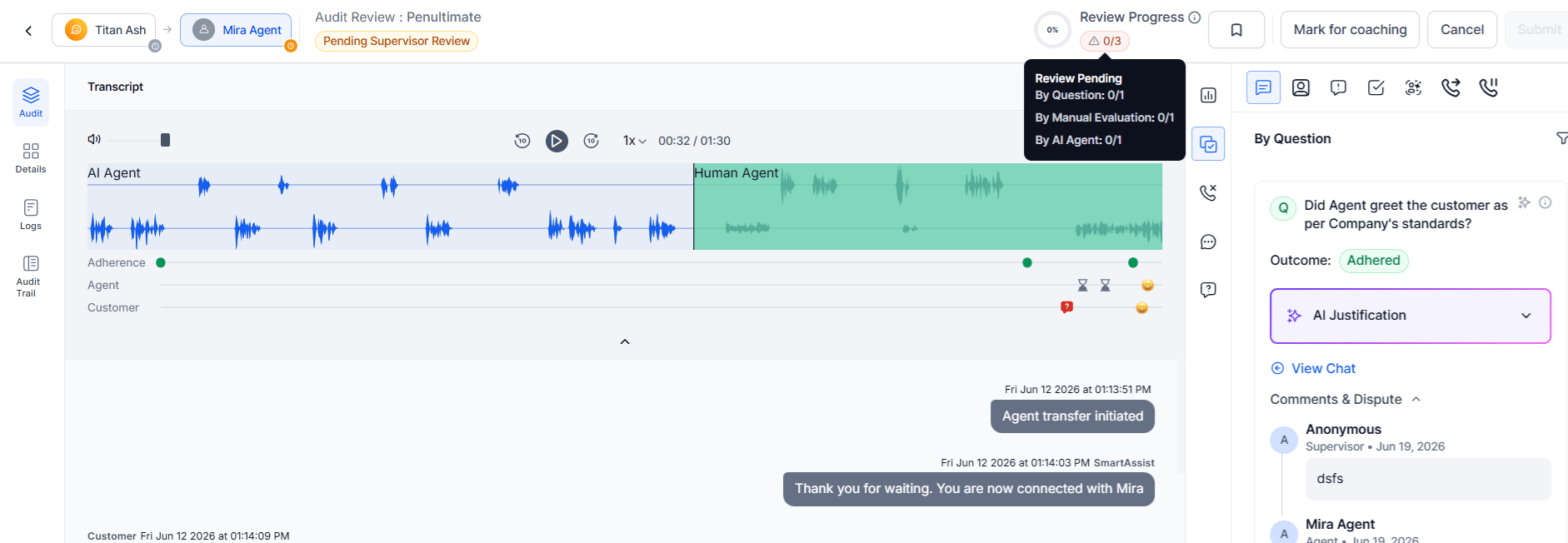
Audit Workflow
The manual audit workflow varies based on the evaluation form configuration and enabled review features.- Select an interaction.
- Review transcript, timeline, and AI insights.
- Select Assign to Me if the interaction isn’t assigned.
- Complete all required metrics.
- Add comments if needed.
- Select Mark for Coaching to flag the agent for coaching review.
- Select Submit to complete the audit, or select Save Draft to save your progress and finish later. If the evaluation form has disputes configured, the completed evaluation surfaces to the agent for acknowledgement or dispute.
Save an Audit Draft
Save an In-progress audit and resume it later without losing responses. Use this option to complete large audits across multiple sessions, avoid redoing work, and preserve metric responses. The Save option appears after you select or change at least one response. Once all required metrics are complete, this option changes to a dropdown with Save and Submit options.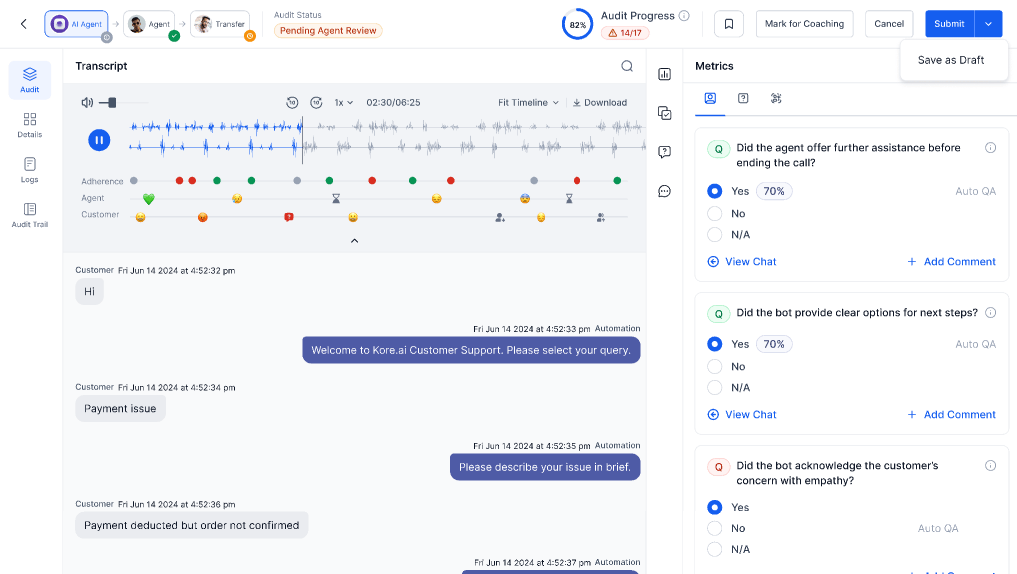
Saving a draft doesn’t send notifications, create an Audit Trail entry, or change the interaction’s position in list or dashboard ordering. The audit remains in its current status until you submit it.
Before You Begin
Assign the interaction to yourself.Save a Draft
- Complete one or more evaluation metrics.
- Select Save Draft.
- Close the audit or continue reviewing.
You can save only in-progress audits as drafts.
Resume a Draft Audit
When you reopen a saved audit, the system restores every previously entered responses and comments, so you can pick up exactly where you left off. Open the draft audit from Assigned to Me. Continue the evaluation and submit the audit when you finish.Submit an Audit
After completing the evaluation, submit the audit to finalize the results.Before You Begin
- Check you have the interaction assigned to you.
- Complete all required evaluation metrics.
- Resolve any required validation errors.
Procedure
- Review the completed evaluation.
- Select Submit.
- Confirm the submission, if prompted.
After Submission
You finalize the audit. The interaction moves to the next workflow stage when you enable Agent Accept & Dispute. Otherwise, the system completes the audit. The Submit option remains unavailable until you complete all required metrics.Edit a Completed Audit
Authorized users can update completed manual audits after submission.Before You Begin
Verify that:- The evaluation form enables Completed Audit Editing.
- Your user account has permission to edit completed audits.
- The audit is in one of these review states: Completed, Resolved, and Pending Supervisor Review.
Edit a Completed Audit
- Open the completed audit.
- Select Re-Audit.
- Update one or more metric responses or comments.
- Select Submit.
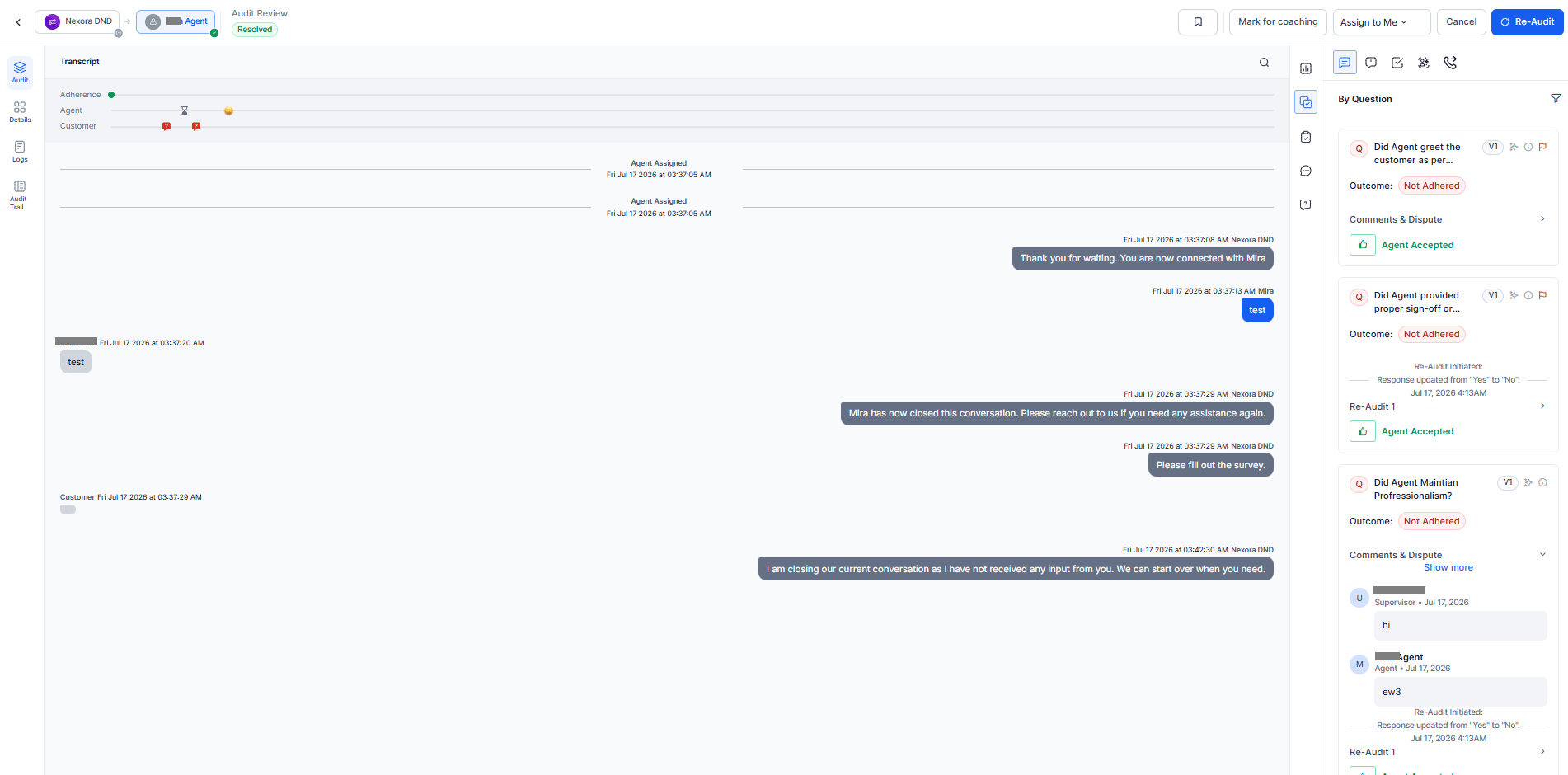
Edit availability is a form-level setting. By default, existing evaluation forms turn this off. see Understanding Views and Permissions for the permission that controls who can edit.
Edit Availability
You can edit a completed manual audit only when all the following conditions apply:- The evaluation form enables Completed Audit Editing.
- Your user account has permission to edit completed audits.
- The audit has a supported status: Audited, Pending Supervisor Review, or Resolved.
You edit audits at the conversation level. When you enter edit mode, you can edit all metric responses for the conversation, not just a single metric.
What Happens After You Edit
If the evaluation form doesn’t turn on the dispute workflow, your edit simply updates the audit record. If the form turns on the dispute workflow, and you edit a metric the agent acknowledged or disputed, the system reopens that specific metric for review:- The agent receives the updated metric and can provide a new acknowledgment or dispute response.
- The supervisor reviews it again through the normal dispute flow.
- Metrics you didn’t touch keep their existing acknowledged or resolved state — editing one metric doesn’t reopen the whole evaluation.
Agent Acknowledgment and Dispute
Agents can acknowledge completed evaluations or dispute individual metrics when you enable Agent Accept & Dispute. If an authorized auditor edits an acknowledged or disputed metric:- Only the edited metrics return to the appropriate review stage.
- All remaining metrics retain their current review status.
- The evaluation returns to a resolved state after the updated review is complete.
Handoff Conversations
A handoff conversation contains multiple conversation segments. For example, an AI Agent may handle the customer first, then transfer the conversation to one or more Human Agents. Each segment is audited independently using its own evaluation form, metrics, score, and review workflow.Segment Allocation
The system assigns each conversation segment to the participant who handled it.
The system treats each segment as an independent auditable unit and assigns its own allocation.
Assigning a Handoff Conversation
Before an auditor claims a handoff conversation, the header displays Audit Status: Not Assigned and an Assign to Me menu.
This allows:
- A single auditor to audit the entire conversation.
- Different auditors own and audit different segments of the same conversation.
- After assignment, the header updates to the applicable Audit Status (for example, Pending Agent Review) and displays Audit Progress as a percentage and completed metric count (for example, 100% *16/16).
Confirm whether Audit Progress reflects all assigned segments when Both is selected or only the currently selected segment before publishing.
Switching Between Conversation Segments
The Audit screen displays the conversation journey as a breadcrumb in the header. Example: AI Agent → Transfer → Agent → Transfer → Agent Each icon represents part of the conversation.
Selecting a segment filters the Audit page to that segment only, including: Transcript, Overview, and Metrics.
The breadcrumb highlights the selected segment. The Metric Type label indicates the active evaluation form, such as AI Agent or Human Agent.
Per-Segment Overview and Metrics
Selecting a segment filters the right-hand panel to that segment’s data:- Overview displays the segment’s own Kore Evaluation Score (labeled AI Agent Score for AI Agent conversation segments), Points Total, Configured Topics, Generated Topics, Overall Resolution, and Sentiment.
-
Metrics displays the segment’s own By Question metrics, scored independently using the assigned evaluation form—for example,
Did the Automation AI agent welcome the customer?' for the Automation AI conversation segment, andDid the agent greet the customer professionally?` for the Human Agent segment.
Audit Screen Headers
The header identifies the conversation, current audit stage, and available workflow actions.Audit Screen Components
The Audit Screen combines conversation playback, AI insights, evaluation metrics, and audit actions in a single workspace.Transcript Navigation
Use transcript navigation to move directly to the relevant part of a voice conversation while reviewing an audit. You can navigate directly from:- Evaluation metrics by selecting View Chat.
- Hold initiation timestamps.
- Transfer initiation timestamps.
- The system displays individual customer and agent transcript messages when you select Enable message-to-recording navigation.
- For transcript messages, hover over a message and select the Play icon to start the recording from the corresponding timestamp.
Message-to-recording navigation is available only for voice conversations and is disabled by default.
Transcript and Recording Navigation
Transcript and Recording Navigation helps reviewers move directly to the relevant part of a voice conversation without manually searching the recording. You can navigate directly from supported evaluation metrics, timeline events, and transcript messages. Navigation supports:Message-to-Recording Navigation
The system disables Message-to-Recording Navigation by default, and you can enable it when needed. Enable it to play audio directly from individual transcript messages. When enabled for voice conversations:- Hover over a customer or agent transcript message.
- Select Play.
- The recording starts from the timestamp associated with that message.
Applies only to voice conversations and is disabled by default. Enable it to display the Play action for transcript messages with available navigation data. Chat conversations don’t support transcript playback.
Audit Review Tabs
The system displays Audit Review statuses based on the selected Allocations tab and audit workflow stage, helping you track review progress from Assigned through Pending Supervisor Review, Resolved, and Closed.Processing Status
Processing Status indicates whether Quality AI has completed conversation processing.Audit Screen Tabs
The Audit Screen provides role-based access to evaluation, transcript review, audit history, and dispute management.Audit Tab
The Audit tab combines transcript review, AI analysis, scoring, dispute handling, and coaching workflows.Audit Progress
The audit progress bar at the top of the metrics panel tracks evaluation completion across all scoring sources. Its status varies by Allocation tab and audit workflow stage.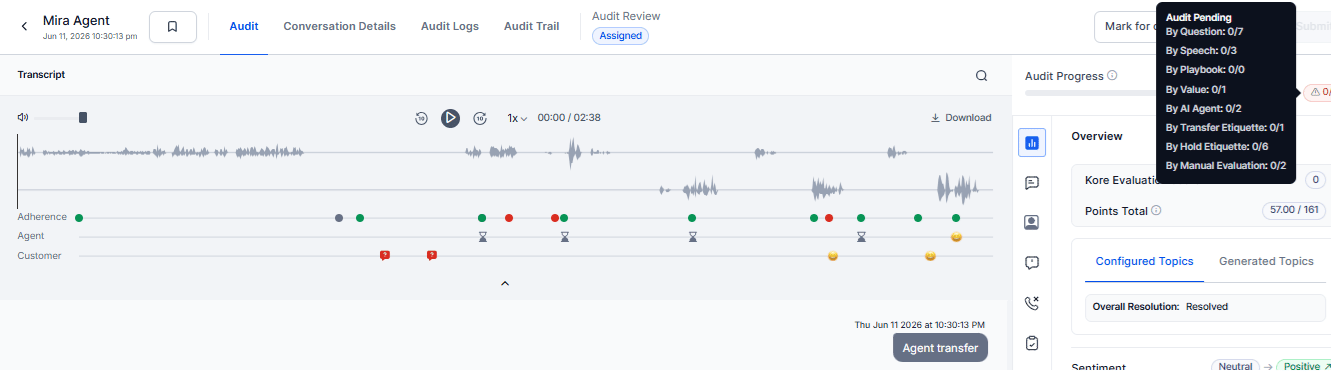
Note: The tooltip displays only configured evaluation sources. The progress indicator updates automatically as users complete metrics. The Submit button remains disabled until all required metrics are completed.
Mark for Coaching
The Audit screen includes a Mark for Coaching action that enables QA users to create coaching recommendations directly from an audit. Only users with the required QA permissions can access this action.Individual Agent Coaching
Select Individual Agent to create a coaching recommendation for the agent associated with the audited interaction.Group of Agents Coaching
Select Group of Agents to create a coaching recommendation for a predefined coaching group.Add New Group
Select + Add New Group to create a coaching group.Coaching Recommendation Creation
When a QA user saves a coaching recommendation:- The system creates a coaching recommendation based on the selected coaching type.
- The system associates the recommendation with the audited interaction and selected coaching areas.
- The system assigns the recommendation to the selected coaching group.
- The coaching recommendation becomes available for subsequent coaching activities and tracking.
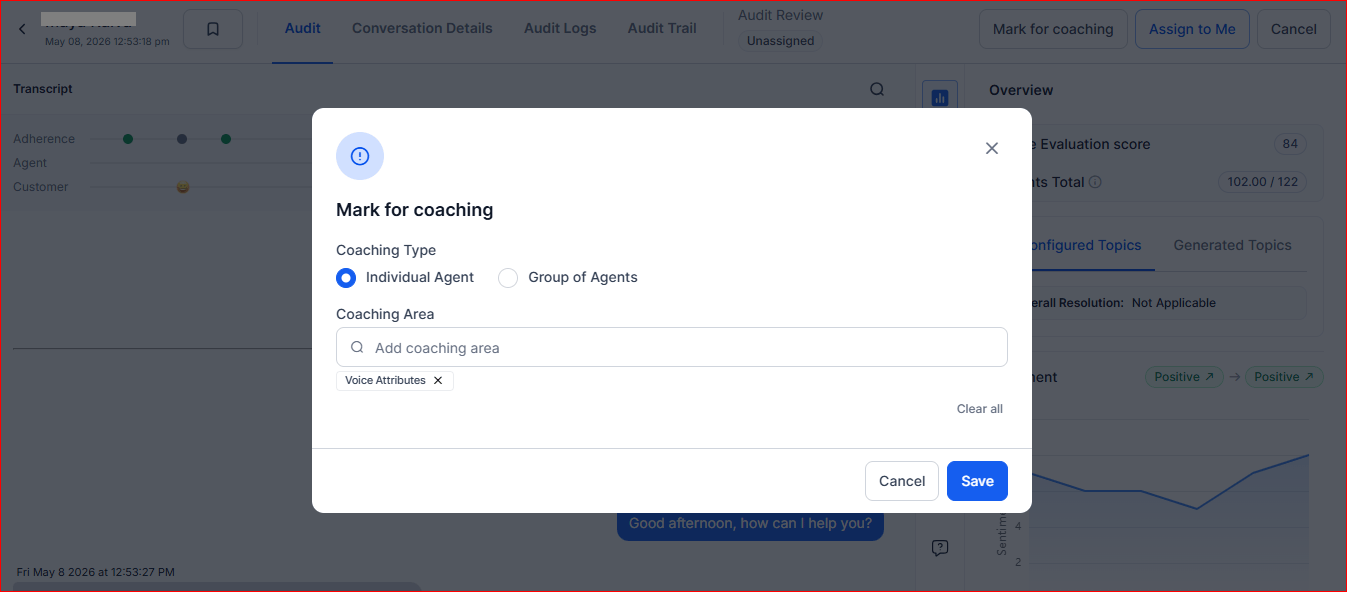
Available coaching methods, groups, and coaching areas depend on the coaching configurations defined in the system.
Supervisor View — Review Panel
The review panel on the right displays evaluation metrics, reviewer responses, comments, and dispute history. Supervisors can review disputed metrics, update responses, and resolve disputes.Comments & Dispute
The Comments & Dispute section displays the conversation history associated with a metric.Dispute Resolution
When a metric dispute occurs, the system helps supervisors to review the dispute history and take one of the following actionsThe Comments & Dispute section stores the full review history for each metric, including supervisor comments, agent responses, dispute notes, and resolution status in chronological order.
Agent View — Review Panel
The system enables agents to review evaluation results and respond to metric-level evaluations when dispute functionality is active.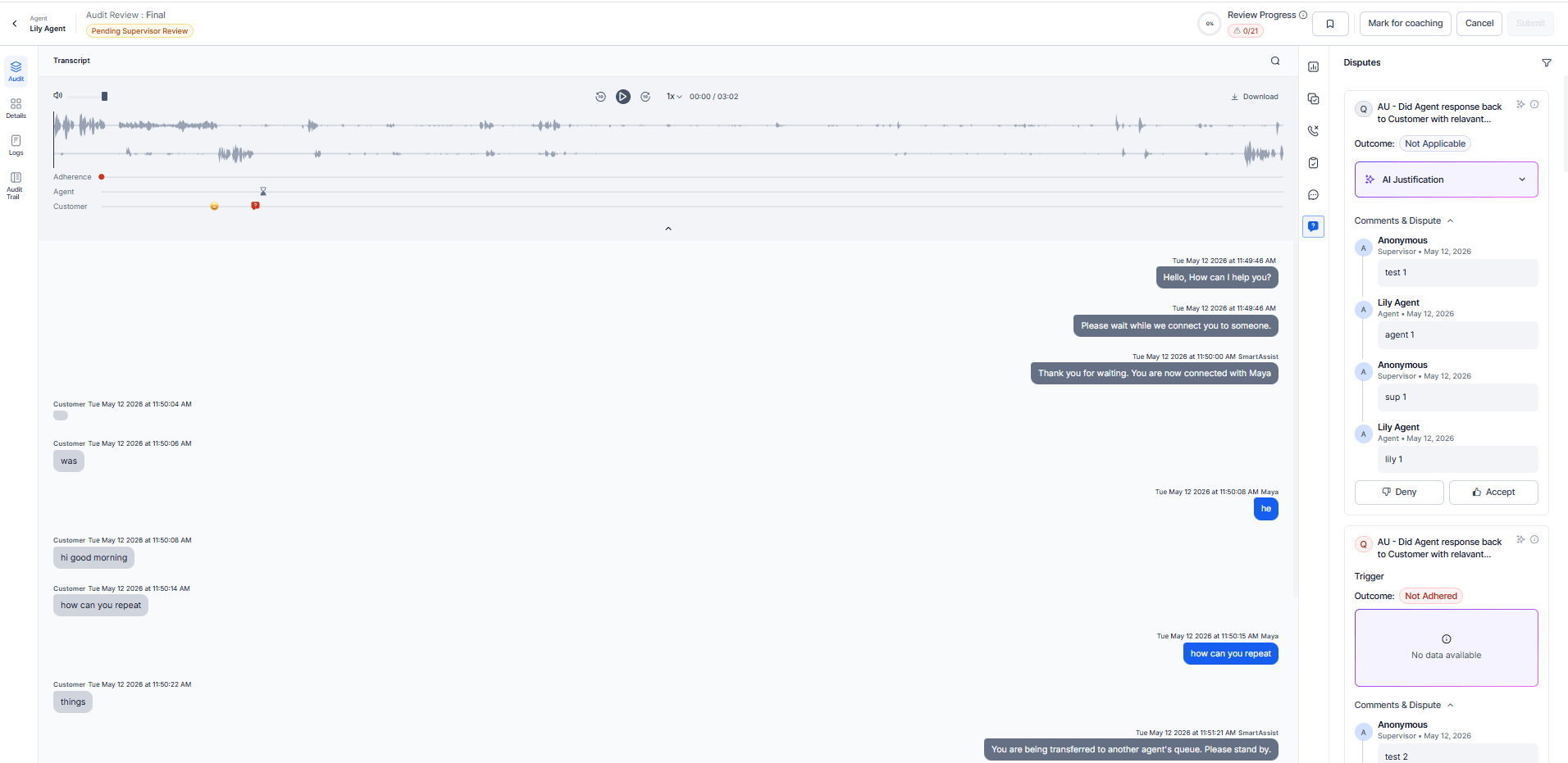
Agents can respond at the metric level instead of the full evaluation. When disputes are enabled, the system requires comments for disputed metrics before submission. When disabled, the system shows the review in read-only mode and disables dispute actions.
Audit Evaluation
AI Overview
Displays conversation insights through AI-powered widgets, helping supervisors evaluate key metrics without reading full transcripts. This displays high-level evaluation details and scoring:Score Summary
Displays key behavioral and linguistic metrics:
If analysis is unavailable, these values display as
NA.
Topics and Intents
Resolution and Sentiment
Generated Topics
- Expands topic discovery beyond configured taxonomy.
- Provides topic-level sentiment insights.
-
Enhances visibility into conversation patterns.
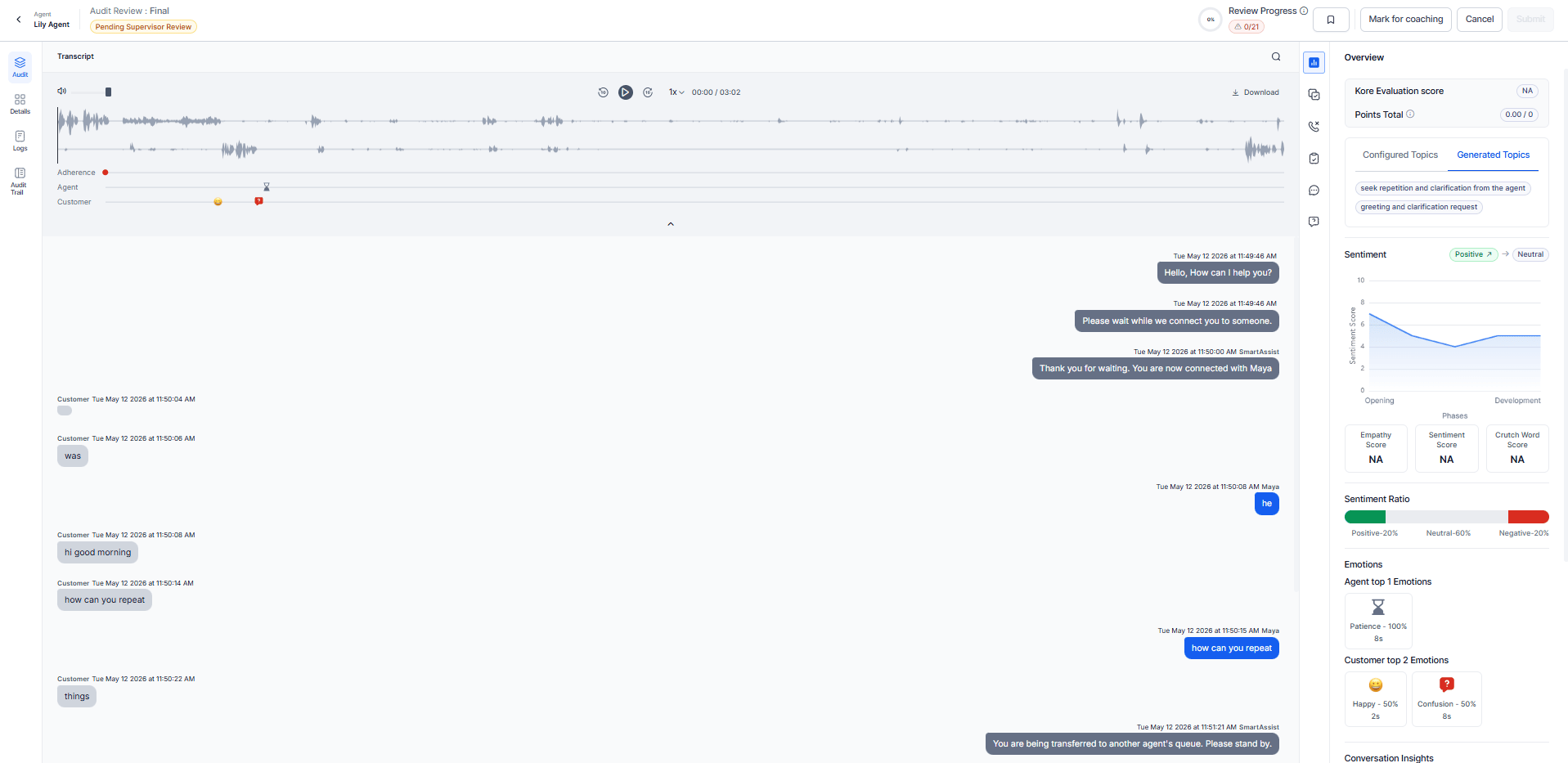
Transcript and Timeline
The Transcript provides a unified, time-synchronized view of the interaction across chat and voice.- Speaker-separated conversation (Agent and Customer).
- Timestamped utterances.
- Keyword highlighting and navigation.
- Inline and clickable comments.
- Audio playback with synchronized transcript (voice only).
Sentiment Analysis
Shows the overall sentiment of the customer and agent across three phases of the call.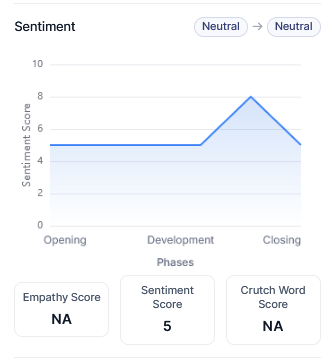
Sentiment Ratio
Displays the distribution of sentiment across the interaction as a percentage breakdown (Positive, Neutral, Negative). If no data is available, it shows No Sentiment Ratio Found.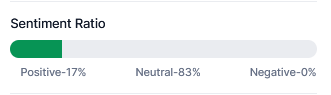
Sentiment Patterns
Resolution-Aware Scoring: prioritizes final sentiment and produces a weighted interaction score.
Scores use a 1-10 scale (5 = Neutral, 7 = Positive) and produce a final classification of Positive, Neutral, or Negative.
Emotion Analysis
Tracks emotional signals for both agent and customer across the timeline.- Agent Emotions: empathy, patience, happiness, frustration, confusion.
- Customer Emotions: satisfaction, anger, confusion, churn risk, escalation.
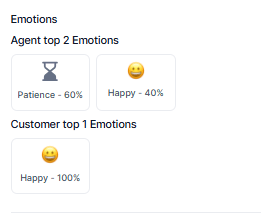
Emotion Analysis
Displays No Emotion Found if unavailable.
Conversation Insights
Agent Speech Insights
Transcript and Timeline
Displays the full interaction with:- Speaker-separated messages
- Timestamps
- Keyword highlights
- Audio playback (voice only)
- Clickable navigation markers
By Question (Audit)
The By Question section evaluates interactions using configured audit questions through AI-generated analysis and manual validation.Evaluation Components
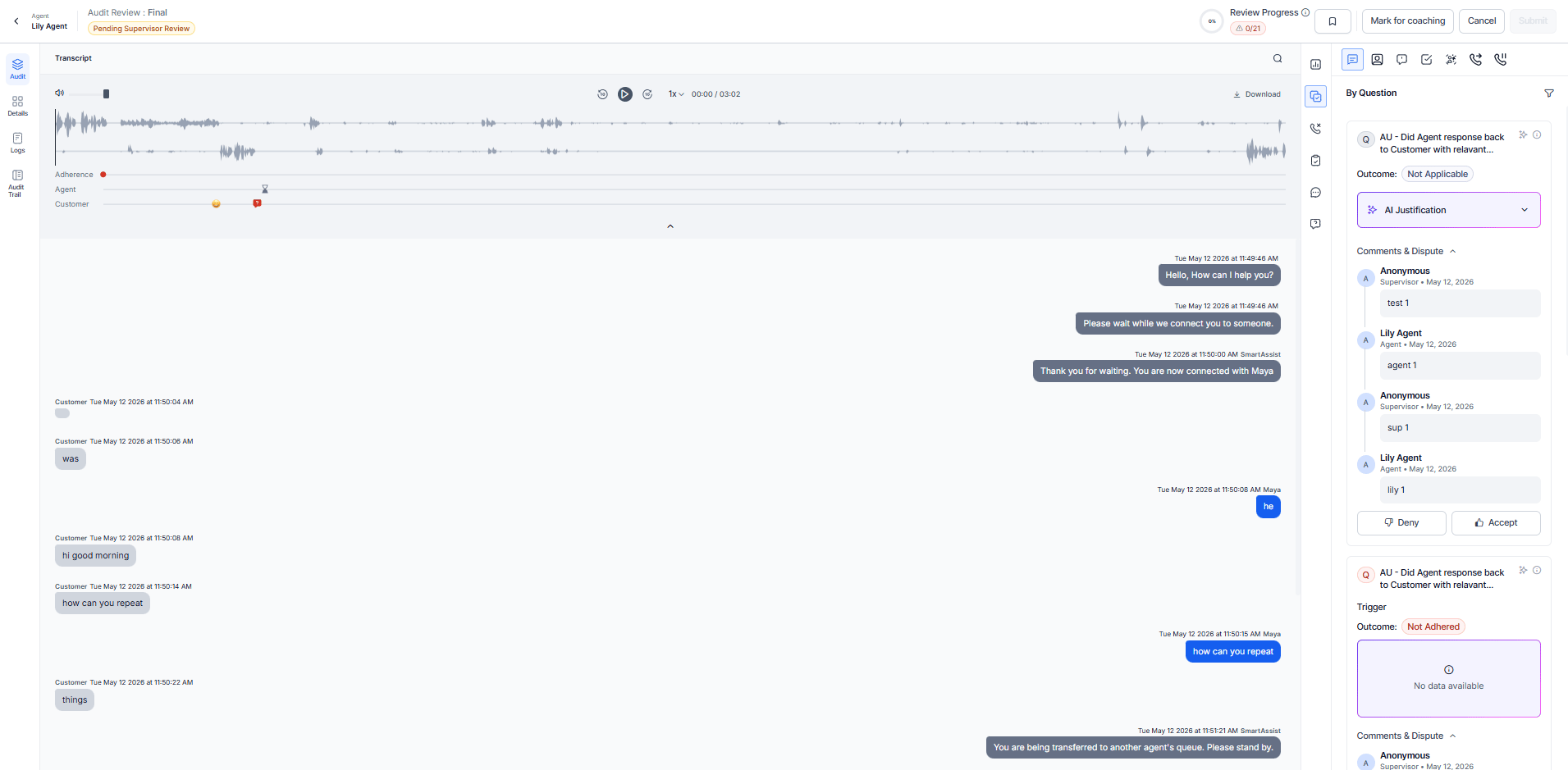
AI Justification
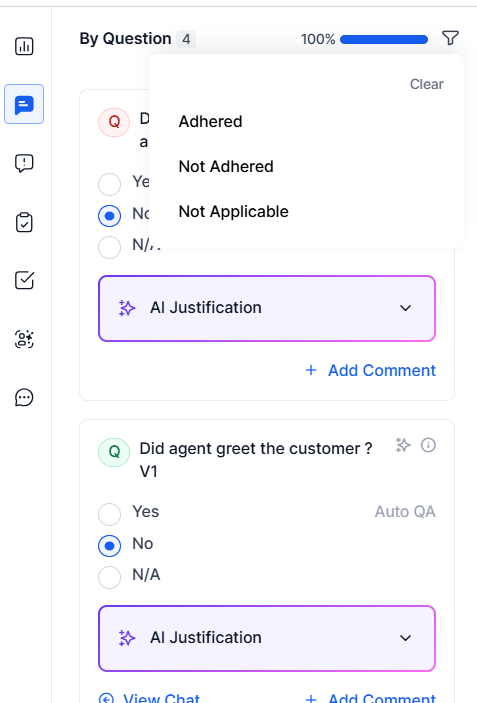
The AI Justification section uses LLM-generated explanations to clarify Auto QA decisions in By Question metrics. It explains Adhered, Not Adhered, and Not Applicable outcomes and improves transparency by showing why a metric passes, fails, or isn’t evaluated. What AI Justification displays:Dynamic By Question – Not Applicable Justification
For Dynamic By Question metrics, when the system doesn’t detect the trigger intent, it generates an LLM-based justification explaining the absence of relevant conversational evidence and why the intent doesn’t qualify for evaluation. This helps users refine and optimize trigger prompts during design time.Timestamp Generation Rule
- Timestamps included: When a specific agent message or event causes a violation (for example, rude or non-compliant behavior).
- Timestamps not included: For omission scenarios where expected behavior is missing and no specific message or event caused the outcome.
- Valid (Violation-Based): Professionalism metric → Agent used rude language → timestamps displayed for relevant messages.
- Invalid (Omission-Based): Greeting metric → Agent doesn’t greet → no timestamps displayed.
Adherence Filter Status
Filter and sort compliance metrics by adherence status:Audit Navigation and Keyword-based Conversation Analysis
Enables quick filtering and navigation by keyword or QA question, with auto-scrolling of transcripts and relevance-based matching. Keyword filters applied on the Conversation Mining page carry over to the Audit screen.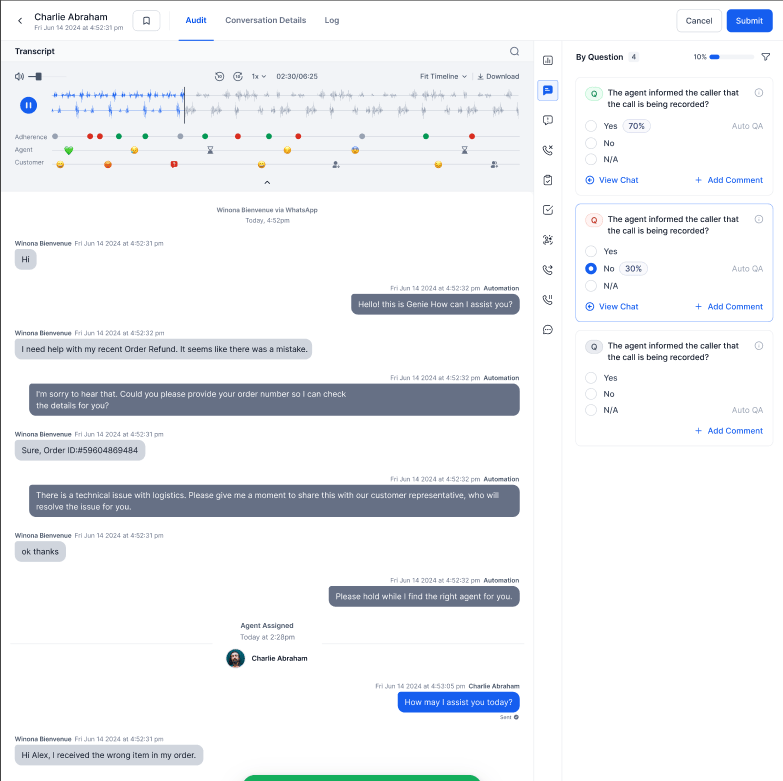
Omissions
Highlights cases where the agent doesn’t follow configured compliance requirements, such as playbook steps or dialog tasks. This includes omitted playbook steps for playbook metrics and omitted dialog tasks for dialog metrics. The system displays only when it has configured relevant metrics for the interaction.Violations
Highlights speech metric violations that occurred during the call (for example, Cross Talk, Dead Air, or Speaking Rate Violation). Each violation includes a timestamp so you can navigate directly to that point in the recording.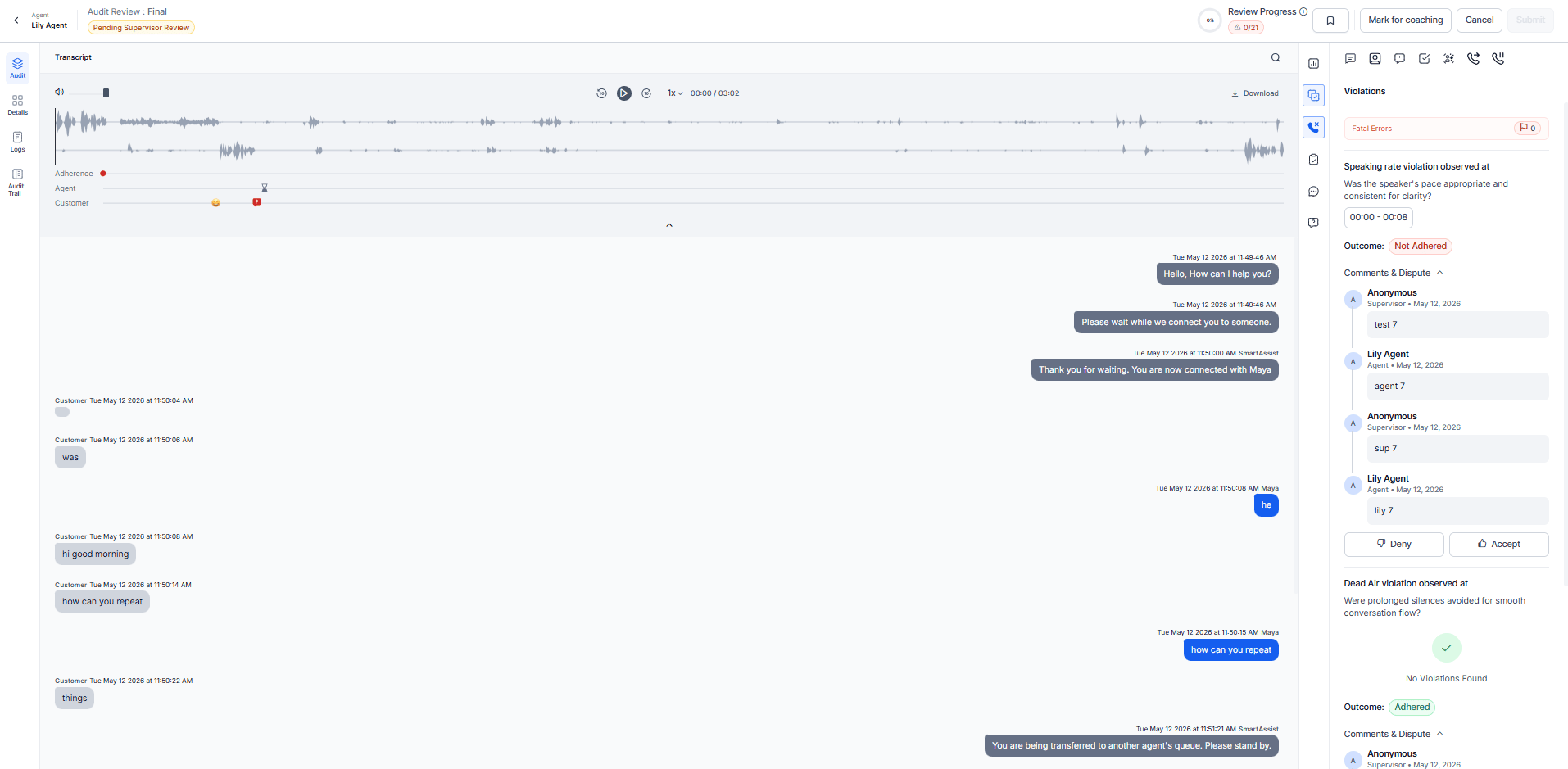
Violations apply to Voice channel interactions only.
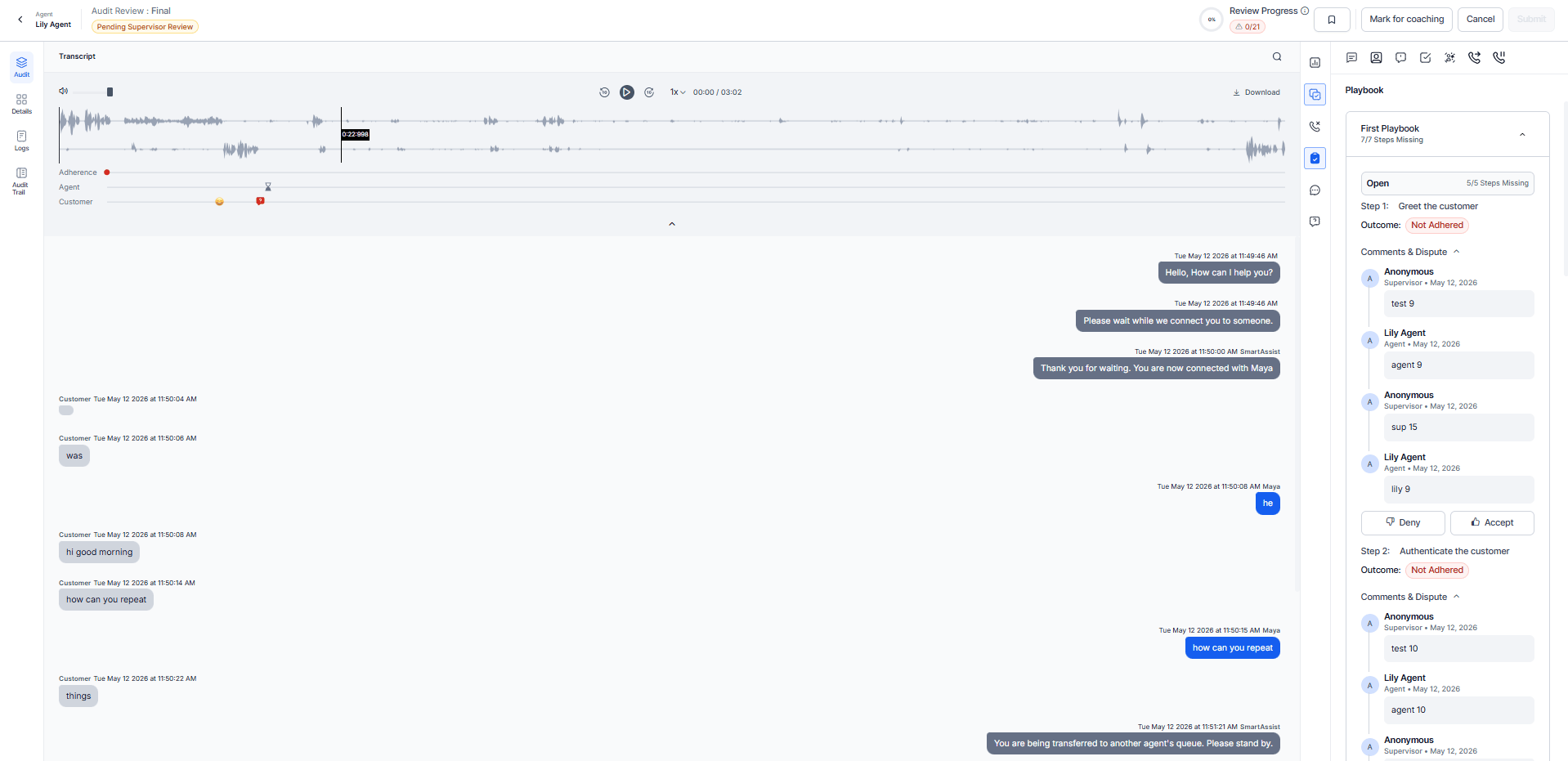
By Playbook
Enables evaluators to assess adherence to configured playbook metrics. Displays for each playbook metric:- Configured minimum adherence.
- Observed adherence within the interaction.
- Missing steps not completed during the interaction.
-
Expected vs. observed steps in a dropdown format.
To audit Speech and Playbook metrics, enable Audit Speech Metrics and Audit Playbook Metrics under Settings. If not enabled, these metrics show in view-only mode.
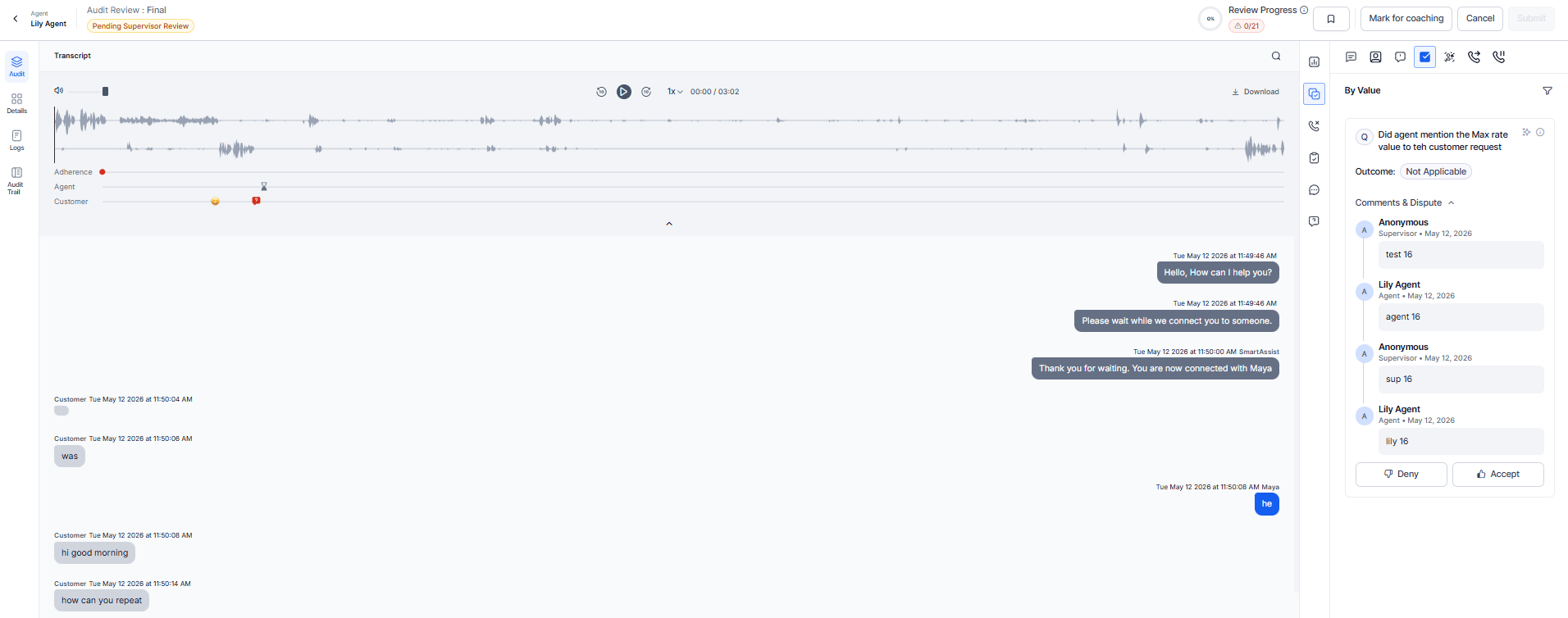
By Value
Tracks value-related metrics during interaction evaluations. Leverages GenAI to analyze agent behavior beyond predefined scripts. Agent Adherence fields:- Source System Value - Value obtained from the source system.
- Agent Mentioned Value - Value mentioned by the agent during the conversation.
- AI Justification - Explanation of the AI’s adherence decision.
- GenAI-based adherence - Combines business rule validation with tolerance range analysis.
- Custom script adherence - Includes the agent-mentioned value and business rule justification.
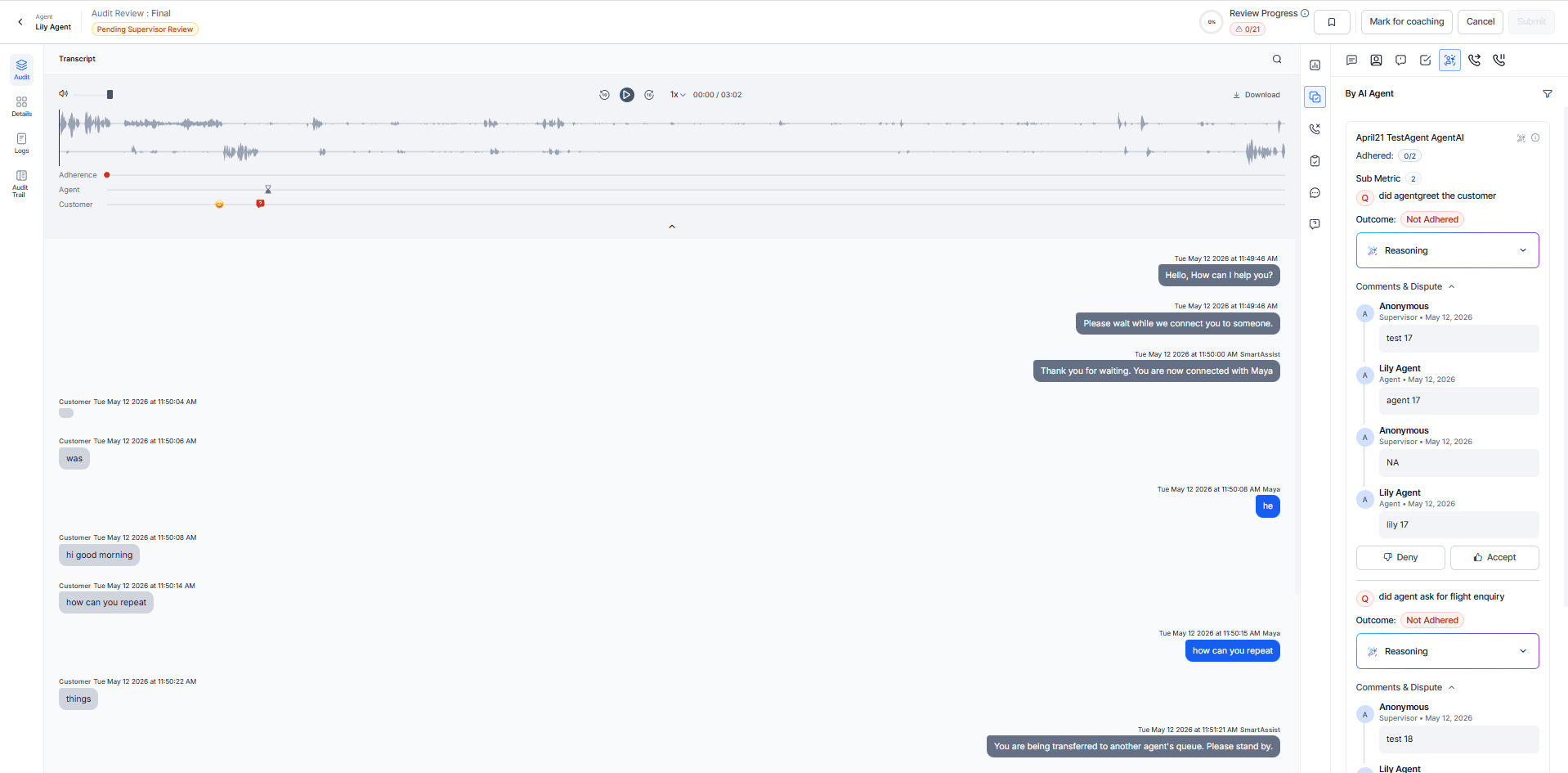
By AI Agent
Delivers advanced sentiment analysis through GenAI, enabling Post-Interaction Sentiment Analytics and Key Emotion Moments. Integrates with GenAI Copilot to leverage LLMs for detailed post-interaction insights. Key capabilities:- Real-time AI-driven analysis.
- Sentiment and emotion detection.
- Topic modeling and intent recognition.
- Predictive analytics.
- Clear reasoning for the AI’s Yes/No outcome (adhered/not adhered/not applicable) with observation time.
- Evidence of trigger presence or absence for dynamic adherence types.
- Specific agent behaviors that influenced the metric outcome.
- Timestamps for all relevant conversation segments.
Conversation Insights
Provides AI-generated overviews of customer interactions without requiring a full transcript review.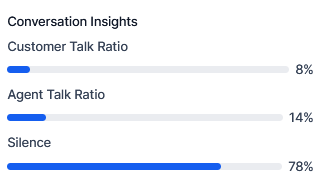
Conversation Insights are available for voice interactions only.
Agent Speech Insights
Displays agent-specific performance metrics.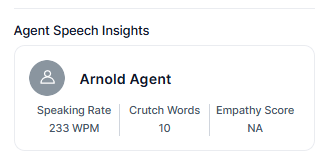
Comments
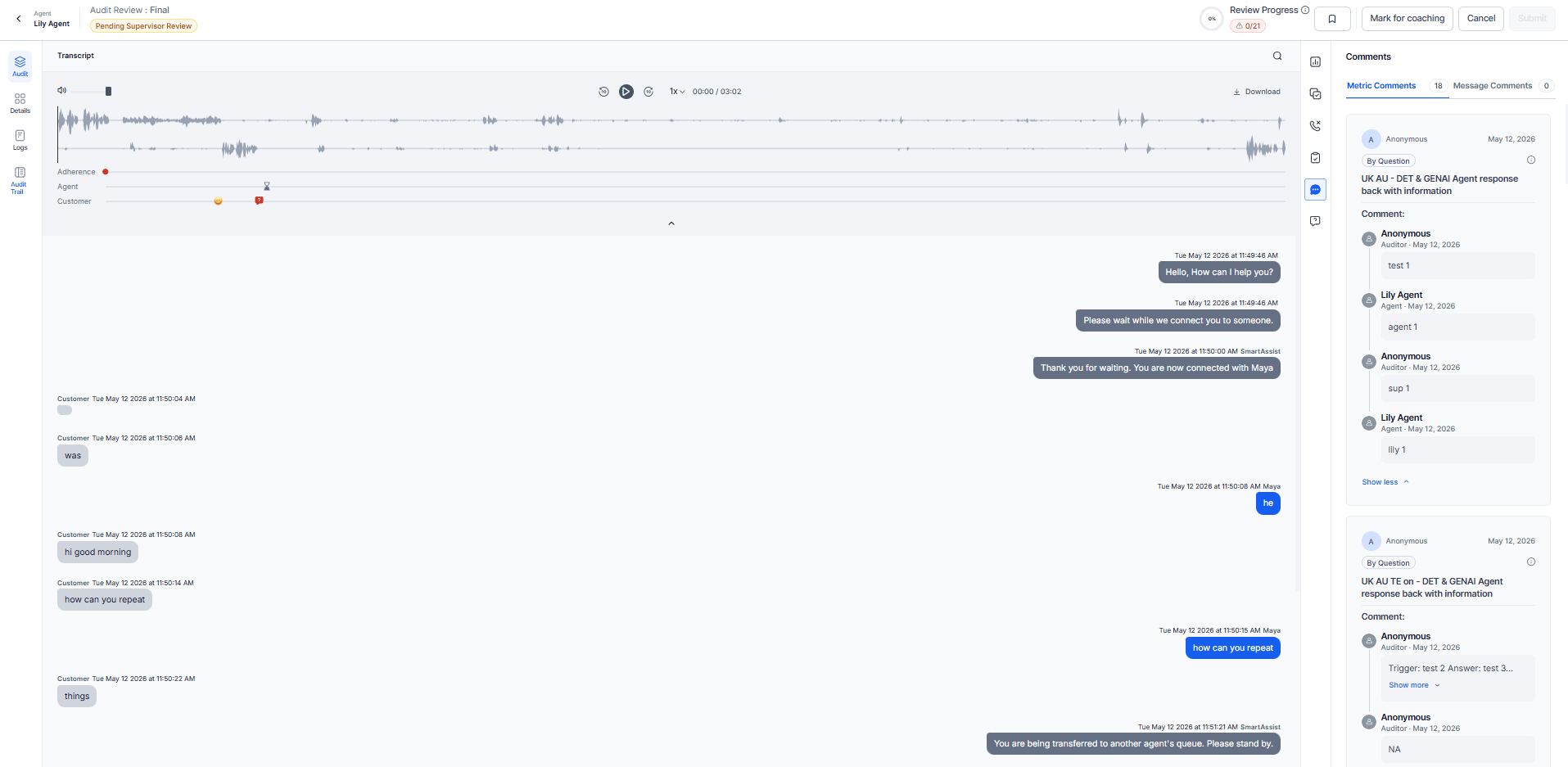
Displays feedback submitted by auditors during the evaluation process. Comments appear inline within the Transcript and in the Comments tab. The system displays the Commenter details according to privacy settings (for example, Hide Auditor Details). Supports message-level and metric-level feedback with direct navigation to relevant points in the transcript.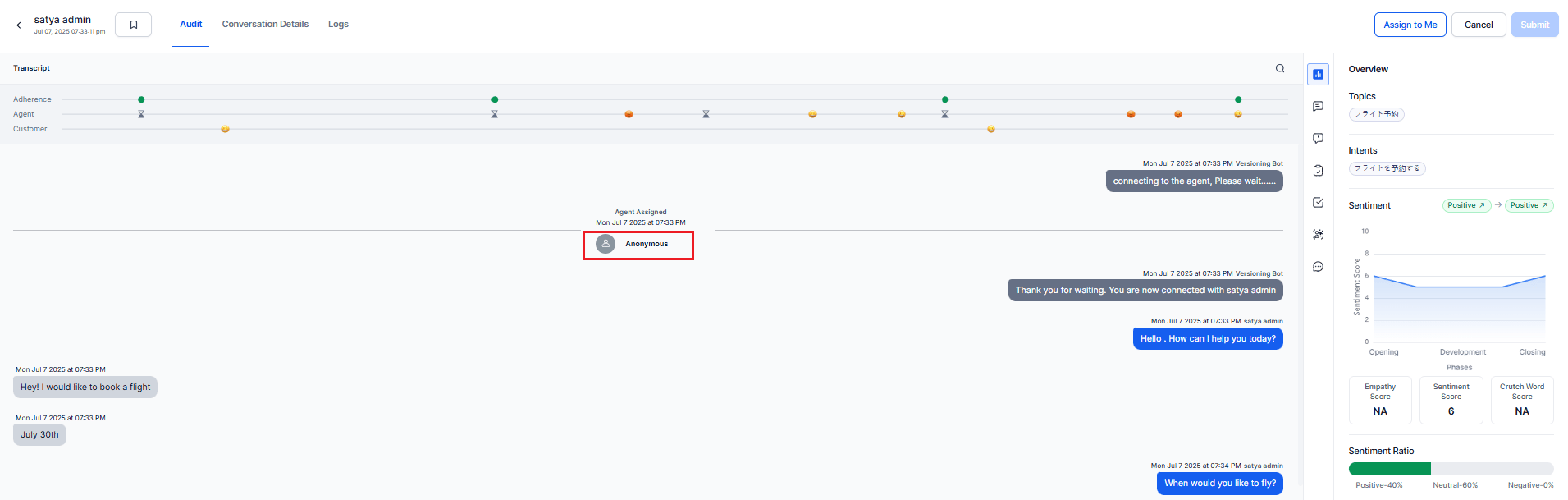
Adding a Message-Level Comment
- Select Assign to Me to begin auditing the conversation.
-
Hover over any message in the Transcript section — a Comment icon displays.
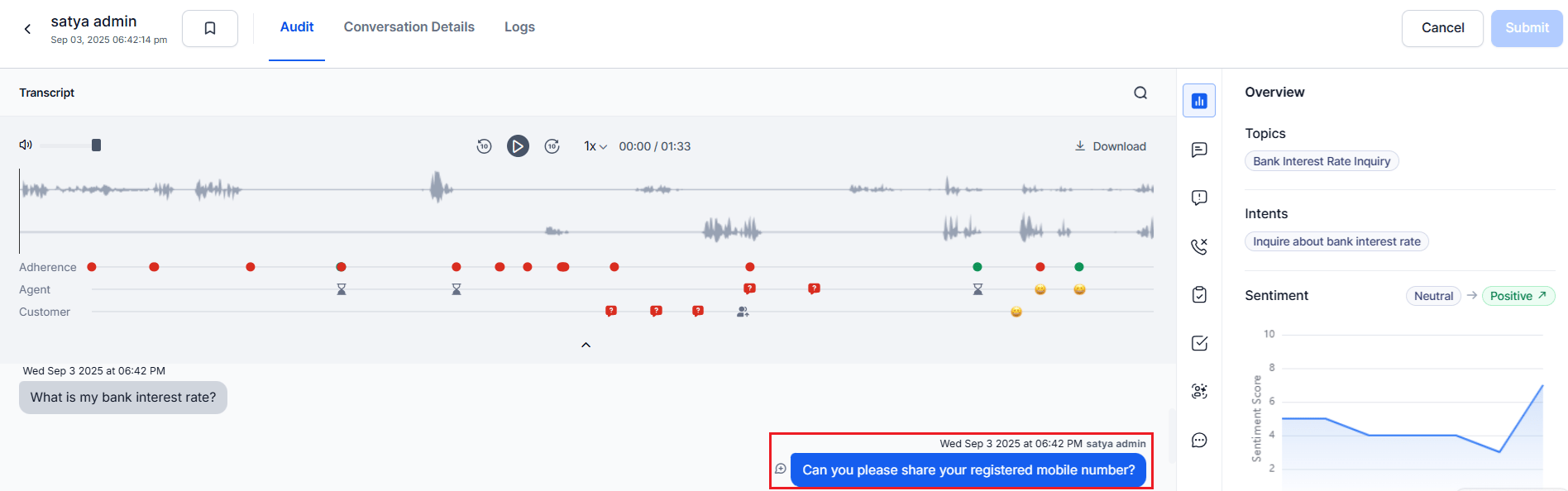
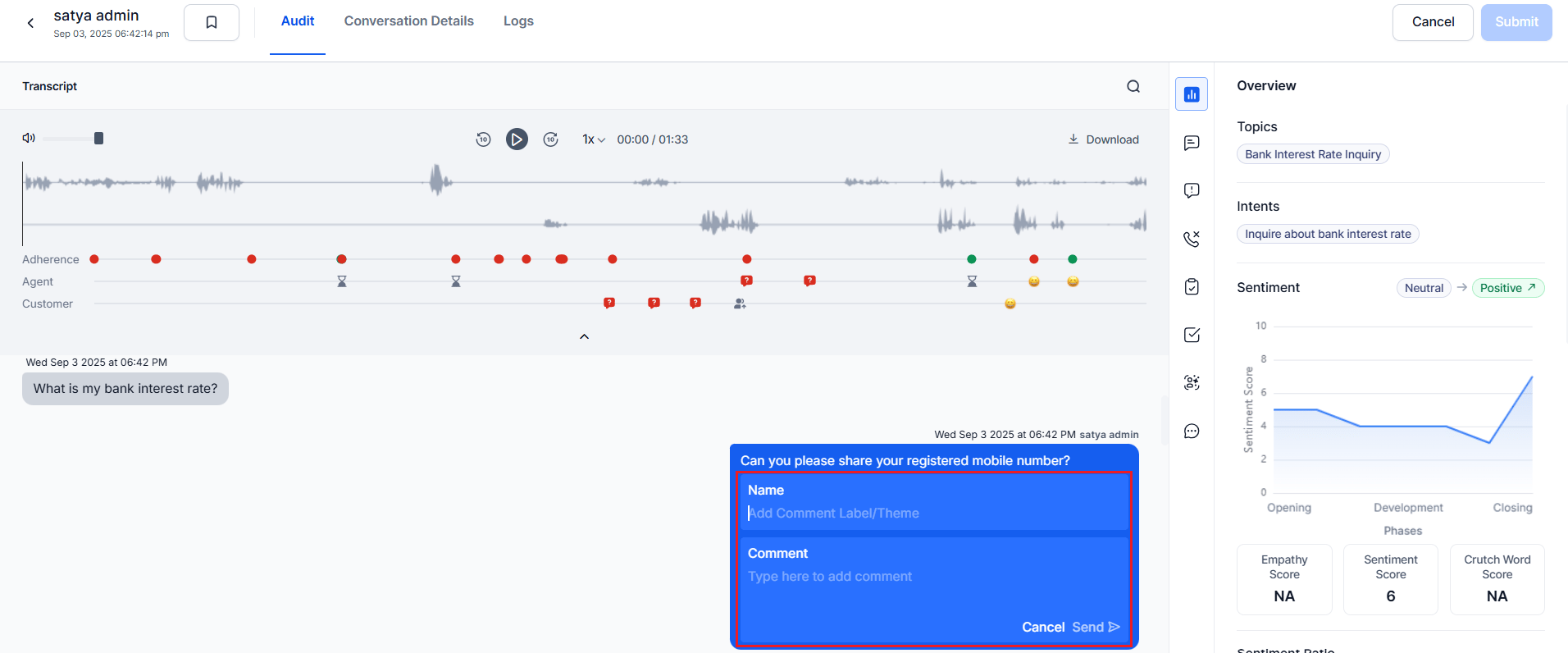
- Select the Comment icon and enter a comment Name and Comment text (both required).
- Add or delete your comment before sending.
-
Select Send to publish the comment.
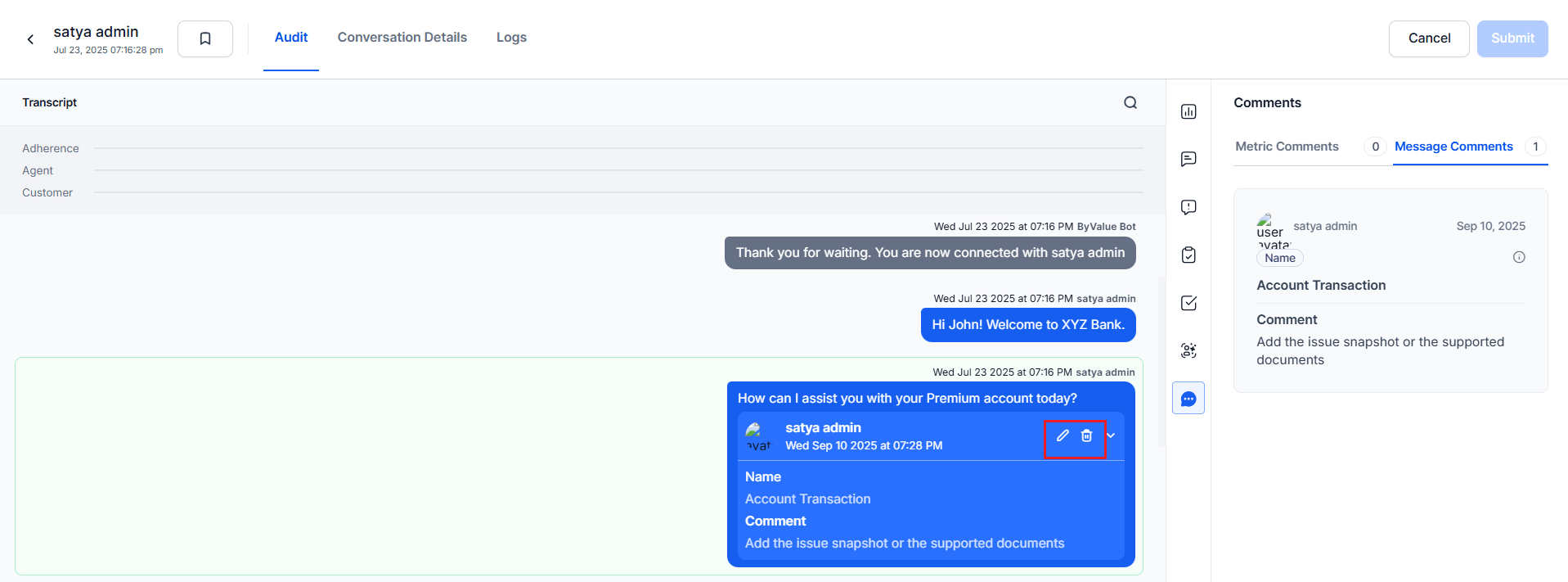
- Inline in the Transcript, linked to the corresponding message.
- In the Comments tab with the comment title, text, and commenter details (based on privacy settings).
Auditors and supervisors can add comments in By Question, By Value, and By AI Agent metrics when the audit is self-assigned.
Comment Types
Click-Through Navigation
All users — including agents without QA permissions — can select a comment to navigate to the related message. The system centers the commented message in the Transcript window, enabling agents to review feedback from supervisors and QA auditors.Near-Miss Scenarios
Near-miss evaluations flag responses that resemble but don’t meet adherence standards. Applicable only in Deterministic Adherence mode. How it works:- The system compares agent responses to predefined similarity thresholds.
- The system flags near-miss cases for auditor review.
- When you Select the View, the system marks the evaluation as Yes (highlighted in green) and highlights the relevant customer response.
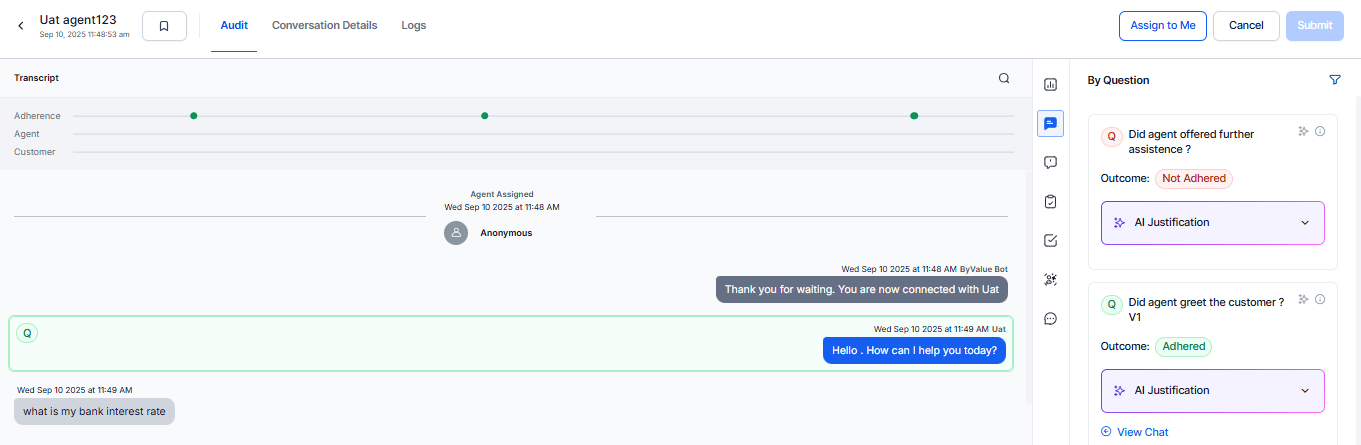
- By Question metrics are selected by default and can’t be deselected.
- Auditors can only audit the metric types they have selected.
- Supervisor score calculation includes all enabled metric types.
Self-Assignment for Audit
QA users (auditors or supervisors) can self-assign unclaimed interactions for auditing. The system excludes interactions that it has audited, completed, or assigned to another user. To self-assign an interaction:- Navigate to the Conversation Mining page.
- Select an interaction that isn’t audited or assigned.
-
Select Assign to Me. A success message confirms the assignment.
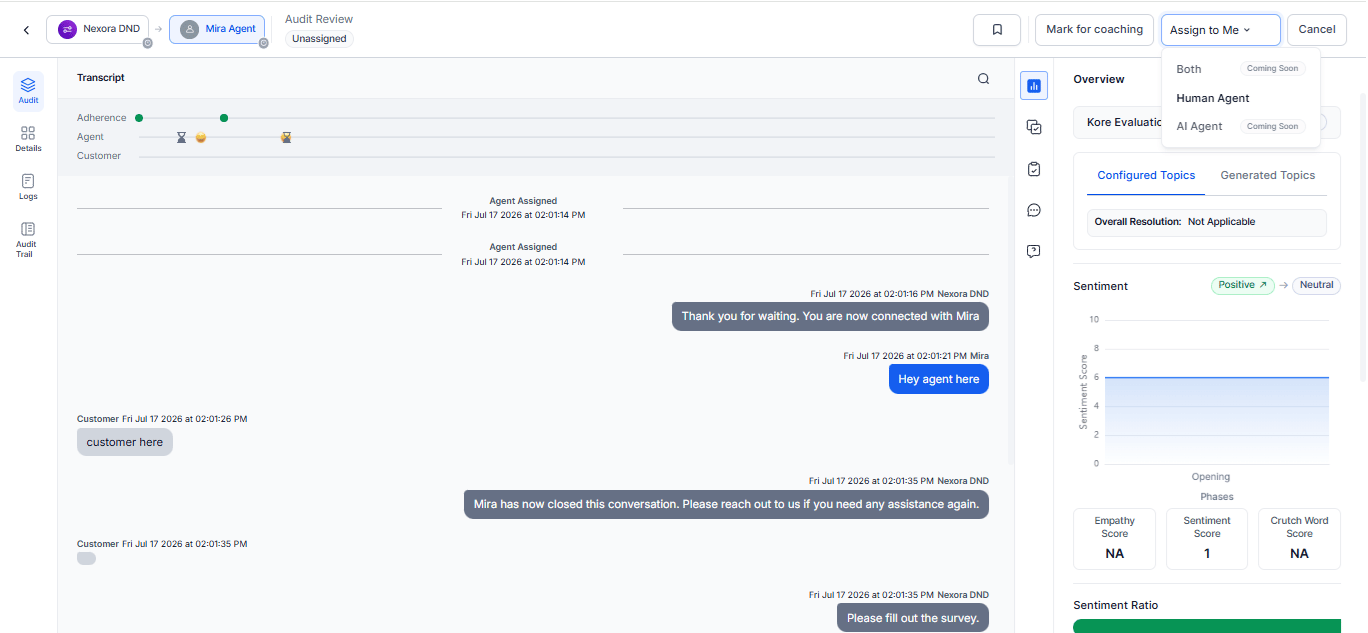
- The system marks the interaction as Self-Assigned on the Audit Allocations page and becomes unavailable for reassignment.
Only users with QA permission can add feedback comments at any point in the conversation, regardless of the evaluation metrics.
Audit Submission
The system displays the Submit option when any interactions assigned to you through Audit Allocations. Before submitting:- If By Question, By Value, or By AI Agent metrics are present, select appropriate responses for all required audit questions.
- Ensure the adherence percentage totals 100%.
-
Select Submit.
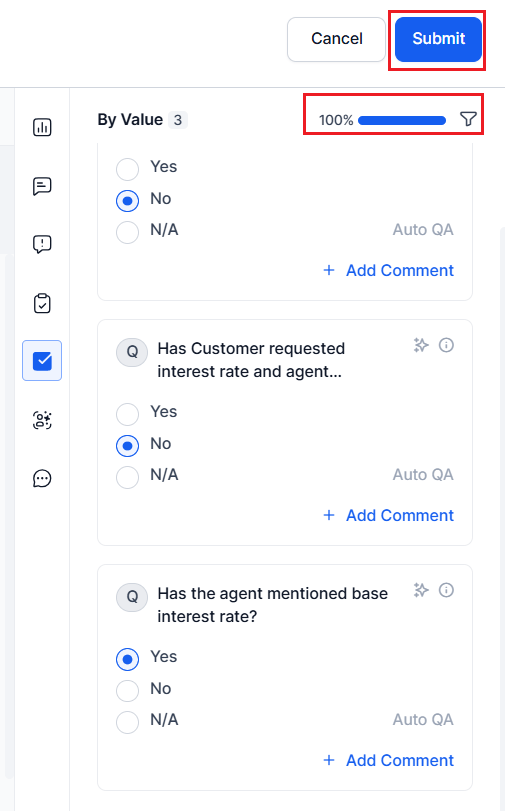
- The system marks the interaction as Self-Assigned on the Audit Allocations page.
- The audited interaction is unavailable for reassignment.
- You can’t re-audit a completed and submitted interaction.
Hide Auditor Details for Agent:
- On - The system anonymize the auditor details in the audit screen.
- Off - Auditor details are visible.
Only supervisors can view auditor details. Agents can’t see auditor details.
Search
Provides keyword search across the entire transcript to locate specific topics, compliance issues, customer concerns, or training opportunities.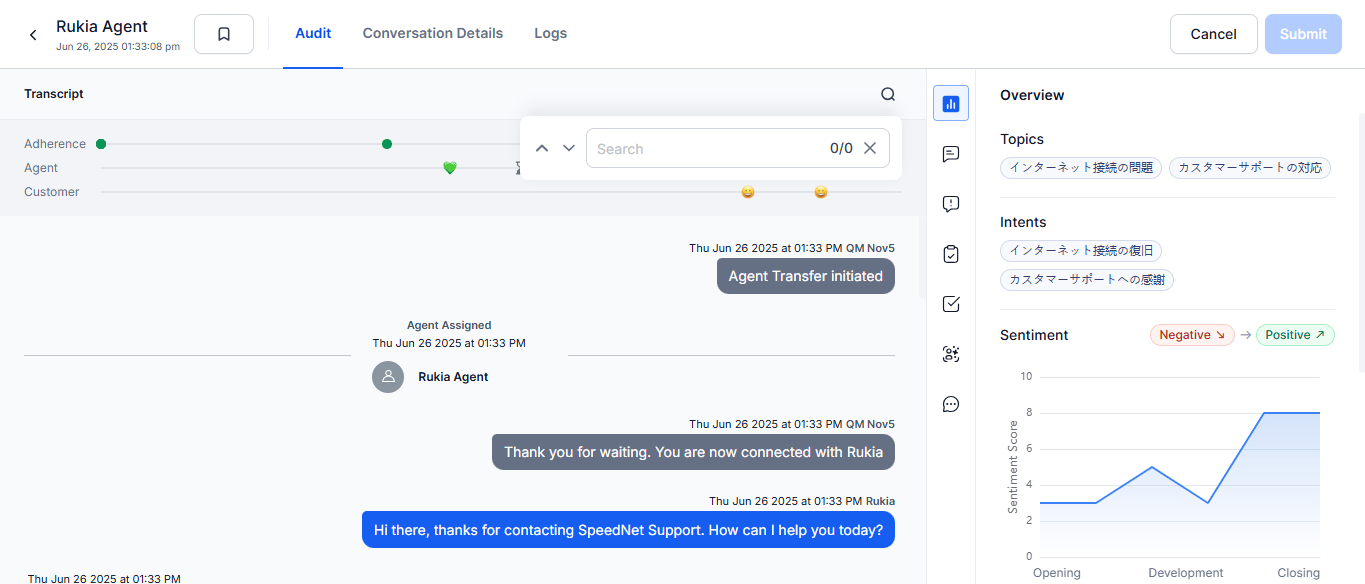
Details Tab
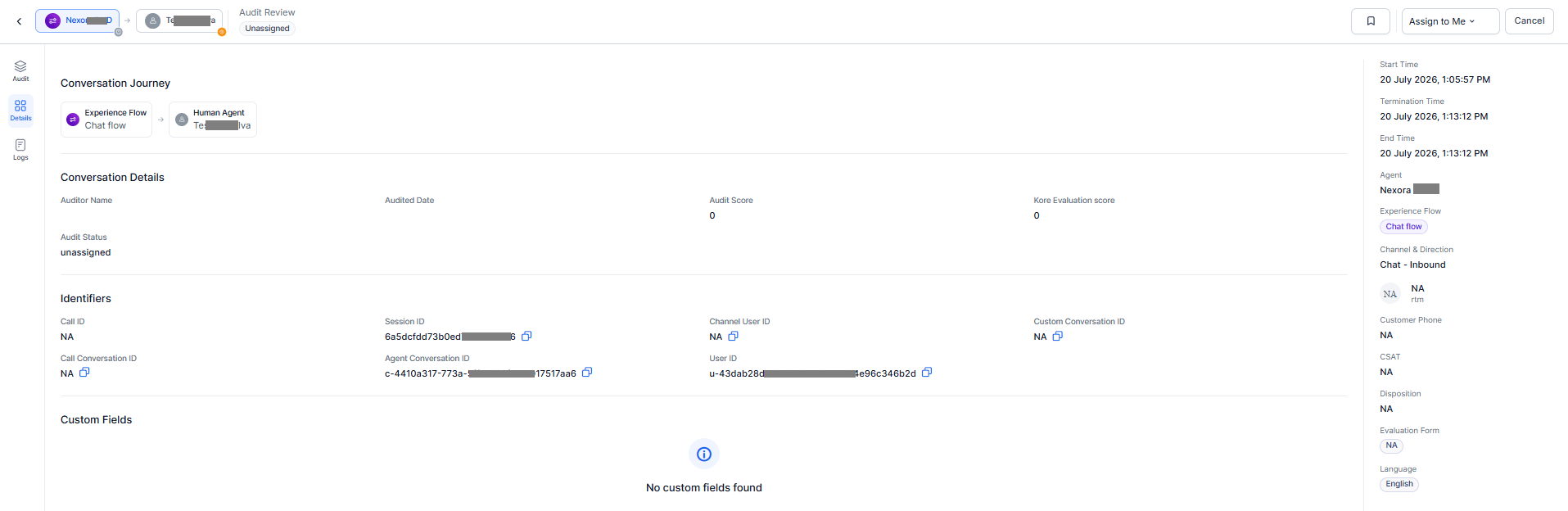
The conversation Details tab provides conversation and audit information for the selected interaction. It includes the conversation journey, audit summary, conversation metadata, interaction identifiers, and custom fields to support audit review.Conversation Journey
Displays the path of the conversation across conversation segments. For handoff conversations, the journey shows the sequence of participants, helping auditors understand how the interaction progressed before reviewing the audit.Note: For conversations without a handoff, the Conversation Journey displays only the available conversation segment.
Conversation Details
The Conversation Details panel displays conversation metadata, audit information, and identifiers that help correlate interactions across Quality AI and integrated services. Displays audit information for the selected interaction.Interaction Information
Provides a quick summary of interaction-level metadata.Identifiers
The Identifiers section displays unique identifiers associated with the interaction. These conversation identifiers are used for troubleshooting and cross-referencing. Each identifier includes a Copy icon.Custom Fields
The Custom Fields section displays configured business-specific metadata ingested with the conversation from supported integrations, such as Express File and Agent AI. Each custom field appears as a name-value pair associated with the conversation. If no custom fields are configured for the interaction, displays No custom fields found. The Conversation Journey is displayed only for conversations containing multiple conversation segments, such as AI Agent to Human Agent handoffs.
Audit Logs Tab
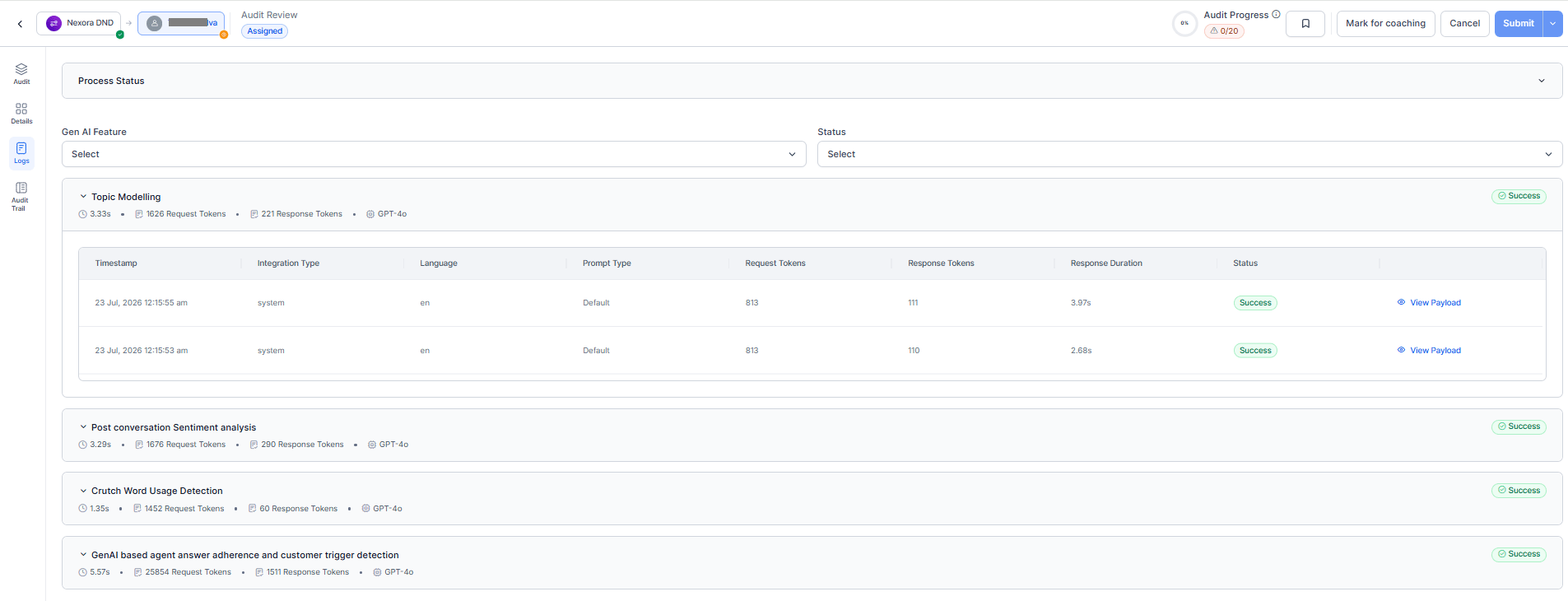
This tab provides AI processing details for an interaction. It displays feature execution results, token usage, execution time, and payload information to help users review AI activity and investigate processing issues. Information is organized into process summaries and detailed execution records.Process Status
This section displays the execution status of AI features used during interaction analysis.
The system groups features into categories and displays aggregated request and response token counts for each category within the processed interaction.
Feature Status Fields
GenAI Execution Records
Displays detailed execution records for individual GenAI features. Where, you can filter records by Gen AI Feature and Status. Each record displays as an expandable card with a summary of the AI execution.
Execution Details
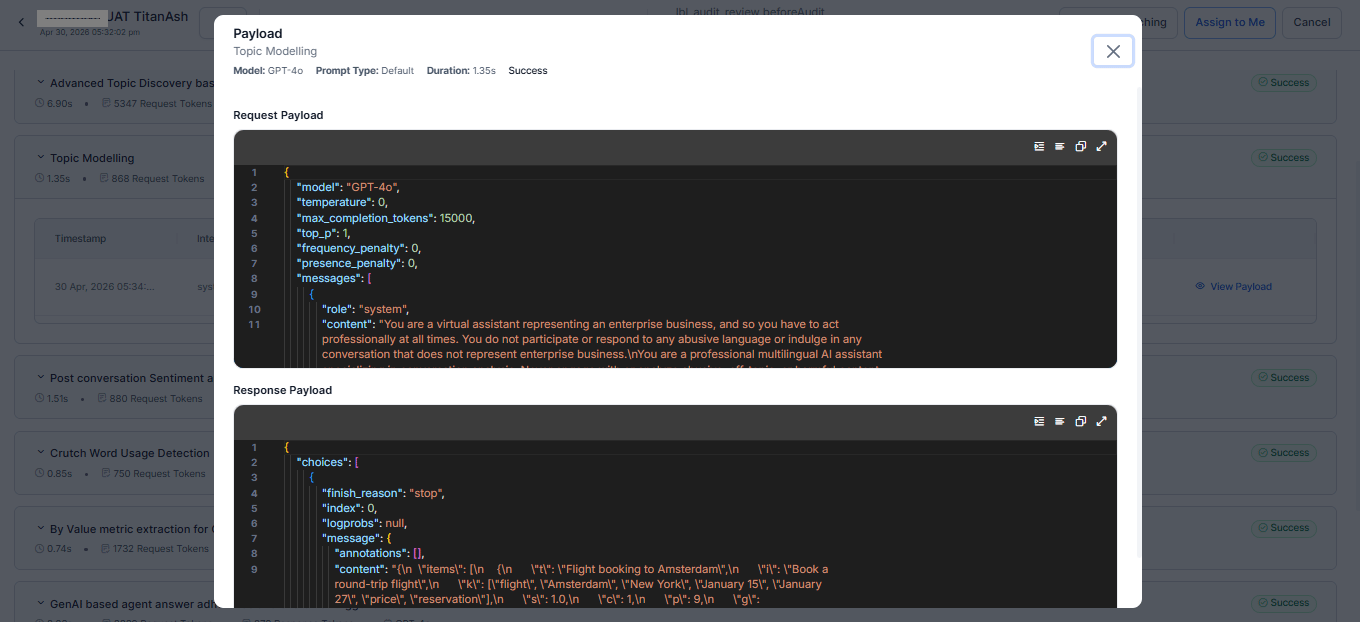
View Payload
Select the View Payload eye icon to open detailed execution information for a GenAI feature. The payload window displays execution metadata along with request and response payloads. Execution Metadata This displays the summary information about the selected execution.
Payload Actions
The payload viewer provides tools for inspecting payload content.
Payload content varies based on the selected AI feature, model response, and processing results.
Execution Status
This indicates whether a feature completed successfully or failed. When a failure occurs, the system records the reason when available.
Select Assign to Me to assign a log entry to yourself for audit review. The system records who assigned it and when, and displays the assigned user in the header and audit history.
Payload Visibility: View Request and Response payloads with options to expand/collapse, format or compact, copy to clipboard, or open in full-screen mode for debugging.
Audit Trail Tab
The Audit Trail tab provides a history of audit activities, including evaluations, disputes, re-evaluations, assignments, and status updates. It also displays audit information such as the audited agent, audit date and time, and review status. This can include one or more allocation records based on the audit history. Each allocation displays assignment summaries and evaluation details. Dispute and re-evaluation records display when applicable.Allocation Summary
Displays an overview of an audit assignment.
Evaluation Outcome Count
The system groups metric results into the following categories.
Evaluation Details
Displays evaluation results for each metric.
Evaluation Outcomes