

Searching through attachments is not supported.
Prerequisites
- Admin access to your ServiceNow instance.
- If using OAuth 2.0: an OAuth endpoint configured in ServiceNow (see Step 1).
- If using webhook integration: the Search AI connector must be configured and connected first.
Step 1: Configure an OAuth Endpoint in ServiceNow
Skip this step if you are using Basic authentication. To use OAuth 2.0, set up an OAuth endpoint in your ServiceNow instance. Follow the ServiceNow documentation for instructions. Use the redirect URL for your region:- JP Region:
https://jp-bots-idp.kore.ai/workflows/callback - DE Region:
https://de-bots-idp.kore.ai/workflows/callback - Production:
https://idp.kore.com/workflows/callback
Step 2: Configure the ServiceNow Connector in Search AI
- Select the ServiceNow connector from the list of available connectors.
- Go to the Authorization tab and provide the following details.
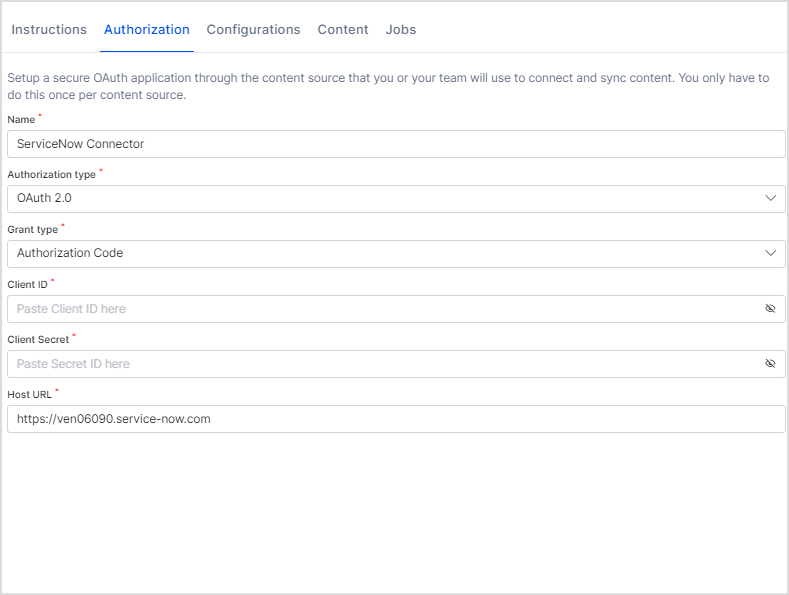
- Click Connect to authorize.
- Go to the Configurations tab and click Sync Now to begin ingesting content.
Only articles within their validity date are ingested. Articles past their Valid To date are excluded.
Webhook Integration for Real-Time Sync
Search AI supports webhook-based real-time sync with ServiceNow using Business Rules and a shared Script Include. Any create, update, or delete operation in ServiceNow is immediately reflected in the Search AI index.Architecture
The webhook integration uses two components:- Script Include — A reusable script (
SearchAIWebhookHandler) that handles webhook POST requests to Search AI. - Business Rules — Per-table rules that trigger the Script Include on data changes.
Benefits
- Changes in ServiceNow are immediately reflected in Search AI.
- Eliminates the need for frequent full syncs.
- Only changed records are processed, reducing system load.
- Users always see the most current information.
Configure Webhook Integration in ServiceNow
A. Create the Shared Script Include In System Definition > Script Includes, create a Script Include namedSearchAIWebhookHandler. The script accepts a current record and operation type (insert, update, delete), then sends a POST request to the Search AI webhook endpoint with the authentication token.
Sample script:
SearchAIWebhookHandler Script Include with the current record and operation type.
How Webhook Sync Works
When Search AI receives a webhook POST from ServiceNow:- The payload is validated using the authentication token.
- Existing ServiceNow connector credentials are used to fetch the latest version of the referenced entity.
- The index is updated based on the operation:
- Insert/Update — Document is created or updated in the index.
- Delete — Corresponding content is removed from the index.
- The sync is logged in the webhook sync records.
Incremental Sync
The connector supports incremental synchronization. Instead of performing a full content sync on every run, the connector fetches only records that has created or updated since the last successful sync, using thesys_updated_on field on the corresponding ServiceNow table.
Incremental sync is supported for the following objects:
By fetching only the changed subset of records on each sync, this reduces the number of API calls made to the ServiceNow instance and lowers sync duration and processing overhead.
Advanced Filters
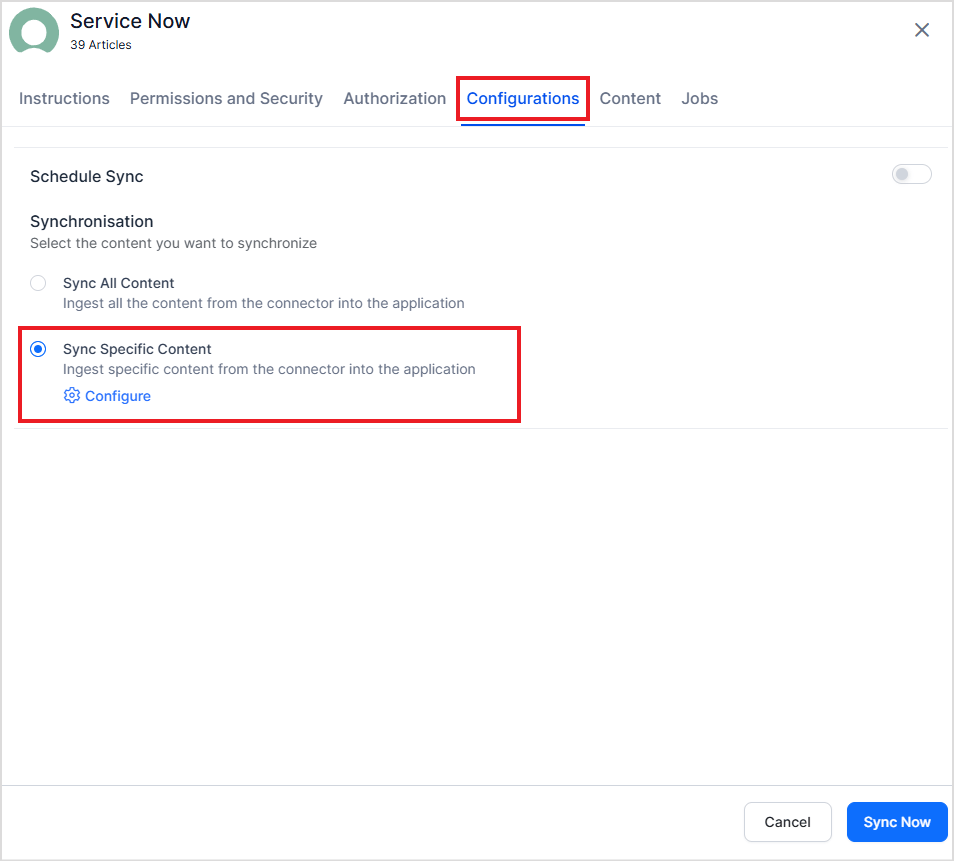
Search AI supports advanced filters for content ingestion. Filtering is currently supported for Knowledge Articles only. Use article properties such as status, type, number, knowledge base, and source to selectively ingest content. Configure advanced filters:- Go to the Manage Content tab and select Ingest filtered content.
- Click Edit configuration to open the Ingestion Filters page.
- Use the Parameter, Operator, and Value fields to define a filter. Commonly used parameters appear in the dropdown. For the complete list, refer to the ServiceNow developer reference.
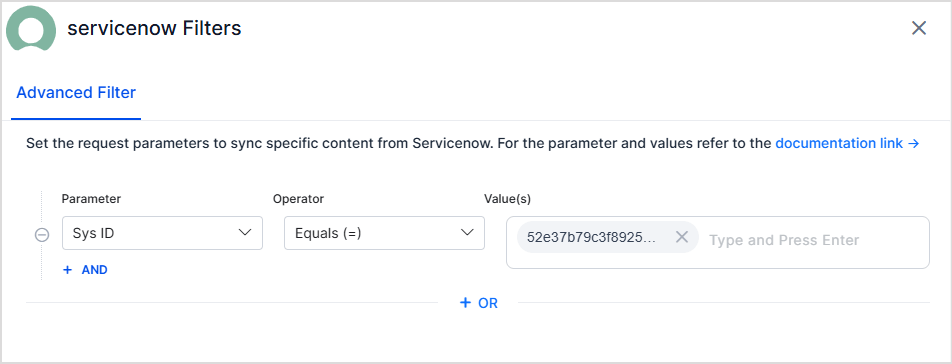
-
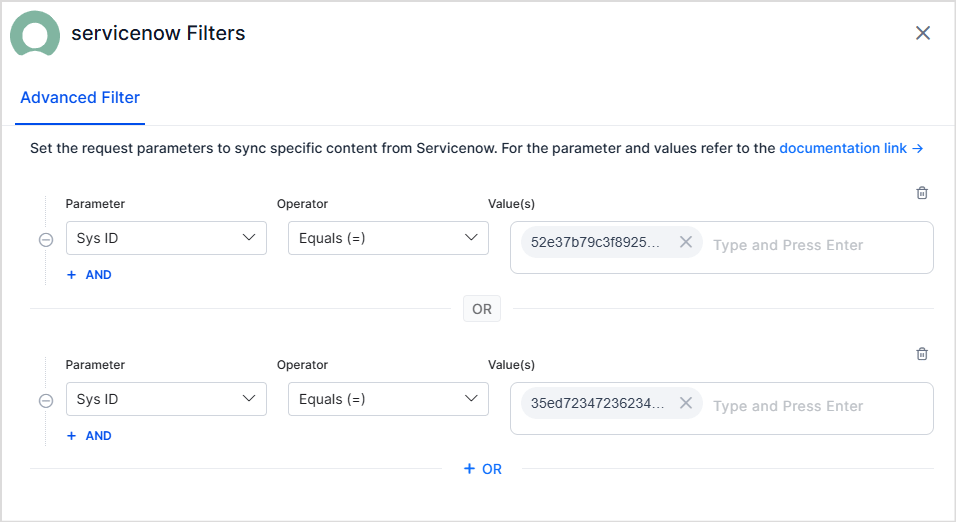
Multiple rules — Define one or more rules. Content matching any rule is ingested (logical OR).
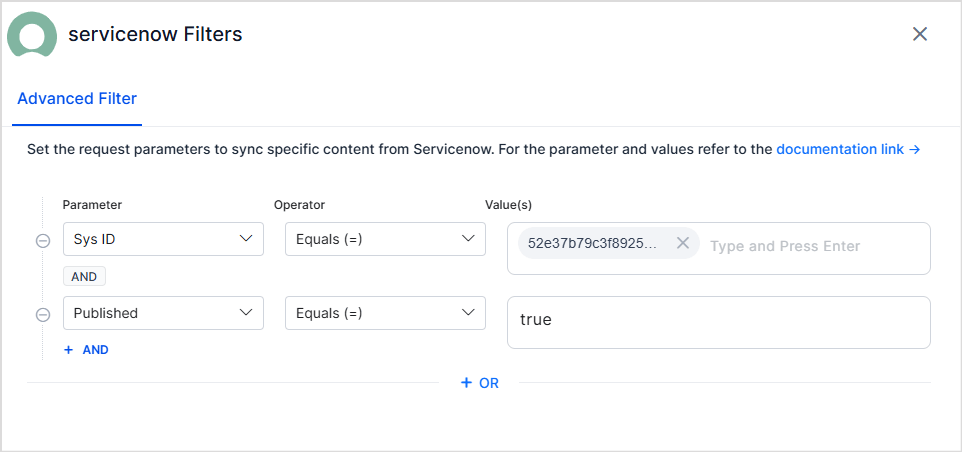
Example — select articles matching any sys ID from a list:
-
Multiple conditions — Each rule can have one or more conditions joined by logical AND. Content is selected only when all conditions are satisfied.
Example — select published articles with a specific sys ID:
- Insert/Update — Document is created or updated in the Search AI index.
- Delete — Corresponding content is removed from the index.
RACL Support
Knowledge Articles
Search AI enforces access control at the knowledge base level for content ingested from ServiceNow. In ServiceNow, user access to knowledge base articles is defined by:- Owners of the knowledge base
- Managers of the knowledge base
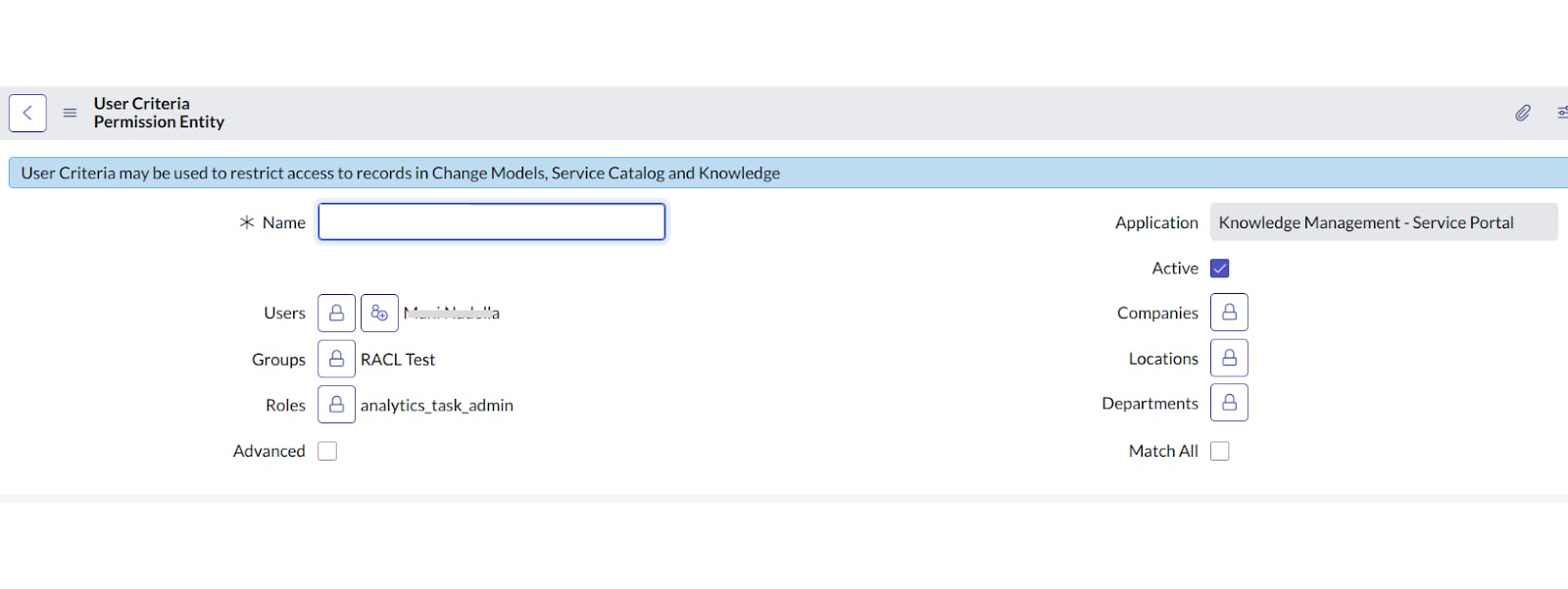
- User Criteria with Can Read or Can Contribute permissions
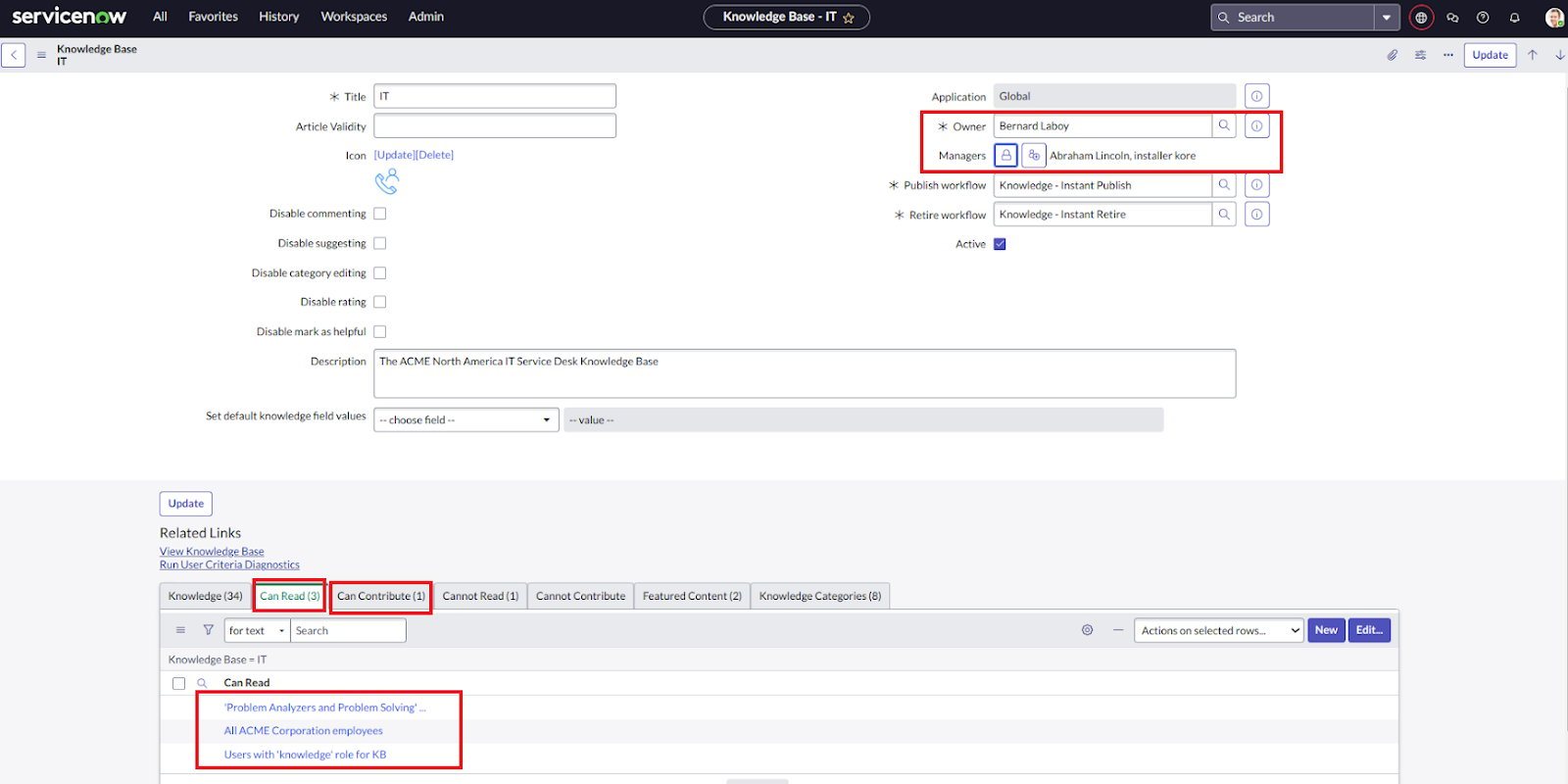
- Owners — Added directly to the
sys_raclfield. - Managers — Added directly to the
sys_raclfield. - Individual users listed under each User Criteria with Can Read or Can Contribute permissions.
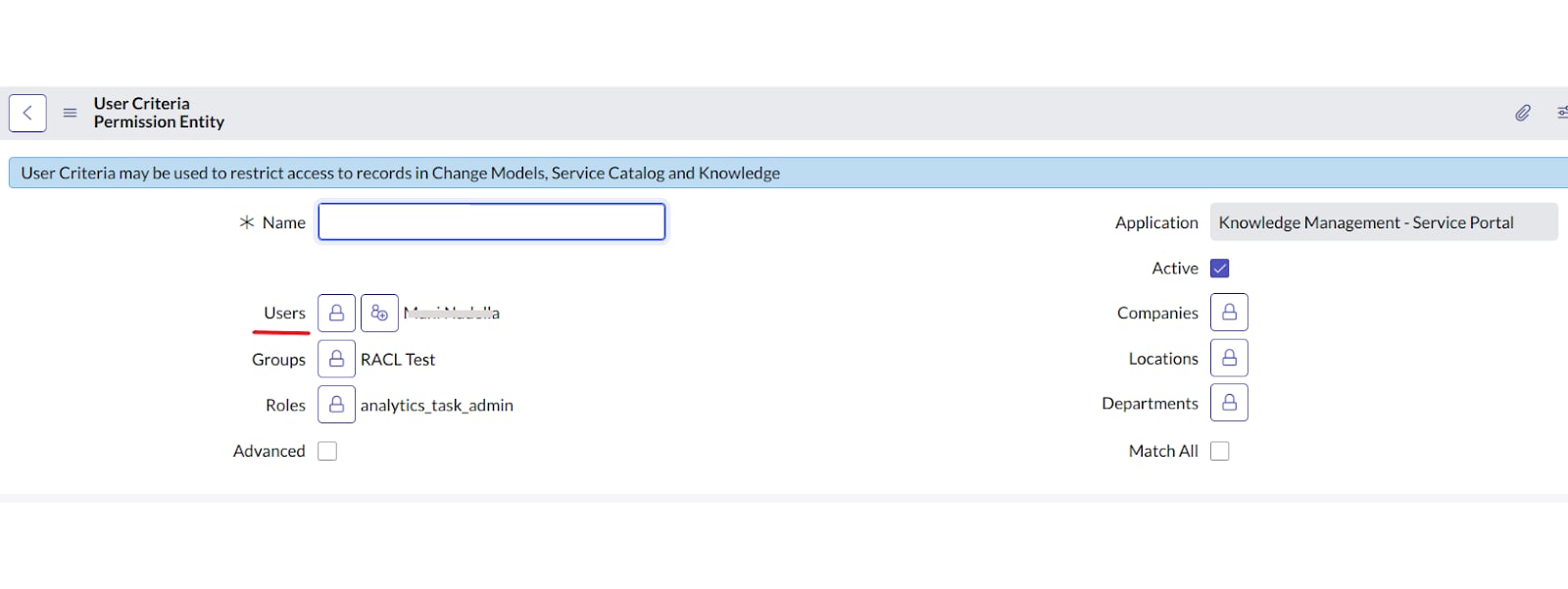
sys_racl field. Only users directly listed in the criteria are included automatically. Users added through other conditions (such as department or role) must be added manually using the Permission Entity APIs.
Example sys_racl field for a knowledge article:
Incidents
Search AI enforces access control on incidents based on four categories:- Role-based access — Users with Base System Roles such as
itiloritil_adminhave access to incidents. A Permission Entity is created per role; associate users using the Permission Entity APIs. - ACL-based access — Users with access to the Incident Table (
incident) through ACL configuration. A Permission Entity is created per ACL rule. - Assignment group-based access — Members of the incident’s assignment group automatically have access. A Permission Entity is created using the group ID.
- Incident field-based access — Users linked to the incident through specific fields (Creator, Caller, Watch List) are added to
sys_raclby email ID.
sys_racl contents for an incident:
Catalog Items
Access to catalog items is controlled by:- Role-based access — Roles assigned to the catalog item determine access. A Permission Entity is created using the role ID.
- ACL-based access — Users with access to the Catalog Items Table through ACL configuration. A Permission Entity is created per ACL rule.
- User Criteria — User criteria defined for the catalog item specify access. A Permission Entity is created using the user criteria ID.
sys_racl field for a catalog item: