Back to Admin Console Bring Your Own Key (BYOK) lets your enterprise retain control of encryption keys while protecting data on the Platform. Kore.ai integrates with AWS Key Management Service (KMS) to use your Customer Master Keys (CMKs) for encrypting application and bot data.Documentation Index
Fetch the complete documentation index at: https://koreai.mintlify.app/llms.txt
Use this file to discover all available pages before exploring further.
Prerequisites
- Active Kore.ai subscription with BYOK enabled
- AWS account with administrative access to IAM and KMS
- Permissions to create IAM roles, policies, and KMS keys
Information Exchange
| Information | Description | Provided By |
|---|---|---|
| Service Role ARN | Kore.ai’s IAM role ARN in their AWS account. Add this to your IAM role’s trust policy. For platform.kore.ai: arn:aws:iam::358587034707:role/SegBots-Servers-Role Contact Support if your SaaS instance differs. | Kore.ai |
| External ID | Unique identifier Kore.ai uses when assuming your IAM role. Auto-populated in the AI for Service Admin Console. | Kore.ai |
| Role ARN | ARN of the IAM role you create in your AWS account. Example: arn:aws:iam::<your-account-id>:role/BYOK_Role | Customer |
| CMK ARN | ARN of your Customer Managed Key in AWS KMS. Example: arn:aws:kms:<region>:<your-account-id>:key/<key-id> | Customer |
Integration Process
Step 1: Create IAM Policy
- Go to AWS Console > IAM > Policies.
- Select Create policy and choose the JSON tab.
-
Paste the following policy:
-
Select Next, name the policy (for example,
BYOK_KMS_Policy), add a description, and select Create policy.
Replace
REGION, ACCOUNT_ID, and KEY_ID with your values. You can use "Resource": "*" initially and update it after creating your KMS key.Step 2: Create IAM Role
- Go to AWS Console > IAM > Roles and select Create role.
- Select AWS Account as the trusted entity type, then This account.
- Attach the BYOK_KMS_Policy from Step 1.
- Name the role
BYOK_Roleand select Create role.
- Open the BYOK_Role, select the Trust relationships tab, then Edit trust policy.
-
Replace the policy with:
- Select Update policy.
Step 3: Create KMS Key
- Go to AWS Console > KMS > Customer managed keys and select Create key.
- Select Symmetric key type and Encrypt and decrypt key usage.
- Enter an alias (for example,
byok-kore-ai-key) and a description. - Add your administrator users or roles as key administrators.
- Add the BYOK_Role as a key user.
- Review and select Finish.
Step 4: Update KMS Key Policy
- Open your KMS key and select the Key policy tab, then Edit.
-
Add the following statement to the existing
Statementarray (don’t remove other statements): - Save the policy.
Replace
ACCOUNT_ID with your AWS account ID.Step 5: Verify Configuration
| Item | Verification |
|---|---|
| IAM Policy | Confirm BYOK_KMS_Policy exists with correct KMS actions |
| Policy Attachment | Verify policy is attached to BYOK_Role under the Permissions tab |
| Trust Relationship | Confirm the Trust relationships tab shows Kore.ai’s Service Role ARN |
| KMS Key Policy | Verify key policy includes both root account and BYOK_Role statements |
| Key Users | Confirm BYOK_Role appears under Key users in the KMS console |
Step 6: Share with Kore.ai
Contact Support and provide:- CMK ARN:
arn:aws:kms:<region>:<your-account-id>:key/<key-id> - Role ARN:
arn:aws:iam::<your-account-id>:role/BYOK_Role
Configure BYOK in AI for Service
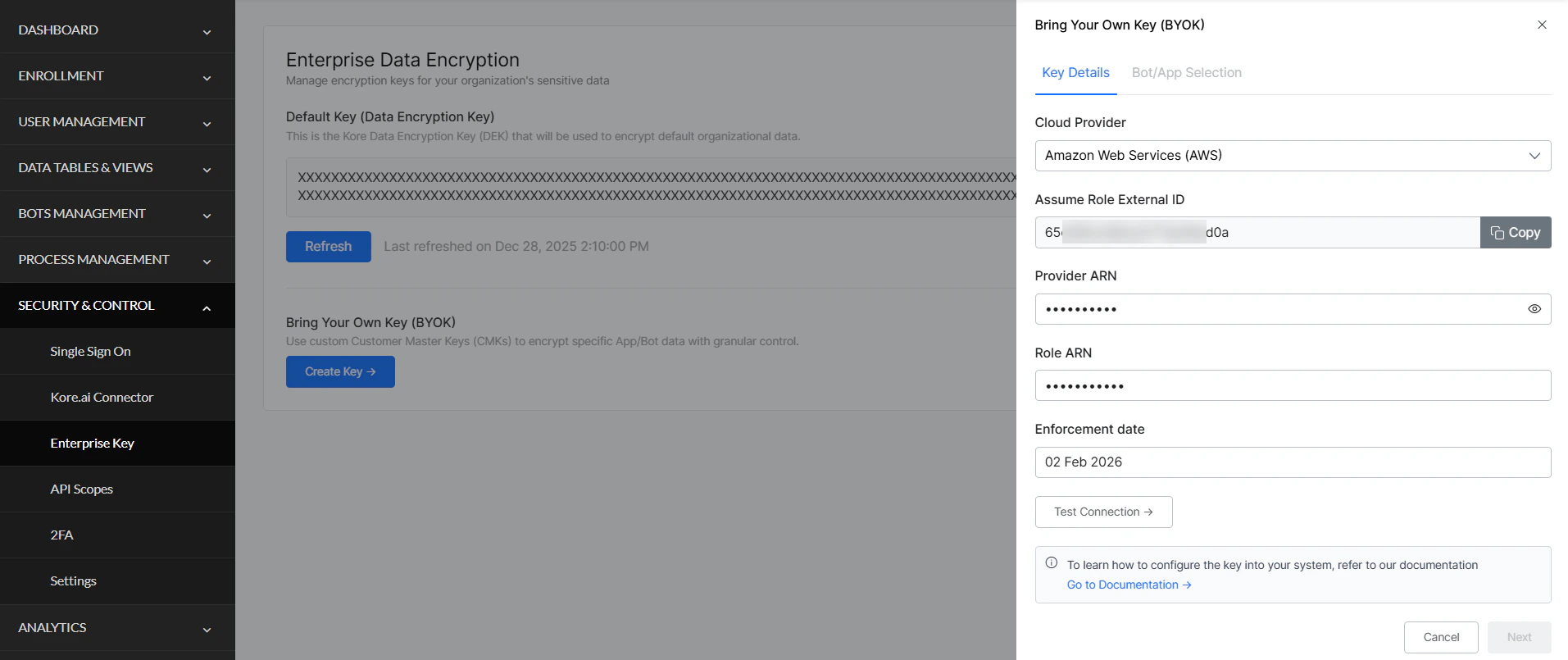
After Kore.ai confirms the integration, enable BYOK in the Admin Console.- Go to Admin Console > Enterprise Key.
-
Under Bring Your Own Key, select Create Key.
-
Enter AWS details:
Field Value Cloud Provider Amazon Web Services (AWS) Assume Role External ID Auto-populated Provider ARN Your CMK ARN Role ARN Your Role ARN -
Set the Enforcement Date — the date your CMK begins encrypting data.
You can modify the CMK and retest until the enforcement date. After this date, you can only rotate the key or update which apps/bots are encrypted.
- Select Test Configuration to validate the connection (tests connectivity, authentication, encryption, and decryption).
-
Select Next to view all apps and bots.
- All apps and bots are selected by default.
- Deselect any that should remain on Kore.ai’s default encryption.
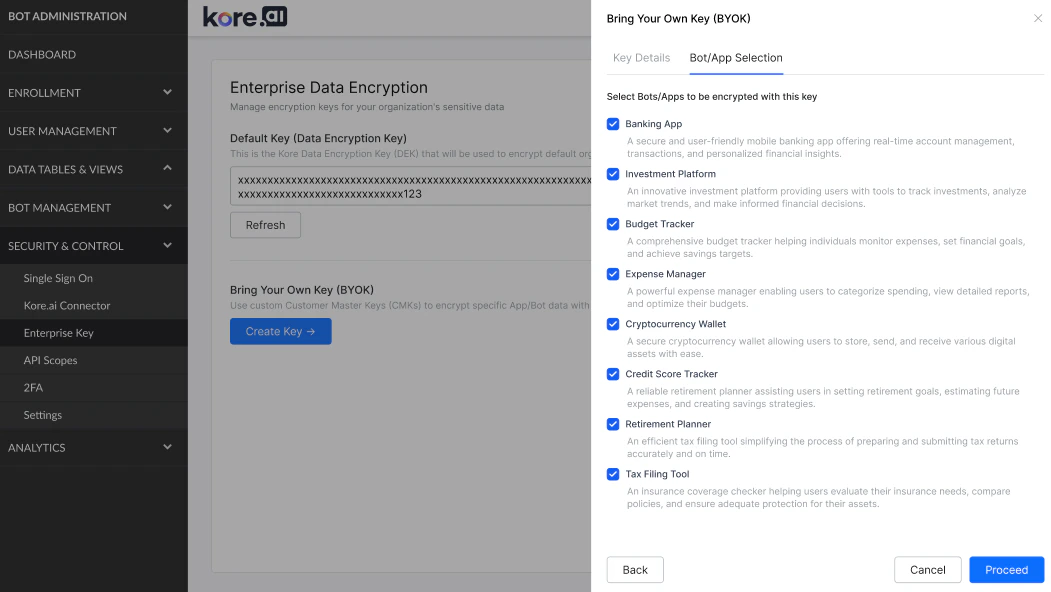
- Select Proceed to complete setup. Encryption begins on the enforcement date.
Validation (Optional)
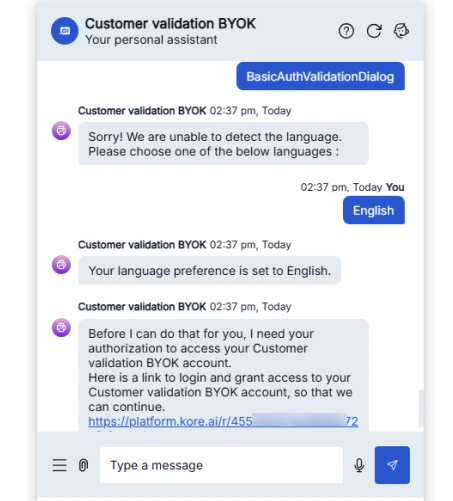
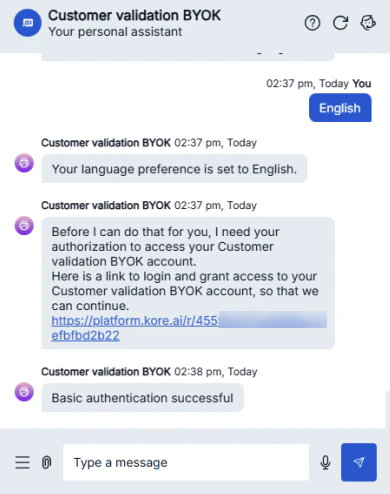
After the enforcement date, verify encryption is working. Option 1: View Analytics Check analytics data for recent chat interactions to confirm encrypted data is accessible. Option 2: Test Application Authorization- Open the application and run Authorization Profiles and Dialogs.
- Execute BasicAuthValidationDialog.
-
When the bot shows the authorization link, select it and enter credentials (
admin/password).