Prerequisites
Before integrating Agent AI with Salesforce, ensure the following prerequisites:- Configure Salesforce Email-to-Case. Refer to Set up Email-to-Case for help.
- Install the Agent AI Salesforce package in your Salesforce organization.
- Ensure you have Agent AI admin permissions.
Steps to Configure Agent AI in Salesforce
- Sign in to Salesforce.
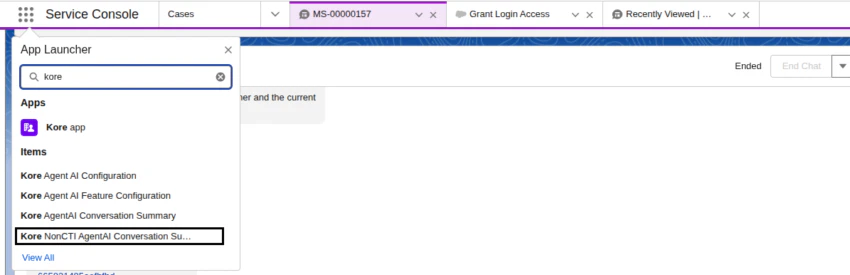
- Select App Launcher.
- Type config in the search bar, and select Kore Agent AI Configuration from the displayed list.
-
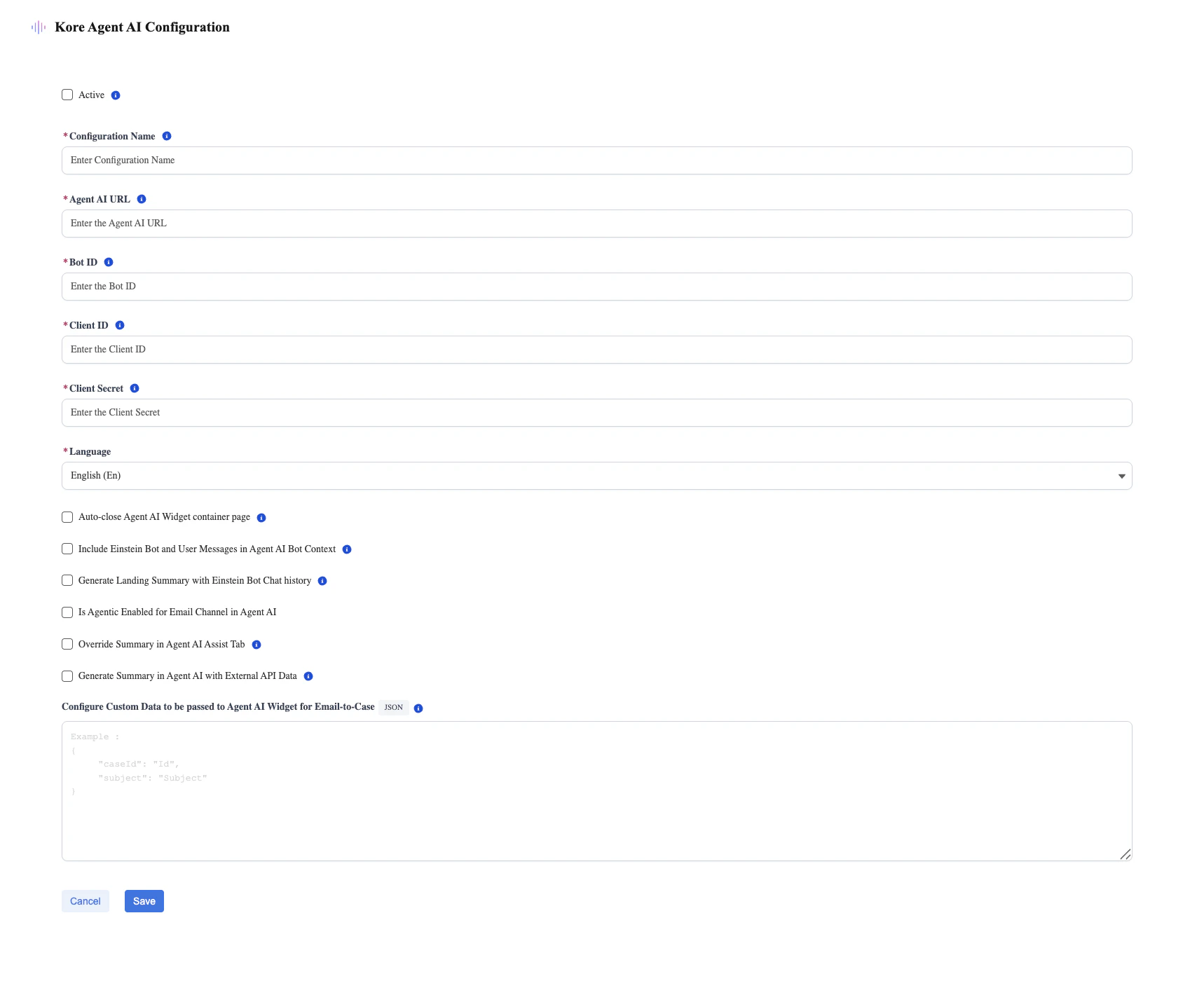
Select New from the top-right corner of the page.
-
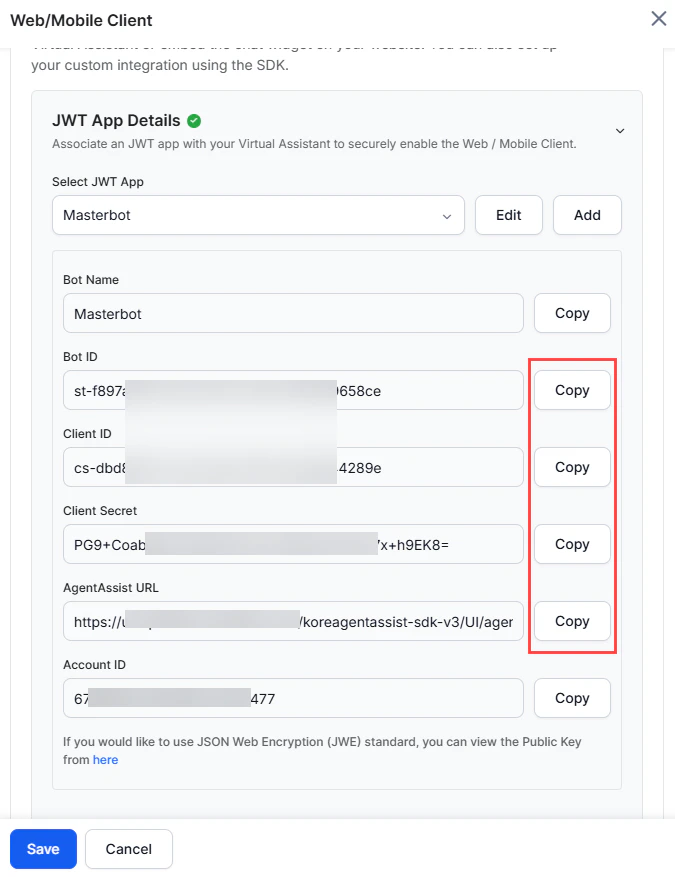
Enter the required values in the Agent AI URL, Bot ID, Client ID, Client Secret, and Language (bot language) fields. To get these values:
- Sign in to Platform.
- Go to Agent AI > Flows & Channels > Digital.
- Select Web/Mobile Client and expand the JWT App Details section.
- Select the copy buttons against the required fields.
-
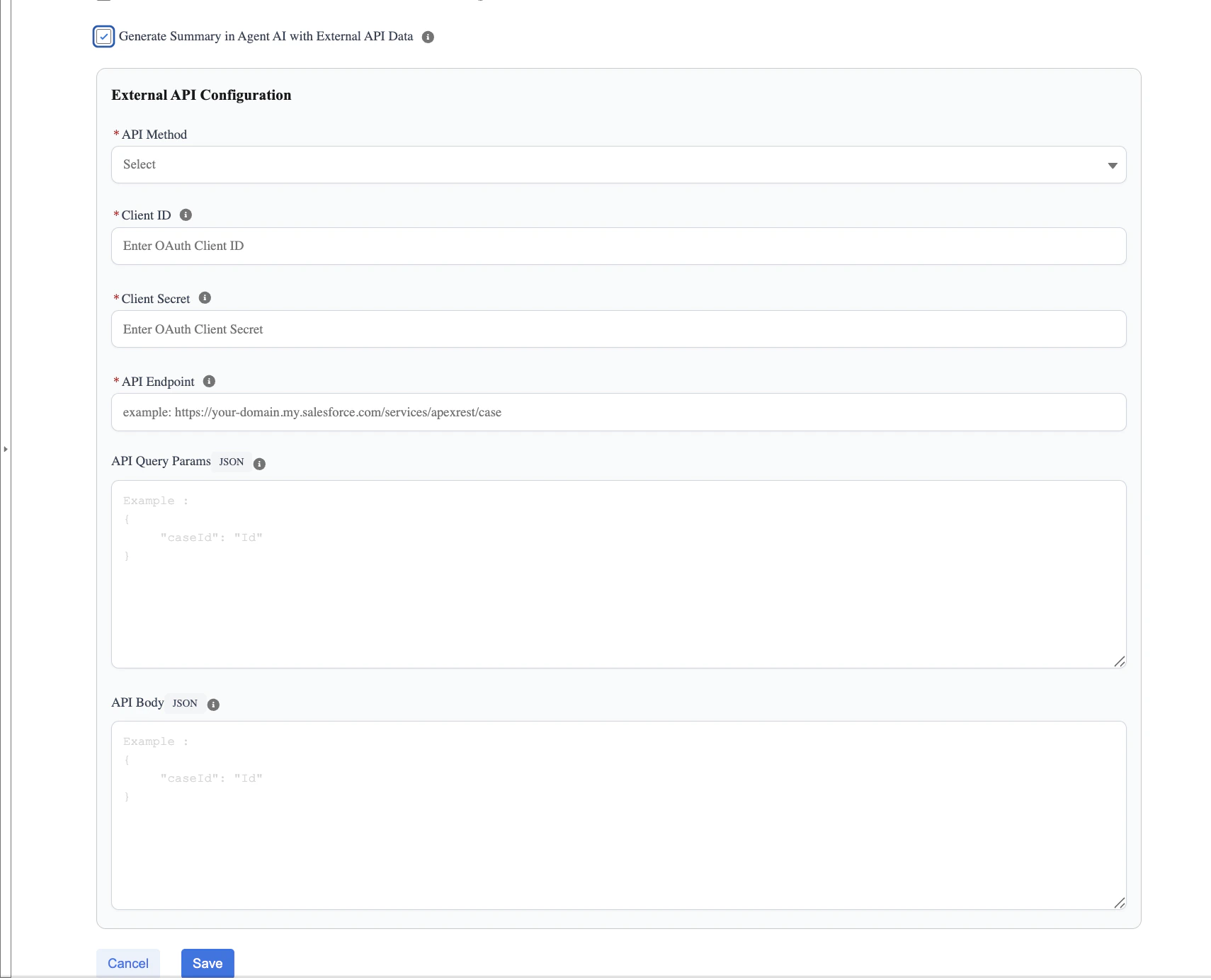
Select Generate Summary in Agent AI with External API Data to generate both the Landing Summary and Intermittent Summary within the Agent AI widget using external data.
- Click Save.
External API Configuration for Summary Generation
The Generate Summary in Agent AI with External API Data option allows Agent AI to fetch message history across channels like chat, social cases, and email. Using the details of this configured API, Agent AI fetches the history of the conversation and generates a summary. This is useful when summaries need to incorporate information beyond the email thread, such as case details, metadata, or related records. When enabled, configure the following fields:- API Method: Select the HTTP method (GET or POST) that Agent AI uses to invoke the external API.
- Client ID: Create an OAuth app by referring to the Create an External Client App for the OAuth 2.0 Client Credentials Flow doc. Enter the OAuth Consumer Key that’s used to authenticate the API request.
- Client Secret: Enter the OAuth Consumer Secret associated with the Consumer Key.
-
API Endpoint: Provide the complete API endpoint URL from which Agent AI fetches the data. For example, Salesforce Apex REST endpoint for retrieving case information.
You can add static query parameters that aren’t associated with the Salesforce Case object directly to the API endpoint. For example,
https://your-domain.my.salesforce.com/services/apexrest/case?isSorted=true -
API Query Params (JSON): Enter the key-value pairs the system sends as query parameters, in JSON format.
Example:
Configure the Case Object field names as values in API Query Params and API Body Objects. During runtime the API call is made with the actual values. For example, if Id is configured, the dynamic value of the Salesforce Case ID is used at runtime.
- API Body (JSON): Define the request body in JSON format (applicable for POST requests). This can include dynamic case or conversation attributes required by the API.
Add Component to the Case Page
-
Go to App Launcher and select Cases.
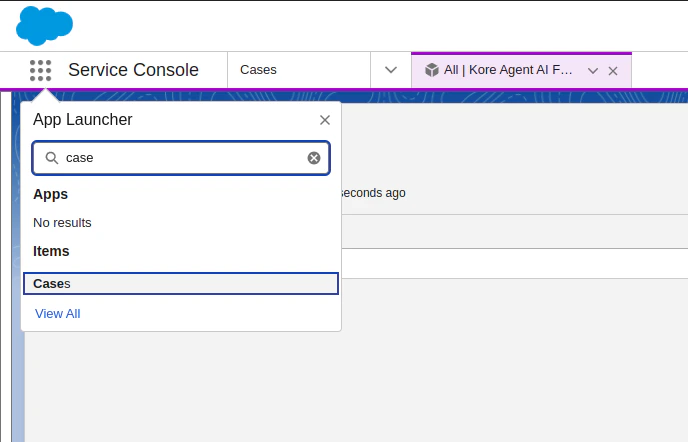
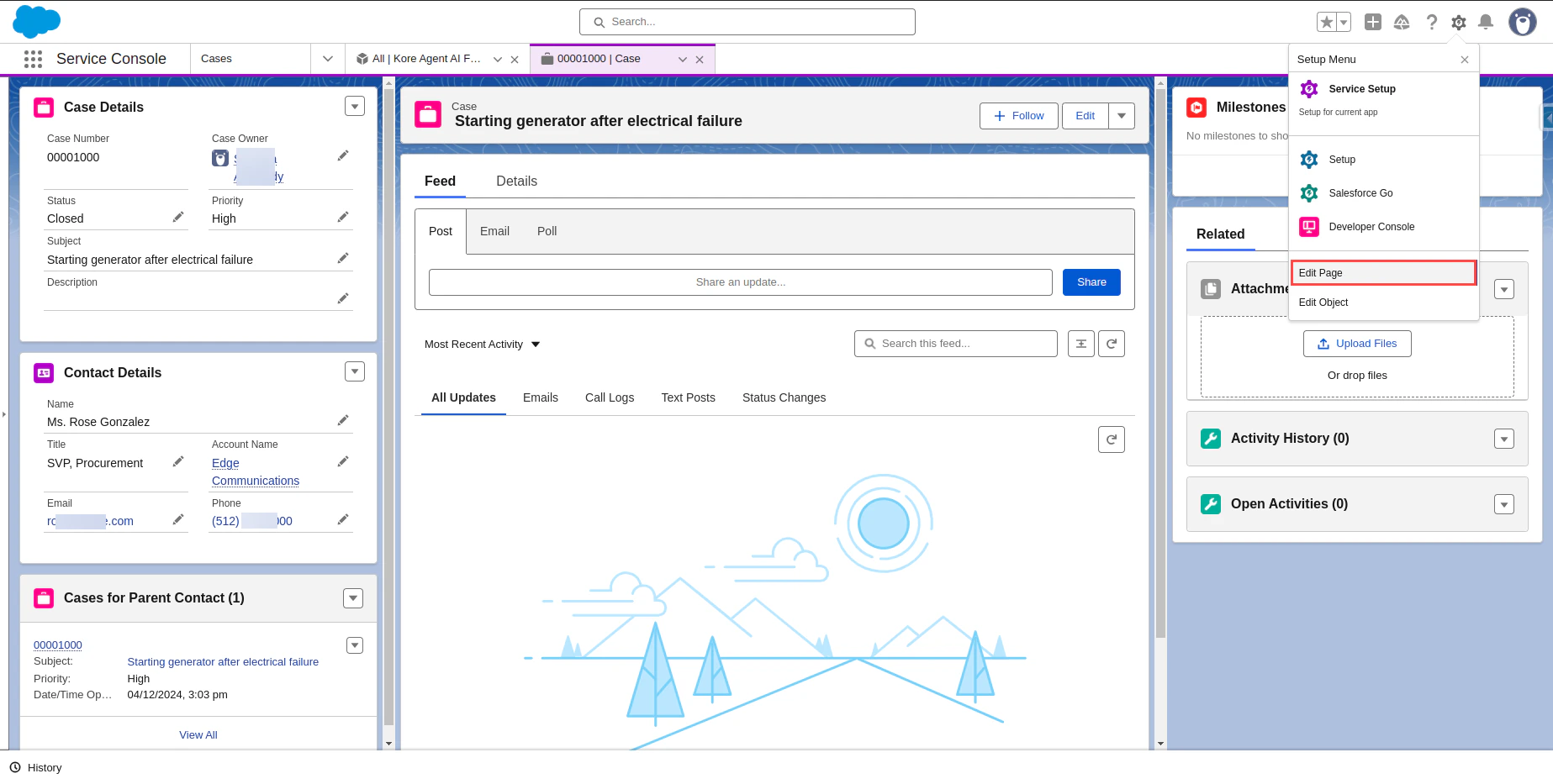
- Open any record of cases.
-
Click the gear icon in the top-right corner, and then select Edit Page.
-
Under the Custom-Managed components, find the OmniChannel_AgentAIEmail component.

-
Drag and drop the component on the Case page.
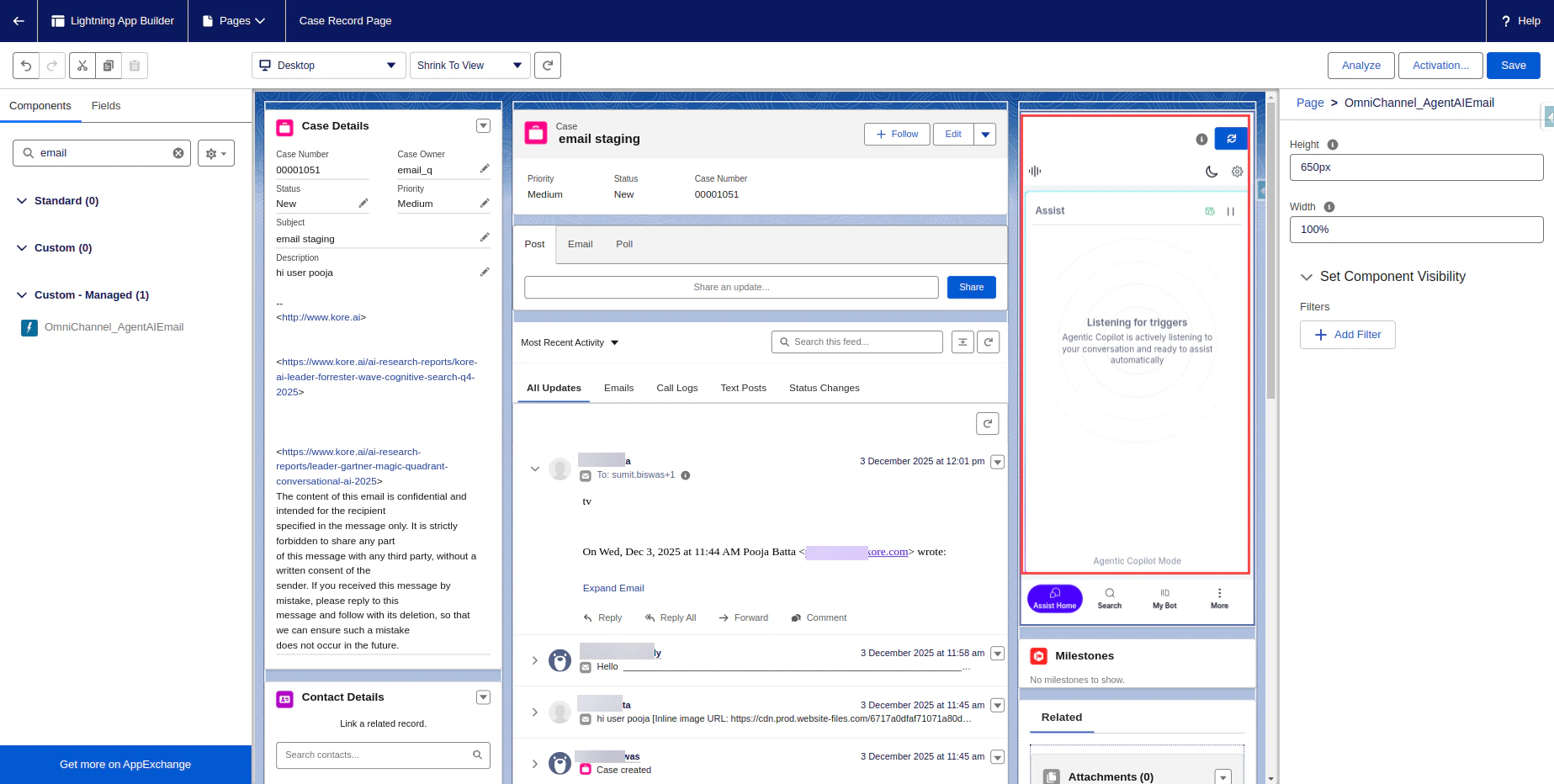
- Select Save.
-
Select Activation and activate the page.
The Email section appears on the Case page only after Email-to-Case is successfully configured in your org.
Test your Solution
-
The customer sends an email to the address configured under Routing Addresses in Email-to-Case.
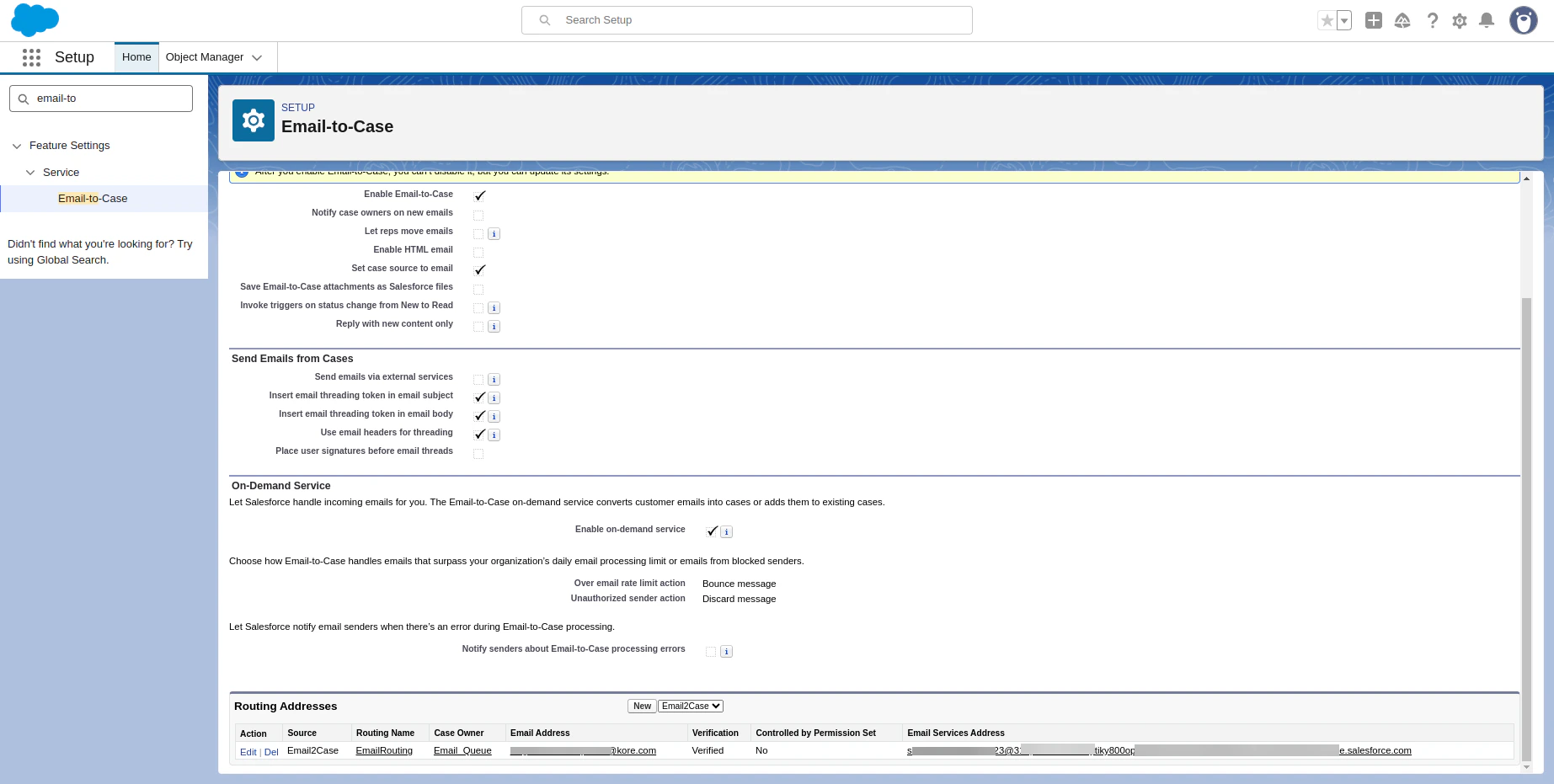
- The system automatically creates a new case when the customer sends a new email.
-
When the case opens, the Agent AI widget loads in the location you configured during setup in the previous step.
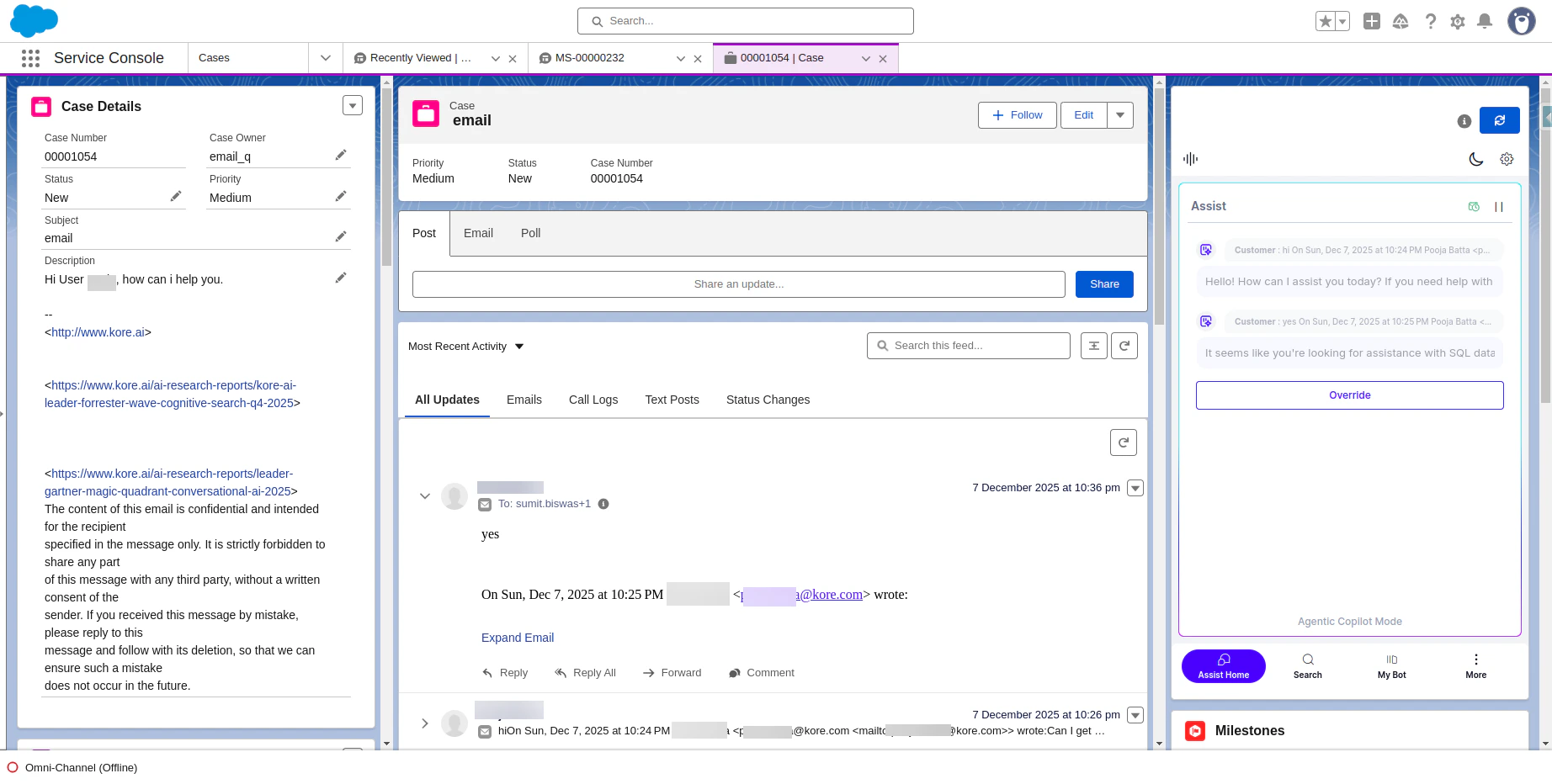
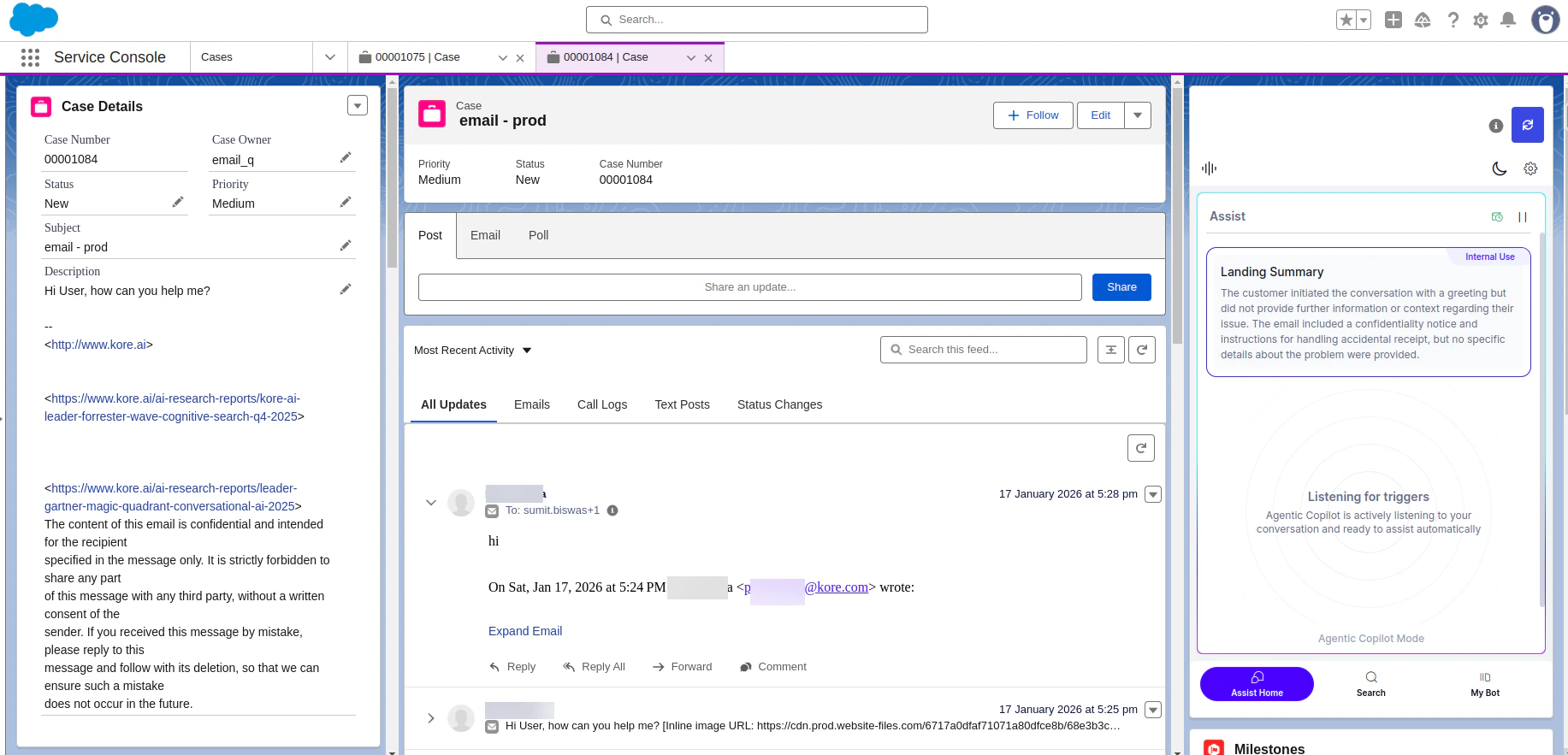
- When a new email appears in the Email section (whether from the agent or the customer), the agent must select the Refresh button at the top of the widget. After refreshing, the system passes the latest email to the Agent AI widget, which then provides suggestions based on the customer’s message.
- Since email conversations don’t have a defined end, agents can use the Generate Summary button on the Agent AI widget to generate on-demand summary of the conversation. A summary pop-up appears within the Agent AI widget.
-
Summary behavior in the Assist tab:
- When agents click Summary in the Intermittent Summary pop-up, the system displays the generated summary in the Assist tab as Summary (not Landing Summary).
- When agents click Submit, the system overrides the existing Assist tab summary and replaces it with the latest submitted summary.
-
Select Submit to save the summary in one of the custom objects in Salesforce. To access these summaries, search for Kore NonCTI AgentAI Conversation Summary in the App Launcher.