Back to Analytics Overview The IVR Containment Report covers all incoming calls, including callers identified and per-intent data and outcomes on a daily basis. This report requires the bot designer to emit predefined message tags during intent execution, and is applicable for voice calls only.

Generating the Report

  1. On the Reports tab, select New Report.
  2. In the list of reports, choose IVR Containment Report.
  3. Enter the Report Name and Report Description.
  4. Select the Time Period.
  5. Select the Data Filters.
  6. Select Report Generation and choose from the following options:
    • Run On Demand
    • Schedule — You can create up to six schedules (only one if you select Hourly). Schedule Options
  7. Select Format: CSV
  8. Enter a Send To address (single email address or mailing list).
  9. Select Create.
  10. The IVR Containment Report is generated. IVR Containment Report Generated
  11. Select the Run icon next to the report instance. Run IVR Containment Report
Run On Demand: Triggers report generation immediately when selected. Schedule: Sets the report to generate automatically on the scheduled day and time, without needing to select Run.
  1. Select the CSV icon to generate the report output. IVR Containment Report CSV Format
  • The IVR Containment Report is available only in CSV format.
  • The red dot beside the report indicates it was generated within the last 24 hours.
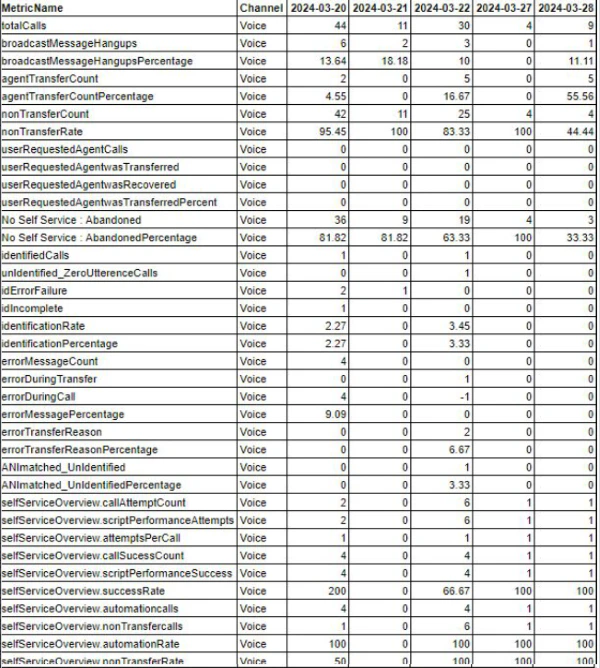
  1. The report is generated and available for download. IVR Containment Report Output

Message Tags for Bots

The bot designer must emit the following predefined message tags at the appropriate points during intent execution for this report to populate correctly.

Predefined Message Tags

Message TagWhere to Emit
{didUserAskForAgent: true}When the caller has made at least one request for an agent.
{wasTransferredOnRequest: true}When the caller was transferred after requesting an agent.
{isCallerIdentified: true}When the caller was successfully identified.
{isCallerIdentified: false}When the caller identification process failed.
{iDFailure: true}When caller identification failed with specific errors.
{iDIncomplete: true}When caller identification failed with non-specified errors and customer utterances were greater than zero.
{errorMessage: true}When a call had at least one system error.
{errorDuringTransfer: true}When the first system error occurred during the transfer.
{errorContainsTransferReason: true}When the error contained a specified transfer reason.
{ANImatchNotIdentified: false}When the caller ID process was unsuccessful but the ANI did match.
{paymentTriggered: true}When the call was transferred to payment.
{completedTransactionNotTransfered: true}When a self-service transaction was completed AND the call was not transferred to payment AND not transferred to the contact center.

Per-Intent Message Tags

Use the following tags within every business-relevant dialog task. The intent name is the key (replace showBalance with the actual intent name):
Message TagWhere to Emit
{showBalance: attempted}When the main script for the intent is attempted.
{showBalance: success}When the main script for the intent returns success.