

- If a PII value is used in Dialog Task transitions, the platform automatically uses the original value for transition-condition evaluation (for example, validating the entity value’s format, such as whether it’s a valid number).
- If a PII value is used in the Service Node definition, the platform uses the redacted value by default to make service calls. However, you can send the original data for scenarios such as passing it to a backend system. Select the appropriate option while configuring the Service Node.
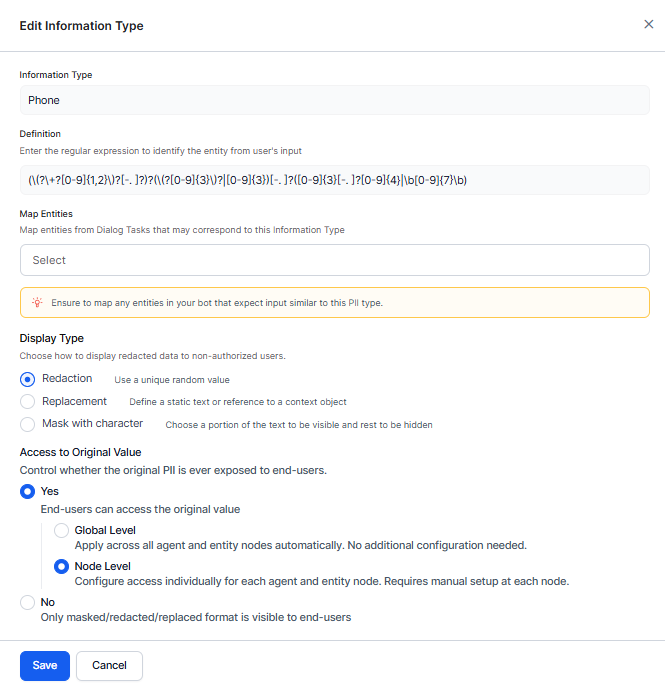
- You may use the Redaction of PII Data configuration of the Entity Nodes to present the original values of a redacted entity to users for confirmation. Select the appropriate option while configuring the Entity Node.
- You may use the Redaction of PII Data configuration of the Agent Nodes to present the original values of a redacted entity to users for confirmation. Select the appropriate option while configuring the Agent Node.
The ‘Redaction of PII Data’ option selected at the node level only affects those instances during runtime or live interaction. PII data is always redacted/masked in chat history and internal logs, irrespective of the option selected at the node level.
The platform provides three modes to redact specified information types:
How to Redact
- Open the App for which you want to configure PII settings.
- Navigate to App Settings > Advanced Settings > PII Settings.
- The PII Redaction page opens.
- If PII Redaction isn’t enabled for the app, toggle the switch to Yes. The page now shows a list of information types whose redaction settings are configured by default.
- To activate redaction for any out-of-the-box information type, toggle the switch next to it to Enable. To edit redaction settings, click the information type name.
- To configure redaction settings for other information types, click Add New in the top-right corner of the PII Redaction page.
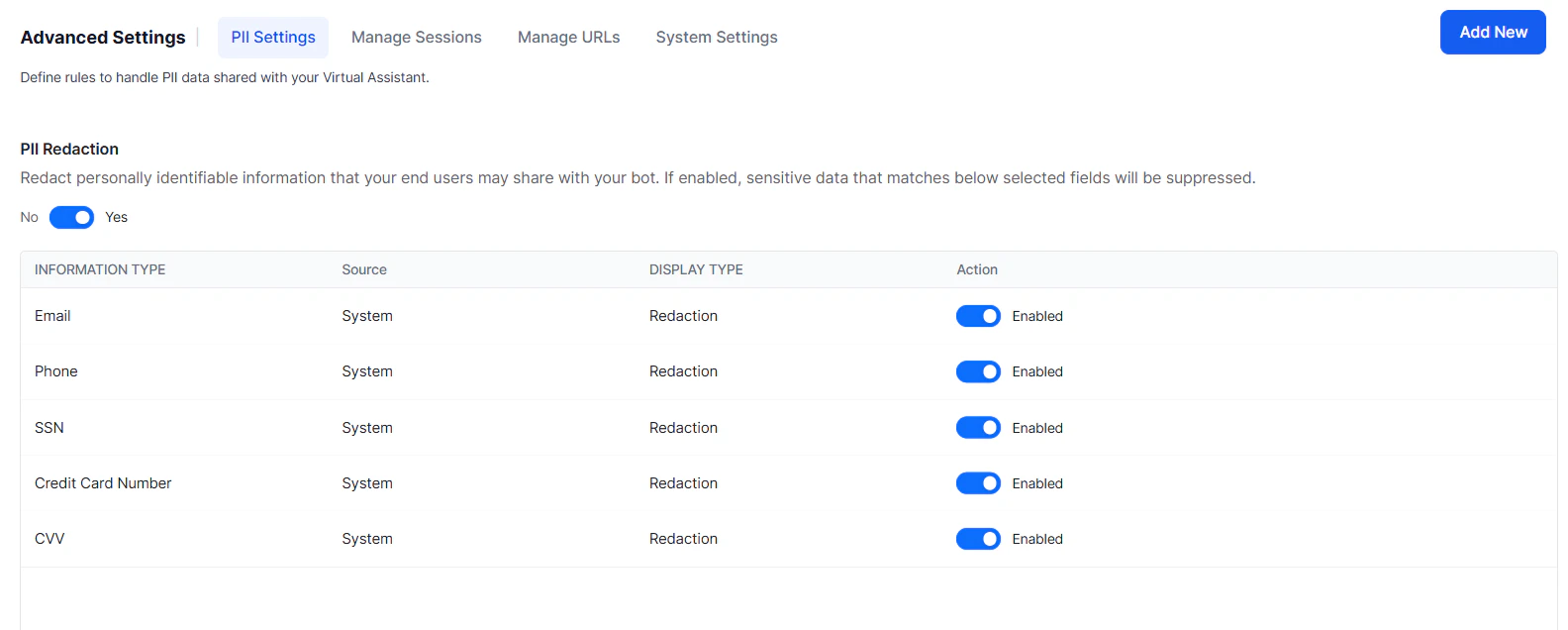
Configuration Fields
Configure Contextual Sensitive Data
The Platform allows you to secure sensitive data input during a conversation. Enabling sensitive data redaction and using custom regex patterns to identify and secure sensitive information is an effective approach. Enable the Sensitive Entity settings at the Entity Node to secure sensitive user input such as PINs or OTPs (typically 4 to 6-digit numbers). These values must not be stored in plain text in conversation logs or chat history. Redacting or masking at the entity node level prevents plain-text storage, reducing the risk of unauthorized access or misuse. Custom regex patterns allow the AI Agent to identify and handle sensitive information based on conversation context, balancing conversational functionality with data security.Sensitive Data Use Case Scenarios
Scenario 1: String patterns for sensitive data conflict or overlap in different contexts. For example, a password is 6-8 digits, and a phone number (TPN) is 9 to 12 digits long. In TPN cases, a user may miss typing a digit or two. Due to the password PII pattern of 6-8 digits, the TPN gets masked as if it’s a password, and TPN entity recognition fails. Enabling the Sensitive Entity setting redacts and replaces contextually sensitive data to resolve this conflict. Scenario 2: A customer tries to change their password by interacting with the AI Agent. Passwords are sensitive and must be secured everywhere. However, defining a PII pattern for passwords may mask or redact other inputs that match the same pattern.PII vs. Sensitive Entity
- Personally Identifiable Information: Identifies and redacts or masks sensitive data in common PII categories, such as Social Security Numbers, email addresses, or credit card numbers. Provides a broad, predefined set of sensitive data patterns detected and handled uniformly across the entire conversation.
- Sensitive Entity: Provides fine-grained control and customization of redaction or replacement actions based on specific sensitive data contextual conditions. Enables you to define rules specific to your use case, where the same sensitive data pattern may require different handling depending on context.
Anonymize Sensitive Data in LLM Interactions
The platform enables you to define sensitive information and its handling before sending it to large language models (LLMs). To learn more, see Data Anonymization.Reuse Sensitive Entities Across Dialogs
When PII redaction is enabled, the platform protects sensitive information— such as phone numbers, email addresses, and credit card numbers — by redacting the values when users provide them. You can reuse sensitive entity values across dialogs within the same session by storing their associated PII tokens in thebotUserSession.piiEntities namespace using a Script node. When a supported node or response references a stored PII token, the platform automatically resolves it to the original value. This allows multiple dialogs to use the same sensitive information without asking users to provide it again.
For example, a user starts a registration dialog and provides a phone number. The bot captures the phone number as a sensitive entity and stores its associated PII token in botUserSession.piiEntities.
Later in the same session, the user starts an OTP verification dialog. Instead of asking for the phone number again, the bot references the stored PII token. The platform automatically resolves the token to the original phone number and sends the verification code.
The user completes the verification without re-entering the phone number, while the platform continues to protect the sensitive data throughout the session.
Prerequisites
- Enable PII capture at both the global and node levels.
- Define the required sensitive entities in the Script node before storing their associated PII tokens in
botUserSession.piiEntities.
How it works
- Capture a sensitive entity in a Script node.
-
Store the entity’s associated PII token in
botUserSession.piiEntities.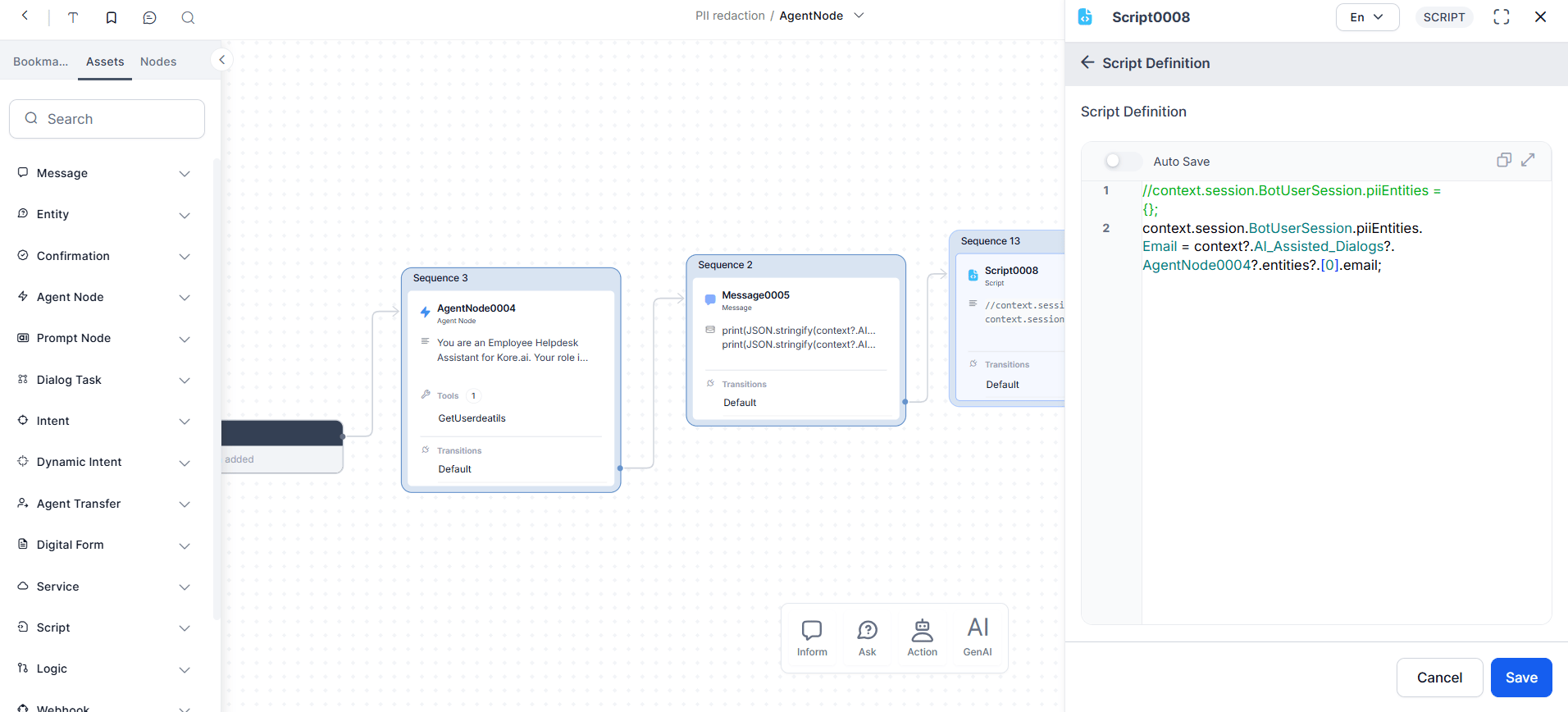
- Reference the stored PII token from another dialog in the same session.
- The platform automatically resolves the PII token to the original value when a supported node or response references it.
- The platform removes stored PII tokens when the session ends or when the configured PII retention period expires.