

Webhook Versions
The platform supports two versions of the Webhook channel that’s, V1.0 and V2.0.V2.0 is the recommended version as it provides a scalable request and response format.
Integration Mode
The platform supports Synchronous and Asynchronous modes of integrations for the Webhook channel. Here are the key differences:- Synchronous Mode: The app responses are directly delivered as a response to the incoming requests. The app will execute the flow, identify the response or responses to be delivered, and provide them as the response to the incoming request. Some platform functionalities like Alert Tasks, Agent Transfer, and Proactive Session Closure messages aren’t supported in the Synchronous mode. You may consider using the onAlert event through BotKit, Learn more.
Synchronous Webhook channel requests timeout after 15 seconds. We recommend using the Asynchronous Webhook Channel if you expect the requests to take beyond 15 seconds.
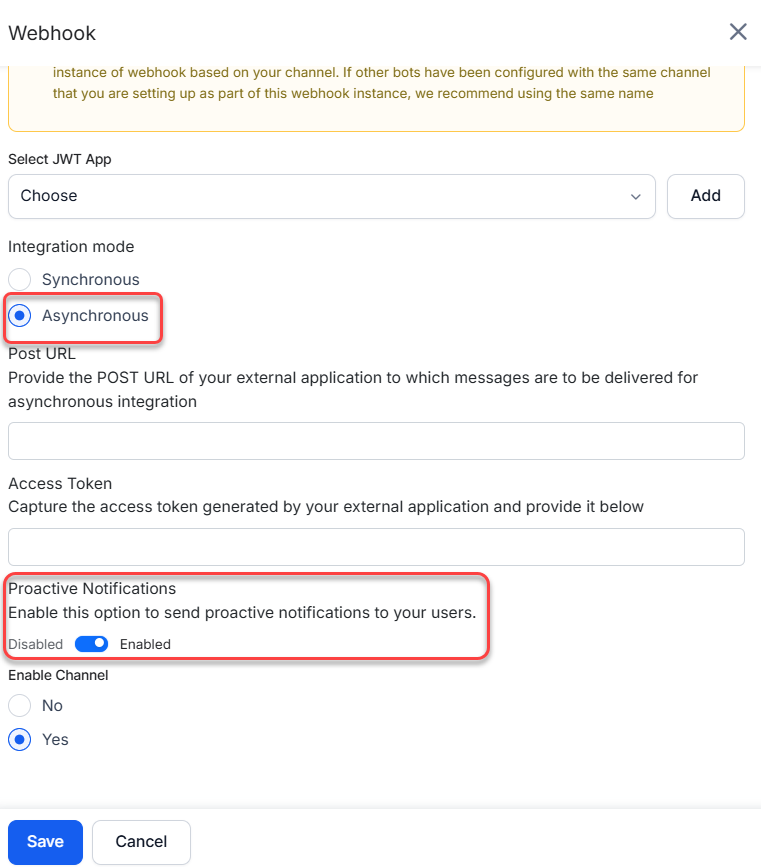
- Asynchronous Mode: Asynchronous mode is useful if you want to deliver the app responses to a URL other than the incoming request’s URL. You have to configure the POST_URL of your external system to enable the Async mode. The app responses are asynchronously delivered to this POST_URL. Do note the that Platform doesn’t provide the service to host the POST URL. You need to host a custom service or use a third-party service for this.
Step 1: Associate an App
To associate an App, follow the below steps:- In the Platform, select the assistant to which you want to add the channel.
- Go to Channels & Flows > Channels > Digital > All > Webhook.
- Go to the Configurations tab of this page and associate this channel with an app.
-
Enter a Name for the channel.
- Select one of these scopes for the app:
- Allow anonymous users to chat with the assistant: enables anonymous users to interact with the assistant.
- Auto register new users on Platform: Select to control the auto-user registration in Kore.ai if the user assertion is unknown.
- In the JWT Signing Algorithms Used For Client App Authentication drop-down list, select one of the following security algorithms:
- RS256/RS512: Select to enable the Public Key. The Private key, used for encryption, is provided by the user, and the Public key, used for decryption, is provided by the Platform. Both the keys have to be used for generating the token. The Public Key is used by the Platform to authenticate the client application.
- HS256/HS512: Select to generate a Secret Key and a Client ID. The Client ID is required for app initialization, and the Secret Key is used by the Platform to authenticate the client application.
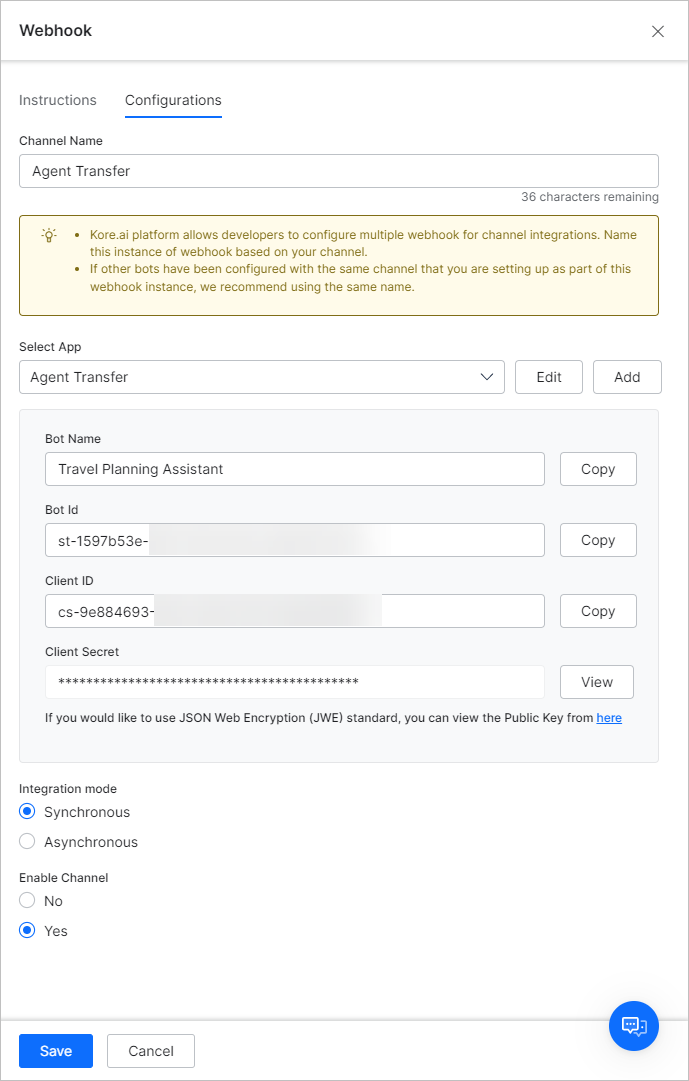
- Click Create. The app is created, and Client ID and Client Secret are generated. Copy the Client ID and Client Secret details.
- Select one of these scopes for the app:
- If you want to use the JSON Web Encryption (JWE) standard, you can view the Public Key by clicking the link provided below the Client Secret field.
- The Webhook channel supports both synchronous and asynchronous modes. Depending on your business needs, you can enable one of these modes in the Configurations tab.
-
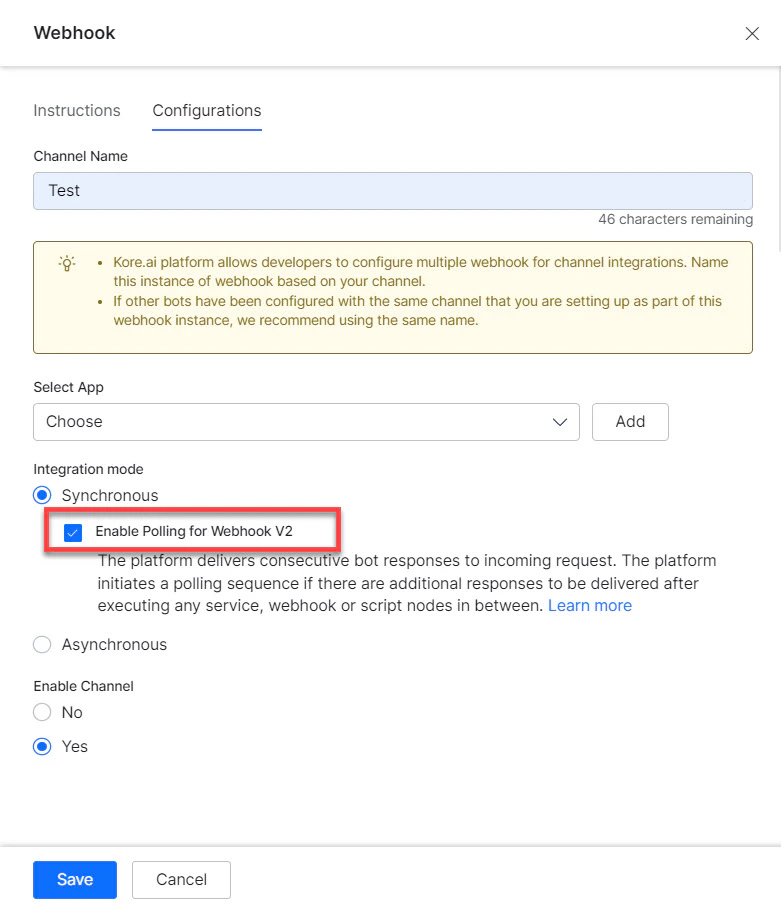
(Only for Webhook v2.0) In the Synchronous mode, by default, the Enable the Polling for Webhook v2 option is selected.
-
Deselect the Enable the Polling in Webhook V2 option to retrieve the complete response, all at once, without the need for polling.
This option is available only in Webhook v2.0. Learn more.
-
In the ASynchronous mode, enable Proactive Notifications to send relevant updates to the users without requiring them to initiate interaction with the app first.
- Select Yes to Enable Channel.
-
Save the configuration. The Webhook URL in this channel instance is created dynamically.
Step 2: Select the Integration Mode
Use the Webhook URL to establish integration with external communication systems. This URL is available only after enabling the channel.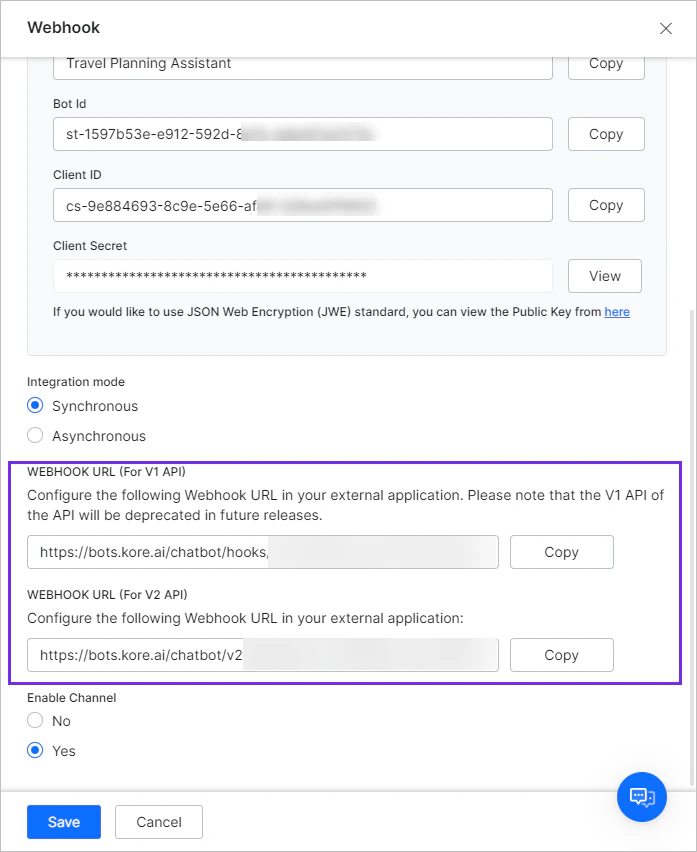
Step 3: Deploy the Client SDK (Optional)
You may skip this step if you already have a messaging application to integrate with the Webhook channel. Optionally, you can use the Platform’s Web/Mobile SDK libraries to integrate with the Webhook channel. Use V2 of the Webhook APIs with synchronous mode for integrating with the client libraries. You can select the API version by going to the Instructions tab of the Webhook channel and scrolling down to Step 4. After completing these steps, a success message appears on the screen, and a channel request is sent to your Administrator for approval.- The channel will be enabled for the end users only after the channel configurations are published. The publish request must be auto-approved or approved by the account admin.
- Webhook channel instances are included in the app export copy, and are imported when the definition is imported into another app. The channel instances are imported as placeholders, and you need to associate them with a valid app from the target AI Agent.
Step 4: Review Payload Formats
To select the API Version for your integration, go to the Instructions tab of the Webhook channel you are working with. You can use the following code snippets of the payload formats to verify the integration. The Webhook API V2 is the latest version and includes a more standardized request and response payload.Webhook Endpoints
The structure of the Webhook URL of the first instance varies from any additional instances enabled for the app.- In case you have either - only one webhook channel. Or for the first webhook channel in case you have multiple webhook channels configured:
POST {{host_url}}*/chatbot/hooks/{{bot* id}} - in case of multi-webhook configuration for the second instance onwards In case you have multiple webhook channels configured, this applies to the second instance onwards:
POST {{host_url}}/chatbot/hooks/{{bot* id}}/hookInstance/{{webHookId}}(This is auto-generated)
Query Parameters
Webhook V1.0
Webhook version 1.0 supports simple request and response interfaces for enabling the communication between your custom channel interface and the platform. It’s recommended to use the Webhook V2.0 as it supports standardized and modular payloads for exchanging messages and events.Interaction Flow
Authorization
Invoke the API with JWT in the header with the following syntax:Response content type
Request Parameters
The following are the parameters required/supported in the v1.0 of the Webhook channelSample Response for Asynchronous Mode
- The text field can contain a string, object or an array of strings or objects.
- Separate messages are sent for every app response to be delivered to the user.
- The conversation flow related fields like endOfTask, endReason, completedTaskId and completedTaskName: show balance are delivered as a separate message.
Webhook V2.0
The Webhook V2 API provides a more standardized and modular payload format and additional conversation management capabilities.Interaction Flow
Authorization
User Identity
The Webhook V2.0 allows you to authenticate the API call with JWT token user identity. If the user identity (‘from’ field) exists in both the request the payload and JWT token, then the Webhook v2 validates the user identity. Use the following payload for authentication with user identity:JWT Payload
- If the
userIdentityisn’t present in JWT, you can validate theuserIdentityauthentication using the appId and thefromvalue will be used to generate the userId in the platform. - If the
userIdentityis present in JWT as well asfrombut both aren’t same, then authentication will be failed and throws an error saying that Invalid access token. - The
userIdentityis present in JWT, andfromis present in the webhook payload, and bothuserIdentityandfromare the same, then it will check against the authentication against the appId and proceed further.
Request Parameters
The following are the parameters required/supported in the v2.0 of the Webhook channel.
For parameter descriptions, refer to the request parameters table.
Option 2: Upload Files to Platform
You can upload files directly to the Platform, capture the ‘file id’ provided by the platform, and share it with the app during the conversation. This option is supported only when the Webhook v2.0 is used. Use the following API to upload your file to the platform. These APIs don’t require any scopes and are accessible using any of the valid apps present in the app/account.You can also use the filename or fileID to upload a file. For example, use this syntax to upload a file with name and ID:
{ "fileName": "Kore_ai_Logo%405x.png", "fileType":"image", "fileId": "6163e17bf60e0a7e4799f423" }.Handle Digital Forms
If your app has a form that needs user input, the synchronous WebHook channel gets the complete form definition in the response, and you need to send theformData in the request when interacting with the app.
Sample Request
You can get the Webhook API URL on the WebHook channel Configurations tab. Learn more.This URL is available only after enabling the channel.