

Architecture
Prerequisites
- Talkdesk account with a voice automation studio flow.
- A Kore voice bot trained with use cases.
How It Works
Voice Automation Process
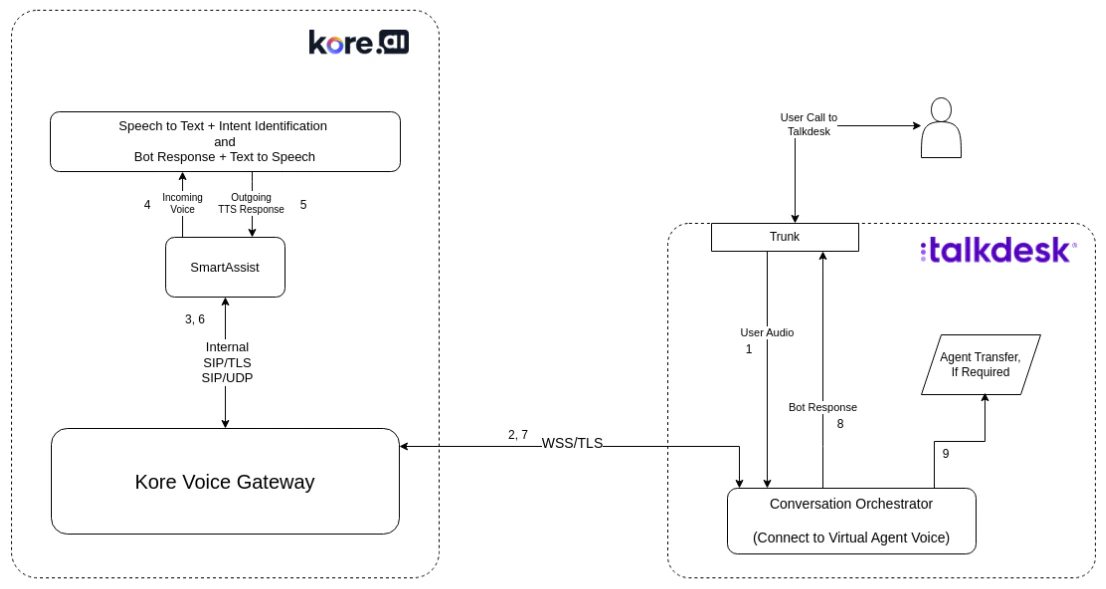
After a call is established between a user and Talkdesk:- User audio is sent to the Conversation Orchestrator through the Connect to Virtual Agent Voice block.
- Audio is forwarded to the Voice Gateway (VG).
- VG transfers WSS traffic to Contact Center AI using SIP over TLS or UDP.
- CCAI converts speech to text and sends it to the Bots Platform.
- The Bots Platform generates a response; CCAI converts it to speech.
- CCAI returns the synthesized speech to VG via SIP. Talkdesk receives it through the Connect to Virtual Agent Voice block.
- The response is delivered to the user.
- If an agent transfer is required, Talkdesk Studio Flow handles it (optional).
Configuration
Step 1: Create and Attach a Flow to a Phone Number
Create a flow using the Flow Designer and attach a phone number to it. See Create Flows.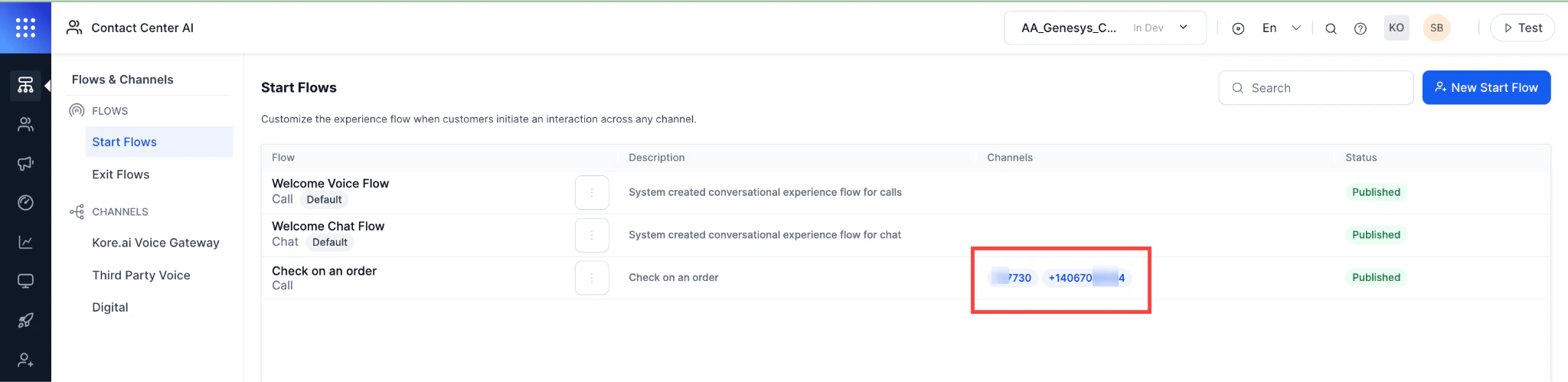
This phone number is encrypted and used in the WSS URL for audio streaming.
Step 2: Create a WSS URL
When a customer calls the Talkdesk number, audio streams to the audiosocket and a call is initiated to the bot based on the number in the URL. WSS URL format:Step 3: Configure Audio Streaming in Talkdesk Studio
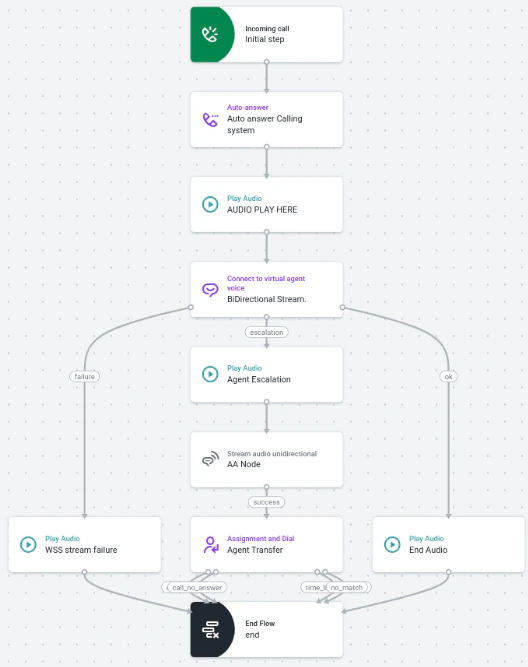
- Download the Studio Flow and import it into Talkdesk Studio. See Import a Flow.
- Click the Connect to Autopilot Voice block.
- Enter the WSS URL from Step 2 in the Voice Stream URL field.
- Save and publish the flow.
Step 4: Configure Agent Escalation
Kore Side
Go to Settings > Integrations > Agent Transfer > Voice > SIP Transfer > Configuration and configure SIP BYE.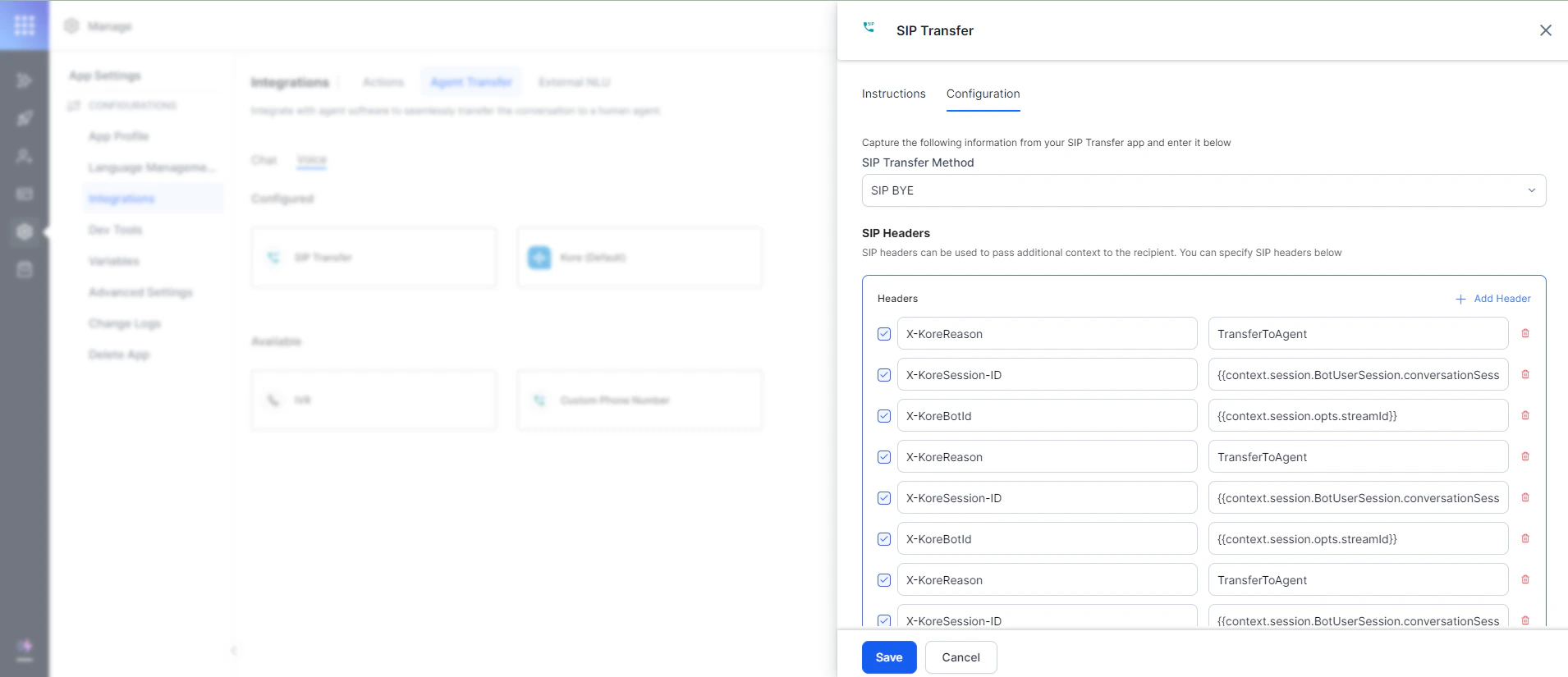
Talkdesk Side
Kore uses the Connect to Autopilot Voice node for voice automation. On agent escalation, Kore populates variables into Ring Groups > Variables in the flow context.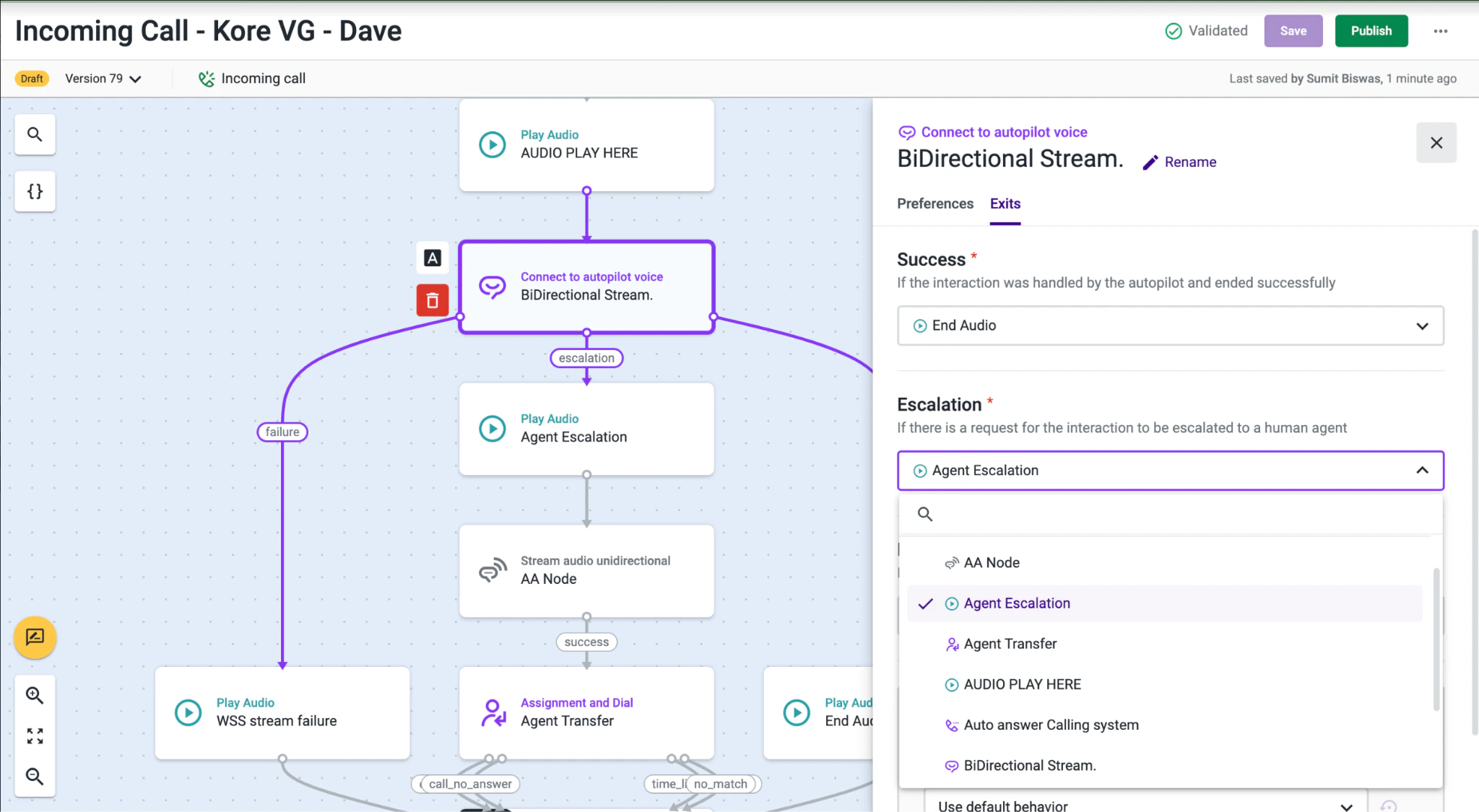
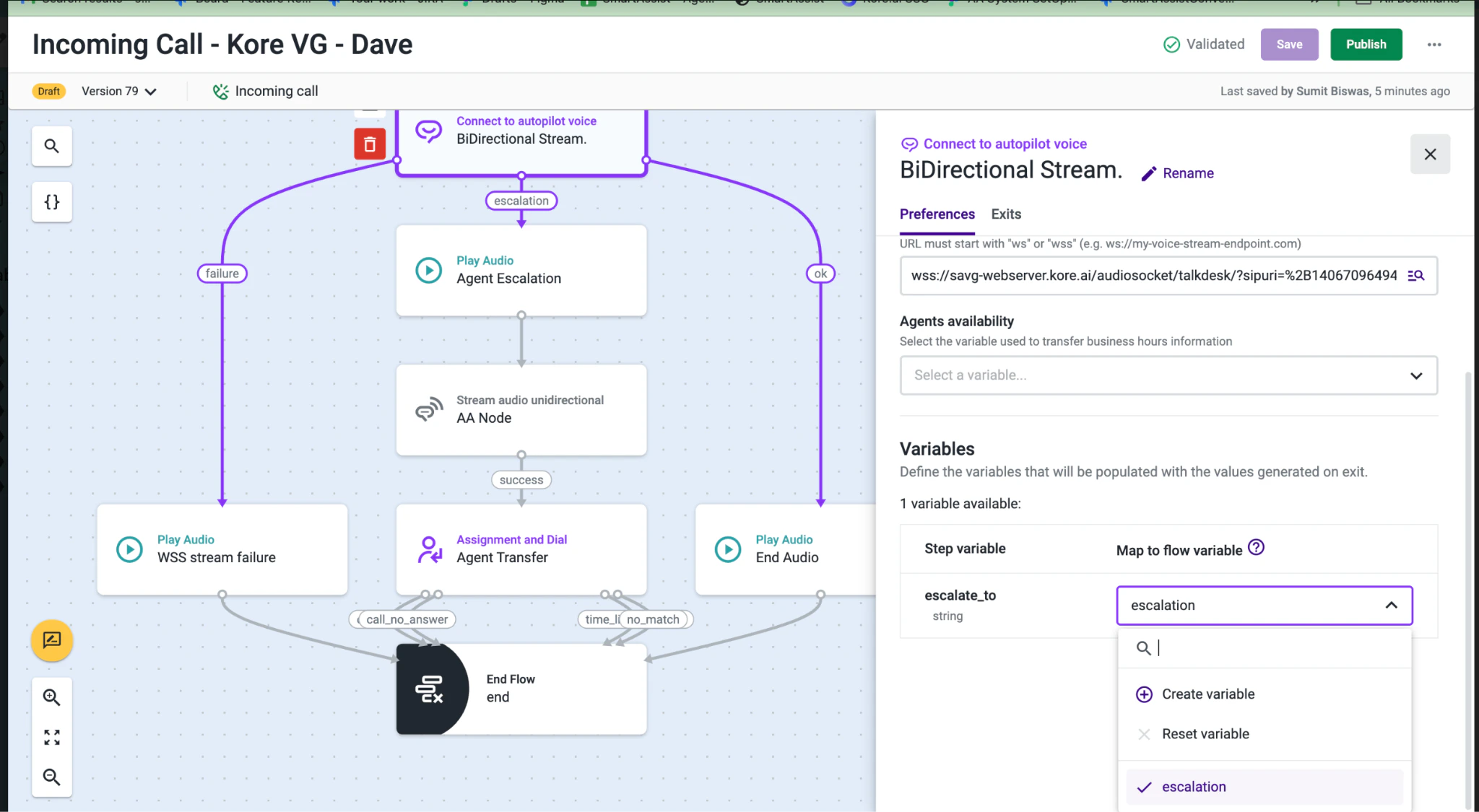
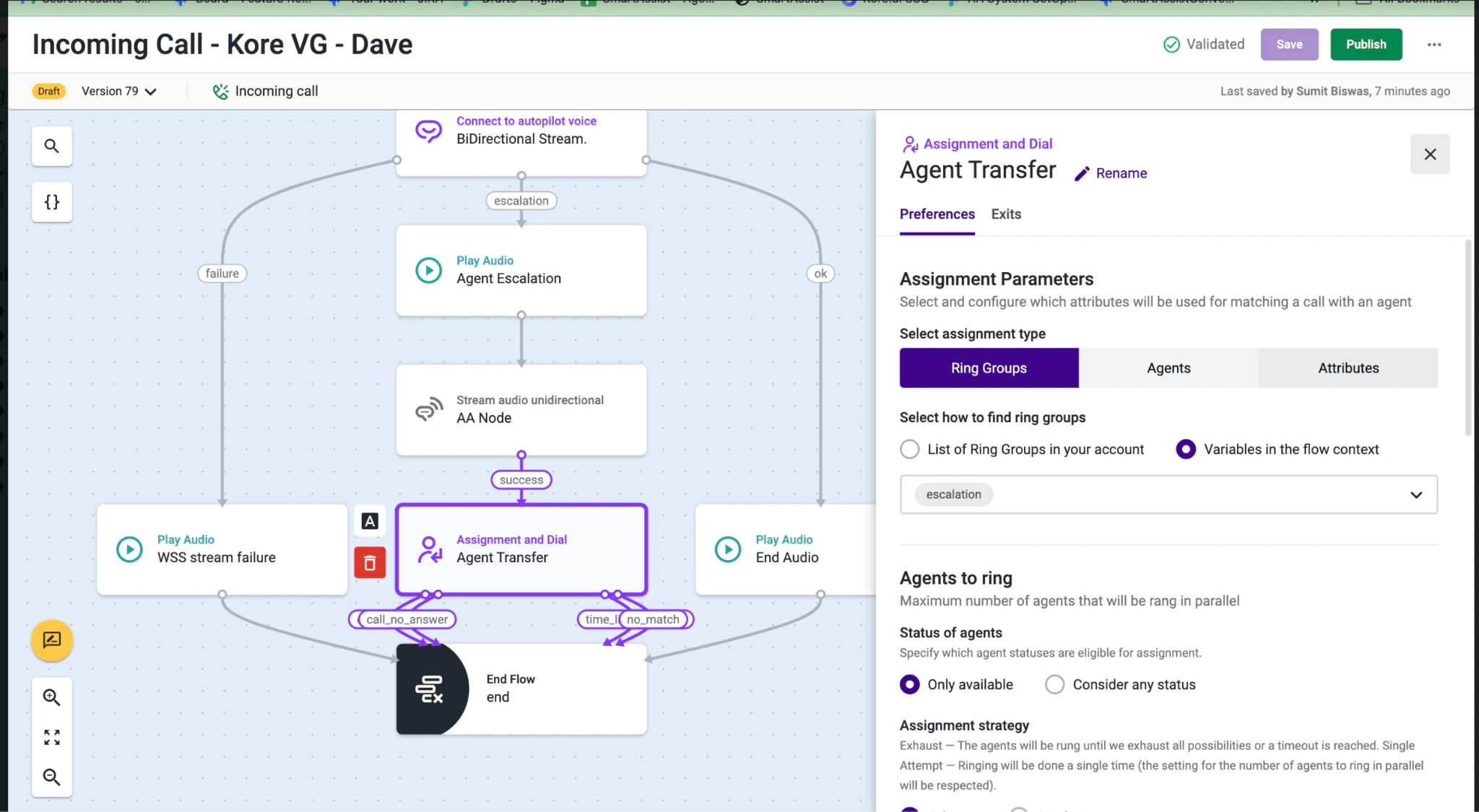
Kore doesn’t pass header information on Voice Automation Agent transfer. For escalation to human agents, Kore uses the “Agent Escalation” node in Talkdesk. See Talkdesk documentation for details.