
The ServiceNow Agent integration allows you to hand off AI Agent conversations to live agents on ServiceNow. This guide covers configuration for Utah, Vancouver, and higher versions.Documentation Index
Fetch the complete documentation index at: https://koreai.mintlify.app/llms.txt
Use this file to discover all available pages before exploring further.
Configuration Steps
- Step 1: Retrieve the ServiceNow Instance URL
- Step 2: Enable the ServiceNow Agent
- Step 3: Install Required Plugins
- Step 4: Assign Agent Roles to the Consumer Service Support Group
- Step 5: Update the Webhook Endpoint and Enable the Integration
- Step 6: Testing Configuration
Step 1: Retrieve the ServiceNow Instance URL
- Log in to your ServiceNow account with admin credentials. The URL follows the format:
https://devXXX67.service-now.com. - Copy the Instance URL for use in Step 2.
Step 2: Enable the ServiceNow Agent
- Log in to the Platform.
- Select the AI Agent to configure.
- Navigate to App Settings > Integrations > Agent Transfer and click ServiceNow.
-
On the Configurations tab, choose an authentication method:
Option 1: Basic Auth
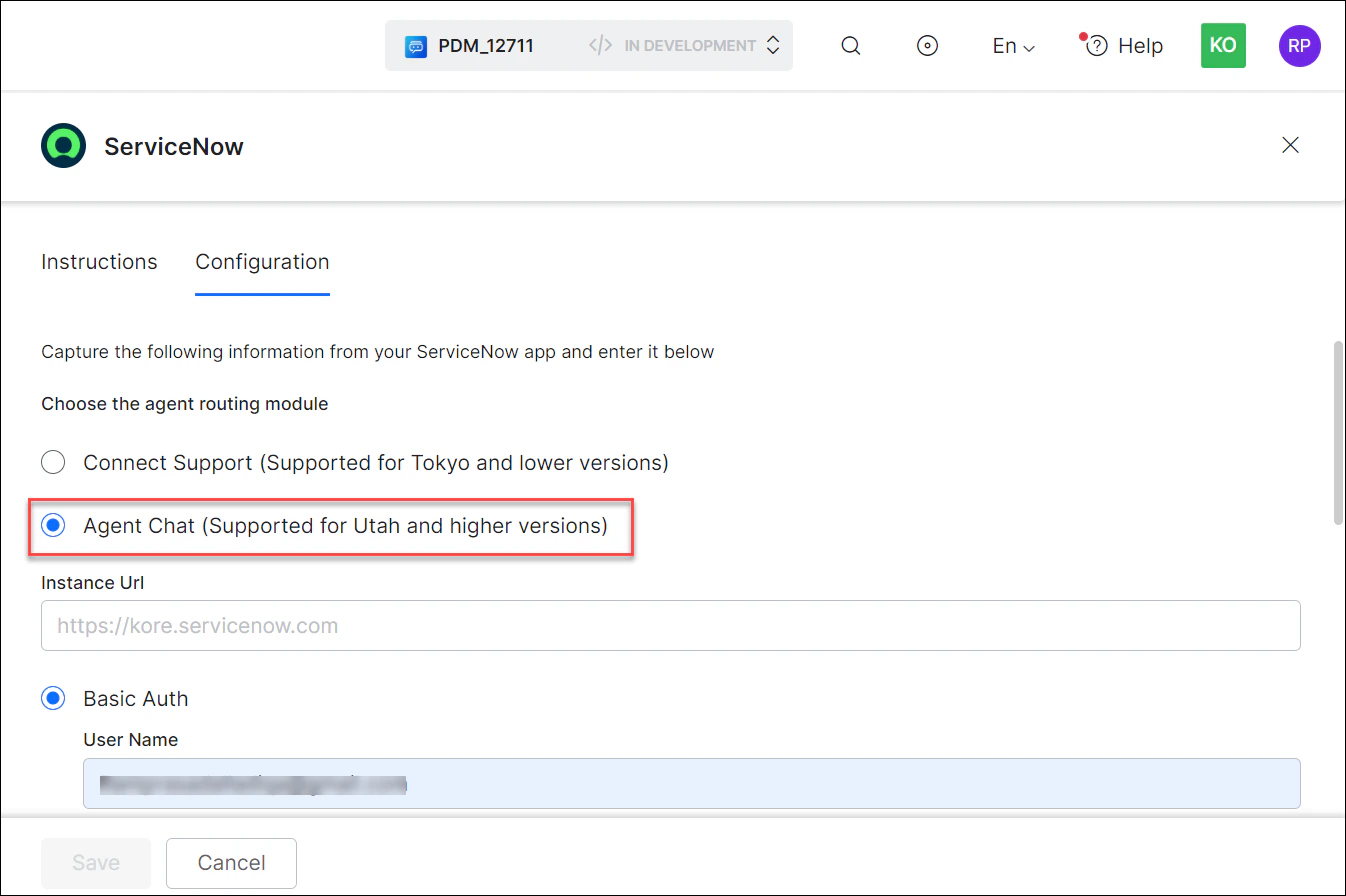
- Select Agent Chat (Supported for Utah and higher versions).
- Select Basic Auth.
-
Enter:
Field Description Instance URL ServiceNow instance URL (e.g., https://devXXX67.service-now.com)User Name ServiceNow account username Password ServiceNow account password Queue ID Unique queue identification number Webhook URL Web URL for custom application function callbacks
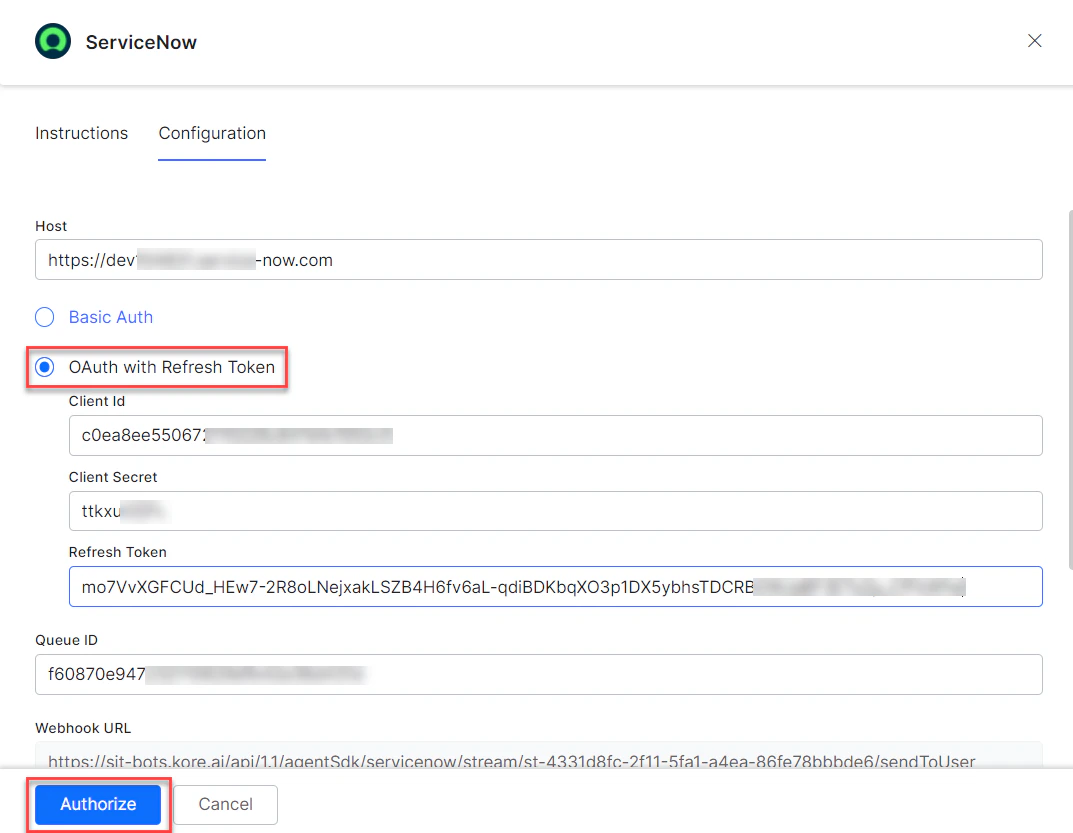
- Select Agent Chat (Supported for Utah and higher versions).
- Select OAuth with Refresh Token.
-
Enter:
Field Description Instance URL ServiceNow instance URL Client ID Client ID from your ServiceNow application Client Secret Client secret from your ServiceNow application Refresh Token Refresh token generated per the documentation Webhook URL Web URL for custom application function callbacks
- Click Authorize to authenticate.
-
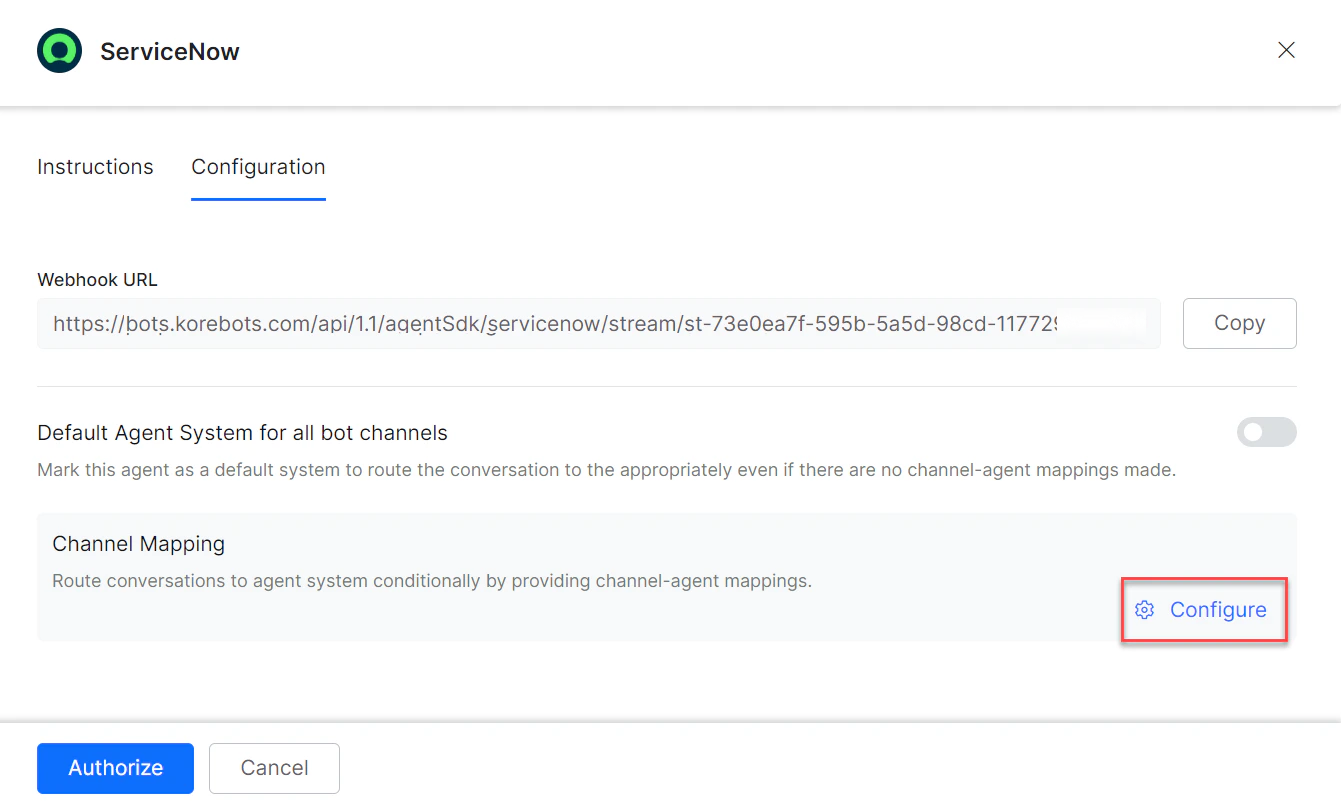
To make ServiceNow the default agent, enable Default Agent System for all AI Agent channels.
This option is enabled only when multiple agents are configured.
-
Click Configure to map channels.
-
Select channels to map to the ServiceNow agent.
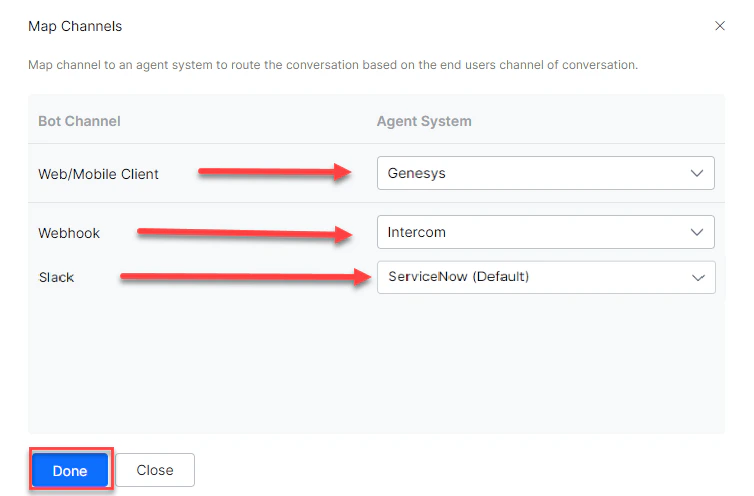
- Click Done, then Save.
- Publish the app. See Publishing your App.
Step 3: Install the Required Plugins
- Log in to the ServiceNow Developer instance with admin credentials.
-
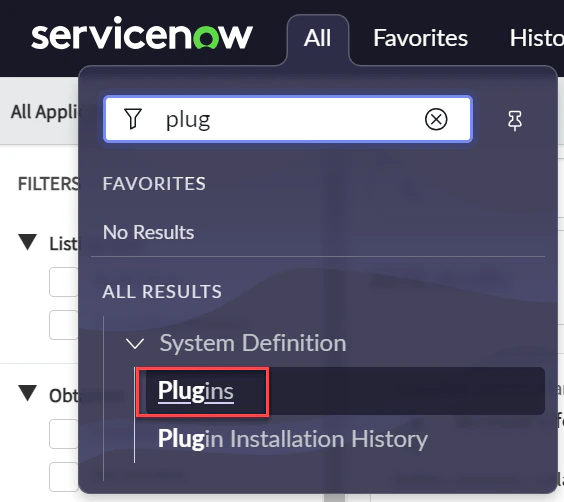
Navigate to System Definition > Plugins from the left menu.
-
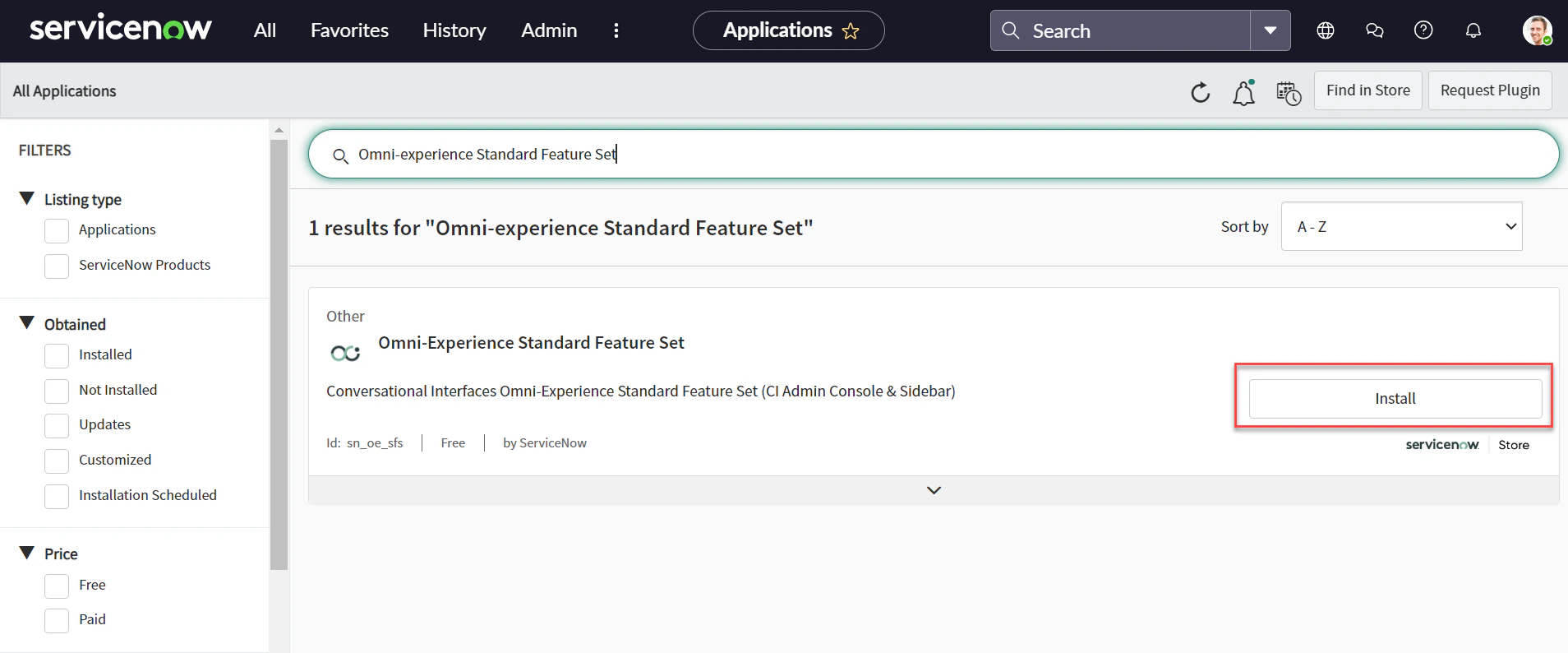
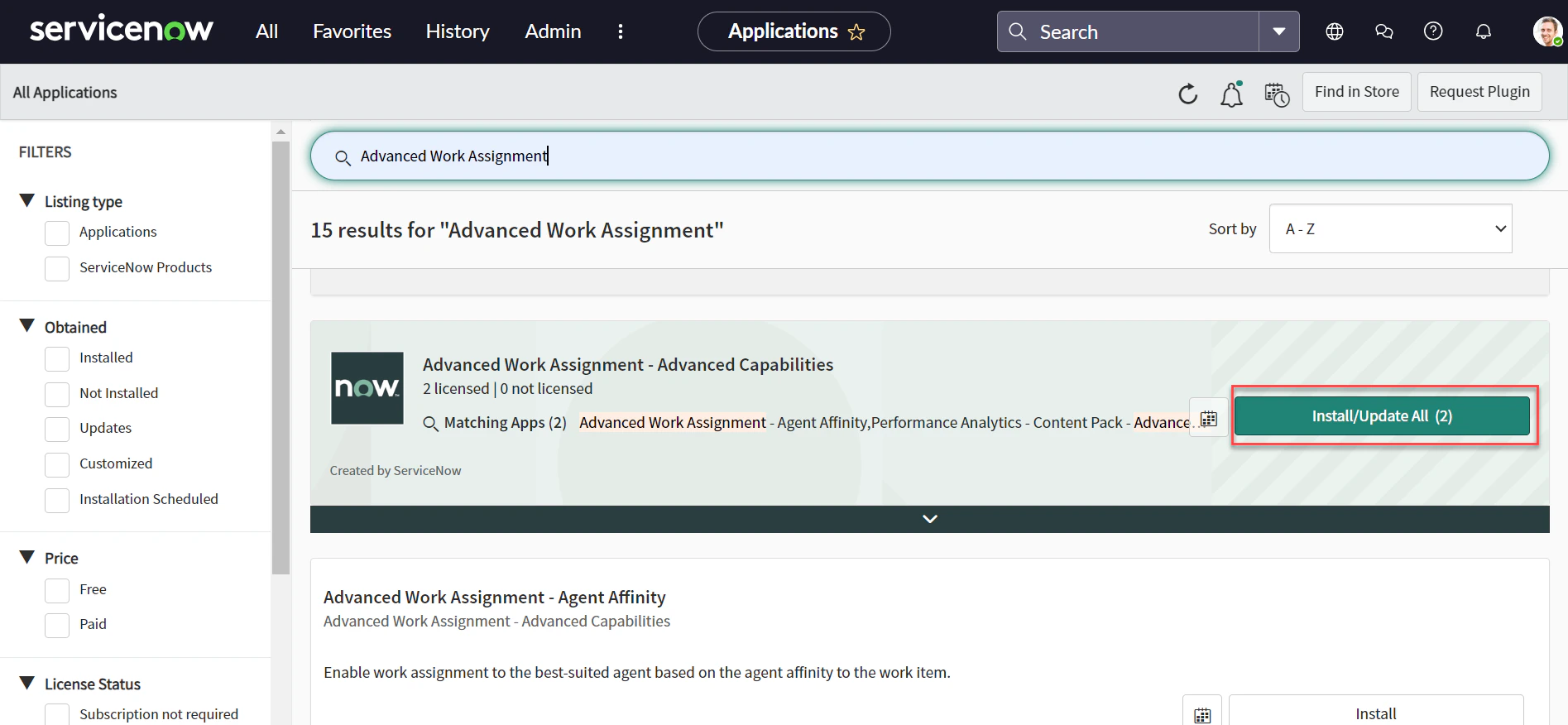
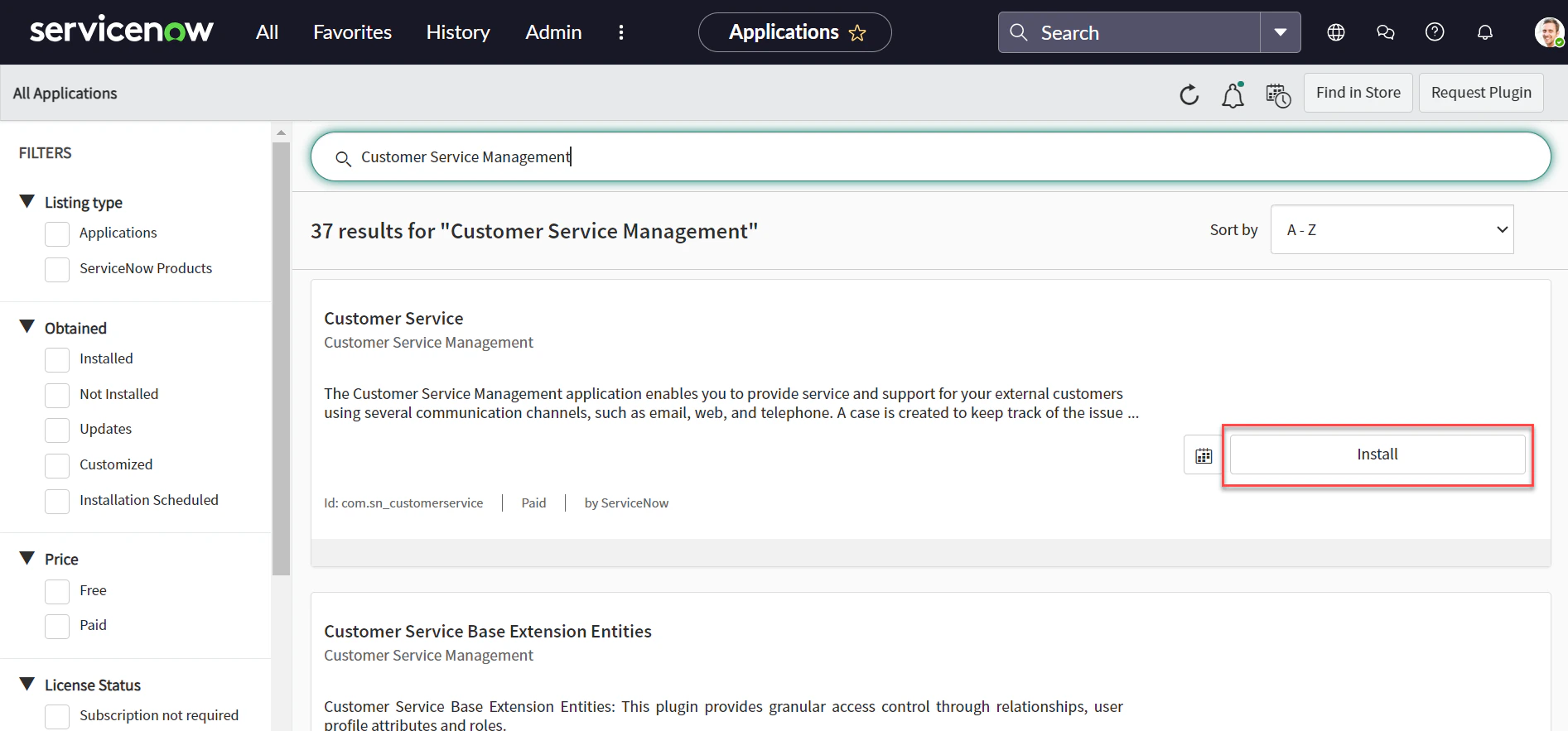
Search and install the following plugins:
-
Omni-experience Standard Feature Set
-
Advanced Work Assignment
-
Customer Service Management
-
Glide Virtual Agent
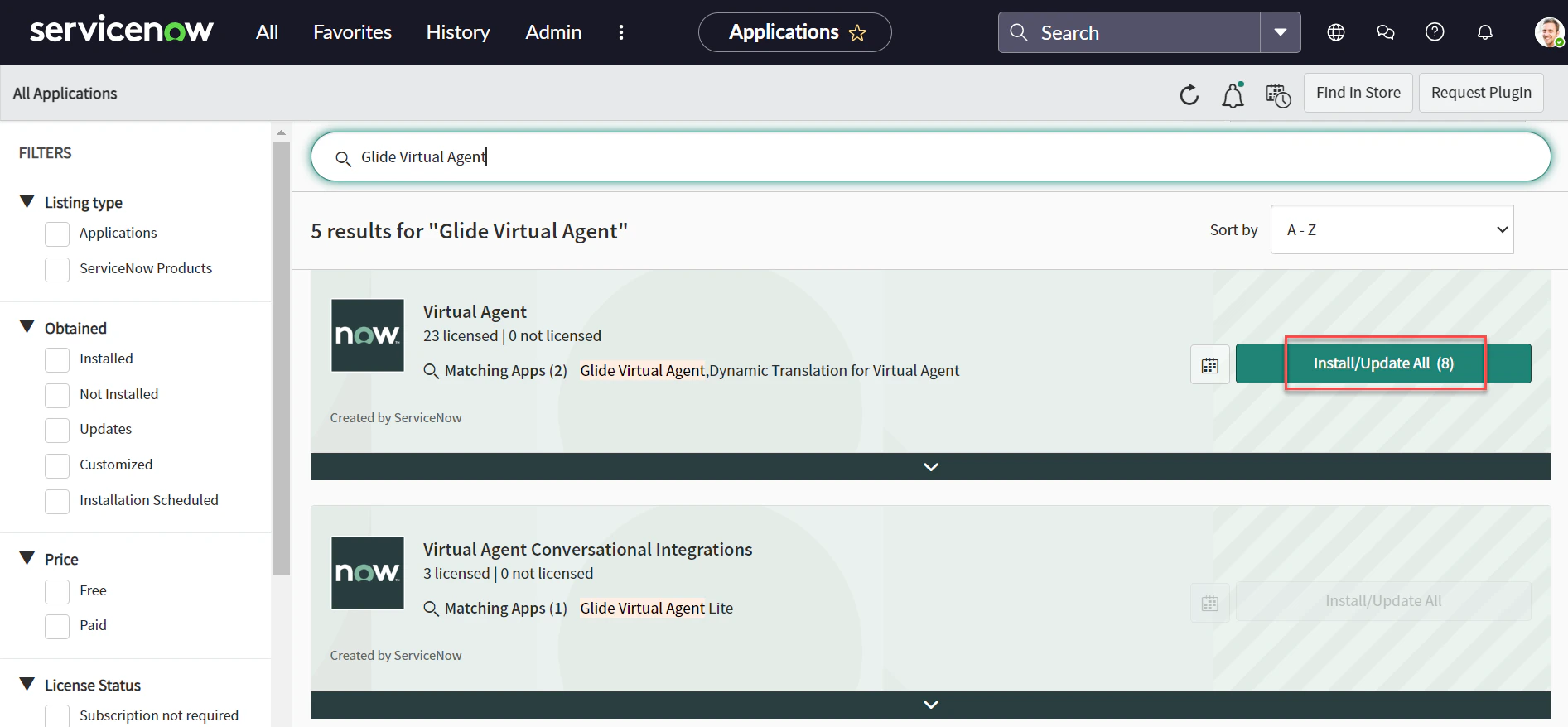
-
Virtual Agent API
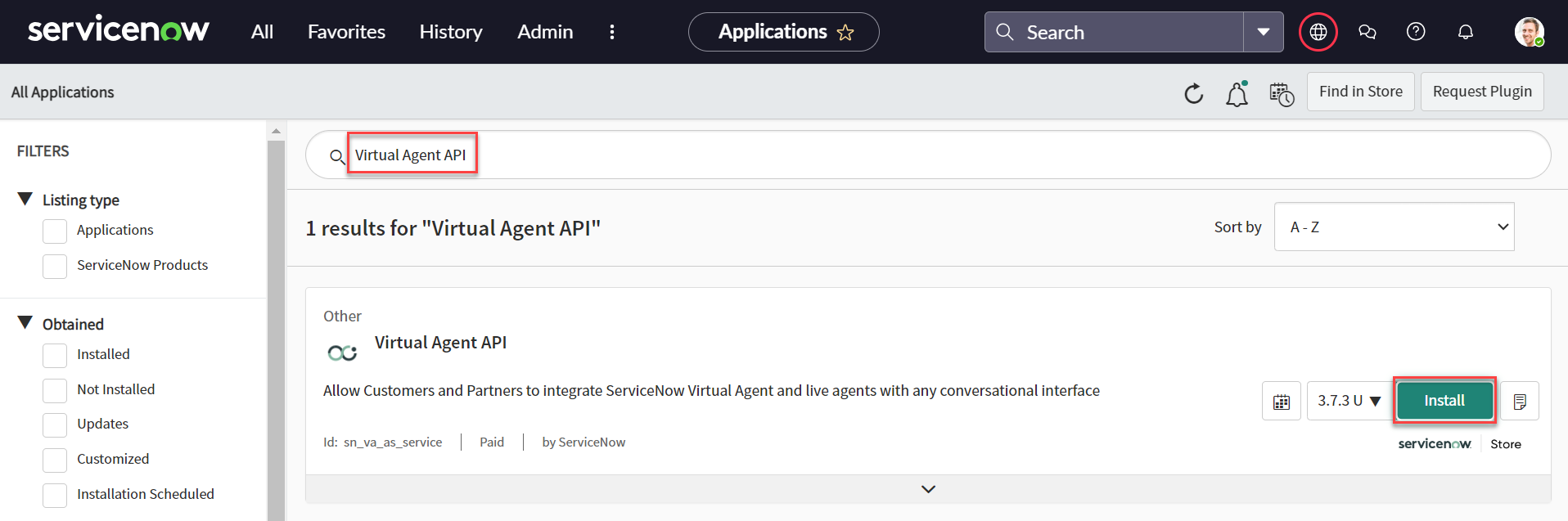
-
Omni-experience Standard Feature Set
- Verify all plugins are installed with required permissions.
Step 4: Assign Agent Roles to the Consumer Service Support Group
- Log in to the ServiceNow Developer instance with admin credentials.
-
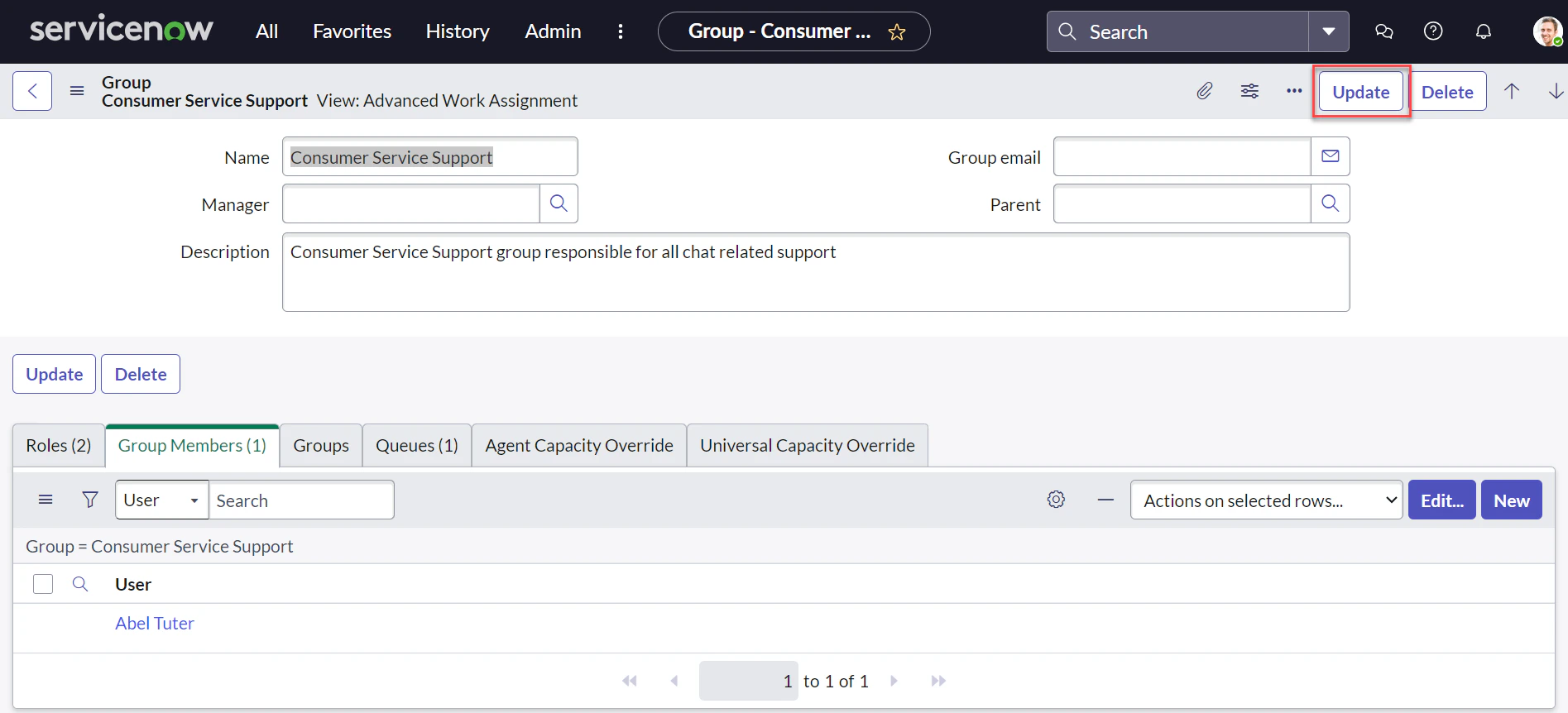
Navigate to Advanced Work Assignment > Management > Groups.
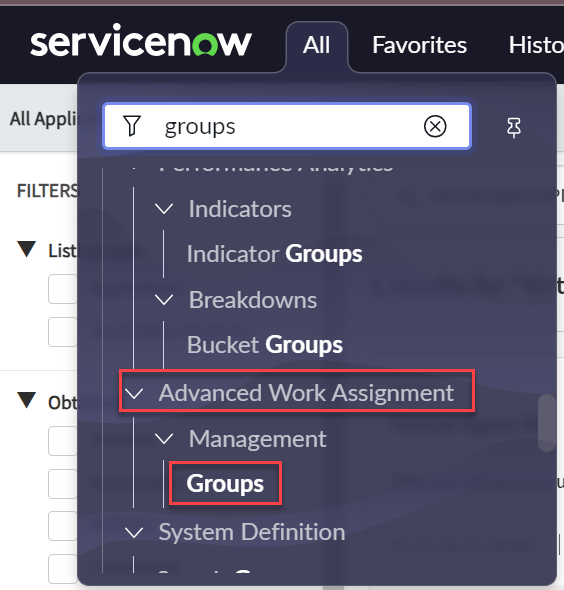
-
Select the Consumer Service Support group.
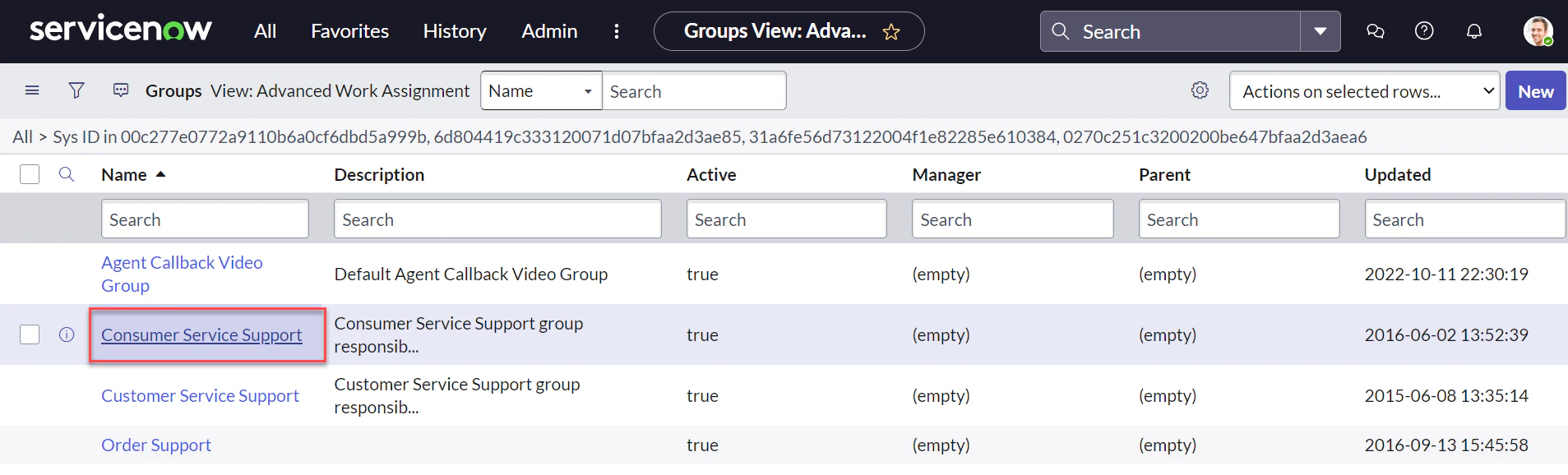
-
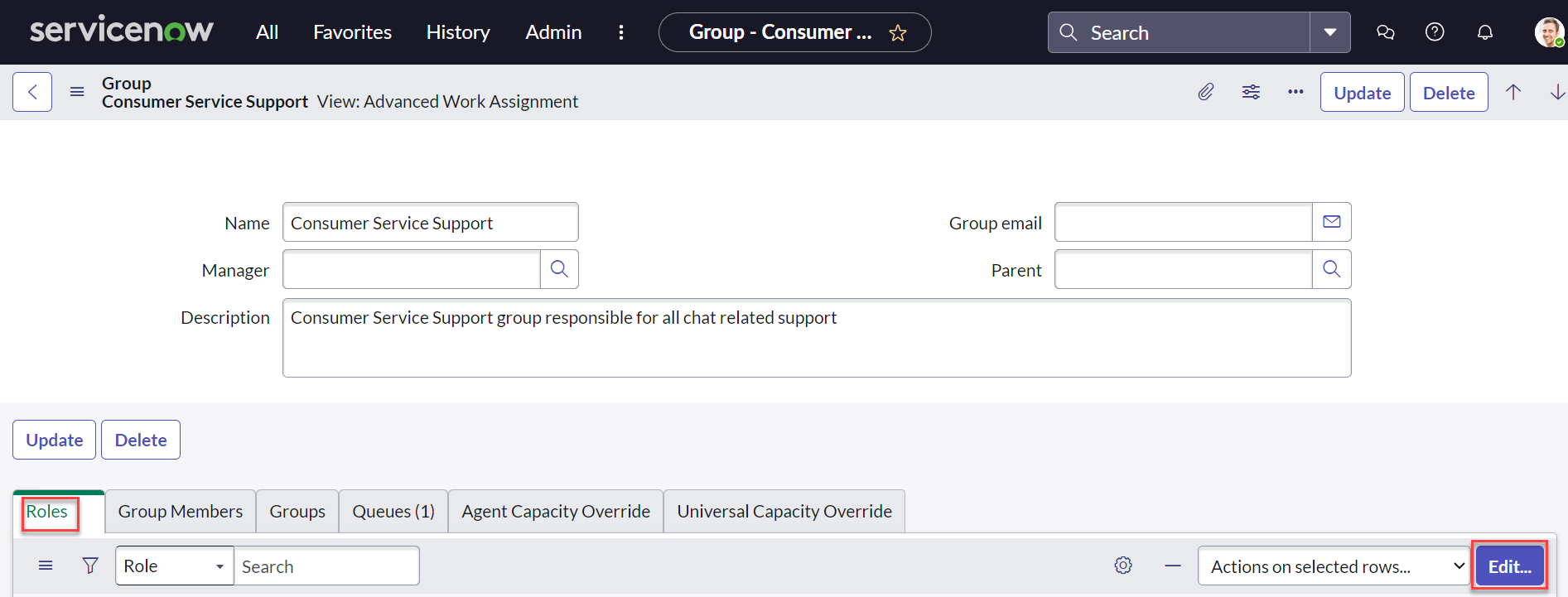
Select the Roles tab and click Edit.
-
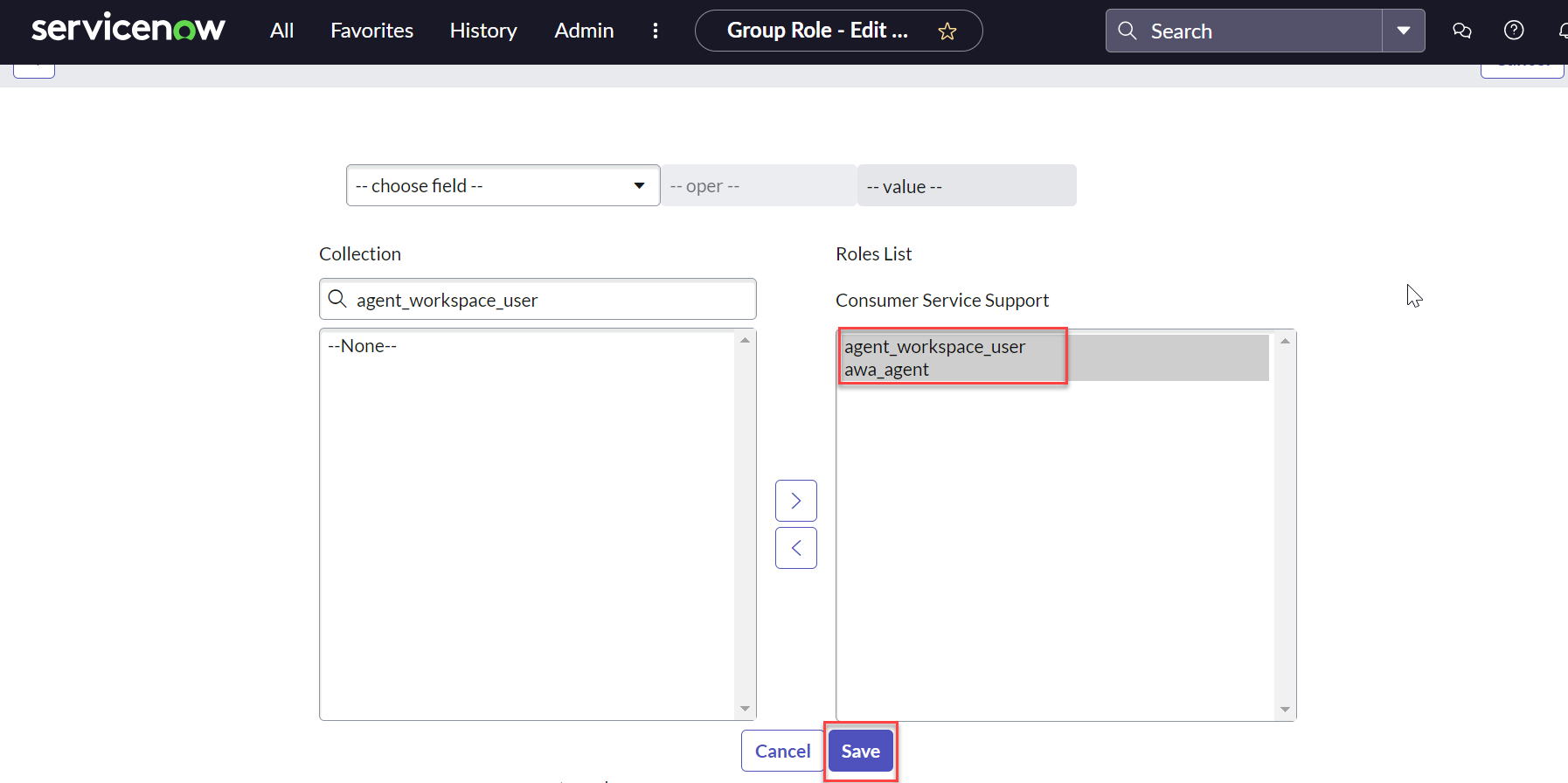
Search for and assign the awa_agent and agent_workspace_user roles to the Consumer Service Support group. Click Save.
-
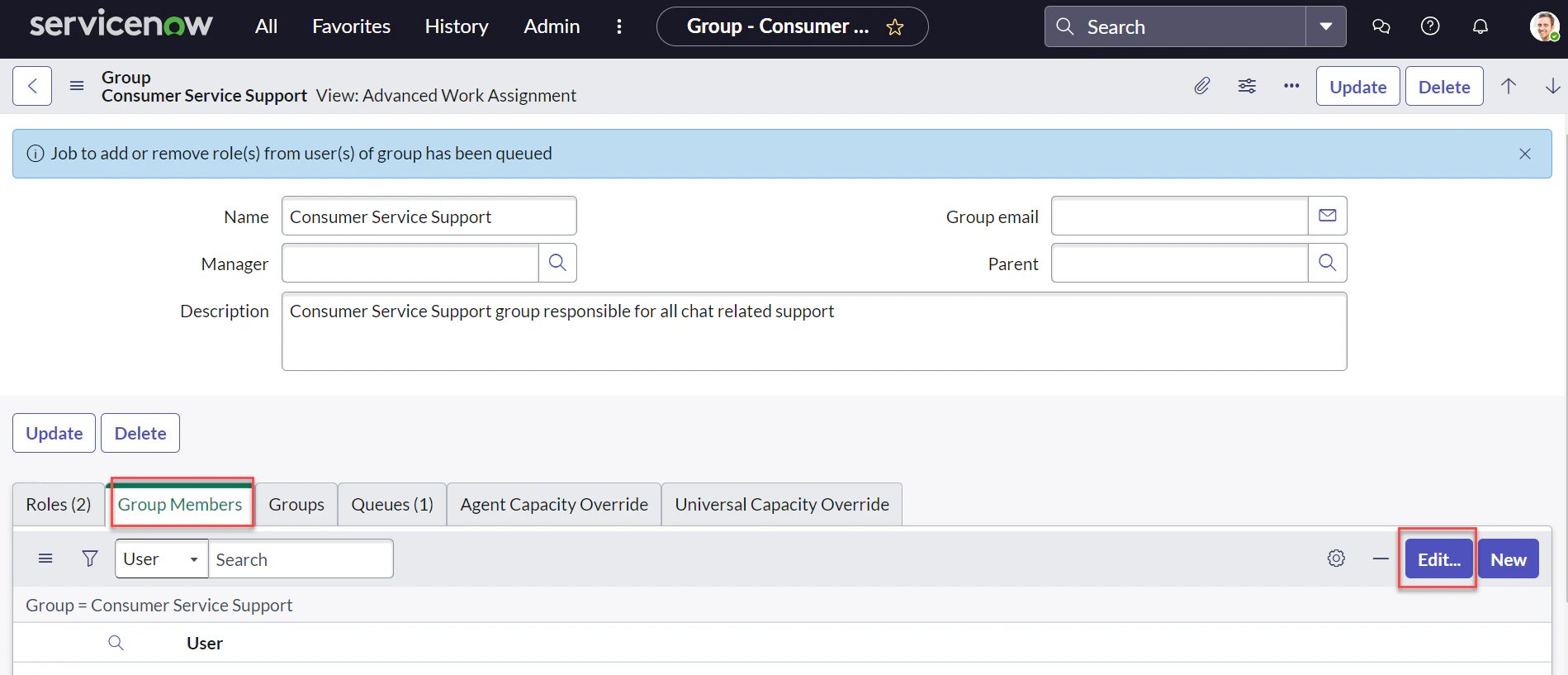
Go back to the group details screen, select Group Members, click Edit, and navigate to Edit Members.
-
Search for and assign the required user (e.g.,
Abel Tuter) to the Consumer Service Support group. Click Save.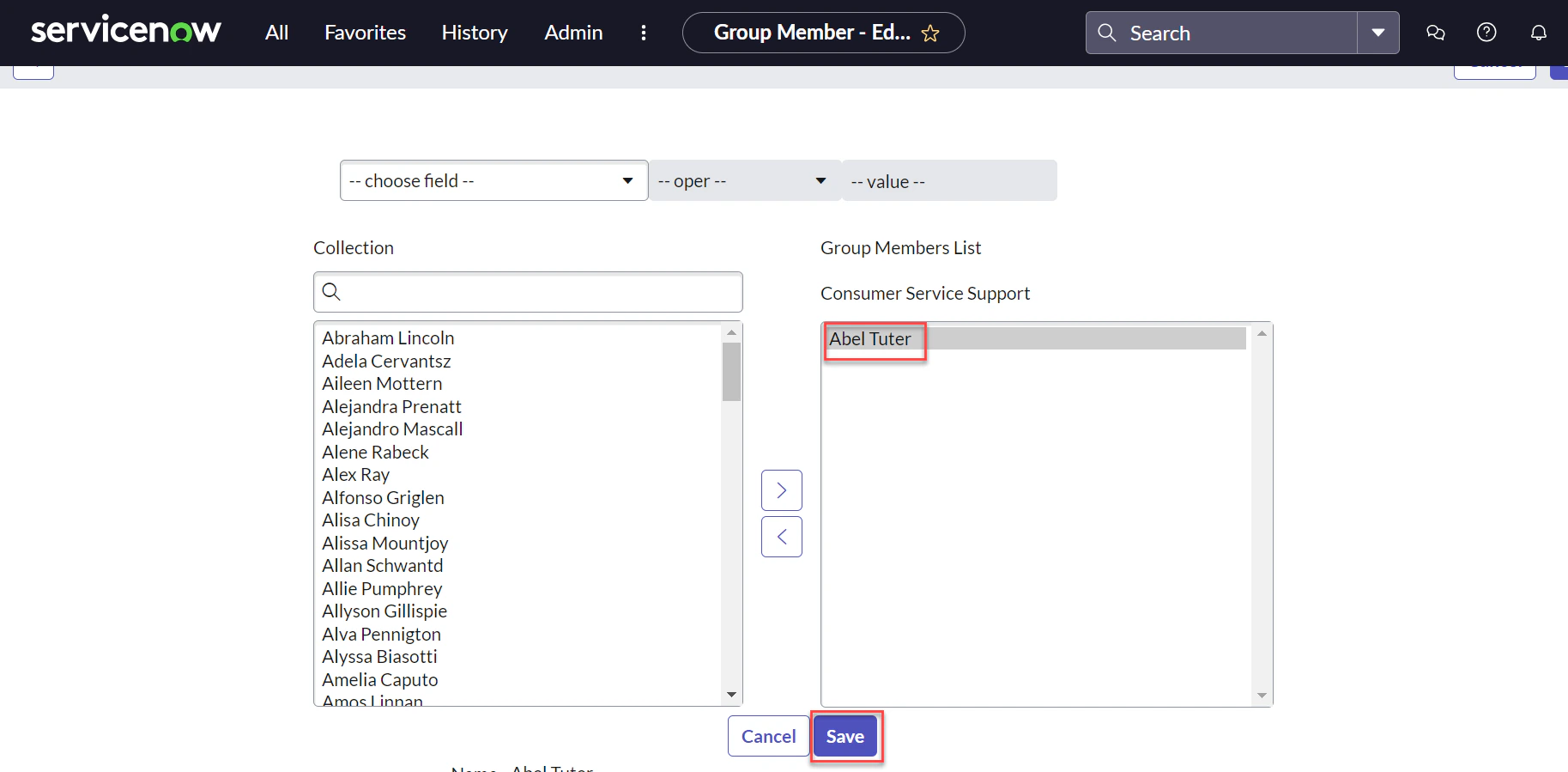
-
Click Update on the group details screen.
Step 5: Update the Webhook Endpoint and Enable the Integration
- Log in to the ServiceNow instance.
-
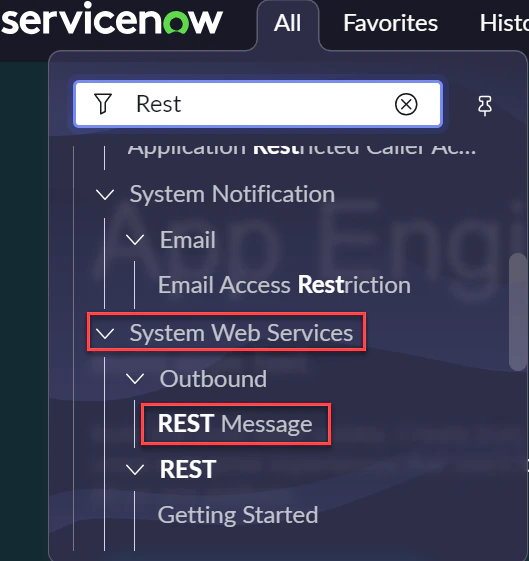
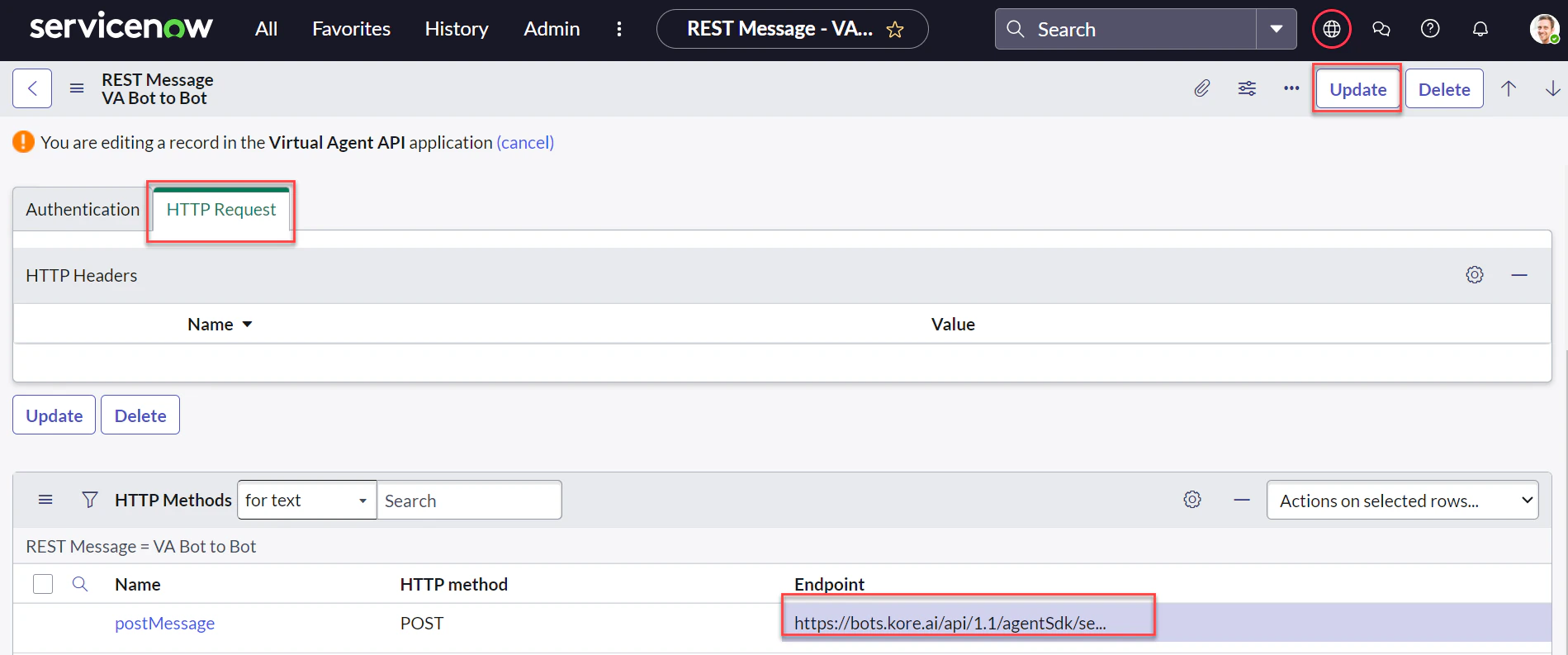
Navigate to System Web Services > Outbound > REST messages.
-
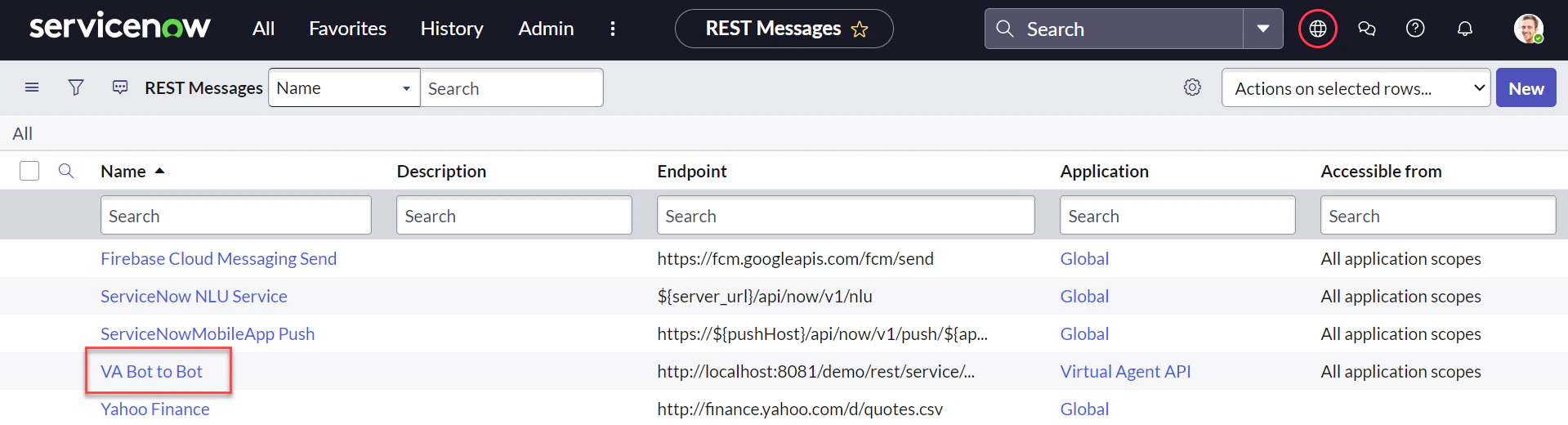
Select VABot to Bot from the list.
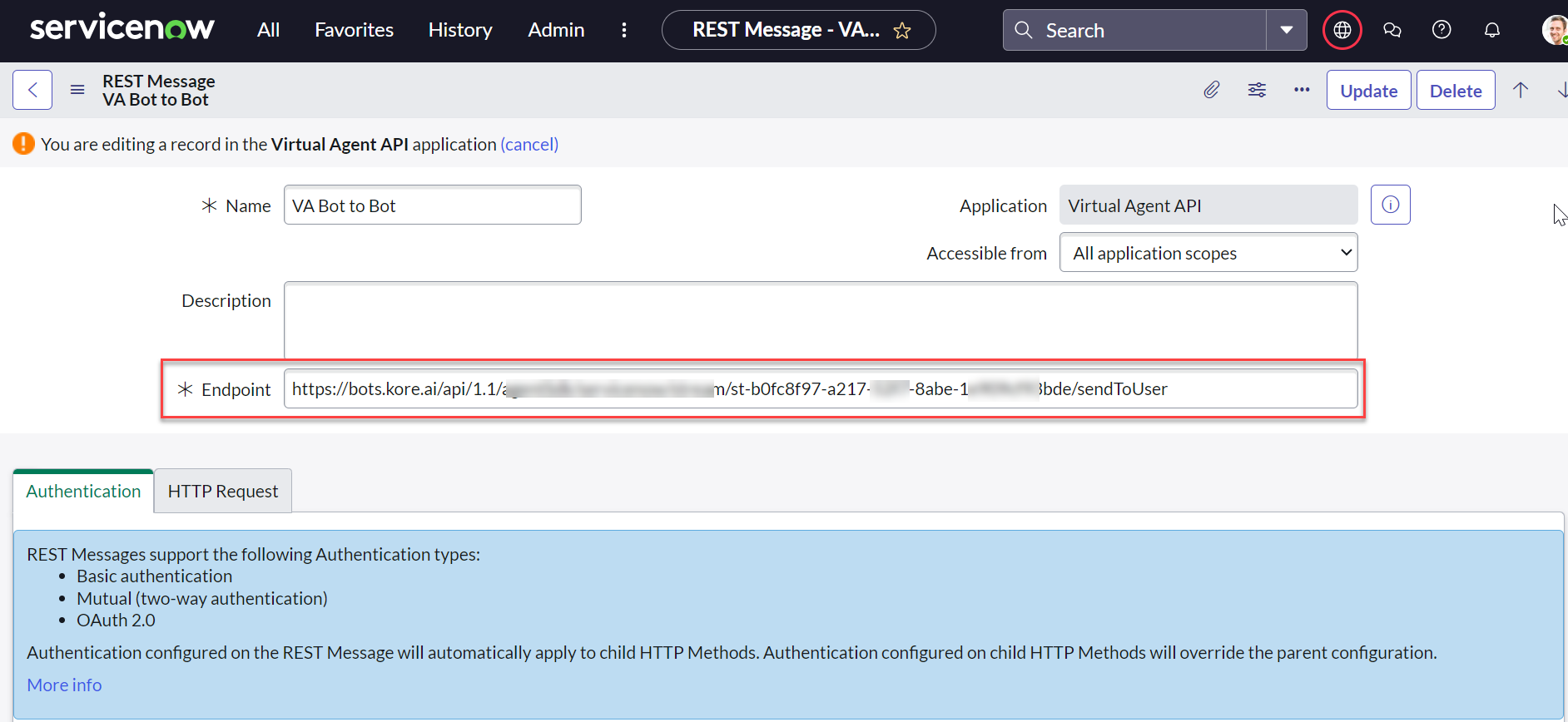
- Copy the Webhook URL from the Configuration tab of the ServiceNow Agent page.
-
Paste it into the EndPoint field on the VABot to Bot edit screen.
-
Scroll down, select HTTP methods, update the Webhook URL for postMessage, and click Update.
- Click Save to enable the integration.
Step 6: Testing Configuration
- Open the AI Agent with ServiceNow enabled.
-
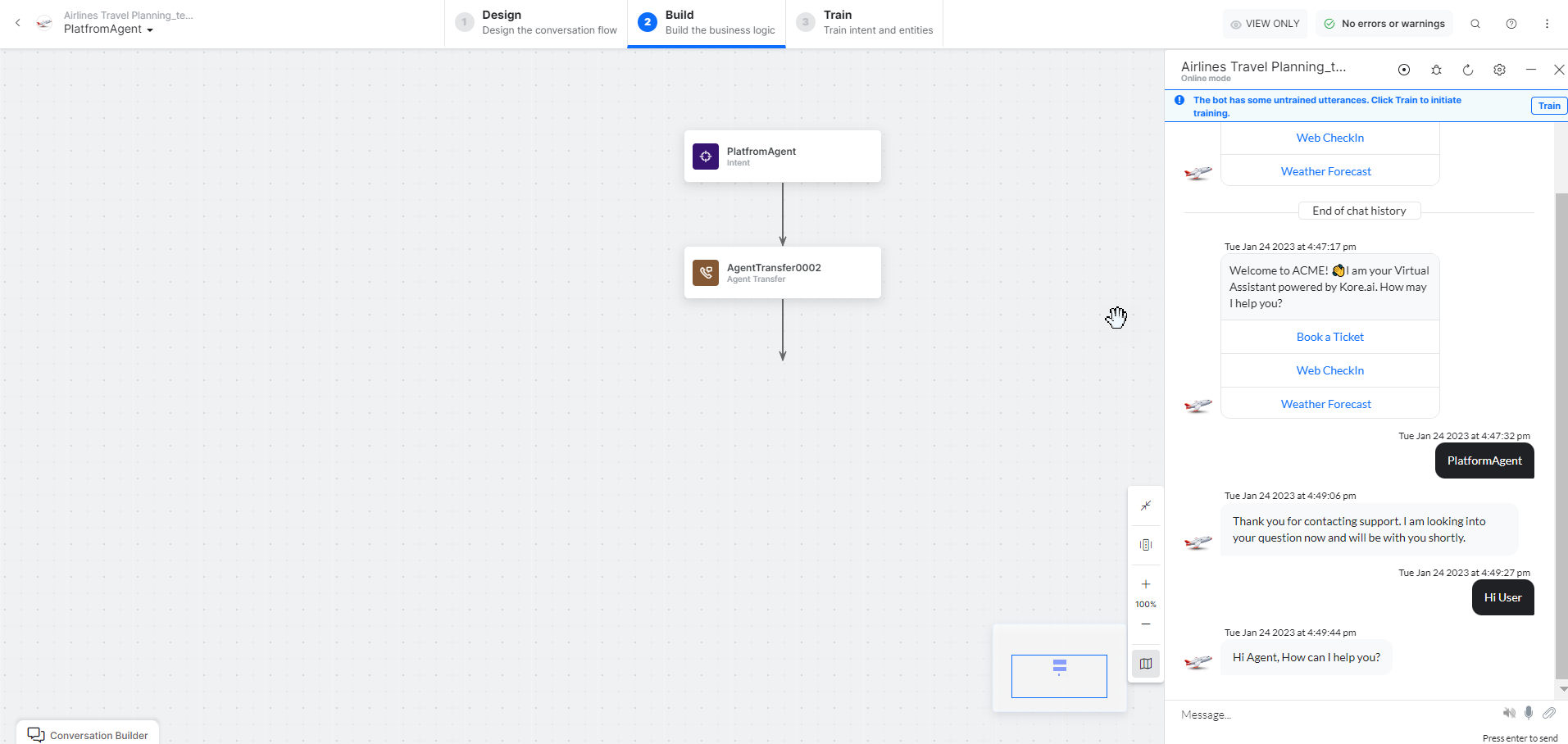
Create an Agent Transfer Node task (e.g.,
Platform Agenttask with aUserAgentnode). See Agent Transfer Node.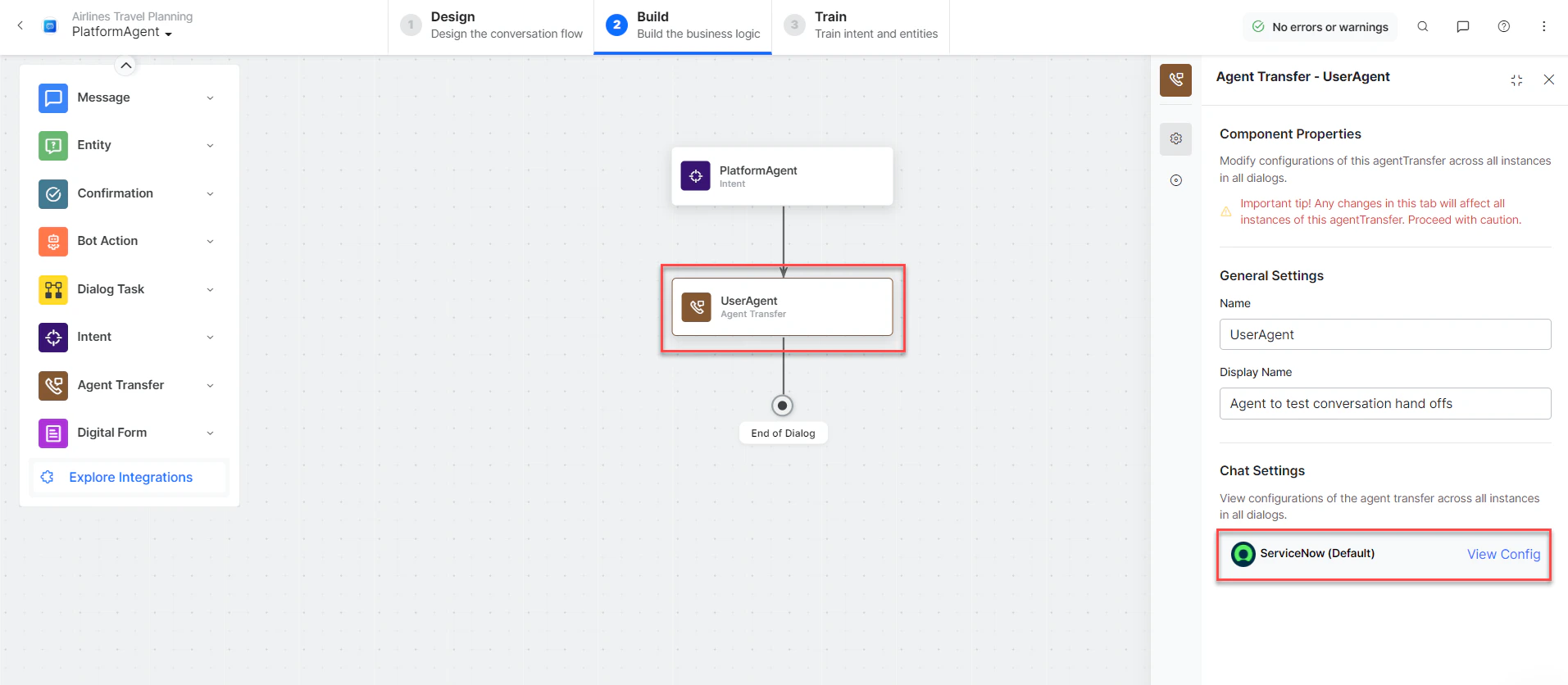
- Click Talk to Bot and enter Help.
-
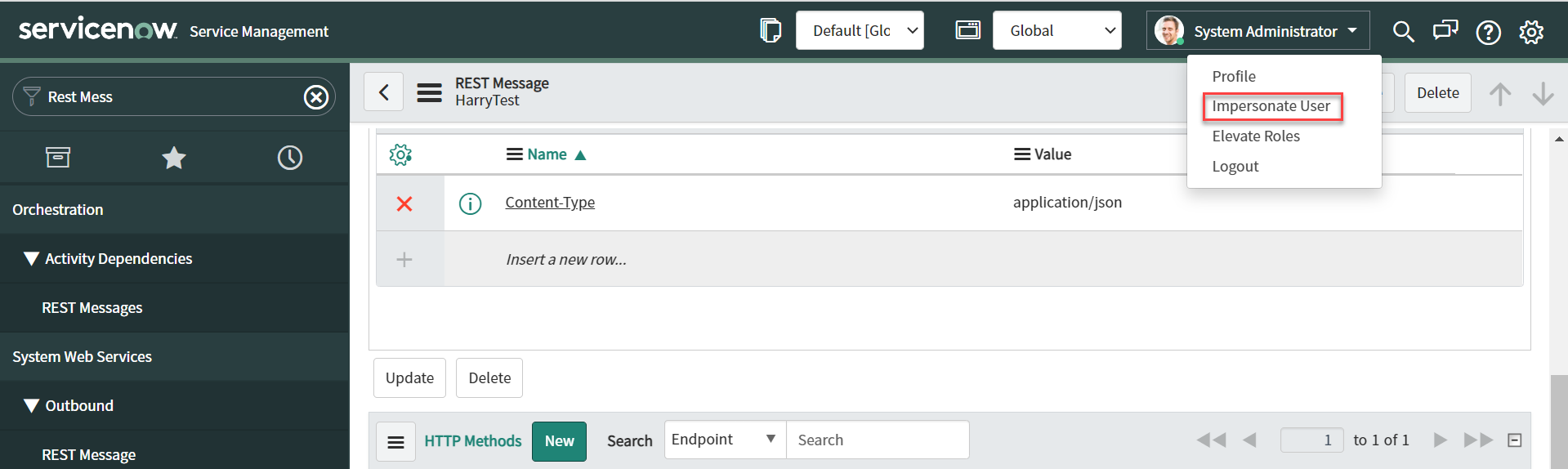
Log in to ServiceNow, go to Profile, and select Impersonate User.
-
Select the username created (e.g.,
Abel Tuter).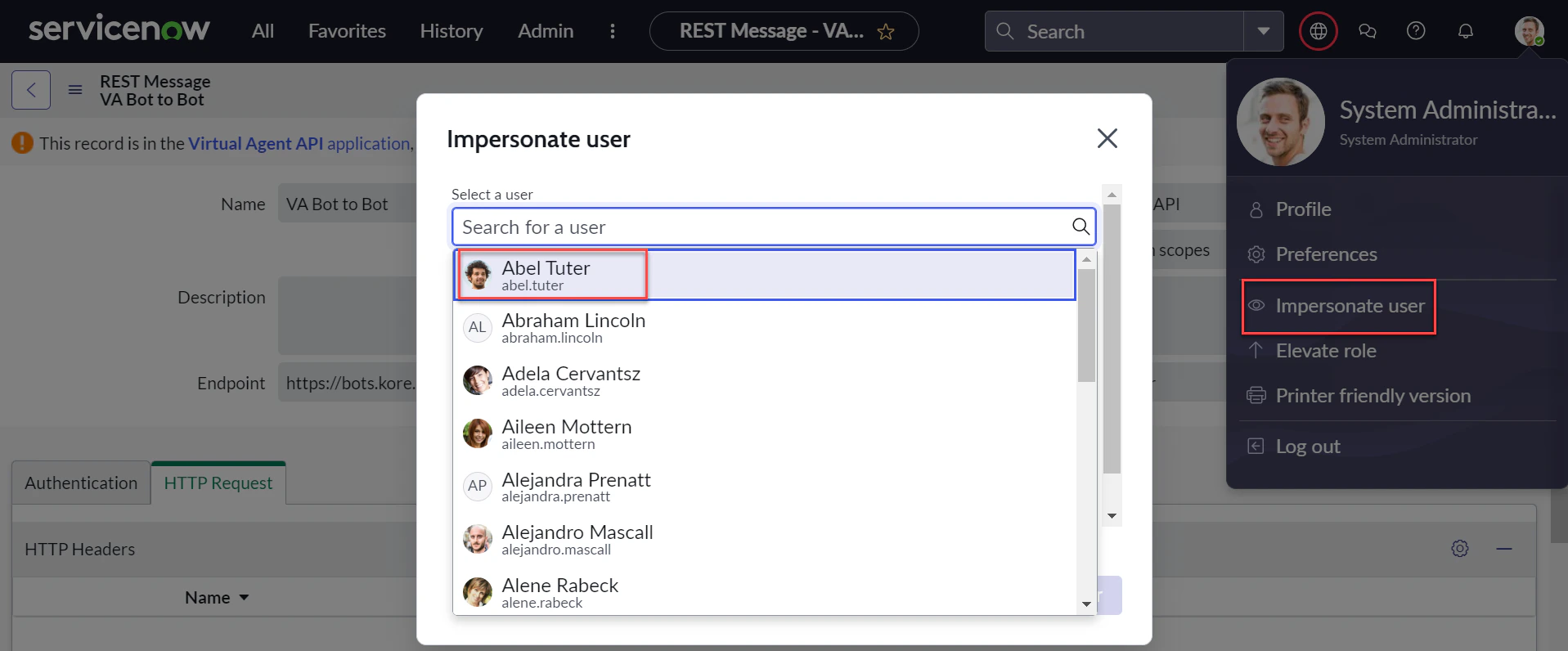
-
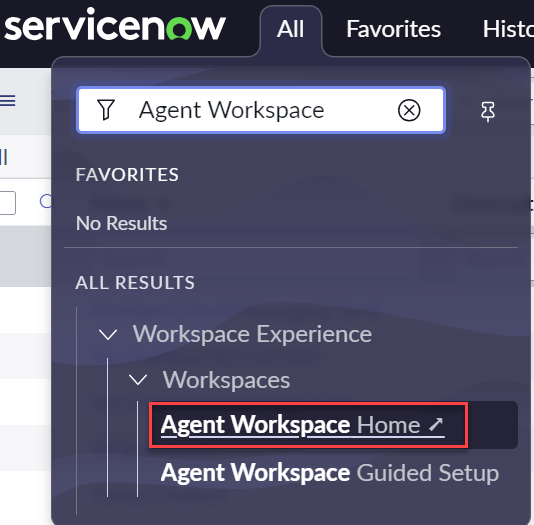
Navigate to Workspace Experience > Workspaces > Agent Workspace Home.
-
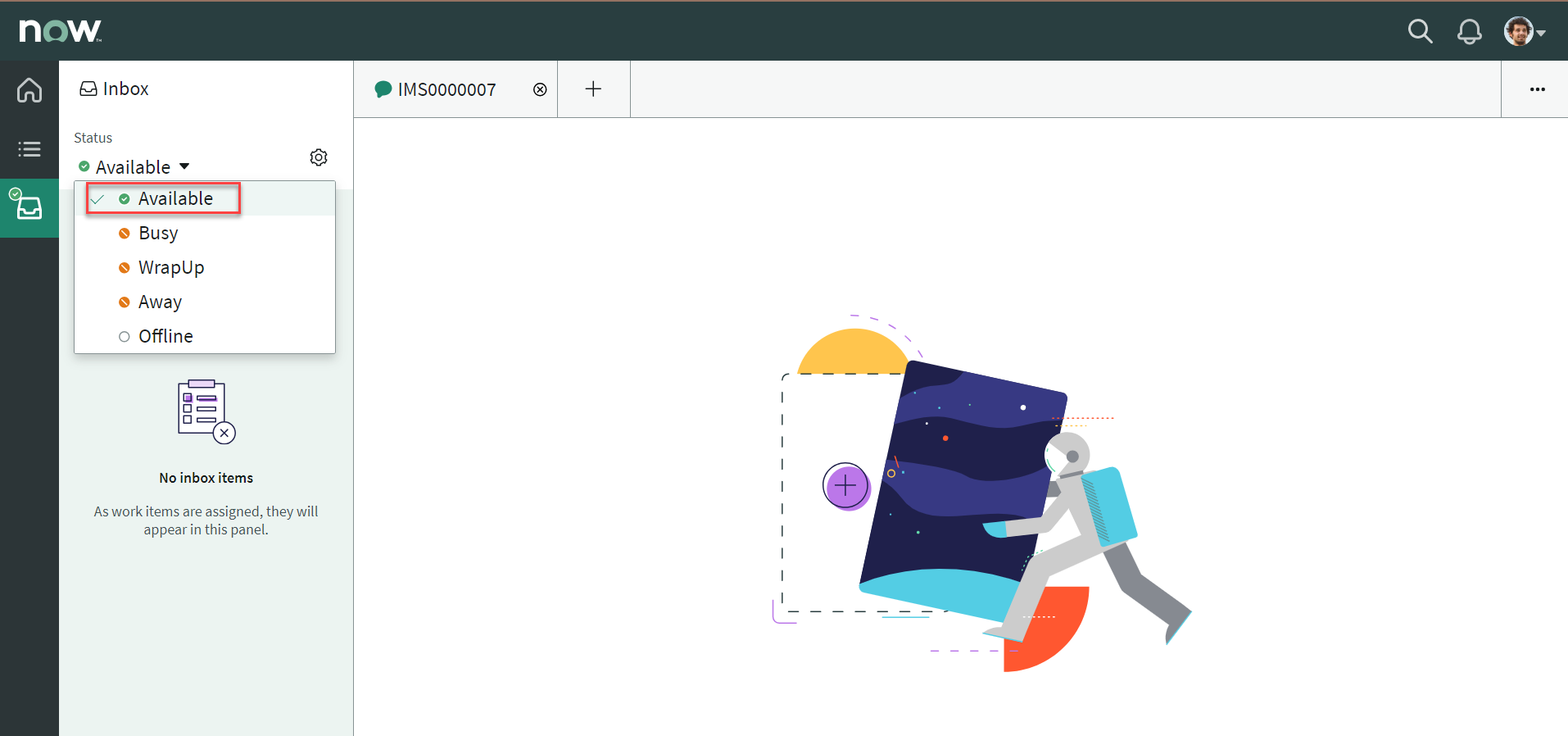
In the Agent Workspace, select Inbox and set Status to Available.
-
When the user initiates chat, the conversation transfers to the ServiceNow agent and the connection is established.
Additional Capabilities
Pass User Information to ServiceNow
By default, users appear as Guest in ServiceNow. Use theServiceNowMetaData object with agentUtils.setMetaInfo to pass user identity information.
Steps:
- Configure Message Authentication for inbound communication in your ServiceNow instance — see ServiceNow Message Authentication setup.
-
Before the agent transfer node, set meta info using a Script node:
The app can collect
UserIDandUserEmailvia entity nodes. Context does not include user ID or email by default. Capture required details explicitly. If
ServiceNowMetaDatais not defined, values are not shared with ServiceNow.
Route Messages to Agent Groups by streamId
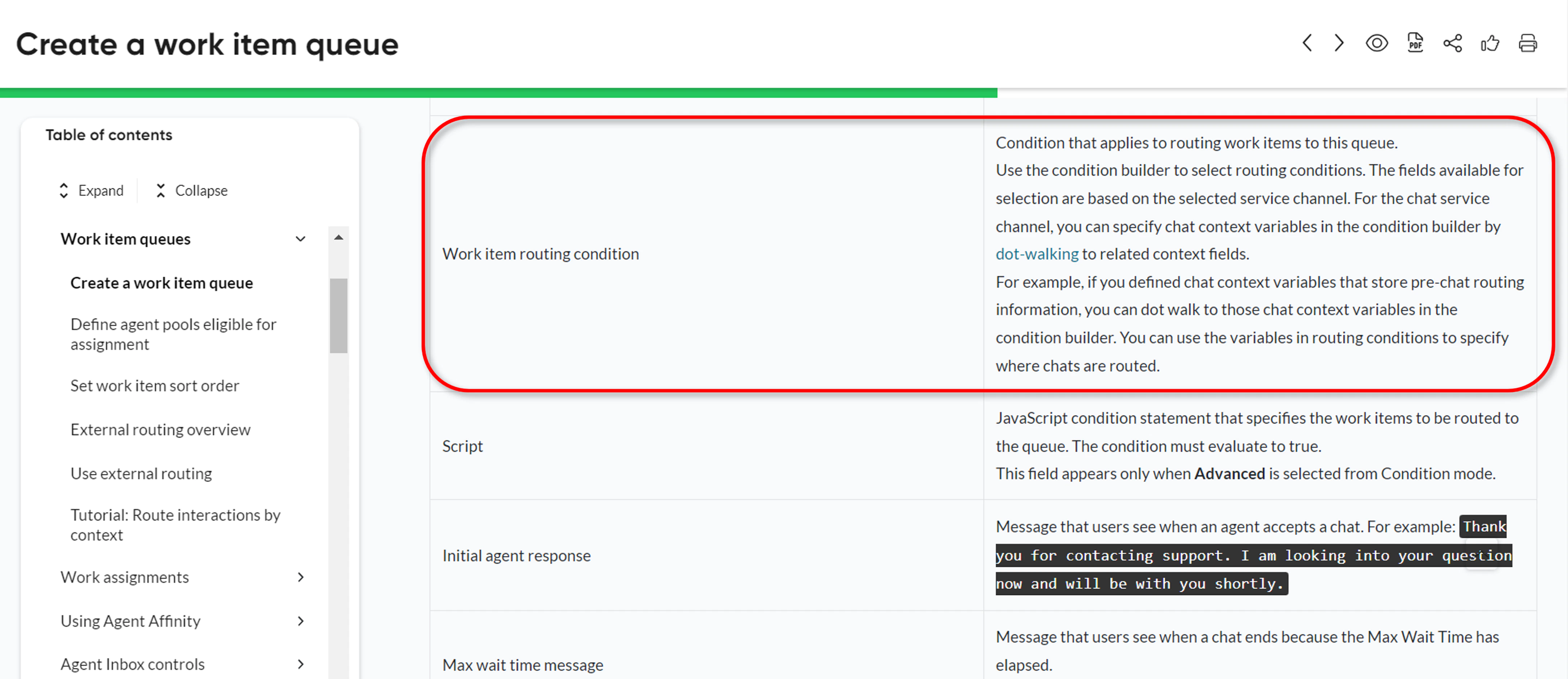
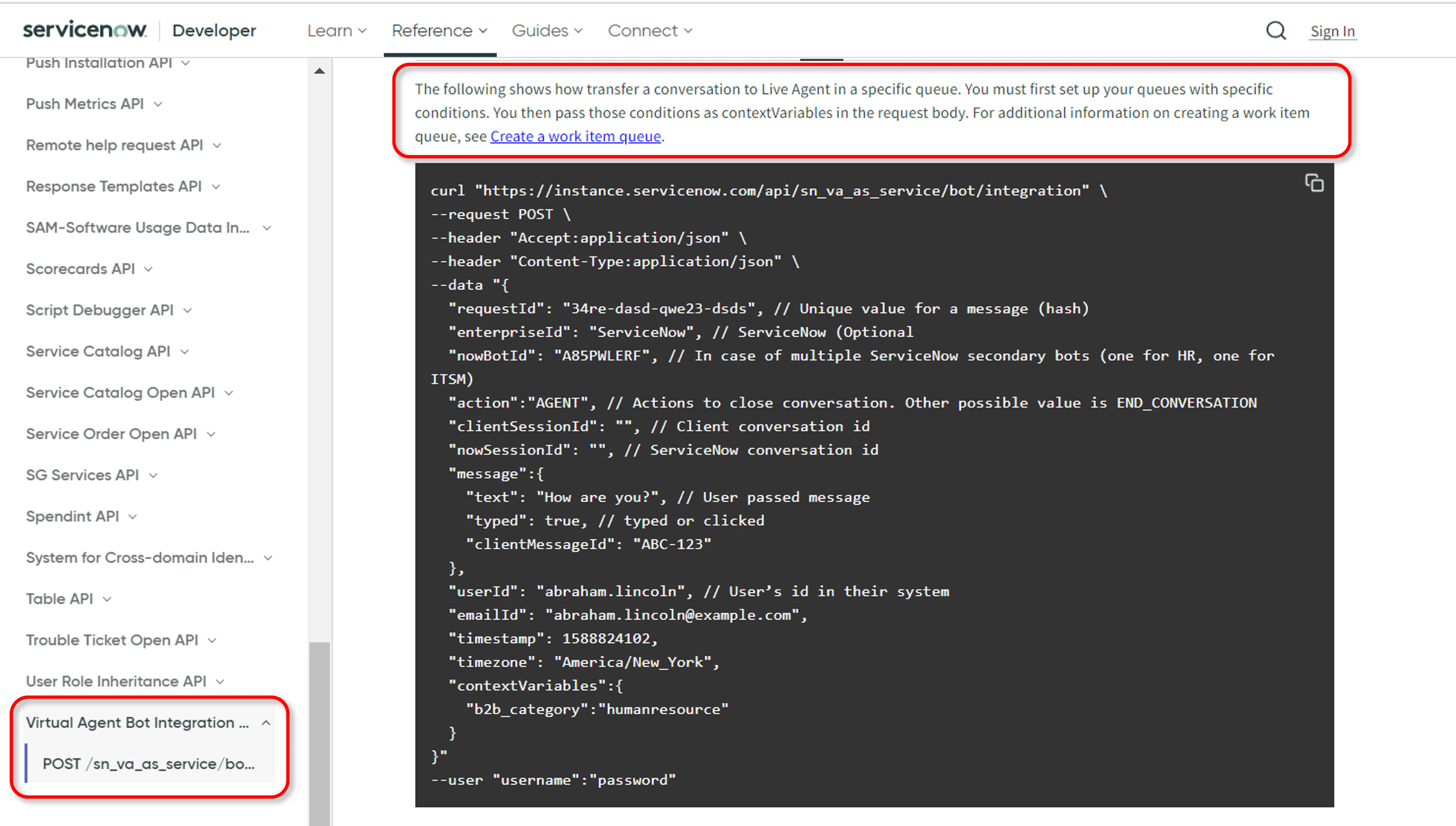
The platform sends streamId as a context variable in the ServiceNow request payload. Use it to route work items to different agent groups via a Work Item Routing Condition.
Steps:
-
In Conversational Interfaces Home, create a new context variable named
streamId.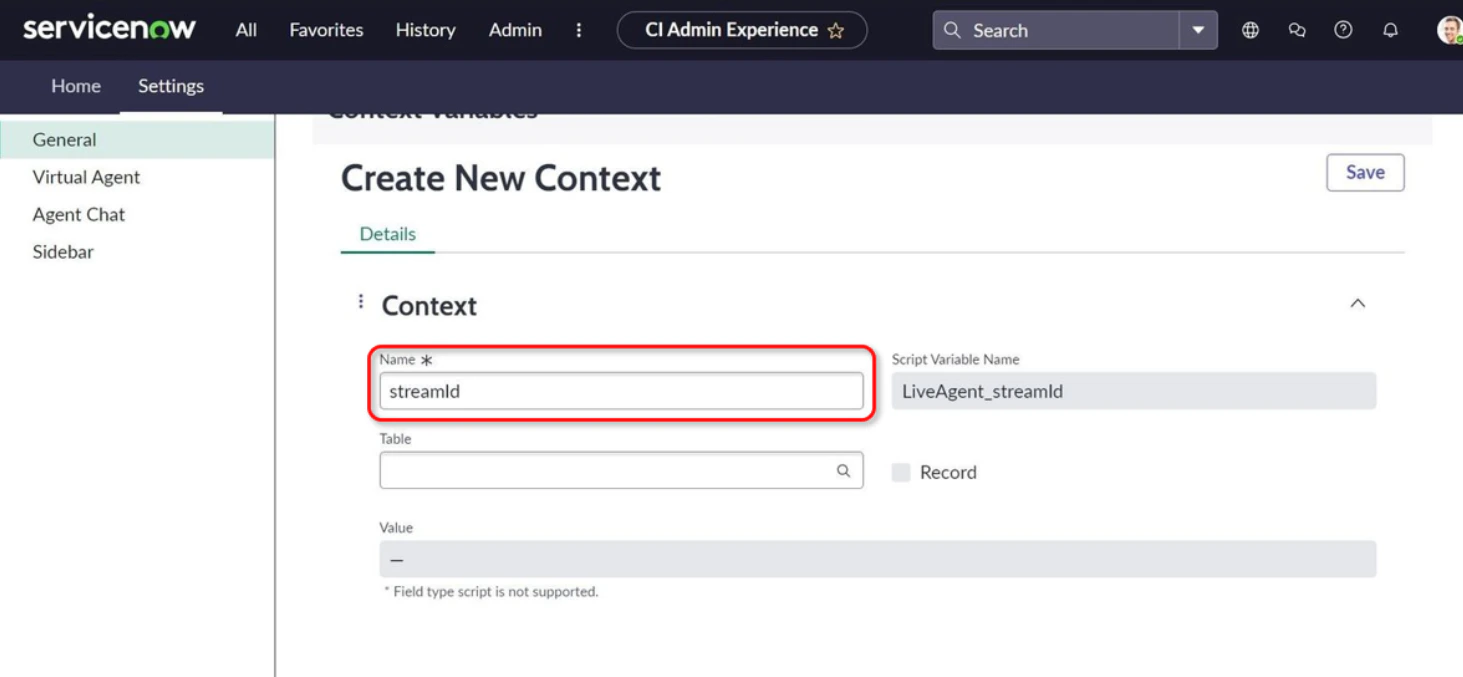
-
Define a Work item routing condition in the Queue using the
streamIdcontext variable.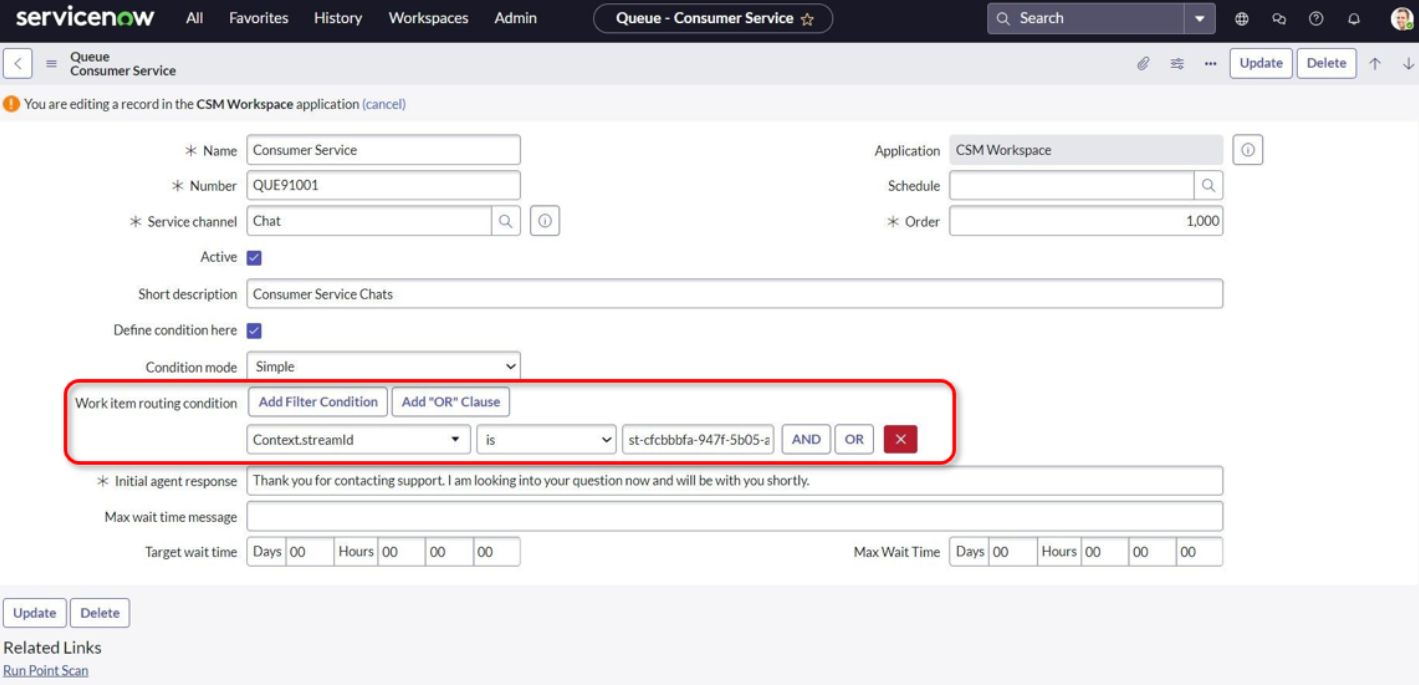
-
Configure the routing condition in every queue that handles these work items. If queue 1 has a
streamIdcondition but queue 2 does not, both queues will qualify. Define the condition in all relevant queues.
Enable Attachment Sharing with Live Agents
- Log in to ServiceNow with admin credentials.
- Navigate to System Properties > sys_cs_provider_application.list > Configure > Form Layout.
-
In the Trusted Media Domains field, enter the domain for sending and receiving attachments.
 This feature supports only Utah and Vancouver versions.