

Overview
Orchestration Settings
Orchestration Settings is a pipeline management framework that lets administrators activate, configure, and manage individual components of the AI query processing workflow. Navigation: Account Hub → Assistant Configurations → Orchestration Settings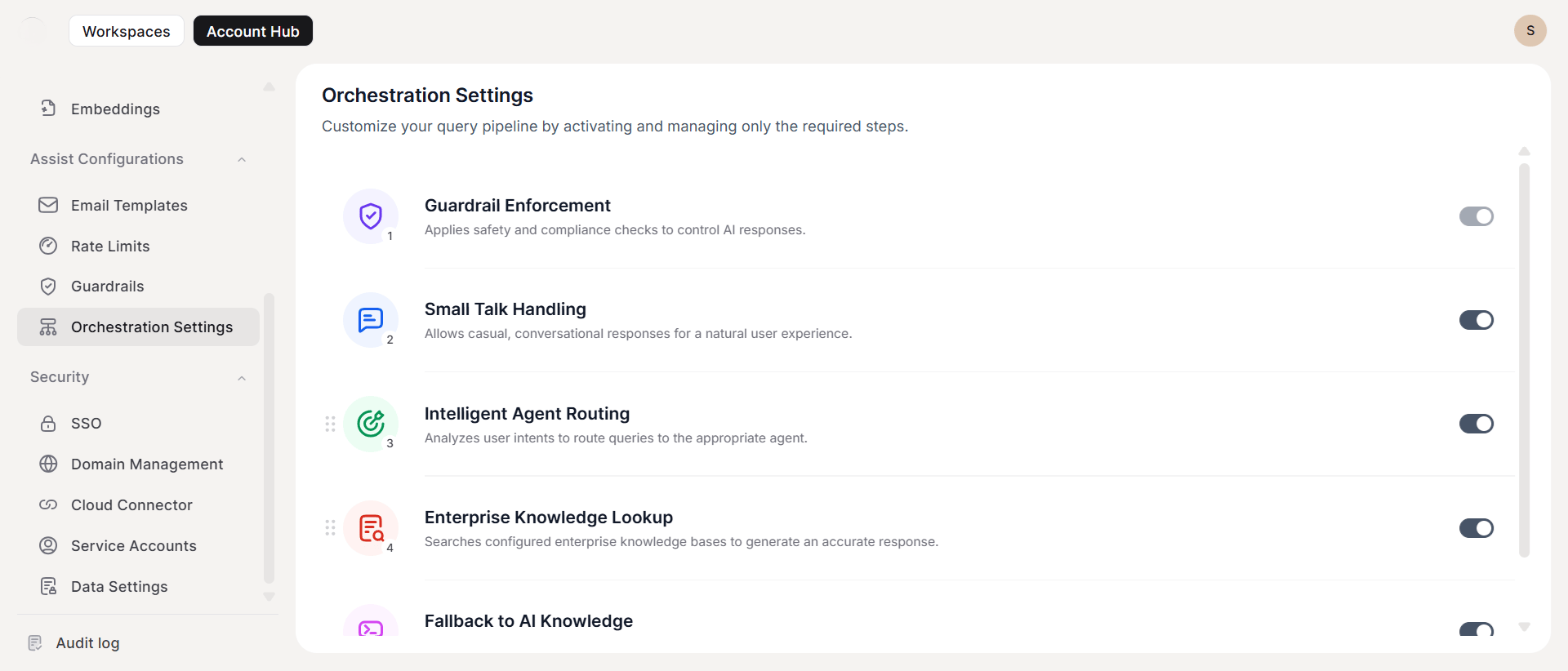
Setup
- Go to Orchestration Settings under Assist Configurations.
- Review available pipeline components and their current status.
- Configure components based on your organizational requirements.
- Test the configuration with sample queries.
- Monitor performance and adjust settings as needed.
Pipeline Components
Guardrail Enforcement
Automatically applies security policies from your Guardrails configuration across all AI interactions.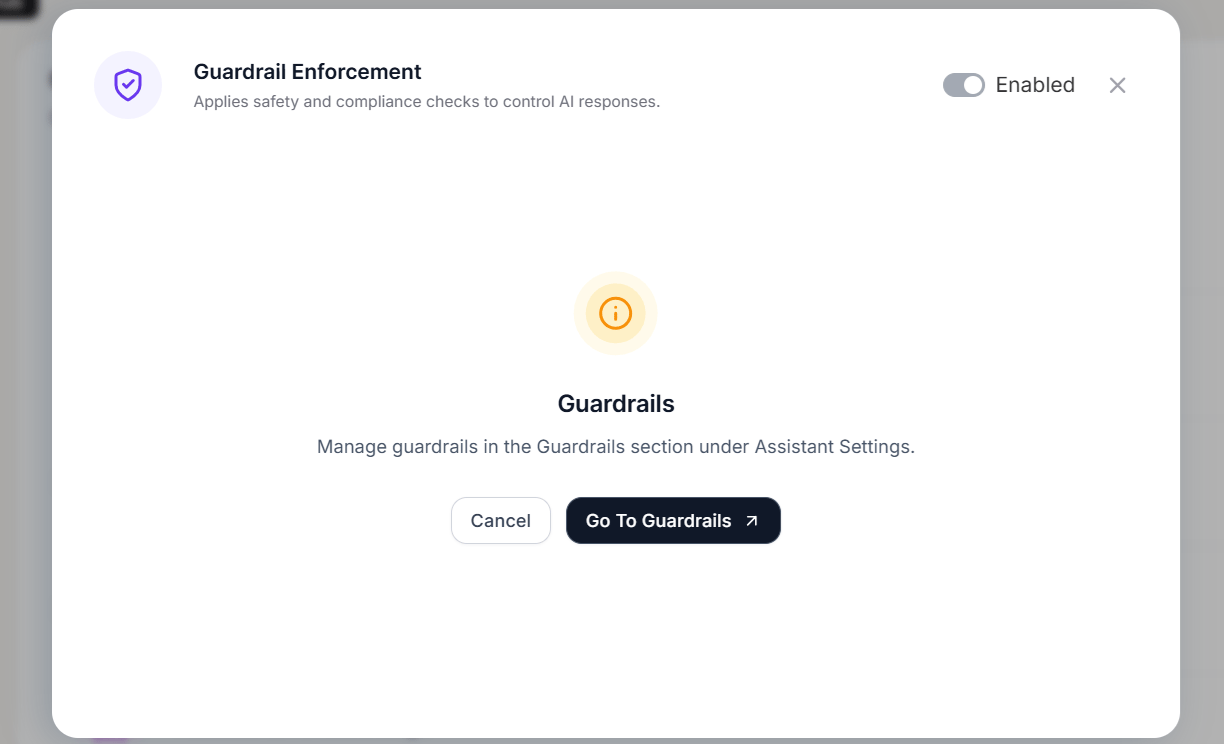
- Enabled: Security policies enforce across all pipeline queries.
- Disabled: The pipeline skips enforcement.
- You cannot toggle this setting here; the Guardrails interface controls it exclusively.
Small Talk Handling
Enables casual, contextual conversation for an improved user experience.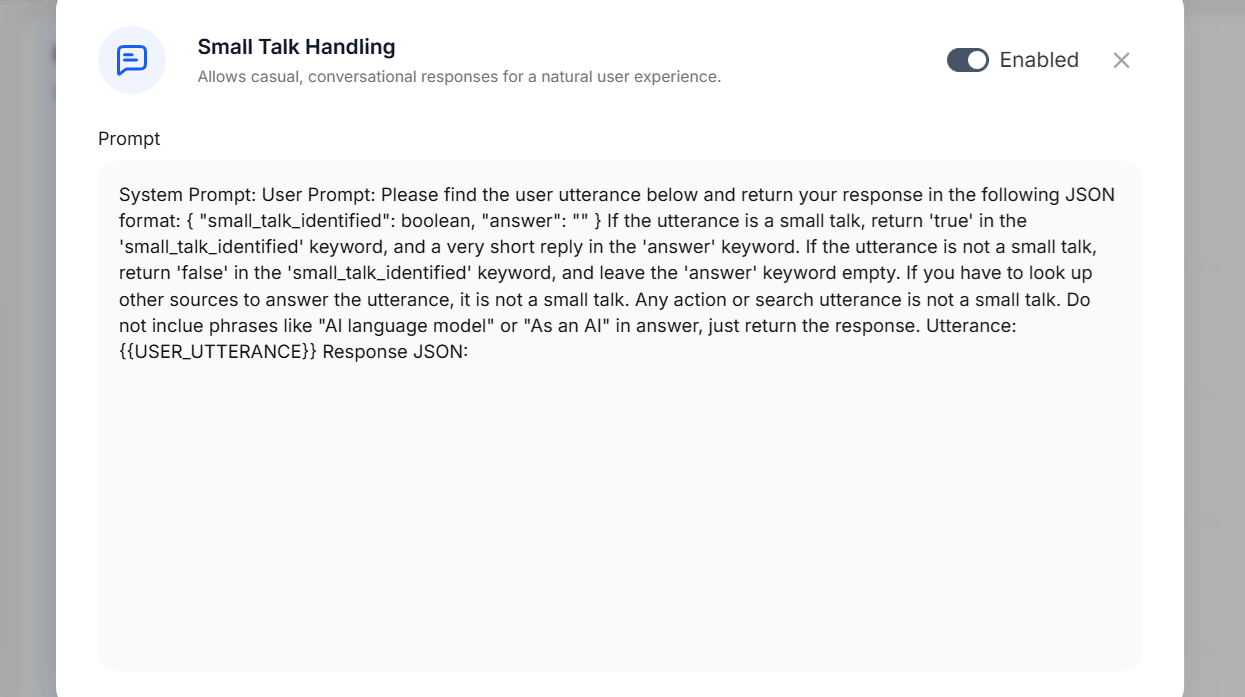
- Toggle on or off based on organizational preferences.
- Uses professionally crafted, pre-configured prompts (not editable) to ensure a consistent brand voice.
Intelligent Agent Routing
Analyzes incoming queries and directs them to the most appropriate AI agent.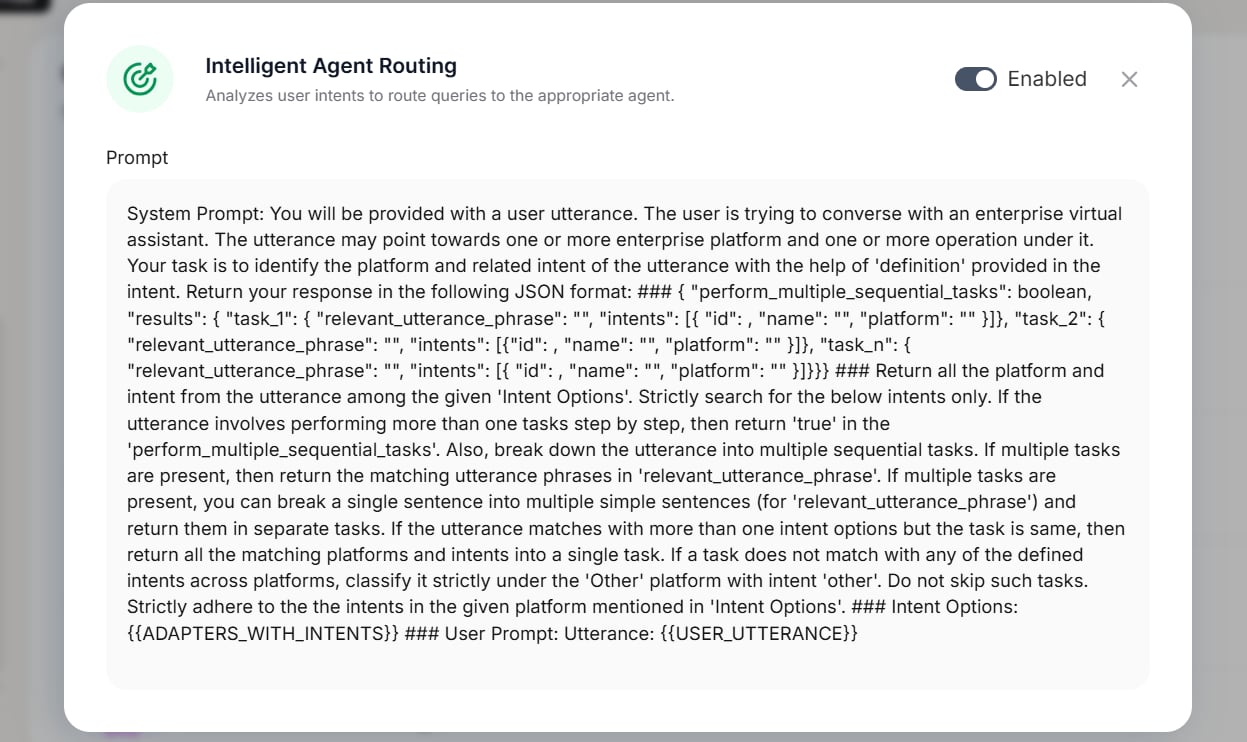
- Uses predefined routing algorithms optimized for accuracy and efficiency.
- The platform locks the routing logic to ensure consistent performance and scalability.
Enterprise Knowledge Lookup
Integrates your organization’s knowledge base into the AI query pipeline so responses draw from authoritative internal sources.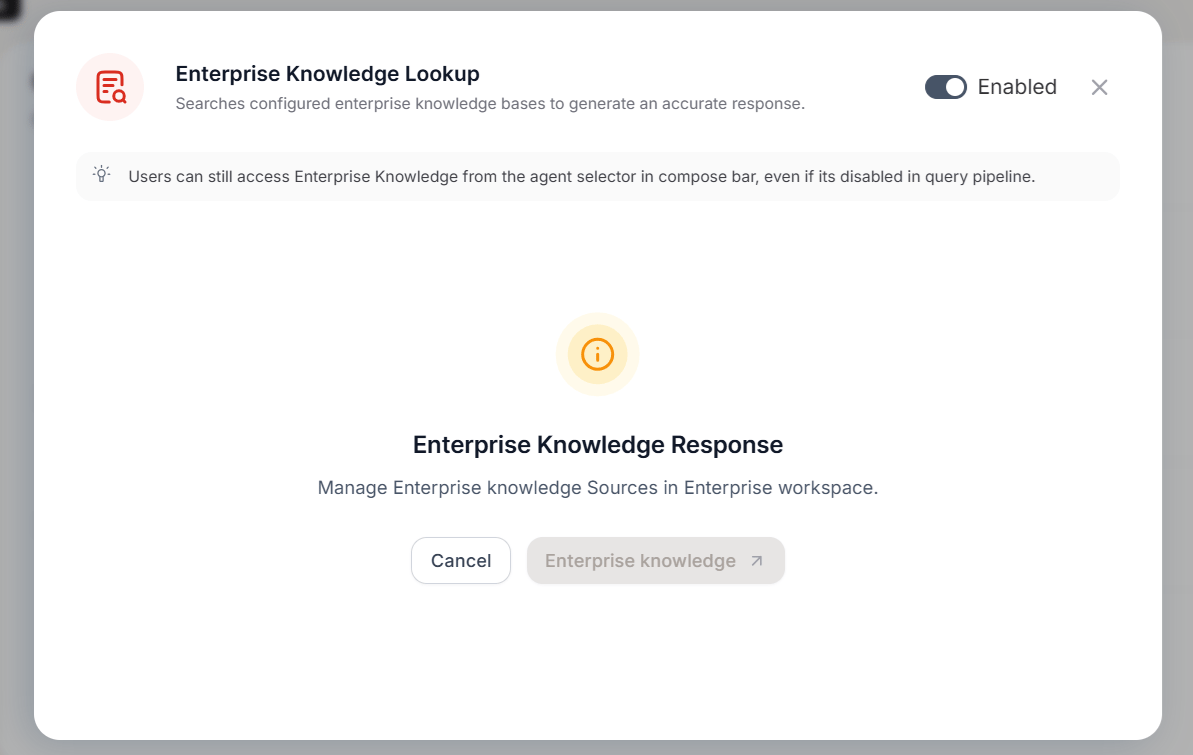
Enterprise Knowledge remains accessible through the compose bar’s agent selector even when disabled in the query pipeline.
Fallback to AI Knowledge
Provides responses from LLM knowledge when primary systems cannot respond adequately.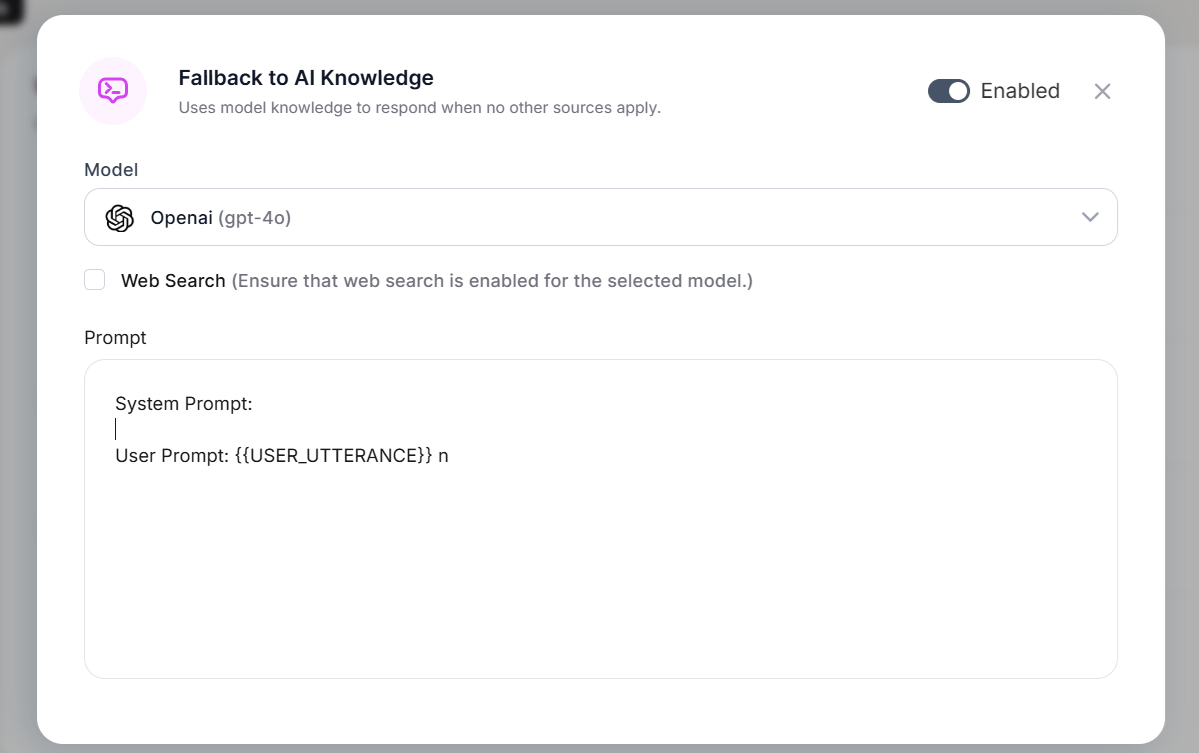
Prebuilt Tools
The Prebuilt Tools page provides a centralized view of platform tools available across all workspaces in your account. Navigation: Admin Console > Assistant Configurations > Prebuilt Tools The following tools appear on the page:AI Models
Administrators can add AI models from configured LLM connections and make them available to end users as selectable models. Add a model- Click Add Model on the AI Model card.
- In the popup, select a model from the list of all models configured in LLM Connections.
- Provide a Name that end users see when selecting the model.
- Provide a Short Description that explains the model’s purpose to end users.
- Click Save.
Enterprise Search
Enterprise Search lets administrators enable a dedicated search experience for end users. Navigation: Admin Console > Assistant Configurations > Enterprise Search Turn on the Enable toggle to make the Search option available to end users in the application. When you enable Enterprise Search, select one enterprise knowledge source from the configured sources. The platform uses the selected source for all search results that end users see. You can change the selected source at any time.Announcements
The Announcements feature lets administrators create, manage, and publish organizational messages as banners at the top of the user interface. Navigation: Account Hub → Assistant Configurations → Announcements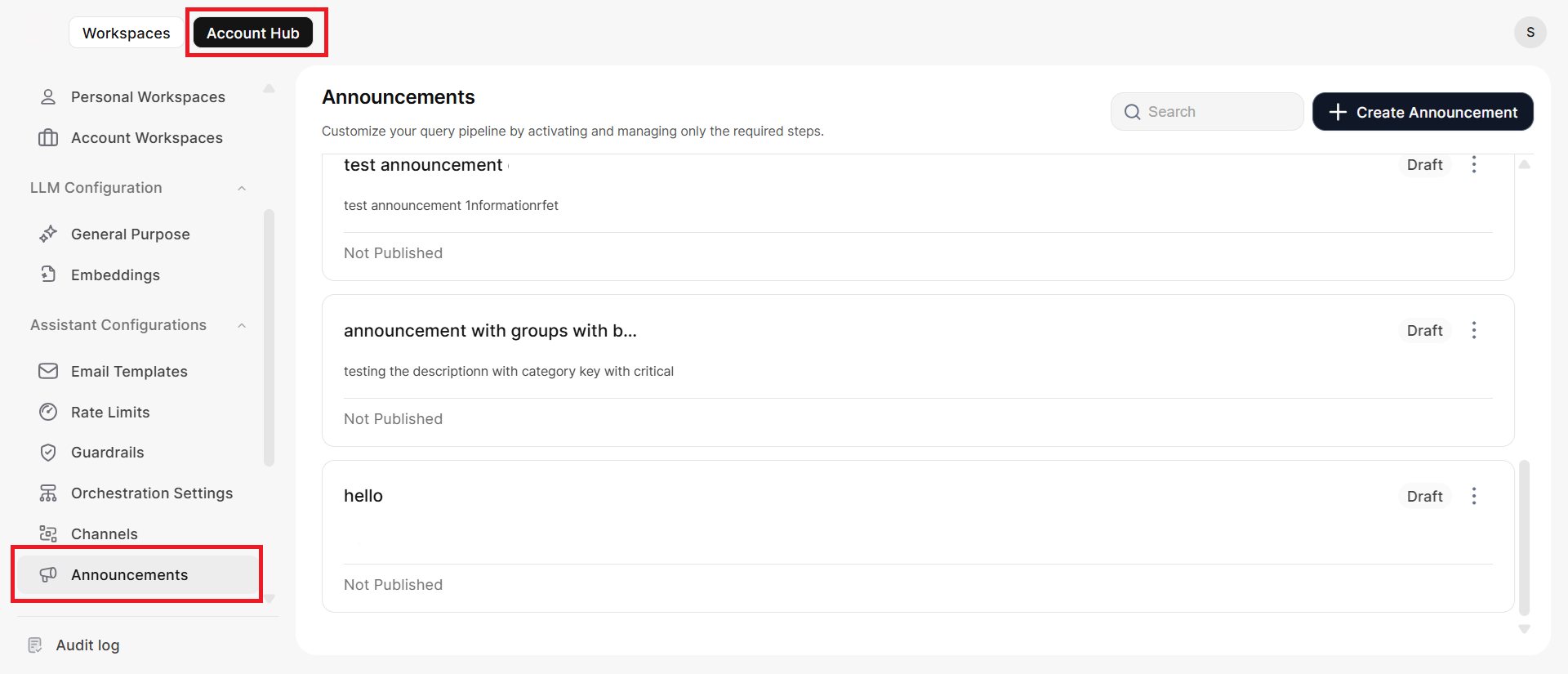
Create an Announcement
- Click Create Announcement.
-
Complete the required fields:
- If you select Selected User Groups, the platform displays all available user groups. Select one or more groups from the list; the interface displays the number of selected groups. The published announcement is visible to every user who belongs to the selected groups.
Actions
Manage Published Announcements
Editing a published announcement prompts you to either Discard changes or Publish changes.You must publish again to push changes to users. The system prompts you to publish or discard modifications to keep updates intentional and controlled.

End-User Experience
- Announcements appear as banners at the top of the screen.
- Multiple announcements rotate every 10 seconds.
- Each banner includes a Dismiss button:
- Dismissing hides the banner for the current session.
- The banner reappears after a page refresh or after one hour.
Email Templates
Email Templates let you customize the invitation emails that the platform sends when you add users to the account, a workspace, or specific applications. Navigation: Account Hub → Assistant Configurations → Email TemplatesTemplate Categories
Admin Templates
Application Templates
Each provisioned application has a Member Invitation template that the platform sends when you add a user as a member. Each application maintains its own separate template.Customize a Template
- Use the toggle to enable or disable the template.
- Click the template to open the editor.
- Edit the subject line and email body.
- Preview the email to verify appearance.
- Add links to relevant resources (such as the Admin Console) for easy access.
Template Management
- The platform organizes templates by application; all provisioned applications appear in the list.
- The platform provides default subject and body text, which you can modify.
- Changes apply to all future invitations of that type.
- Admins and Custom Admins can review and adjust templates before the system sends invitations.
Guardrails
Guardrails is a multi-layered security and compliance framework that automatically scans AI inputs and outputs to protect sensitive data and enforce content policies. Navigation: Account Hub → Assistant Configurations → Guardrails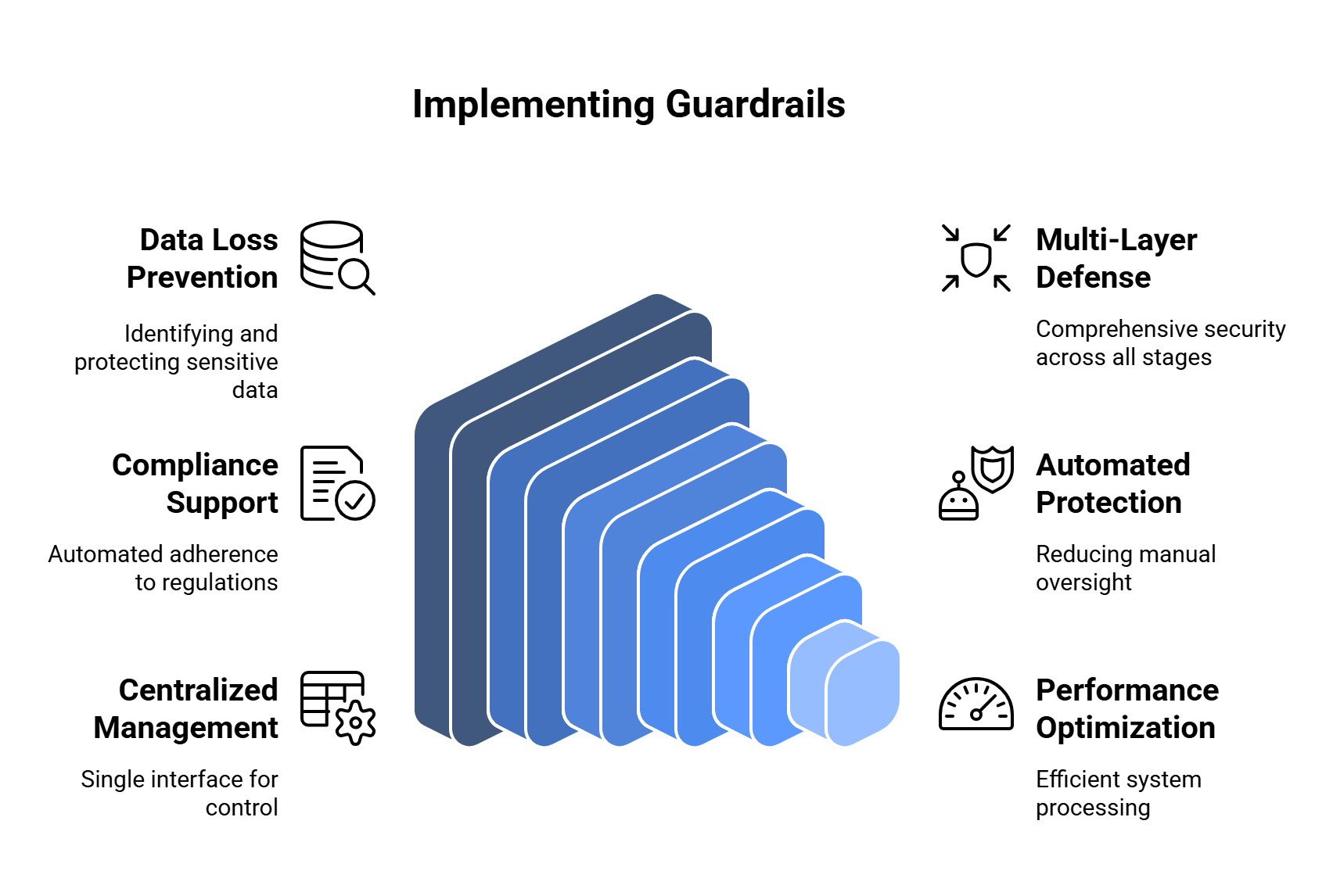
Setup
-
Go to Guardrails in Account Hub.
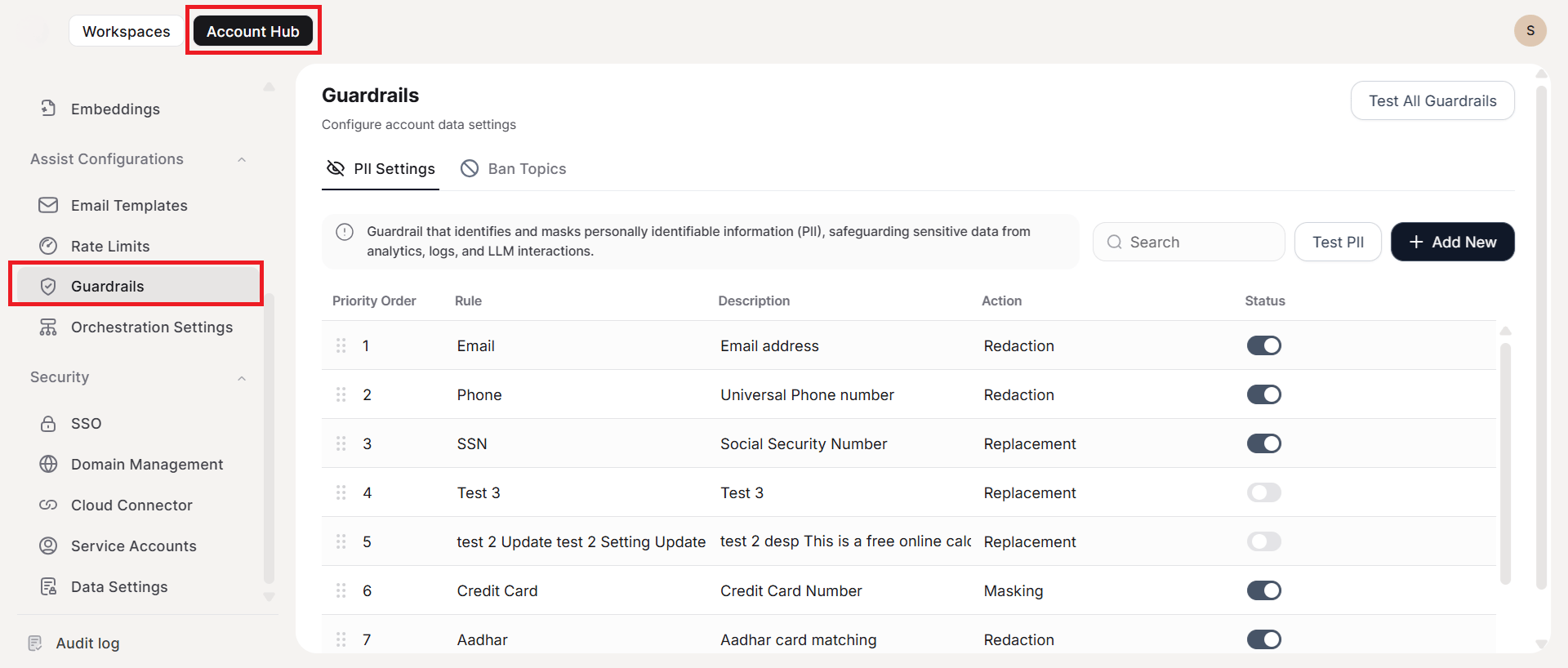
- Review pre-configured PII detection rules.
- Set up content restrictions for your organization.
- Validate configurations using the integrated testing suite.
Interface Layout
The Guardrails interface has three sections: PII Settings, Ban Topics, and Testing Suite.PII Settings
Pre-configured rules detect common PII types: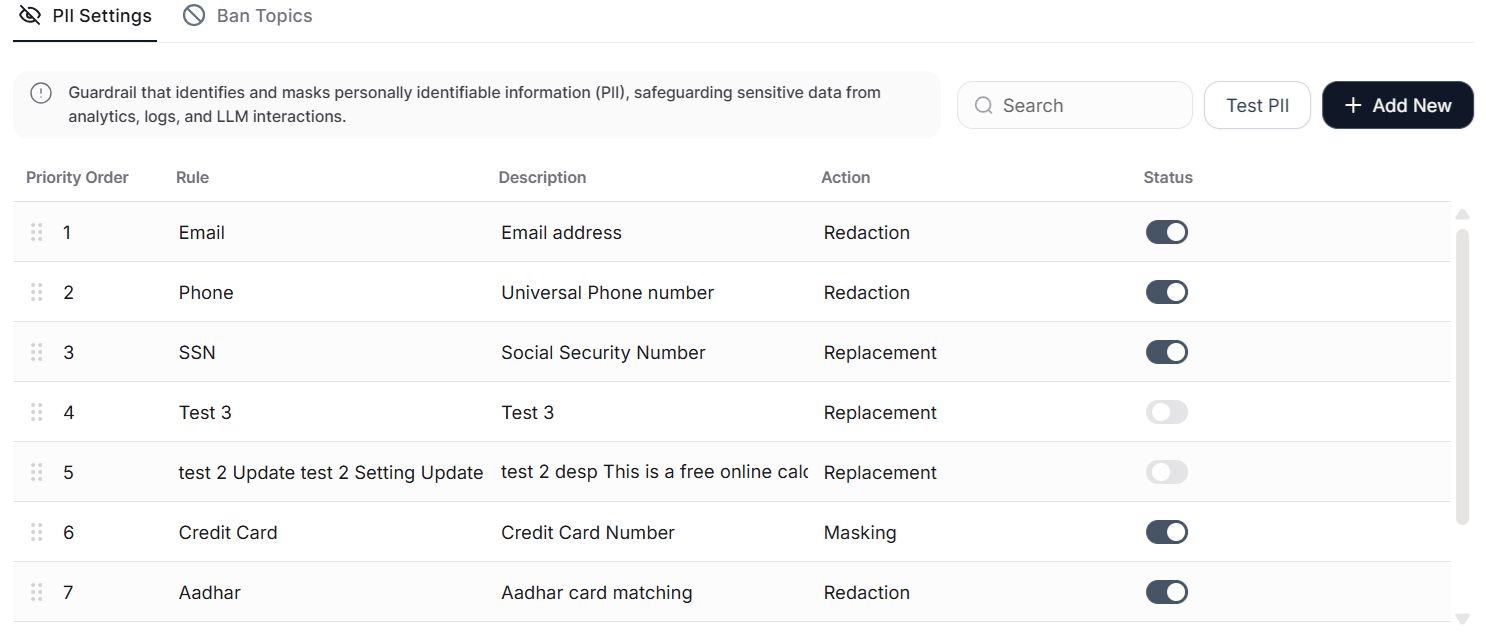
Add or Update a Rule
Create custom detection patterns using regular expressions:
Action types:
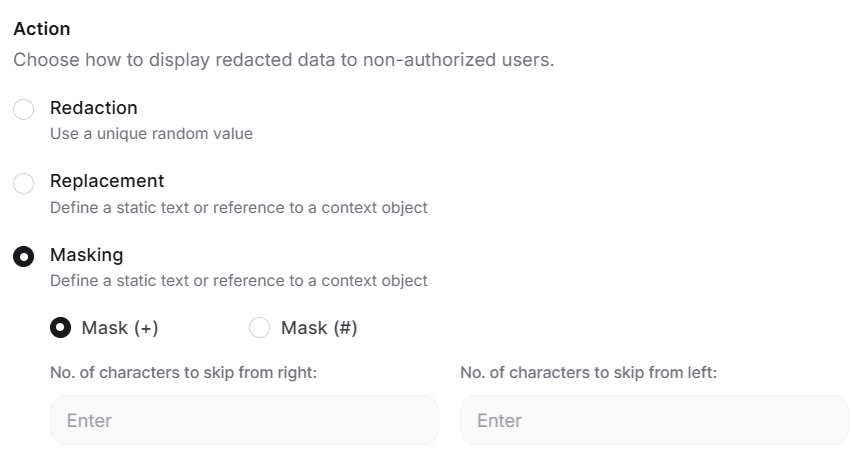
Ban Topics
Ban Topics prevents AI models from engaging with prohibited subjects by dynamically modifying input prompts in real time, ensuring consistent compliance across all AI interactions.Testing Suite
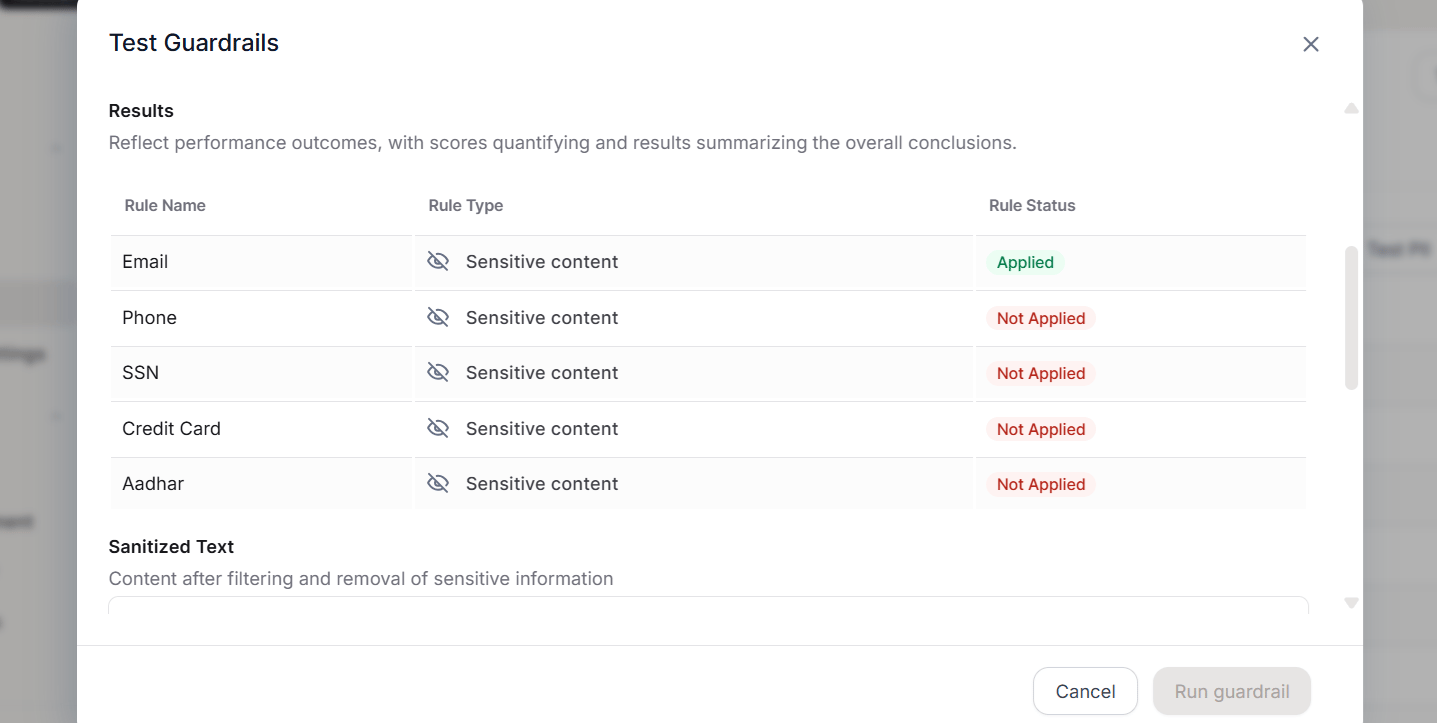
Validate guardrail configurations in an isolated environment before deploying them:- Run full or targeted validation of PII rules and banned topics.
- Use manual, AI-driven, or batch test inputs, including boundary condition testing.
- Analyze results by rule, impact status, processing duration, and output.
- Preview data sanitization visually.
MCP Server
The MCP Server feature lets administrators create and manage Model Context Protocol (MCP) servers that expose agents, prebuilt tools, and enterprise knowledge sources as tools. Administrators control which tools each server provides, how clients authenticate, and which users can access the server. MCP-compatible clients connect to a server through its unique URL to run tasks and orchestrate workflows. Navigation: Admin Console > Assistant Configurations > MCP Server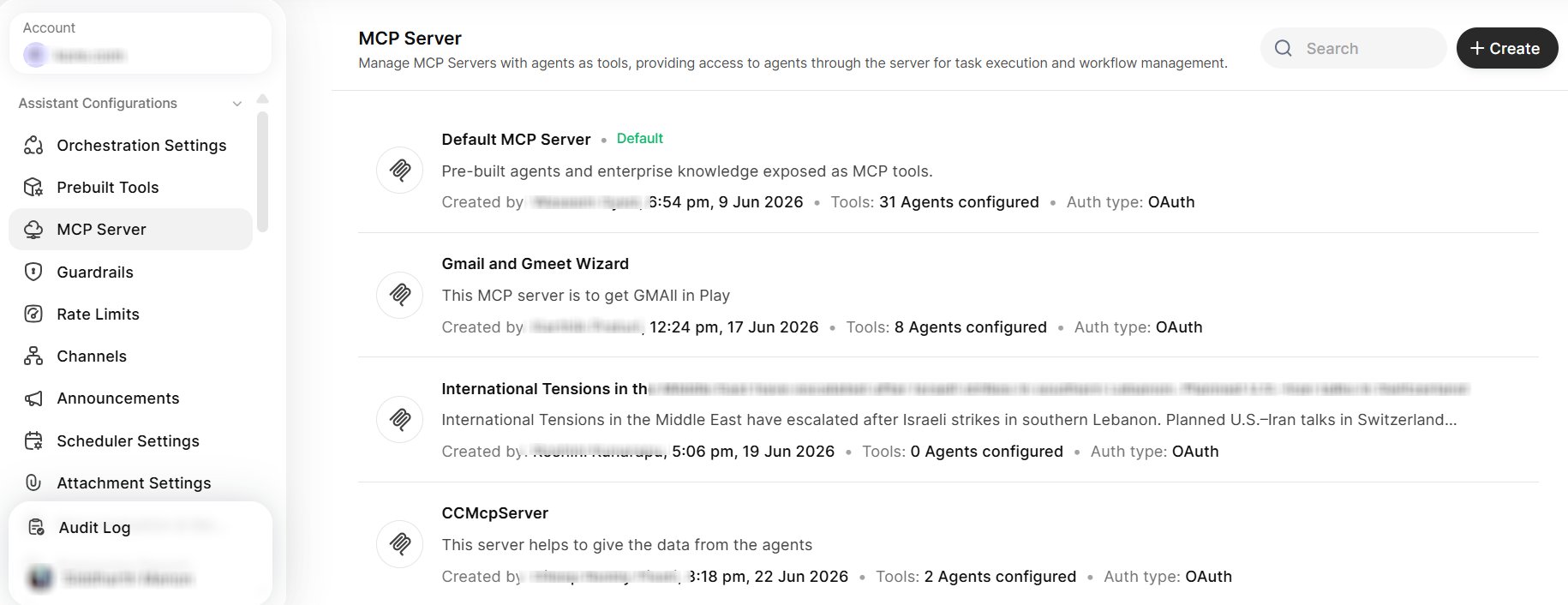
Server List
The MCP Server page lists every server in the account. Each server entry displays the creator, the creation date, the number of configured tools, and the authentication type. Use the Search box to find a server by name. Select Create to start the server creation wizard. The page includes a pre-provisioned Default MCP Server that the platform marks with a Default label.Default MCP Server
Every account includes a Default MCP Server that requires no setup and is ready on first access. The Default MCP Server exposes the account’s prebuilt agents and enterprise knowledge sources as MCP tools. The platform provides the server name, “Default MCP Server”, and the description, “Access your organization’s tools, agents, and knowledge sources directly from your AI assistant.” You cannot edit either field or delete the Default MCP Server.Create a Server
Select Create to open the server creation wizard. The wizard guides you through four steps: Details, Tools, Auth settings, and Access limits.Details
Enter a Server Name and a Description. Select Continue to create the server and generate its unique Remote MCP URL. The wizard displays this URL on the remaining steps, where you can copy it.Tools
Configure the tools that the server exposes. The Tools step has two sections: Prebuilt tools and Custom tools. Prebuilt tools The Prebuilt tools section lists every available prebuilt agent, such asM365 Email, Jira, Zendesk, and Slack. Each entry shows the number of tools the agent provides. Select an agent to expand it and view the individual tools, each with a description. Select or clear individual tools to control what the server exposes. Use the Search box to find a specific prebuilt tool.
Custom tools
The Custom tools section lists the custom agents that you add to the server. Work Orchestrator and Enterprise Knowledge Sources appear in this section by default when configured in the account, and remain unselected until you select them.
To add a custom tool:
- Select + Tool to open the Add agents panel. The panel lists agents across all workspaces in the account, along with the total agent count.
- Use the Search agent box to find an agent.
- Select one or more agents.
- Select Add.
Manage a server
You can edit or delete any server after you create it. Open a server to modify its details, tools, authentication method, or access limits. The edit and delete actions are not available for the Default MCP Server.
Rate Limits
Rate Limits control how many query points users consume over a configurable time window, helping manage system resources and usage. Navigation: Account Hub → Assistant Configurations → Rate Limits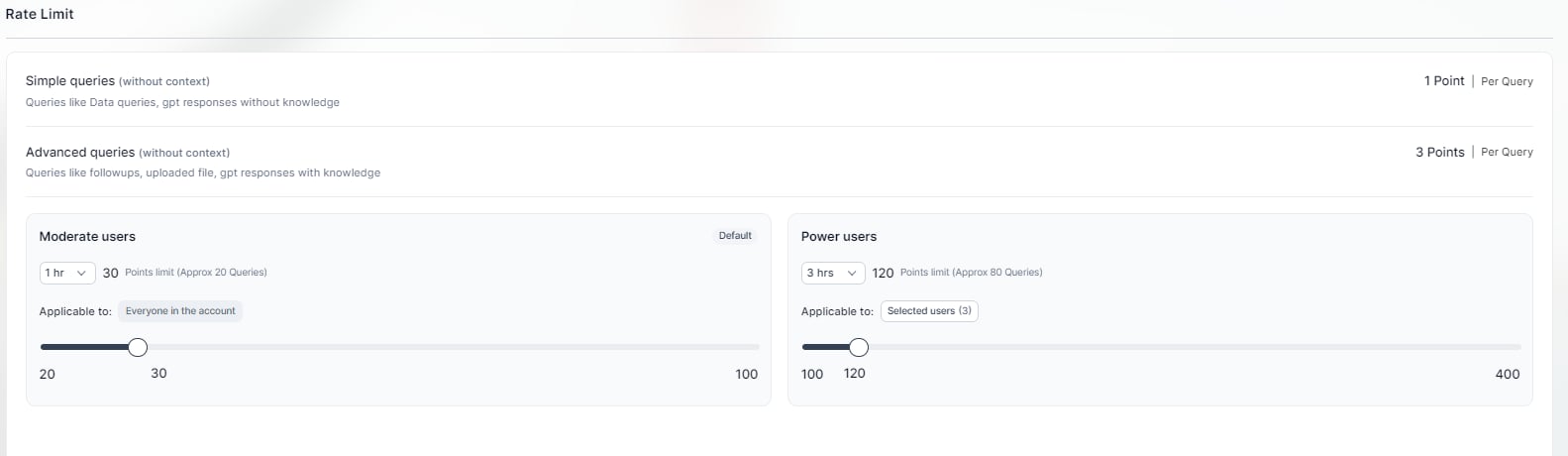
Point Consumption
User Categories
Admins can add users to, remove users from, or clear the entire Power User list.
Time Windows
Select the duration over which the platform tracks points:- 1 hour
- 3 hours
- 6 hours
- 12 hours
All queries — including small talk and interrupted queries — consume points. The platform does not count points if an error occurs while answering a query.
Scheduler Settings
Scheduler Settings lets administrators configure account-wide controls for automated agent execution, including availability, usage limits, and workspace permissions. Navigation: Account Hub → Assistant Configurations → Scheduler SettingsEnable Scheduler
Control whether users can access scheduling functionality for agents.Scheduling Limit per User
Set the maximum number of active schedulers each user can create simultaneously:- No Limit
- 5 schedulers
- 10 schedulers
- 20 schedulers
- 30 schedulers
Workspace Owner Permissions
When enabled, workspace owners can:- Add schedulers during the agent creation workflow.
- Publish agents with pre-configured schedules.
- Set schedulers to run automatically for all end users.
Language Settings
The platform supports the following languages:
Administrators can set a default language for the account. Users can override this selection from Settings > Language in the end-user application.
Attachment Settings
Attachment Settings let administrators control whether end users can upload file attachments in the compose bar and configure how the platform processes those attachments. Navigation: Account Hub → Assistant Configurations → Attachment SettingsEnable Uploading Attachments in Compose Bar
Use the Enable Uploading Attachments in Compose Bar toggle to control whether end users can upload files when asking queries.You can enable attachment uploads only if the platform has at least one configured LLM model. If no LLM model is available, the toggle remains disabled and the platform displays a banner prompting you to configure an LLM model first.
LLM Model Selection
When you enable attachment uploads, the platform displays an LLM model selection dropdown below the toggle.- The platform selects the default LLM model automatically.
- You can change the LLM model used for processing attachments at any time.
- Changes to the LLM model take effect immediately for all subsequent queries.
Allow Attachments Larger Than Model Context
A separate toggle controls whether end users can upload files that exceed the selected model’s context size.
When enabled, select one of the following RAG processing options:
Switching between RAG options or changing the embedding model removes all currently uploaded files across the account. The platform prompts you to confirm before applying the change.
Personalisation and Memory
Personalisation and Memory lets administrators configure the assistant’s ability to generate user memory and deliver personalized responses. Navigation: Admin Console > Assistant Configurations > Personalisation and Memory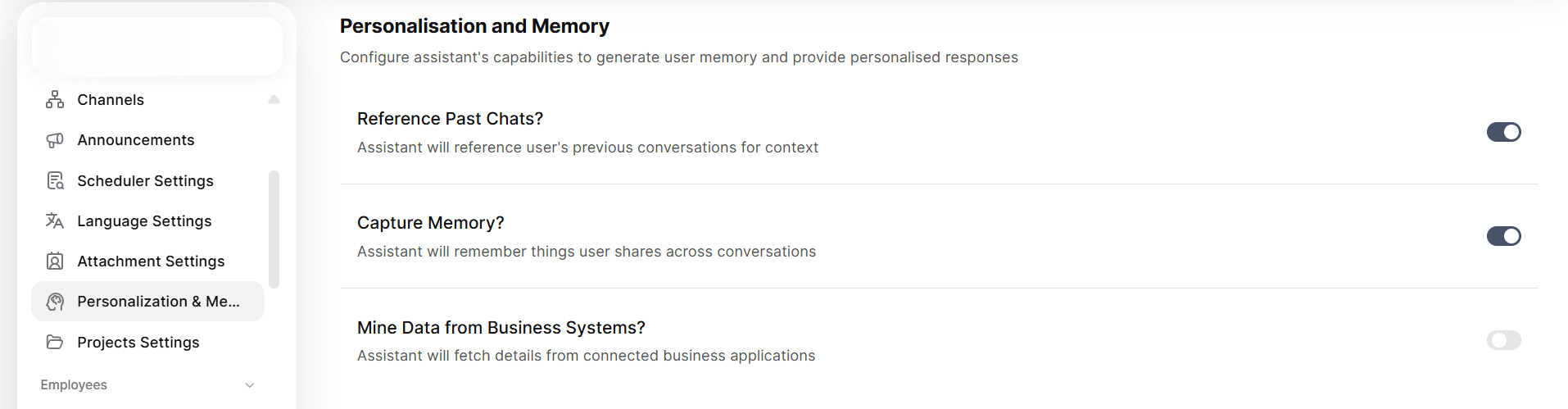
When an administrator turns on Capture Memory, all existing end users see a one-time pop-up notification in the AI for Work app confirming that memory is active. Any new user who receives access while memory is active also sees this notification on first login.
Turning off Capture Memory stops new memory generation but does not delete existing memories. Users can manage their stored memories from the Personalisation and Memory widget on their profile page.
Projects Settings
Projects Settings lets administrators configure project features, model selection, and RAG capabilities for project-based queries and file processing. Navigation: Account Hub → Assistant Configurations → Projects SettingsEnable Projects
Use the Enable Projects toggle to control whether users can create and manage projects.Model Selection
When you enable Projects, the platform displays a Model Selection dropdown.- The platform selects the default configured LLM model automatically.
- You can change the model used for processing project-based queries at any time.
- Models that support RAG display a Supports RAG label next to the model name.
RAG Configuration
RAG (Retrieval-Augmented Generation) allows the platform to query large attachments that exceed context limits and to execute queries on project content. Select one of the following RAG processing options:Switching between RAG options affects file processing across all projects in the account. The platform prompts you to confirm before applying the change.