

General Purpose LLMs
AI for Work integrates with OpenAI, Azure OpenAI, Google Gemini, Amazon Bedrock, and Anthropic out of the box, and supports custom models via API endpoint. All configurations are managed from the Admin Console.Supported Providers
Legacy OpenAI models (
gpt-4-turbo, gpt-4, gpt-3.5-turbo variants) support basic function calling only and do not support native tools such as RAG, web search, or code execution. gemini-2.0-flash and gemini-2.0-flash-lite are deprecating; migrate to gemini-2.5 or later models.Amazon Bedrock provides access to a wide range of foundation models from providers such as Anthropic, Meta, Mistral, Cohere, and AI21 Labs. The models listed above are recommended starting points. Additional Bedrock models can be integrated using their model IDs, but output quality may vary compared to models that have been tested and optimized for AI for Work workflows. Validate any unlisted model against your use case before deploying it to production.
Model Tiers
Select a tier based on task complexity and cost requirements.Tool Support by Provider
Different providers support different tool capabilities within AI for Work. Use this matrix to choose a provider that matches your use case. | Capability | OpenAI | Azure OpenAI | Gemini | Bedrock | Anthropic | |------------|--------|--------------|--------|---------| | Prompt-based LLM | ✓ | ✓ | ✓ | ✓ | ✓ | | Reasoning models | ✓ | ✓ | ✓ | ✓ | ✓ | | Native embeddings | ✓ | ✓ | ✓ | ✓ | N/A | | Managed vector DB | ✓ | N/A | N/A | N/A | N/A | | File search / RAG | ✓ | N/A | N/A | N/A | N/A | | Web search | ✓ (web_search) | ✓ (web_search) | ✓ (google_search) | N/A | N/A |
| Code execution | ✓ (code_interpreter) | N/A | N/A | N/A | N/A |
| Container execution | ✓ | N/A | N/A | N/A | N/A |
| File generation (docs, pdf, xlsx, zip) | ✓ | N/A | N/A | N/A | N/A |
Gemini models are also available through Vertex AI Express Mode with the same capability support.
Configuration
Pre-Built LLM
-
Go to Admin Console > Assist Configuration > General Purpose.
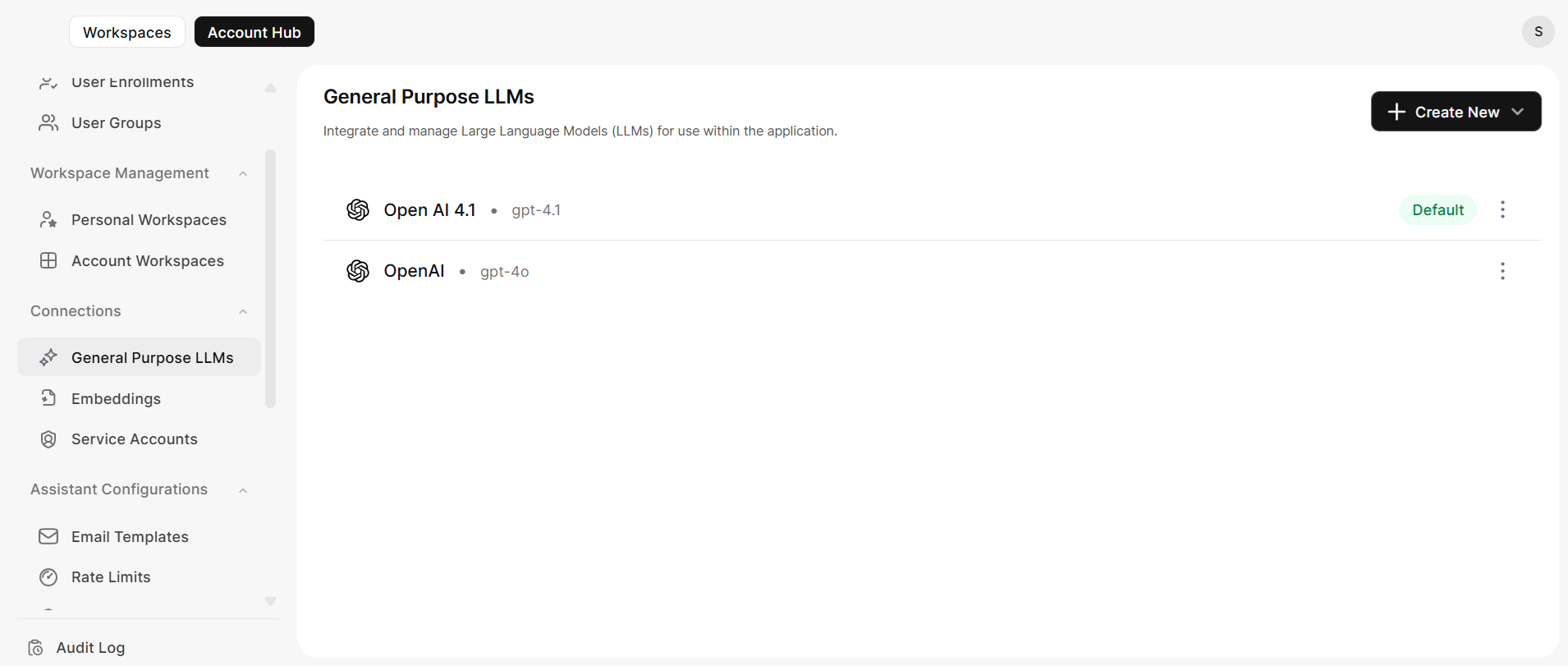
-
Click New and select a provider: OpenAI, Azure OpenAI, Google Gemini, Amazon Bedrock, or Anthropic.
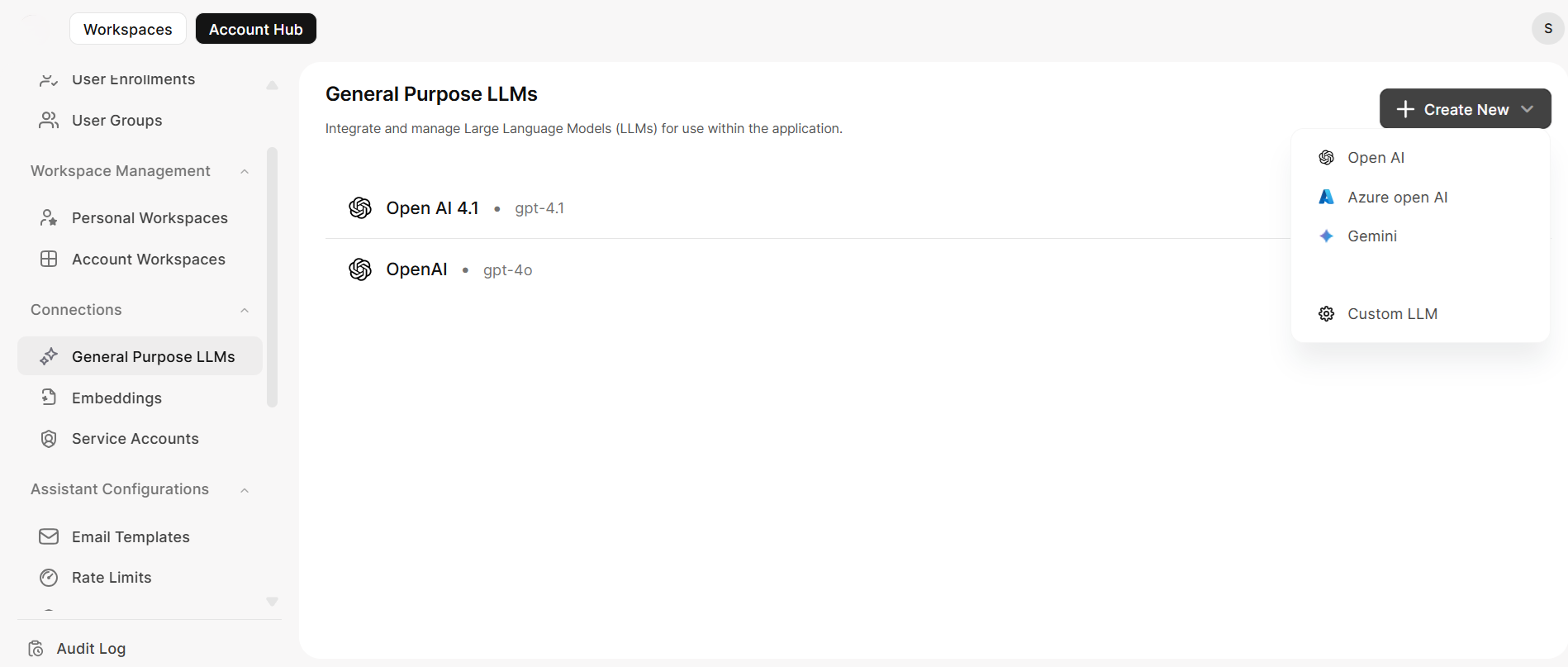
-
Enter the required details:
- Integration Name — A unique identifier (for example,
OpenAI-Production). - API Key — Your provider API key.
- Model Name — Select from the dropdown.
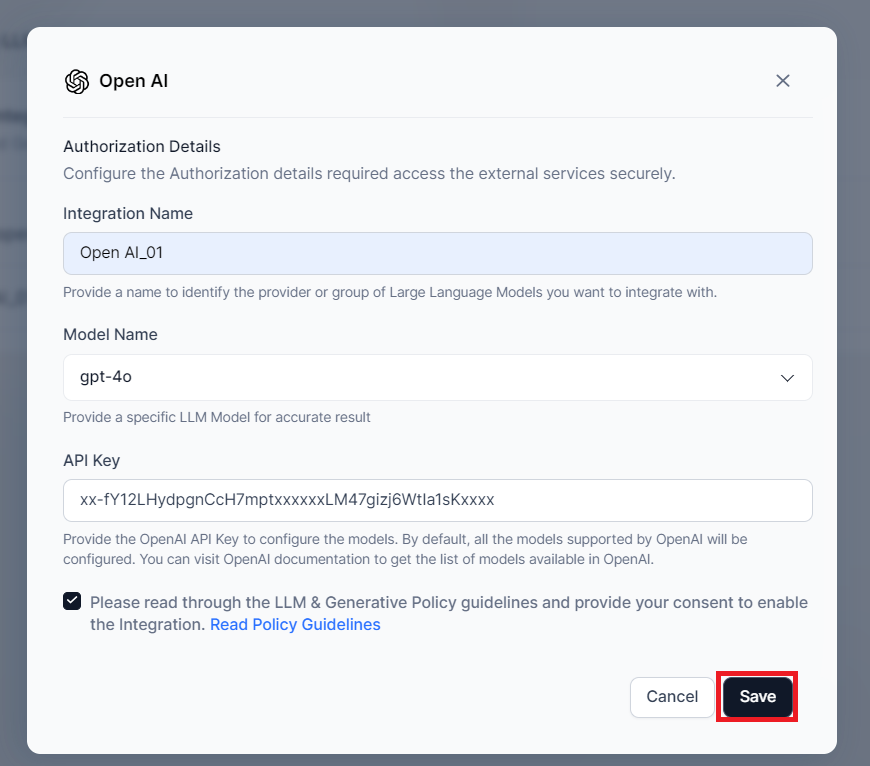
- Integration Name — A unique identifier (for example,
- Review and accept the Policy Guidelines, then click Save.
-
Confirm the integration appears as active in the General LLM Integrations list.
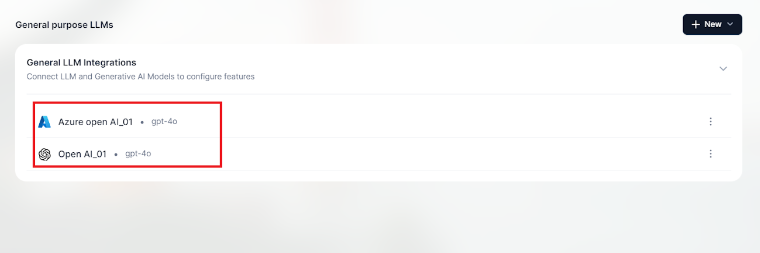
Custom LLM
Use this option for proprietary or self-hosted models exposed via API.- Go to Admin Console > Assist Configuration > General Purpose.
- Click New and select Custom LLM.
-
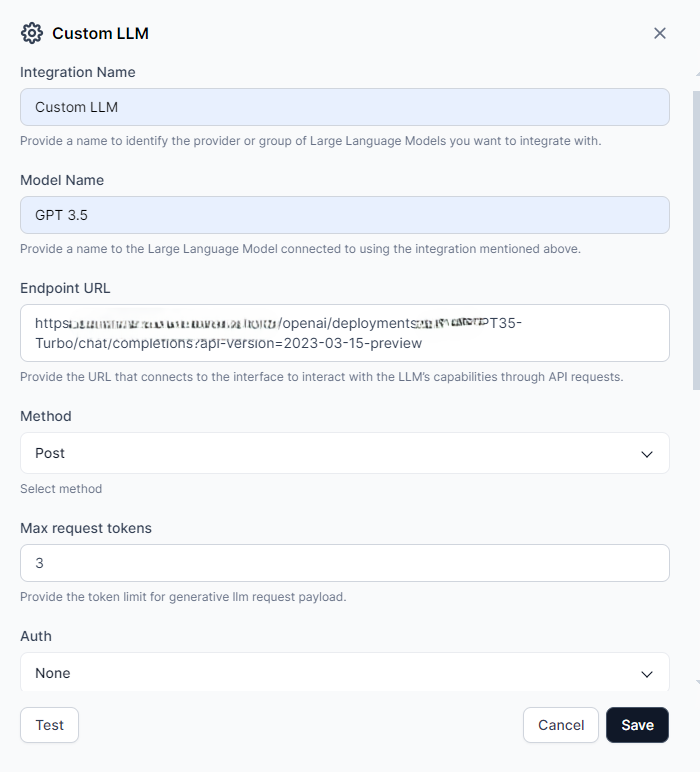
Enter the basic configuration:
- Integration Name — A descriptive name for this integration.
- Model Name — The model identifier.
- Endpoint URL — The full API URL where your model is hosted.
-
Configure API settings:
- Method — Select the HTTP method (typically
POST). - Max Request Tokens — Set a token limit to control cost and response size.
- Method — Select the HTTP method (typically
-
Set up authentication:
- Auth Type — Choose API Key, Bearer Token, or Custom Header.
- Enter the credentials required by your model.
-
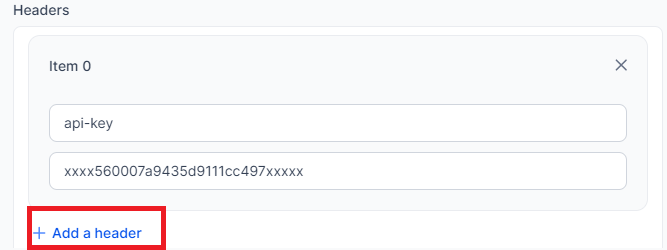
Add custom headers if required:
- Click + Add a Header and enter key-value pairs (for example,
Content-Type: application/json).
- Click + Add a Header and enter key-value pairs (for example,
-
Test the connection:
- Enter a sample payload and click Test.
- Success confirms connectivity; Error returns details to help you troubleshoot.
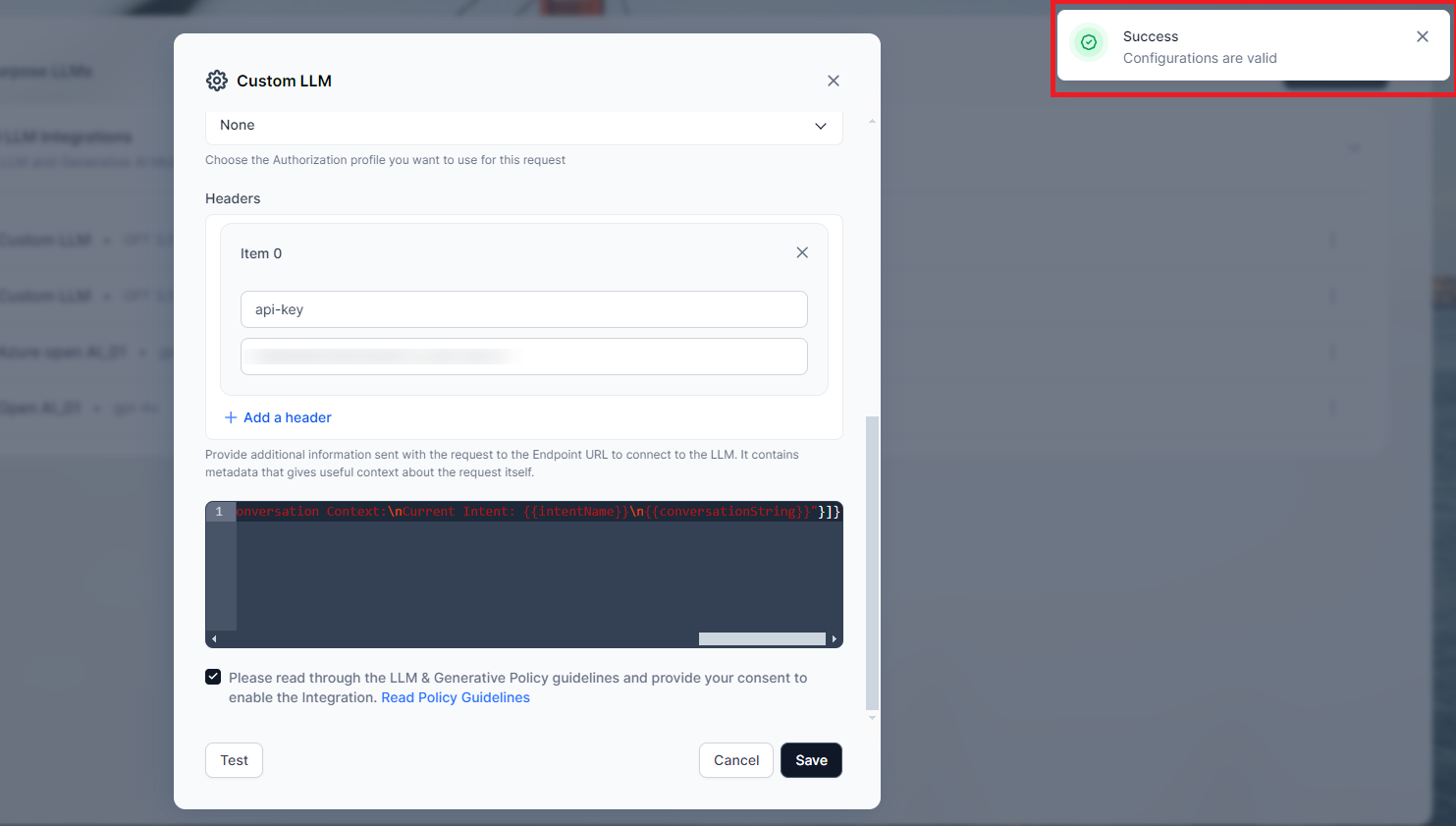
- Accept the Policy Guidelines and click Save.
- Confirm the integration appears as active in the General LLM Integrations list.
Model Parameters
Each LLM connection exposes a parameter configuration section, so you can tune model behavior per connection. The section applies to OpenAI, Azure OpenAI, Google Gemini, and Anthropic connections. Behavior- When you switch the model within a connection, the parameter section updates to reflect the new model’s supported parameters and valid ranges.
- Reset to Default restores a parameter, or all parameters, to the provider’s recommended defaults.
- The platform pre-populates default values based on the selected provider and model when you create a new connection.
Embedding Models
Embedding models convert text into vector representations, enabling semantic search, similarity matching, and other AI-powered features. Unlike keyword search, embeddings capture meaning and context, producing more intelligent results. Both pre-built and custom embedding models are supported.Embedding models are required for the attachments feature, which lets users attach files and ask questions about their content.
Known Limitations
Review the following boundaries before selecting a provider and configuring downstream features.- File generation quality varies across models Complex formatting, especially in PPT and multi-sheet XLSX output, is not guaranteed and depends on model capability and prompt design.
- RAG accuracy depends on chunking, embedding quality, and retrieval tuning Tasks that require whole-file processing (translation, full-document summarization) may produce weaker results with native provider RAG than with the Kore vector approach.
- Enterprise-grade security controls are provider-specific Configure Azure VNet rules, Google Cloud IAM, and API key rotation policies according to your organization’s requirements.
- Presentation (PPT) generation is not fully reliable across any currently supported provider.
- Complex Excel automation is limited Generated spreadsheets may require manual review for formulas, formatting, and cross-sheet references.
- Bedrock model quality is not uniformly validated Models accessed through Amazon Bedrock have not all been tested end-to-end with AI for Work. Performance on complex orchestration tasks, tool calling, and structured output may vary. Test thoroughly before production use.
Managing Integrations
View active integrations
All configured models appear in the General LLM Integrations list.Modify an integration
- Locate the integration in the General LLM Integrations list.
- Click the edit icon or the integration name.
- Update the required fields — API key, model version, headers, and so on.
- Test the connection, then click Save.
Remove an integration
- Locate the integration in the General LLM Integrations list.
- Click Delete or Deactivate.
- Confirm when prompted.
- Reconfigure any dependent features to use an alternative model.