Back to App Settings The XO Platform offers a Kerberos SPNEGO-based authentication mechanism for enterprise users to securely connect with their internal applications using the Kerberos SPNEGO security protocol. The Kerberos-SPNEGO authentication process includes multiple steps to establish a secure connection between a client and a server using the SPNEGO negotiation mechanism and the Kerberos authentication protocol. The combination of SPNEGO and Kerberos ensures a secure and efficient authentication process, enabling clients to access sensitive data securely. The Kerberos SPNEGO auth profile can be configured from the following XO Platform settings:

Configuring Kerberos SPNEGO Authorization

  1. Open the AI Agent for which you want to configure the Authorization profile.
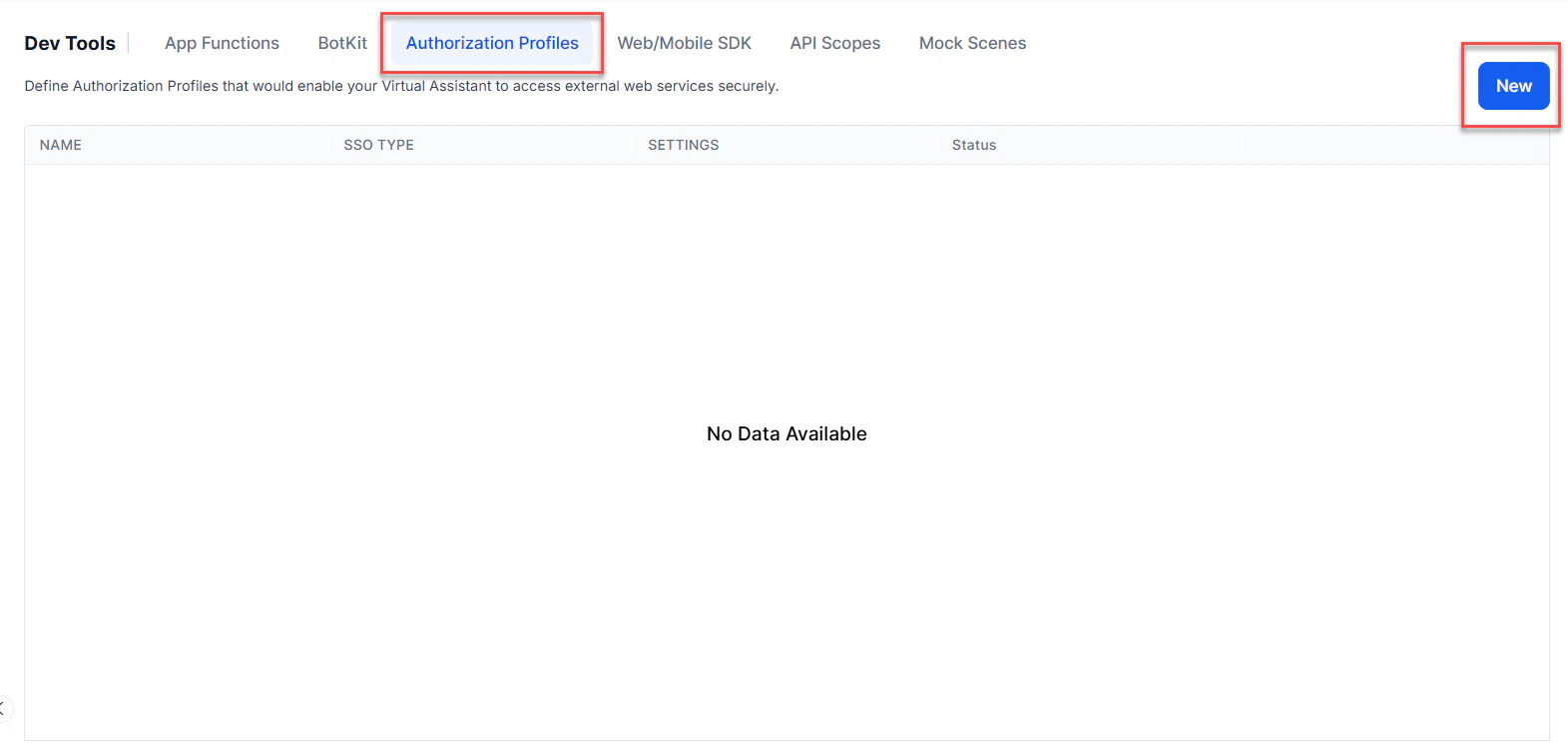
  2. Select the Build tab from the top menu.
  3. From the left-side vertical menus, click Configurations > Authorization Profiles.
  4. Click New to open the New Authorization Mechanism dialog. New Authorization Mechanism - Add
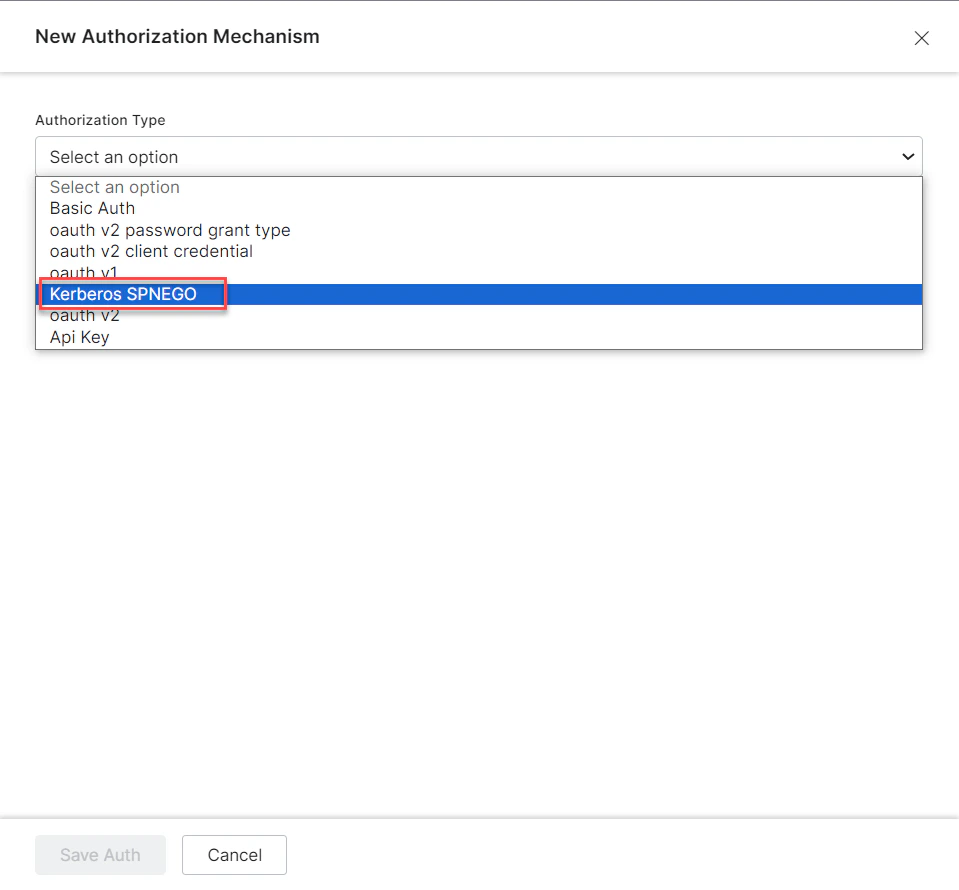
  5. In the Authorization Type drop-down list, select the Kerberos-SPNEGO option. Authorization Type - Kerberos-SPNEGO
  6. In the Name field, enter a name for the authorization type. Authorization Name
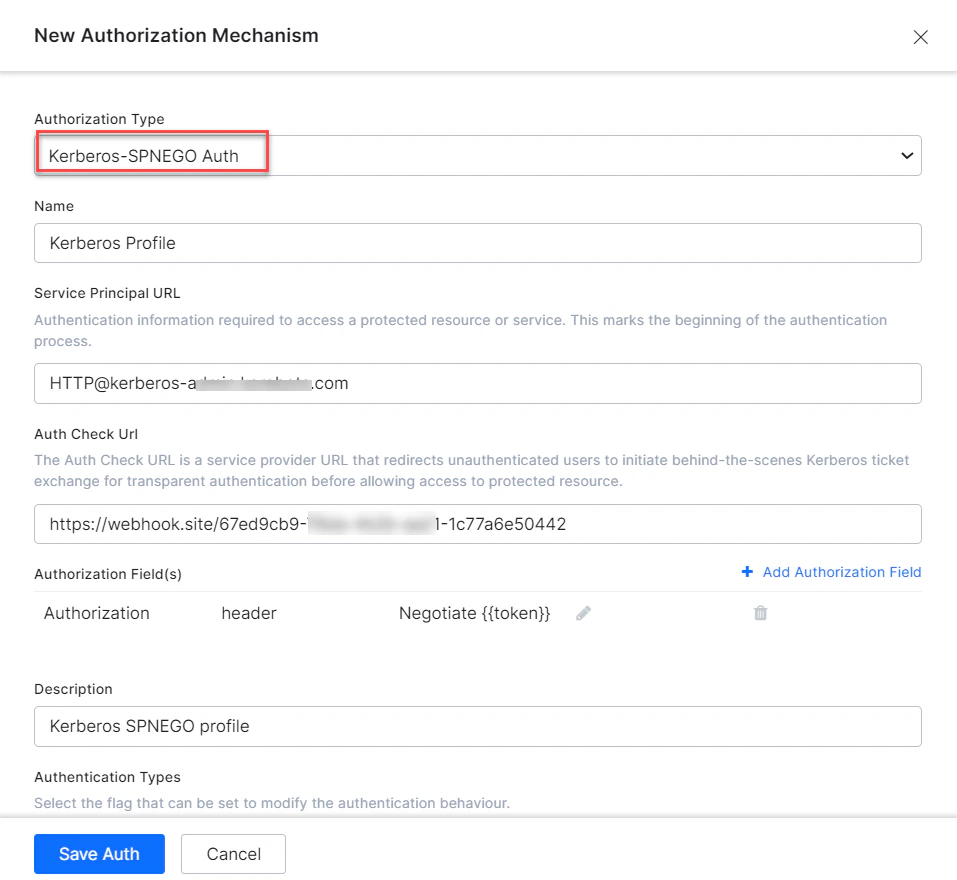
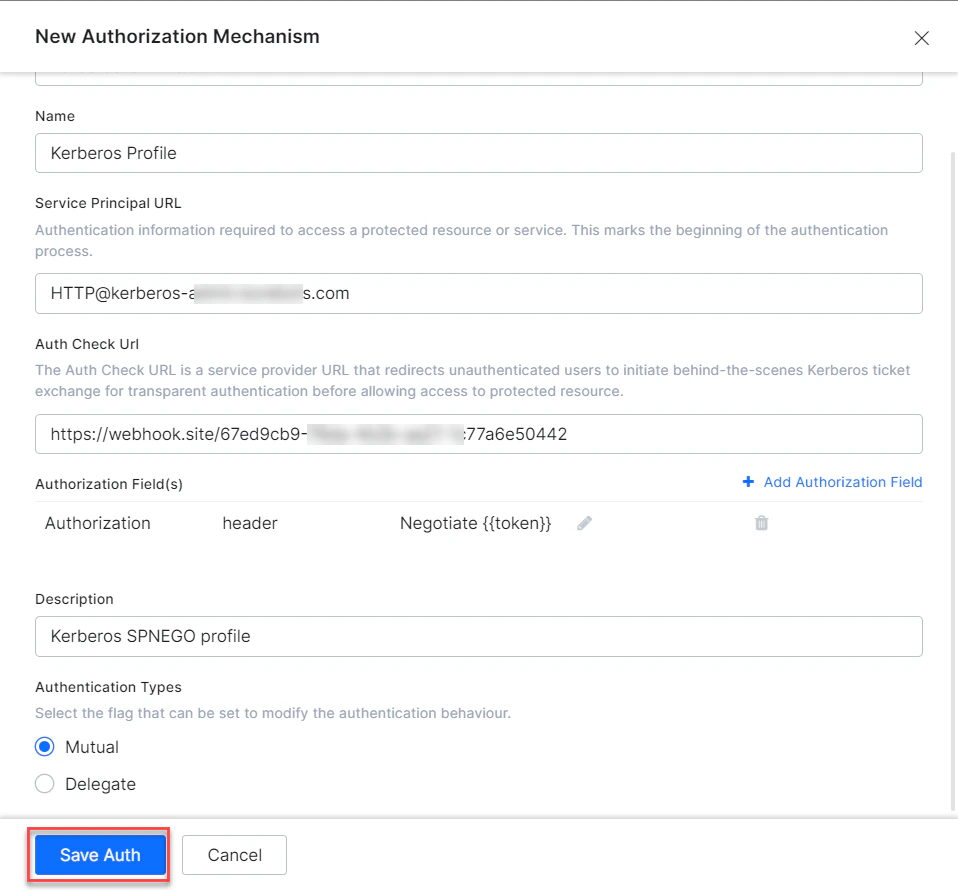
  7. Define the required Kerberos Authorization fields. For more information, see the Defining Authorization Fields section.
  8. (Optional) Click + Add Authorization Field to add additional fields for Kerberos authorization. For more information, see the Adding Authorization Fields section.
  9. Click Save Auth. Save Auth

Defining Authorization Fields

To configure the Kerberos SPNEGO authorization profile, define the fields described in the following table.
FIELD NAMEDESCRIPTIONRequired or Optional
Authorization TypeSet to Kerberos SPNEGO
NameThe name of the authorization profile or service, for example, Kerberos Profile.Required
Service Principal URLThe URL to access the Kerberos service and initiate the authentication process.Required
Authorization Check URLThe URL used to obtain end-user authorization for the XO Platform to access the web application or web service using the access token. The XO Platform accepts a valid URL with a maximum length of 3000 characters. You can use dynamic fields, path parameter fields, query fields, and so forth, for example: https://platform.example.com/sap/opu/odata/sap/{{authfield1}}/?$format=json or https://{tenant}.service-now.com/api/now/v1/table/incidentRequired
Authorization FieldsThe authorization fields for the token bearer.Optional
Refresh Token URLEnter a Refresh Token URL, if required, for cases when the authentication token expires and must be refreshed. The XO Platform accepts a valid URL with a maximum length of 3000 characters.Required
DescriptionEnter a description for your authorization.Optional
Authentication TypesApp designers can set this to modify the Kerberos authentication behavior. Choose one of the following: Mutual – Default. Ensures that both the client and the server authenticate each other during the Kerberos SPNEGO authentication process. Delegate – Also known as delegation or credential delegation. The client can pass its Kerberos credentials to the service, which can then use these credentials to authenticate to other services on behalf of the client.Required
For more information, see Using Session and Context Variables.

Adding Authorization Fields

Click + Add Authorization Field and enter one or more key/value pairs representing additional authorization input fields. If the default username and password fields do not meet your authorization input needs, add custom fields as key/value pairs displayed to the end-user. For example, add a PIN code field in addition to the Username and Password fields. Authorization fields added Specify the following fields:
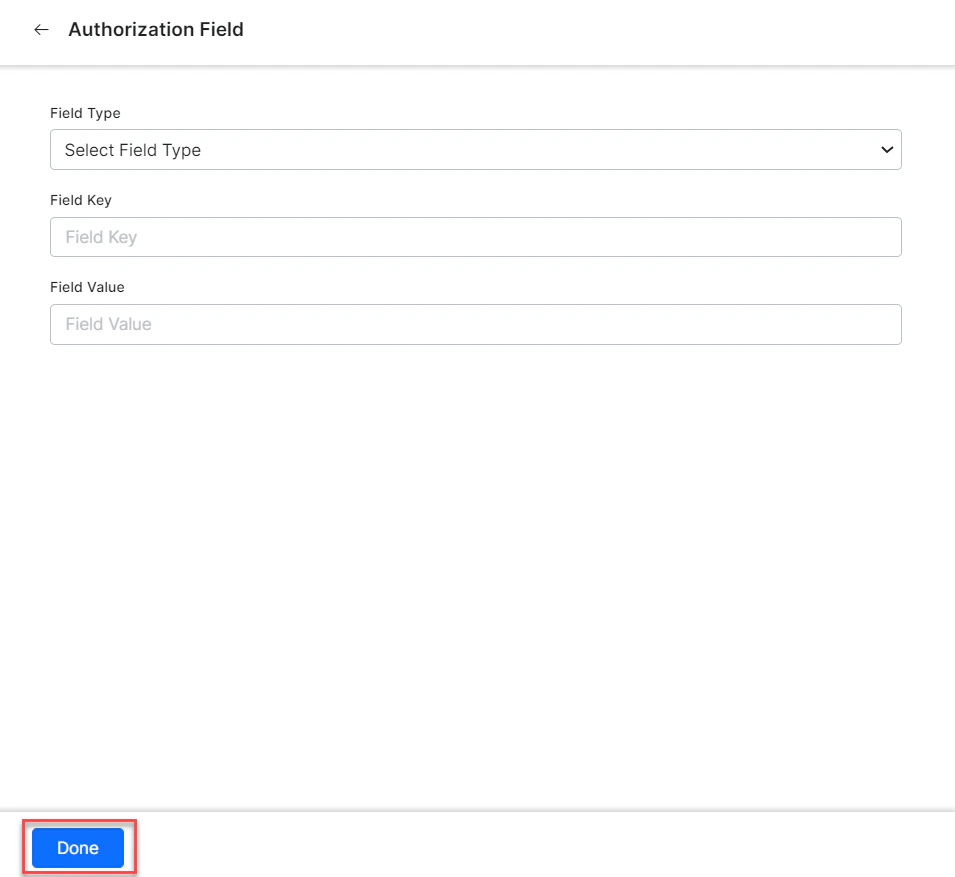
  • Field Type – The type of the custom field: Header, Payload, Query String, or Path Param.
  • Field Key – The name of the custom field.
  • Value – The value of the custom field.
Click Done to save the Additional Field.

Testing the Authorization

After saving the authentication, test your authorization definition on the Authentication page by clicking Test before continuing to develop the remaining steps of your task.
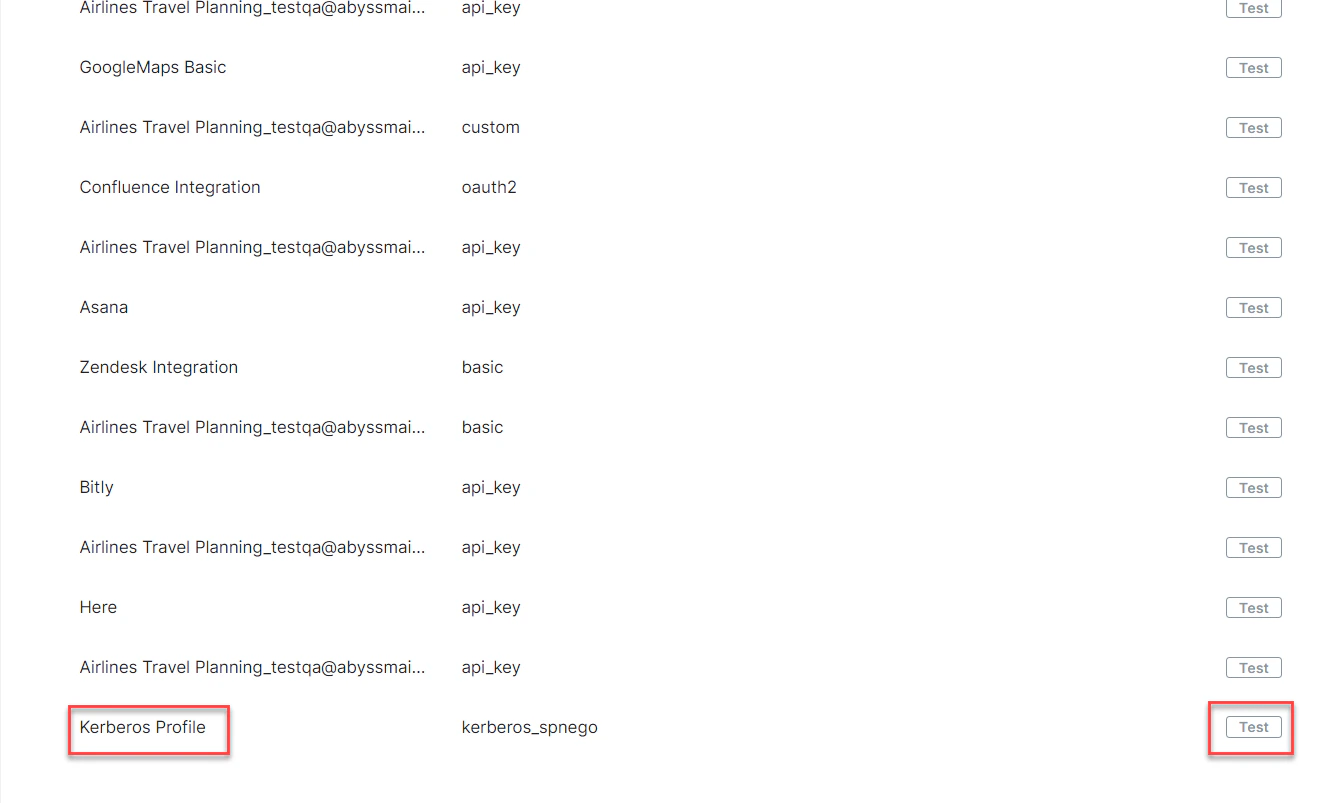
  1. Click the Test button in the Kerberos Auth Profile row to begin the authorization test. Begin the authorization test
  2. In the Test Authorization window, select the Content-Type and Method field values, then click Test. Select the Content-Type and Method field values and click Test
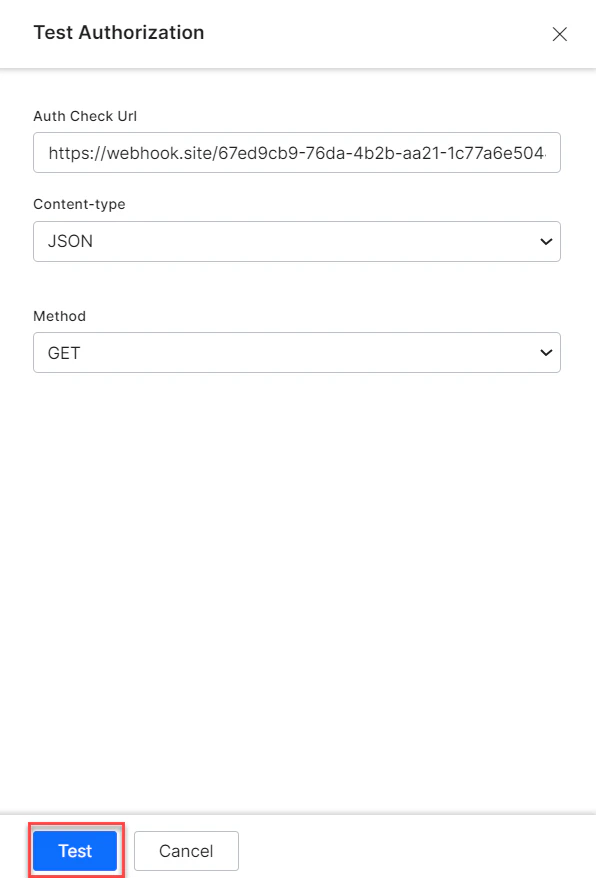
  3. When validation completes, the Test Authorization dialog closes and the results — either success or failure — are displayed to the right of the Test Authorization button. If the authorization fails, the Auth Test Failed message is displayed along with the Headers and Response tabs.