

Integration Options
| Option | Description |
|---|---|
| Pre-built Integrations | Direct connections to Azure OpenAI, OpenAI, Anthropic, Google Gemini, and Amazon Bedrock with out-of-the-box support and pre-configured prompt templates. |
| Custom LLM (BYO) | Connect any externally hosted or enterprise-hosted model. Works with the Platform’s Auth Profiles module so you can use your preferred authentication mechanism. |
| Kore.ai XO GPT | Fine-tuned models for enterprise conversational AI—includes conversation summarization, query rephrasing, and dialog orchestration. |
Authorization
Authorization establishes a secure connection between the Platform and your LLM provider. Each provider requires different credentials.| Provider | Required Fields | Notes |
|---|---|---|
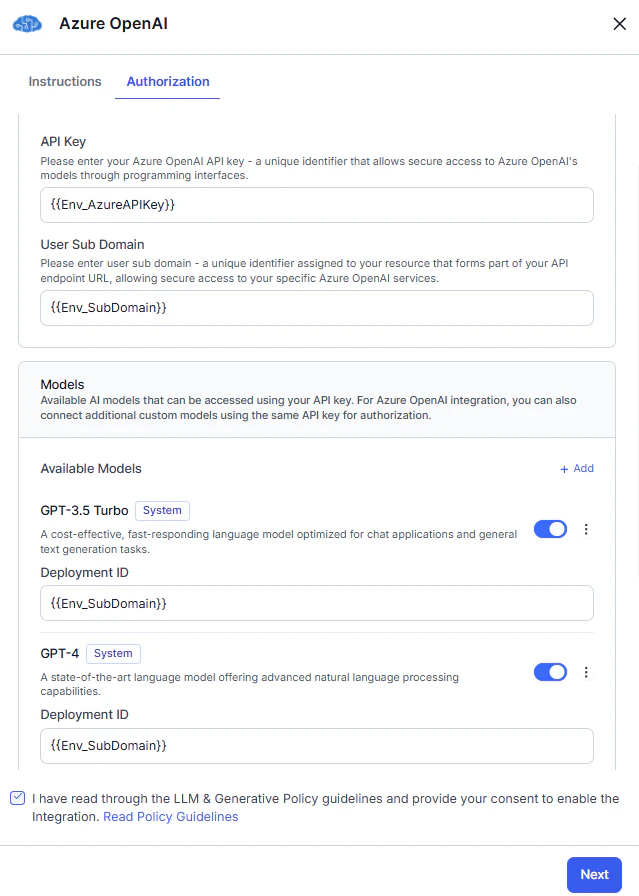
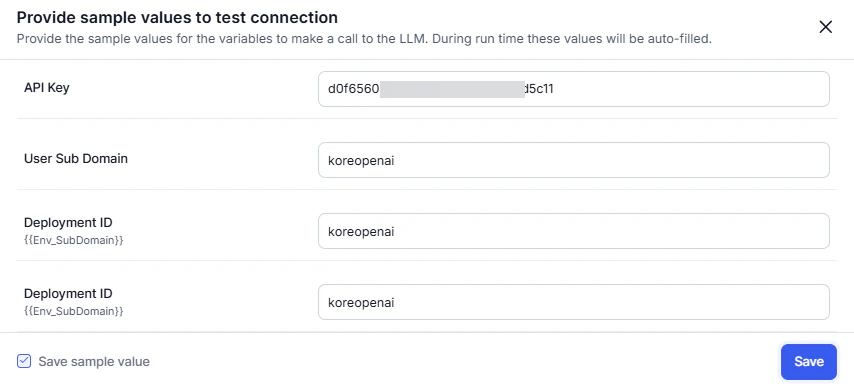
| Azure OpenAI | API Key, Sub-Domain, Deployment ID | API Key authenticates your account; Sub-Domain identifies your Azure resource endpoint; Deployment ID specifies the deployed model. |
| OpenAI | API Key | Authenticates your OpenAI account. |
| Anthropic | API Key | Authenticates your Anthropic account. |
| Amazon Bedrock | Access Key ID, Secret Access Key, Region, Model ID | Access keys authenticate your AWS account; Region identifies the service region; Model ID specifies the Bedrock model. |
| Google Gemini | API Key | Authenticates your Google Gemini account and grants access to models. |
| Custom LLM | Endpoint, Authorization, Headers | Endpoint is the API URL; Authorization defines the authentication method or credentials; Headers are additional key-value pairs. |
Dynamic Variables
Use variables instead of static credential values to keep secrets secure and reusable across environments. The Platform substitutes actual values at runtime, preventing exposure of sensitive information and simplifying credential updates. Benefits:- Prevent API key exposure by using secure environment variables.
- Simplify key rotation—update variables in one place without reconfiguring integrations.
Set up all required variables before configuring the LLM. See App Variables.
Variable access by feature type:The following fields support variables per provider:
- Runtime features: content and environment variables.
- Designtime features: content, context, and environment variables.
| Provider | Variable-Supported Fields |
|---|---|
| Azure OpenAI | API Key, Sub-Domain, Model Deployment IDs |
| OpenAI | API Key |
| Anthropic | API Key |
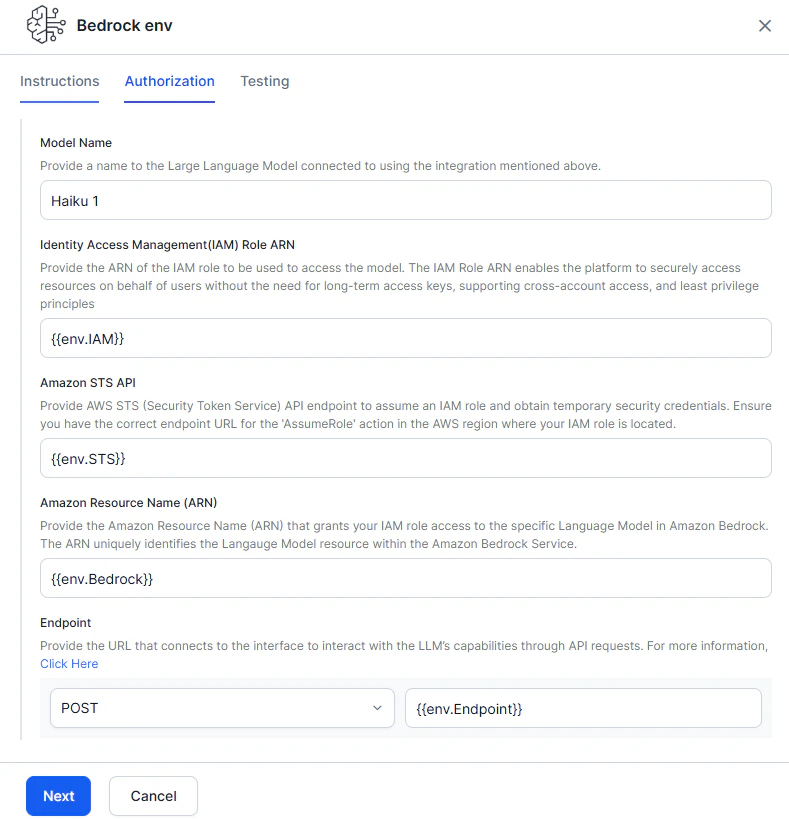
| Amazon Bedrock | IAM Role ARN, Amazon STS API, Amazon Resource Name (ARN), Endpoint, Headers (optional) |
| Google Gemini | API Key |
| Custom LLM | Endpoint, Authorization, Headers |
Configure Pre-built Integrations
Pre-built integrations provide direct connections to leading AI providers using pre-configured APIs and prompt templates. You can use default prompts or create custom ones.The Platform supports Azure OpenAI and OpenAI integrations for the Chat Completions API only. To use the Responses API, configure a Custom LLM.
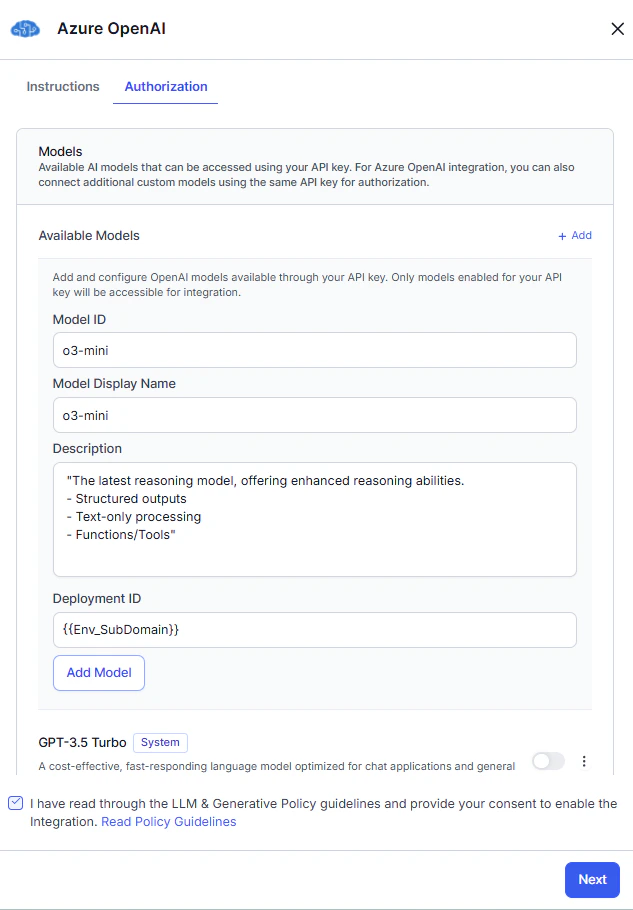
The Platform regularly integrates new models from providers. To use a model not yet available as a pre-built integration, see Add a New Model to a Pre-built Integration.
Azure OpenAI
Azure OpenAI is an out-of-the-box (OOB) integration. You can authorize all models using variables and add models to the OOB integration. For models, you must use custom prompts—the Platform doesn’t provide system prompts or templates. Steps:- Go to Generative AI Tools > Models Library > Configure Now for Azure OpenAI, then click Next.
- Complete Authorization.
- In the Models section, toggle on the required model and enter the Deployment ID.
- (Optional) Click +Add to add a new model.
- Read the Policy Guidelines, select the checkbox, and click Save.
- In the Connection Status pop-up:
- Successful: click Next.
- Failed: hover over the warning icon to view the error. Click Cancel to update details, or Next to save the failed configuration.
- (Optional) Enable Token Usage Limit to track usage. You can set this later from the More options menu.
- Click Save > Confirm & Save. The model appears in the Models Library.
OpenAI
OpenAI is an out-of-the-box (OOB) integration. You can authorize all models using variables and add models to the OOB integration. For models, you must use custom prompts. Steps:- Go to Generative AI Tools > Models Library > Configure Now for OpenAI, then click Next.
- Complete Authorization.
- (Optional) Click +Add to add a new model.
- Read the Policy Guidelines, select the checkbox, and click Save.
- In the Connection Status pop-up:
- Successful: click Next.
- Failed: hover over the warning icon to view the error. Click Cancel to update details, or Next to save the failed configuration.
- (Optional) Enable Token Usage Limit to track usage. You can set this later from the More options menu.
- Click Save > Confirm & Save. The model appears in the Models Library.
Anthropic
Anthropic is an out-of-the-box (OOB) integration. You can authorize models using variables. The Platform doesn’t provide system prompts or templates—you must use custom prompts.The current implementation doesn’t support streaming responses for Claude models.
- Go to Generative AI Tools > Models Library > Configure Now for Anthropic, then click Next.
- Complete Authorization.
- In the Models section, toggle the required model on.
- (Optional) click +Add to add a new model.
- Read the Policy Guidelines, select the checkbox, and click Save.
- In the Connection Status pop-up:
- Successful: click Next.
- Failed: hover over the warning icon to view the error. Click Cancel to update details, or Next to save the failed configuration.
- (Optional) Enable Token Usage Limit to track usage. You can set this later from the More options menu.
- Click Save > Confirm & Save. The model appears in the Models Library.
Amazon Bedrock
Amazon Bedrock is an out-of-the-box (OOB) integration. The Platform doesn’t provide system prompts or templates—you must use custom prompts. Setup requires two phases: configuring your AWS account, then configuring the integration in the Platform.Phase A: Configure Your AWS Account
Prerequisites: Ensure you have the necessary IAM permissions in your AWS account. See Policies and Permissions in AWS IAM. 1. Create an IAM Role Create an IAM role that grants the Platform access to invoke Amazon Bedrock models. See AWS IAM role creation and IAM policy examples for Bedrock. Example IAM policy:<kore-arn> with the AWS account ID provided by the Platform.
For private/on-premises deployments, the trust policy must point to your internal AWS IAM role.
Phase B: Register Your IAM Role with Kore.ai
After creating the IAM role, raise a support ticket with Kore.ai to add your IAM Role ARN to the Platform’s trust policy. This enables the Platform to assume your role and invoke Bedrock.- Raise a support ticket with your IAM Role ARN.
- Wait for confirmation that the role has been registered.
Without this step, the Platform can’t assume your IAM role. Both your AWS account and Kore.ai’s environment must explicitly trust each other for cross-account access.
Configure the Integration
Steps:- Go to Generative AI Tools > Models Library > Configure Now for Amazon Bedrock.
-
On the Authorization tab, enter the following:
Field Description Provider Name A name to identify the provider or group of models. Model Name A unique name for the language model. IAM Role ARN Enables the Platform to securely access resources without long-term access keys. Amazon STS API The AssumeRole API endpoint for the AWS region where your IAM role resides. Used to generate temporary credentials. Amazon Resource Name (ARN) The Bedrock ARN that grants your IAM role access to the specific model. Endpoint The URL to interact with the model’s API. Headers (optional) Additional metadata headers for the model API. 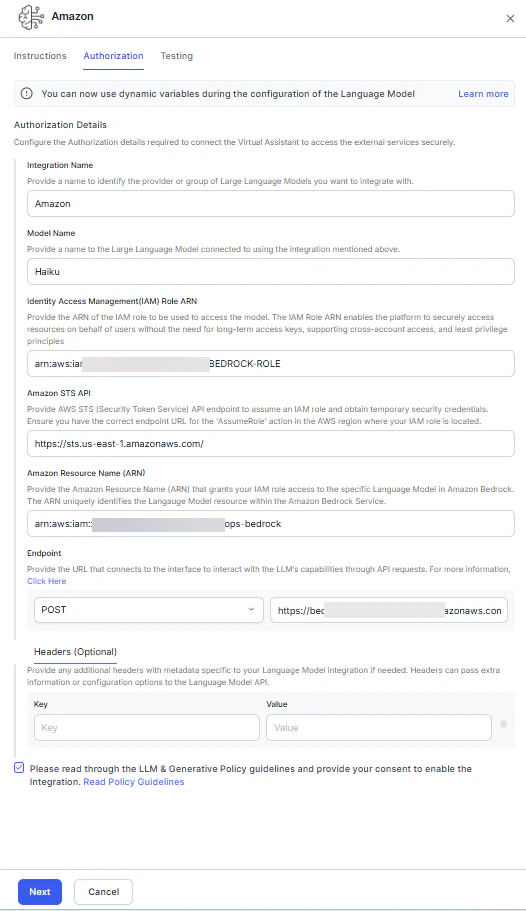
- Read the Policy Guidelines, select the checkbox, and click Next.
-
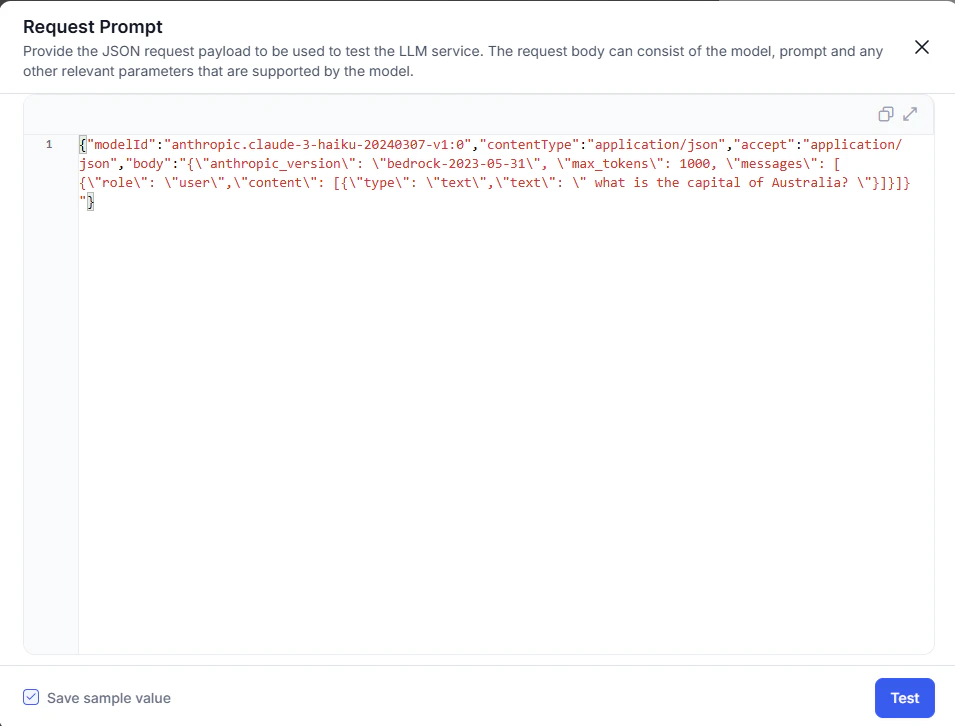
In the request prompt pop-up, enter the test payload and click Test. Use the checkbox to save the payload.
-
In the Connection Status pop-up:
- Successful: click Next.
- Failed: hover over the warning icon to view the error. Click Cancel to update details, or Next to save the failed configuration.
- (Optional) Enable Token Usage Limit to track usage. You can set this later from the More options menu.
- Click Save > Confirm & Save. The model appears in the Models Library.
Google Gemini
The Platform supports Google Gemini as an out-of-the-box (OOB) integration, allowing platform users to access Google Gemini models directly within the Platform. You can authorize all models using variables and integrate language models into the OOB integration. While Google Gemini is available as an OOB integration, the Platform doesn’t provide any system prompts or templates. Users can only use the model with the help of custom prompts. Steps to configure a Google Gemini:- Navigate to Generative AI Tools > Models Library > Configure Now for Google Gemini, then click Next.
- Complete the Authorization.
- For the model section, enable the toggle on the required model.
- (Optional) In the model section, click +Add to configure Provider’s New LLM.
- Read the Policy Guidelines, select the checkbox, and click Save.
- The Connection Status pop-up is displayed. a. If a connection is successful, click Next. b. If it fails, hover over the warning icon to review the error. Click Cancel to update the details or Next to save the failed configuration.
- Enable Token Usage Limit toggle to track LLM Usage Limit. You can set the limit later from the More options menu. This step is optional.
- Click Save. The confirmation pop-up is displayed.
- Click Confirm & Save. The configured model is listed in the Models Library. The next step is to enable GenAI Features.
Add a New Model to a Pre-built Integration
This feature is available only for Automation AI and Search AI.
- Immediate access to models.
- Custom prompt support from day one.
- Maintains platform security and authentication standards.
- Model ID: assigned by the LLM provider.
- Model Display Name: user-defined; used across the Platform after integration is enabled.
Configure Custom LLM Integration
The Platform supports bring-your-own (BYO) model integrations with any externally hosted or enterprise-hosted LLM. You can create custom prompts optimized for your model and use case. This framework works with the Platform’s Auth Profiles module.The Platform offers generative AI features for English and non-English NLU and AI Agent languages.
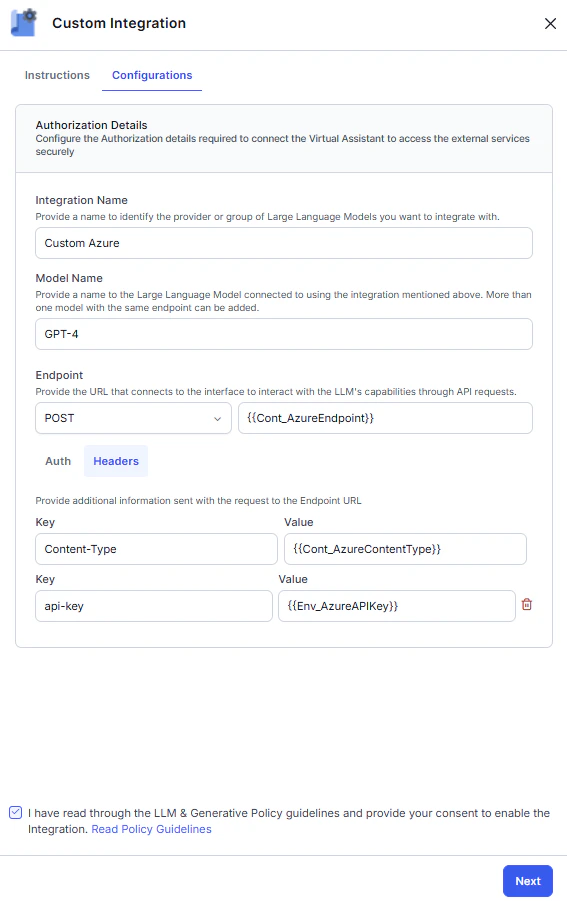
- Go to Generative AI Tools > Models Library > Configure Now for Custom LLM.
-
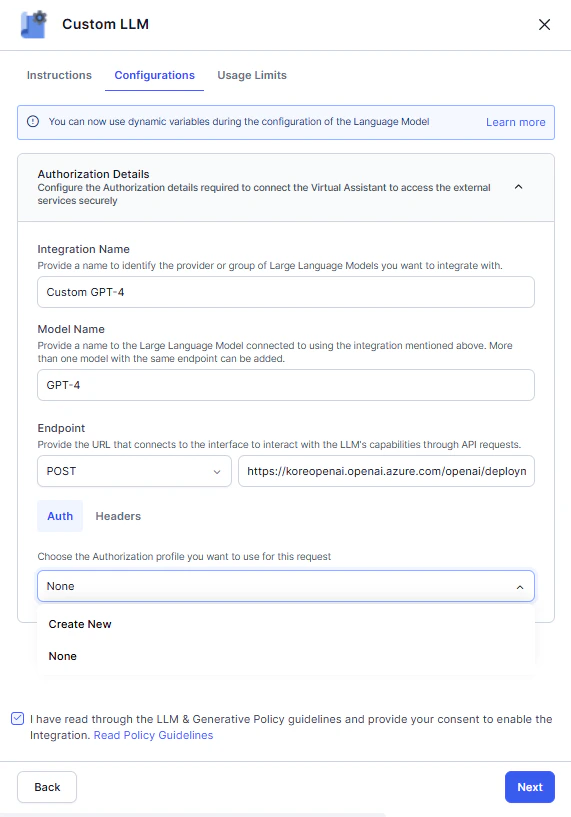
On the Configuration tab, enter the Integration Name, Model Name, Endpoint, and Headers.
-
On the Auth tab, select an existing authorization profile or create a new one. See App Authorization Overview.
OAuthv2.0 and Kerberos SPNEGO auth profiles are supported for Custom LLM integration.
- Read the Policy Guidelines, select the checkbox, and click Next.
-
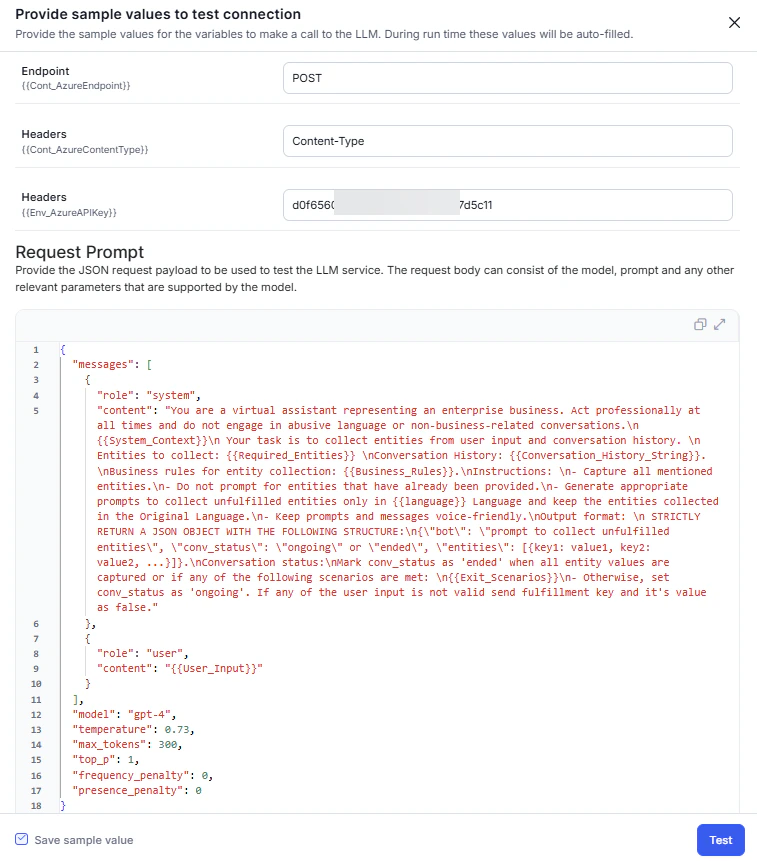
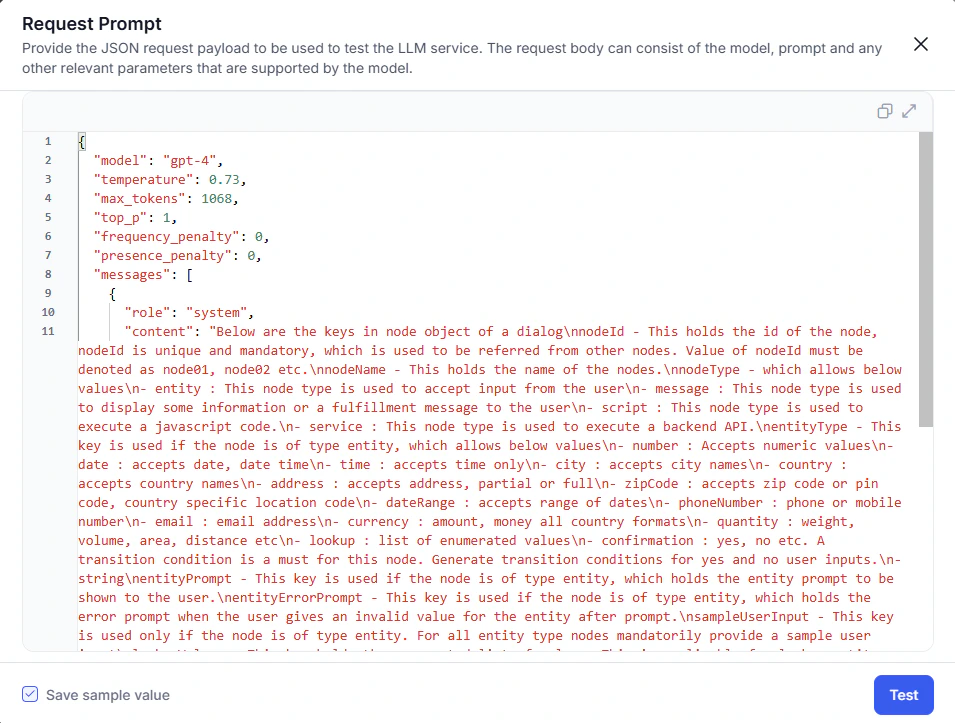
In the request prompt pop-up, enter the test payload and click Next to check the connection. Use the checkbox to save the payload.
-
In the Connection Status pop-up:
- Successful: click Next.
- Failed: hover over the warning icon to view the error. Click Cancel to update details, or Next to save the failed configuration.
- (Optional) Enable Token Usage Limit to track usage. You can set this later from the More options menu.
- Click Save > Confirm & Save. The model appears in the Models Library.
Configure Kore.ai XO GPT
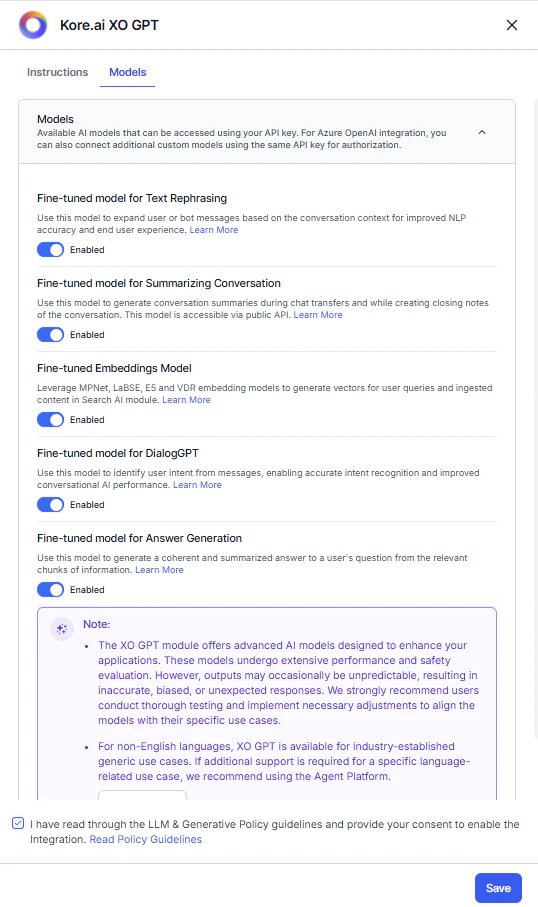
Kore.ai XO GPT provides fine-tuned LLMs optimized for enterprise conversational AI. Capabilities include conversation summarization, user query rephrasing, vector generation, answer generation, and DialogGPT conversation orchestration. These models are evaluated for accuracy, safety, and production readiness. Steps:- Go to Generative AI Tools > Models Library.
- Click Enable Now for Kore.ai XO GPT.
-
On the Models tab, toggle on the required models.
- Read the Policy Guidelines, select the checkbox, and click Save.
- The success message confirms configuration. XO GPT is listed in the Models Library.
Manage Token Usage
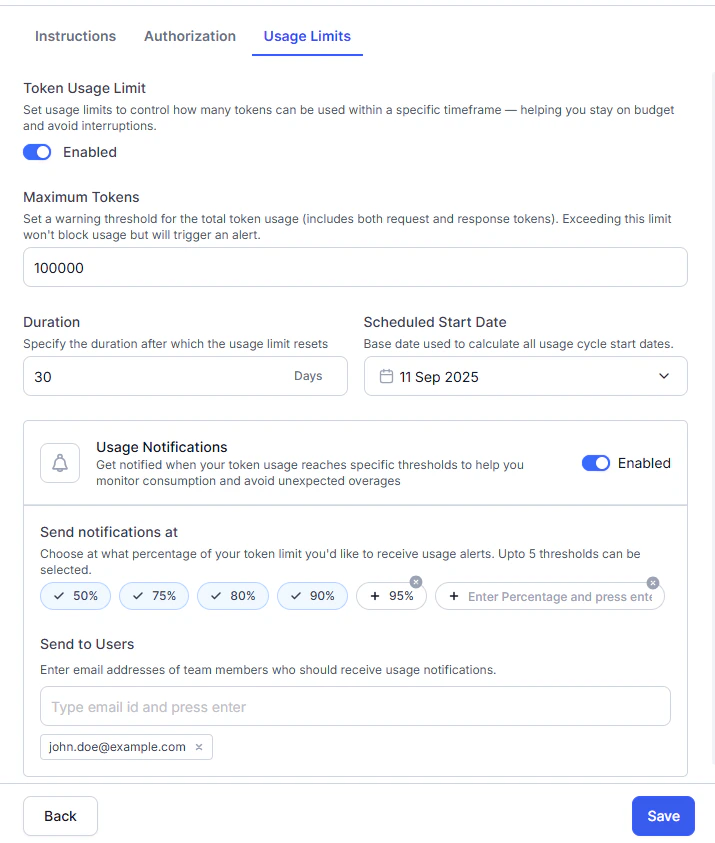
Token usage tracking gives you visibility into LLM consumption and performance across AI for Service. Track consumption, request volume, and median latency by module, model, and feature. Detailed breakdowns are available in Performance Analytics. Data collection:- Pre-built models (OpenAI, Azure OpenAI, Anthropic): the Platform captures usage data automatically, regardless of prompts used.
- Custom models, Amazon Bedrock, and Google Gemini models: you must map Request and Response Token Keys in custom prompts to enable tracking. Without this mapping, usage is unmonitored and costs may be unexpected.
| Field | Description |
|---|---|
| Maximum Tokens | Token usage limit for notification purposes. Exceeding this limit triggers an alert but doesn’t block usage. |
| Duration | Number of days before the token limit resets automatically. Maximum: 90 days. |
| Schedule Start Date | Start date for the usage cycle. |
| Field | Description |
|---|---|
| Usage Notification | Toggle on to receive alerts when usage reaches the threshold. |
| Send Notification at | Threshold percentage (predefined or custom). Maximum 5 alerts. |
| Send to Users | Email addresses of users to receive alert emails. |
Reset or Delete an Integration
If you no longer need a configured LLM, you can remove it using the Reset Configuration (pre-built) or Delete (custom) option. What happens when you reset or delete:- Removes all integration details (keys, endpoints, deployment names, etc.).
- Removes the model from the selection list for all LLM features and disables those features. You can select another configured model.
- Deletes all related prompts and responses.
This change affects only the in-development copy of the app. Changes apply to the published version when you next publish the app with NLP configurations.
- Go to Generative AI Tools > Models Library.
- Click the three-dot menu (More options) for the integration.
- Click Reset Configuration or Delete.
- Click Reset or Delete in the confirmation dialog.
- The success message confirms removal.