

- A valid SmartAssist account.
- Bot Owner access is required to upgrade.
- Download reports not supported in XO v11. For example, download the Agent Login Logout Details Report from SmartAssist before upgrading—it’s not available after migration.
- Review the changes and enhanced features before proceeding.
- Notify SmartAssist users of the upcoming upgrade and expected downtime.
- Note that any active conversations on all channels are terminated during the upgrade. Wait for conversations to taper off before starting.
- All other data (reports, dashboards, etc.) is preserved after the upgrade.
What Changes
Bot to App Transition
SmartAssist Instance bot and child bots become individual Apps in XO v11.Workflow Migration
All existing workflows transfer in their current state. Flows containing deflection nodes are maintained during the transfer with a renewed experience. The Conversational Input and Run Automation nodes are combined.User and Role Migration
All current roles transfer directly. SmartAssist roles are recreated as custom roles with the same permissions, using the naming convention:{roleName}_{instanceBotName}.
Use Case Handling
After the upgrade, configurations made in SmartAssist use cases continue to work in XO v11, but the dialogs won’t be visible. To make changes, Contact support.Agent Transfer Settings
Agent transfer configurations are preserved and implemented at the application level.Default Flow Changes
XO v11 discontinues existing default flows such as No Agents Available and Out of Hours from the left navigation menu. Dedicated flow types now support these scenarios.New or Changed Reports
- Agent Entry-Exit Summary Report (new): Tracks agent app entry and exit events. Login and logout events aren’t included.
- Agent Activity Summary Report (changed): First login and last logout fields are replaced by App Entry and App Exit fields.
Billing Structure Change
Updated Automation Node in Experience Flows
The updated Automation node introduces new transitions (On Success and On Failure) and expanded Default routing options, including the ability to select linked apps. During migration:
- Existing
Let the bot handleconfigurations map to the appropriate radio buttons in XO v11. Go to a nodeselections map toExit Automation and go to a selected nodeunder the respective success or failure category.- For Agent Transfer functionality, the system uses existing configurations from Conversational IVR (now merged with Automation in XO v11) or creates new Agent Transfer nodes with the default
Connect to Agentdialog.
Deflection Flow
After migrating, the Deflect to Chat node in SmartAssist experience flows continues to function as configured. XO v11 supports chat deflection based on the selected configuration—Automation or Agent Transfer—through a Deflection Flow node.- Within Agent Transfer selections, chat deflection remains available in both waiting and transfer contexts.
- XO v11 introduces a new Deflection Flow node for voice channels.
- Default flows (Default Conversational Input Voice Flow and Agent Deflection Flow) and custom flows using Deflect to Chat automatically upgrade to use this node.
- By default, the node triggers using automation context. Flow developers can override this by selecting trigger using user selection, which prompts a dropdown for Chat Automation or Agent Transfer.
- If Go to node isn’t set for User Selection, an error appears. Chat Automation selections don’t require this validation.
- Migrated flows appear under Start Flows. The Deflection Flow node is available in both Start and Conditional Voice flows.
To use the Deflection Flow, users must upgrade to enable automation access.
Important Points
Upgrade Access Impact
The upgrade is irreversible. If an error occurs during the upgrade, the system automatically reverts the process and users continue to access SmartAssist.Localization
The XO v11 Contact Center UI supports English, Japanese, and Korean. Users who selected any other app language are automatically switched to English after migration.Audit Trail Requirements
- Audit Event records are created when the upgrade is initiated.
- Upgrade status updates are tracked throughout the process.
Role-Based Access Control
- Only app owners can upgrade the SmartAssist instance and child bots.
- Agents and supervisors receive notifications about the upgrade after it completes.
- Users access XO v11 using their existing SmartAssist credentials.
- Agents and supervisors are redirected to XO v11 for contact center operations.
Upgrade Journey from SmartAssist to XO v11
Upgrade Notification
-
Log in to SmartAssist > Configurations. A notification appears at the top of the screen.

-
The following options are available:
- Learn More: Opens XO v11 Documentation.
- Go to new Platform: Opens the XO v11 Platform.
-
Select Go to new Platform to start the upgrade.
Only app owners can upgrade SmartAssist instance bots and child bots.
-
Log in to XO v11 using your SmartAssist credentials.
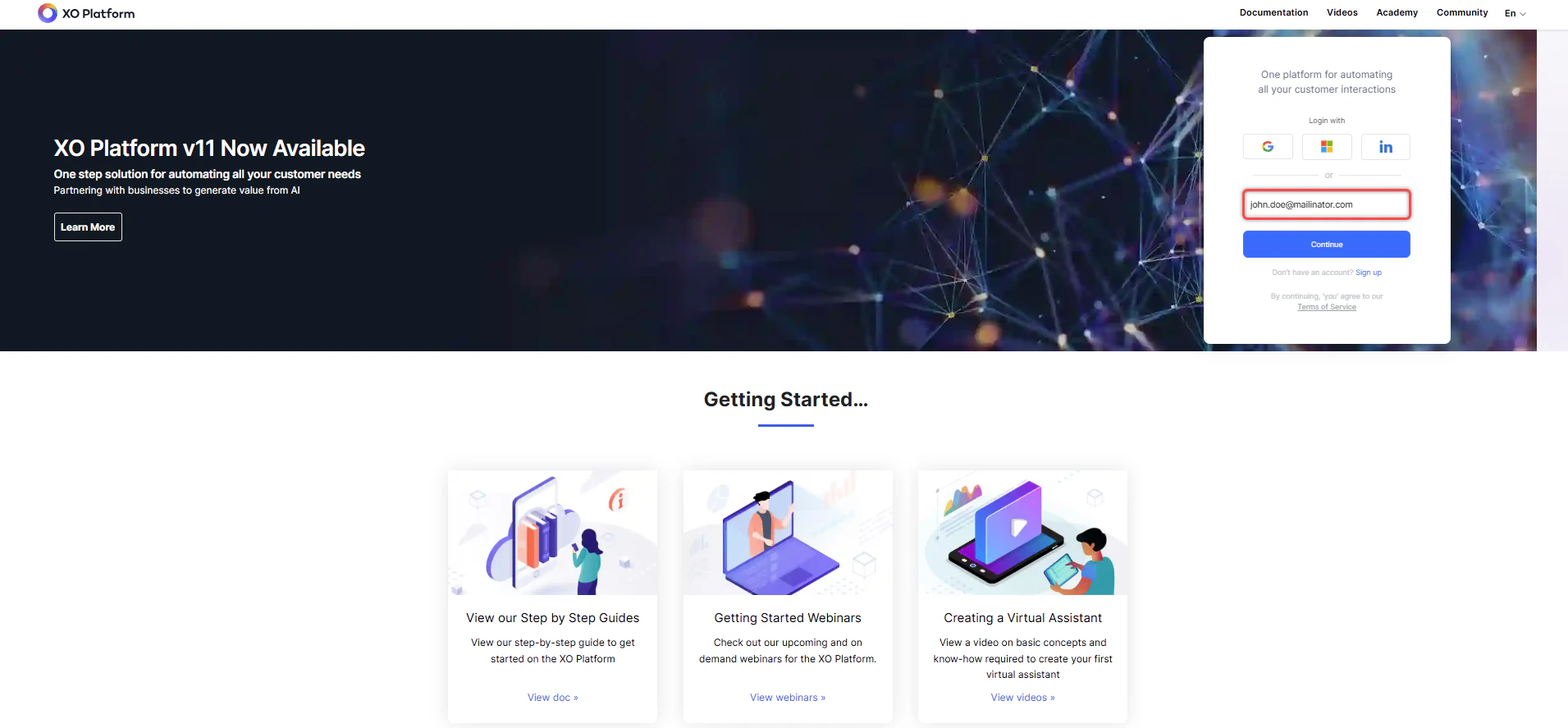
-
All apps (SmartAssist and automation bots) appear. Select the SmartAssist bot to upgrade it to an App in XO v11.
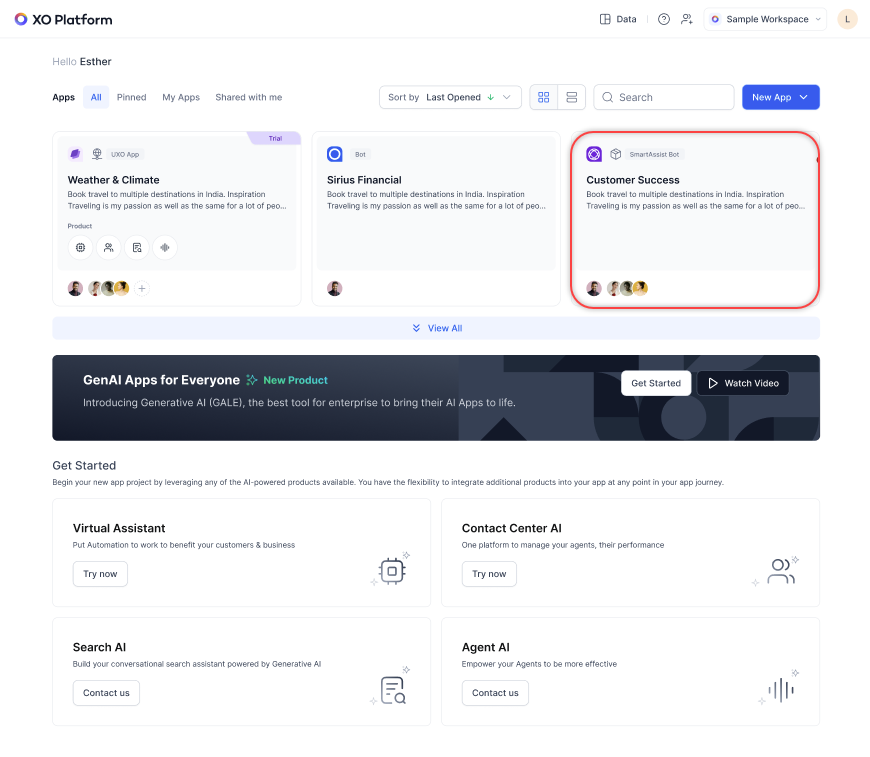
-
A pop-up appears with the following options: Why Upgrade?, Attention, and Upgrade. Select Continue.
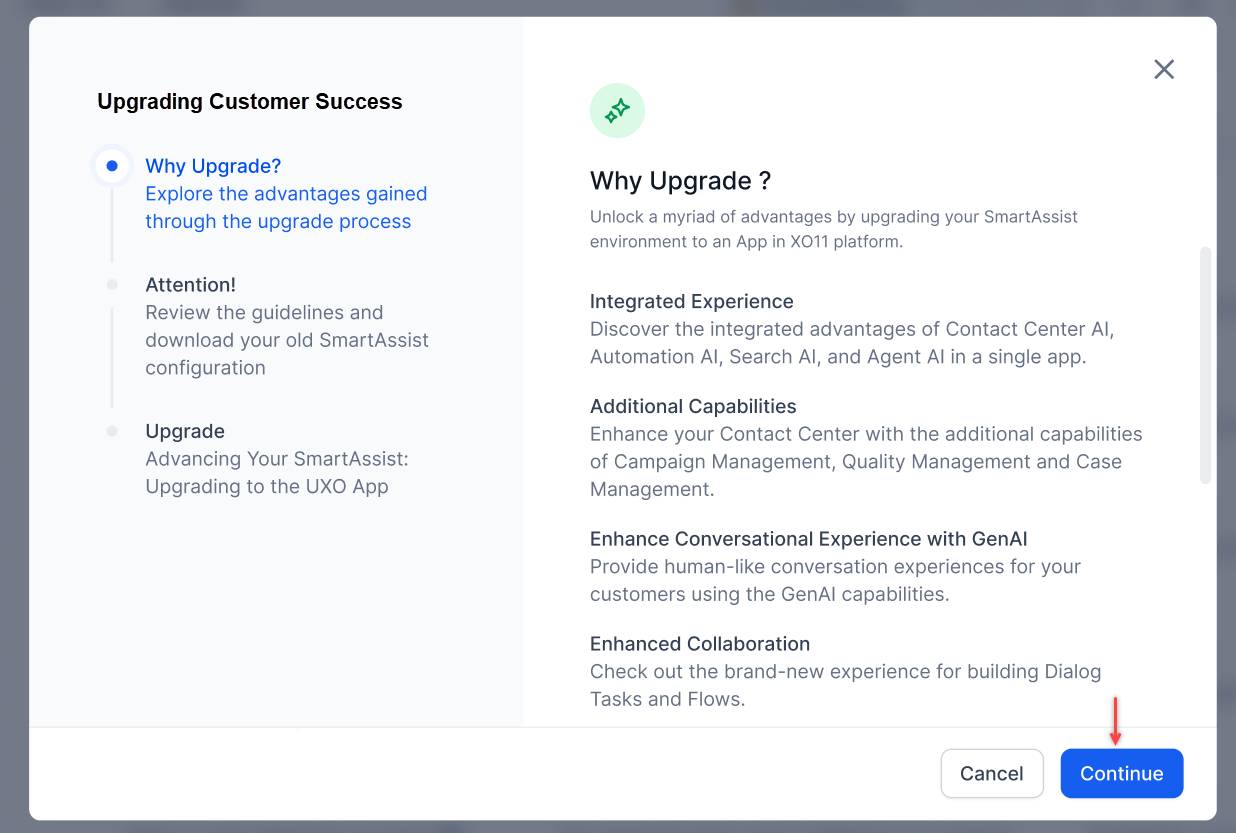
-
The Include Agent Configuration checkbox is selected by default. It includes agent profile data, agent group assignments, agent-to-skill mappings, agent-to-experience flows, and agent-to-queue mappings. Select Download & backup your bot, then select Start Upgrade. The system downloads:
- Instance-bot configurations
- Agent-related information (for example, agent mapping to queues and agent groups)
- Experience flow and channel configurations
- All contact center settings, including standard responses, digital forms, conversation status control configurations, and other SmartAssist configurations
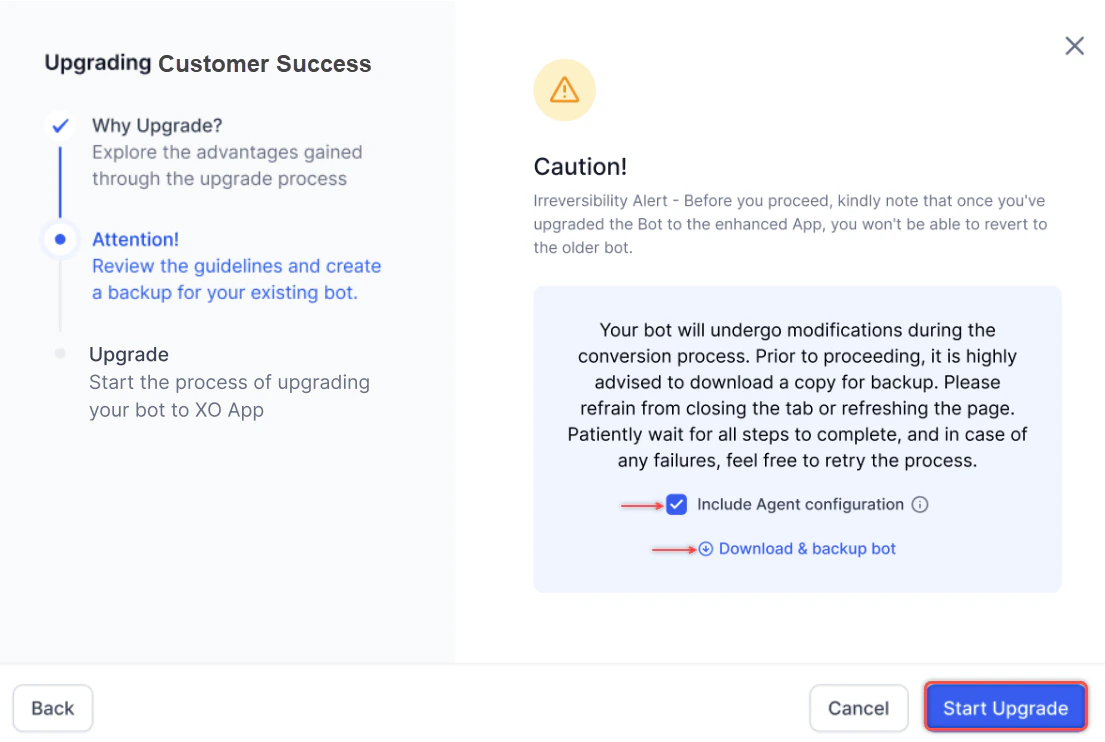
A complete backup of your SmartAssist configuration is downloaded. This data can’t be imported into XO v10 or XO v11, but serves as a reference for troubleshooting issues that may arise during migration.
-
A progress bar appears. Select Finish when complete.
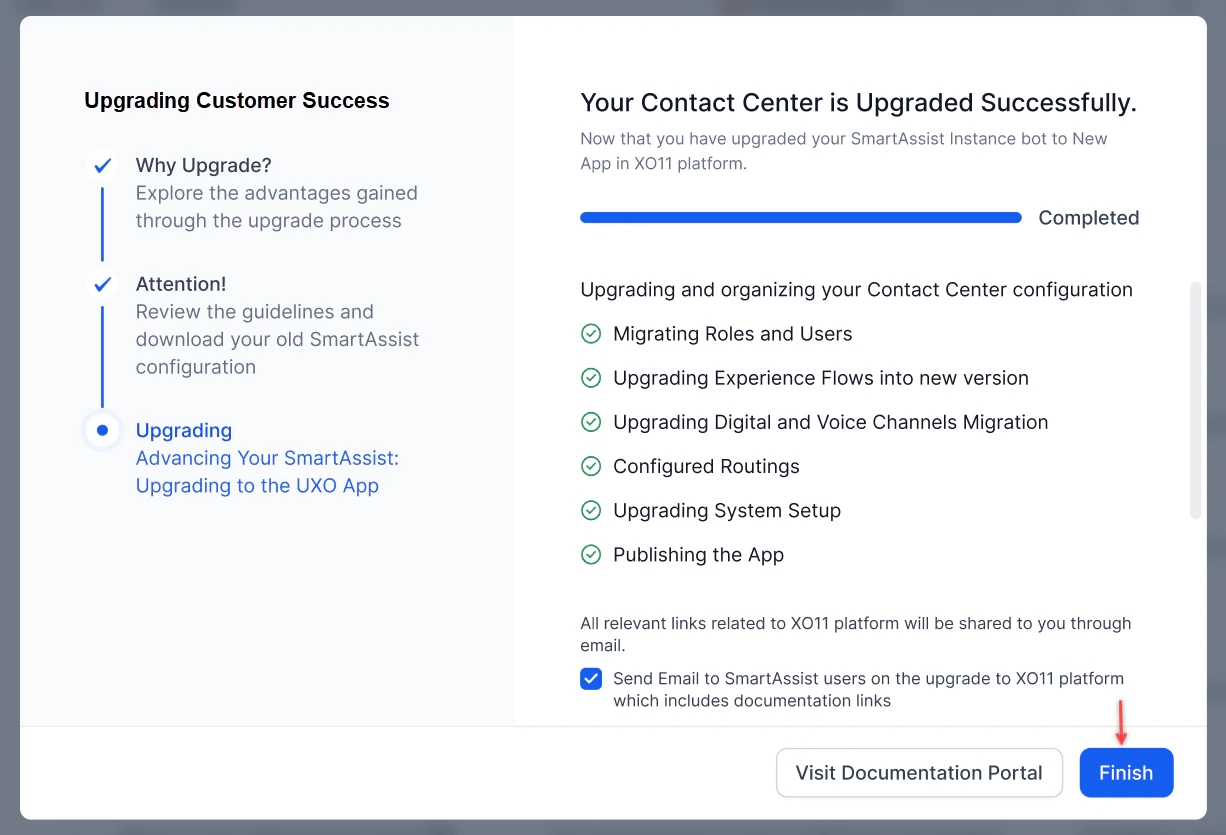
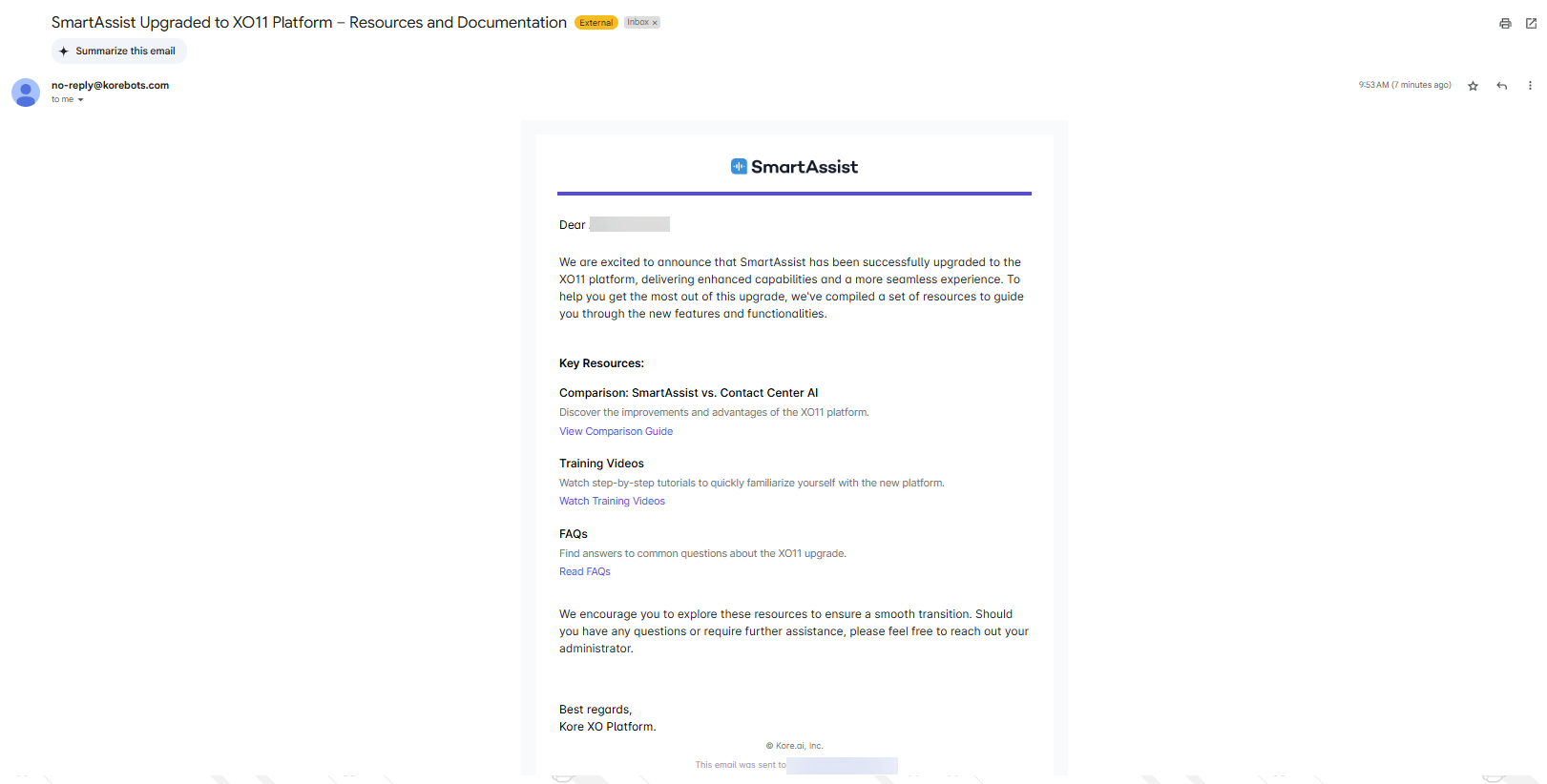
Supervisors and agents can’t access XO v11 during the upgrade. They can log in and see their assigned app only after the instance bot is upgraded. They can use their SmartAssist credentials to log in.
-
A success message confirms the upgrade. The SmartAssist instance bot is now an App in XO v11.
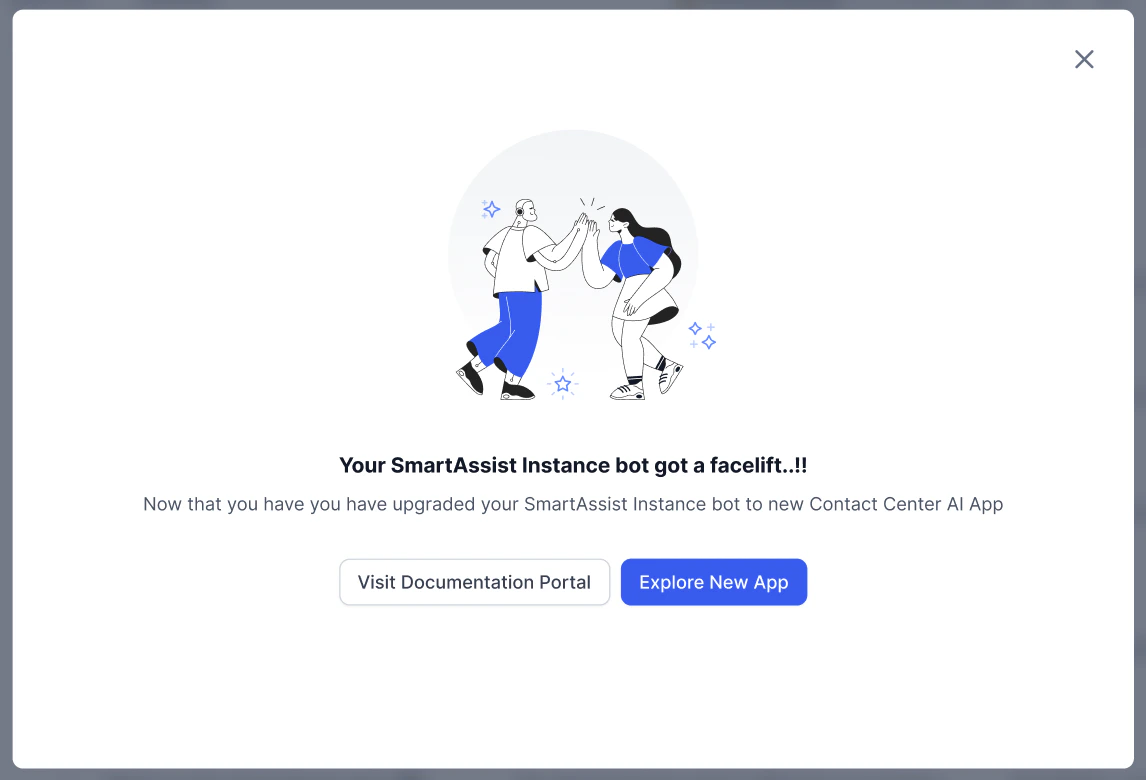
Upgrade Failure
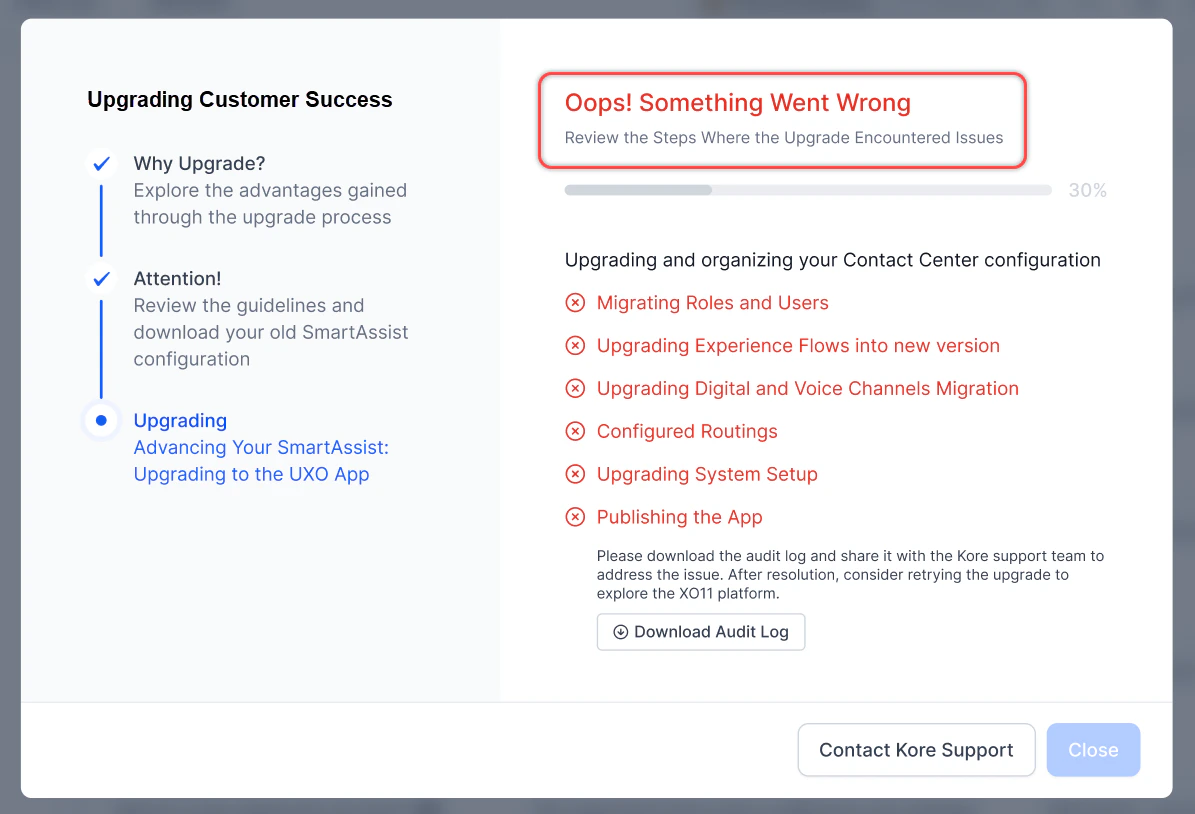
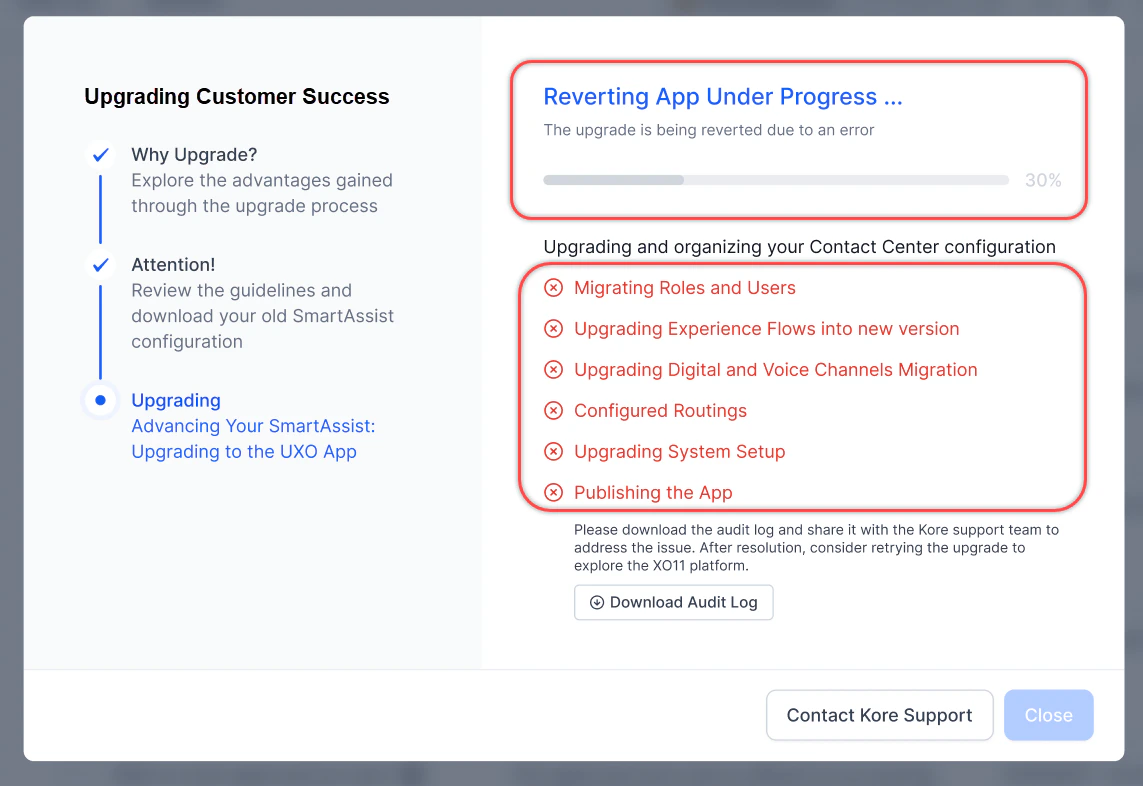
If an error occurs, the system stops and auto reverts the upgrade.-
An error notification appears in the upgrade window.
-
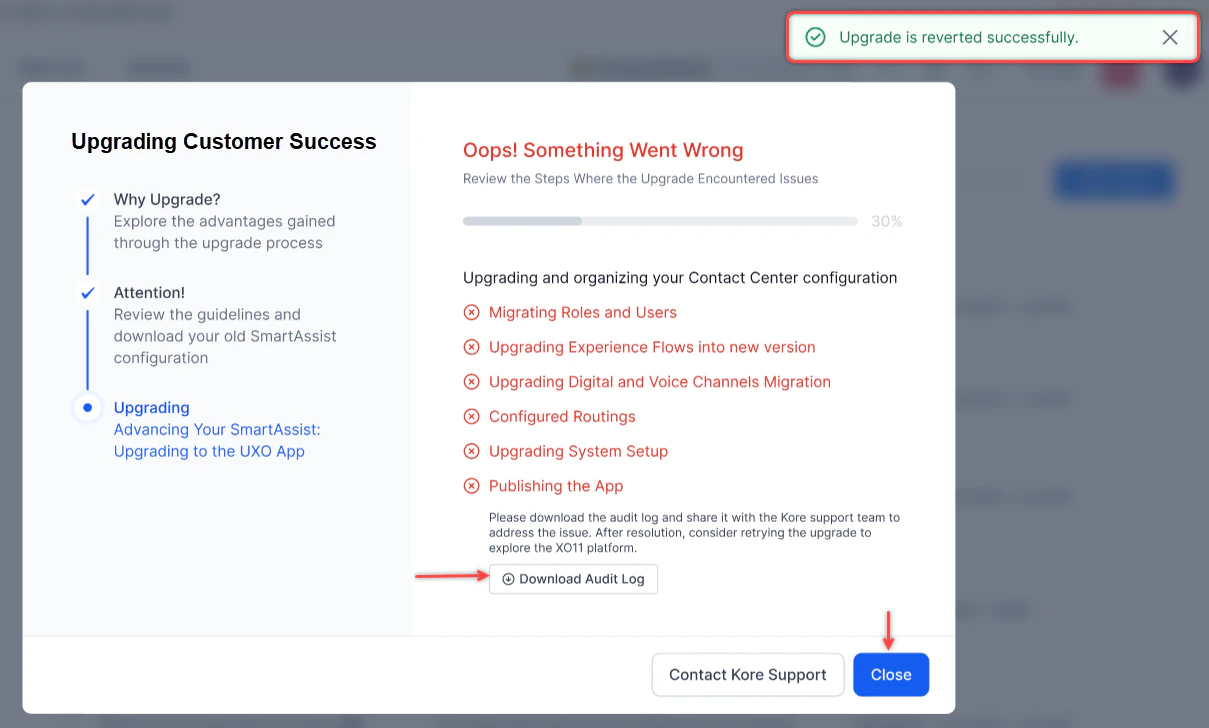
The upgrade is auto reverted, highlighting the steps where issues occurred.
-
Select Download Audit Log to download the CSV file. Share it with Support for assistance, then select Close.
Post-Upgrade Journey
License Migration
The SmartAssist license is automatically migrated for existing Enterprise accounts to XO v11 by provisioning module-specific licenses for Contact Center AI, Automation AI, Search AI, and Agent AI based on the customer’s existing SmartAssist configuration.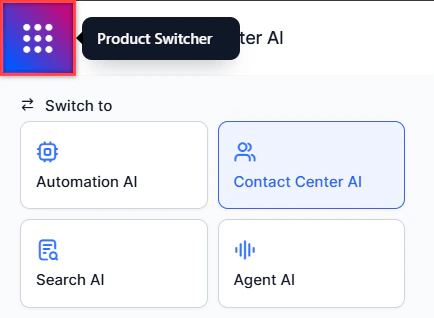
Upgrade of Instance Bot and Child Bot to XO v11
- Enterprise SmartAssist licenses are automatically analyzed and converted into equivalent module-specific licenses on XO v11.
- New licenses are provisioned across four modules based on the customer’s previous usage:
- Contact Center AI
- Automation AI
- Search AI
- Agent AI
- The license conversion is integrated into the upgrade framework to maintain uninterrupted service access.
When upgrading an account associated with SmartAssist, the instance bot doesn’t initially appear in XO v11. Contact the Support team to execute a migration script that makes the instance bot visible. The instance bot must then be upgraded, after which it becomes the Contact Center AI instance and SmartAssist configurations are properly migrated.
Upgrade Access Matrix
Enterprise Standard
App Owner- Default landing: CCAI flows and channels page.
- Access rights:
- Contact Center AI: Full access (excluding Campaigns, Case Management, and Quality Management).
- Automation AI: Full access.
- Search AI: Basic RAG access.
- Agent AI: Basic access.
- Limited to CCAI only.
- No access to Automation AI, Search AI, or Agent AI.
- Monitor access limited to supervised queues.
- Available features: Monitor dashboard without queue restrictions.
- Limited to CCAI only.
- No access to Automation AI, Search AI, or Agent AI.
- Default landing: Agent Console.
- Data access limited to own interactions.
- Available features: Agent Console, Interactions Dashboard, My Dashboard.
- Access based on configured permissions.
- Automation AI access can be included alongside CCAI if granted.
- Landing page determined by permissions:
- Flow Management permission → Flows and Channels
- Monitor permission → Monitor
- Agent Console permission → Agent Console
Non-Enterprise
App Owner- Default landing: CCAI flows and channels page (trial version).
- Access rights:
- Contact Center AI: Full trial access (excluding Campaigns, Case, and Quality Management).
- Automation AI: Full trial access.
- Search AI: Basic RAG with “Try Now” option.
- Agent AI: Basic access with “Try Now” option.
- Similar restrictions as Enterprise Standard, but in trial mode.
- Supervisor and agent roles are limited to CCAI trial access.
- Custom roles follow the permission-based access model.
Automation Bots Upgrade
Enterprise Automation Bots
- App Owner: Default landing: Automation AI flows page. Full access to Automation AI and CCAI. Basic RAG access for Search AI. Basic Agent AI access.
- All other roles (Supervisor, Agent, Custom): No access.
Non-Enterprise Automation Bots
- App Owner: Default landing: Automation AI flows page (trial version). “Try Now” access to Contact Center AI. Trial version of Search AI with Basic RAG. “Try Now” access to Agent AI.
- All other roles (Supervisor, Agent, Custom): No access.
Data Access Restrictions
Roles and Permissions
Roles in SmartAssist are mapped at the instance bot level. After the upgrade to XO v11, these roles—including default and custom roles—are mapped at the workspace level.
For details on Contact Center AI role permissions, see Role Management.
SmartAssist vs. Contact Center AI Documentation Links
SmartAssist is nearing end-of-life. All new Contact Center features will be developed exclusively on XO v11. Existing users must migrate to ensure uninterrupted service and continued feature access.