Key Capabilities
- Channel-agnostic: Works across use cases and channels. Displays text by default; add channel-specific prompts for voice.
- Voice support: Text messages auto-convert to voice using ASR and TTS engines.
- Customizable flows: Modify out-of-the-box messages, add channel-specific prompts, and capture feedback on voice.
- Flexible configuration: Use built-in flows with a Feedback Service, collect from external sources, or use a hybrid approach.
- Follow-up questions: Configure a follow-up for negative feedback to capture additional details.
- Acknowledgement messages: Thank customers after survey completion.
- Analytics integration: Responses appear in the Conversations History Dashboard and can be filtered by Feedback Type, Response, and Score. Learn more.
Feedback Data Collection Methods
Feedback responses are captured and sent to the platform in three ways:Navigation
Go to Automation AI > Virtual Assistant > Feedback Survey.Survey Types
NPS (Net Promoter Score)
Measures customer loyalty with a single question rated on a 0-10 scale.CSAT (Customer Satisfaction)
Measures satisfaction on a 1-5 scale for a question like “How satisfied were you with the conversation?”Like/Dislike
The customer responds with a Like (score: 1) or Dislike (score: 0) icon.Create a Feedback Survey
- Go to Automation AI > Virtual Assistant > Feedback Survey.
-
Click the appropriate button:
- First survey: Click Add Feedback Survey.
- Subsequent surveys: Click New Survey.
- In the Add Feedback Survey window, complete the three steps below.
Step 1: Survey Details
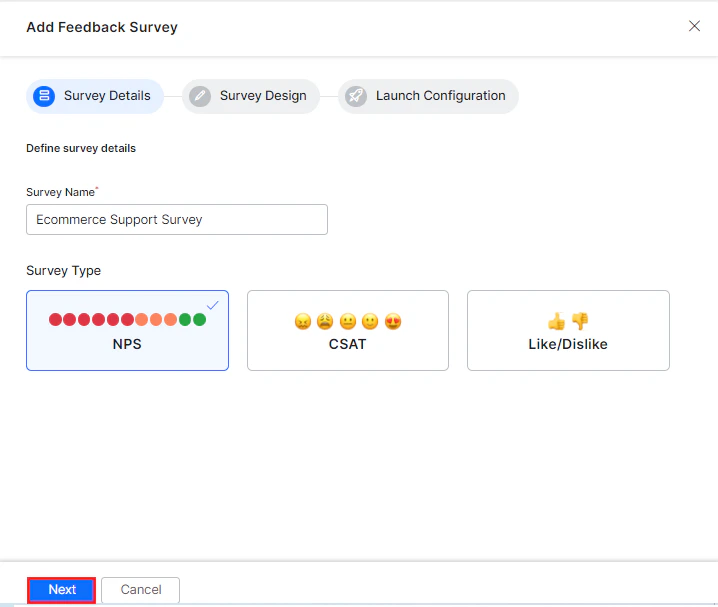
- Enter a Survey Name.
- Select the Survey Type: NPS, CSAT, or Like/Dislike.
- Click Next.
Step 2: Survey Design
Choose how to create the survey:Option A: Create Survey with a New Dialog
Creates a customizable dialog task with the flow to collect feedback and capture analytics.-
Enter the Dialog Name.

-
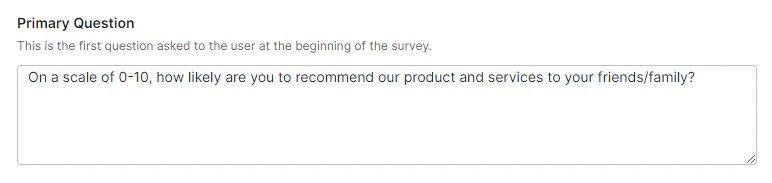
Set or modify the Primary Question for the selected survey type.
-
Review the response options for your survey type:
NPS
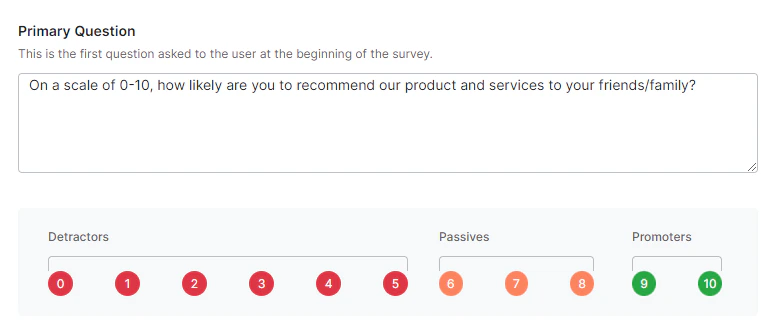
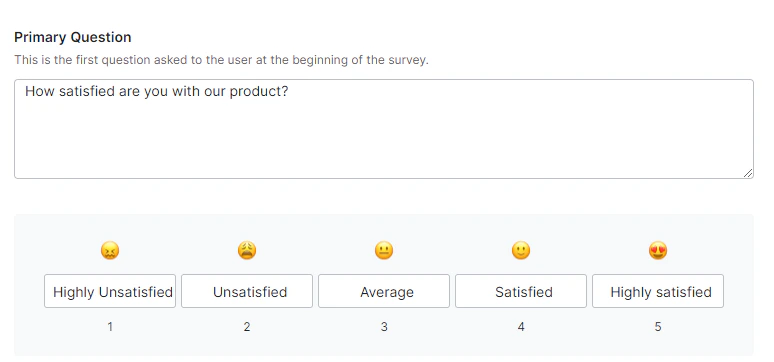
 Default response names for CSAT and Like/Dislike are editable. Scores are fixed and can’t be changed for any survey type.
Option B: Create Survey without Dialog
Select Create Survey without Dialog and click Next to build a custom flow independently.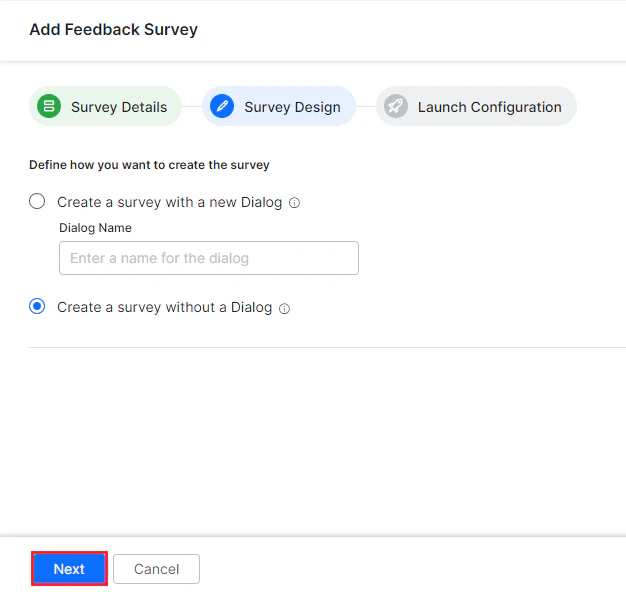
Follow-up Question (Optional)
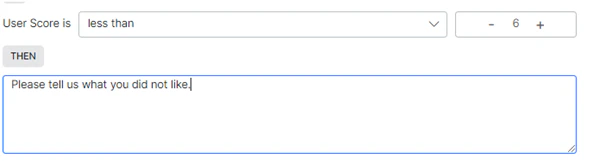
Configure a follow-up question to capture additional details from customers who give negative feedback.-
Enable the Follow-up Question toggle.

-
Set the IF condition by selecting a conditional option for User Score.
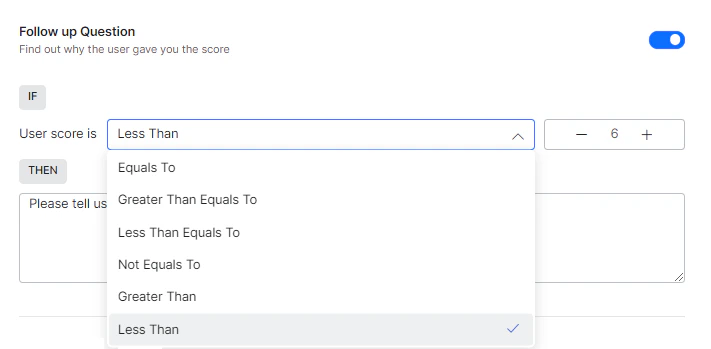
-
Set the score threshold using the feedback score counter.
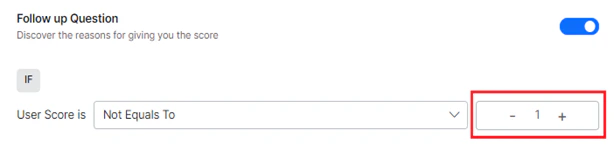
-
Edit or keep the default question for the THEN clause.
Acknowledgement Message
Edit or keep the default message shown to customers after they complete the survey.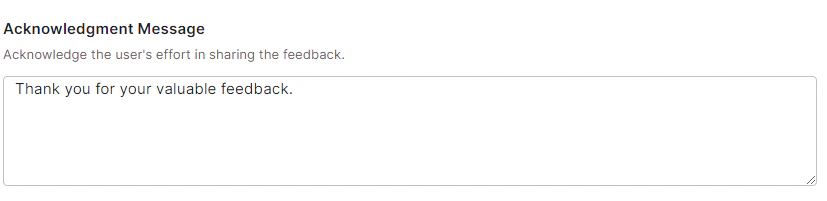
Step 3: Launch Configuration
Choose when to trigger the survey: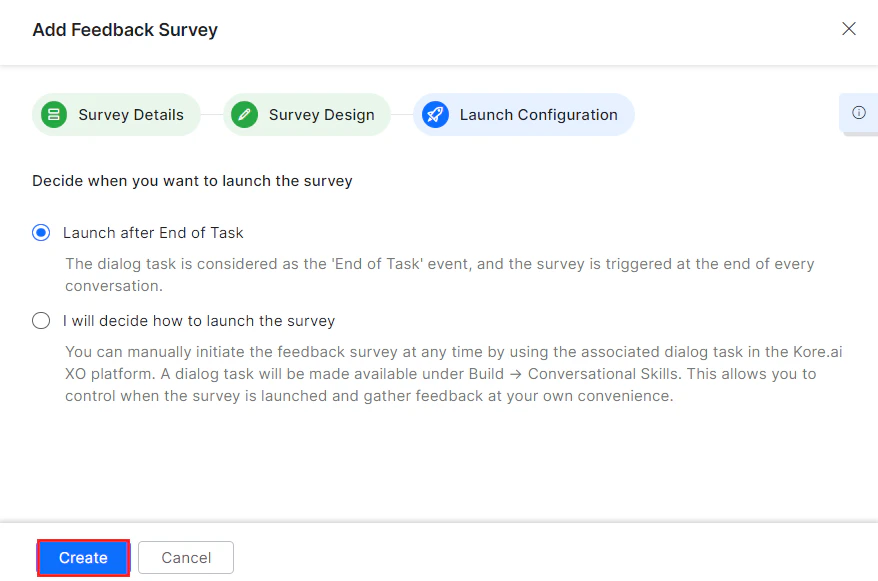
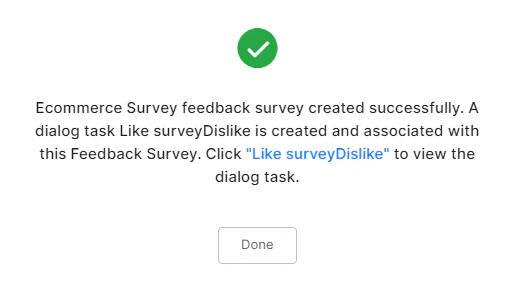
Survey Dialog Flow
After creation, the survey dialog task is available at Build > Conversational Skills > Dialog Tasks. The task flow uses Entity, Message, and Service nodes. You can customize it by modifying the dialog flow definition fields.-
Feedback Service is a new Service Type under General Settings. Use it to submit feedback captured from custom flows.

-
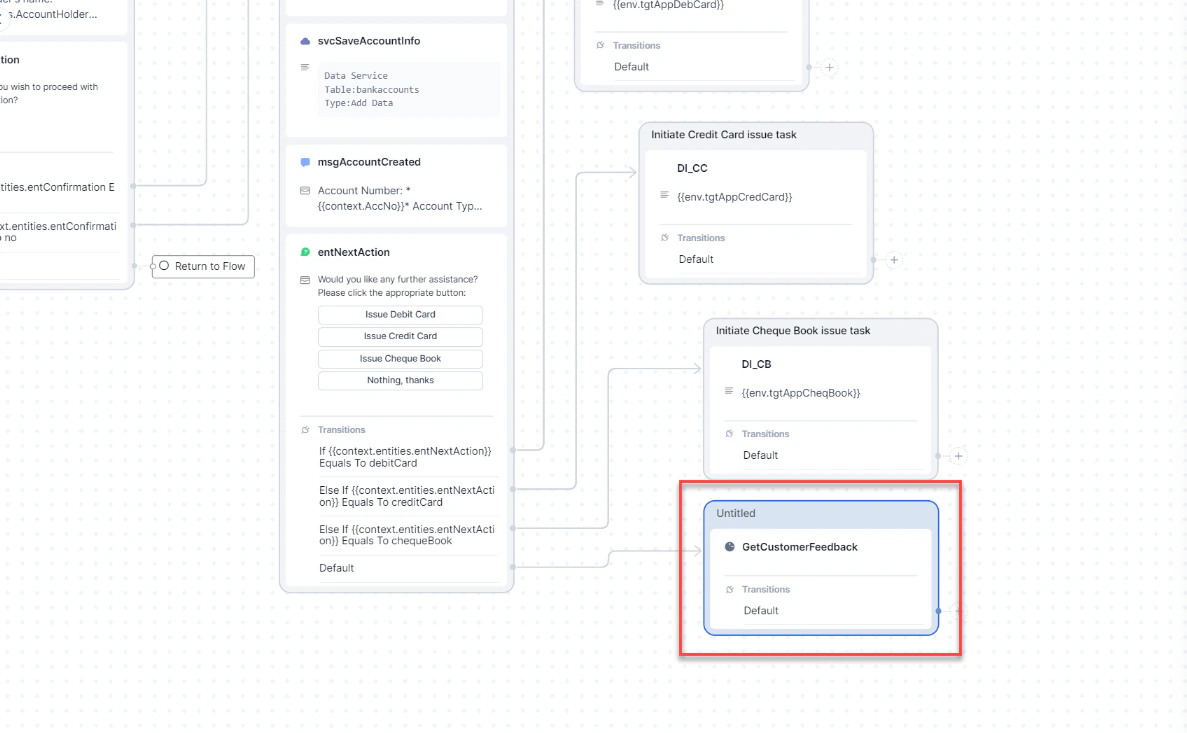
Invoke the feedback survey as a sub-dialog from any point in a conversation.