Back to Agent Transfer Integrations Unblu is a Conversational Platform for Financial Services. To set up Unblu as a channel, create an External Integration AI Agent in Unblu, create a Named Area, and map it to your Kore.ai assistant.

Channel Integration

Step 1: Create a Named Area

Named Areas in Unblu identify the origins of chat requests from your website. Associate your Kore.ai assistant with a Named Area so it only responds to chats from the associated sections of your site. This mapping is optional when enabling Unblu for a single Kore.ai assistant.
  1. Log in to your Unblu Account Administration.
  2. Under the Named Areas module, select New named area.
  3. Fill in the required information.
  4. Note the name of the Named Area you created.

Step 2: Create an Unblu AI Agent

The Unblu AI Agent can be created directly from the Kore.ai XO Platform.
  1. Create or open the assistant in the XO Platform.
  2. Go to App Settings > Integrations > Agent Transfer and select Unblu.
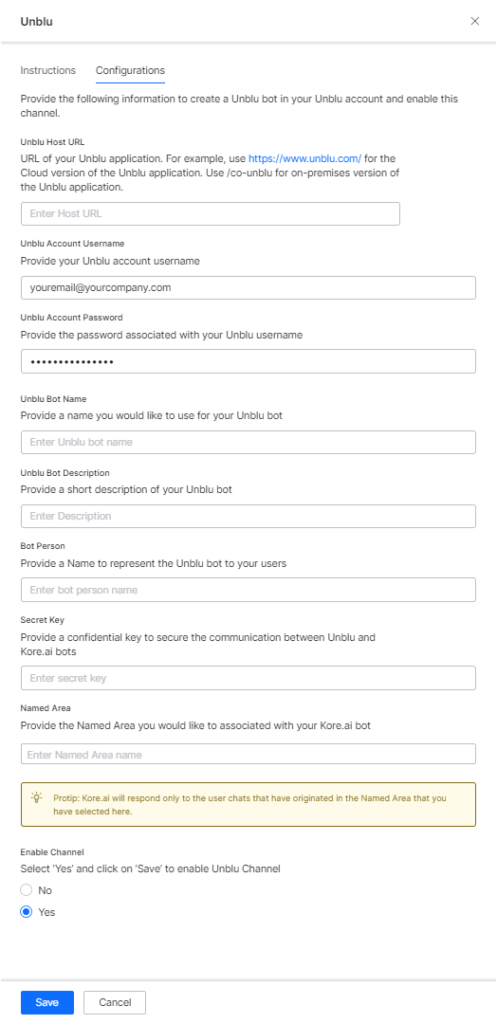
  3. On the Configurations tab, enter:
    FieldDescription
    Unblu Host URLURL of your Unblu application (e.g., https://www.unblu.com/ for Unblu cloud)
    Unblu Account UsernameYour Unblu account username
    Unblu Account PasswordPassword for your Unblu username
    Unblu Bot NameDisplay name for the Unblu bot
    Unblu Bot DescriptionShort description of the Unblu bot
    Bot PersonName to represent the Unblu bot to users
    Secret KeyConfidential key to secure communication between Unblu and Kore.ai
    Named AreaNamed Area to associate with your assistant (optional for single assistant setup)
  4. Select Enable and click Save. Unblu bot configuration
After enabling and verifying the channel configuration, publish the assistant to make it available for end-users. See Publishing your App. For more on channel management, see Channel Enablement.

Additional Setup (Unblu SDK)

For seamless information exchange from Unblu to Kore.ai, complete these additional steps. For full implementation details, see the Kore-Unblu Integration guide.
  1. Add the host URL where the Unblu SDK will be hosted to the Domain section of your Unblu Account.
  2. From your Unblu Account, API Keys section, note the API Key.
  3. Configure the Unblu SDK HTML file with the following attributes:
    • In <head>, add the named area meta tag:
      <meta name="unblu:named-area" content="<your-namedArea-Id>" />
      
    • Add the Unblu visitor API script pointing to your Unblu host:
      <script src="<your-unblu-host>/unblu/js-api/v2/visitor/visitor-api.min.js"></script>
      
    • Invoke setVisitorData to pass visitor data to the Kore.ai assistant. The visitorData must be in string format; use JSON.stringify() for objects.
    • Configure the API with your apiKey and serverUrl:
      window.unblu.api
        .configure({
          apiKey: "<your-unblu-apikey>",
          serverUrl: "<your-unblu-host>"
        })
      
    • Add the Unblu visitor script tag:
      <script type="text/javascript" defer="defer"
        src="<your-unblu-host>/unblu/visitor.js?x-unblu-apikey=<your-unblu-apikey>"></script>
      
Complete Unblu SDK HTML example:
<!DOCTYPE html>
<html>
<head>
  <meta name="unblu:named-area" content="<your-namedArea-Id>" />

  <script src="https://cdn.jsdelivr.net/npm/promise-polyfill@8/dist/polyfill.min.js"></script>
  <script src="<your-unblu-host>/unblu/js-api/v2/visitor/visitor-api.min.js"></script>

  <script>
    function setVisitorData(engagementType, visitorData) {
      return Promise.resolve(JSON.stringify({ name: "John", about: "Tester" }));
    }
    window.unblu.api
      .configure({
        apiKey: "<your-unblu-apikey>",
        serverUrl: "<your-unblu-host>"
      })
      .initialize().then(function (api) {
        console.log("API initialized successfully!");
        api.setNewConversationInterceptor(setVisitorData);
      }).catch(e => {
        console.log("------error : ", e);
        if (e.type === 'INITIALIZATION_TIMEOUT') {
          // retry
        } else if (e.type === 'UNSUPPORTED_BROWSER') {
          // display unsupported browser dialog
        } else {
          // show generic error message
        }
      });
  </script>

  <script type="text/javascript" defer="defer"
    src="<your-unblu-host>/unblu/visitor.js?x-unblu-apikey=<your-unblu-apikey>"></script>
</head>
<body>
</body>
</html>
Visitor data is accessible from usercontext.customData, which includes deviceInfo, authInfo, and joinedTime. See Context Object.

Notes

  • Multiple named areas can be mapped to a single assistant, enabling it to accept Unblu dialog offer requests from different origins (SDKs or named areas).
  • Named area mapping is optional when enabling Unblu for a single assistant.
  • To redirect conversations to agents, add an Agent Transfer node in the dialog flow. No separate Agent Transfer or BotKit enablement is required for this channel.

Unblu Message Templates

By default, Button/multi-choice and List templates are used. You can override card, list, and multi-choice/button message templates. Card Template:
var unbluCardTemplate = {
  "$_type": "CardPostMessageData",
  "type": "CARD",
  "imageUrl": "data:image/png;base64,",
  "imageAltText": "test image",
  "title": "Title",
  "body": "This is the **body text** with markdown",
  "bodyTextType": "MARKDOWN",
  "actions": [
    {
      "$_type": "MessageAction",
      "actionType": "LINK_INTERNAL",
      "label": "Unblu homepage",
      "value": "https://unblu.com"
    },
    {
      "$_type": "MessageAction",
      "actionType": "LINK_EXTERNAL",
      "label": "Wikipedia",
      "value": "https://www.wikipedia.org/"
    },
    {
      "$_type": "MessageAction",
      "actionType": "REPLY_MESSAGE",
      "label": "More info",
      "value": "Could you provide me with more info?"
    }
  ]
};
print(JSON.stringify(unbluCardTemplate));
List Template:
var unbluListTemplate = {
  "$_type": "ListPostMessageData",
  "type": "LIST",
  "header": {
    "$_type": "MessageHeader",
    "imageUrl": "data:image/png;base64,",
    "imageAltText": "test image",
    "title": "Title",
    "body": "This is the **body text** with markdown",
    "bodyTextType": "MARKDOWN"
  },
  "items": [
    {
      "$_type": "PostListMessageCardItemData",
      "imageUrl": "data:image/png;base64,",
      "imageAltText": "test image",
      "title": "Title",
      "body": "This is the **body text** with markdown",
      "bodyTextType": "MARKDOWN",
      "action": null
    },
    {
      "$_type": "PostListMessageCardItemData",
      "imageUrl": "data:image/png;base64,",
      "imageAltText": "test image",
      "title": "Title",
      "body": "This is the **body text** with markdown",
      "bodyTextType": "MARKDOWN",
      "action": {
        "$_type": "MessageAction",
        "actionType": "LINK_INTERNAL",
        "label": "Unblu homepage",
        "value": "https://unblu.com"
      }
    }
  ],
  "actions": [
    {
      "$_type": "MessageAction",
      "actionType": "LINK_INTERNAL",
      "label": "Unblu homepage",
      "value": "https://unblu.com"
    },
    {
      "$_type": "MessageAction",
      "actionType": "LINK_EXTERNAL",
      "label": "Wikipedia",
      "value": "https://www.wikipedia.org/"
    },
    {
      "$_type": "MessageAction",
      "actionType": "REPLY_MESSAGE",
      "label": "More info",
      "value": "Could you provide me with more info?"
    }
  ]
};
print(JSON.stringify(unbluListTemplate));
Multi Choice Template:
var unbluMultiChoiceTemplate = {
  "$_type": "MultichoiceQuestionPostMessageData",
  "type": "MULTICHOICE_QUESTION",
  "text": "Choose one of the options",
  "textType": "MARKDOWN",
  "options": [
    {
      "$_type": "MultichoiceQuestionOption",
      "label": "Option 1",
      "value": "1",
      "primary": true
    },
    {
      "$_type": "MultichoiceQuestionOption",
      "label": "Option 2",
      "value": "2",
      "primary": false
    }
  ]
};
print(JSON.stringify(unbluMultiChoiceTemplate));