

Key Concepts
Autonomy Levels
The Automation Node supports two autonomy levels:Parent App and Linked Apps
Example: If you link App2, App3, and App4 to App1, App1 becomes the parent app and the others become linked apps.
When apps are linked, the parent app generates an index of linked app dialogs and FAQs. Embeddings include metadata: dialog name, description, app name, app description, and fulfillment type.
- Once apps are linked in the Automation Node, they remain associated across other flows. Each parent app supports only one specific combination of linked apps.
- Sessions initiated through the parent app include full context for all linked apps. Sessions initiated directly with a linked app aren’t visible to the parent app.
App Indexes
DialogGPT
DialogGPT is the intent detection and conversation management engine. It uses embedding-based retrieval and Generative AI. Capabilities:- Training-free intent detection
- Embedding-based matching of user input to app content
- LLM-powered identification of fulfillment type (actions, answers, multiple intents, etc.)
- Automated event handling
- Intelligent routing to linked apps
- Disambiguation via clarifying questions
Key Features
How Dynamic Routing Works
- App Linking and Indexing — When an app is linked, the parent app indexes the linked app’s dialogs and FAQs, along with its own knowledge documents. Indexes include metadata: dialog name, description, app name, app description, and fulfillment type.
- User Query Processing — When a user submits a query, DialogGPT converts it to an embedding and compares it against stored embeddings to find the most semantically similar chunks.
- Intent Identification — User input and the top-matching chunks are sent to the LLM, which identifies the most appropriate intent.
-
Fulfillment and Response — Based on the identified intent, Dynamic Routing determines the fulfillment type and responds by:
- Executing a dialog
- Providing an answer from FAQs or knowledge documents
- Handling multiple intents
- Clarifying ambiguous intents
- Engaging in small talk
Setup
Prerequisites:- At least two apps in the same workspace.
- Each app to be linked must contain at least one dialog.
- DialogGPT must be enabled. See How to Enable DialogGPT. For supported models, see Model Configuration.
-
Go to Flows & Channels > Flows > Start Flows > Welcome Chat Flow and click the Automation Node.
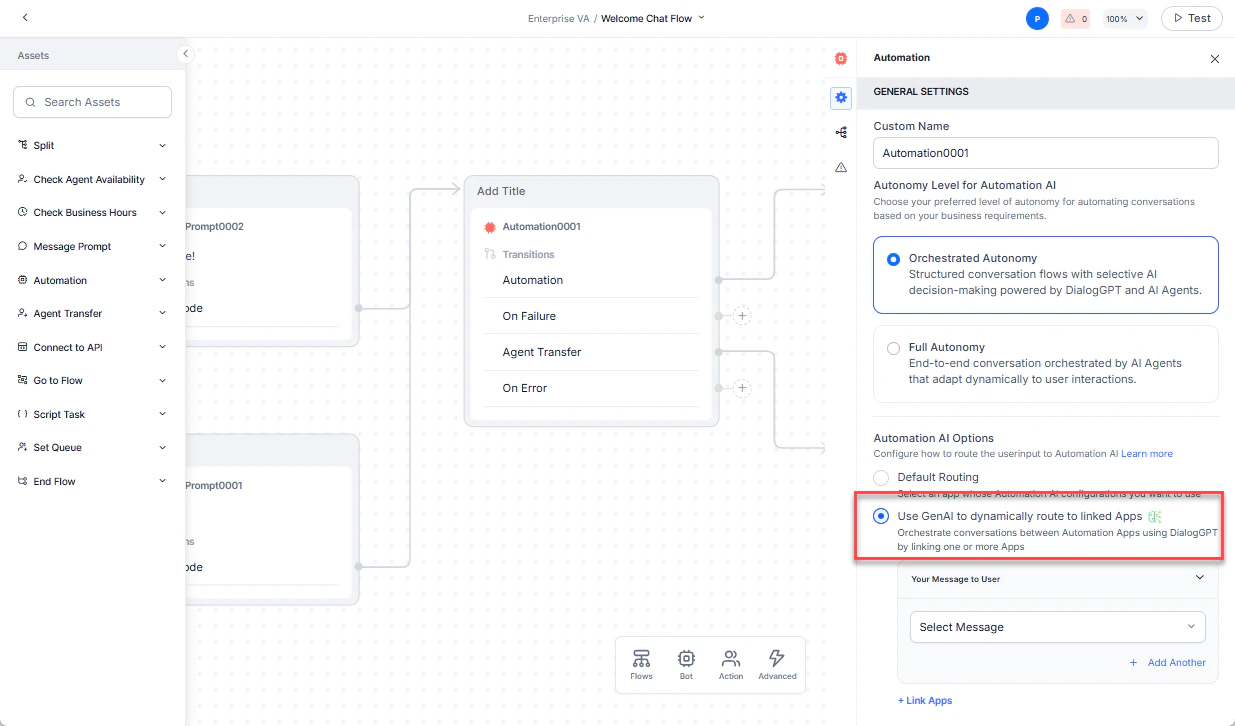
- In Component Properties, set Autonomy Level to Orchestrated Autonomy.
- In Automation AI Options, select Use GenAI to dynamically route to linked apps. If DialogGPT is disabled, follow the on-screen instructions to enable it.
- Optionally, configure the Message Prompt.
-
Click +Link Apps. The list of available apps is displayed.
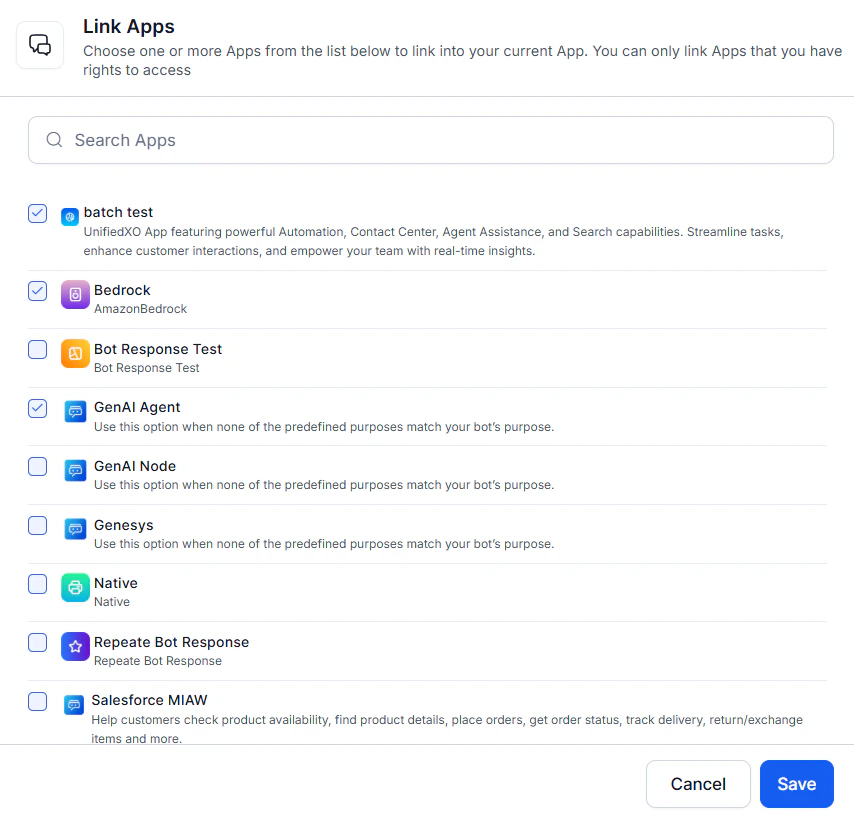
- Select the apps and click Save. A success message is displayed.
-
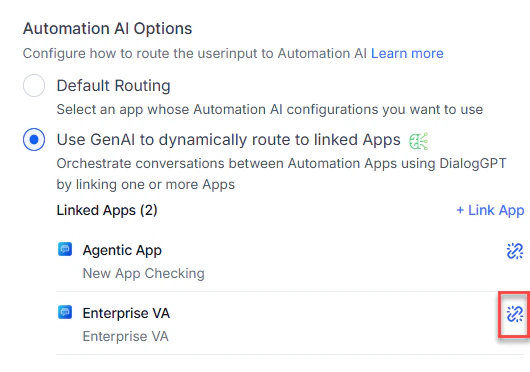
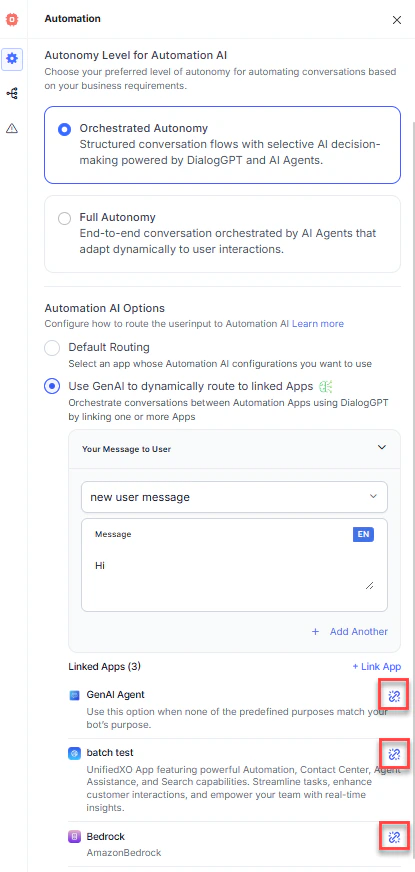
To link additional apps, click +Link App. To unlink an app, click the unlink icon next to it.
Managing App Updates
Publishing Dynamic Routing
Publishing generates two indexes: the Configured App Index and the Published App Index. Keeping both in sync is essential for seamless operation. For background on app statuses, see Publication Statuses.- All dialog/FAQ updates and app linking/unlinking must be done in the development version. The published version doesn’t allow changes.
- The platform uses the parent app’s embedding model to generate indexes for dialogs, FAQs, and search documents.
First-Time Publishing
After linking apps, publish both the linked apps and the parent app. This generates the Published App Index and makes it available to users. Publish linked apps first.Synchronizing Updates
Best Practices
- Enable DialogGPT before setting up Dynamic Routing.
- Publish linked apps before publishing the parent app.
- Use Sync Updates and re-publish apps after any changes to keep indexes in sync.
FAQs
When do I need to manually trigger Sync Updates? When you create or update dialogs or FAQs, trigger Sync Updates to refresh the configured app index. Then publish the updated app to make changes available to users. Will publishing a dialog automatically update the app index? Publishing a dialog updates only the Published App Index. To update the Configured App Index, use Sync Updates before publishing. How are dialogs and FAQs synchronized between parent and linked apps? When apps are linked, all their dialogs and FAQs are indexed in the configured app index. What happens if I add a new dialog to a linked app? A Sync Updates notification appears in the linked app. Click it to refresh the configured app index. The published index updates automatically once the dialog is published. What is the difference between configured and published indexes?
What happens if linked apps aren’t published during the publish process?
A warning is shown. If you proceed, only already-published linked apps are re-indexed.