

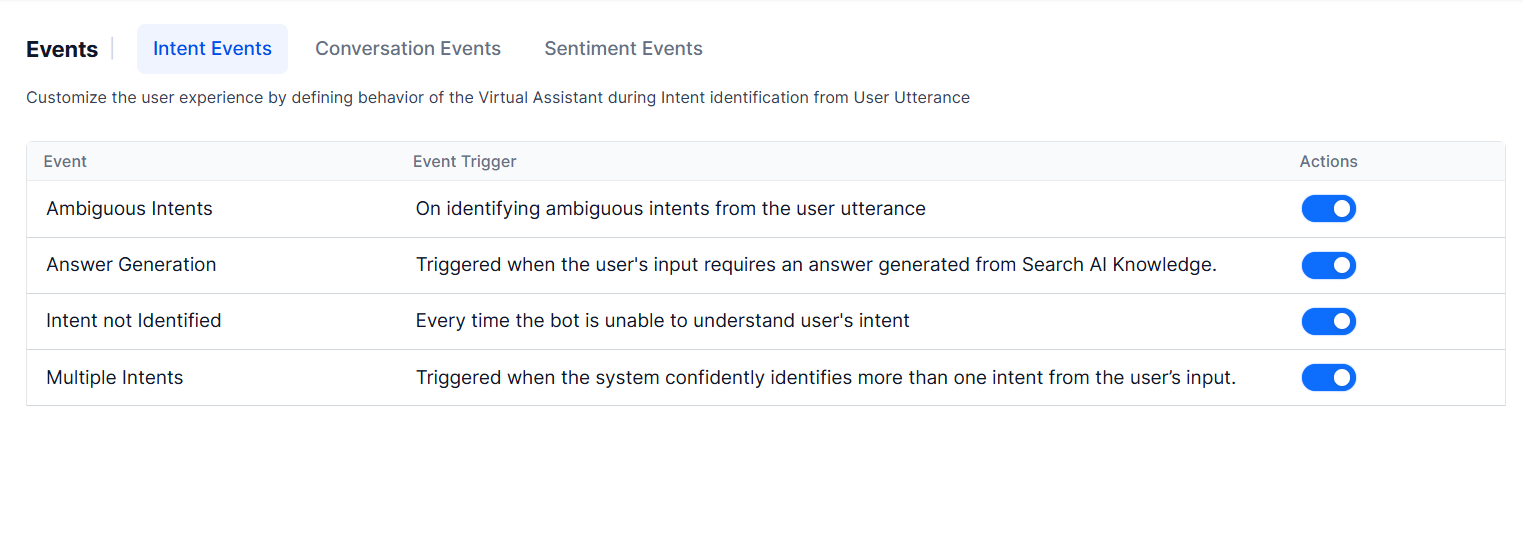
Event Actions
When an event fires, the AI Agent executes one of these actions:
Multilingual behavior for Show a Message:
- Messages can be defined per language per event.
- Deleting a message for one language removes it from all languages.
- Adding a message for one language copies it to all other languages.
- Editing a message in one language affects only that language.
Event Types
Events fall into three categories: Intent, Conversation, and Sentiment.
For DialogGPT, Agent node, and Prompt node, when an LLM execution fails, the HTTP status code and error message are written to
context.endOfTask. Subsequent flows can use the status code to handle failures without parsing provider-specific response formats. The same failure details are also available in developer debug logs.
Intent Events
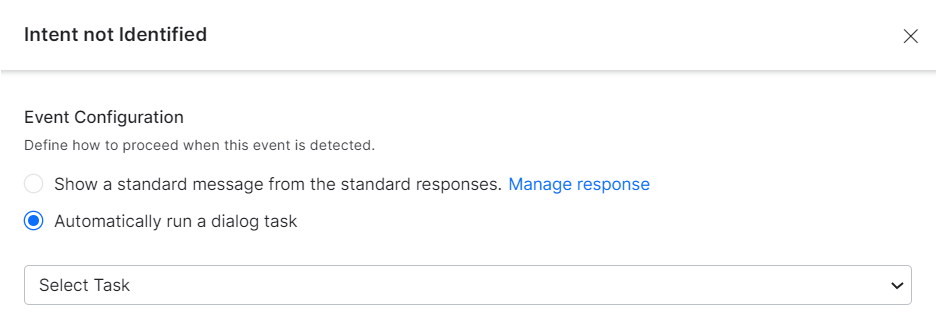
Intent not Identified
Fires when the AI Agent can’t understand the user’s intent. Configure one of:- Show a standard message from the standard responses library. Learn more.
- Automatically run a dialog task — select the task from the dropdown.
Ambiguous Intents Identified
Fires when the NLP engine detects multiple intents with similar confidence. By default, the AI Agent presents the list of ambiguous intents to the user for selection. Conditions that trigger this event:- Two or more “definite” intents are identified.
- Two or more “possible” intents are identified within the proximity threshold.
- Only low-confidence Knowledge Graph intents are found and no other engine identifies an intent.
koreUtil.getAmbiguousIntents() to retrieve intents and confidence scores. Learn more.
To configure:
- Go to Conversation Intelligence > Events > Intent Events.
-
Click Configure to enable the event.
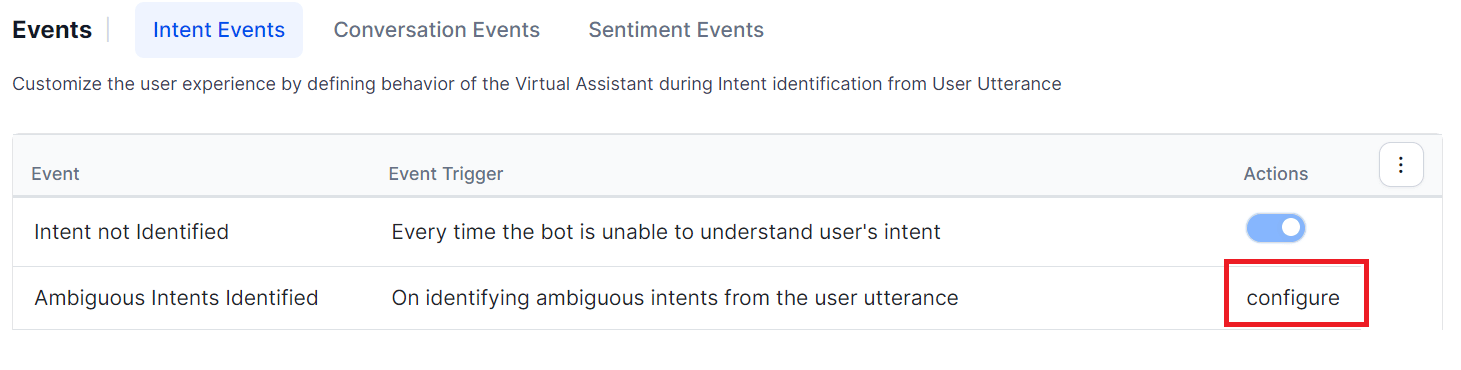
If not enabled, the list of ambiguous intents is shown to the user.
-
Select a configuration option:
- Present all qualified intents to the end-user for disambiguation — Default behavior. Learn more
- Automatically run a Dialog Task — Select a dialog with custom disambiguation logic. Learn more
- Click Save & Enable.
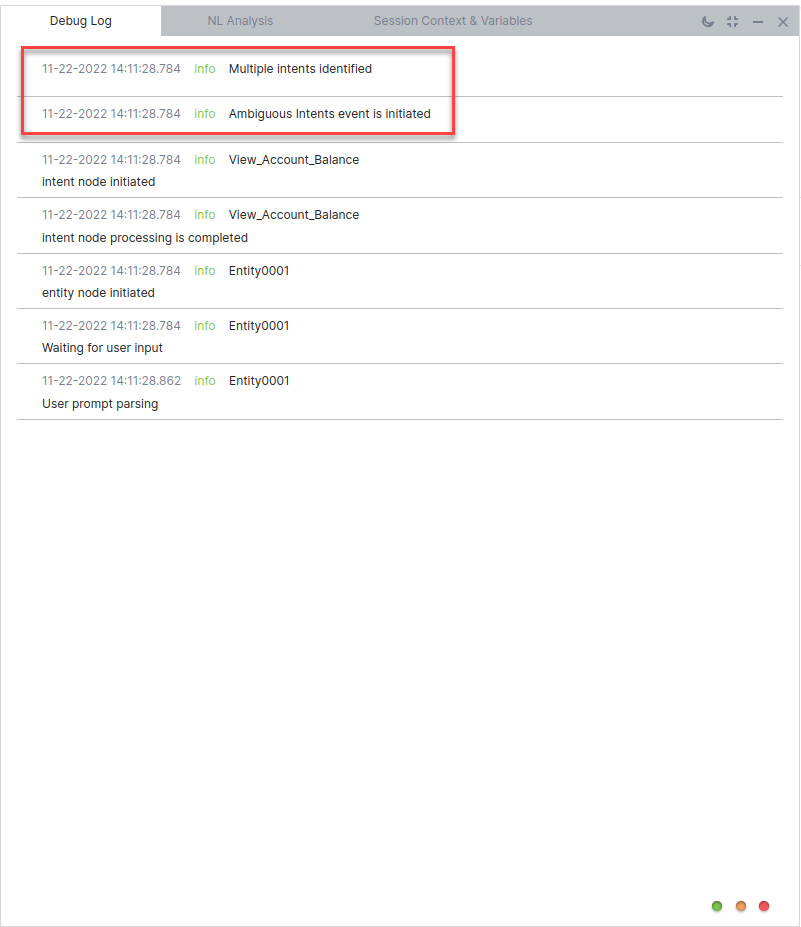
When ambiguous intents are detected during testing, the Debug Log shows: Multiple intents are identified — Ambiguous Intents Identified event is initiated.
Variable Namespaces
Go to More Options > Manage Variable Namespaces at the top of the Events screen to associate variable namespaces with events. This option appears only when Variable Namespace is enabled for the AI Agent. Learn more.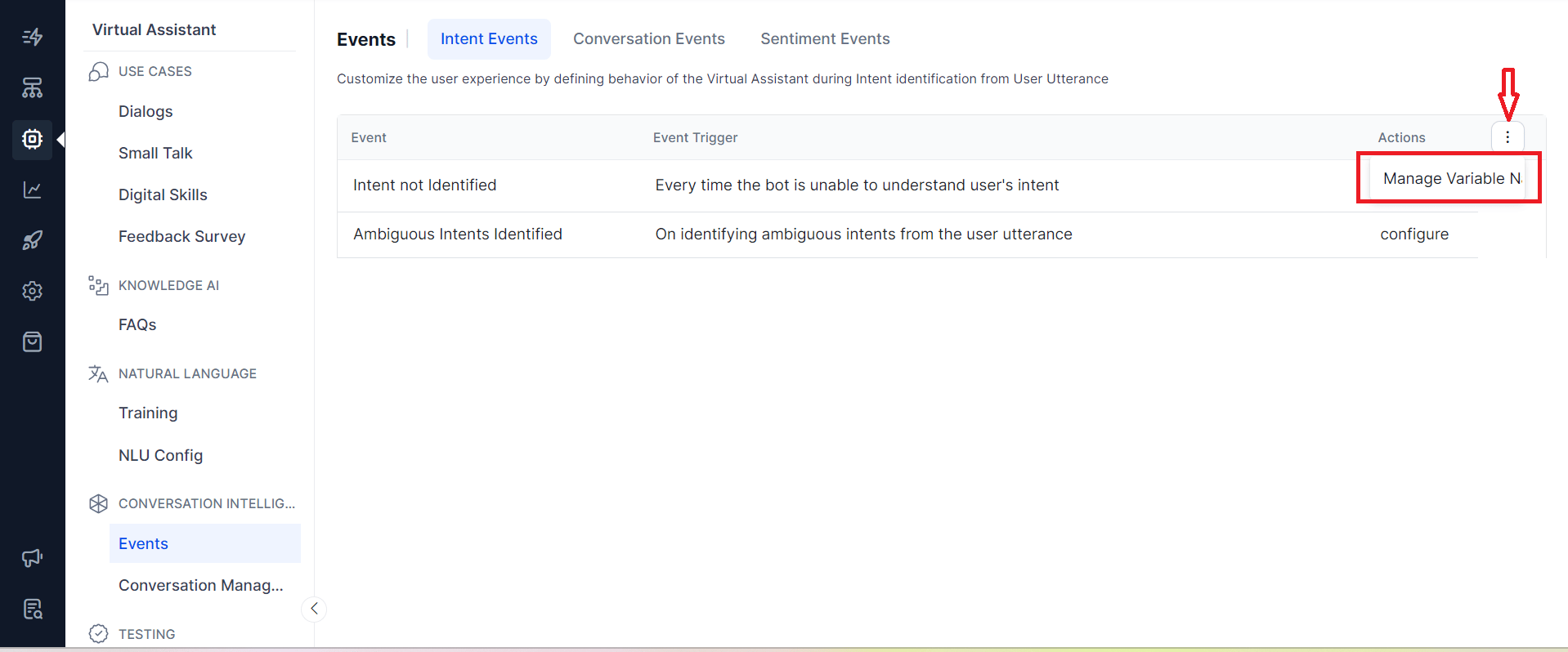
Conversation Events
End of Task
Fires when the AI Agent is no longer expected to send or receive messages. The context is updated with the end reason and the completed task name (FAQs useFAQ as the task name).
Client-side implementations (BotKits, RTM, Webhook channels) can use the end-of-task reason flag to drive follow-up actions.
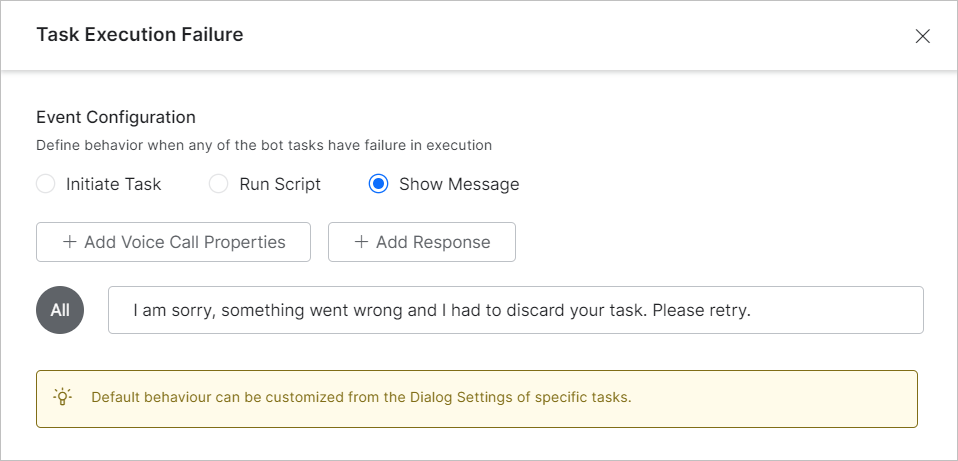
Task Execution Failure
Fires when an error occurs during dialog task execution, including:- AI Agent execution errors
- Service call failures or unreachable servers
- Agent transfer node errors
- Knowledge Graph task failures
- Webhook node failures
- Unavailable sub-dialog
- Errors parsing the AI Agent message
RCS Opt-In / Opt-Out
Fires when a user opts in to or opts out of the RCS Messaging channel. Configure a follow-up response to confirm the user’s action.
Repeat Bot Response
Fires when specific utterances (predefined or custom-trained) request the AI Agent to repeat its last response. Applies to voice channels: IVR, Audiocodes, Twilio Voice, and SmartAssist Gateway.The Repeat Bot Response event uses the NLU multilingual model for non-English languages.
Example: In a Flight Booking AI Agent, a user on IVR says: “Sorry, I can’t hear you. Can you please repeat it again?” after a booking confirmation. If the session is active and the End of Task event has a follow-up message (for example, “Is there anything else I can help you with?”), the Repeat Bot Response event repeats both the confirmation and the follow-up together.
To configure:
-
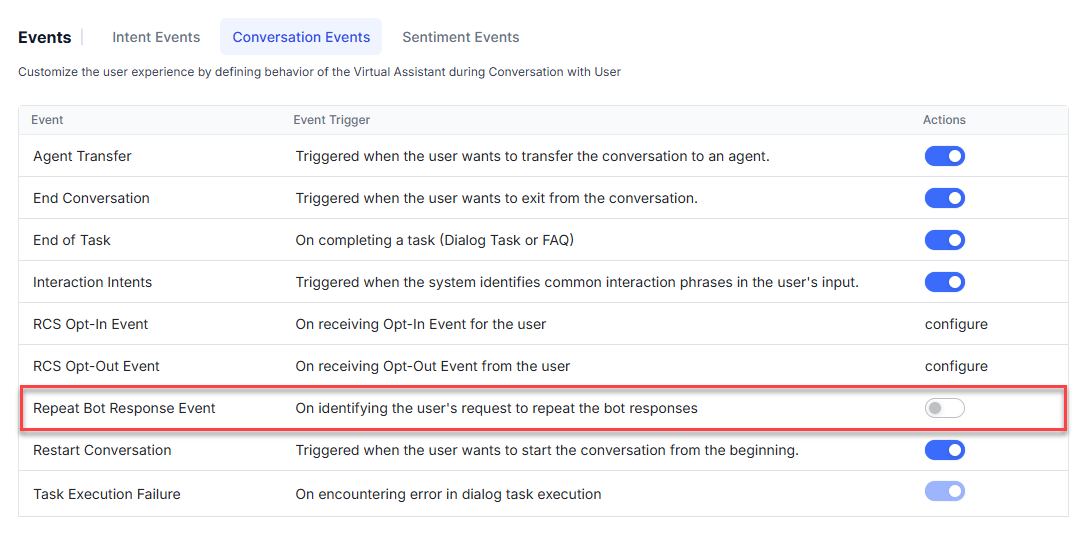
Go to Conversation Intelligence > Events.
-
Click Repeat Bot Response Event to configure it.
-
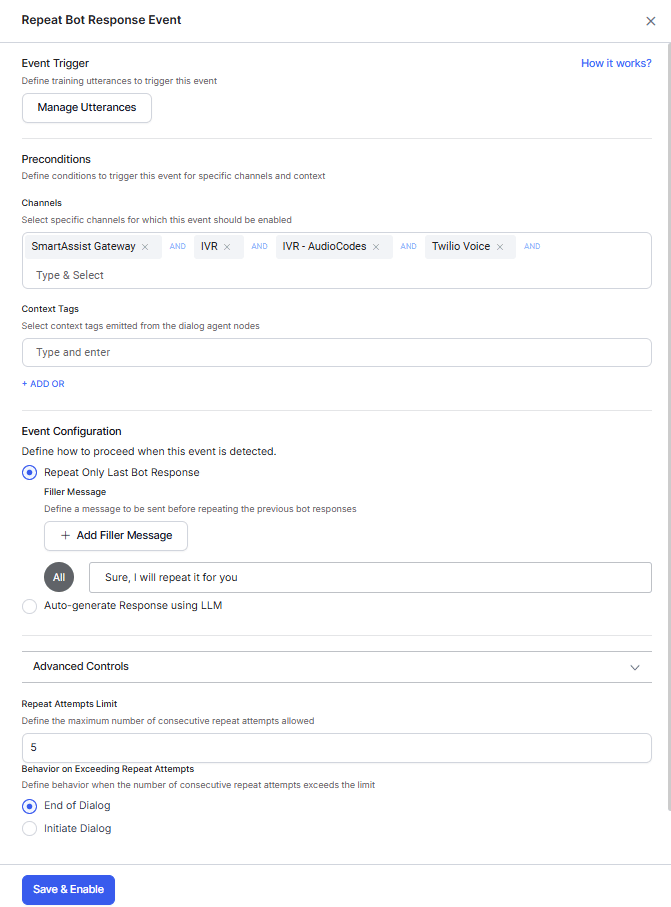
Click Manage Utterance to review or add pre-trained utterances.
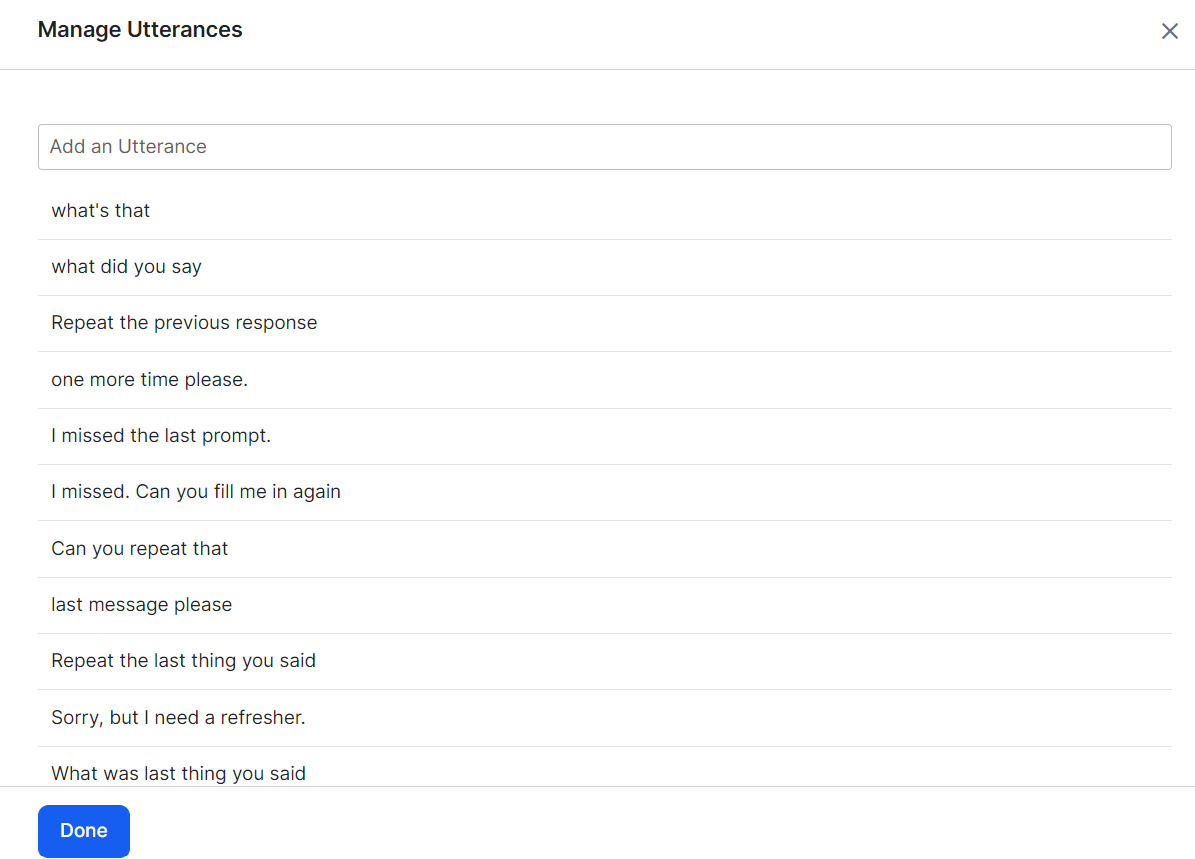
-
Add utterances as needed, then click Train.
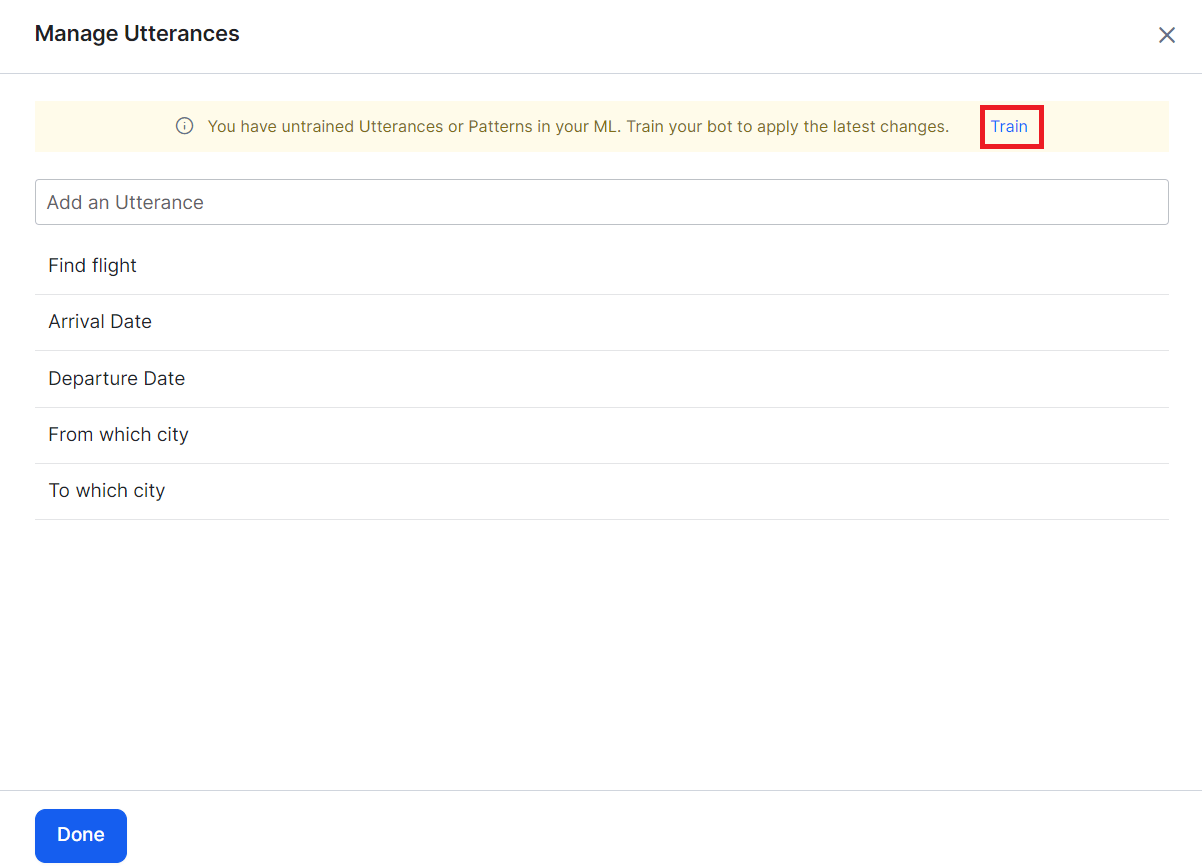
-
After training, configure preconditions:
- Channels — Add voice channels (IVR, IVR Audiocodes, Twilio Voice, SmartAssist Gateway).
- Context Tags — Add context objects to scope the event to specific dialog tasks. Learn more.
-
Set the Event Configuration:
-
Repeat Only Last Bot Response (default) — Plays a filler message before repeating. Default filler: “Sure, I will repeat it for you.”
Click + Add Filler Message, select the IVR channel, enter the filler text, and click Done.
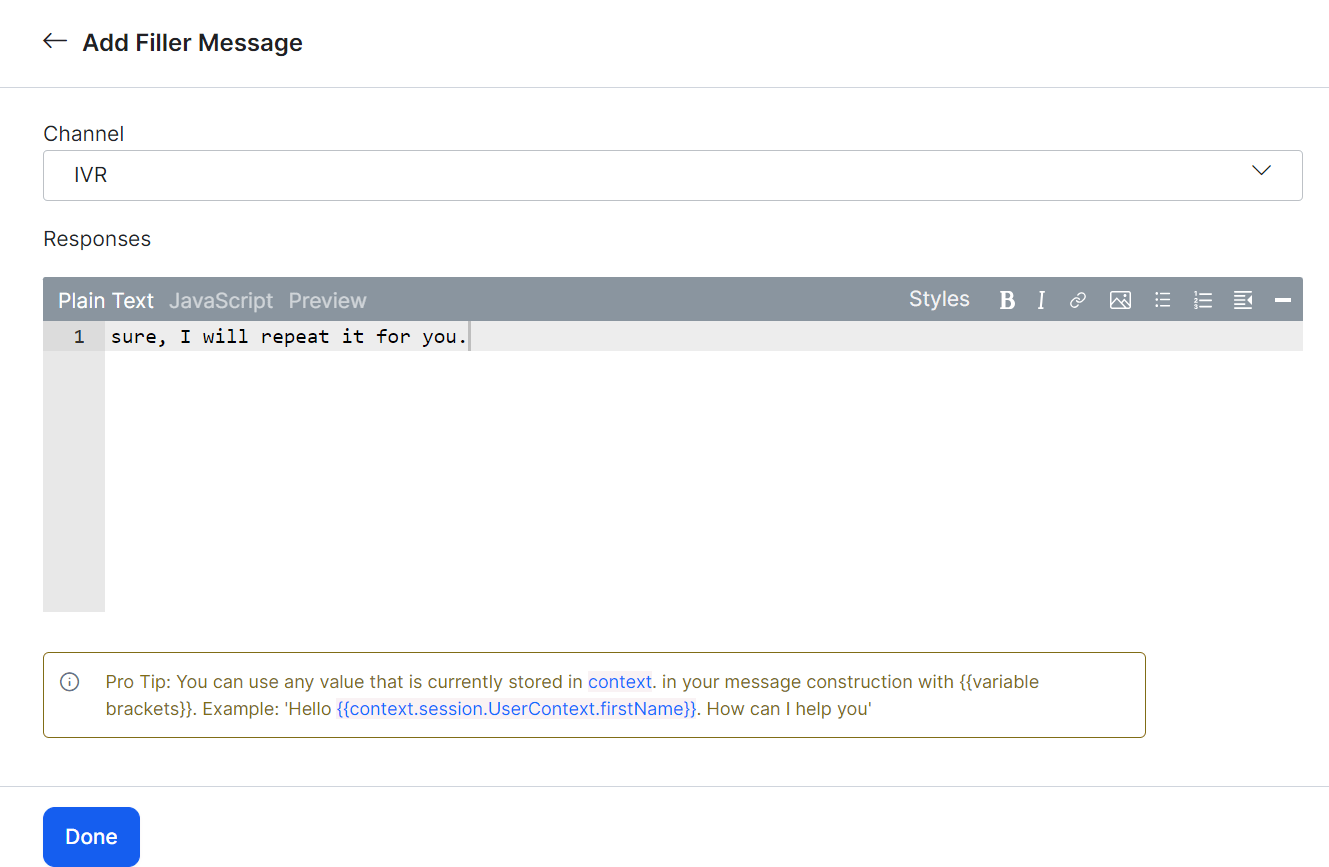
-
Auto-generate Response — Uses LLM and Generative AI to generate the repeated response. Requires the Advanced NLU model. Click Enable Now to activate.
 When Auto-generate is enabled, filler messages aren’t used.
-
Repeat Only Last Bot Response (default) — Plays a filler message before repeating. Default filler: “Sure, I will repeat it for you.”
Click + Add Filler Message, select the IVR channel, enter the filler text, and click Done.
-
Expand Advanced Settings and configure:
- Repeat Attempts Limit — Number of retry attempts (1-10, default: 5).
- Behavior on Exceeding Repeat Attempts — Choose End of Dialog or Initiate Dialog (select which task to redirect to).
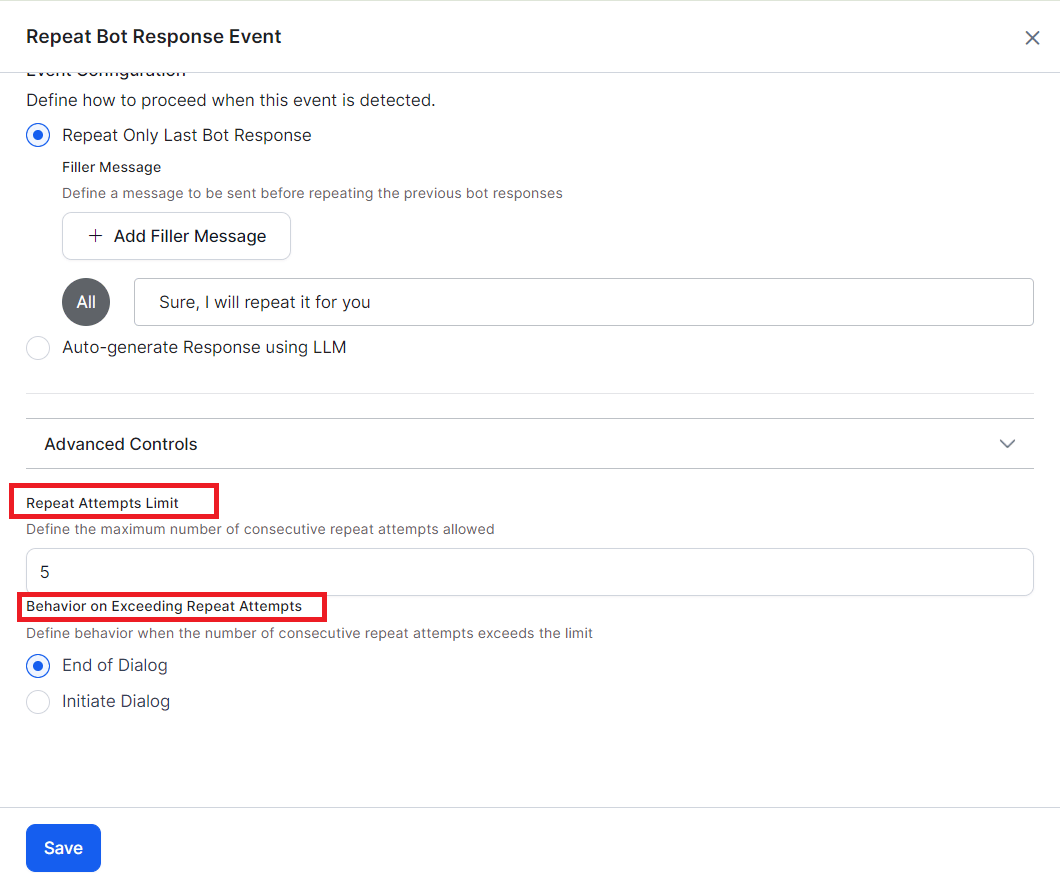
- Click Save & Enable.
Sentiment Events
Sentiment Events detect a user’s emotional state and trigger specific behaviors — such as transferring to a live agent when a user is frustrated. The NLP interpreter analyzes user utterances for tone and stores scores in the context object. Use these scores in conditional transition statements to drive dialog flow.Introduced in v7.0. Not supported in all languages. Learn more.
Configure a Sentiment Event
Go to Conversation Intelligence > Events > Sentiment Events. Click + New Event.- Session-level tone — Aggregated across all messages in a session.
- Message-level tone — Calculated per individual user message.
- When multiple emotions are selected, all conditions must be met. To trigger on any single emotion, create separate events.
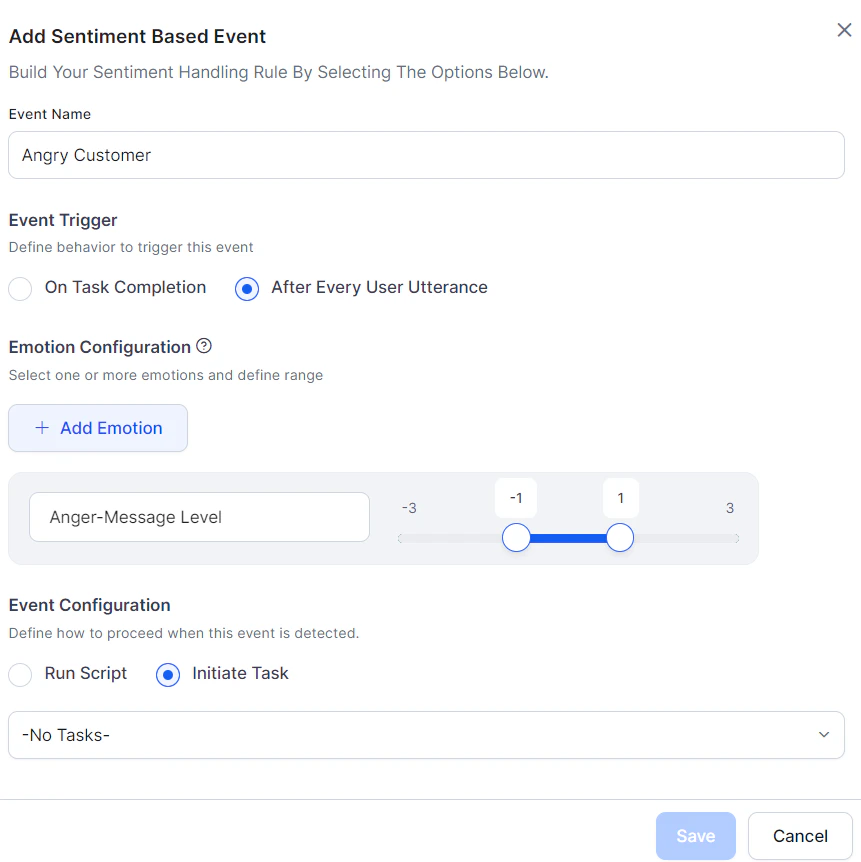
Sentiment Event Flow
Tone scores update with every user message, and sentiment events are continuously evaluated. When an event’s conditions are met:- Initiate a Task — The current task is discarded and the AI Agent switches to the configured dialog.
- Other implicitly paused tasks are also discarded.
- Tasks on hold via Hold and Resume settings are resumed per those settings.
- If the dialog is unavailable, a standard response is shown.
- Run a Script — The script runs and task execution continues. Script errors display a standard error response.
- Sentiment events take precedence over direct intent invocation.
- When multiple sentiment events match simultaneously, the highest-precedence event (by defined order) wins.
Behavior when initiating a task:
Reset Tone
Sentiment values reset at two points:- Start of every user conversation session (default).
- After a sentiment event fires:
- If a script ran: values reset after successful execution.
- If a dialog task was triggered: values transfer to the new dialog’s context and reset in the original global context.
Tone Analysis
The NLP interpreter scores user utterances on six emotions. Access scores from theContext object or use them to configure sentiment events.
Tone Types
Tones aren’t mutually exclusive — an utterance can score high for fear and mild for sadness simultaneously.
Tone Score Scale
Scores range from -3 to +3:
Positive values = tone explicitly expressed. Negative values = tone explicitly negated.
Examples:
- “I am happy about this news” → positive joy score
- “I am not happy about this news” → negative joy score
Score Calculation
Scores are calculated from the base tone value plus any modifiers (adverbs or adjectives that amplify or reduce intensity). Examples:- “I am extremely disappointed” → higher angry score than “I am disappointed”
- “I am not disappointed” → negative angry score
- Current node score → stored in
message_tone - Session average score → stored in
dialog_tone(reset at end of each session)
Context Object Variables
Both variables return arrays of objects with
tone_name, count, and level fields. Key/value pairs are returned only when a tone is detected. A level of 0 indicates a neutral tone.
Always handle positive, negative, zero, and undefined values when reading tone variables.
Examples
Extending Tone Detection with Custom Words
Add custom words to tone concepts during concept training to extend the emotion vocabulary. Concept name syntax:~tone-<tonename>-<level>
<tonename>— one of the 6 tone types listed above.<level>— a number from 1 to 7, where 1 = -3, 4 = 0 (neutral), 7 = +3.
Only add base tone words. Intensity modifiers like very or extremely are handled automatically.