Key Features
Supported Conversation Types
- Single Intent
- Multi Intent
- Small Talk
- Conversation Intent
- No Intent
- Ambiguous Intent
- Answer Generation
How Batch Testing Works
Batch Testing replicates actual runtime behavior by chaining retrieval and LLM calls, ensuring each test case goes through the complete conversation pipeline:- Query Rephrasing (if enabled).
- Chunk Qualification from Dialogs, FAQs, and Search Index.
- Semantic Similarity Matching based on configured thresholds.
- LLM Processing for intent identification and fulfillment type determination.
Validate Specific Conversational Intent Types
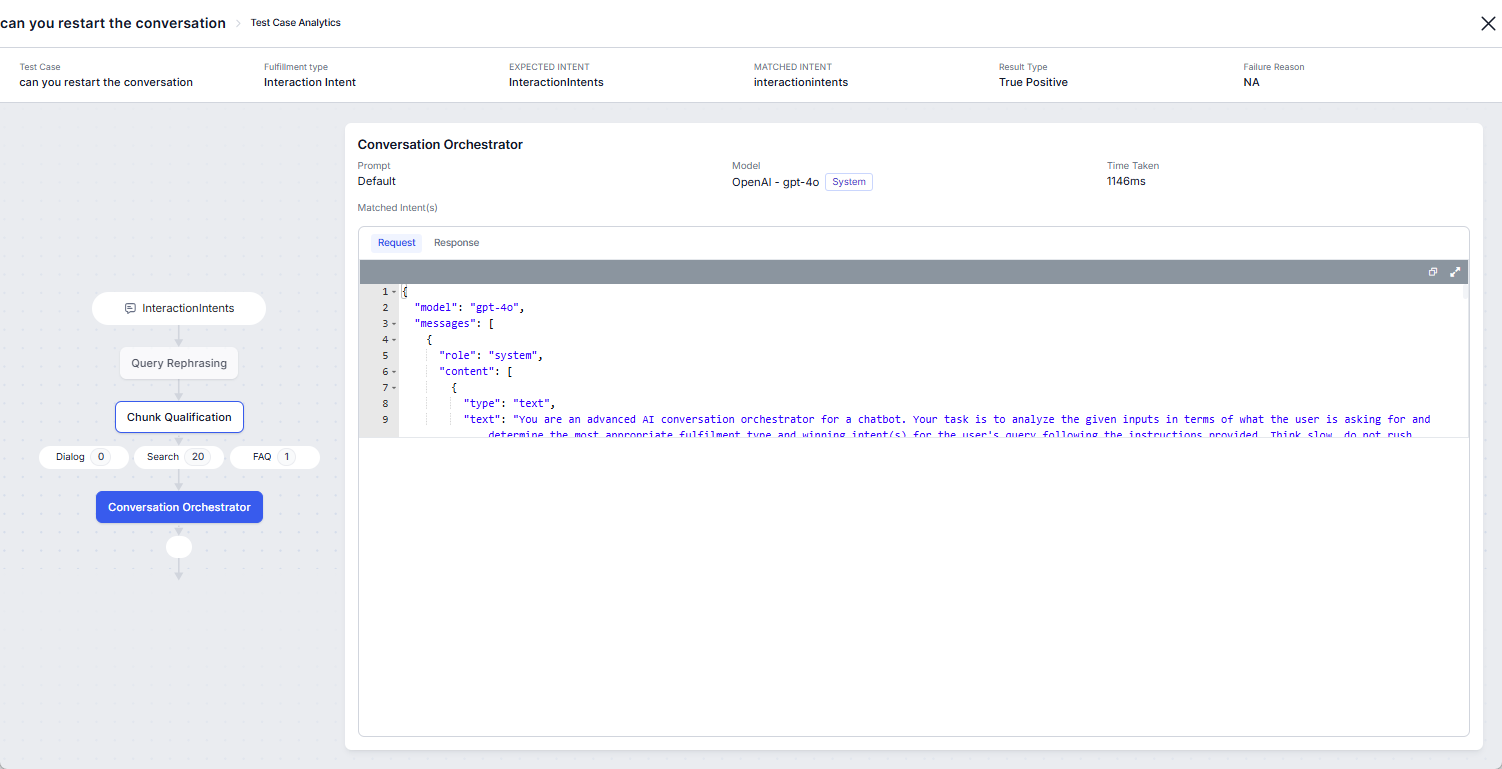
The Batch Testing framework enables you to explicitly validate specific Conversational Intent Types — including Hold, Restart, Refuse, End, Agent Transfer, and Repeat — within the Conversation Intent fulfillment category. This helps you test and verify how each conversational action is recognized and processed. During execution, the batch testing engine performs granular validation by comparing expected and detected conversational intent types. Test results display both values to help identify mismatches and ensure accurate dialog handling.Define Expected Intents
Specify expected intents using the following format:
JSON/CSV Upload — When importing test cases via JSON or CSV, define the expected intent using the format above. Download the sample CSV or JSON templates when creating a test suite.
Quick Entry — The Expected Intent dropdown lists the predefined conversational intent types. These options appear when the fulfillment type is set to Conversation Intent.
Access
Go to Automation AI > Virtual Assistant > Testing > Regression Testing > Batch Testing.Step 1 — Create a Test Suite
To conduct a batch test, create a test suite. Each test suite comprises multiple test cases, including key fields such as user utterance, expected intent, linked app, and fulfillment type.Upload a File
This method adds multiple test cases simultaneously. Download the sample CSV or JSON file formats while creating the test suite.For Multi-App Routing, you must enter the linked app name in addition to the utterance, fulfillment category, and intent.
- Go to Automation AI > Virtual Assistant > Testing > Regression Testing > Batch Testing.
- Click +New Test Suite.
- Enter the test Name and Description.
- Click Upload File, select the file, and click Add to Suite.
- Click Create Suite. The created test is displayed.
Quick Entry
Add one test case at a time using a form. The form includes mandatory fields: User Utterance, Fulfillment Type, and Expected Intent.- Go to Automation AI > Virtual Assistant > Testing > Regression Testing > Batch Testing.
- Click +New Test Suite.
- Enter the test Name and Description.
- Click Quick Entry.
- Based on your app type:
- Standard App — Enter the User Utterance, select the Fulfillment Category and Expected Intent.
- Multi-App Routing — Enter the User Utterance, select the Fulfillment Category, Linked App, and Expected Intent.
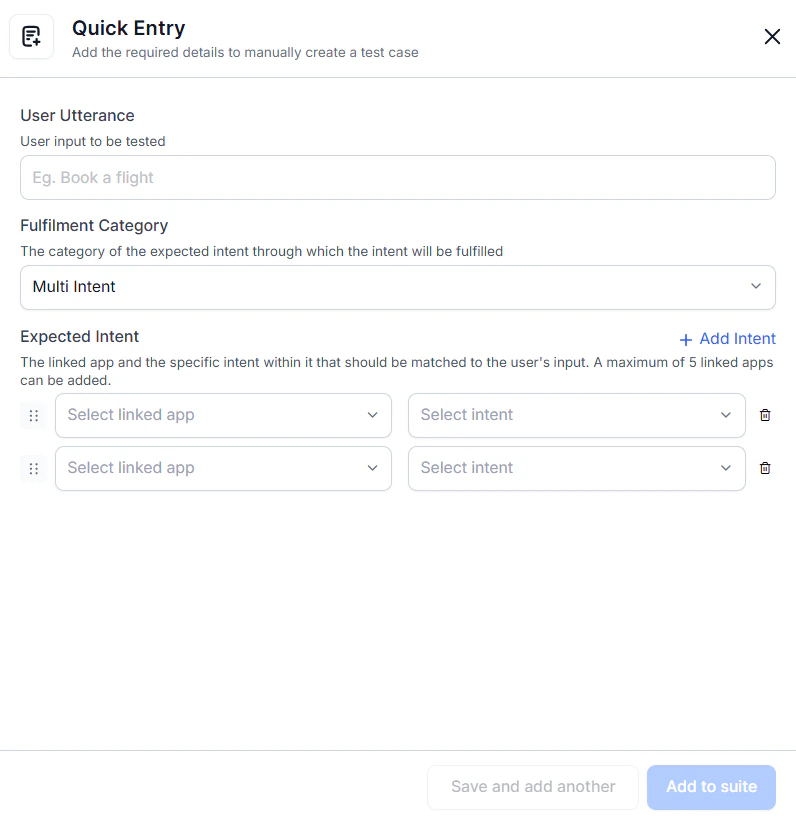
- Click Save and add another for the next test cases, or click Add to Suite.
- Click Create Suite. The created test is displayed.
Step 2 — Run Test Suite
After creating a test suite, run it through the complete retrieval and LLM pipeline to simulate live interactions using a set of model configurations. You can run execution for both in-development and published versions, and add notes to record the purpose of the test run.The embedding model can’t be changed. For testing purposes, the DialogGPT embedding model is used.
- Go to Automation AI > Virtual Assistant > Testing > Regression Testing > Batch Testing.
- Click Run Test Suite for the required suite.
- Select the App Version, Orchestration Model, Prompt, and add Notes if required.
- Click Run Test to start batch test execution.
- Once complete, the results are displayed.
Step 3 — Results and Analysis
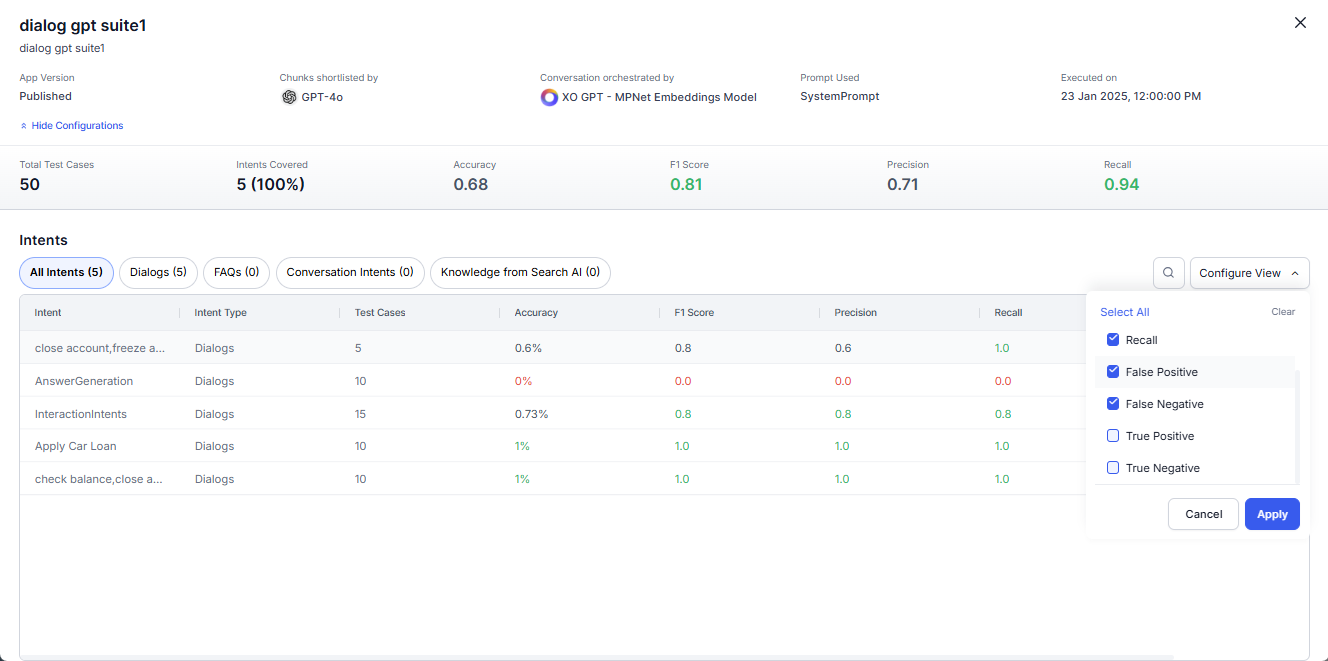
The Results and Analysis stage evaluates performance using standardized intent detection metrics, presenting all batch test results conducted so far. Compare different combinations of embedding and language models and make data-driven decisions using key metrics.- Go to Automation AI > Virtual Assistant > Testing > Regression Testing > Batch Testing and click the test suite to view tests.
- Click the summary icon to view the result. Download the report as a CSV file or delete results.
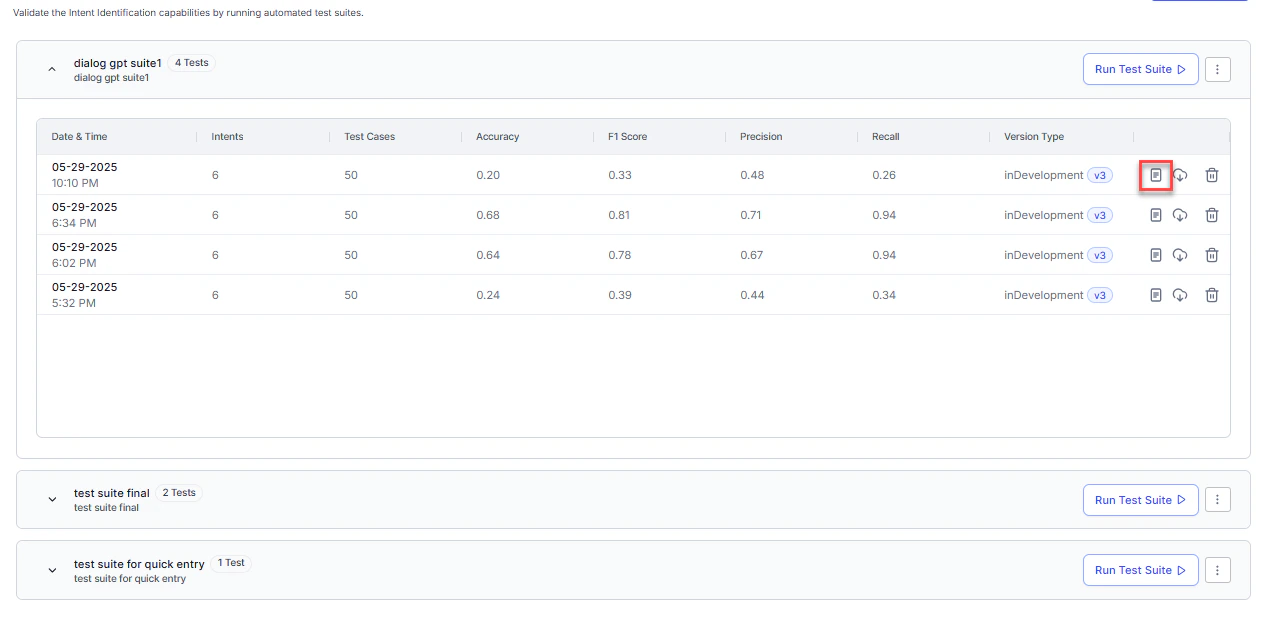
- The test result is displayed.
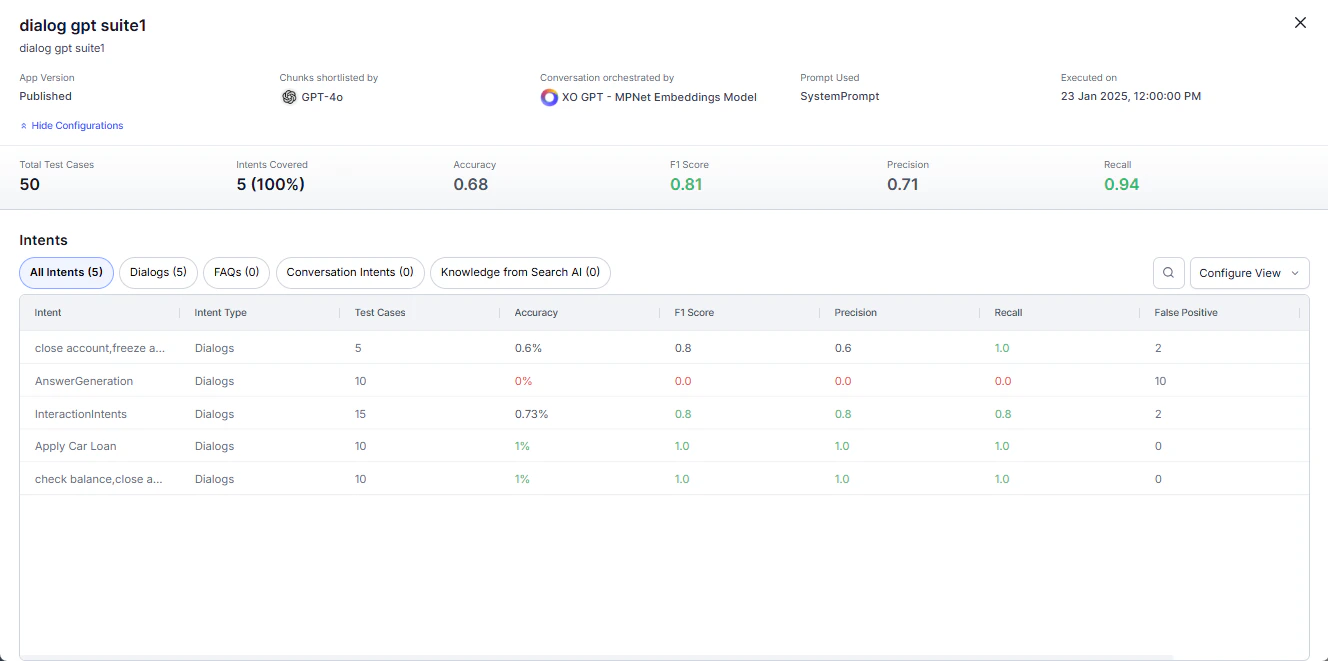
- Click Configure View to add or remove displayed metrics. Select the metric and click Apply.
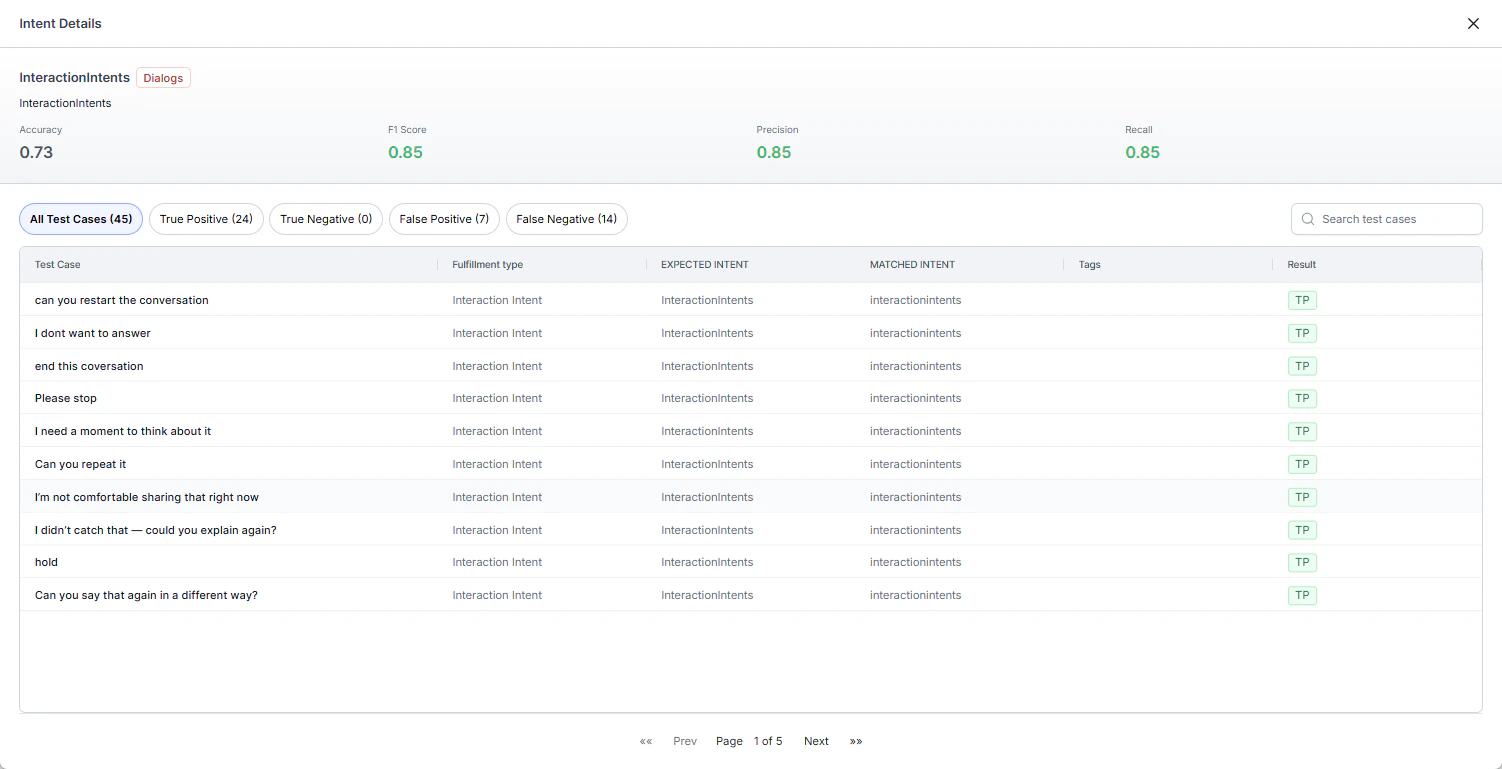
- Click any Intent to view intent details.
- Click any Test Case to view test case details.
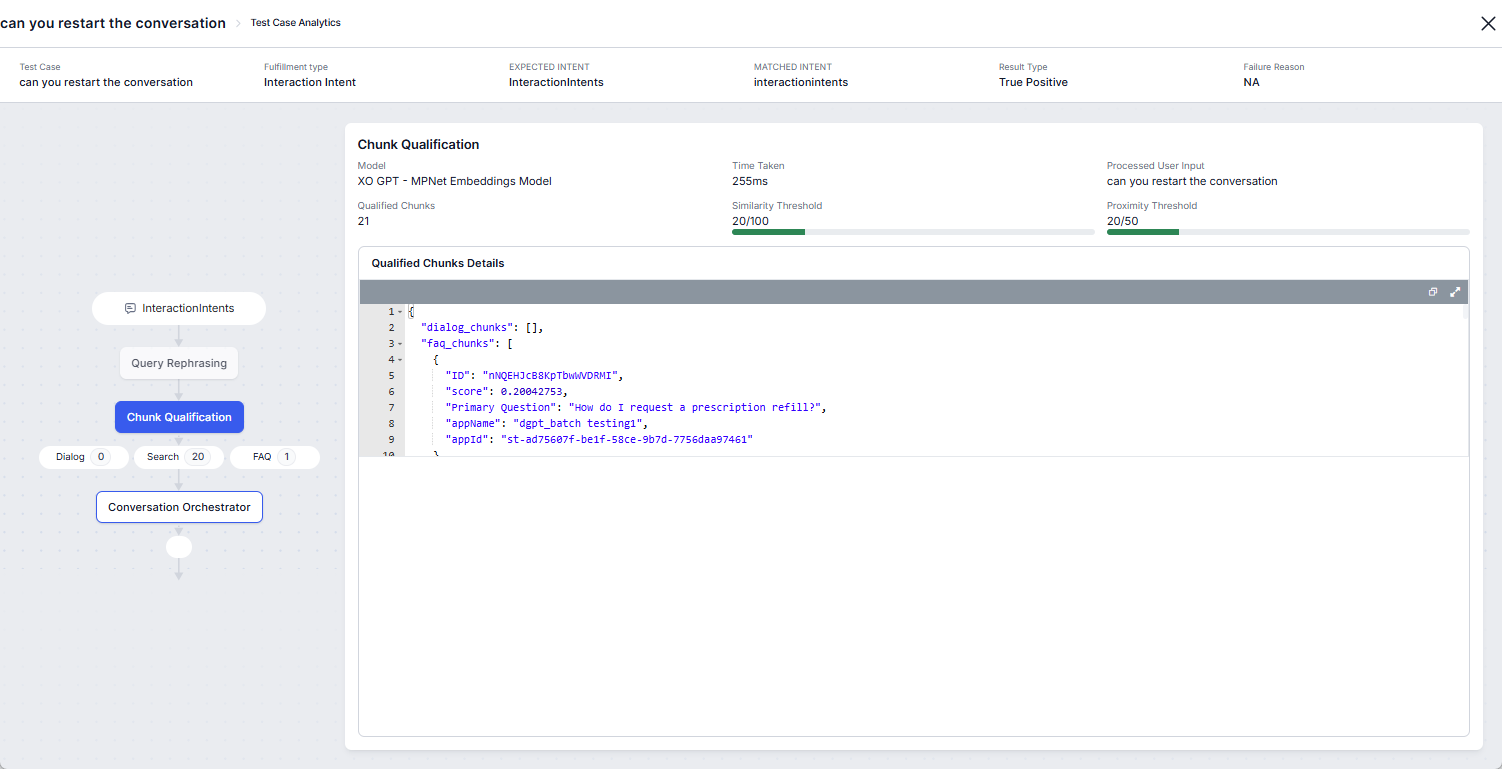
- Click Conversation Orchestration to view request and response payload.