
Back to Integrations List Integrate Kore Voice Automation with Zoom Contact Center (ZCC) using SIP Integration to enable AI-powered voice assistance for incoming calls.Documentation Index
Fetch the complete documentation index at: https://koreai.mintlify.app/llms.txt
Use this file to discover all available pages before exploring further.
How It Works
| Phase | Description |
|---|---|
| Setup | Kore configures the integration with ZCC using Zoom connectors. |
| Channel Integration | The AI Agent uses ZCC as a communication channel. Calls from ZCC route to Kore IVR for voice automation. Supports “Transfer from IVR” and “Agent Transfer.” |
| Routing | Kore runs voice automation. If a human agent is needed, use the Agent Transfer Node to return the call to ZCC with optional SIP headers. |
| Agent Interaction | Agents receive and respond to customer calls via ZCC. |
Prerequisites
- Zoom App Marketplace Developer account
- Developer access to the Platform
Architecture
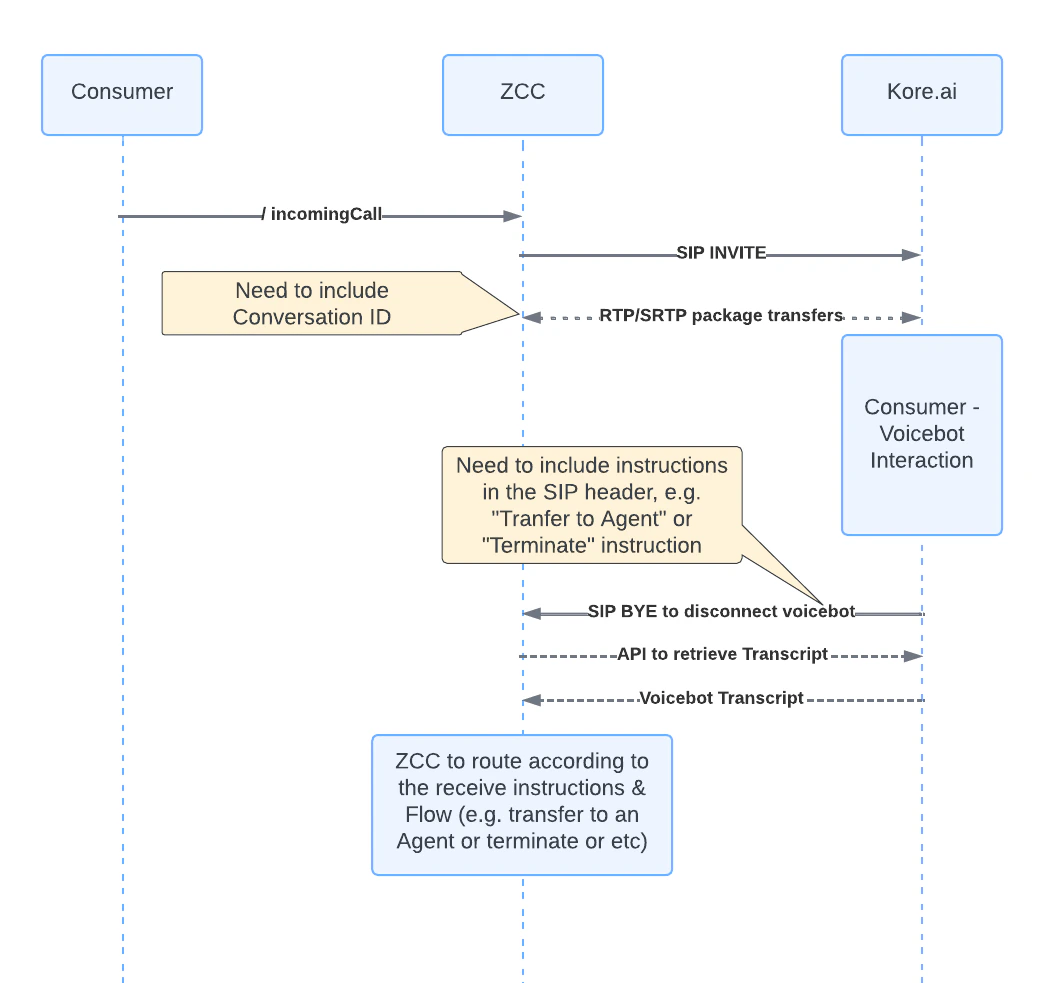
Setup Overview
- Associate an app within an experience flow.
- Configure “Transfer from IVR.”
- Configure “Agent Transfer.”
- Create a Bot Connector instance on Zoom App Marketplace.
- Fetch conversation details and summary.
Step 1: Associate an App with an Experience Flow
In the Experience Flow, add an Automation node and attach the app to trigger when ZCC transfers a call to Kore. See Create Flows and Automation node.If using the older “SmartAssist” version, follow the SmartAssist flow creation guide.
Step 2: Configure Transfer from IVR
Transfer from IVR routes calls from ZCC to Kore.-
Go to Flows & Channels > Channels > Voice Gateway > SIP Numbers > Configure SIP Trunk.
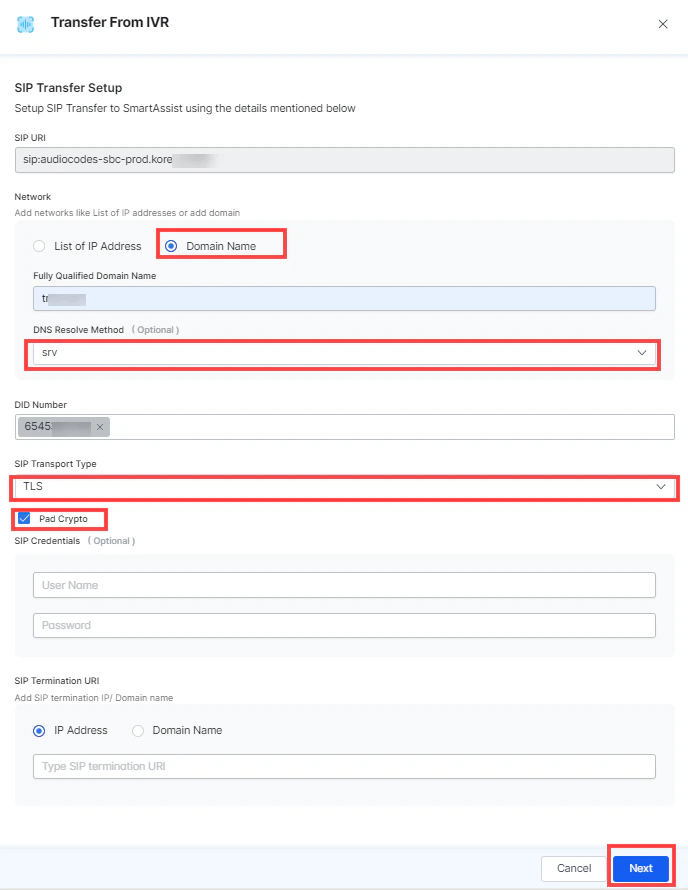
- Select Contact Center AI. The SIP URI field auto populates and is used for the ZCC-to-Kore transfer.
- Copy the Domain from Zoom Connector App > Configuration Details and paste it in Fully Qualified Domain Name.
- Copy the DID Number from Zoom Connector App > Configuration Details and paste it in DID Number.
-
Configure:
- DNS Resolve Method: srv
- SIP Transport Type: TLS
- Enable Pad Crypto
-
Click Next, then enable Inbound Calls and Outbound Calls.
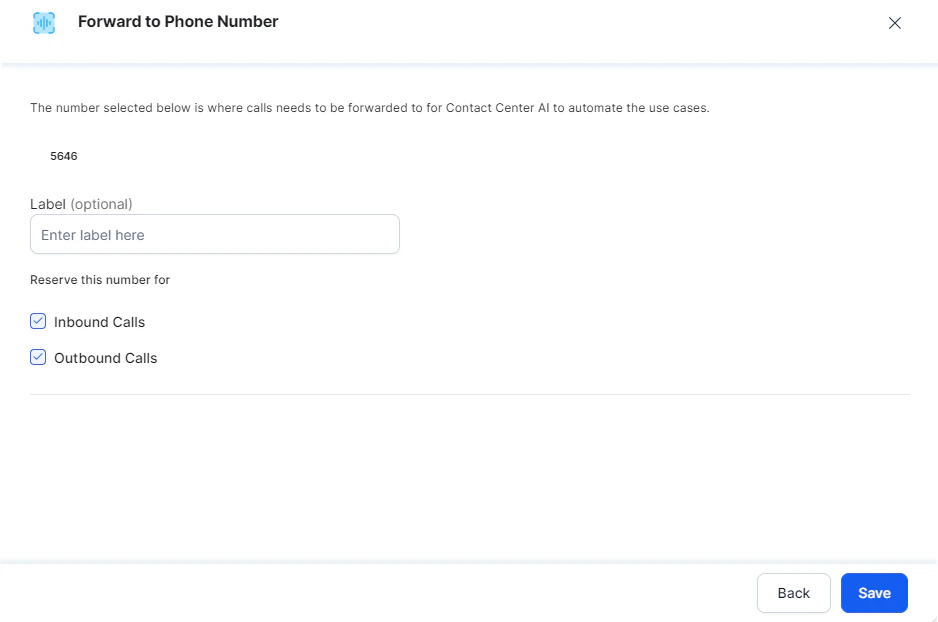
-
Click Save.
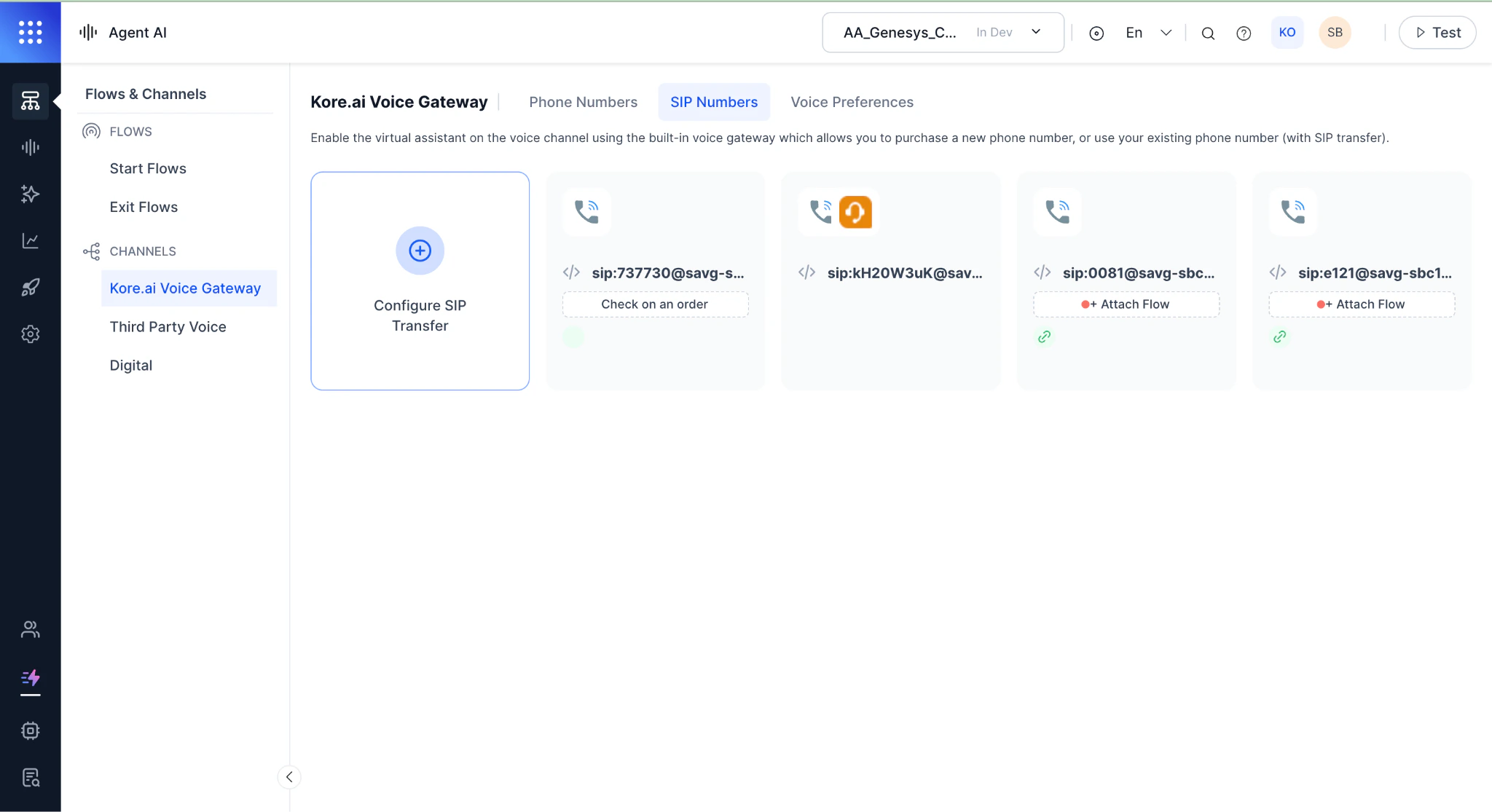
After saving, attach the flow from Step 1 to this SIP configuration.
-
Click Attach Flow and attach the flow from Step 1. See Attach Flow.
Step 3: Configure Agent Transfer
After the customer interacts with the AI Agent, transfer to ZCC using one of these approaches:Option A: Agent Transfer Node in Experience Flow
-
Select Agent Transfer from Action.
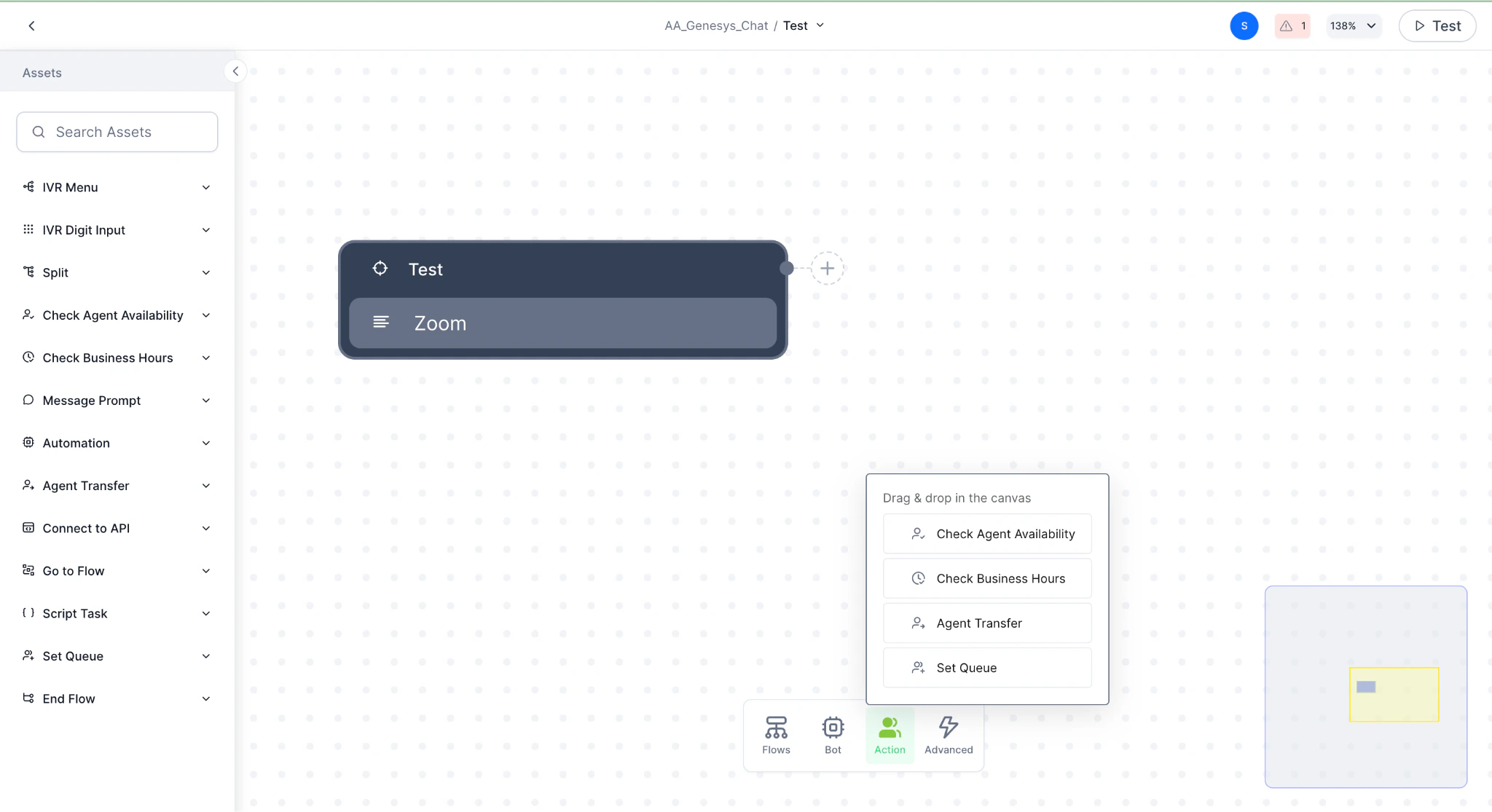
-
Add the Agent Transfer configuration.
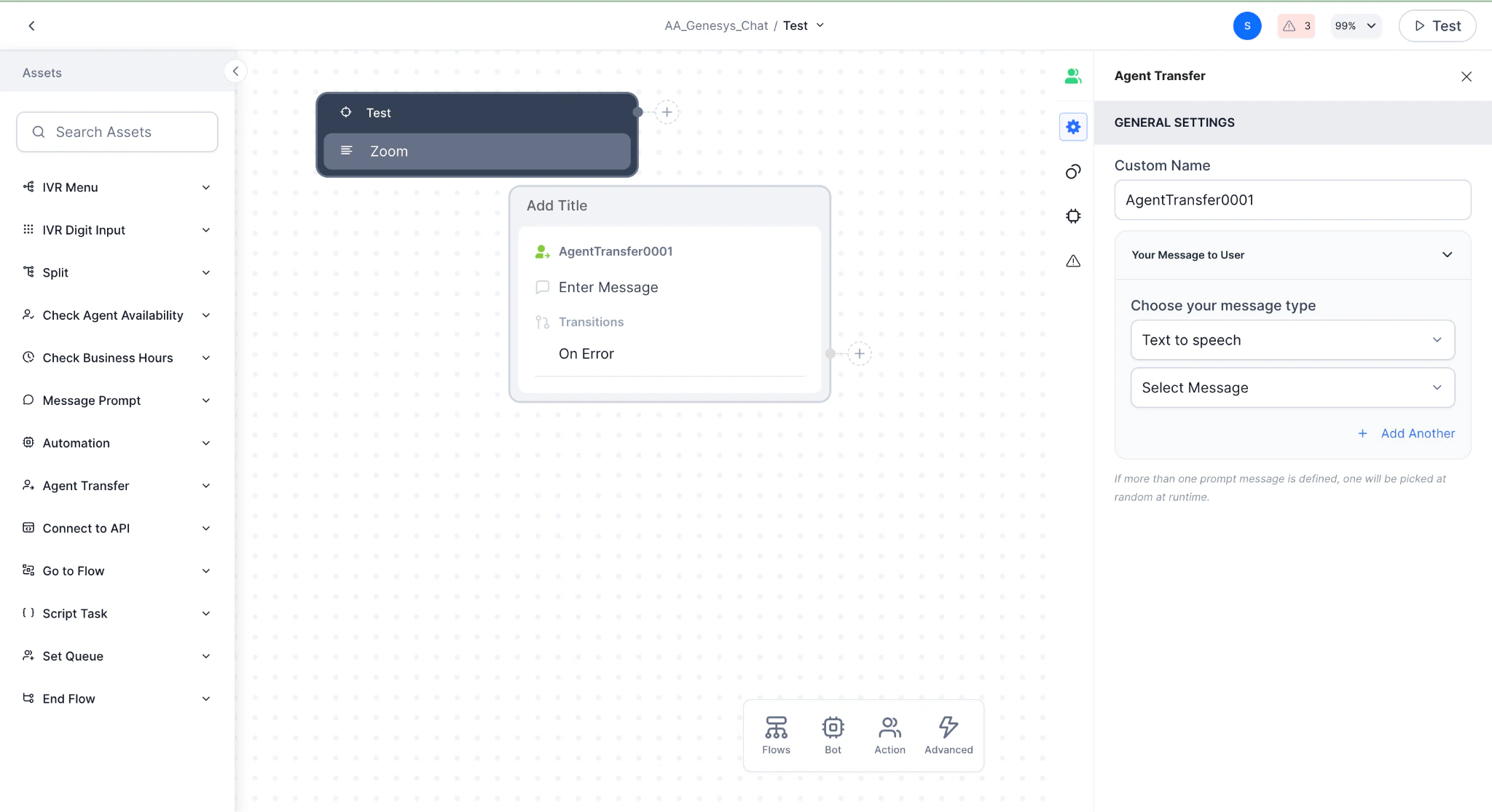
- Go to App Settings > Integration > Agent Transfer > Voice and create a SIP transfer.
-
Select SIP BYE for ZCC agent transfer.
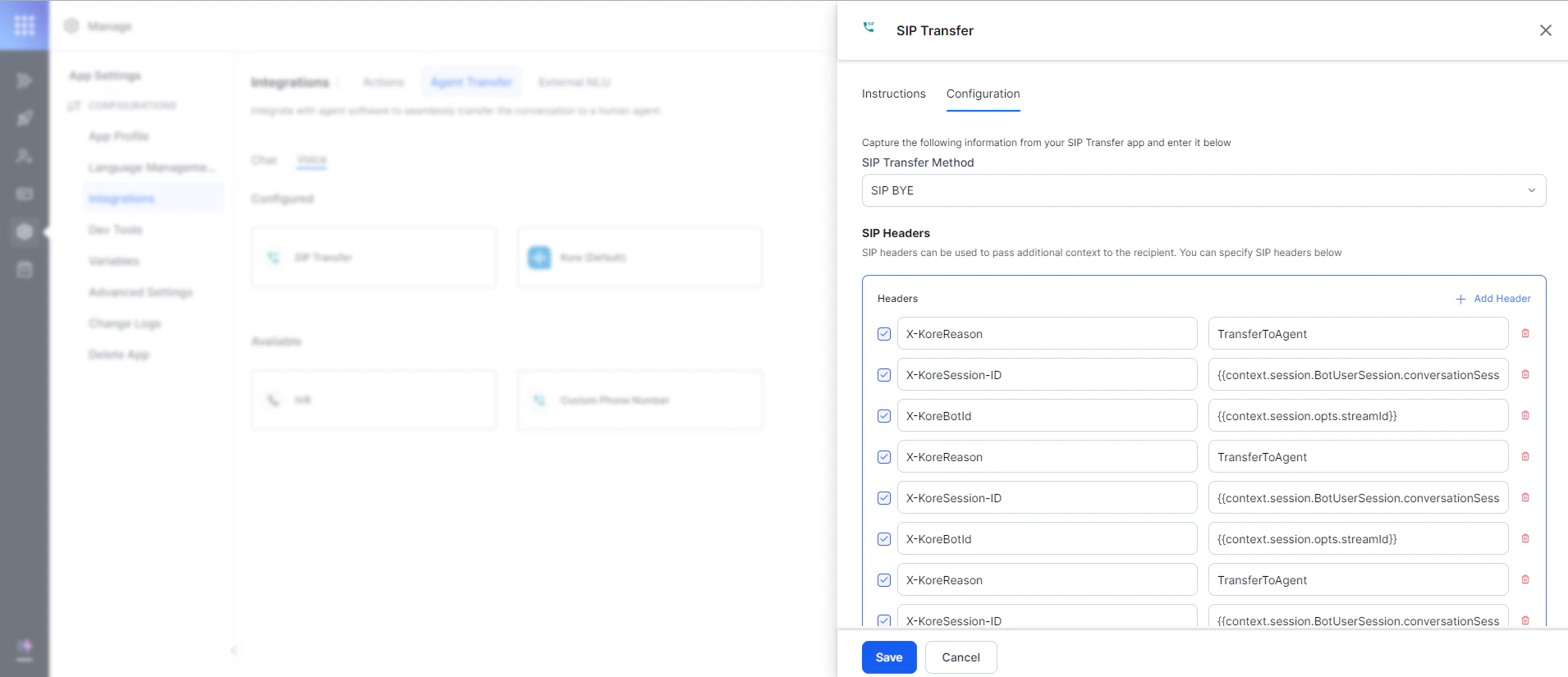
- Configure SIP headers to pass to ZCC on agent transfer via SIP BYE.
Option B: Agent Transfer from a Dialog Task
Add the following code to a Message Node:Agent transfer can target a phone number or any SIP URI.
Agent Transfer Scenarios
| Scenario | What Happens |
|---|---|
| Customer resolves query and hangs up | Zoom sends SIP BYE; Kore sends ACK; no SIP headers passed. |
| Voice bot ends the call | Kore sends kore-session_id and kore-bot_id in INVITE’s 200 OK; sends kore-reason(HangUp) in SIP BYE; any custom gateway headers are passed. |
| Customer needs transfer to ZCC agent | Kore sends kore-session_id and kore-bot_id in INVITE’s 200 OK; sends kore-reason(TransferToAgent) in SIP BYE. |
Step 4: Create a Zoom Connector (Transfer from IVR)
- Sign in to Zoom App Marketplace as Admin.
-
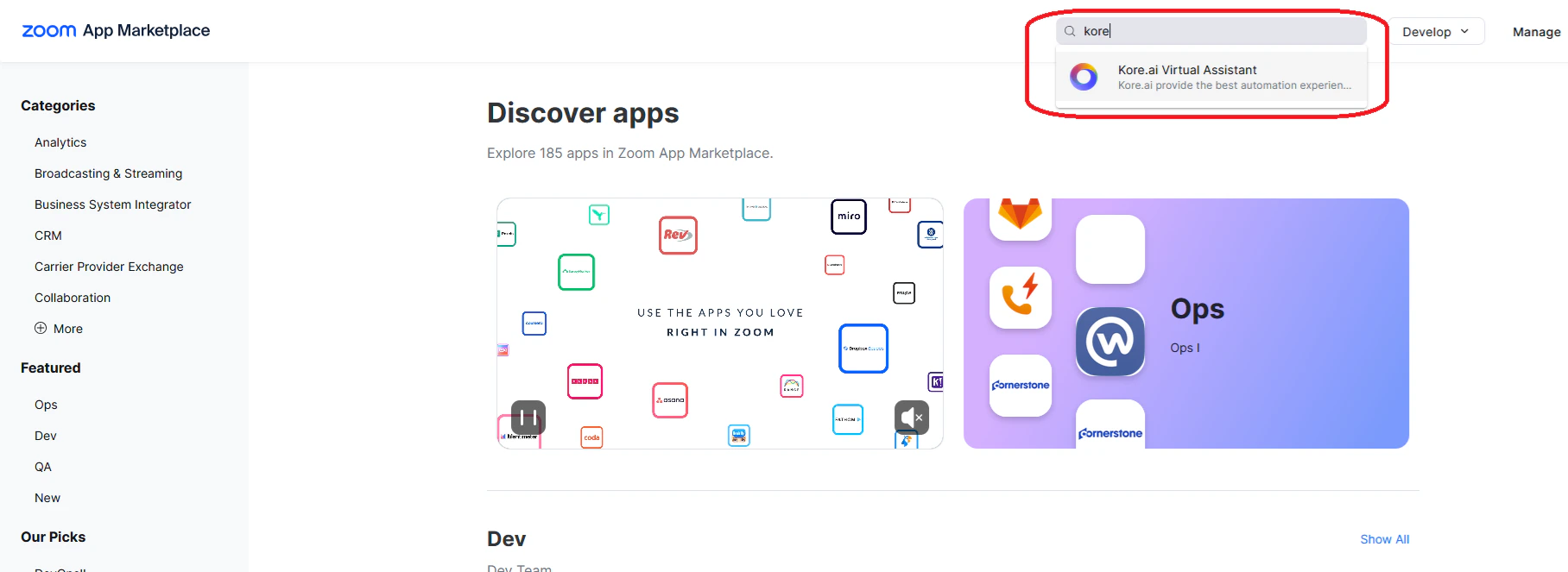
Go to App Types > Connectors, or search for “kore.ai.”
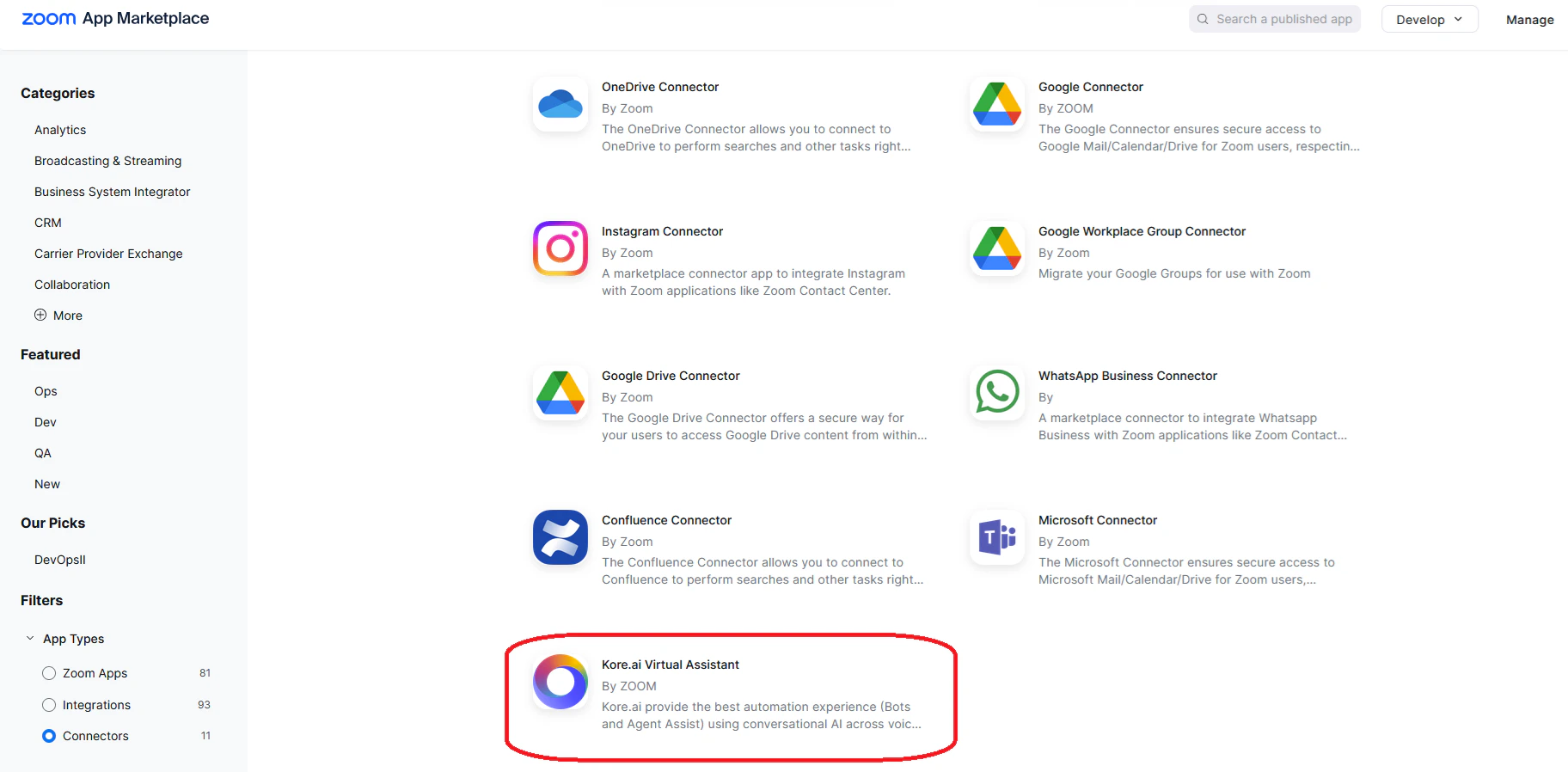
-
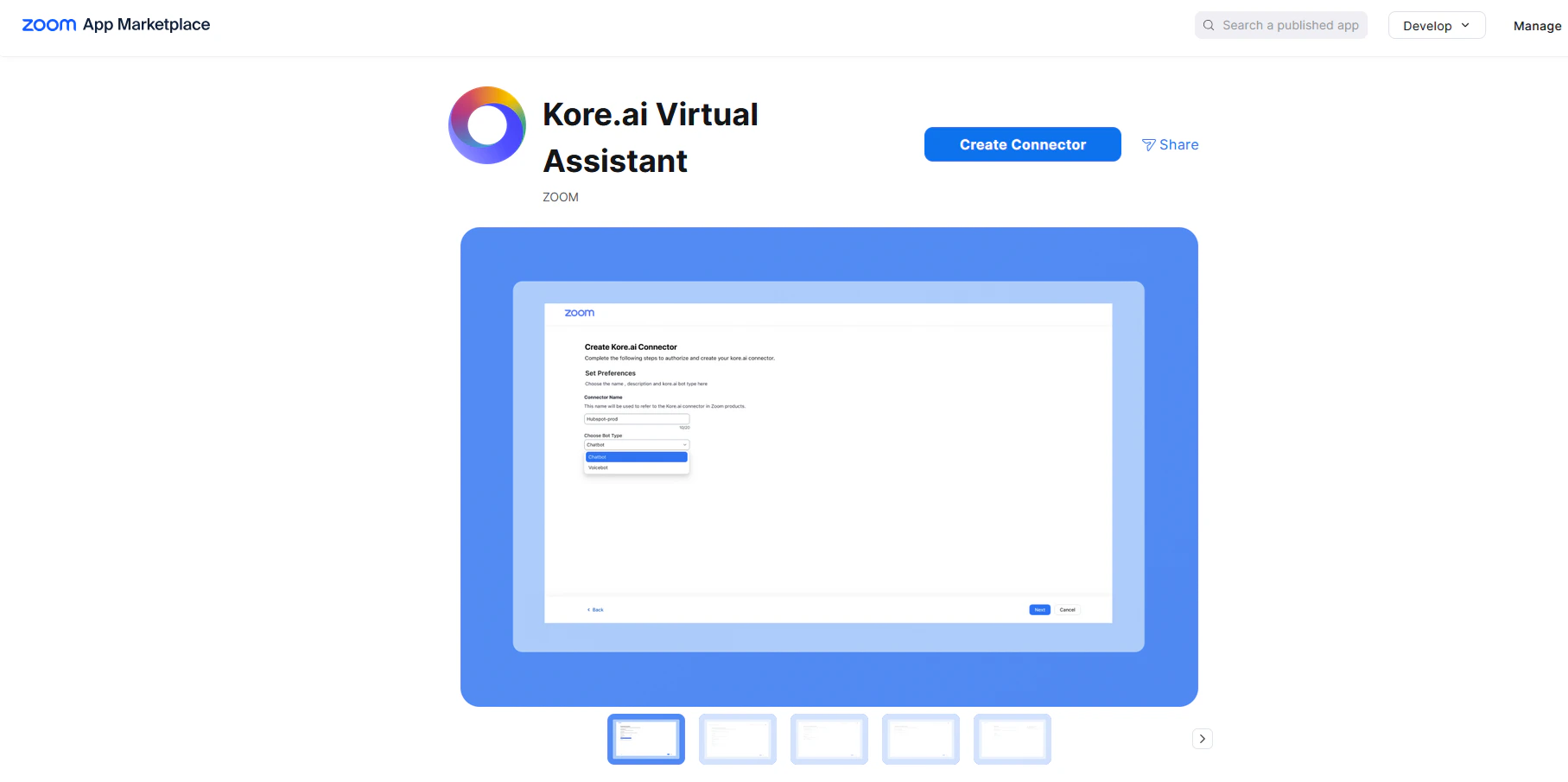
Select the Kore.ai connector.
-
Click Create Kore.ai Assistant Connector.
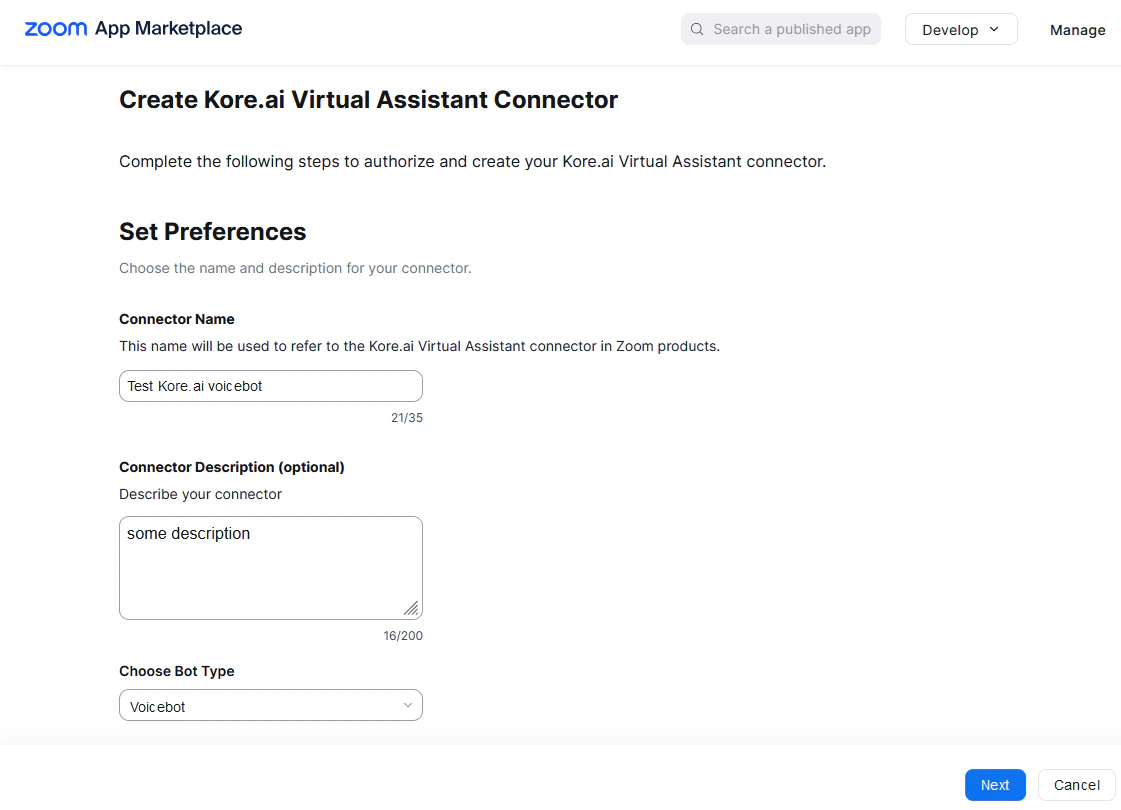
- Enter a Connector Name, select Voicebot from Choose Bot Type, and click Next.
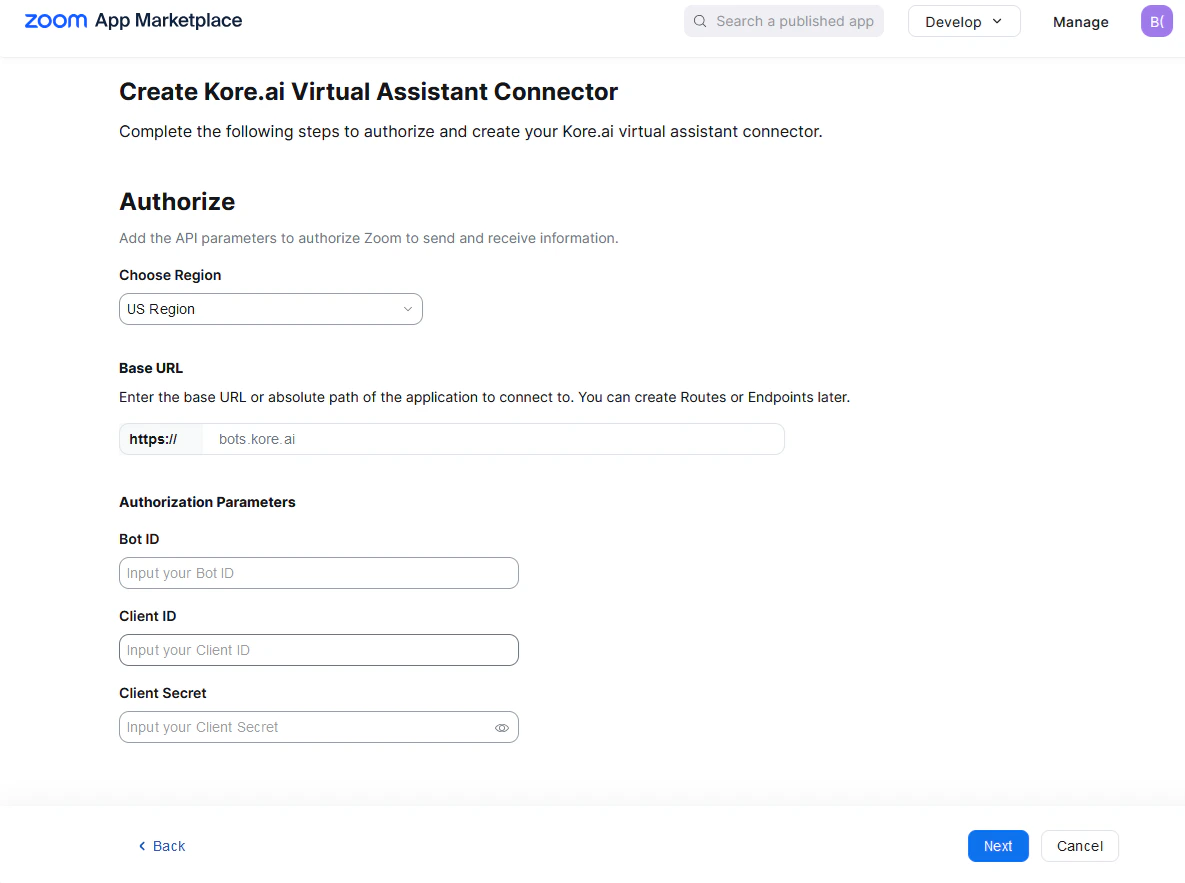
- Select your region to auto-populate the Base URL.
-
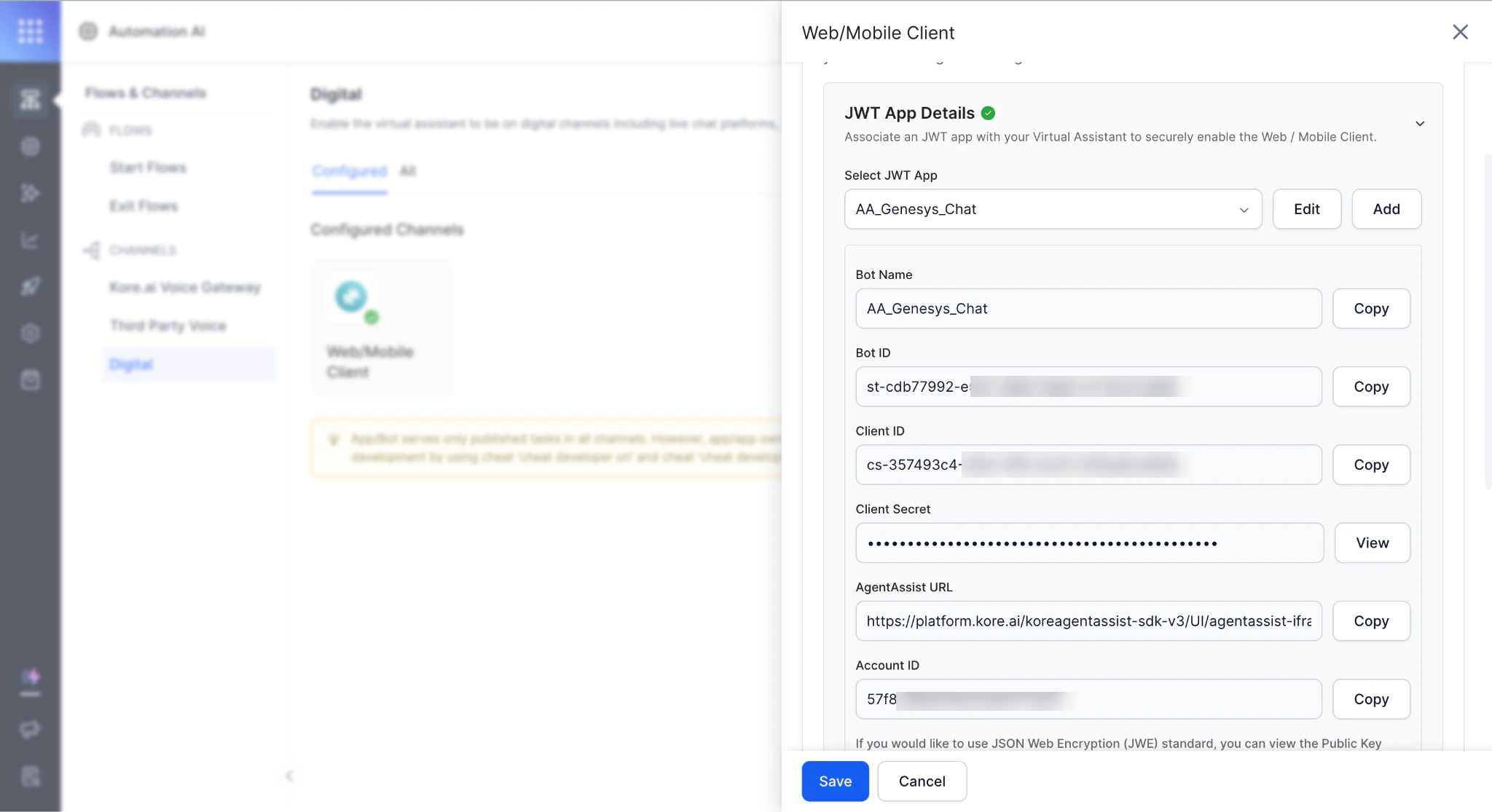
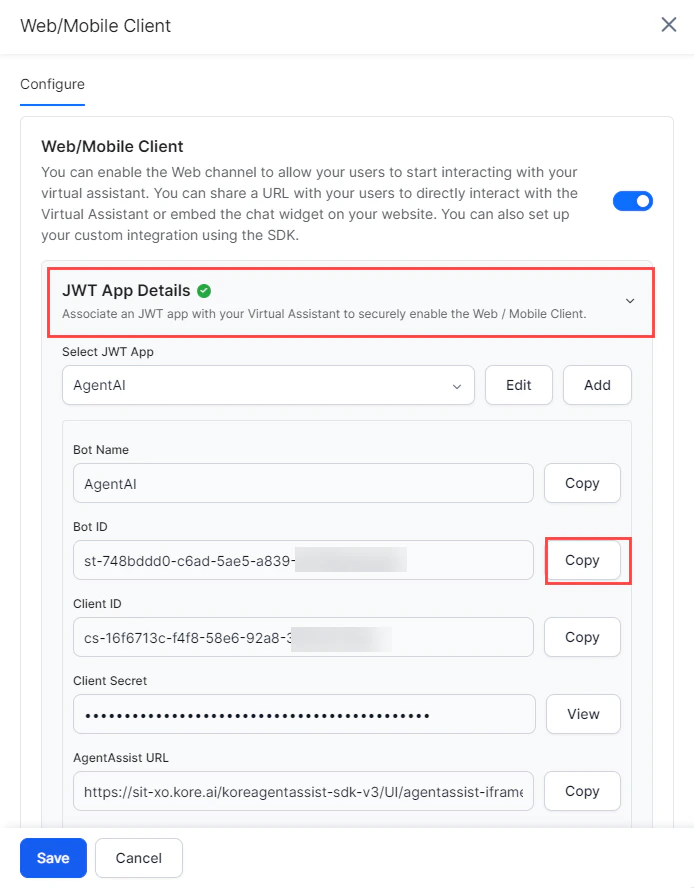
Copy Bot ID, Client ID, and Client Secret from AI for Service:
- Go to Flows & Channels > Digital > Configured Channels > Web/Mobile Client > JWT App Details.
-
Paste the values into the Authorization Parameters section and click Next.
-
Copy the Domain Name and DID Number from the connector page.
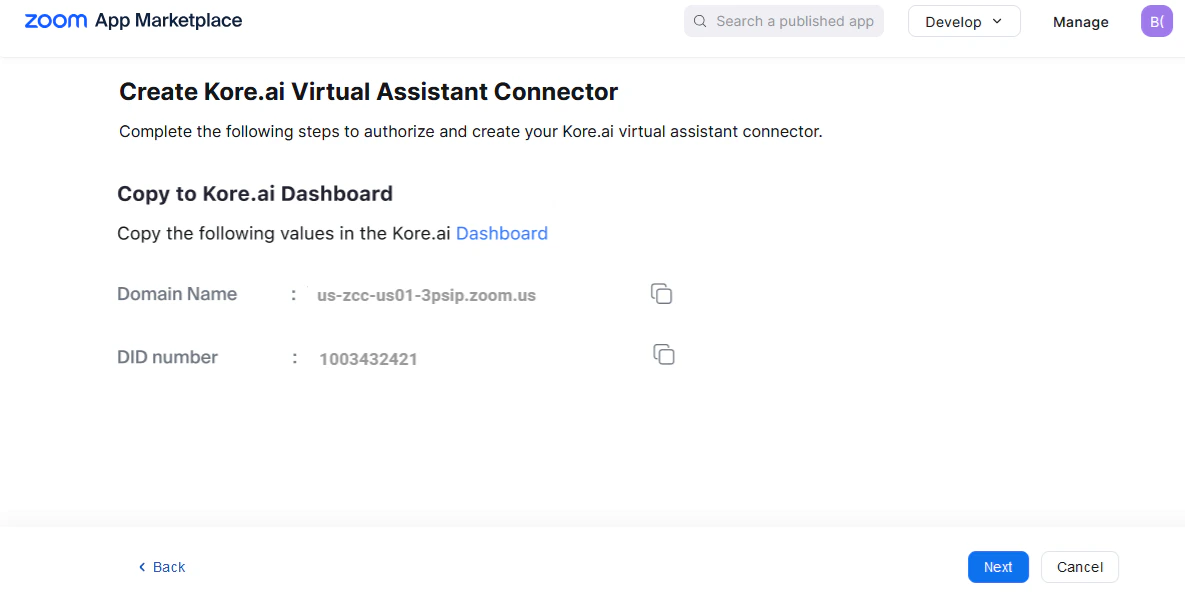
- Paste them into the Assistant Connector configuration in ZCC.
- Click Next to authorize the connector with the Platform.
Step 5: Fetch Conversation Details and Summary
- Sign in to AI for Service.
-
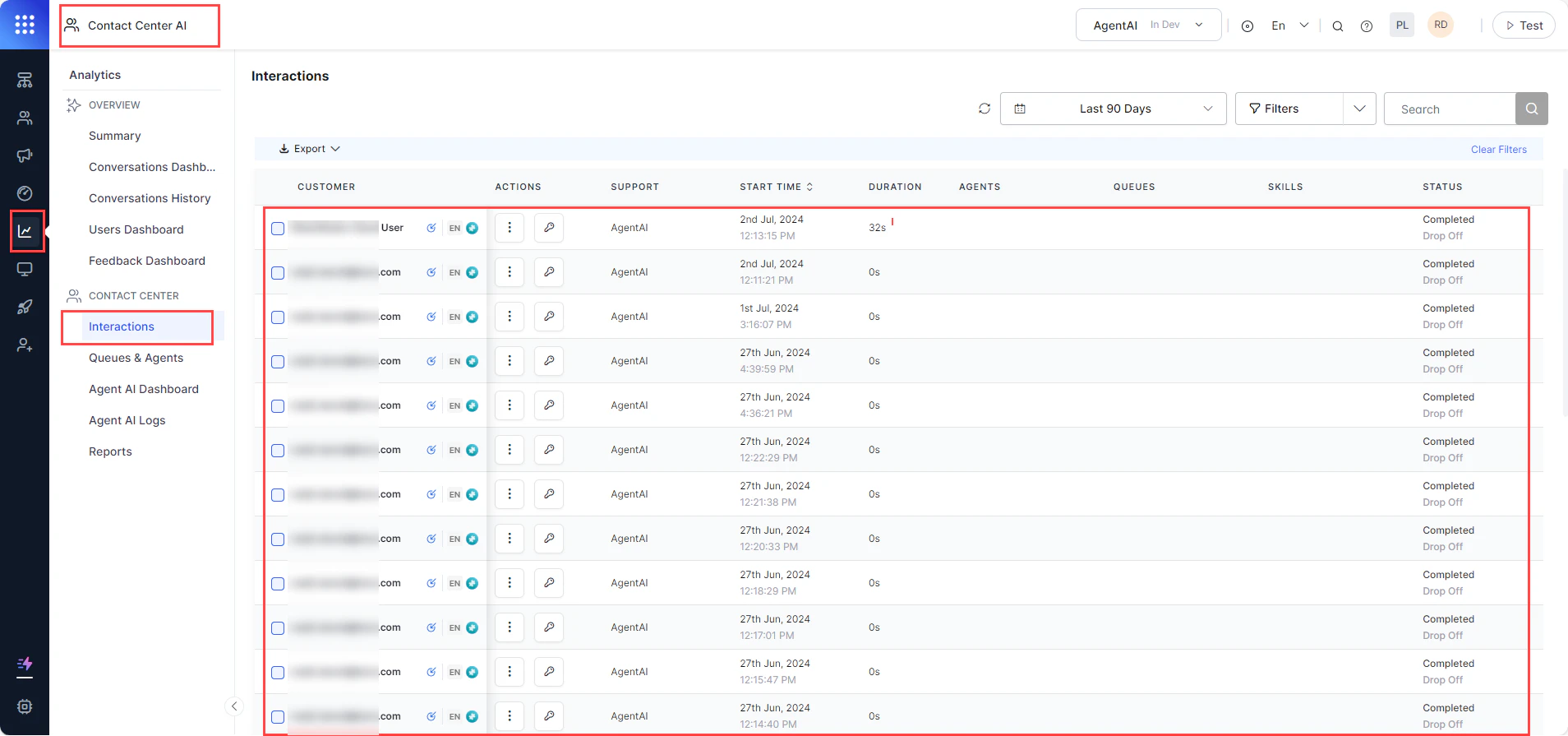
Go to Contact Center AI > Analytics > Contact Center > Interactions and verify call records exist.
-
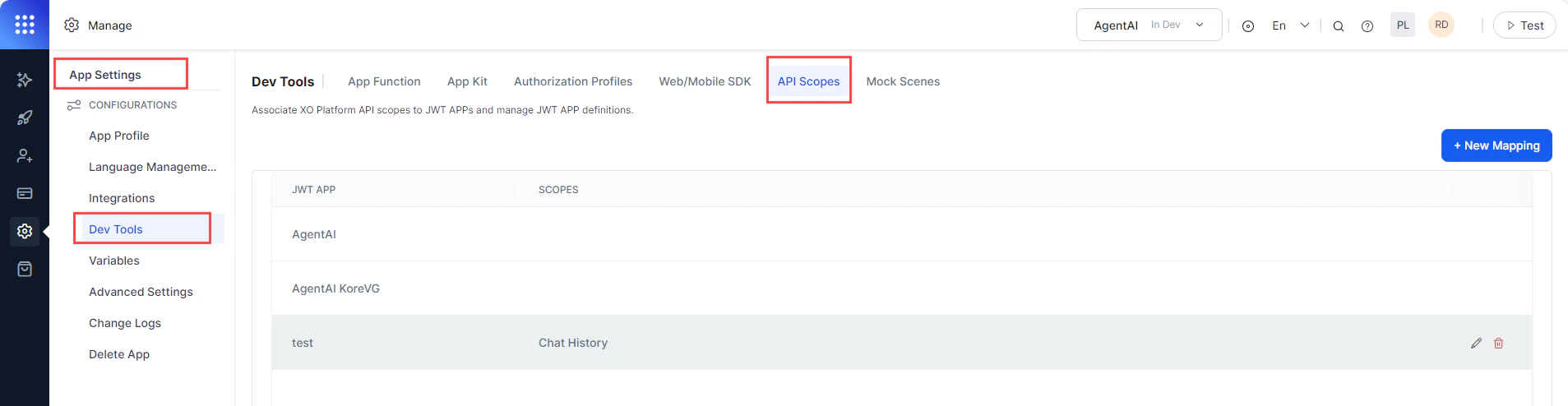
Go to Settings > App Settings > Dev Tools > API Scopes.
-
Click + New Mapping, then select an app from the JWT App list.
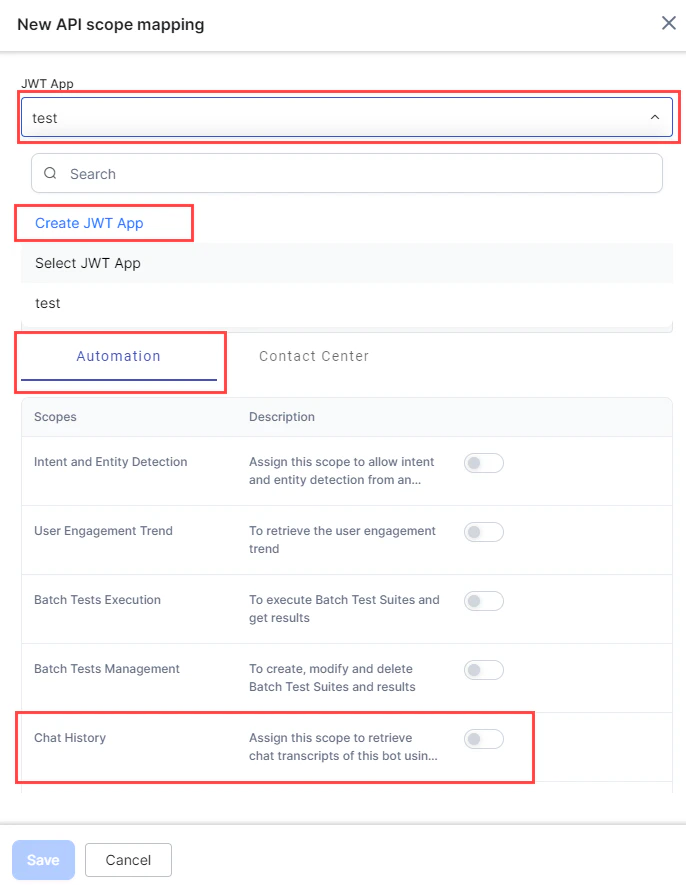
- Enable Chat History under Automation and click Save.
-
Go to Generative AI > Models Library, find Kore.ai XO GPT, and click Enable Now.

-
On the Kore.ai XO GPT page:
- Select a model.
- Select a fine-tuned model for Summarizing Conversation.
- Read and accept the LLM & Generative Policy guidelines.
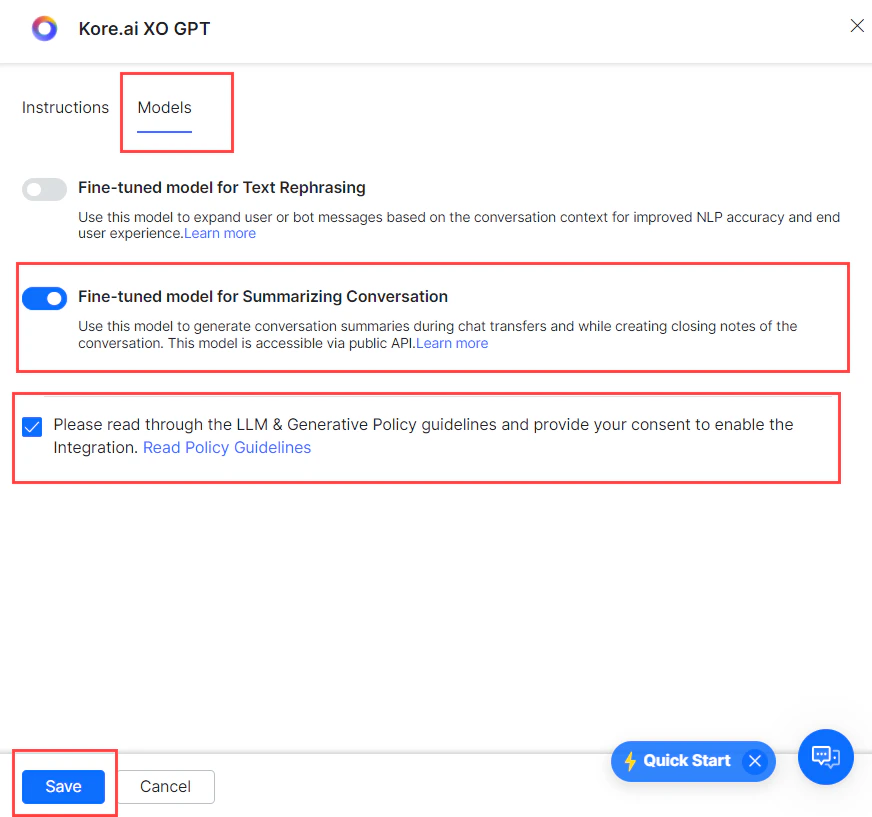
- Click Save.
- Go to Generative AI > GenAI Features. Enable Conversation Summary by selecting a model and toggling it on.
-
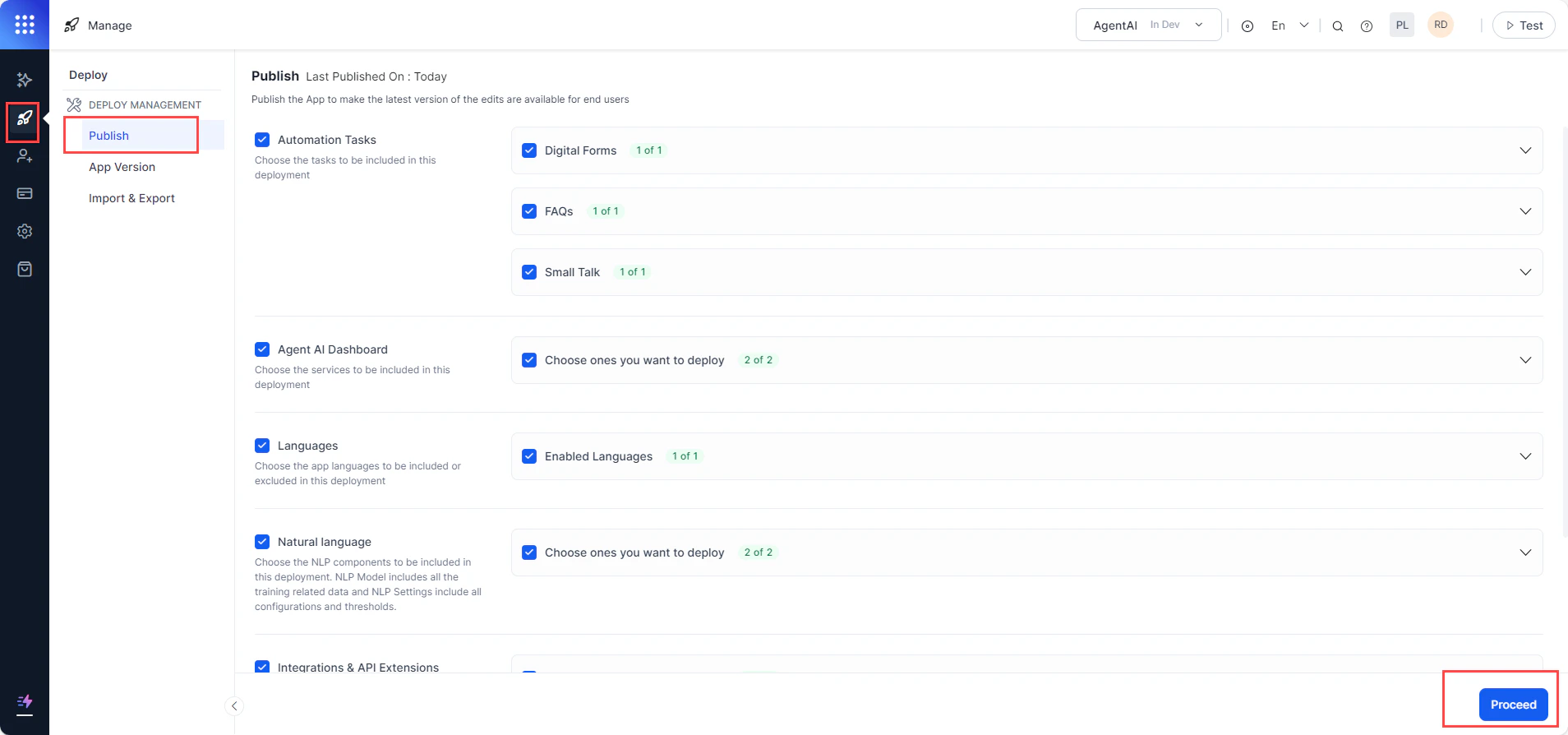
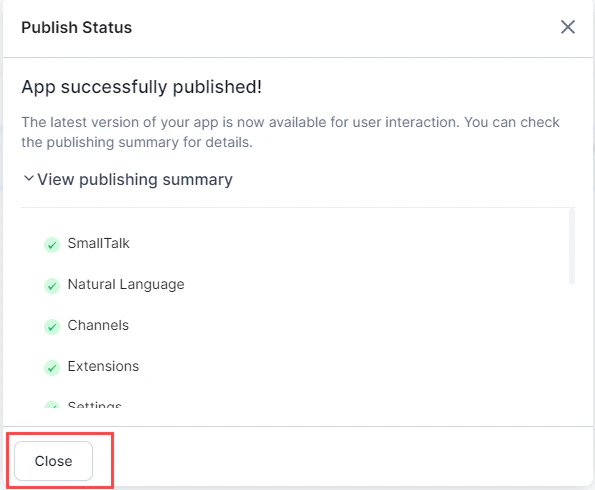
Go to Deploy > Publish and click Proceed.
-
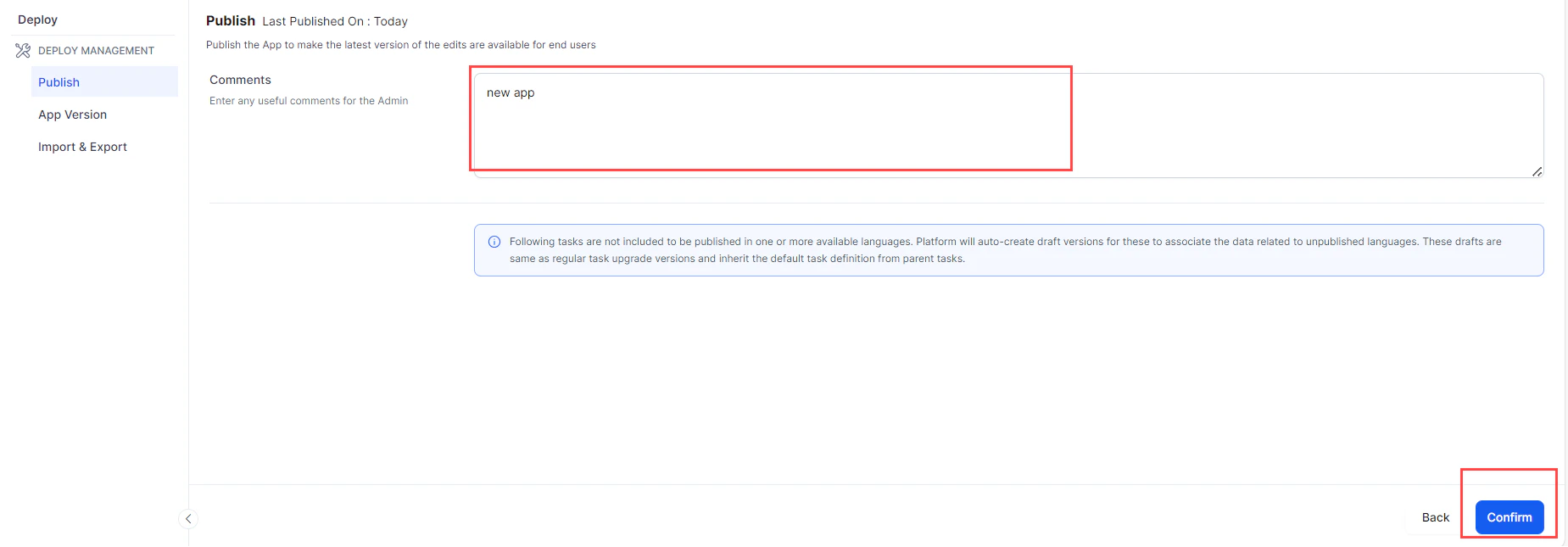
Enter a comment and click Confirm.
-
Close the confirmation message.
-
Copy the
curlfrom the Conversation Details and Summary API. -
In Postman, paste the
curland replace the following values: Bot ID — From AI for Service:-
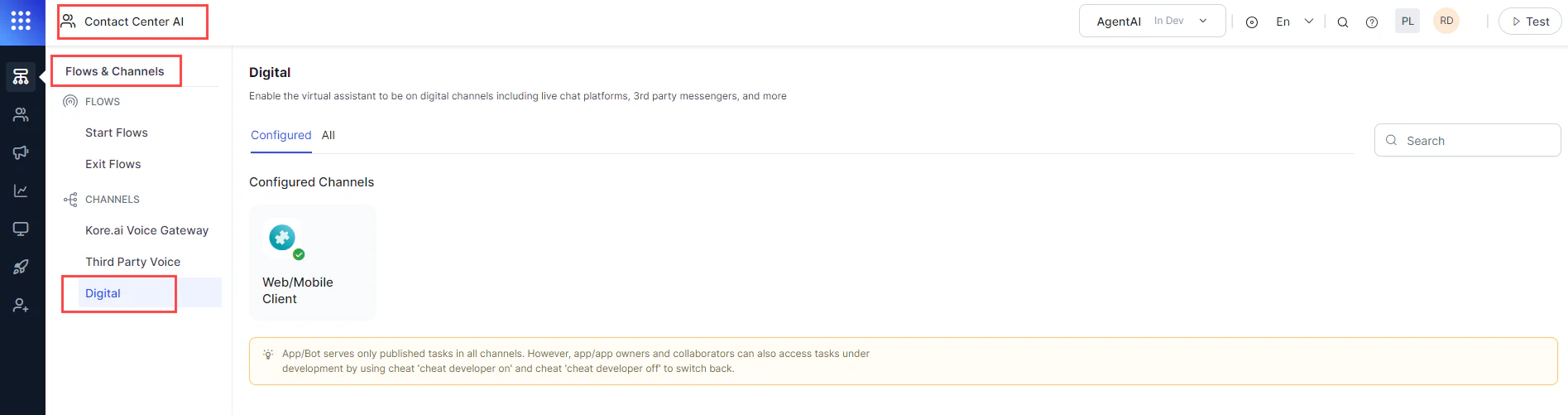
Go to Contact Center AI > Flows & Channels > Digital.
-
Click Web/Mobile Client under Configured, expand JWT App Details, and copy the Bot ID.
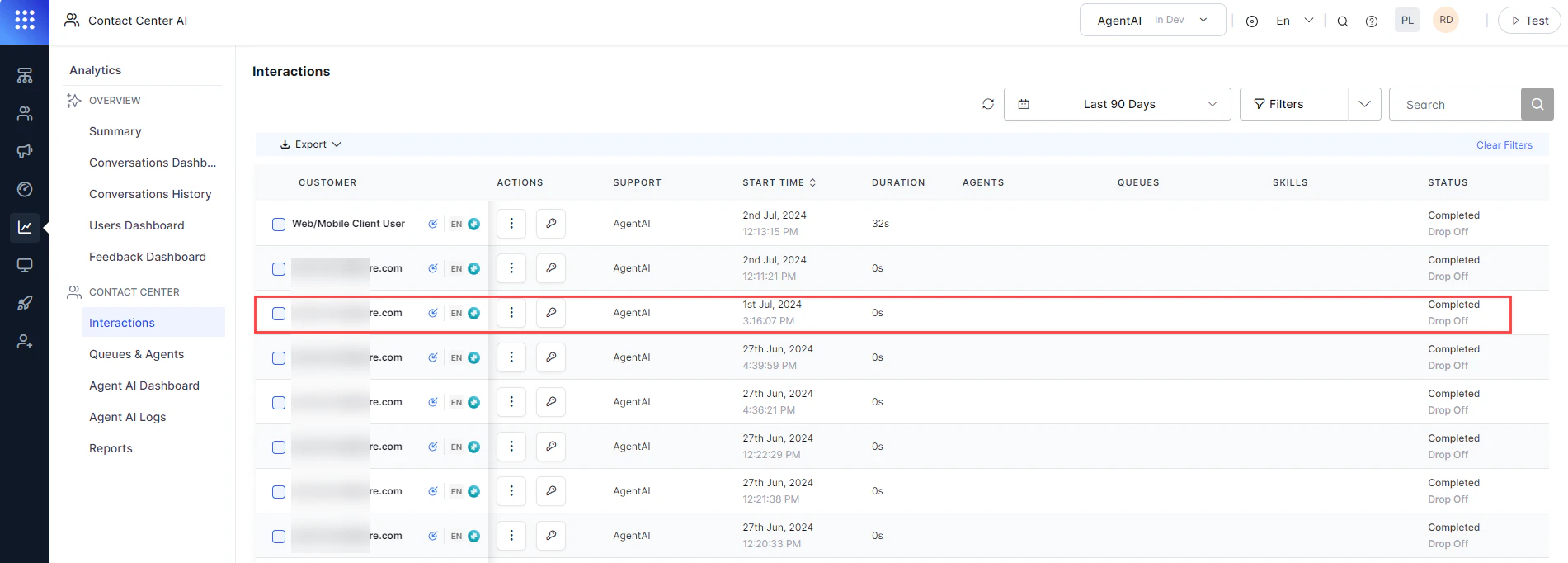
- Go to Contact Center AI > Analytics > Contact Center > Interactions.
-
Click the interaction log.
-
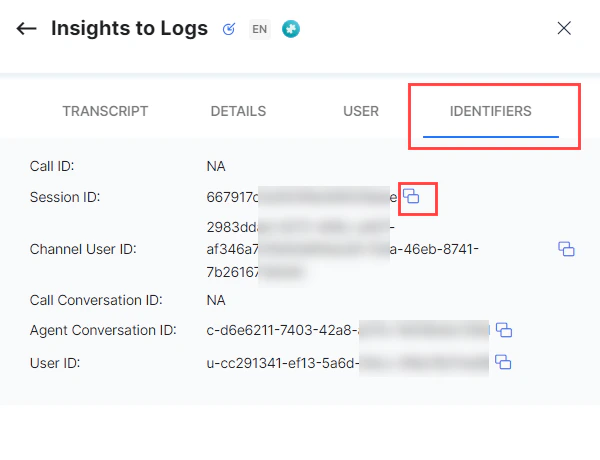
On the Insights to Logs page, click Identifiers and copy the Session ID.
-
Go to Contact Center AI > Flows & Channels > Digital.
-
Run the modified
curlto retrieve conversation details and summary.