- When AI Agent is selected, the dashboard displays AI Agent evaluation data based on configured Experience Flows. AI Agent conversations are filtered using Experience Flow instead of Queue and Agent filters.
- When Human Agent is selected, the dashboard displays Human Agent evaluation data based on selected Queues and Agents.
- When both AI Agent and Human Agent are selected, the dashboard displays combined quality insights while preserving evaluation attribution based on the conversation handler.
- Monitor quality performance and evaluation trends.
- Compare AutoQA and manual audit results.
- Analyze failed and fatal interactions.
- Track audit progress, coaching activity, and pending reviews.
- Evaluate AI Agent and Human Agent performance separately or together.
- Identify agents requiring coaching.
Key Features
Access Supervisor Dashboard
Navigate to Quality AI > AutoQA > Dashboard.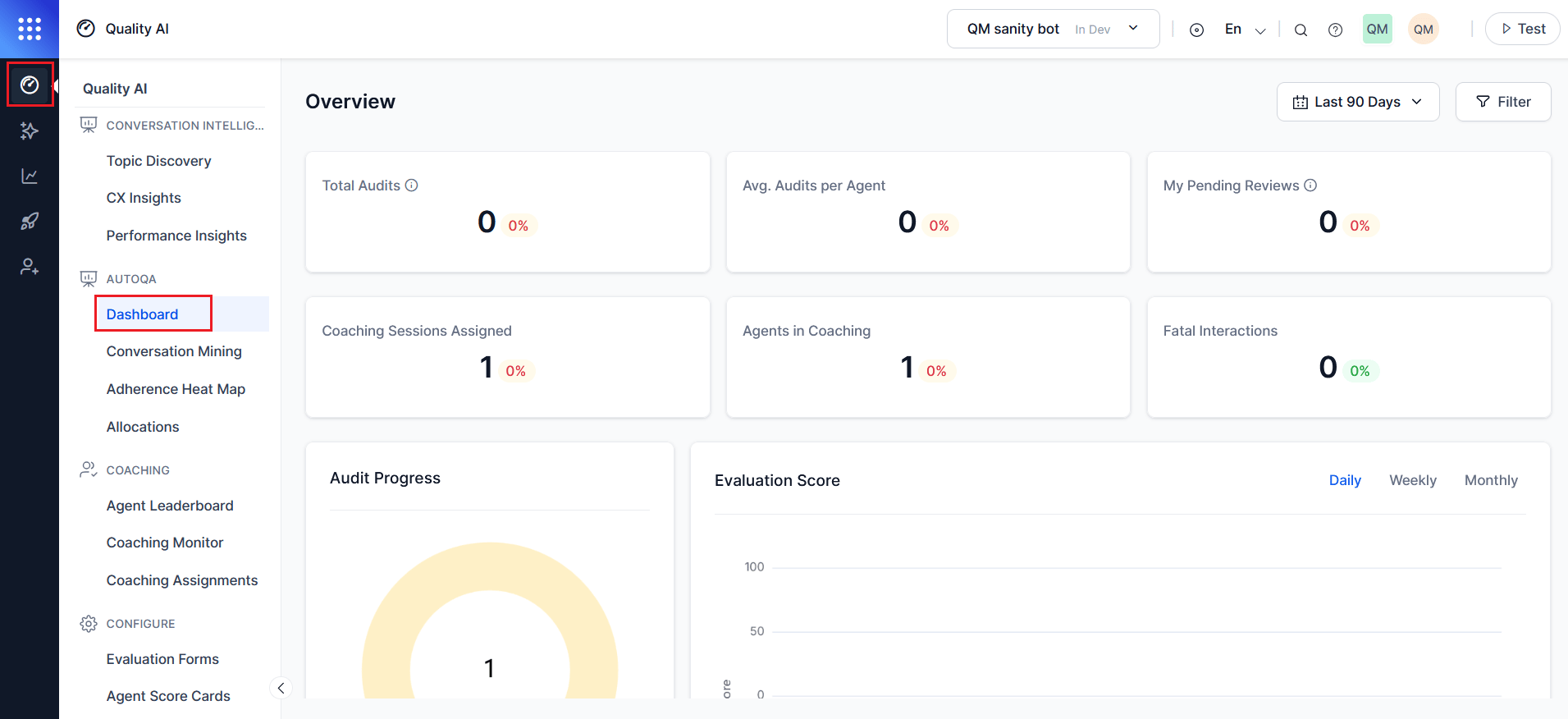
Enable the required settings in Quality AI General Settings and assign the appropriate permissions to access features such as Agent Scorecard, AutoQA, Evaluation Forms, Adherence Heatmap, Performance Monitor, and Agent Leaderboard.
Configuration Requirements
- Enable the required settings in Quality AI > Settings > Quality AI General Settings to access dashboard features and activate the Agent Accept & Dispute workflow.
- Assign the required Quality AI permissions to access features such as Agent Scorecard, AutoQA, Evaluation Forms, Adherence Heatmap, Performance Monitor, and Agent Leaderboard.
- Enable Cross Queue Data Access for users to view data across all queues.
- Configure and publish evaluation forms and scorecards, and enable AutoQA (for automated evaluation scoring) in Quality AI General Settings.
Dashboard Filters
The QA Dashboard provides shared global filters across all widgets, consistent with the Agent Dashboard and Audit views. Use the Filter panel from the dashboard header to refine quality and performance analysis by Date Range, Evaluation Forms, Conversations Handled By, AI Agent Experience Flows, Human Agent Queues, Human Agents, Channels, Languages, and Contact Direction. All selected filters are applied together when Apply is selected, and dashboard widgets update dynamically based on the applied criteria. By default, the dashboard displays data for All Evaluation Forms, All Queues, All Languages, Last 7 Days, All Channels, and Both Directions. Queue options update dynamically based on the selected evaluation forms.All widgets update dynamically when filters change.
Date Range
Select a date range using the calendar and apply to refresh the dashboard data. To filter by calendar,- Select the Calendar dropdown.
- Choose a required date range.
- Select Apply.
Filter Panel
The Filter panel provides centralized filtering across all dashboard widgets. Supervisors can filter data by evaluation forms, channels, languages, conversation handler, experience flows, queues, and agents. Filter selections remain pending until you select Apply.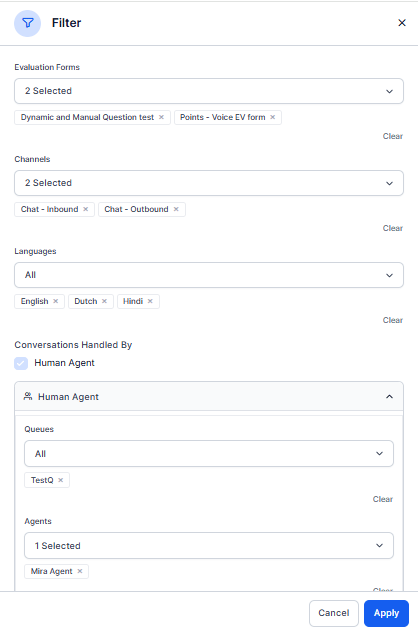
Available filter options update dynamically based on selected values. Evaluation Forms update available Experience Flows and Queues. The Conversations Handled By selection determines whether AI Agent (Experience Flow) or Human Agent (Queues and Agents) filters are displayed.
Filter Behavior
The dashboard applies all selected filters together when Apply is selected.- Select AI Agent, Human Agent, or both under Conversations Handled By.
- Select AI Agent to display the Experience Flow filter section.
- Select Human Agent to display the Queues and Agents filter sections.
- Select both AI Agent and Human Agent to display all applicable filter sections.
- Select Apply to apply all selected filters and refresh the dashboard widgets.
For handoff conversations, the dashboard attributes evaluations based on the evaluator type. AI Agent evaluations contribute to AI Agent quality metrics, while Human Agent evaluations contribute to Human Agent quality metrics.
Dashboard Widgets
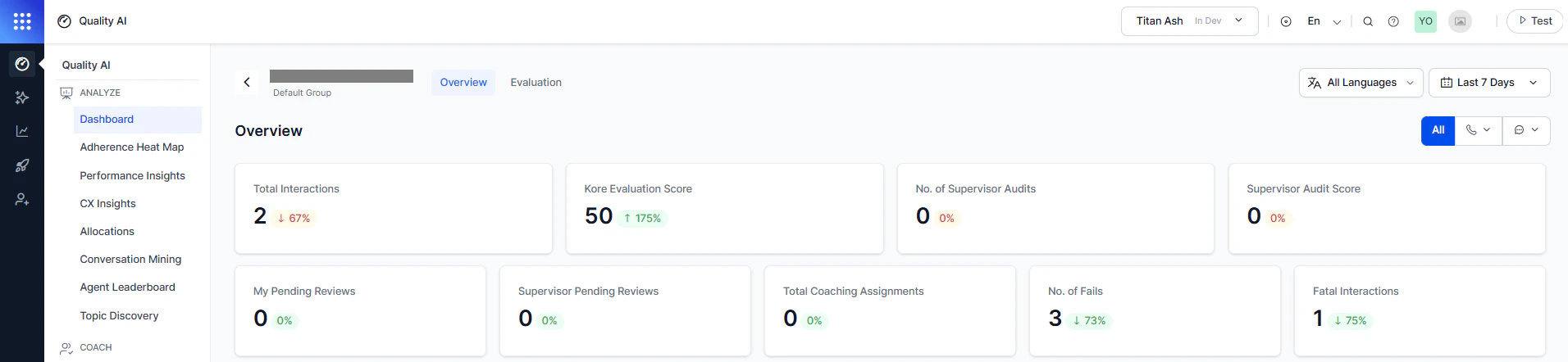
Provides a high-level summary of audit activity, coaching workload, quality performance, and evaluation review status. Agent Performance Metrics display combined metrics when both AI Agent and Human Agent conversations are selected. Metrics related to agents, coaching, and scorecards apply only to Human Agent evaluations.
Audit Progress
Displays the overall audit status of assigned interactions in a donut chart, showing distribution across audit stages. The total in the center represents all assigned interactions, while each segment indicates its current status. This metric is visible only when these settings are enabled in Quality AI > Settings > Quality AI General Settings and Agent Accept & Dispute are configured for one or more evaluation forms.
Audit Action
Select Audit to navigate to Conversation Mining > Audit Allocations, where you can start or continue evaluating assigned interactions. For more information exploring and filtering interaction-level data, see Audit Allocations.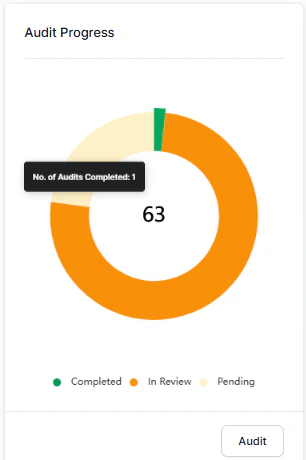
Evaluation Score
Displays the trend of the average Kore Evaluation Score (AutoQA) and average Audit Score (manual) over daily, weekly, or monthly interval views based on selected filter options such as Forms, Channels, Languages, Queues, and Agents.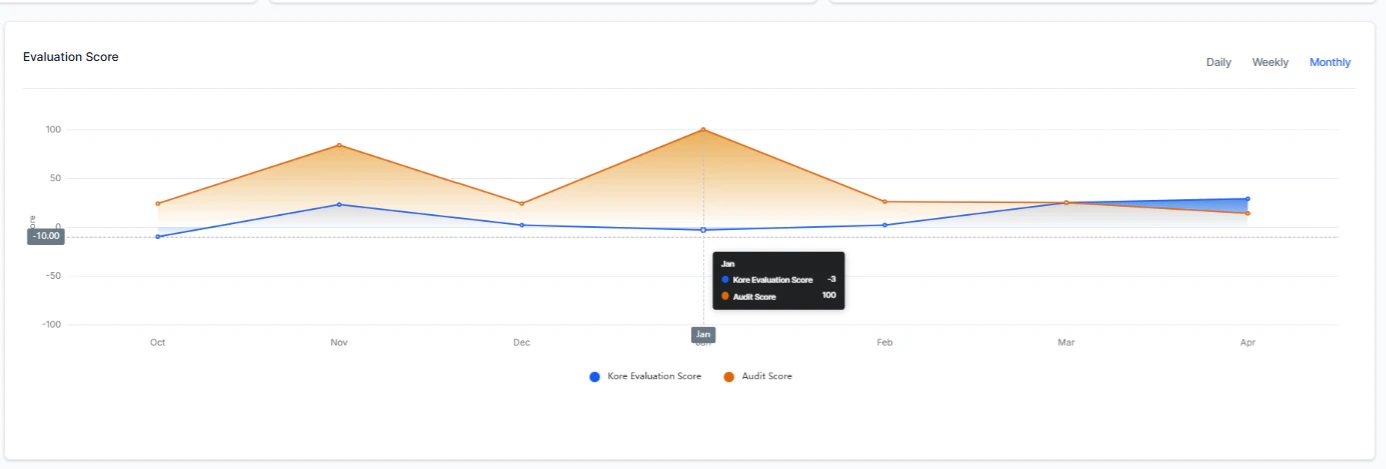
When Agent Accept & Dispute is enabled in Quality AI > Settings, Audit Score reflects the latest revised score after re-evaluation.
Adherence Heatmap
Displays a 7-day adherence snapshot for the selected evaluation form and conversation handler. For AI Agent analysis, adherence data is based on Experience Flow evaluations. For Human Agent analysis, adherence data is based on queue and agent evaluations. Hover over a tile to view adherence percentage, interaction count, and total evaluated interactions for a selected date and agents. Use Mark as Default to set a default evaluation form and maintain consistent data across the Adherence Heatmap and QA Dashboard.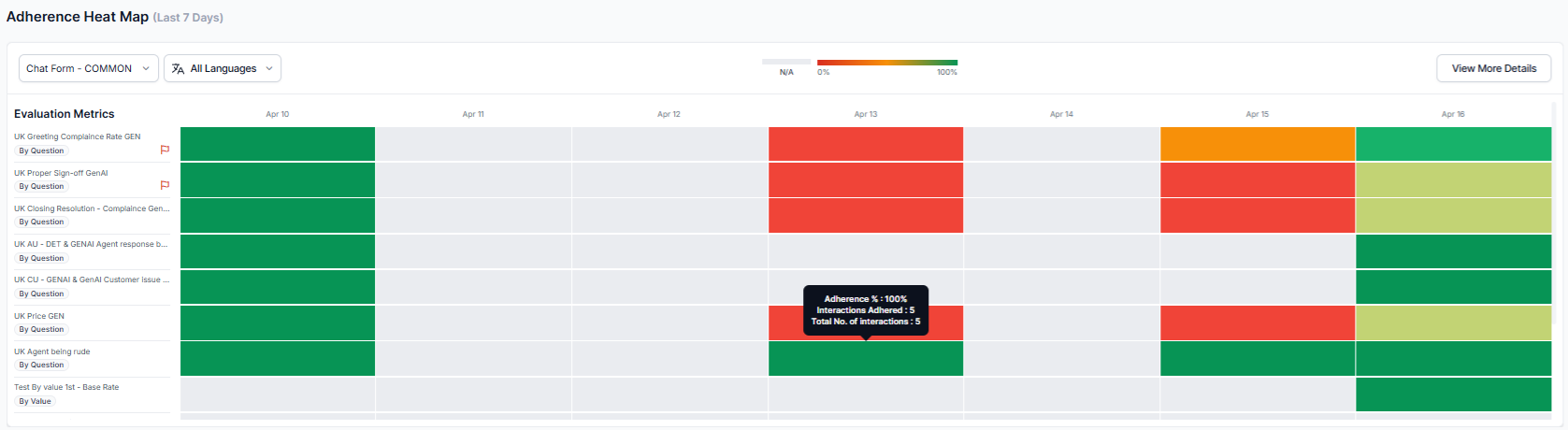
Enable AutoQA in Quality AI > Settings > Quality AI General Settings to configure evaluation forms and generate automated scores.
View More Details
Select View More Details to open the detailed Adherence Heatmap and view evaluation form-based trends.Fail Statistics
The Fail Statistics widget helps supervisors identify quality issues by tracking failed and fatal interactions over time. It provides trend analysis across Evaluation Forms and Agent Scorecards, enabling supervisors to monitor failure rates and analyze performance based on the selected conversation handler. The widget updates dynamically based on dashboard filters, including Conversations Handled By, Evaluation Form, Queues, Experience Flows, Language, Channel, Contact Direction, and Date Range. Use Fail Statistics to:- Monitor the total number of failed interactions.
- Compare failed and fatal interaction trends.
- Analyze failures by Evaluation Form or Agent Scorecard.
- Filter results by Human Agent Queues or AI Agent Experience Flows.
- View failure trends across Daily, Weekly, or Monthly intervals.
Fail Statistics displays evaluation data based on the selected Conversations Handled By option. When AI Agent is selected, it shows AI Agent evaluation data based on selected Experience Flows. When a Human Agent is selected, it shows Human Agent evaluation data based on selected Queues and supports Agent Scorecard analysis, which is available only for Human Agent evaluations.
Evaluation Form
Displays failed and fatal interaction trends across selected evaluation forms and queues. Hover over the chart to view detailed failure percentages and metric-level scores.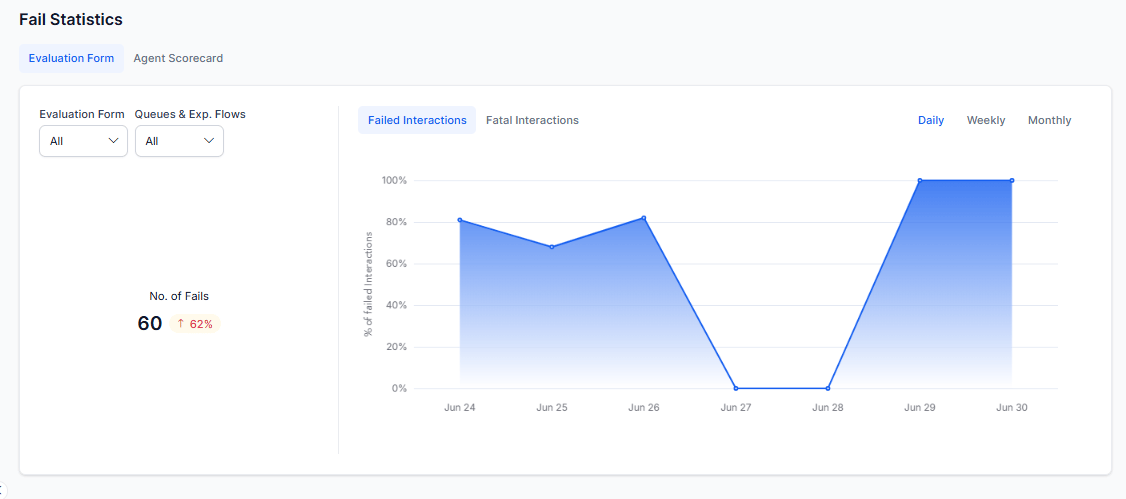
Agent Scorecard
Displays failed interaction trends based on selected scorecard metrics. If you mark a metric as fatal, assign a zero score to the interaction and flag it across modules. Hover over the chart to view failure percentages and metric-level scores.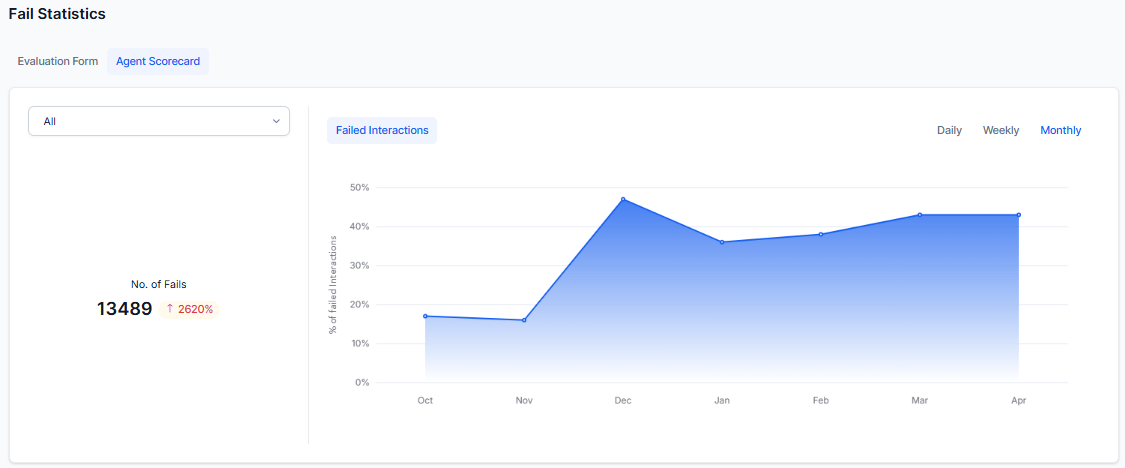
- The widget updates automatically based on the selected dashboard filters.
- When Handled By is set to AI Agent, only AI Agent evaluation data is displayed.
- The Agent Scorecard view is unavailable for AI Agent analysis because scorecards apply only to Human Agent evaluations.
Performance Monitor
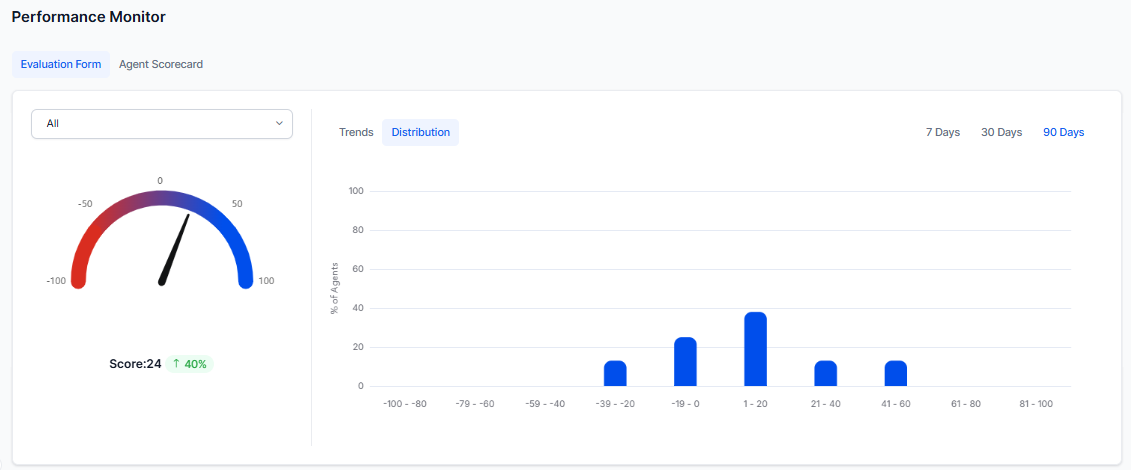
Displays performance trends and score distributions using Evaluation Forms for AI Agent and Human Agent conversations. Agent Scorecard analysis is available only for Human Agent evaluations.Evaluation Form
Displays performance trends and evaluation scores for selected evaluation forms and queues. Supervisors can switch between Trends and Distribution views and analyze data across daily, weekly, and monthly intervals.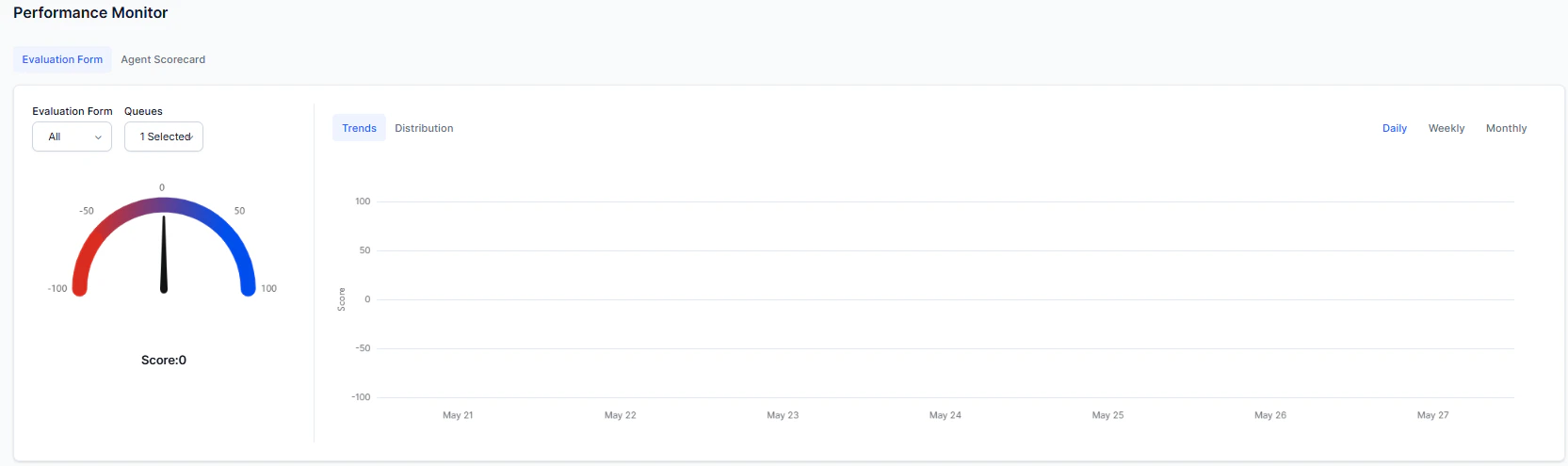
Agent Scorecard
Displays scorecard-based performance trends and score distribution using selected scorecard metrics.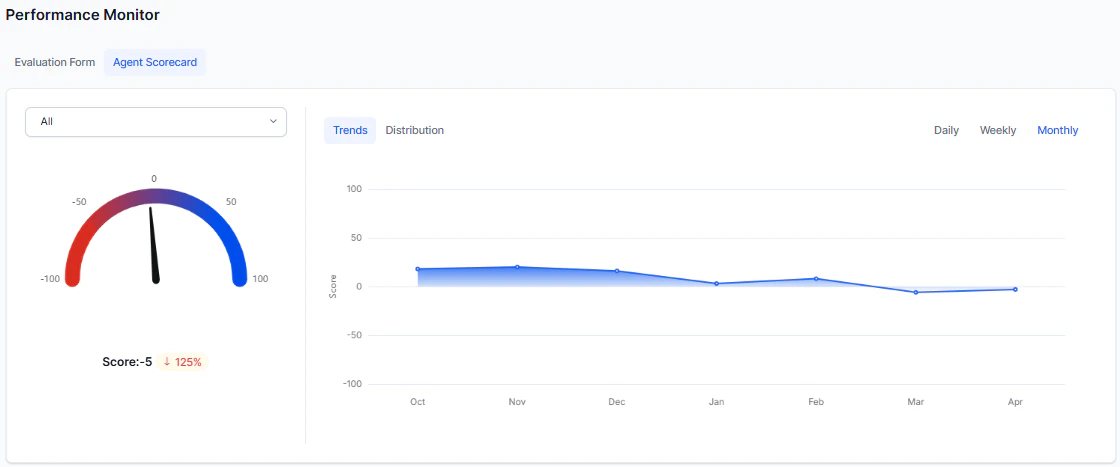
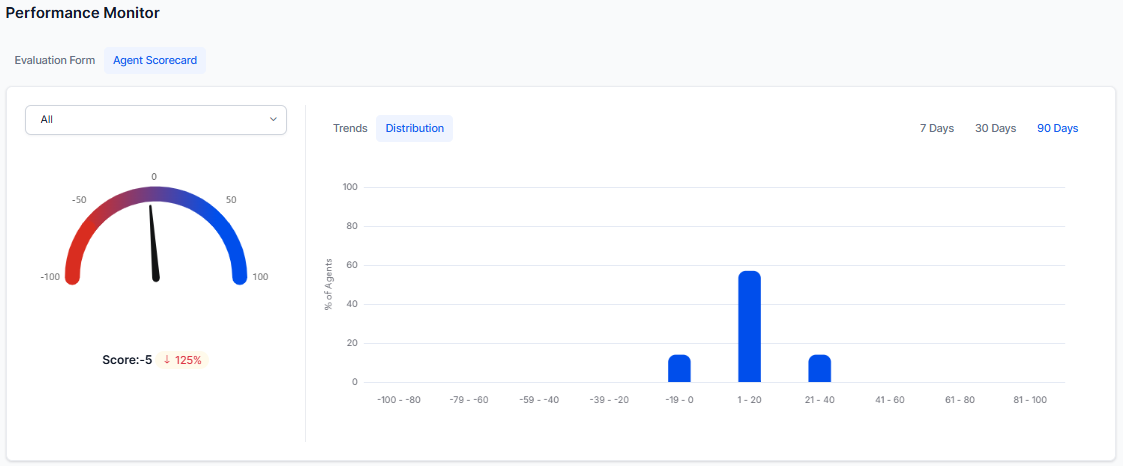
The Agent Scorecard tab displays only when enabled in Quality AI > Settings > Quality AI General Settings.
Agent Leaderboard
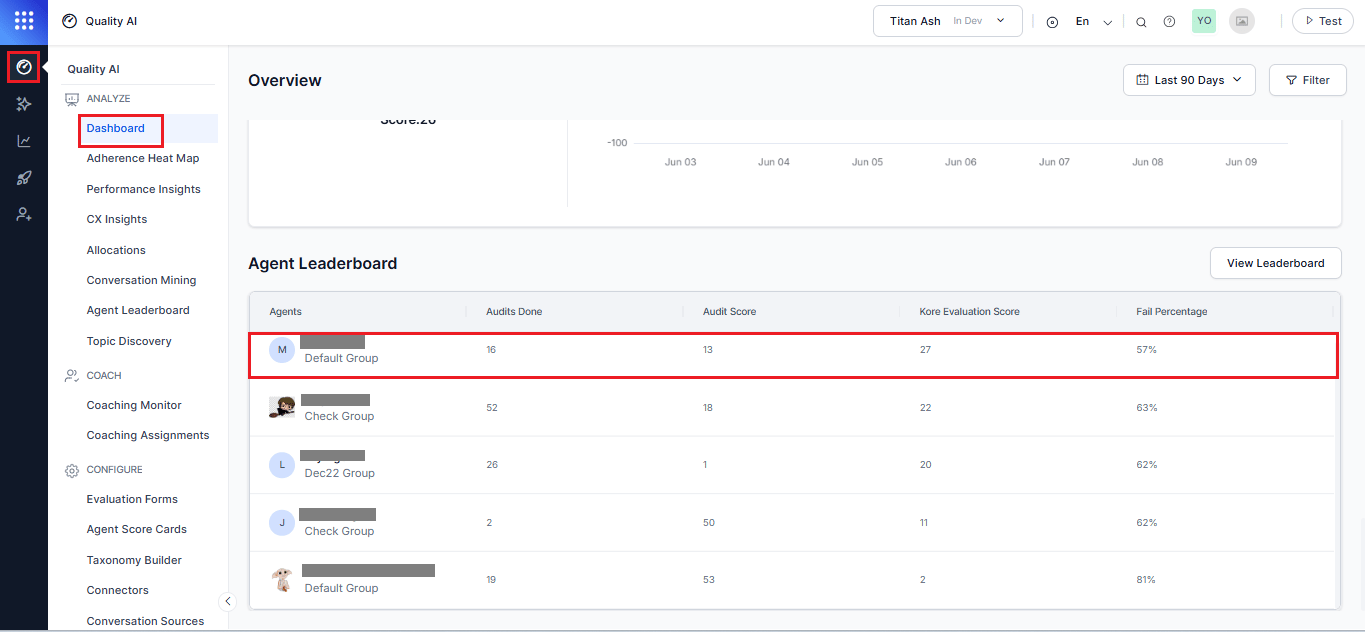
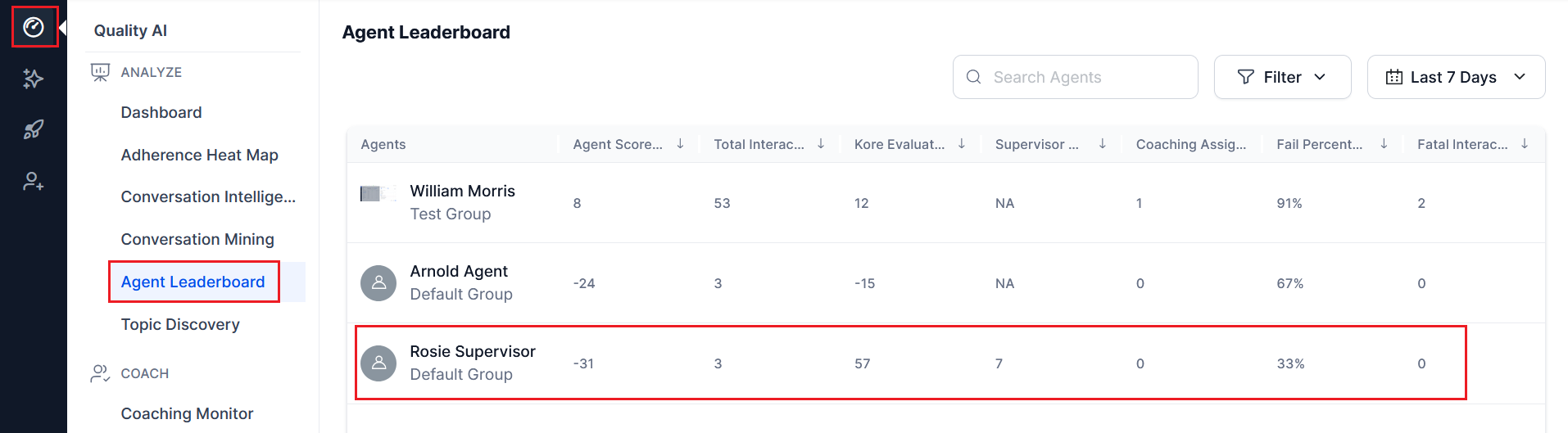
Provides a centralized view of ranked agent performance to help supervisors identify top and bottom performers for recognition and targeted coaching. The leaderboard updates dynamically based on the selected Queue filter and works independently of Language and Channel filters. The Agent Leaderboard supports Human Agent performance analysis only. AI Agent conversations are analyzed through Evaluation Form-based widgets such as Evaluation Score, Fail Statistics, and Performance Monitor. Select an agent or View Leaderboard to open detailed performance insights.Leaderboard Columns
When Agent Accept & Dispute is enabled in Quality AI > Settings > Quality AI General Settings, Audit Score reflects the latest revised score after re-evaluation.
View Leaderboard
Displays top and bottom performers along with their associated conversations.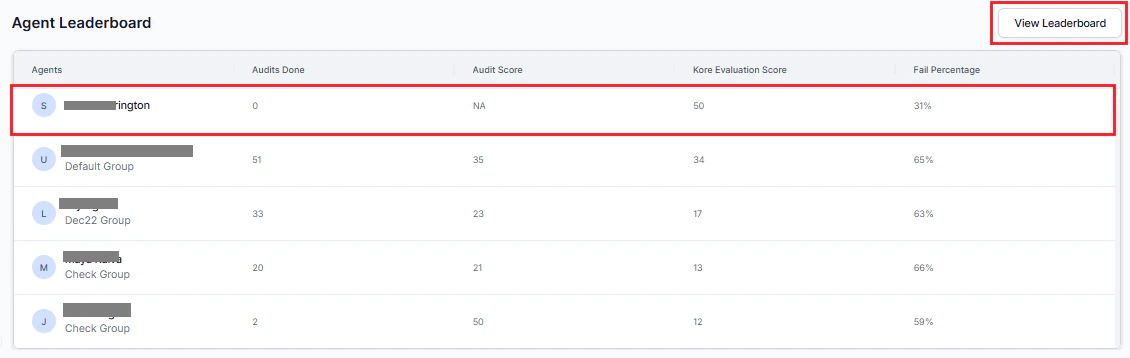
-
Quality AI > Dashboard > Agent Leaderboard.
-
Quality AI > Agent Leaderboard.
-
Select any agent to view their individual dashboard (Agent Leaderboard or Agent-Specific Dashboard).