After September 30, 2026, SearchAssist is not available.
About Search AI
Search AI is the next-generation evolution of SearchAssist, designed to move beyond traditional keyword-based search. It leverages advanced techniques and the latest LLMs for indexing, search, and answer generation, delivering more accurate, relevant, and natural answers to the users. A key difference is in platform integration. While SearchAssist is a standalone application, Search AI is offered as part of the AI for Service platform. This integration enables users to build applications seamlessly and access multiple AI-powered products within a unified ecosystem. With the use of the latest technology, many configurations and manual settings required in SearchAssist are now automatically handled by Search AI, simplifying the setup process.Architecture at a Glance
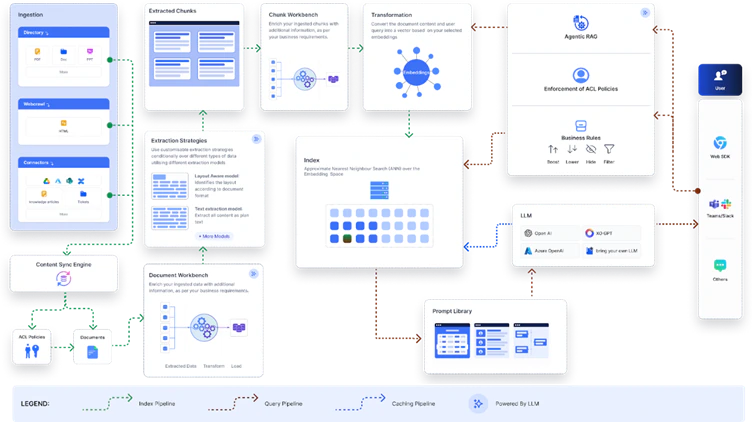
Search AI introduces a modernized architecture compared to SearchAssist, with several improvements that provide greater flexibility, transparency, and control over how search and answers are generated. The new design moves away from rigid, predefined workflows to a modular and configurable framework. Key Changes- Indexes: In Search AI, a single index serves both search results and answers. In SearchAssist, separate indexes are maintained, enabling optimized retrieval for each use case.
- Chunk Workbench: Search AI provides a Chunk Workbench to review and refine how ingested content is split before indexing. This ensures higher-quality chunks and improves downstream results.
- Extraction Techniques & advanced Vector generation models: Search AI introduces an Extraction Module that supports multiple strategies and advanced vector generation techniques, producing more accurate, context-aware results.
- Agentic RAG: Search AI leverages Agentic Retrieval-Augmented Generation to enhance user queries with contextual information, improving the precision and naturalness of answers.
- The role-based access control feature offered for content ingested via connectors is enhanced to automatically fetch and store the users associated with a group or permission entity. This removes the need to associate users with permission entities via APIs manually. Learn More.
Scope of Automatic Migration
During automatic migration, specific SearchAssist components are fully replicated in Search AI, preserving their behavior and configuration. Some features are only partially migrated, due to platform differences that require adjustments. A few elements may not be transferred and need to be recreated or configured manually in Search AI.Ingestion Configurations
During migration, content from web pages, documents, and connectors is automatically transferred from SearchAssist to Search AI. Structured data is partially migrated, and FAQs must be configured manually after migration.Web pages
All web crawl configurations are fully replicated, including setups done directly or via CSV file. Existing web page content is also synchronized. Note the following post-migration behavior:- The crawl must be manually triggered to use the new crawler.
- Scheduled recrawls are migrated and run automatically. However, Search AI doesn’t support the custom schedule and every weekday options, these configurations aren’t migrated.
- If the crawl is initiated manually, the application is automatically trained on the crawled content. If existing content is used instead, training must be manually initiated in Search AI to generate chunks.
Documents
- All document pages are automatically uploaded, and the original directory structure is preserved.
- Manual training is required after migration.
Connectors
- All connectors are automatically reconfigured during migration.
- Credentials must be re-entered to re-sync content.
- Existing SearchAssist content is automatically migrated to Search AI.
- If filters are configured in SearchAssist, they’re automatically applied in Search AI.
- Any existing permissions data (
sys_racl) in the content is automatically applied upon training. Note that the RACL feature in Search AI is more advanced than in SearchAssist. Learn more about RACL in Search AI. - Connector scheduler configurations aren’t migrated and must be manually reconfigured in Search AI.
- Custom connectors must be manually migrated.
Structured Data
- Structured data is partially replicated. Only the content in the title, content, and URL fields is replicated as-is during migration. Of these, the title and content fields are mandatory, but the URL field is optional. Content in other fields is migrated as custom fields. Manually review the fields and map them into corresponding fields in Search AI.
- Structured data can be manually imported into Search AI using the JSON connector. This connector enables ingestion and indexing of structured data in JSON format. Use the sample file to prepare the structured data in the expected format and then upload the file.
- Alternatively, structured data can also be imported via APIs. Refer to this for details.
- Manually train the app to view the chunks from the structured data.
Migration of FAQs
FAQs aren’t automatically migrated.- You can manage FAQs using the Knowledge Module under Automation AI.
- You can export the existing FAQs from SearchAssist and import them into Automation AI as part of its Knowledge Graph.
- You can also manually add FAQs or extract them from unstructured web pages or files into the application.
- Alternatively, use the JSON connector to add FAQs by saving the question as chunkTitle and the answer as chunkText.
Indexing Configurations
Index fields are fully replicated, but traits aren’t. There is no longer a need for index settings, as multilingual capabilities are now integrated. Some workbench stages are be replicated if they’re relevant to Search AI, while others are modified for compatibility.Index Fields
Index fields Index fields are fully replicated and mapped to corresponding fields in Search AI. The custom fields in SearchAssist are automatically mapped to the corresponding fields in Search AI. Learn more. When custom fields are migrated from SearchAssist, their original SearchAssist names are retained as display names in Search AI to make them easy to identify. These display names can be used across the platform in UI-based configurations. However, the underlying schema uses fixed backend field names (for example,csf1). These are visible when viewing the chunk or document schema directly.
When referencing these fields, note the following:
- APIs must use the backend field name (for example,
csf1). - UI configurations, including Transform and Enrich stages and Business Rules, can use the display name.
Index Configurations
Index Configurations must be reconfigured manually after migration. For more details, refer to this.In Search AI, the BGE-M3 vector model is selected by default for generating embeddings. You can also set up a custom embedding model.
Workbench
In SearchAssist, the Document Workbench helps you process and enrich documents as they’re ingested. In Search AI, this is expanded with two separate workbenches:- Document Workbench that lets you apply transformations during extraction.
- Chunk Workbench that enables you to enrich or refine content after it’s split into chunks, giving you greater flexibility and control.
All custom scripts are automatically converted from Painless to JavaScript during migration.
- LLM Prompt: Must be reconfigured manually using the LLM Stage in Search AI.
- Entity Extraction, Traits Extraction, Keyword Extraction, and Semantic Meaning: These stages are deprecated and aren’t carried over.
Index Settings
Search AI supports 100+ languages and can handle all the languages supported by the underlying LLM and embedding models. Refer to this for language-specific configuration and recommendations. No specific configuration is required for the supported languages.Traits
Traits aren’t replicated as this feature is no longer required. Since Search AI uses semantic embeddings for search and doesn’t rely on traditional search-relevance tools, traits aren’t required. Vector representations of content, along with keyword relevance via hybrid search, can capture relationships between terms based on their context.Retrieval Configurations
Answer Snippets
Answer Snippet configurations are partially migrated. The similarity score configuration is carried over to Answer Generation. However, you must configure the Answer Generation Model again in the case of the Generative Answers. Learn More.Business Rules
In Search AI, semantic search has replaced traditional keyword-based search, so NLP-based rules from SearchAssist are deprecated. Only rules with the vi_prefix are replicated. The following context categories aren’t migrated: trait, entity, and keywords. Additionally, only rules applied to chunk fields are replicated.- Some field names have been updated per the new unified schema in Search AI. Hence, after migrating the business rules, carefully review and select the correct field names to ensure proper configuration.
- The
contextobject used in the condition block now refers to the context object and session variables provided by the AI for Service platform. Learn More.
Custom Configurations
Some custom configurations are replicated as Advanced Configurations in Search AI, some configurations have been productized, and some custom configurations aren’t replicated as they’re no longer relevant.Search Settings
The following settings have been deprecated, as the Search AI processing pipeline leverages semantic similarity and enhanced retrieval methods, removing the need for traditional keyword-based search configurations.- Weights
- Presentable
- Prefix Search
- Search Relevance
- Synonym and stop word support isn’t available in Search AI and is planned for a future release.
- Spell correction isn’t required since we don’t rely on keyword matching in Search AI. Hence, this configuration isn’t replicated.
Result Ranking
In Search AI, Business rules and Agentic Rag capabilities provide more flexible, context-aware control over retrieval, eliminating the need to configure ranking rules for each unique user query. Hence, this functionality has been deprecated and doesn’t need migration.Search and Result Interface
Custom interfaces can be built using Search AI’s public APIs. By default, the AI for Service Platform provides agent experiences across 40+ channels that can be easily integrated with minimal configuration. Refer to the respective documentation for more details. This must be manually set up after migration completes.APIs and API Scope
APIs and API Scope configurations aren’t migrated and must be reconfigured manually in Search AI. The APIs in Search AI are more advanced and offer enhanced functionality compared to SearchAssist. Refer to the Search AI API documentation for the full list of available APIs and to take advantage of the advanced capabilities. Learn More.SDK
If your SearchAssist implementation uses the SearchAssist SDK to render the search interface, you must switch to the Search AI SDK after migration. Refer to the Search AI SDK documentation to set up and configure the SDK for your application. Learn More.Initiating the Migration Process
- Click on the Set up Search AI link in the banner at the top of the page in SearchAssist.
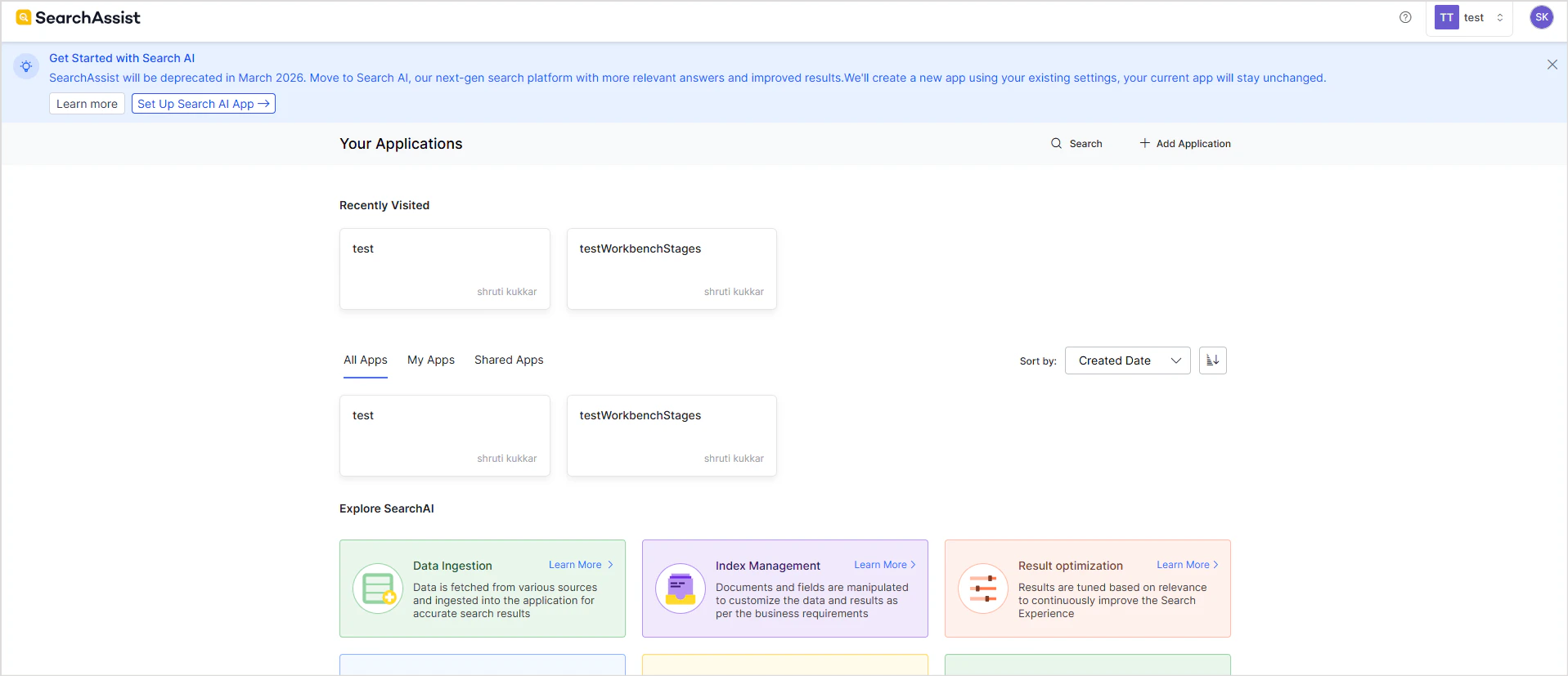
- Select the app to be migrated.
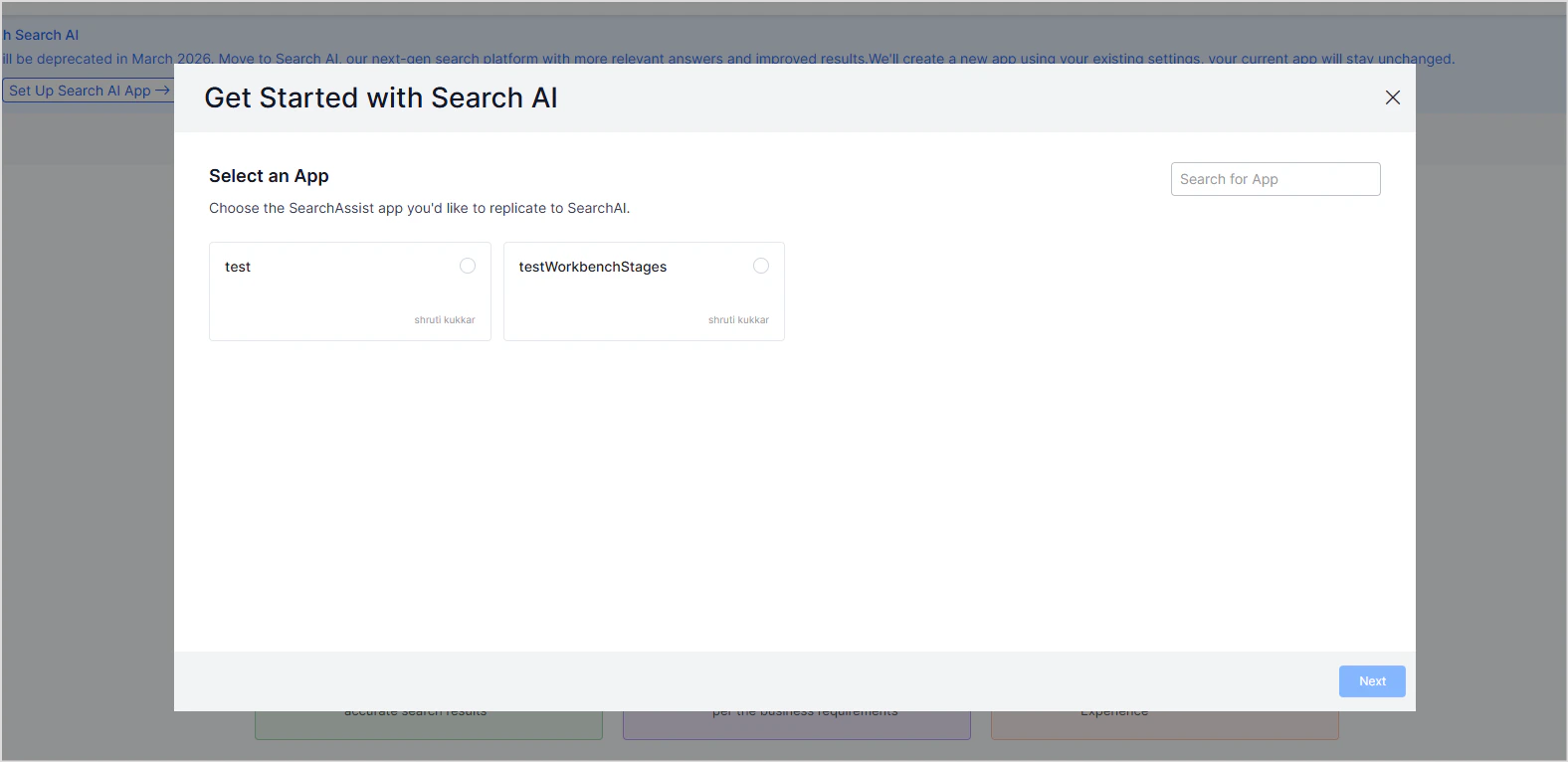
- Click on Next to initiate the migration process. This process may take a little while as it configures the Search AI app according to the settings in the selected app.
- It creates an app in the same workspace as the SearchAssist app.
- The newly created Search AI app is named as <SearchAssist-app-name>mig<timestamp>
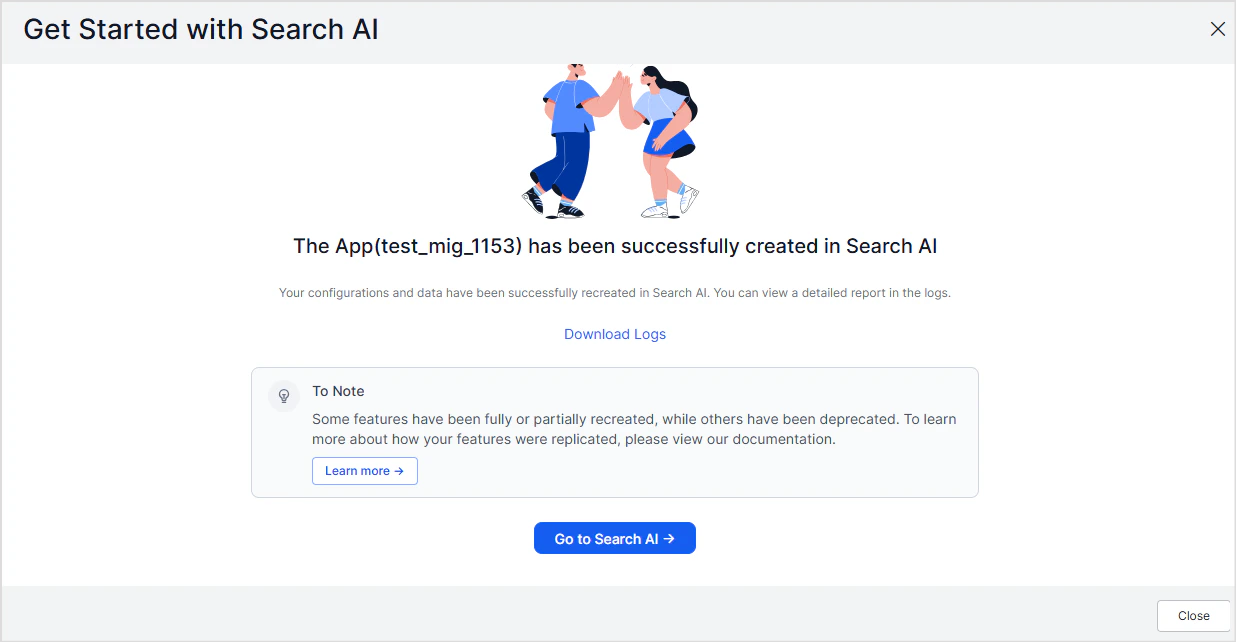
- Go to the corresponding Search AI app.
- Review and complete the setup.

Review Checklist
- Initiate the migration process from SearchAssist.
- Review the logs for the status.
- Review Content Sources.
- Enter the credentials for the connectors.
- Set up schedulers for connectors or web crawls, if required.
- Set up FAQs.
- Configure Embedding Generation Models and verify index configuration.
- Verify the field mappings in the workbench stages.
- Verify Custom Configurations.
- Configure Answer Generation models and verify answer generation configuration.
- Verify Business Rules.
- Train the app.
- Test Answer Generation.
Testing Search AI Answers
You can test a Search AI app in two ways:- Test answers directly within Search AI.
- Test the app end-to-end from the AI for Service Platform.
Testing within Search AI
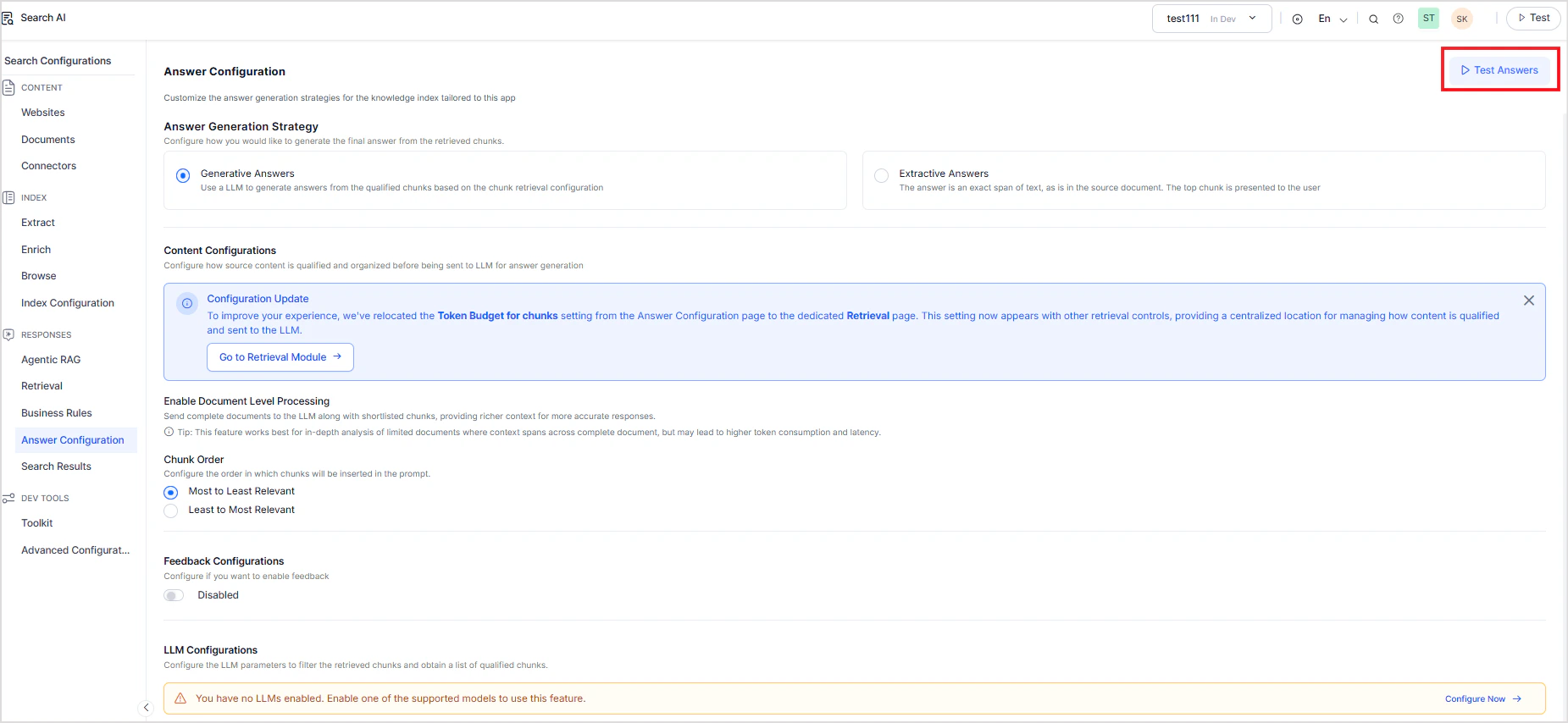
Use this method to validate answers generated by Search AI in isolation. This allows testing the answer generation using Search AI.- Go to the Answer configuration page in the Search AI app.
- Click on Test Answers.
Testing Answers End-to-End in the AI for Service Platform
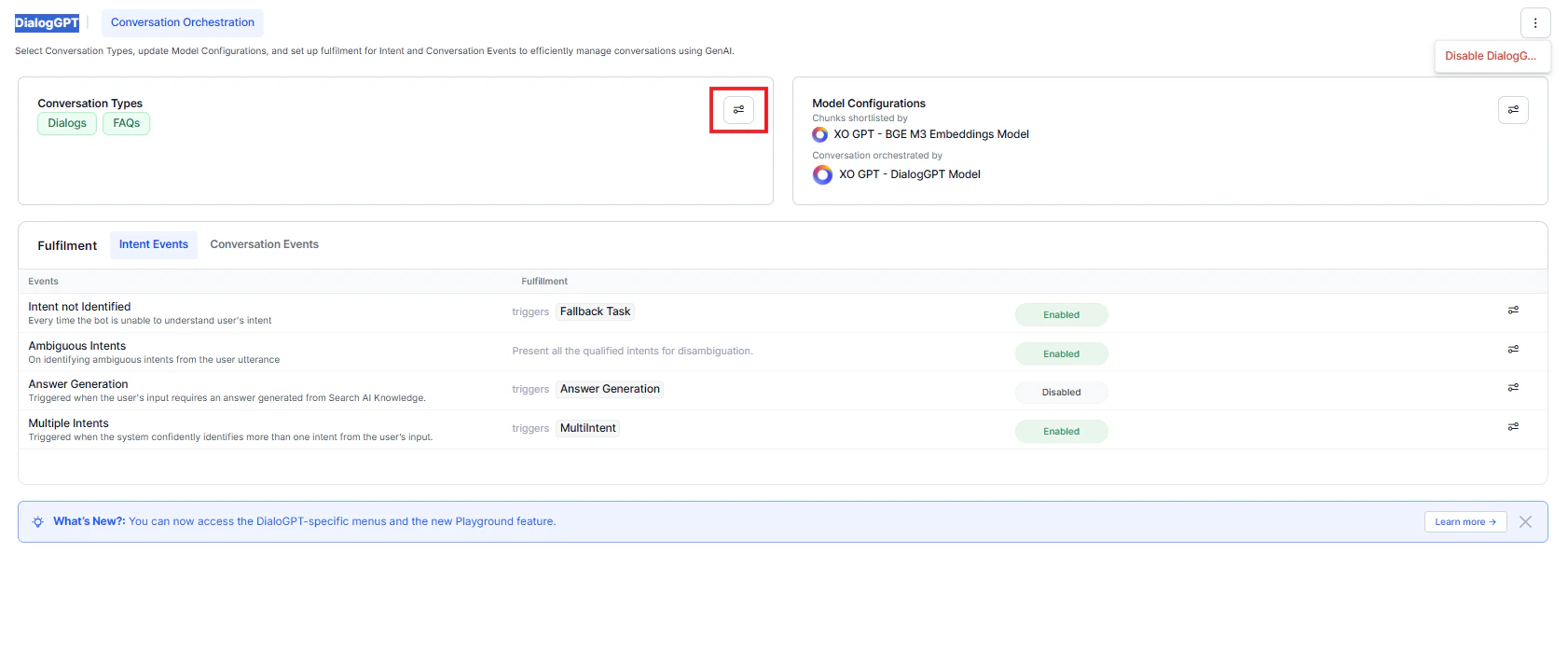
Use this method to test the complete application flow.When you create a new app in the AI for Service platform, DialogGPT orchestration is enabled by default. In this mode, Search AI-based answer generation is disabled.
- The system uses DialogGPT to generate responses, by default.
- Answers from Search AI aren’t used unless explicitly enabled.
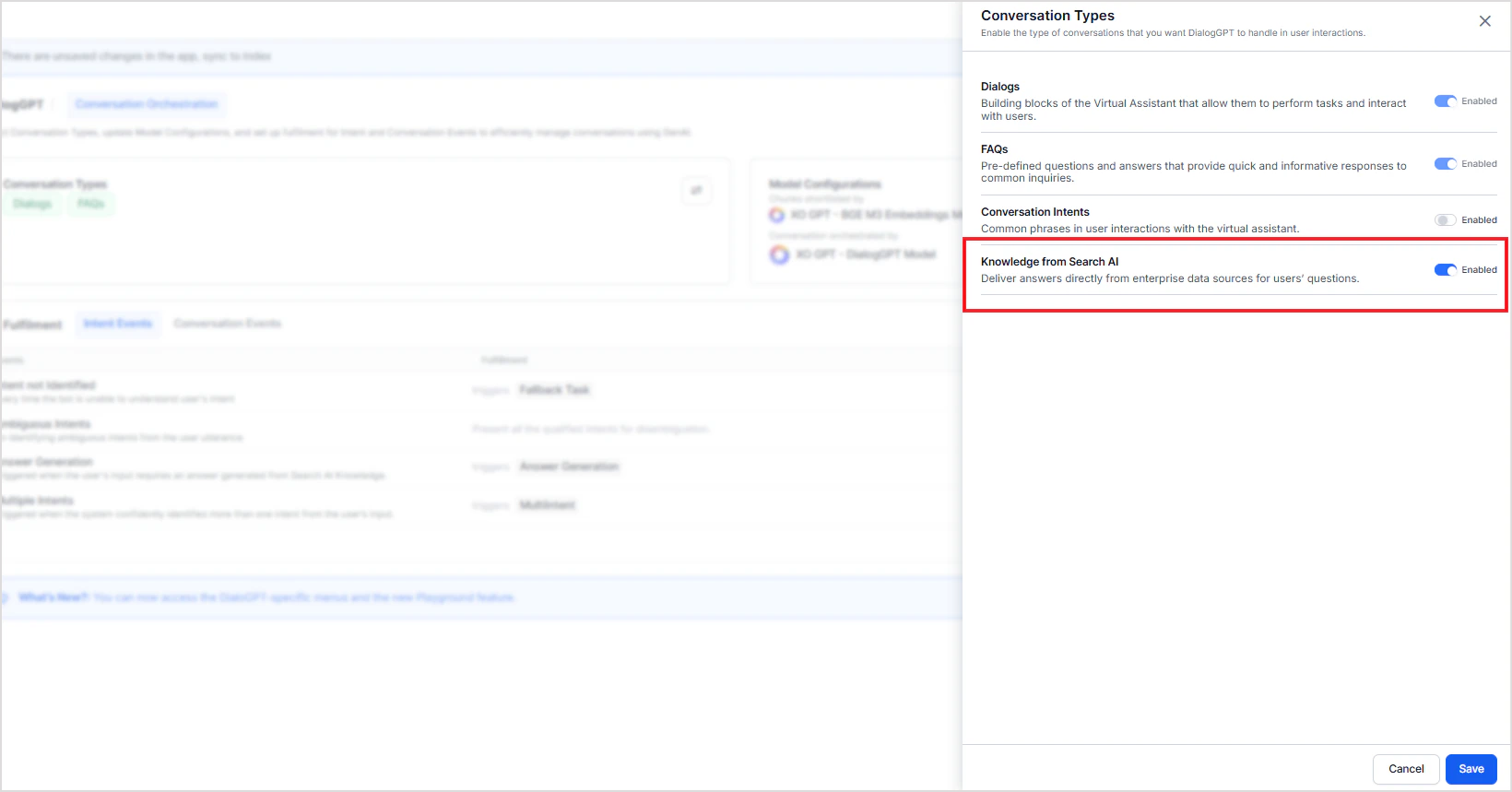
- Enable Knowledge from Search AI as a conversation type.
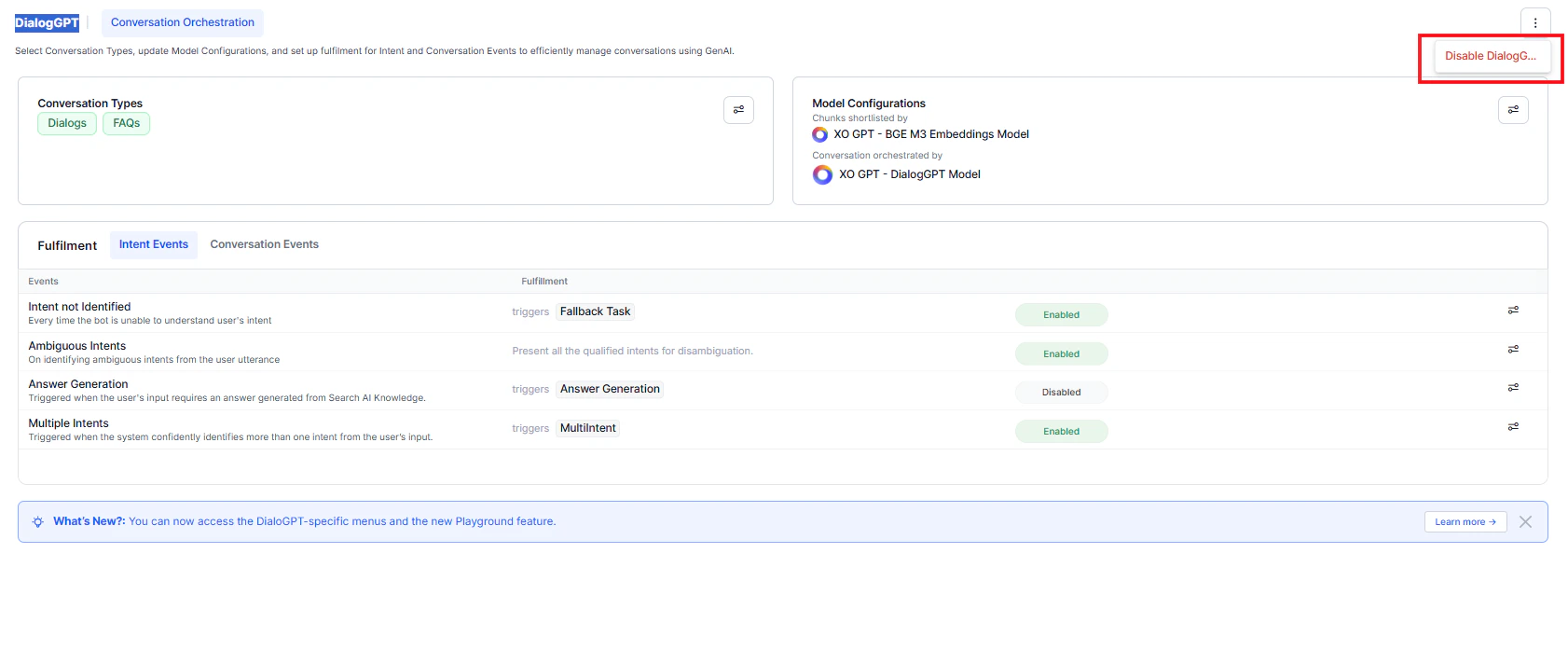
- Disable DialogGPT orchestration.